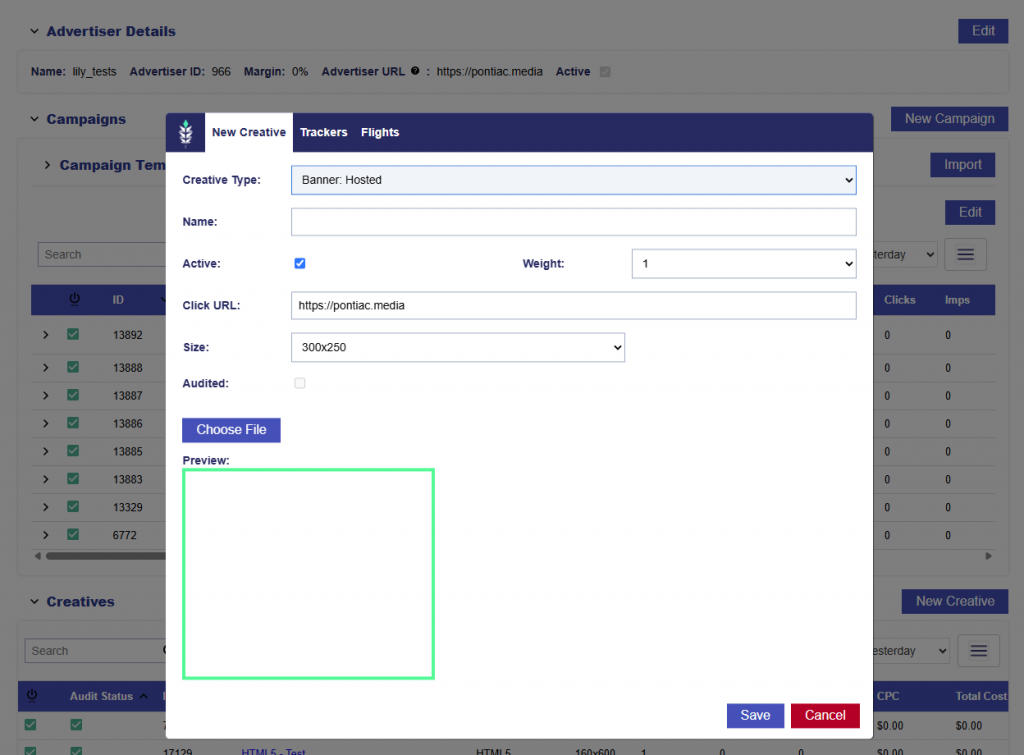
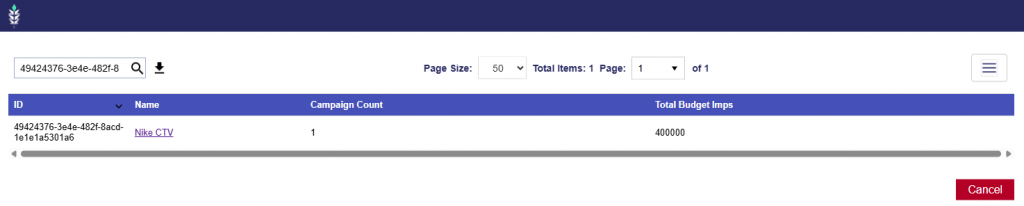
Advertiser URL Auto Populates Hosted Creative Click URL
Release Date: July 1st, 2026
When a new hosted creative is uploaded, the Click URL will automatically populate with the Advertiser’s URL.
The populated Click URL remains editable, allowing users to update or replace it with a creative specific URL before saving if needed.
Hosted Creatives Include:
Banner: Hosted
Video: Hosted
Audio: Hosted
HTML5
Native
Auction Win Validation Troubleshoot Check Tooltip
Release Date: July 1st, 2026
On the Line level > Performance Tab > Troubleshoot Section > Check: Auction Win Validation, a new tooltip has been added: Checks for impressions served in the last 48 hours. Recently won impressions may appear in Bid Data before this check updates. For the most current impressions served and confirmed spend activity, refer to the Bid Data section.
This helps clarify the check’s refresh timing and directs users to Bid Data when they need the most up-to-date delivery confirmation for recently launched campaigns.
Campaign Setup Tooltips
Release Date: July 1st, 2026
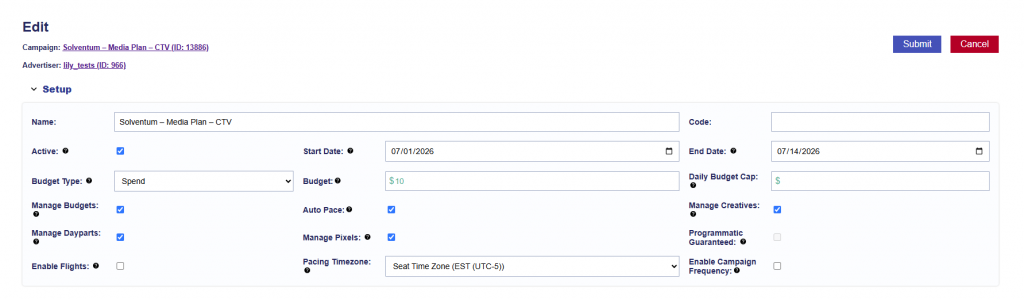
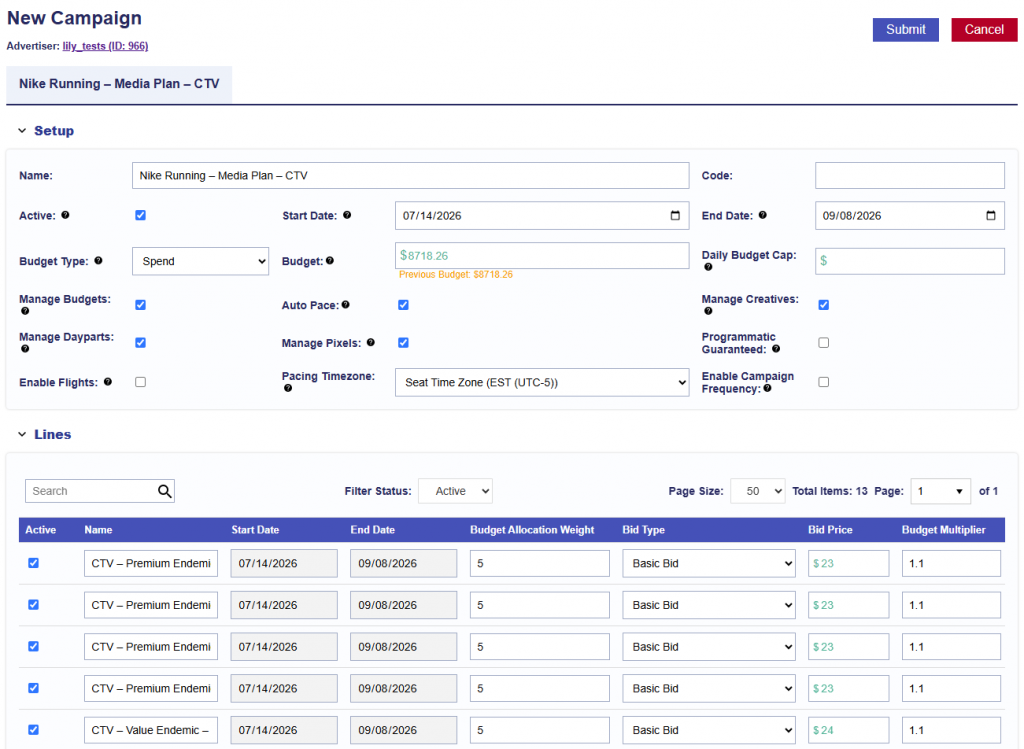
New and updated tooltips have been added at the Campaign level to help users better understand campaign setup and configuration options.
Active: Must be checked for the campaign to run. Leave unchecked to pause the campaign.
Start Date: The date the campaign becomes eligible to begin delivering.
End Date: The final date the campaign is eligible to deliver.
Budget Type: Set the campaign budget as either a dollar amount or an impression goal.
Budget: Enter the campaign’s total dollar amount or impression goal based on the selected budget type.
Manage Budgets: When selected, all lines under the campaign will be modified to match the campaign’s start date, end date, and budget type. Budgets must be allocated below using budget allocation weights.
Auto Pace: Available when Manage Budgets is enabled. Automatically keeps budgets fluid between Lines and optimizes delivery to pace toward the Campaign goal.
Enable Campaign Frequency: Apply frequency and recency caps across all lines under the campaign using the selected identifier.
Manage Creatives: Associate creatives at the campaign level so they are targeted by all lines under the campaign.
Manage Dayparts: Control pacing and dayparting at the campaign level for all associated lines.
Manage Pixels: Associate conversion pixels at the campaign level for attribution across all lines under the campaign.
Programmatic Guaranteed: Enable for campaigns using a Programmatic Guaranteed deal negotiated directly with a publisher at a fixed rate and committed impression volume. The campaign must target the associated PG deal. Targeting is controlled by the publisher, while the campaign budget and flight dates are used for monitoring only.
Enable Flights: Used to split the campaign into flight date ranges with separate budgets.
Average Bid: The average of the bid values configured across all lines in the campaign. For lines using Basic Bid, the configured bid is included in the average. For lines using Bid at Floor or Advanced Bid Controls, the configured maximum bid is included. This value reflects campaign setup and may not match the actual bid submitted for each impression.
Pacing Time Zone: Determines the time zone used to define the start and end of each day for campaign pacing.
These updates provide consistent guidance in both Campaign Edit and Campaign View modes.
JS Creative Tracker Support
Release Date: July 1st, 2026
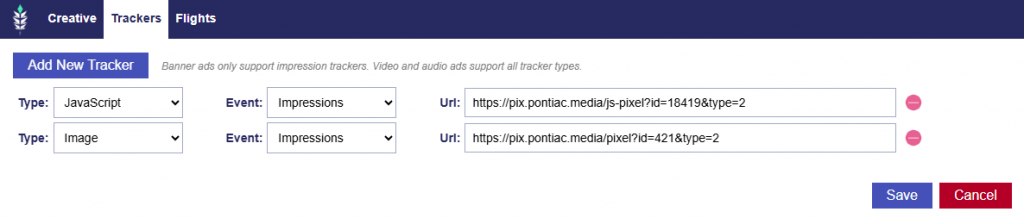
We now support JavaScript (JS) trackers in Creatives.
When adding a tracker, select the tracker type that matches the format provided by your measurement partner:
Select the correct tracker type to ensure the tracker is implemented in the intended format.
Pagination Added to Advertisers View
Release Date: July 1st, 2026
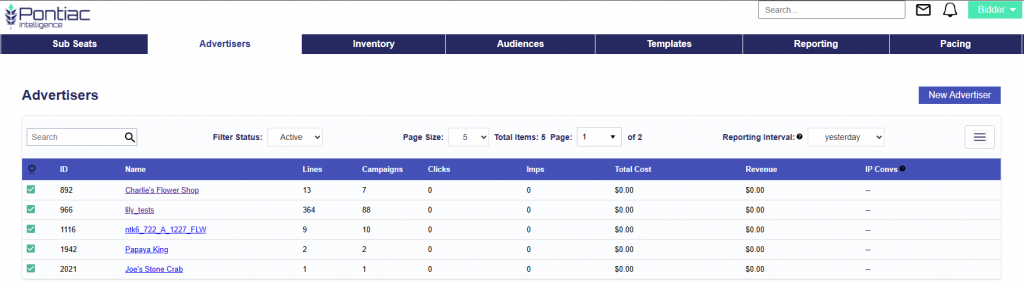
The Advertisers table now includes pagination controls to make large advertiser lists easier to navigate.
Page Size: Select how many advertisers to display per page, from 5 to 500.
Total Items: Shows the number of advertisers currently displayed on the page.
Page: Shows the current page number and the total number of available pages.
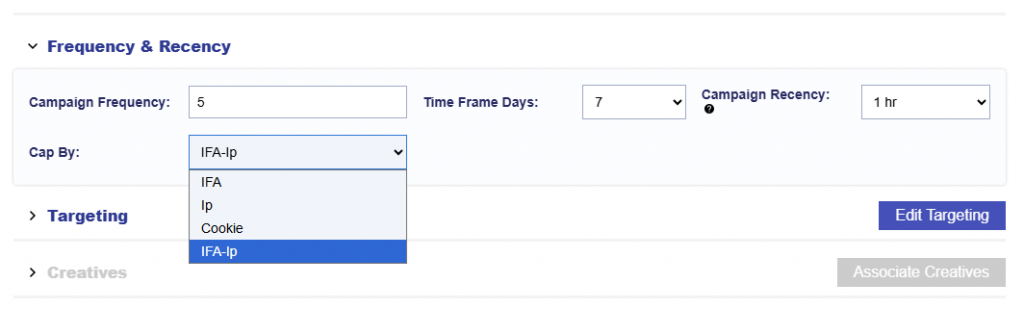
IFA-Ip Frequency Capping Option
Release Date: July 2nd, 2026
The new IFA-Ip option is available at both the Campaign and Line levels. It applies frequency and recency caps using the most reliable identifier available for each impression.
When an IFA is available, the cap is applied at the device level using the IFA.
This prevents the same device from receiving additional impressions even if its IP changes, such as when moving between Wi-Fi, cellular networks, or hotspots.
When an IFA is not available, the cap is applied using the IP address.
This helps maintain stronger device-level frequency control where possible while still applying a fallback cap to impressions that do not include an IFA.
Creative Sizes UI Update
Release Date: July 15th, 2026
In the Creatives Table, hover over the sizes column to easily view all sizes found in the VAST tag. This is applicable to Video: Hosted and Video: 3rd Party creatives.
Duration Metrics
Release Date: July 15th, 2026
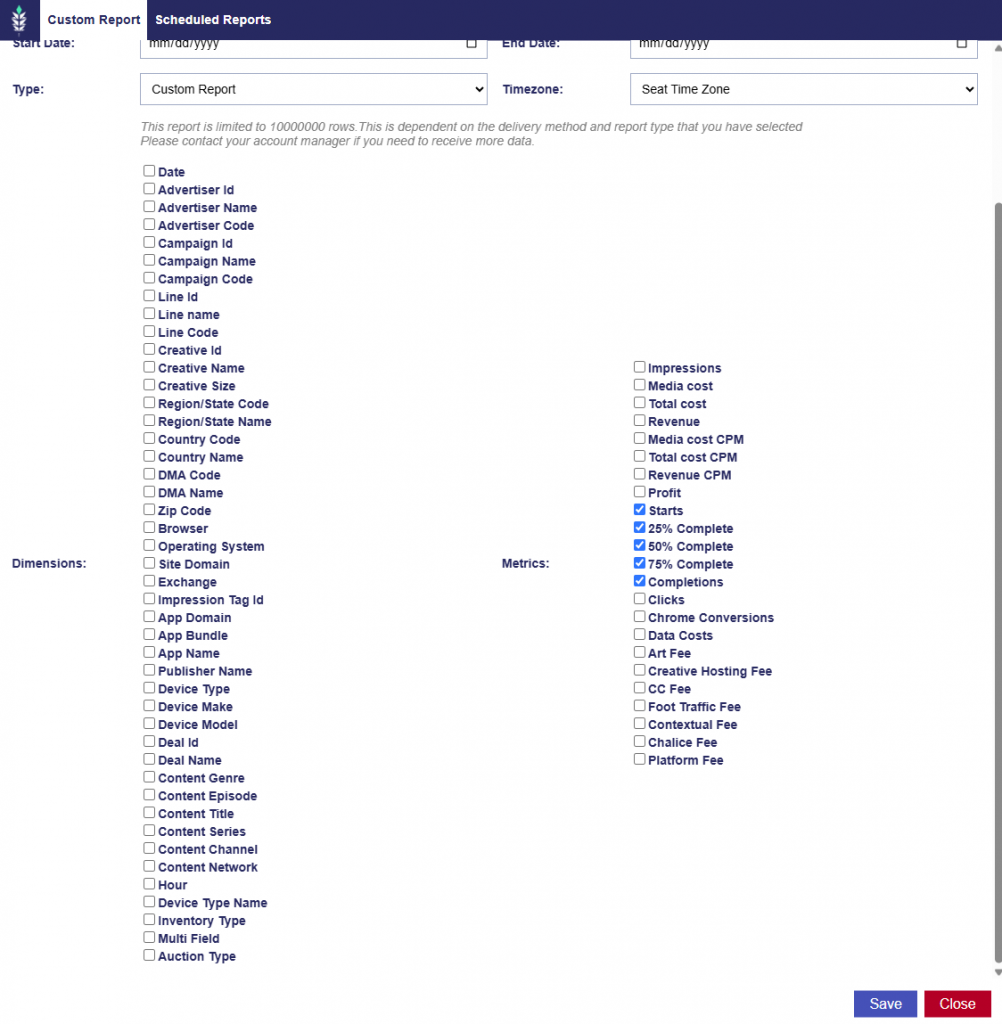
In Reporting > Custom Reporting, the following duration metrics are available in both Custom and Log Level reports for Video and Audio campaigns:
Starts: The number of times the Video or Audio ad began playing.
25% Complete: The number of times the ad reached 25% of its total duration.
50% Complete: The number of times the ad reached 50% of its total duration.
75% Complete: The number of times the ad reached 75% of its total duration.
Completions: The number of times the ad reached the end of its total duration.
These metrics can be used to measure how far users progressed through a Video or Audio ad.
Creative Flighting Updates
Release Date: July 15th, 2026
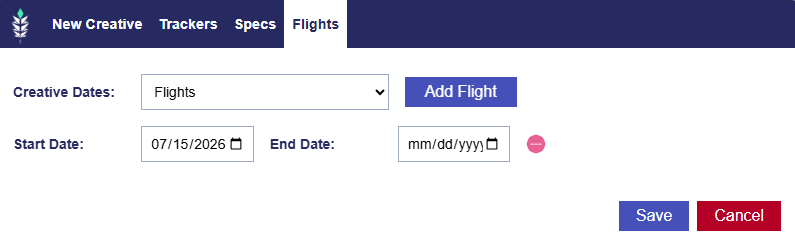
At the Advertiser level, when creating or editing a Creative > Flight, the End Date field is now optional.
When no end date is selected, the creative flight will remain active indefinitely. When an end date is selected, the creative flight will continue to follow the existing end-date behavior and will become inactive once that date is reached.
This update helps prevent creatives from becoming inactive when a campaign or line is extended beyond the original creative flight end date.
New Line Competition Charts
Release Date: July 15th, 2026
On the Line level > Performance tab > Bid Data section, two new time-series metrics are available to provide additional insight into how competitive a line is for eligible inventory.
Avg Eligible Lines: How many lines on average across the platform compete for impressions available to this line. Higher numbers indicate a lot of competition for eligible inventory.
Competitive Position: How competitive is this line in the platform. Higher numbers near 1 means that this line’s bid price is very competitive.
Both metrics are available using the same time groupings as the other performance charts.
First Party Creative Max File Sizes
Release Date: July 15th, 2026
The following file size limits apply to first-party creatives uploaded directly to the platform:
Video Hosted: Maximum file size of 200 MB
Audio Hosted: Maximum file size of 200 MB
HTML5: Maximum file size of 200 MB
Image/Banner Hosted: Maximum file size of 5 MB
For Native creatives, image dimensions and aspect ratios are validated during upload.
Icons
Must be square
Must be between 50 × 50 pixels and 200 × 200 pixels
Images
No side may exceed 1200 pixels
Must use one of the following supported aspect ratios:
1:1 (square)
4:3
Approximately 1.91:1
Files that do not meet these requirements may not be accepted during the creative upload process.
Associated Audience Valid Records Check
Release Date: July 15th, 2026
The Associated Audience Valid Records check is available in Line > Performance > Troubleshoot Checks. This check helps identify whether the effective audiences associated with the line have valid records available for targeting.
The check evaluates the effective audience targeting applied to the line, including:
Line-level audiences
Applicable audiences inherited from the campaign level
Effective audience intersections between campaign- and line-level targeting
Supported audience types include:
Custom Audiences: IP Ranges, Hashed IPs, IFA, Full URL, and ZIPs
Contextual AI Audiences: Public and Custom
ART Audiences: Public and Custom
Third-Party Audiences
Check Results
Pass: The associated audience(s) have valid records available for targeting: {audience_1} has {audience_1_records} valid records {audience_2} has {audience_2_records} valid records
Warning: The associated audience(s) have partially invalid record availability. The associated audience(s) have valid records available for targeting: {audience_1} has {audience_1_records} valid records. The associated audiences have 0 valid records and will not serve: {audience_2}, {audience_3} These may limit overall delivery.
Fail: All associated audiences have 0 valid records and will not serve: {audience_1}, {audience_2}, {audience_3}
The troubleshooting result displays the applicable audiences and their available valid record counts to help identify audience targeting that may be limiting delivery.
Video: Hosted (16:9) Size Updates
Release Date: July 15th, 2026
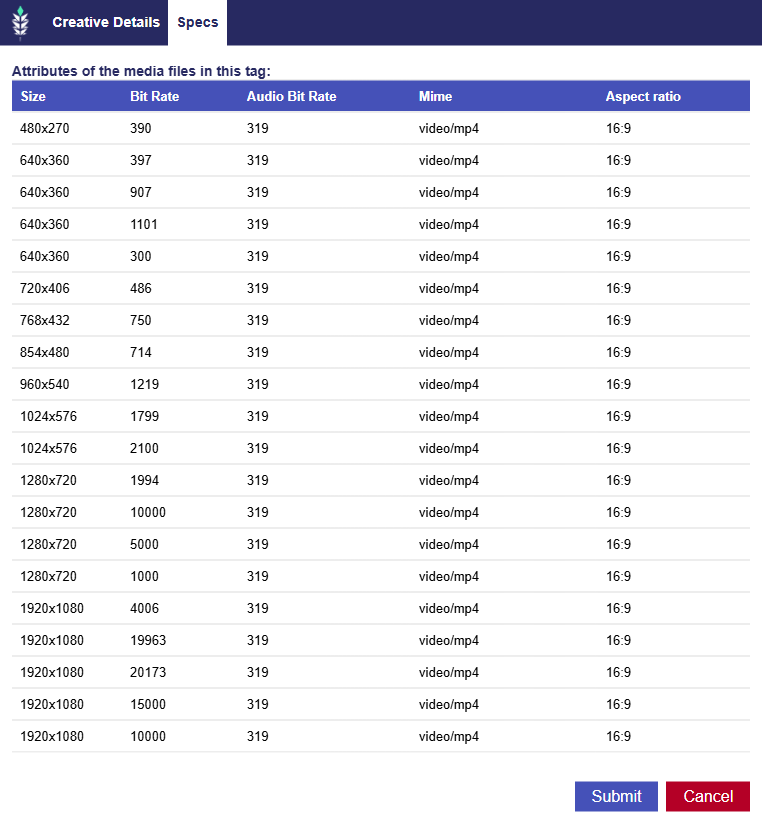
We have updated the Video Hosted 16:9 Kevel template to add eight additional media file renditions, including the original uploaded media file bitrate and added more common size and bitrate combinations to help increase scale and meet publisher specifications.
Updated Rendition List
1920 × 1080 at 20,829 Kbps
1920 × 1080 at the original uploaded media file bitrate if it is less than 20,829 Kbps and not already included.
1920 × 1080 at 19,963 Kbps
1920 × 1080 at 15,000 Kbps
1920 × 1080 at 10,000 Kbps
1920 × 1080 at 4,006 Kbps
1280 × 720 at 10,000 Kbps
1280 × 720 at 5,000 Kbps
1280 × 720 at 1,994 Kbps
1280 × 720 at 1,000 Kbps
1024 × 576 at 2,100 Kbps
1024 × 576 at 1,799 Kbps
960 × 540 at 1,219 Kbps
854 × 480 at 714 Kbps
768 × 432 at 750 Kbps
720 × 406 at 486 Kbps
640 × 360 at 1,101 Kbps
640 × 360 at 907 Kbps
640 × 360 at 397 Kbps
640 × 360 at 300 Kbps
480 × 270 at 390 Kbps
The platform does not upscale uploaded video files. If the original uploaded media file does not meet a listed size and bitrate combination, that rendition will not be generated or included.
For example, if a 1920 × 1080 video with a bitrate of 6,000 Kbps is uploaded, the 1920 × 1080 at 4,006 Kbps rendition can be generated, but the 10,000 Kbps, 15,000 Kbps, and higher-bitrate 1920 × 1080 renditions will not be included.
Campaign Builder from Planning Tool
Release Date: July 15th, 2026
The Pontiac Planning Tool allows users to quickly create a media plan with the help of LLM-powered research and recommendations. Users can provide information about their brand, campaign goals, target audience, geography, budget, and other relevant details, along with optional supporting documents.
Based on these inputs, the tool researches the brand, identifies potential audience and content alignment, and recommends inventory. It also uses Pontiac’s sample bid request data to match the campaign’s goals and targeting strategy with available inventory and expected volume, helping ensure that recommendations are grounded in real marketplace availability.
Users can review and refine the proposed plan before using it to launch campaigns directly in the platform.
Follows these steps to launch your media plan once the report has been generated:
Import the Plan at the Campaign Level
Navigate to the campaign level and click Import.
In the pop-up window, find and select the desired Planning report by name.
Click the Planning report name.
2. Review and QA the generated campaign to ensure all settings, targeting, budgets, and line configurations are as desired before launch.
The following campaign-level settings are selected by default when a Planning report is imported:
Manage Budgets
Auto Pace
Manage Creatives
Manage Dayparts
Manage Pixels
All lines included in the Planning report are also automatically populated as part of the import.
3. Associate your Creatives.
4. Associate Audience Segments if desired.
5. Associate your Pixels.
6. Once the campaign has been fully reviewed and all desired creatives, audiences, and pixels have been associated, click Submit.
From there, monitor performance and make optimizations once your campaign has ramped up! For analytics tool documentation, see here: Analytics Tools
Flight Status Caution Tool Tips
Release Date: July 15th, 2026
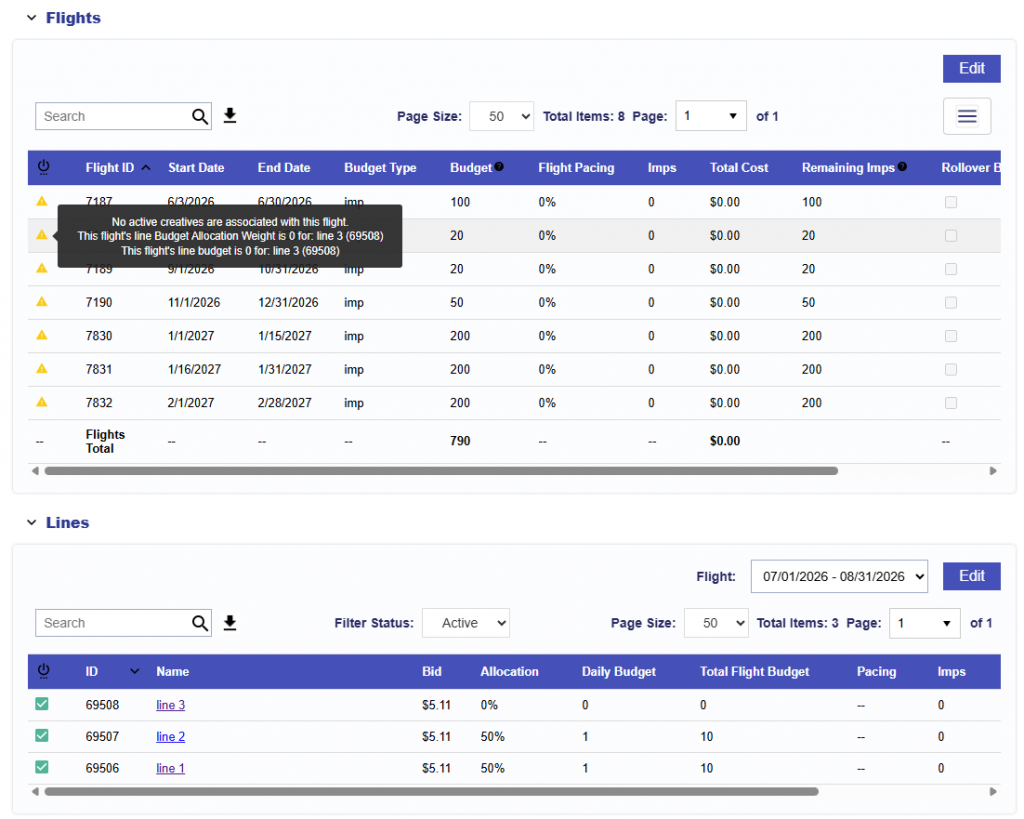
When Flights are enabled, the Flight Status indicator helps identify configuration issues that may prevent a flight from serving.
A caution icon appears when a flight may not serve because of one or more of the following:
An associated active line has no available budget
An associated active line has a Budget Allocation Weight of 0
An associated active line has a Budget Multiplier of 0
No active lines are associated with the flight
No active creatives are associated with the flight
Hover over the caution icon to view the specific issue or issues affecting the flight. When multiple issues apply, each is listed separately.
These warnings provide an additional way to identify setup issues before or during campaign delivery.
Targeting Dropdown List
Release Date: July 15th, 2026
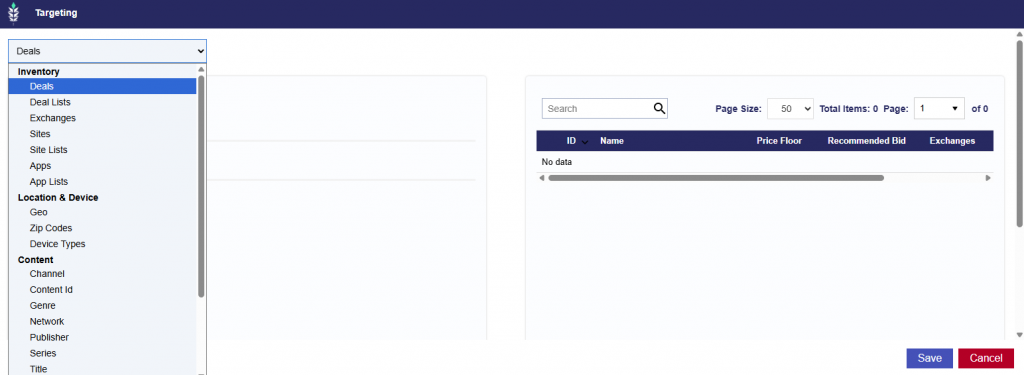
The Targeting window at both the Campaign and Line levels has been updated with a more organized dropdown menu, making it easier to navigate between available targeting options.
The default targeting view remains Deals.
Additionally, Sites and Apps are now available as individual targeting options. Users can enter specific site domains or apps directly, rather than being limited to targeting through a Site List or App List.
This provides greater flexibility when configuring inventory targeting at the Campaign or Line level.
Targeting Options
Inventory
Deals
Deal Lists
Exchanges
Sites
Site Lists
Apps
App Lists
Location & Device
Geo
ZIP Codes
Device Types
Content
Channel
Content ID
Genre
Network
Publisher
Series
Title
Multi Field
Streaming & Video
Livestream
OLV
Advanced
Custom Model
Privacy
Onspot Geo Fencing Audience Generator
Release Date: July 15th, 2026
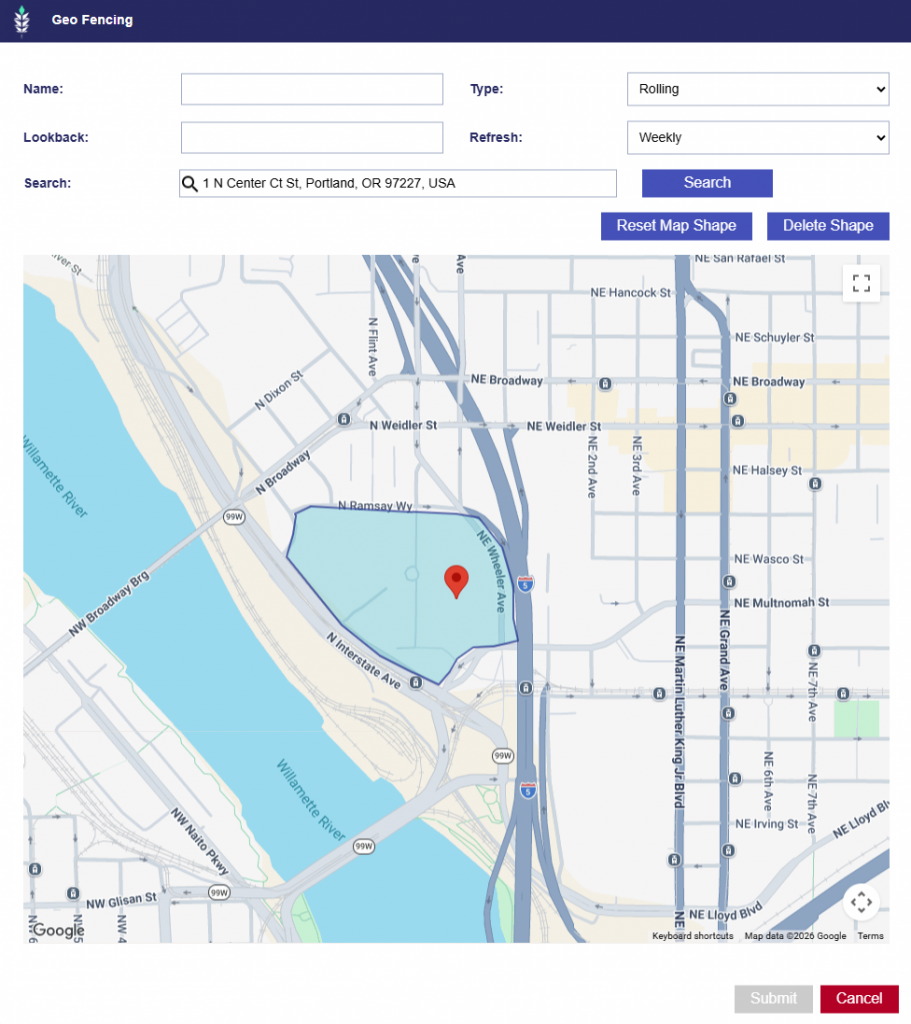
The Onspot Geo Fencing tool allows users to create custom location-based audiences directly within the platform. Geo fencing audiences are available under Audiences > Third Party Audiences > Geo Fencing.
From this section, users can view existing geo fencing audiences and create new ones. The table includes:
Name
Record Count
Start Date
End Date
Expiration Date
Type: Rolling or Static
To create a new Geo Fencing audience, click the New Geo Fence button:
Enter the audience Name, then select one of the following audience types:
Rolling: A Rolling audience continuously refreshes based on a selected lookback period.
Lookback: Select a lookback period of up to 90 days.
Refresh: Choose whether the audience should refresh weekly or monthly.
The audience will be updated as new qualifying location data becomes available.
Static: A Static audience is created using a fixed date range.
Start Date
End Date
Static audiences expire 90 days after they are created.
Define the Geo Fence
Use the search bar to enter in a location name or address of the geo fence area.
Click on the borders of the area that you would like to geo fence. If needed the delete shape button can be used to start over.
Once happy with the shape, click Submit.
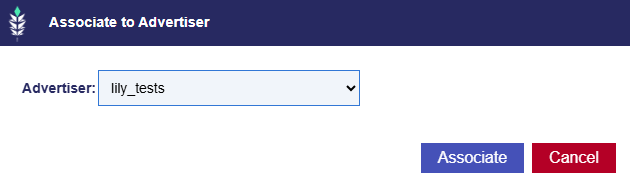
After the audience is created and processed, it can be Associated to the desired Advertiser and used for campaign targeting.
Click the Associate button.
Select the desired Advertiser from the dropdown menu and click Associate.
Navigate to Advertiser and then select the Campaign or Line that you would like to use the Geo Fencing audience for.
Enter Edit mode.
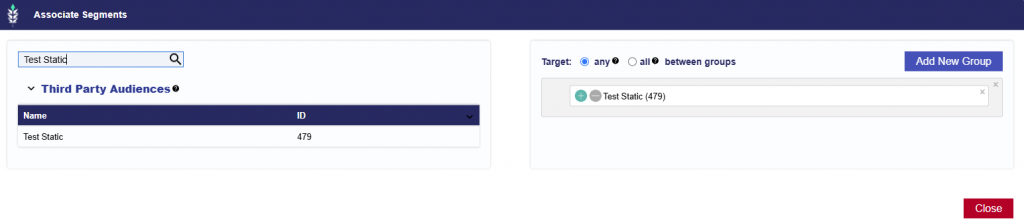
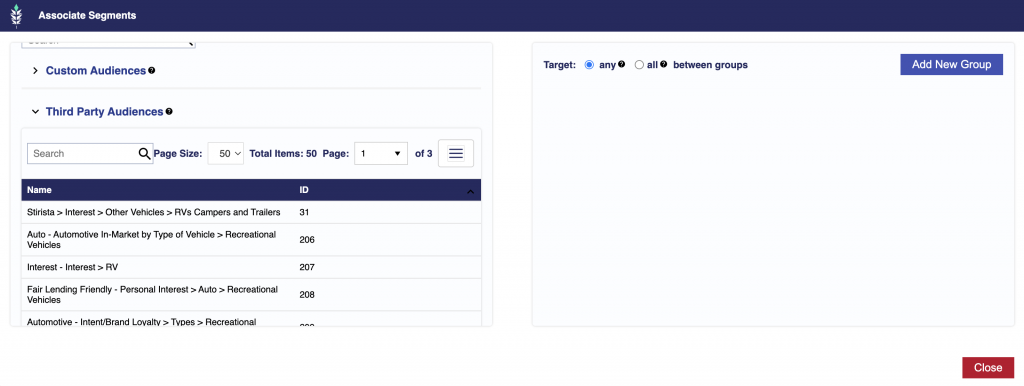
Click the Associate Audiences and search for your Geo Fencing audience Name or ID.
Add New Group and drag and drop the audience to the right hand side.
Save edits made.
The Geo Fencing audience is now applied to your Campaign or Line.
Third Party Audience Update
Release Date: July 22nd, 2026
All Third Party Audiences are available for targeting at both the Campaign and Line levels.
Previously, users were required to associate a Third Party Audience with an Advertiser before it could be selected. This step is no longer required.
The Third Party Audiences stable includes standard pagination controls, including Page Size, Total Item Count, and Page Selector.
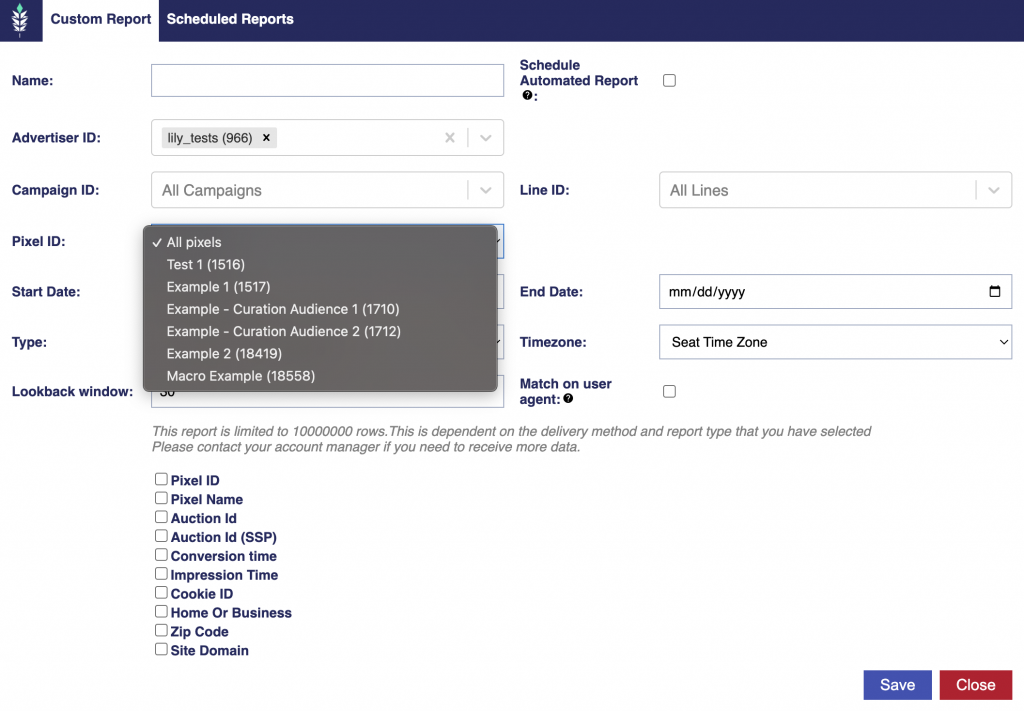
Pixel Filter Added to Cookies Path to Conversion Report
Release Date: July 22nd, 2026
The Cookies Path to Conversion report now includes a Pixel filter, allowing users to select the specific pixels they want to include in the report.
By default, all pixels are selected, consistent with the IP Path to Conversion report.
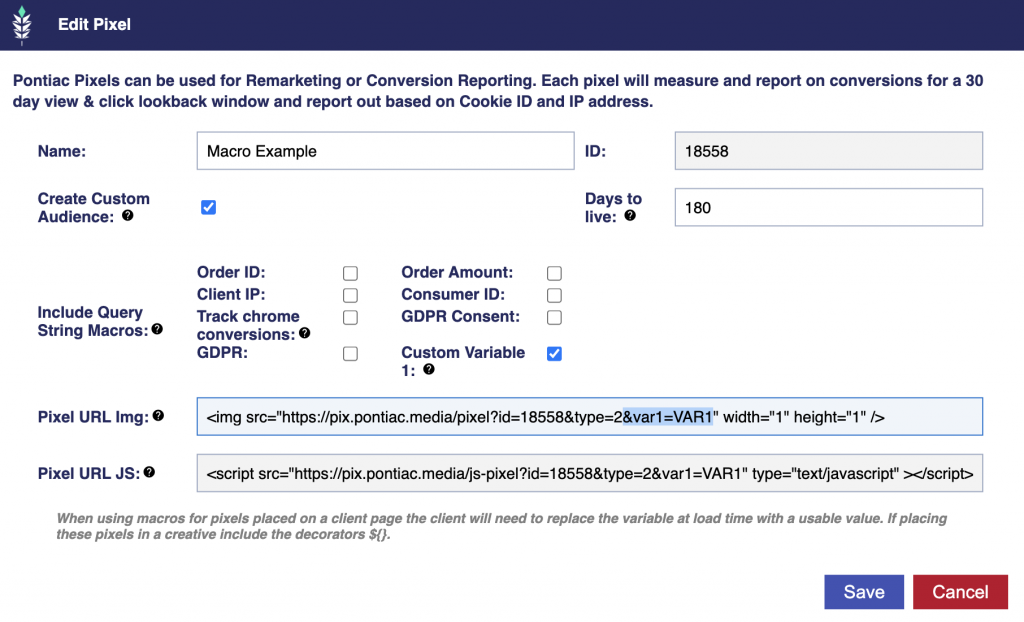
Custom Variable 1 Added to Pixel Selectable Query String Macros
Release Date: July 22nd, 2026
The Pixel dialog now includes a Custom Variable 1 checkbox.
When selected, the generated pixel code includes: &var1=VAR1
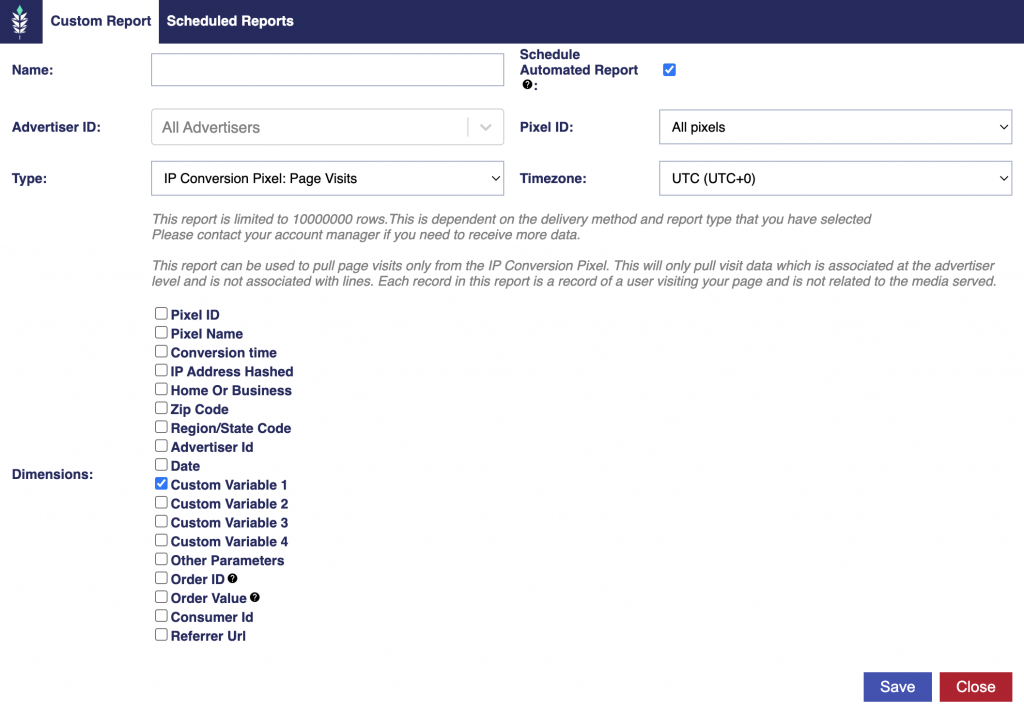
This value populates Custom Variable 1 in Custom Reporting for report types:
IP Conversion Pixel: Path to Conversion
IP Conversion Pixel: Page Visits
Cookies: Path to Conversion
To pass additional custom values, add var2, var3, or var4 to the pixel URL using the same format. Work with your web developer to replace each placeholder with the intended value.
Values passed in the pixel’s query string using var1, var2, var3, and var4 will populate the corresponding custom variable fields.
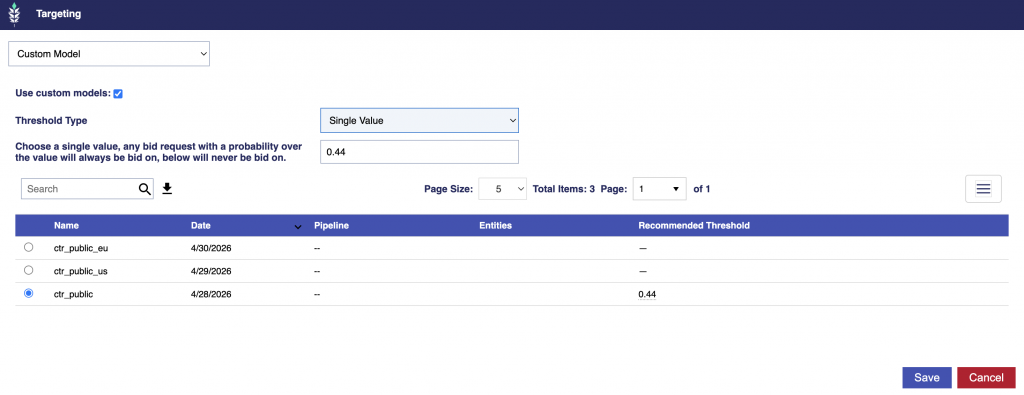
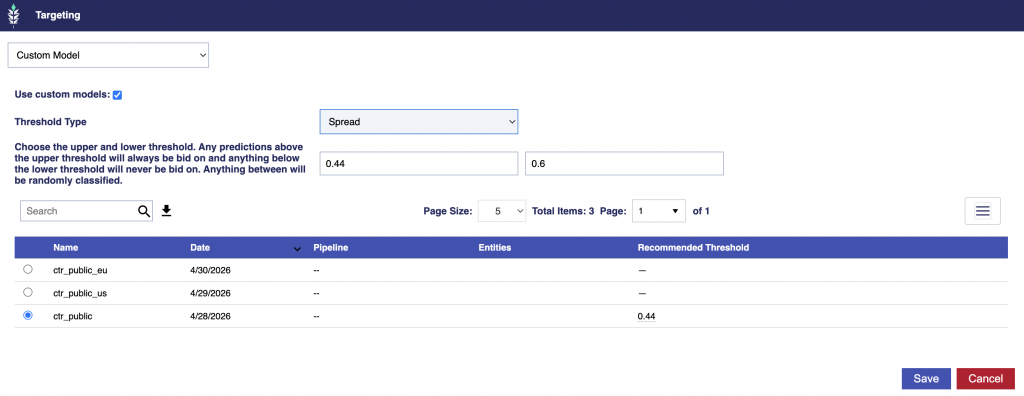
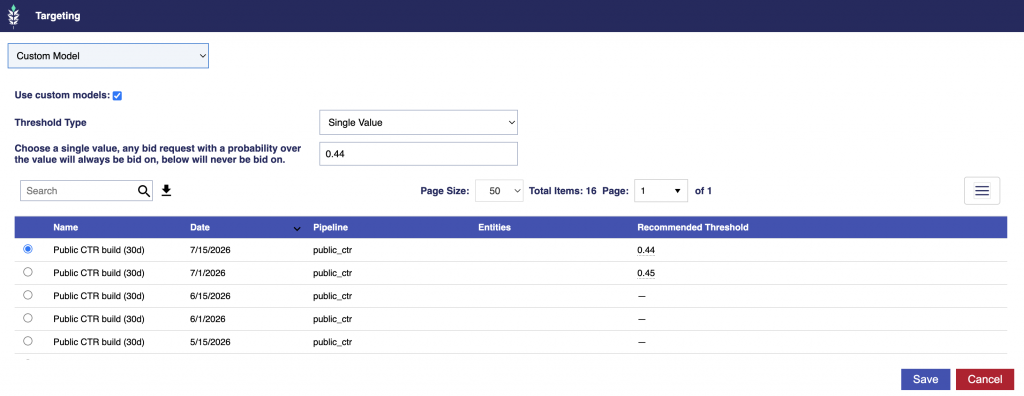
Pontiac Analytics models now provide probability thresholds that allow users to control how predicted bid opportunities are handled. Thresholds determine how selective the model is when deciding which bid opportunities to include. A higher threshold is stricter and limits bidding to opportunities the model considers more likely to perform. A lower threshold is less restrictive and allows the model to bid on a broader range of opportunities, which may increase scale.
Single Value
Choose one threshold. Bid opportunities with a predicted probability above the selected value will be included, while those below it will be excluded.
For example, if the selected threshold is 0.44, Pontiac will bid on a request with a probability of 0.65 and will not bid on a request with a probability of 0.38.
Spread
Choose an upper and lower threshold. Bid opportunities above the upper threshold will always be included, while those below the lower threshold will always be excluded. Opportunities between the two thresholds will be selected randomly.
For example, with a lower threshold of 0.44 and an upper threshold of 0.60:
A probability of 0.65 will always be included.
A probability of 0.38 will always be excluded.
A probability of 0.52 will be randomly included or excluded.
By default, the platform uses a Single Value threshold and selects the first available non-zero recommended value.
Recommended Threshold Hover Message
Hover over the Recommended Threshold value to view the model’s available threshold options and the estimated percentage of bid opportunities included at each setting.
Each row shows:
Trim %: The approximate percentage of bid opportunities that would be excluded.
Threshold: The minimum predicted probability required for a bid opportunity to be included.
Bids on %: The approximate percentage of eligible bid opportunities the model would continue to bid on.
For example:
Bid on ~everything (floor) → threshold 0.30 (bids on 100%)
This is the least restrictive option. Nearly all eligible bid opportunities are included.
Trim ~9% → threshold 0.44 (bids on 91%)
Opportunities below 0.44 are excluded, while approximately 91% remain eligible for bidding.
Trim ~20% → threshold 0.45 (bids on 79.6%)
The model becomes more selective and bids on approximately 79.6% of opportunities.
Trim ~38% → threshold 0.46 (bids on 62.3%)
Trim ~52% → threshold 0.47 (bids on 47.7%)
Trim ~80% → threshold 0.49 (bids on 20.1%)
This is the strictest option shown. Only the opportunities with the highest predicted probabilities remain eligible.
Higher thresholds make the model more selective and may improve efficiency, but they also reduce scale. Lower thresholds allow more opportunities to qualify and support greater delivery.
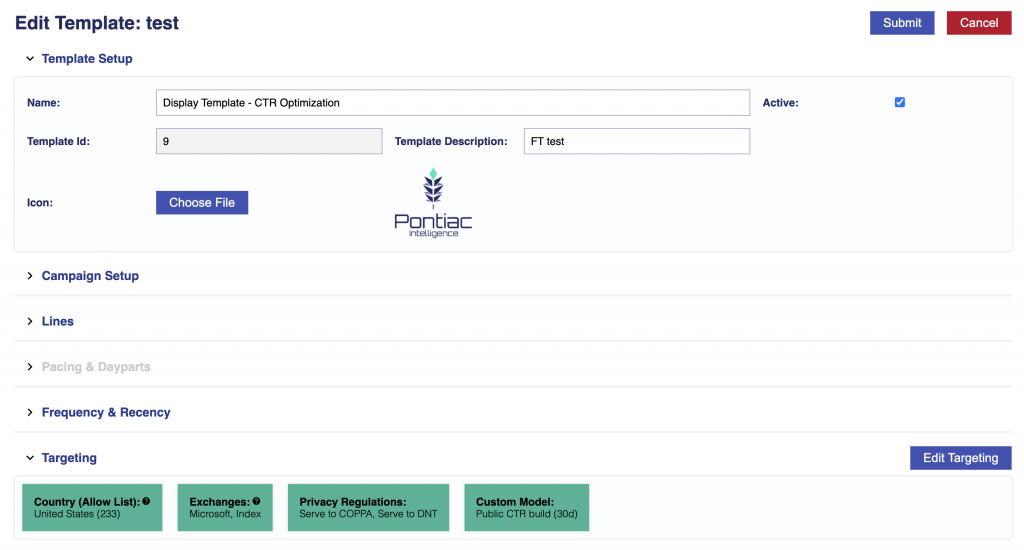
Campaign and Line Template Custom Model Support
Release Date: July 22nd, 2026
Custom models can now be included in both Line and Campaign Templates. When a template is applied, the selected custom model settings are carried over to the new line or campaign.
When a Campaign Template is used, all associated custom model settings will be carried over to the New Campaign.
For more information on Templates, see the following documentation: Templates
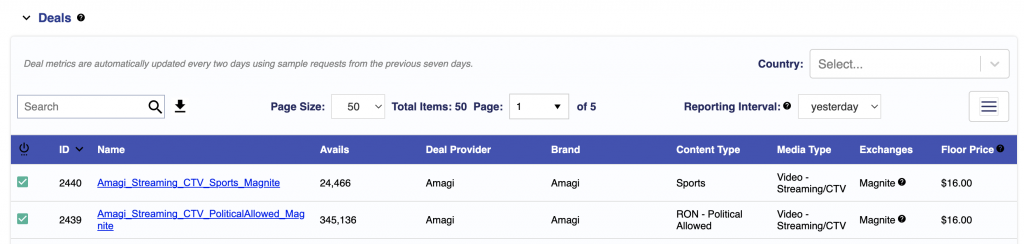
Deal Auto Refresh
Release Date: July 22nd, 2026
Deal metrics are automatically updated every two days using sample requests from the previous seven days. This message is seen in the Inventory > Deals and Negotiated Deals table.
This helps keep deal information aligned with recently observed inventory, including floor prices, supported sizes, durations, exchanges, device types, countries, and other available attributes.
If no recent sample request data is available for a deal, its existing metrics remain unchanged.
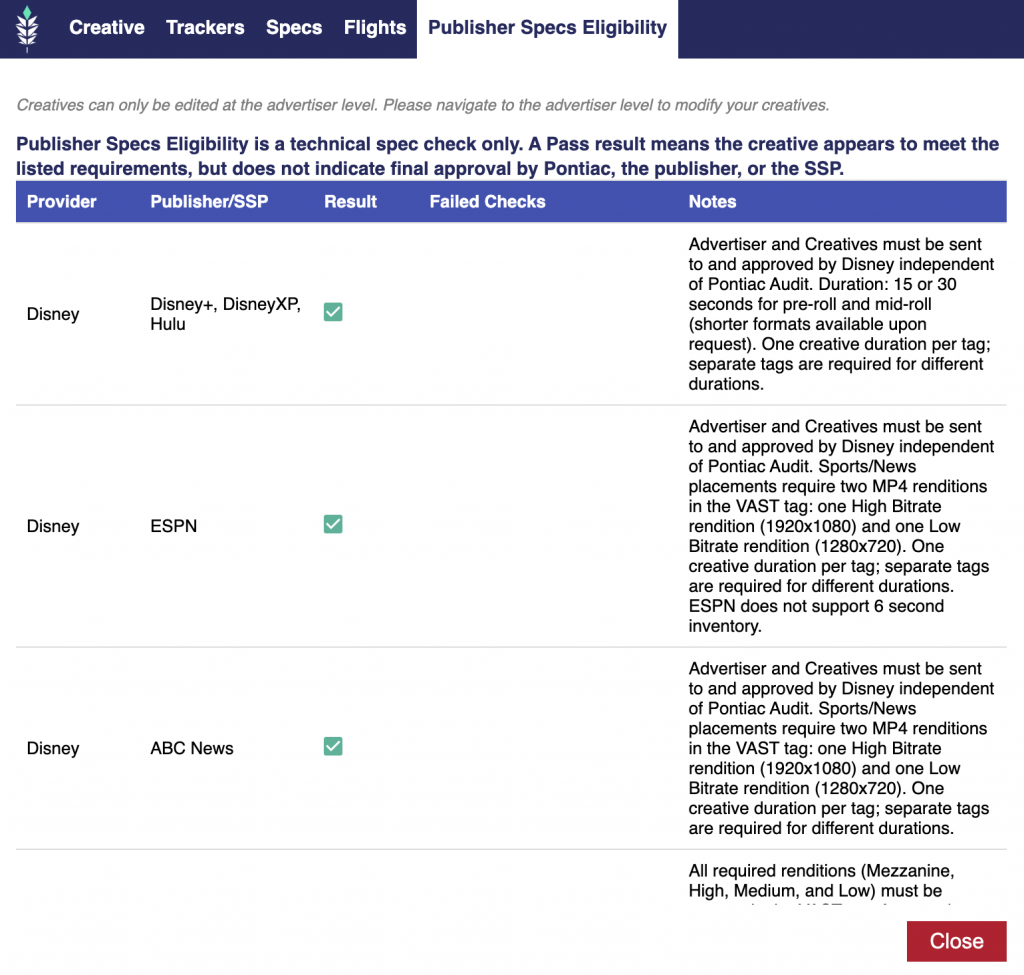
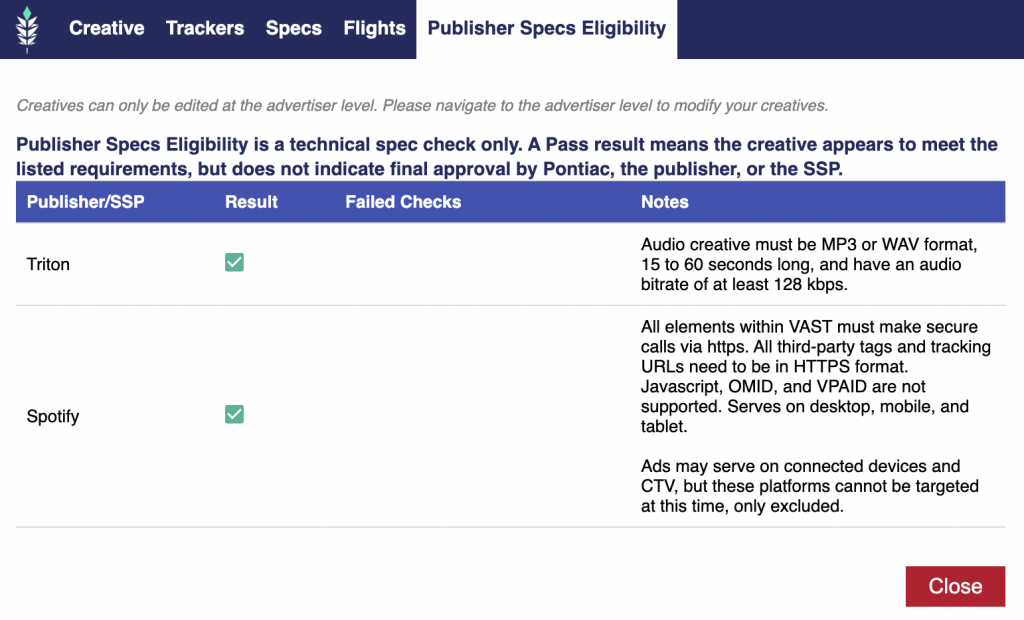
Publisher Specs Eligibility Creative Tab
Release Date: July 22nd, 2026
A new Publisher Specs Eligibility tab is available in the Creative window for:
Video: Hosted
Audio: Hosted
This tab evaluates whether a hosted creative appears to meet the technical requirements of supported publishers and SSPs.
Publisher Specs Eligibility is a technical specification check only. A Pass result means the creative appears to meet the listed requirements, but it does not indicate final approval by Pontiac, the publisher, or the SSP. Publisher requirements are controlled by each publisher and are subject to change.
For more information about publisher specific approval processes, contact your Account Manager or reach out through the Help Center.