ART Audiences
ART Audiences allow users to turn insights from Audience Research or Audience Discovery reports into targetable geographic Audiences. Published ART Audiences use matched ZIP Codes from the ART report and can be associated with eligible Campaigns or Lines for cookieless targeting.
ART Audiences can be created from:
- Audience Research: Analyze an existing Audience or selected geographies to identify demographic and interest characteristics and build a lookalike Audience.
- Audience Discovery: Define a desired user profile using demographic and interest criteria, then identify geographic markets that best match that profile.
Pontiac also provides Public ART Audiences that are already available for targeting and do not need to be created manually.
Build an ART Report
Before publishing a Custom ART Audience, first create an ART report.
- Navigate to ART.
- Select either Audience Research or Audience Discovery.
- Audience Research: Use Audience Research when you want to build a lookalike model from an existing Audience or geographic area. The source Audience can include data from a Pontiac IP Conversion Pixel placed on an Advertiser’s website, or selected geographies can be used to identify demographic and interest characteristics associated with those areas.
- Audience Discovery: Use Audience Discovery when you want to define the demographics and interests of an ideal target Audience and identify geographic markets that best match those characteristics.
- Configure and generate the report.
Publish a Custom ART Audience
Once the Audience Research or Audience Discovery report has been generated, it can be published as an Audience for Campaign or Line targeting.
- Open the applicable ART Report.

- Scroll to the bottom of the report and select Publish New Audience.
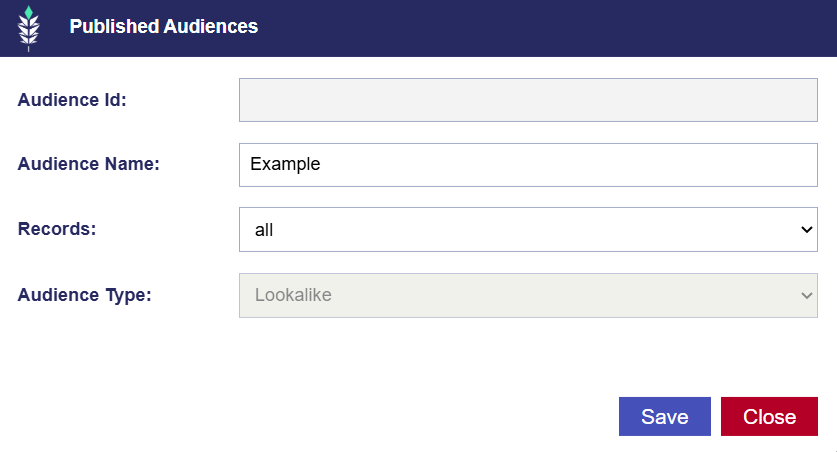
- Enter an Audience Name
- Select the matched ZIP Code threshold:
- All Results
- Top 10%
- Top 20%
- Top 50%
- Select Save.
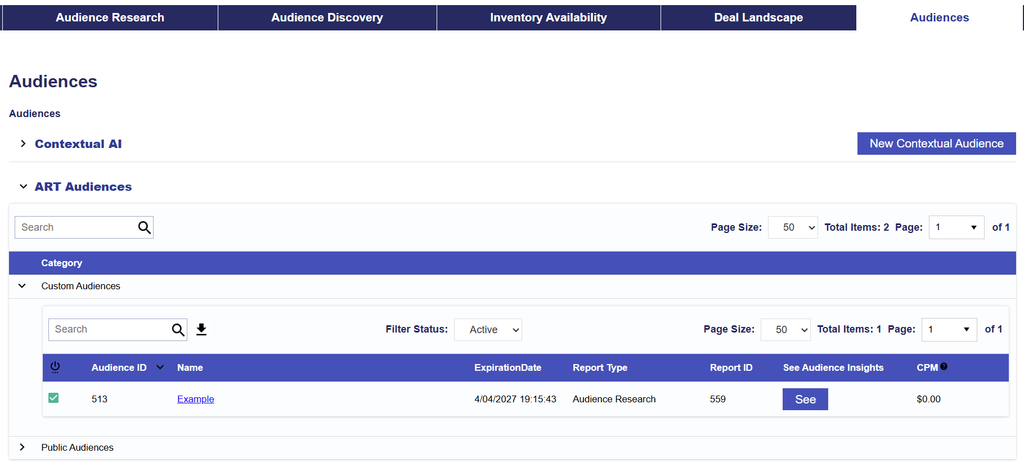
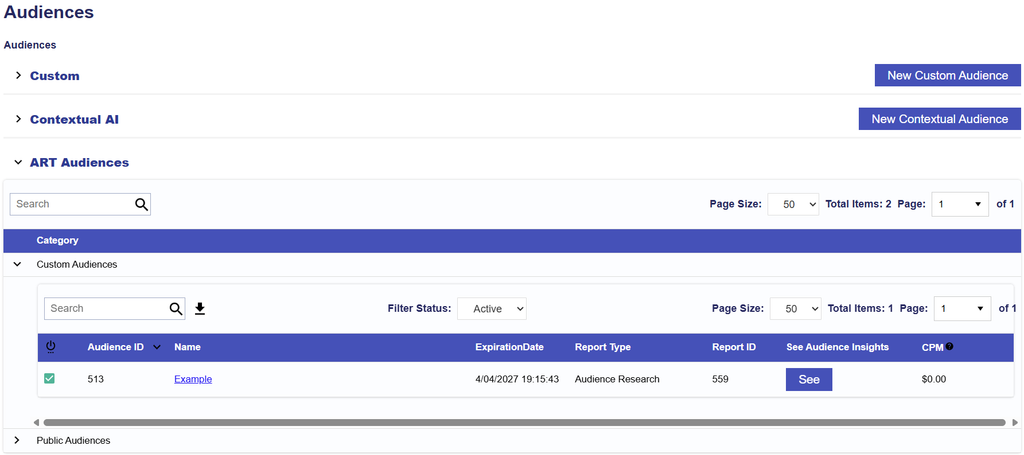
The Audience will appear in the following locations:
- ART > Audience Research or Audience Discovery Report > Published Audiences and is editable. The Audience Name and threshold can be adjusted.

- ART > Audiences > ART Audiences > Custom Audiences
- Bidder > Audiences > ART Audiences > Custom Audiences
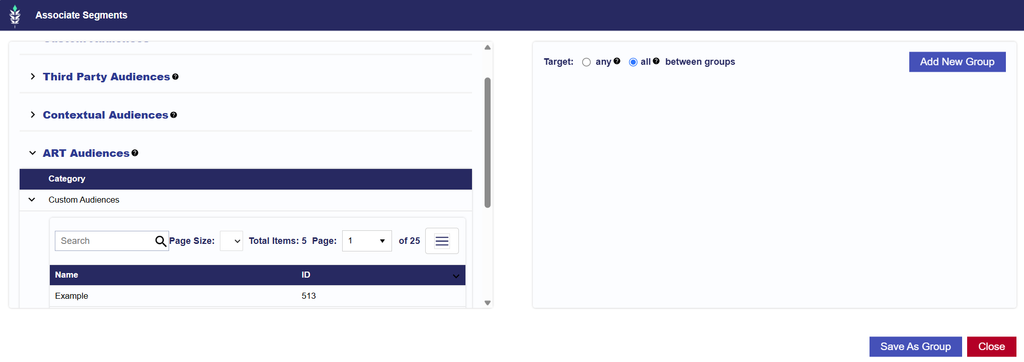
- Bidder > Advertiser > Campaign or Line > Associate Segments > ART Audiences > Custom Audiences
View and Manage ART Audiences
Custom ART Audiences are tied to the ART report used to generate them.
The Auto Refresh setting on the source ART Report determines whether the report is refreshed as new data becomes available. Interest and Inventory data are updated every 30 days, and updated report results may change the matched ZIP Codes.
If Auto Refresh is enabled and the matched ZIP Codes in the report change, published Audiences associated with that report will automatically update to reflect the refreshed results.
To make changes to the underlying Audience definition, review the source Audience Research or Audience Discovery report and its refresh settings.
Because changes to an ART report may affect published Audiences already being used by Campaigns or Lines, review existing targeting before making significant changes to the source report.
Public ART Audiences
Pontiac also provides prebuilt Public ART Audiences.
To view available Public Audiences, navigate to the ART Audience selection area and expand Public Audiences.
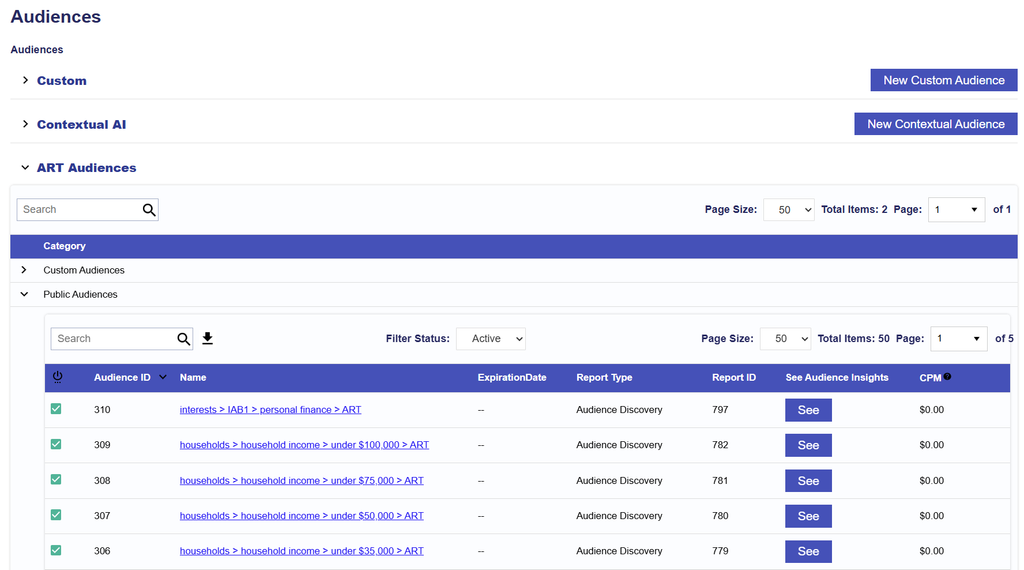
Public ART Audiences:
- Do not need to be created or published manually.
- Are available for use through Audience targeting.
- Can be reviewed and selected under ART Audiences > Public Audiences.
Associate an ART Audience to a Campaign or Line
Once a Custom ART Audience has been published, or when using an available Public ART Audience, it can be associated with an eligible Campaign or Line.
- Navigate to the applicable Campaign or Line.
- Enter Edit mode.
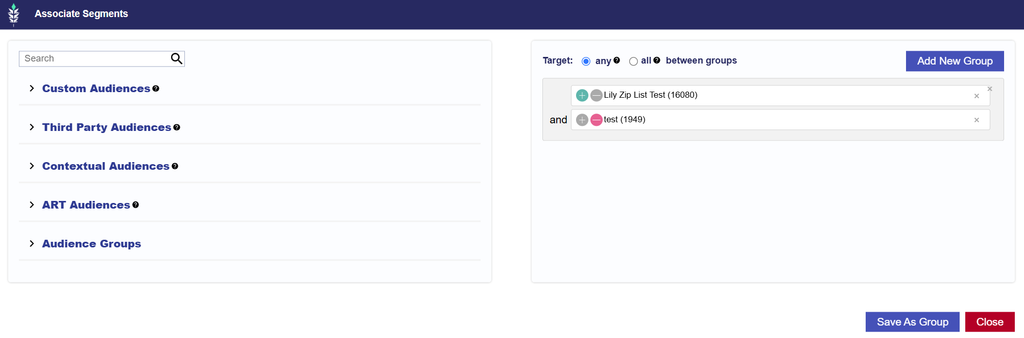
- Open Audiences and select Associate Segments.
- Select ART Audiences.
- Search for the desired Custom ART Audience, or expand Public Audiences to browse available Pontiac audiences.
- Select Add New Group and add the Audience to the desired targeting group.
- Select:
- the green plus (+) to target the Audience
- the red minus (–) to anti-target the Audience, when applicable
- Configure any additional Audience or Boolean logic as needed.
- Close the dialog and select Save.
For additional information on creating ART reports, see ART Documentation. For additional information on combining Audiences and configuring targeting logic, see Associate Segments, and Boolean Logic.