Pontiac’s Audience Research Tool (ART) is a comprehensive audience research & design suite that provides custom cookieless targeting for the future of programmatic advertising.
The Cookieless Future and What It Means for Advertisers
As privacy updates push Advertisers into a cookieless world, the era of targeting down to the level of the individual is coming to an end. As the industry moves away from the use of Third-Party Audience Segments, Advertisers are forced to take a fresh look at digital targeting strategies. The key to future success is to find privacy compliant solutions that not only scale, but that continue to drive performance. At Pontiac Intelligence we are focusing on ad personalization through clever geo and inventory-based targeting, with the launch of The Audience Research Tool (ART), an innovative solution that delivers privacy compliant audience insights and targeting strategies.
ART: A Cookie-less Identity Solution
The Audience Research Tool (ART) is a proprietary cookie-less identity solution designed by Pontiac Intelligence to enable Advertisers to both better understand and better reach the users of highest potential value to their brand and subsequently maximize their ad spend.
Centered around the U.S. zip code, ART reports aggregate and analyze demographic data & content consumption by zip to build audiences for all channels & media types. A privacy-compliant targeting solution that drives both performance and scale across all your digital campaigns
The power of the ART Platform has the following Tools:
Audience Research Tool
Locate & understand the highest value users to your brand by utilizing the traffic on your website, or a list of U.S. zip codes, to create detailed insight reports, and leverage look-a-like modeling to find new targets that share key characteristics with your existing audience.
Audience Discovery Tool
Select from demographic variables and interest categories to build an audience profile, then find new targets across the U.S. that match this target audience.
Inventory Availability Tool
The Inventory Availability Tool is a forecasting tool that provides directional guidance in campaign planning. Leveraging historical delivery data from the platform and a forecasting algorithm, Advertisers can input their desired targeting parameters to evaluate feasibility, potential scale, and cost for future campaigns. If your report returns no data, reach out through the Help Center for more information on the feasibility and potential scale for the selected targeting.
Deal Landscape Tool
The Deal Landscape tool provides transparent insights into the data available for targeting and reporting across the accessible Deals and Negotiated Deals through the Bidder. With great inconsistencies in the information shared by each media owner across the CTV industry, this tool can be leveraged in the research and planning process to align campaign goals and expectations with available targeting and reporting capabilities by Deal.
Audiences Tool
This section includes two core components: Contextual AI and ART Audiences.
Contextual AI enables the creation of contextual segments by analyzing brand-relevant websites. Advertisers can input source URLs that reflect the type of content their target audience consumes. Each entry must include the full URL, including the scheme, subdomains, and all subdirectories, and should be text-rich and accessible (not hidden behind a paywall). By processing these sites, the AI identifies patterns and themes, generating audience segments that can be targeted within campaigns.
ART Audiences provides access to both custom and public audiences. Custom audiences are built from the Audience Research or Audience Discovery Tools, while public audiences are pre-built syndicated segments available directly in the platform. For each audience, advertisers can explore detailed insight reports to understand where the audience is located, who makes up the audience demographically, and what behaviors or attributes define them. These insights make it easier to compare overlap, evaluate affinities, and design more effective targeting strategies.
Note that, at this time, all ART tools are limited to data for the United States.
If you would like access to the ART, reach out through the Help Center in the platform to request access.
Demographic Data
The deep ties between zip codes and demographics create a wealth of data for audience segmentation, leveraging U.S. Census data to find & target the profile of users with the strongest affinity for your brand:
Interest Data
Leveraging AI for deep contextual analysis, Pontiac indexes content consumption by categories across the U.S. to build cookieless interest data according to what users are reading or streaming by zip code:
Inventory Data
Inventory data provides transparency into media supply, showing where impressions are available across genres, title, series, publishers, apps, channels, and networks. By analyzing inventory availability, advertisers can better understand the scale and quality of media opportunities for their campaigns. This data enables planning by revealing which channels (CTV, OLV, Display, App) are most relevant, what supply sources align with target audiences, and how much reach is realistically achievable within a given market.
Overview
The audience research tool enables users to locate & understand the highest value users to your brand by utilizing the traffic on your website, or a specific geo, to create detailed insight reports, and leverage look-a-like modeling to find new targets.
Define an existing audience of the brand:
From existing website traffic
OR from a specific geo that the grand has identified as high value or high performing for their product or service
Create a detailed insight report from the zip codes and US Census data to better understand demographics and characteristics of the existing audience
Through look-a-like modeling, find the zip codes that most closely match the existing audience
Export these zip codes for targeting across all media and channels
Create an Audience Research Report
Create an insight report from an existing audience to research their demographic characteristics, interests they are showing across the web and their streaming behaviors. The Audience Research tool makes all of this data easily accessible for the audience selected, and using this data creates a lookalike model to create an audience extension to the zip codes most closely matching the characteristics of the existing audience.
There are three types of audiences that can be used for the ‘source’ of an ART report:
Pixel Report: A Pixel report will pull audience insights from the visitors to the Advertiser’s website via an IP Pixel.
Geo Report: The Geo report will pull Audience insights from a list of U.S. zip codes. For example, if an advertiser has a zip code, DMA or city that is a top performer, you can select this geo and run a report to create a complete profile of users in that geo, then leverage a lookalike model to find similar zip codes for prospecting.
Contextual Report: The Contextual report will pull audience insights from a contextual AI audience or interest category. Create an insight report to better understand the demographics of users that are showing interest in a specific topic. To create a custom interest category, see here: Custom Interest Categories
To create a ‘Pixel’ Report, the first step is to create and place Pontiac IP pixels on the Advertiser’s website. Multiple pixels can be created to track each action or page on the website, or you can simply place one pixel on all pages to capture all site traffic. Reports can then be created from each individual pixel, or from several pixels combined, allowing you to segment insights in a way that best fits your needs.
In the Pontiac Platform select ‘DSP’ in the top right corner.
Create a new Advertiser or open an existing one.
Select ‘New IP Conversion Pixel’, give the pixel a name, and save.
Allow a few minutes for the pixel to generate, then click on the name of the pixel to view the code.
Place the pixel code on the Advertiser’s website. This can be placed on all pages, or on a specific page of interest. For example, if you place this pixel on the ‘Thank you’ page after a transaction is completed you will be able to create a profile of users that have made a purchase. If you place this pixel on all pages, you can create a profile of all users that visit your website.
Once the pixels have been placed you will need to allow time for the sample sizes to grow as visitors are seen on the page.
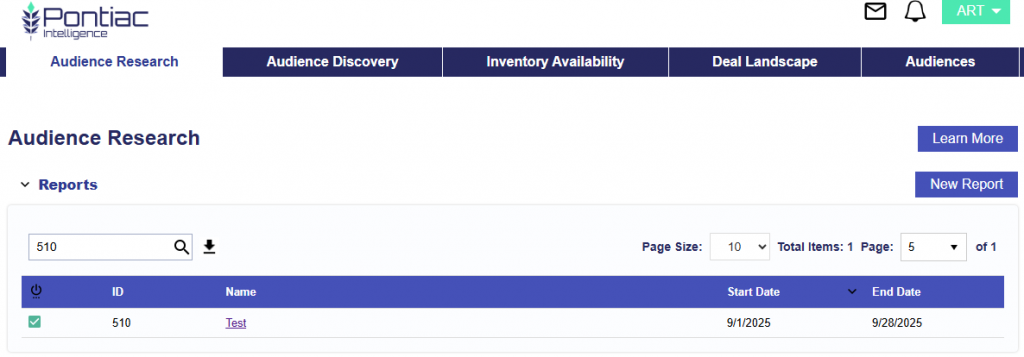
Log in to the Pontiac Platform and in the top right corner, click on the button ‘ART’.
Select the blue ‘New Report’ button.
Give the Report a name.
Select the target audience size from 1,000 Zip Codes, 2,500 Zip Codes, 5,000 Zip Codes, or 10,000 Zip Codes. This is the number of matched zip codes that will be returned by the lookalike model.
Select an Auto Refresh schedule if needed. If an audience is published from the report, this will update the report and the audience on the selected schedule. New interest data is ingested every 30 days so refreshing the audience will incorporate any new data that has been added.
Select the ‘Audience Type’.
For ‘Pixel’ Audiences, associate the pixel or pixels to build the report from. This is an IP Pixel that must first be created in the DSP section of the platform, then placed on the Advertiser’s website. Once your IP pixel has been placed and the sample size has grown over time, you can create insight reports from this data.
For ‘Geo’ Audiences, add the list of U.S. zip codes to build the report from.
For Contextual Audience, select a Contextual audience or Interest category from the list. Custom interest categories will need to be created in the DSP platform, prior to making a report. See more here: Custom Interest Categories
For Pixel reports – Enter the dates that you want the report to pull from. This will pull the IP addresses of visitors to your website during this date range. The maximum lookback period is 6 months.
Select the categories or characteristics that you would like to research for your audience. Select the demographic categories from ‘Demographics’ or ‘Focused Demos’ sections. For topics of interest, select from ‘Interest’ categories to understand the types of content that your audience is showing interest in. There is a limit of 10 categories that can be selected per report.
Apply filters to the lookalike audience if you would only like to receive zip codes within a specified geo or above a certain population threshold. For example, if your campaign is set to only run in New York you can limit the lookalike audience to the top zip codes in New York that resemble your existing audience.
‘Submit New Report’ to generate the Report.
ART Report Data
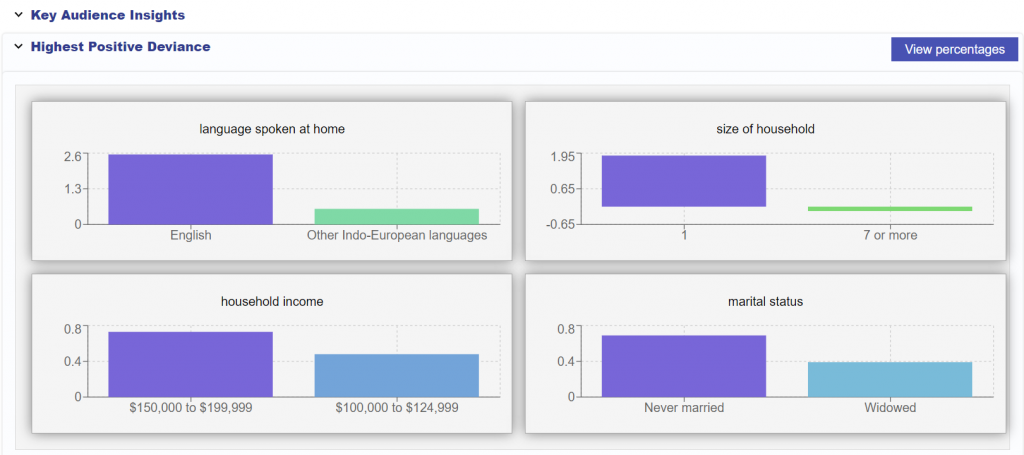
Key Audience Insights
The highest positive deviance section of the ART report will display the key characteristics that are the most defining demographics or interests for your audience:
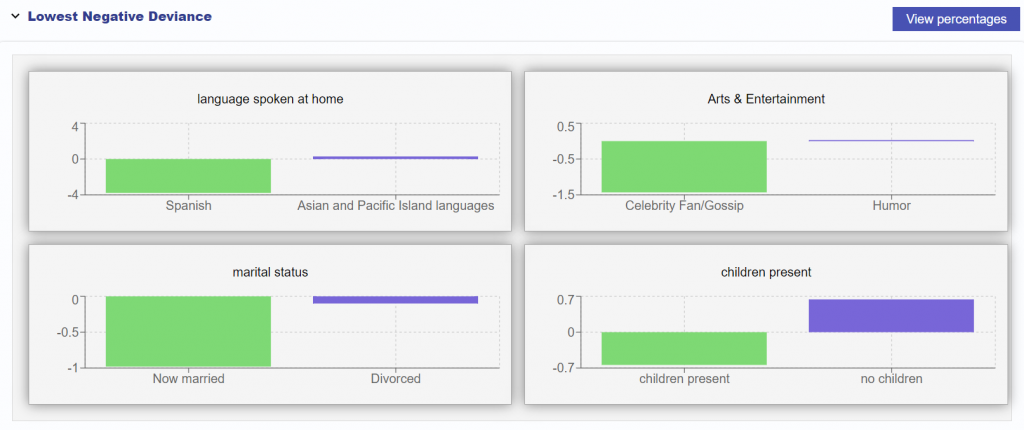
The lowest negative deviance section of the ART report will display the key characteristics that are the least defining demographics or interests for your audience:
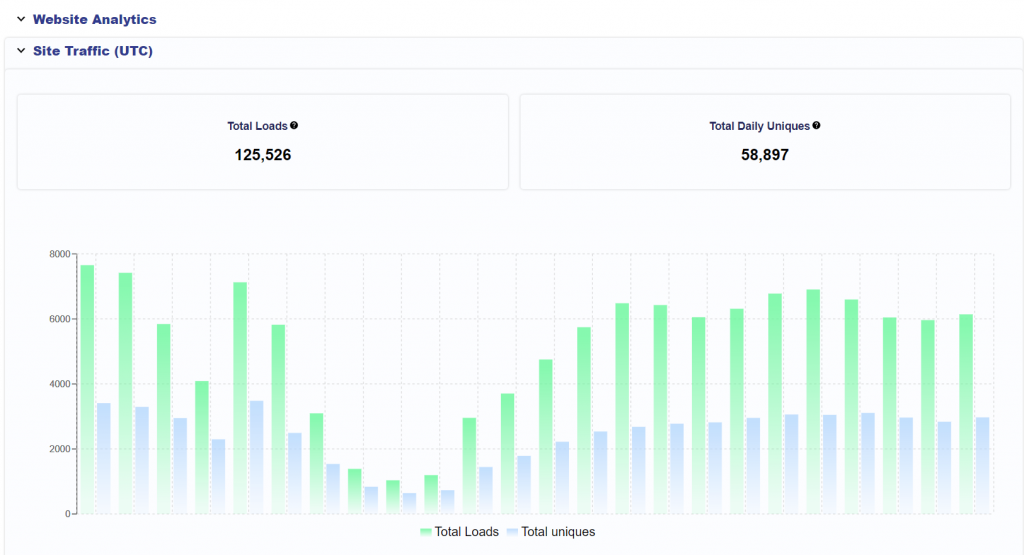
Site Traffic Analytics
Referring URL
The Referring URL section of the report will provide additional website analytics, displaying the URL that the user was on when the pixel load occurred.
Geographic Data
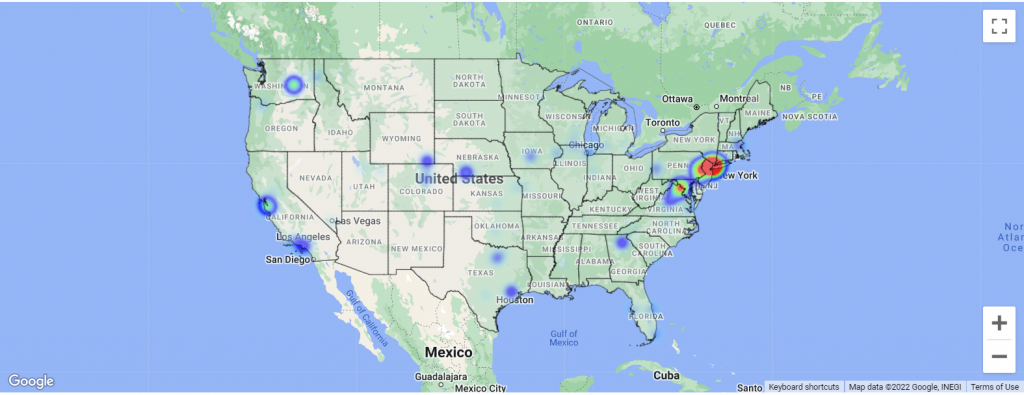
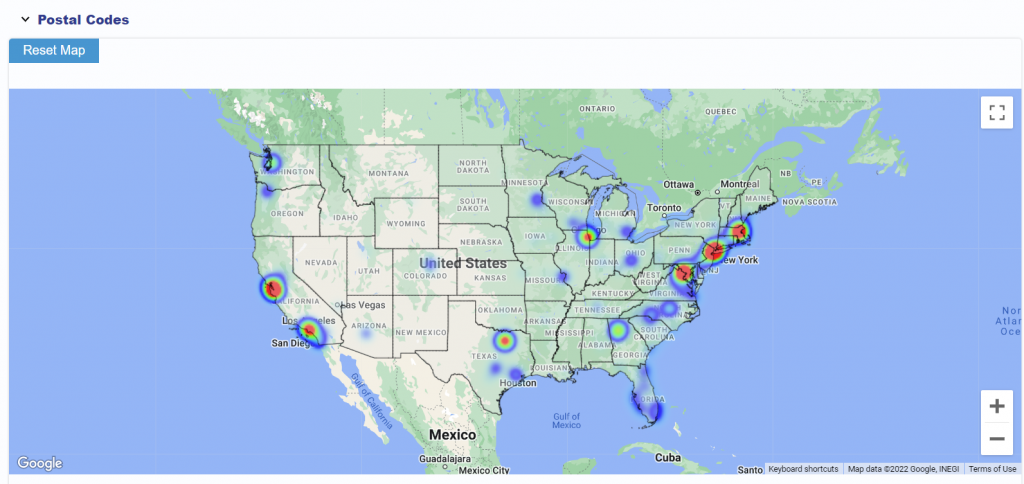
Once your report has generated, you will see a heat map displaying the geographic areas where your site traffic comes from. Below the map, there is a list of states and the percentage of website visitors that come from each state. Expand each state to see the percentage of traffic at the zip code level, their populations and number of households.
Demographic Data
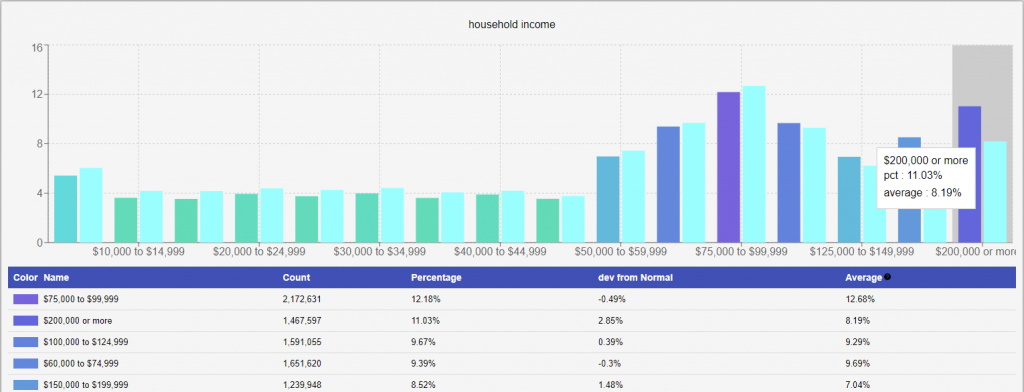
ART will create a report of the selected data categories utilizing U.S. Census data and the geographic data generated by your IP pixel. The report will be broken down into sections by ‘Concept’ and each concept will contain several graphs. For example, the Concept ‘Households’ will display graphs with the number of children present, the martial status, the household income and the size of household in the zip codes that your users come from.
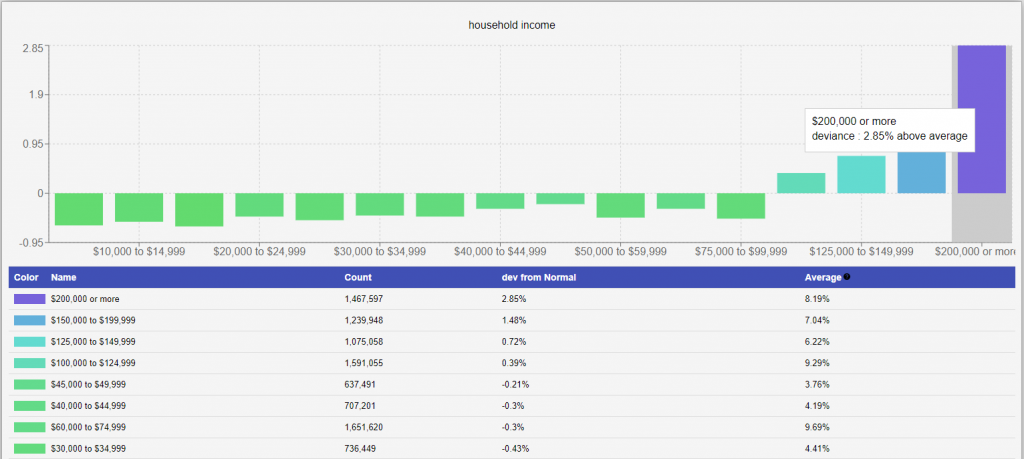
Each graph will display the % of users in that zip code for each demographic category, as well as compare that percentage to the national average. A zip code is considered ‘exceptional’ in a specific category if the % of users in this category is higher than the national average. In this example below, the zip code selected over-indexes for household income of $200,000 or more as 11.03% of individuals fall into this bracket, while the national average is only 8.19%.
Use the ‘View Deviance’ button to view the deviance for this zip code from the national average. The higher the deviance, the more exceptional a zip code is for a specific demographic:
Political Data
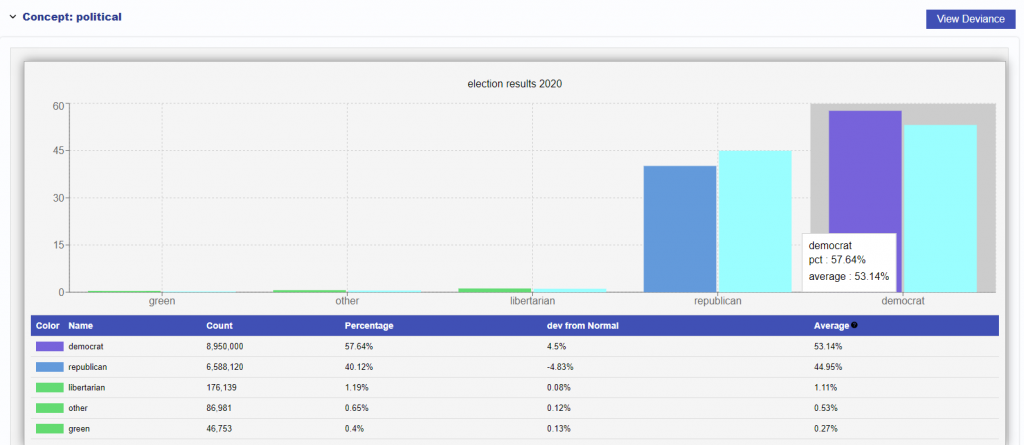
Political Data is also available for the 2020 presidential election. This data comes from Harvard Dataverse.
Interest Data
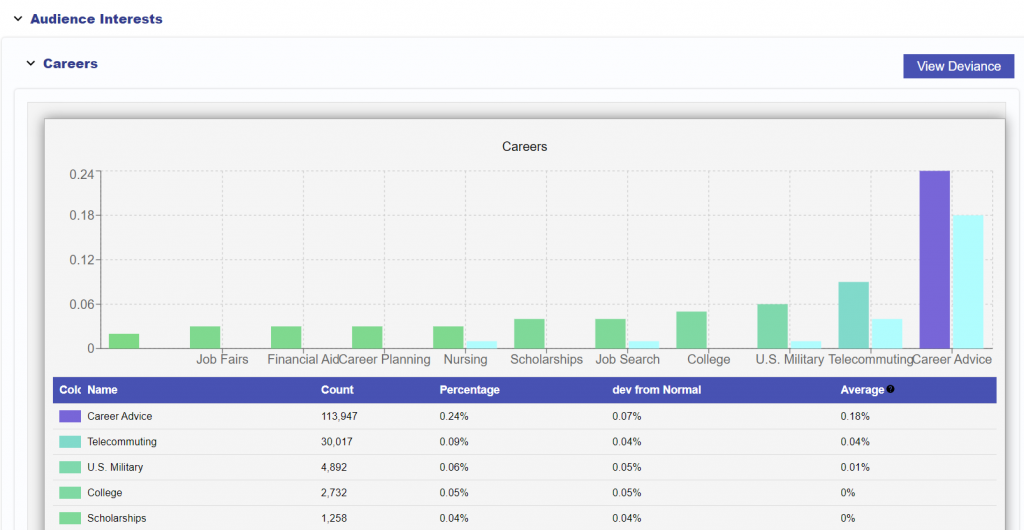
Through AI-based contextual analysis, Pontiac identifies categories of content consumed by zip code across the U.S., then matches this data to the zip codes of your existing audience for insights into the topics your website visitors are reading about. Leverage interests in content to develop cookieless contextual targeting strategies that are most relevant to your target audience. For example, in the below report the Advertiser’s audience is showing above average interest in Career Advice:
Inventory Data
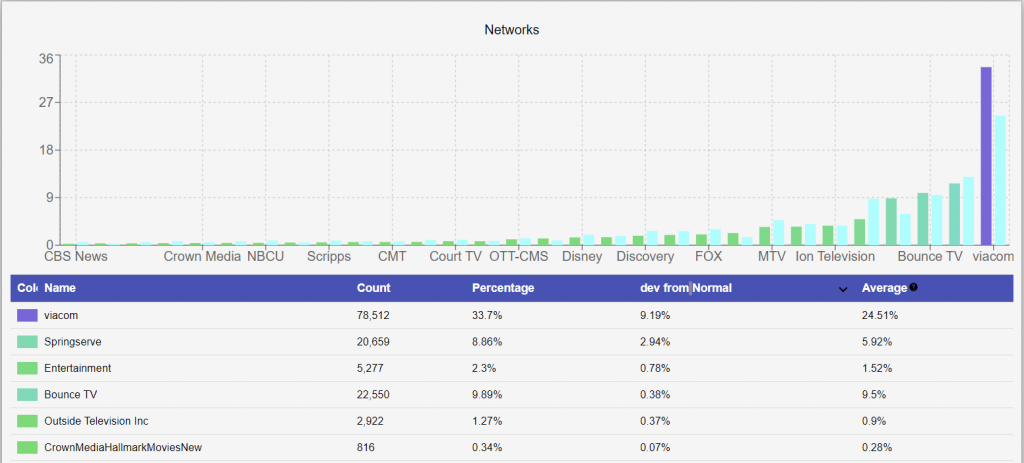
In the Inventory Data section of reports you can review the specific CTV networks, publishers, channels, series, episode titles & apps that your audience is currently watching. Our CTV Bidder provides the capabilities for targeting down to the channel level, so these are all actionable insights. Build detailed CTV targeting plans to serve ads across the inventory your audience watches the most.
Here is a sample model for CTV Network viewership for Mother’s in Louisiana with high household income that are showing interest in boating:
Lookalike Modeling through Zip Code Correlation
By building a look-a-like model from your existing web traffic, the geo selected or the interest category, the report will output a list of new zip code targets that are most closely matched to your existing audience across the categories and characteristics selected. Select ‘Publish Audience’ at the bottom of the report to create a cookieless targeting solution across all channels and media types – from Display and CTV to Digital Out of Home. Reports will also include the population and number of households in each zip code to provide insight into the potential audience size.
Create an Audience Discovery Report
Create your target Audience profile from the desired demographic variables to discover new zip code targets with the highest propensity match to your desired Audience profile. Leveraging the correlation between zip codes and demographics, ADT uses US Census Data to find the zip codes with the largest deviation from the US mean across the selected variables. Leveraging impression data and deep contextual analysis, interest categories can also be evaluated for each zip code to find areas that are over-indexing in content consumption for the selected topics. Audience Discovery data can be exported for targeting across all channels and media types.
To create a report in the Audience Discovery Tool, navigate to the ART section of the platform, then select ‘Audience Discovery’.
Select ‘New Report’.
Give the report a name.
Select the ‘Target Audience Size’. This is the number of zip codes that will be returned in the results.
Select an Auto Refresh schedule if needed. If an audience is published from the report, this will update the report and the audience on the selected schedule. New interest data is ingested every 30 days so refreshing the audience will incorporate any new data that has been added.
Optionally, Add Description of this audience. This will include a few AI generated images that represent the audience you’re targeting.
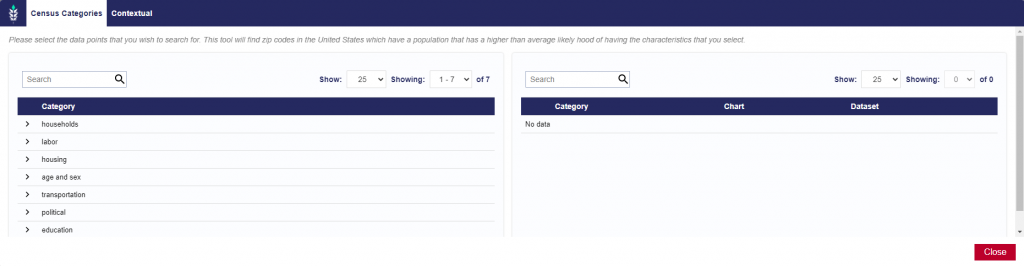
Click ‘Edit Targeting’ button to open the menu of data categories. There is a limit of 10 datasets that can be selected per report.
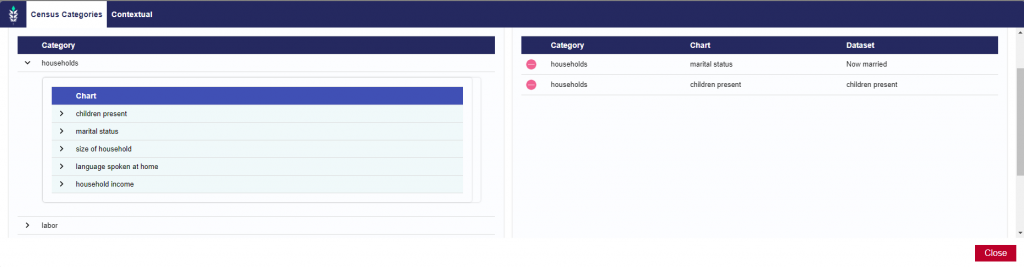
In the ‘Census Categories’ tab, select the demographics for your desired audience:
For example, here we are looking for households with a married couple and children present in the house.
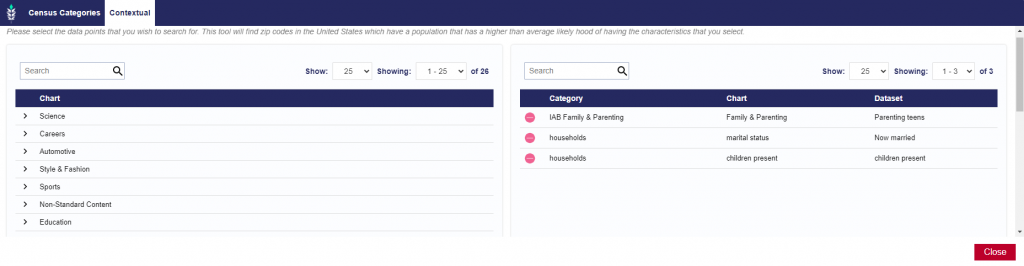
In the ‘Contextual’ tab, select the interests of your target audience:
For example, we added interest in the topic ‘Parenting teens’. Custom interest categories can also be created using the Pontiac Contextual AI. For more information, see here: Custom Interest Categories
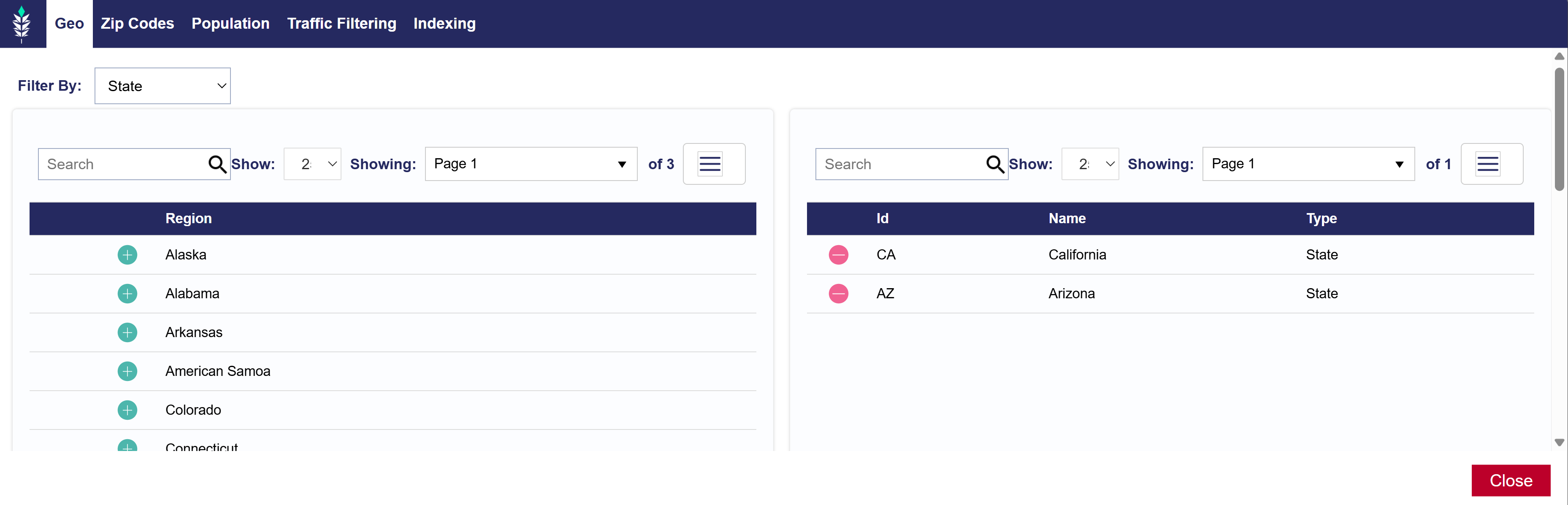
If your campaign is set to run in a specified Geo, you may want to filter results by that geo to only receive the top zip codes that will match your campaign parameters.
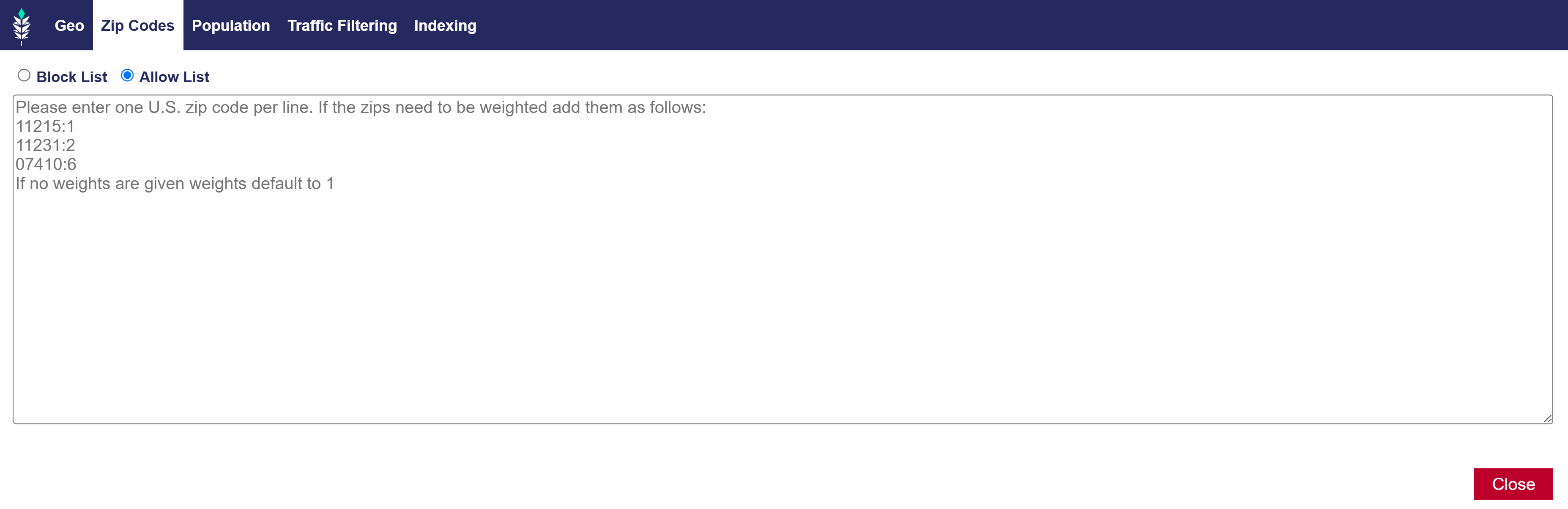
Zip codes can also be selected and weighted in their own area. Note that you can also create a Block List depending on your needs.
Under the ‘Population’ tab, you can filter results to zip codes that meet a specific threshold of population or # of households. Often times, zip codes with very small populations will index highly across the selected variables, but it may not be valuable to the Advertiser to consider zip codes below a certain population threshold. These filters will remove these zip codes from results.
Traffic Filtering will be applied to Contextual categories. There are defaults in place here to ensure that there is enough data in each zip code and interest category to evaluate and determine the most exceptional zip codes:
Zip traffic filters for zip codes that have contextual data over the last month for more impressions than the number specified
Graph traffic filters for zip codes that have contextual records in aggregate for the targeted graphs which exceed the number specified. Graphs are the upper level categories such as Health & Fitness and Home & Garden.
Category traffic filters for zip codes that have contextual records which exceed the number specified for the targeted category. Targeted categories are the most granular level such as Gardening or Exercise.
Under the ‘Indexing’ tab, check the box if you would like each zip code to over-index on ALL demographic and interest categories selected. If this box is unchecked, the report will use a composite score on all variables and return the most exceptional zip codes overall, but each zip code may not over-index on all categories.
Once you have selected all the desired variables to build your target audience profile, ‘Close’ and ‘Submit Report’.
Audience Discovery Report Data
The report is broken apart into different sections: audience insights, audience interests, inventory and published audiences. Follow the Extreme Sports Fans Audience Discovery Report to understand each section of the report. Note that the Audience Discovery Report setup is as follows:
Filters > Population: Population greater than 1000, Households greater than 400
Filters > Traffic Filtering: Zip Traffic greater than 1000, Graph Traffic greater than 20, Category Traffic greater than 2
Audience Insights
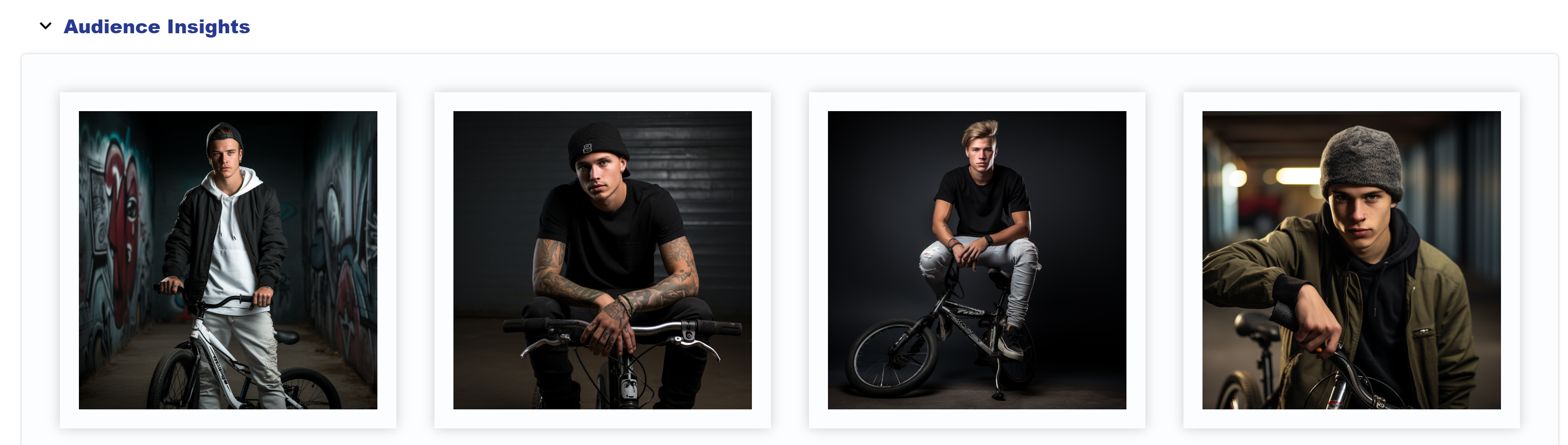
If you added a description when generating the audience discovery report, four AI generated images of your target audience will be displayed. These images help paint the picture of who you’re targeting. In our example, the audience description is “Fans of BMX” and the bellow figures were output.
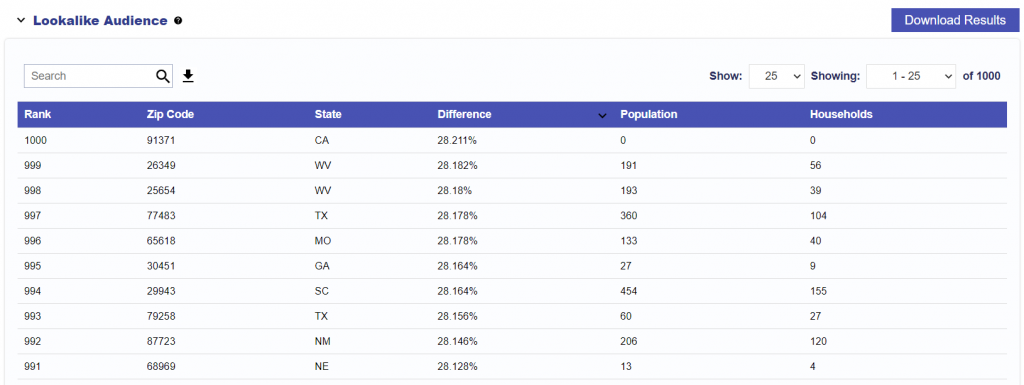
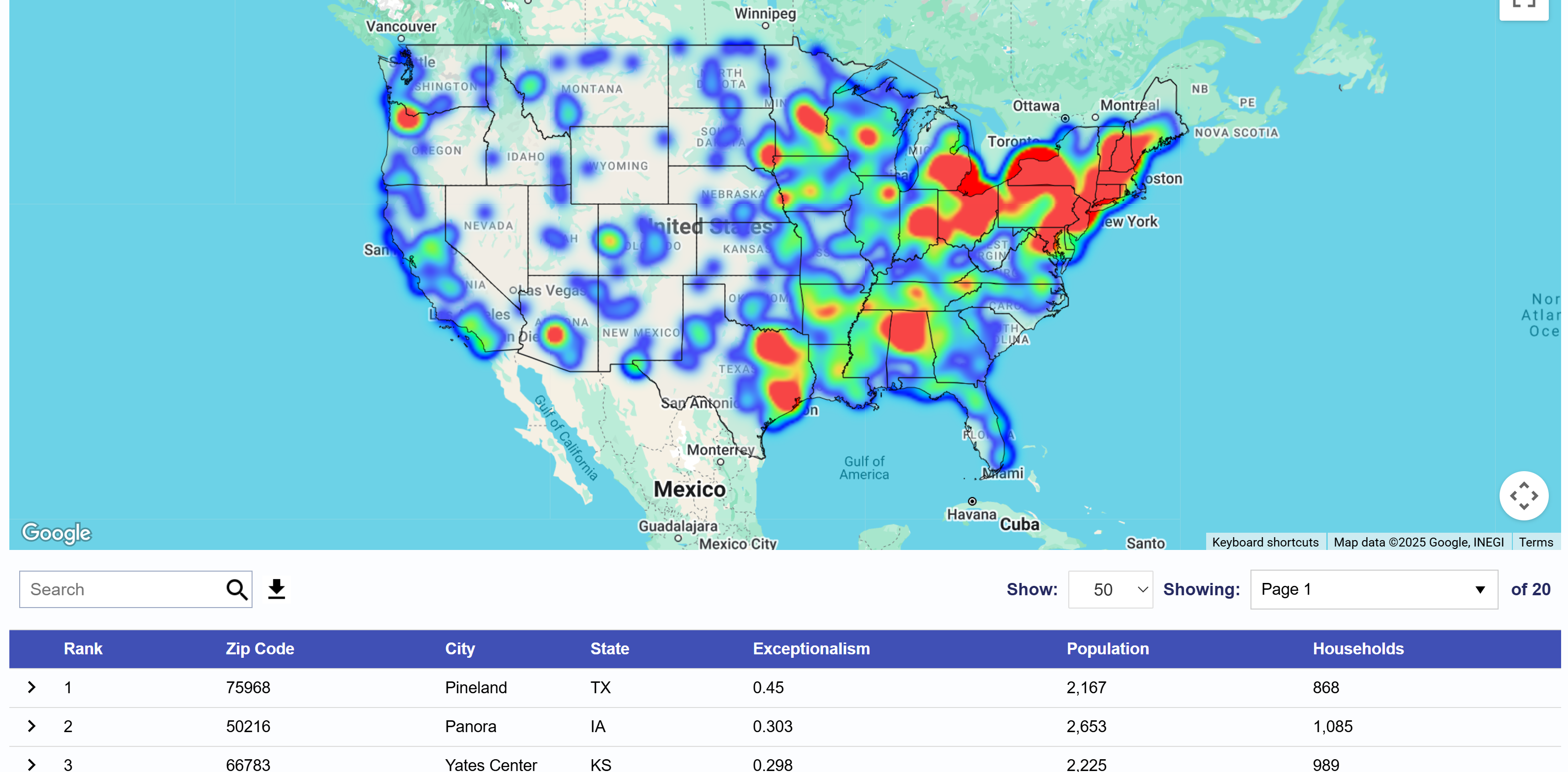
A heat map displays the geographic areas across the United States with the highest variance from the U.S. average on the selected variables. Below the map, the zip codes will be ranked according to their propensity match to your desired demographics and interests, with #1 being the closest match.
The ‘Exceptionalism’ column will display the average percentage difference between the displayed zip code and the U.S. average across all selected variables. A higher difference will indicate a higher likelihood for the zip code population to meet the criterion selected. Use the download button to export the list of zip codes. This zip code list can then be used for targeting on Pontiac campaigns across all channels and media types.
In this table, the report will also display the population and number of households for each zip code to provide insight into the potential audience size and reach of your campaign targeting these zip codes.
Audience Interest
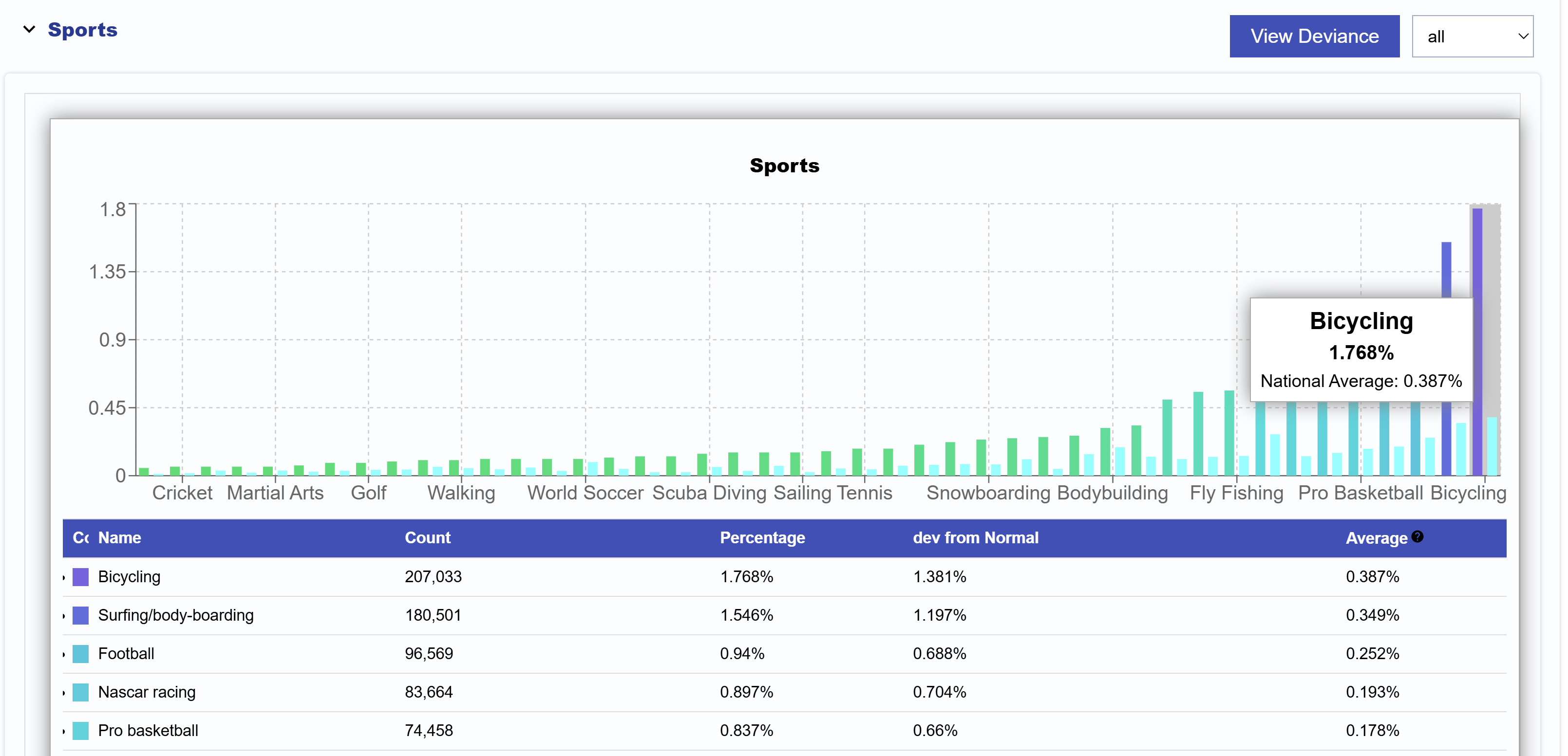
In the Audience Interest expandable section, you will see graphs of your selected targeting. Displayed is the distribution of the the population in the returned zip codes across each of the selected demographic and interest variables. Based on our example, we selected a variety of sports. Hover over the graph to see the name and corresponding percentage, deviation from normal, and US average. The category with the highest deviation from normal means that it is more likely to appear in this target audience. In our example, our audience is interested in Bicycling, Surfing/body-boarding, and Football the most.
Note that in the top right corner, users can toggle between Deviance and Percentage views depending on needs and interpretability. Users can also select to show all data points, top 10%, top 20%, or top 50%.
Inventory
In the Inventory section of reports you can review the specific CTV Title, Series, Genres, Channels, Publishers, Networks, and Apps that your audience is currently watching. Our CTV Bidder provides the capabilities for targeting down to the title level, so these are all actionable insights that can be applied to your Campaigns. Build detailed CTV targeting plans to serve ads across the inventory your audience watches the most.
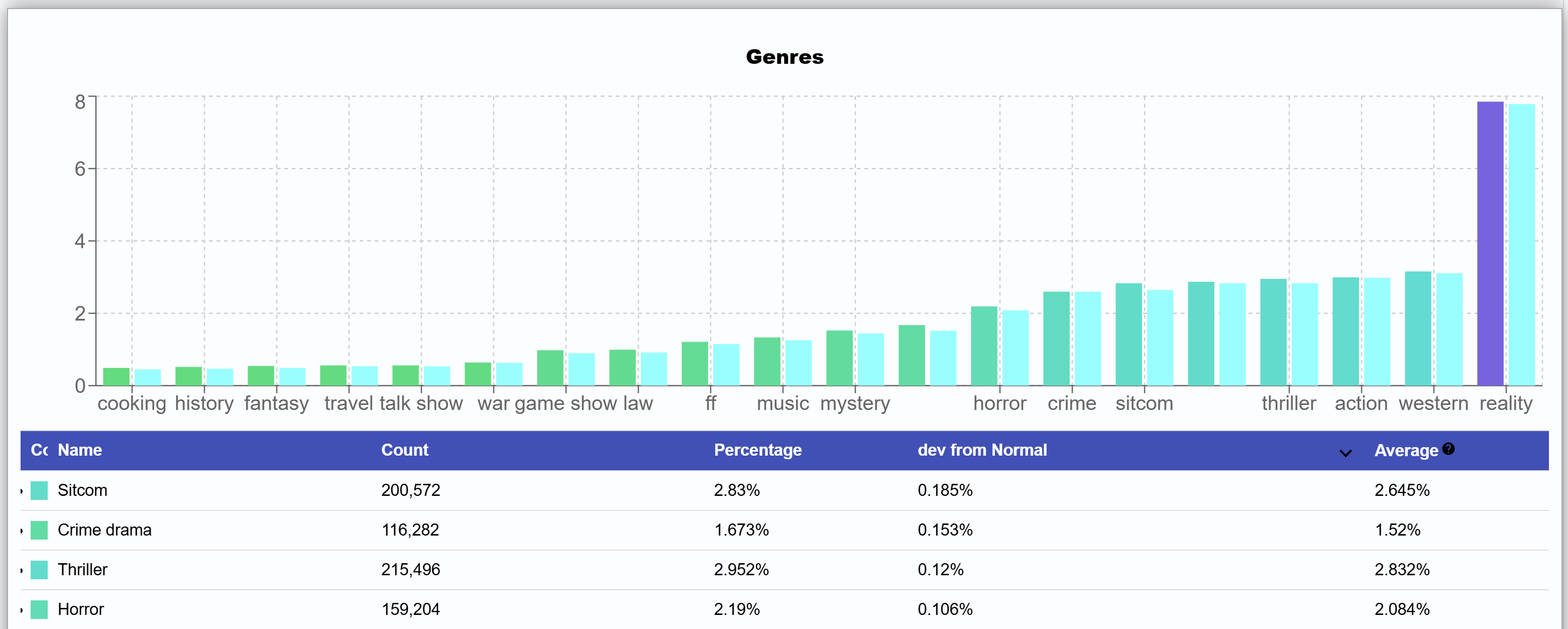
Here is a sample model for CTV Genres viewership for extreme sports fans:
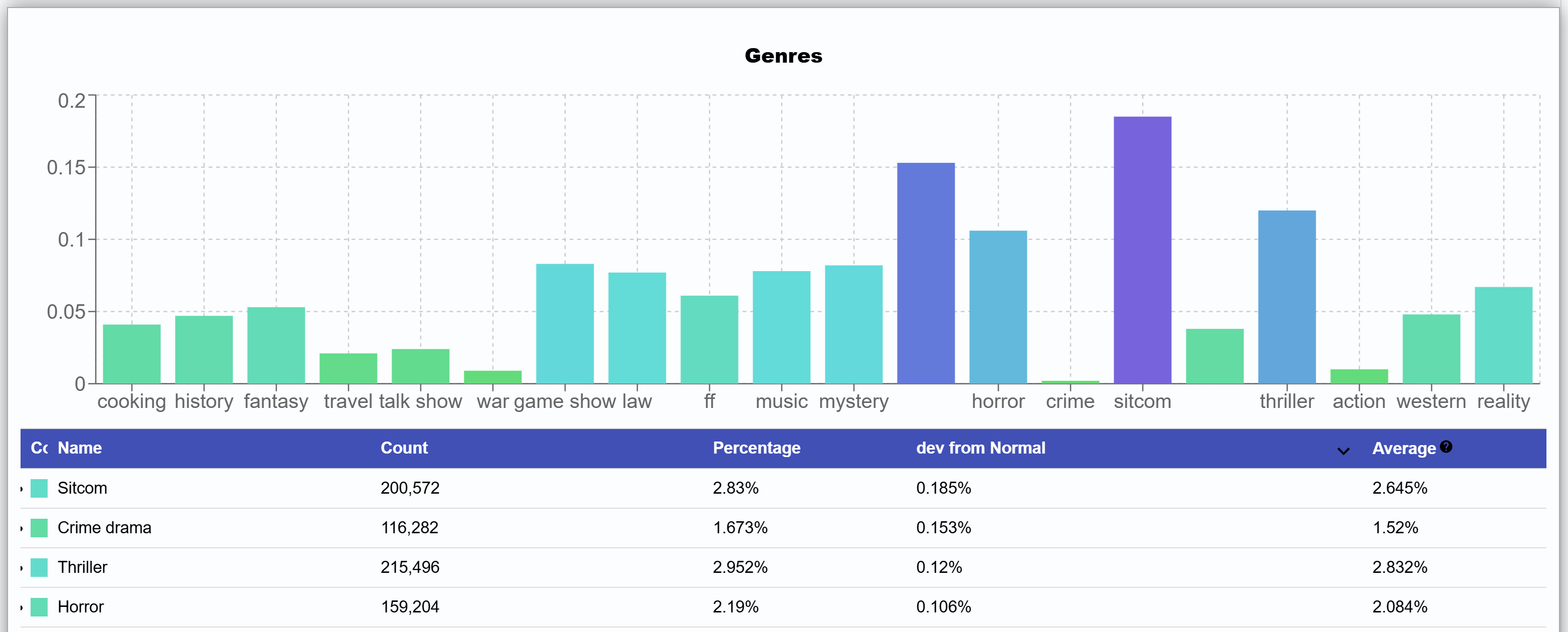
Looking at the graph in the percentage view, the light blue columns on the graph display the national average for each demographic or interest category (Sitcom, Crime drama, Thriller, etc.). A zip code is considered exceptional in a category if the % of users in that category for the zip code is higher than the national average. This is calculated in the ‘Dev from Normal’ column.
Switch the graph type using the ‘View Deviance’ button to view how a zip code or the complete set of zip codes differs from the national average on each category.
Published Audiences
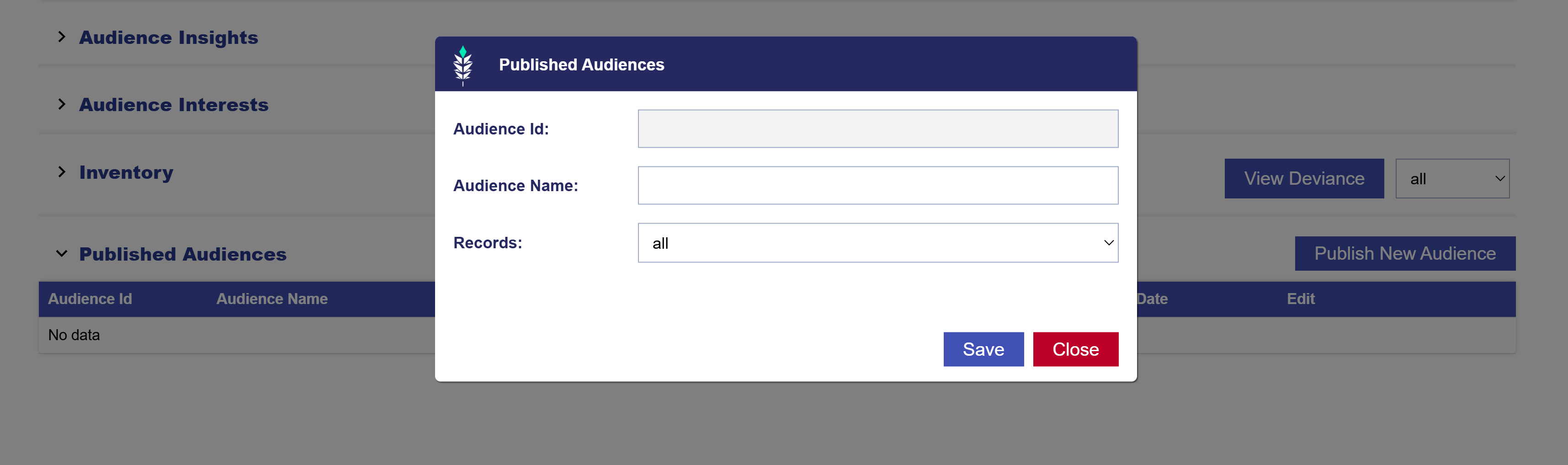
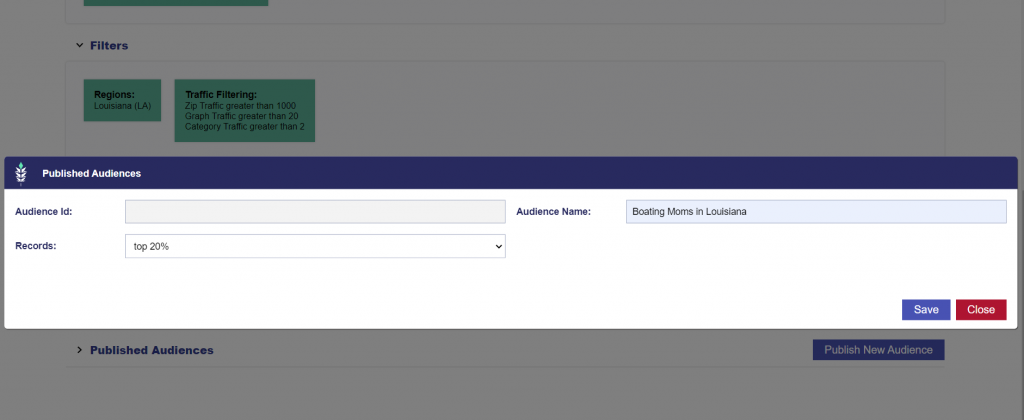
To create a targetable audience from the report data, click the ‘Publish Audience’ button. This will give you the option to select the threshold of match you want to include in the export. Filter results to select ‘all results’ or the ‘top 10%’, ‘top 20%’, ‘top 50%’ of matched zip codes depending on how closely matched you would like the zip codes to be. This audience will then be readily available for targeting in any Line Item under Custom ART Audiences.
Custom Interest Categories
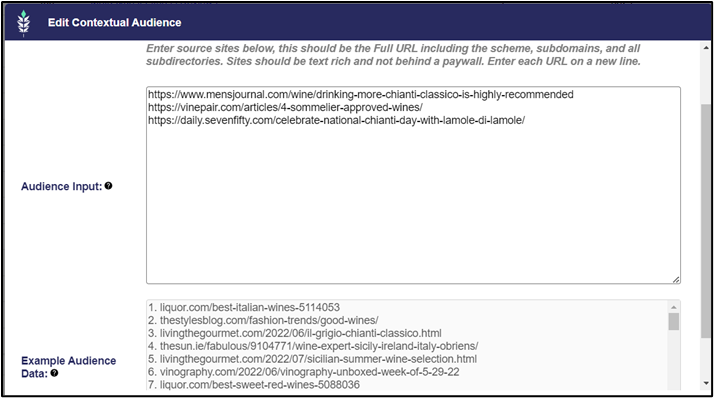
The ability to create custom interest categories for Audience Discovery reports. Custom interest categories can be created from a set of example articles related to the content, by creating a Contextual AI audience in the ‘DSP’ section of the platform. For example, here is a Contextual AI audience recently made about Chianti Wine.
The following articles related to the product were entered to ‘define’ the interest category:
These custom Contextual AI audiences will now appear under ‘Custom’ in the Audience Discovery report builder as an interest category. Selecting this interest category will create a report of the zip codes that have higher than average viewership on the sites from the audience. In this case, the report provides insights into the zip codes that are reading more about Chianti wine than other zip codes across the U.S. This data can be exported into a targetable audience that can be used on campaigns of all media types.
Publishing an ART or ADT Audience
Once you have created an Audience Research or Audience Discovery report, the report data can be published as a custom audience for cookieless targeting across all your Pontiac campaigns.
Open the ART report and select the ‘Publish Audience’ button.
Select the threshold for matched zip codes you would like to include in the audience. Filter results to select ‘all results’ or the ‘top 10%’, ‘top 20%’, or ‘top 50%’ depending on the desired reach & scale of the campaign.
For Audience Research reports, you can select the audience type from the following:
Site Visitors’ – zip codes collected by the IP Pixel on the website
‘Lookalike’ – zip codes returned by lookalike model (based on demo & interests of website visitors)
‘Site Visitor & Lookalike’ – a combined audience of both the zip codes collected by the pixel and the zip codes returned in the lookalike
Give the Audience a name
Click the ‘Save’ button.
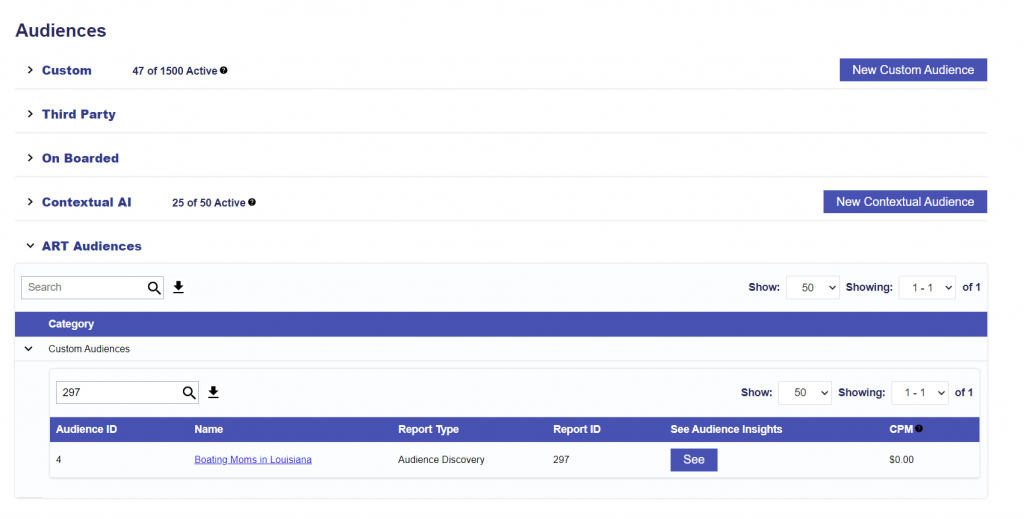
Published audiences will then appear in the ‘Audiences’ tab under the ‘Custom’ section of the ‘ART Audiences’ table. These audiences can be added to any Line Item using the ‘Associate Segments’ button.
On the ART Report, the field ‘Auto Refresh’ will determine the cadence at which the report data will refresh. Interest & Inventory data are updated every 30 days and new data may change report results. If a report is set to auto refresh and the matched zip codes in the results of the report are updated, this will automatically update any published audiences associated to the report.
Inventory Availability Tool
The Inventory Availability Tool is a forecasting tool designed to provide Advertisers with data and information regarding the inventory that can be purchased through the Pontiac DSP. Using historical data and delivery trends as well as the Pontiac forecasting formula, Inventory Availability reports provide insights for planning successful media buying strategies. These reports can be utilized to check the feasibility of a combination of targeting parameters, inform bid strategy, build performance benchmarks, and estimate available scale. Inventory report data is limited to the United States at this time.
To create an Inventory Availability Report, log in to the Pontiac platform and use the switch in the top right corner to enter the ‘ART’ section of the platform. If you do not see the ‘ART’ button, reach out to the Pontiac Support Team through the Help Center. Once you are in the ‘ART’ section, open the ‘Inventory Availability’ tab. Click the ‘New Report’ button. Give the report a name and select the end date of the report. The start date will automatically populate for 180 days before the end date selected.
Then select ‘Edit Targeting’ and select one or more targeting parameters for which you would like to create a forecast report from the following:
Exchanges: Select from the list of available exchanges
Domains: Enter up to 100 either domains or application domains
Postal Codes: U.S. only
Device Types: Desktops And Laptops, Mobile Phones, Tablets, TV, Game Console, Media Player , Set Top Box
Geo: State, DMA or County (U.S. only)
Once you have selected the desired targeting parameters, click ‘Save Report’. The report status will appear as ‘Pending’ while the report is generating. Once the status has changed to ‘success’ you will be able to open the report and view the results.
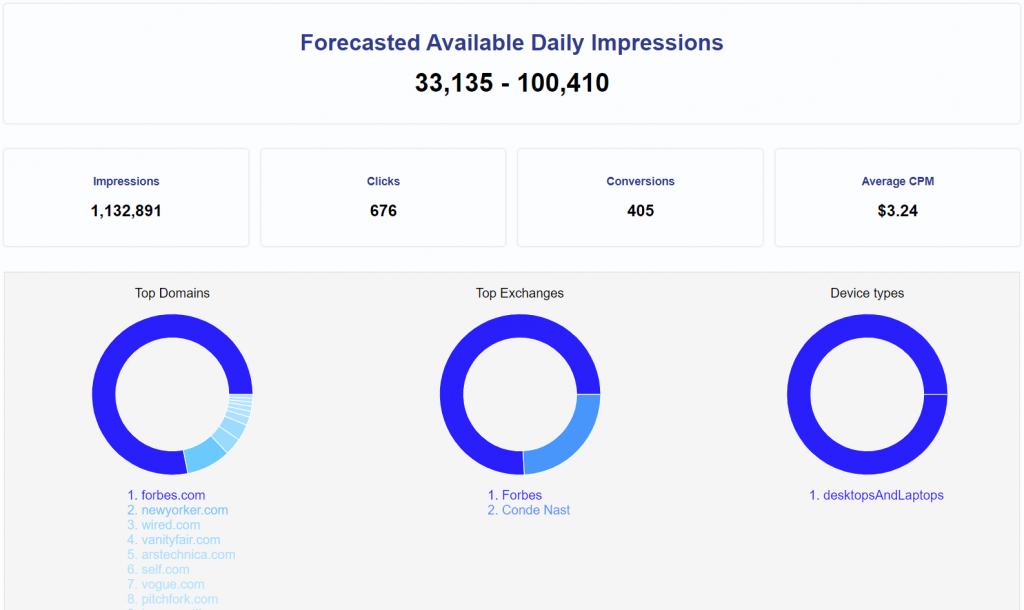
Report Results:
Forecasted Available Impressions: This will display the estimated number of daily impressions available with the selected targeting parameters.
Impressions: This number indicates historical delivery on the platform with the selected targeting parameters for the report dates.
Clicks: The number of clicks on this inventory for the selected report dates.
Conversions: The number of conversions on this inventory for the selected report dates.
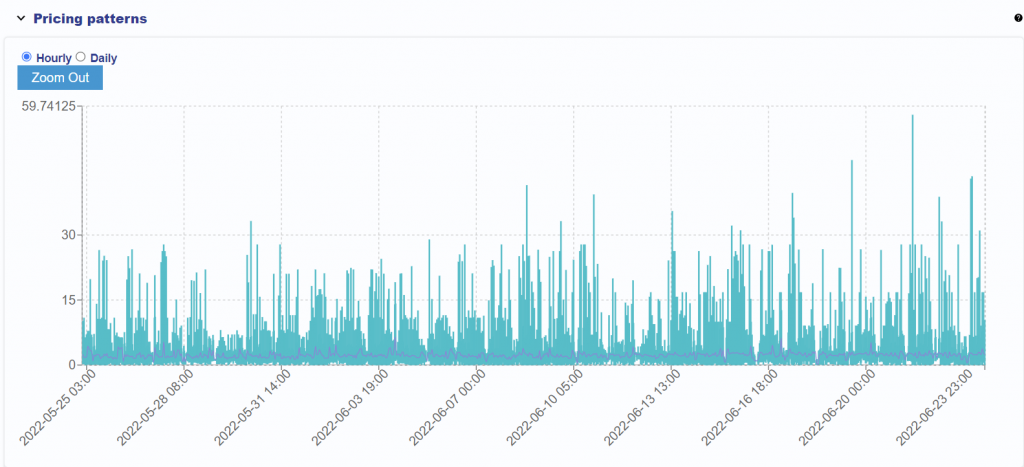
Pricing Patterns: The chart depicts both hourly and daily pricing patterns for the last 30 days of delivery.
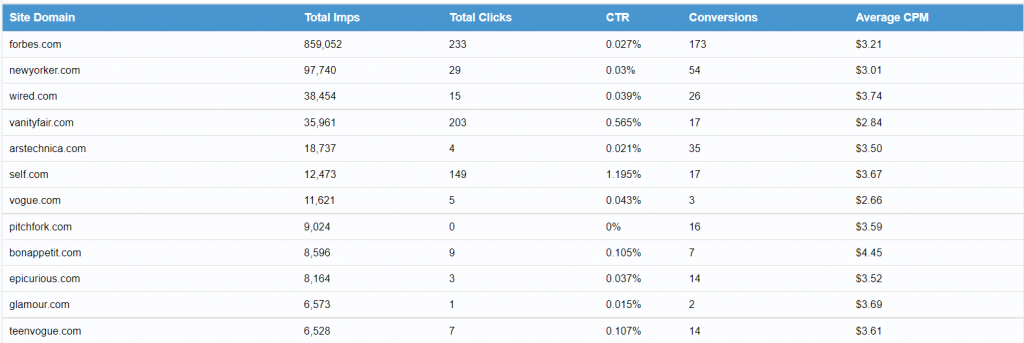
Site Domain: Imps served, performance and pricing by domain for the selected report dates.
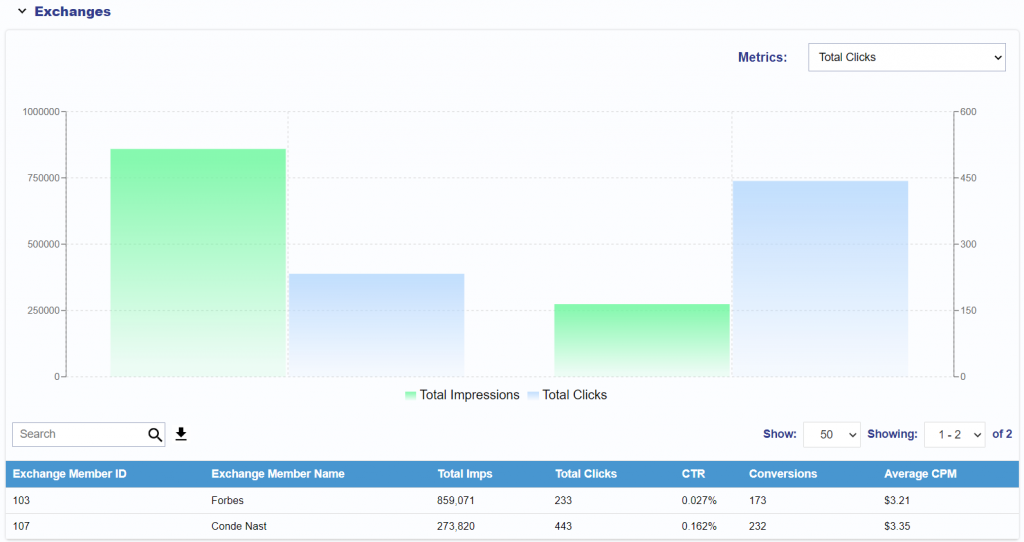
Exchanges: Imps served, performance and pricing by exchange for the selected report dates.
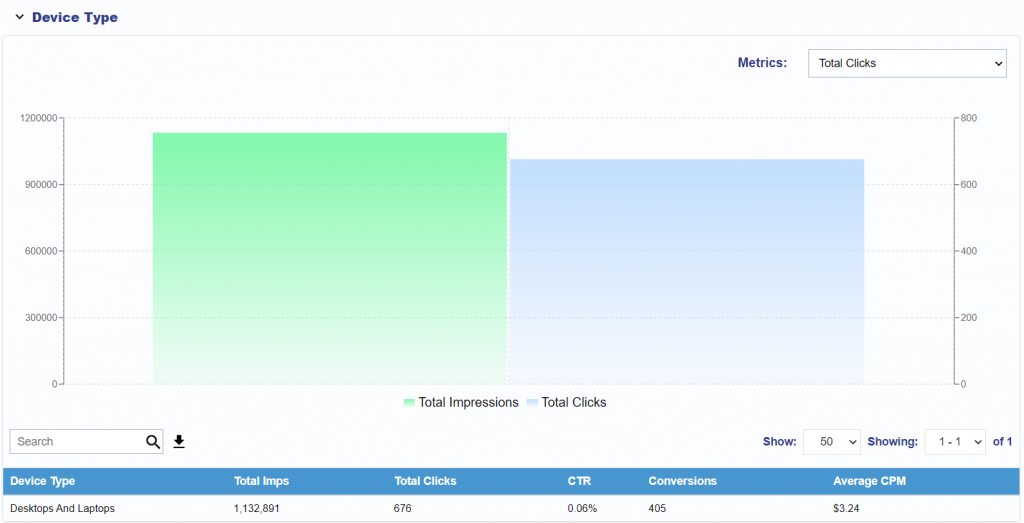
Device Types: Imps served, performance and pricing by device type for the selected report dates.
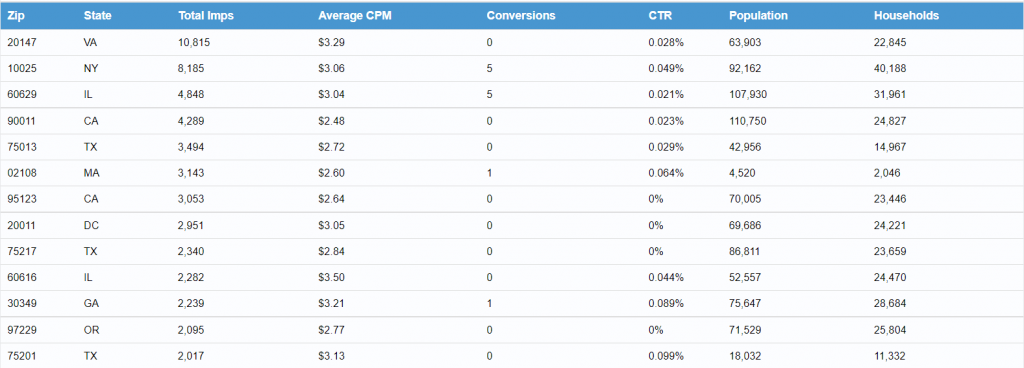
Postal Codes: Imps served, performance and pricing by postal code for the selected report dates.
Deal Landscape Tool
The Deal Landscape tool provides visibility into the inventory available to your Seat through the Pontiac Bidder. It is designed to help users explore available Deals, understand the data being passed in bid requests, and determine which targeting and reporting options are supported by the inventory before activating or scaling a campaign.
The Deal Landscape is Seat-specific and includes:
Deals negotiated for your Seat
Pontiac Public Deals available to your Seat
Because publishers and media owners do not always pass the same fields or level of detail in programmatic bid requests, the data available for targeting and reporting can vary significantly from one Deal to another.
The Deal Landscape provides transparency into the fields Pontiac receives in bidder logs, giving users a source of truth for how inventory is actually represented within a specific Deal. This can help determine which fields are most appropriate for targeting. For example, inventory may be identified more consistently by App Name, App Bundle ID, or a combination of multiple fields.
For content-based inventory, the same approach can help determine when Multi-Field targeting is appropriate. A concept such as Music, for example, may be represented differently across publishers and requests. One source may pass music in Content Genre, while another may identify relevant inventory through Publisher Name, Content Channel, Content Series, or Content Title.
By reviewing the Deal Landscape first, users can identify where relevant values are actually being passed and build a targeting strategy across the appropriate fields rather than relying on assumptions about how a publisher structures its data.
The Deal Landscape can be used to:
Explore the inventory available to your Seat
Compare Deals and inventory sources
Understand which fields are populated within a Deal
Determine the most reliable fields to use for targeting
Identify opportunities for Multi-Field targeting
Validate inventory before activating or increasing spend
Understand what level of detail may be available in reportinghe Deal Landscape can be used to:
The Deal Landscape has two sections:
Transparency
Custom Reporting
Transparency Report
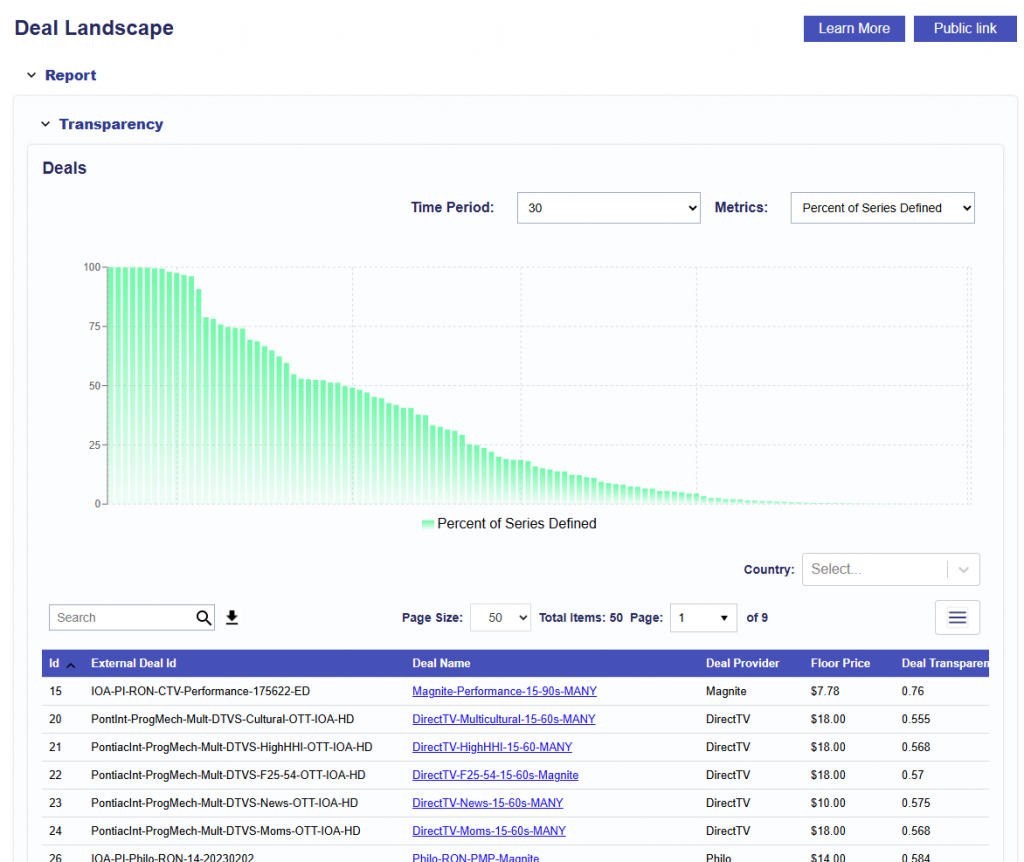
The Transparency Report provides a high-level view of the inventory and data available across Deals accessible to your Seat.
By aggregating data observed in bid requests through the Pontiac Bidder, the report shows which fields are being populated for each Deal and provides visibility into the level of transparency available from each inventory source.
The chart and table are dynamic and change depending on the selected Time Period. The Metrics filter only impacts the Chart displayed.
In the table, each row represents an individual Deal available to your Seat, including Seat-specific negotiated Deals and Pontiac Public Deals.
The following columns are available for review:
ID: Pontiac’s internal identifier for the Deal.
External Deal ID: The Deal ID provided by the publisher or supply partner.
Deal Name: The name of the Deal in Pontiac.
Deal Provider: The publisher or inventory provider associated with the Deal.
Floor Price: The configured CPM floor associated with the Deal.
Deal Transparency: An overall indicator of the level of data transparency observed for the Deal.
Countries: Countries associated with the available inventory.
Creative Types: Creative formats supported by the Deal, such as video.
Inventory Type: The inventory environments observed for the Deal, such as in-app or web.
Percent of Series Defined: Percentage of sampled requests where Content Series is populated.
Percent of Titles Defined: Percentage of sampled requests where Content Title is populated.
Percent of Networks Defined: Percentage of sampled requests where Content Network is populated.
Percent of Channels Defined: Percentage of sampled requests where Content Channel is populated.
Percent of Lat/Long Defined: Percentage of sampled requests where latitude and longitude are populated.
Full IP Reported: Percentage of sampled requests where a full IP address is provided.
Impressions: Sample volume observed for the Deal during the applicable reporting period.
These counts represent a sample of the bid requests received through the Deal or publisher during the selected time period. They should not be interpreted as the total number of impressions available or as a forecast of future inventory.
These fields allow users to compare not only the Deals available to their Seat, but also the amount and consistency of information Pontiac receives from each source of inventory.
For example, a Deal with a high percentage of Content Network, Content Channel, and Content Series values may support more detailed content-based analysis and targeting than a Deal where those fields are rarely populated.
The percentages are based on sampled bid requests and may change over time as publisher integrations, programming, and available inventory change.
To explore the complete Deal set, select the download arrow next to the search bar to export the full table.
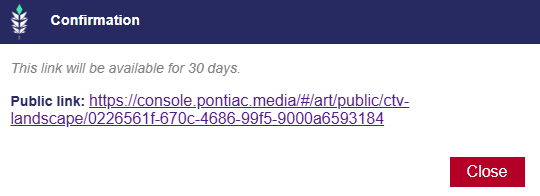
In the upper-right corner, select Public Link to generate a link that can be shared with clients or colleagues for 30 days.
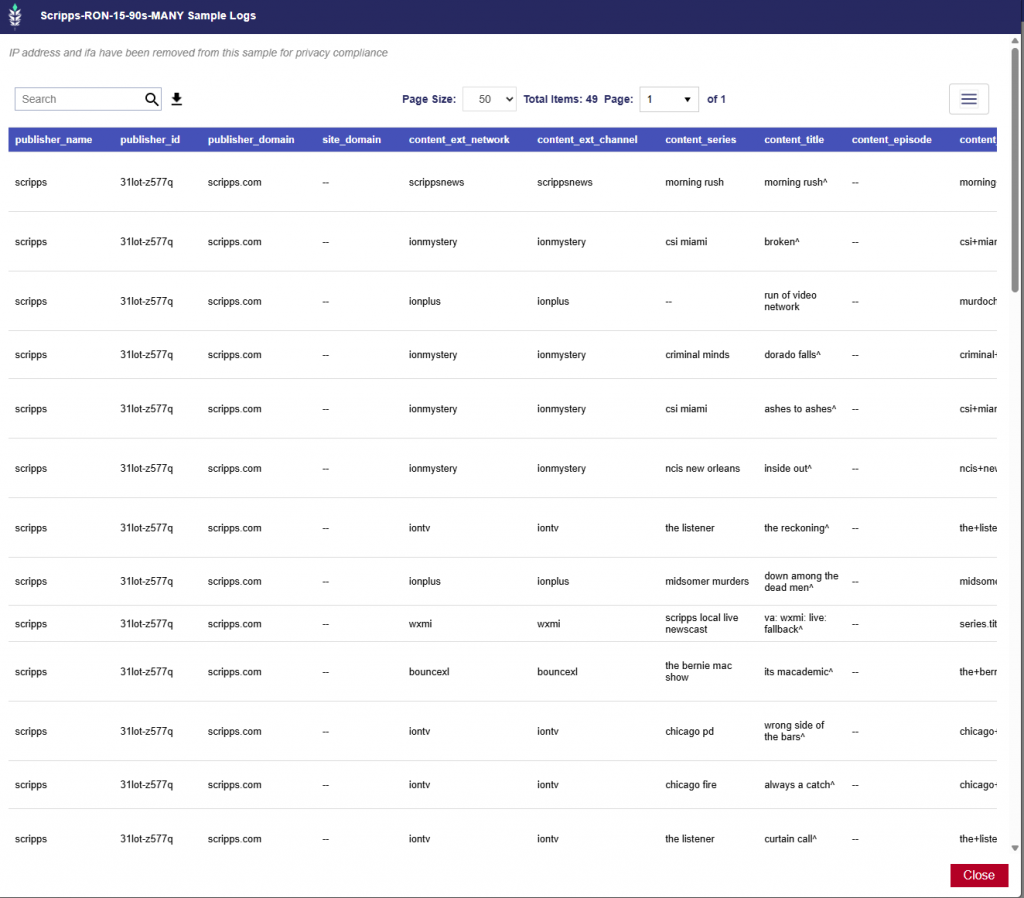
Deal Sample Logs
Select a Deal Name from the Transparency Report to open the Deal Sample Logs for that Deal.
Deal Sample Logs provide a detailed view of individual sampled bid requests received through the Pontiac Bidder. This allows users to move beyond the summarized percentages in the Transparency Report and inspect the actual values publishers are passing.
Depending on the publisher and inventory source, users may be able to review fields such as:
Publisher Name
Publisher Domain
Content Network
Content Channel
Content Series
Content Title
Content Genre
Content Category
App Name
App Bundle ID
Site Domain
Device information
Geographic information
Deal and bid floor information
Additional fields passed within the bid request
For example, sample requests from a sports Deal may show:
Content Network: NFL, Disney, FOX, NBCU
Content Channel: NFL Network, ESPN, FOX Sports 1, Golf Channel
Content Series: College Football, NFL Football, MLB Baseball, PGA Tour Golf
Content Genre: Sports
App Name: Spectrum TV
App Bundle ID: Values identifying the specific app environment
Reviewing these values can help establish the best targeting approach for a particular Deal. For example, if App Name is consistently populated while multiple App Bundle IDs are present, targeting by App Name may provide a simpler way to reach the intended inventory. In other cases, App Bundle ID or a combination of fields may provide greater precision.
The same applies to content targeting. If a desired concept is represented across different fields—for example, sports inventory appearing within Content Genre, Content Network, Content Channel, Content Series, or Content Title—the sample logs can help identify those patterns and inform a Multi-Field targeting strategy.
Deal Sample Logs can be used to:
Identify the values actually being passed for a specific Deal
Determine the most reliable field or combination of fields to use for targeting
Validate App Name versus App Bundle ID targeting
Identify opportunities for Multi-Field content targeting
Understand how publishers structure content and inventory metadata
Validate what level of detail may be available in reporting
Investigate inventory before activating or scaling a campaign
Because these logs reflect sampled bid requests, the values shown represent observed inventory and may change over time as publishers, programming, and available inventory change.
Deal Sample Log Field Definitions
Deal Sample Logs expose fields received in bid requests through the Pontiac Bidder. Most fields correspond directly to the IAB Tech Lab OpenRTB 2.6 specification. Field availability depends on the publisher, exchange, Deal, and individual bid request.
The definitions below describe the meaning of each field according to the applicable OpenRTB object. Fields identified as Pontiac/Internal are included in Pontiac’s logs but are not standard IAB OpenRTB fields.
Publisher and Site
Field
IAB / OpenRTB Field
Definition
publisher_name
publisher.name
Name of the seller or publisher supplying the inventory.
publisher_id
publisher.id
Exchange-specific seller identifier. Under OpenRTB, this identifier maps to a single entity being paid for the inventory and corresponds to the seller’s seller_id in the exchange’s sellers.json file.
publisher_domain
publisher.domain
Highest-level domain of the seller or publisher.
site_domain
site.domain
Domain of the website where the impression opportunity occurs.
The IAB Publisher object represents the entity that directly supplies inventory to and is paid by the exchange; this may be a publisher, intermediary exchange, ad network, or similar seller.
Content
Field
IAB / OpenRTB Field
Definition
content_ext_network
content.network.name
Name of the network on which the content appears. A Network is generally the parent entity that owns, licenses, or organizes one or more content channels. Examples include ABC, Discovery, or similar media networks.
content_ext_channel
content.channel.name
Name of the channel on which the content appears. A Channel represents a specific curated content library or stream, such as a television channel or audio station.
content_series
content.series
Name of the content series, such as a television program, franchise, podcast, or recurring content property.
content_title
content.title
Title of the individual content being consumed, such as an episode, movie, article, or other content item.
content_episode
content.episode
Episode number associated with the content.
content_season
content.season
Season associated with the content, such as Season 3.
content_genre
content.genre
Free-form genre that best describes the content, such as sports, rock, or pop.
content_cat
content.cat
One or more IAB content-category IDs describing the content. The applicable category taxonomy is defined by content.cattax; if it is not supplied, OpenRTB specifies the default taxonomy.
content_url
content.url
URL of the content, provided for contextualization or review by the buyer.
content_livestream
content.livestream
Indicates the method of broadcast. 0 means the broadcast is not scheduled, such as VOD or user-initiated content. 1 means the broadcast is scheduled or linear. This does not necessarily mean the underlying event is occurring live.
content_contentrating
content.contentrating
Content rating, such as an MPAA rating.
content_id
content.id
Publisher-provided identifier that uniquely identifies the content.
content_context
content.context
IAB enumerated value describing the type or context of the content, such as video, game, or text content.
content_len
content.len
Length of the content in seconds, generally applicable to video or audio.
content_prodq
content.prodq
IAB enumerated value describing the production quality of the content.
content_producer_name
content.producer.name
Name of the producer or originator of the content. The producer may differ from the publisher when content is syndicated.
OpenRTB’s Content object describes the actual programming or content in which the ad will appear. Network and Channel became standardized OpenRTB objects for describing CTV and similar inventory.
Note:content_ext_network and content_ext_channel are Pontiac’s flattened column names. In current OpenRTB 2.6 terminology, these values correspond to the standardized Network and Channel objects, typically their name fields.
App
Field
IAB / OpenRTB Field
Definition
app_bundle
app.bundle
Store-assigned identifier for the app. For mobile apps this may be a package/bundle identifier or numeric App Store ID; CTV platforms may use their own store-assigned identifiers.
app_id
app.id
Exchange-specific identifier for the application. This is distinct from the store-assigned App Bundle ID.
app_name
app.name
Human-readable application name.
app_cat
app.cat
Array of IAB content-category IDs describing the application.
app_storeurl
app.storeurl
URL of the app’s listing in an application store.
OpenRTB distinguishes between the exchange-specific App ID and the App Bundle, which is intended to identify the application within an app store. This distinction is especially useful when reviewing Deal Landscape logs to determine which identifier is most consistently supplied for targeting.
Exchange and Request Restrictions
Field
IAB / OpenRTB Field
Definition
exchange
Pontiac/Internal
Supply exchange or SSP through which Pontiac received the bid request. This is a Pontiac log field rather than a standard OpenRTB bid-request attribute.
request_bcat
bcat
Advertiser categories blocked from bidding on the request. Categories use the taxonomy identified by cattax; if cattax is absent, the OpenRTB default taxonomy applies.
bcat describes advertiser categories that the supply source does not permit for the request.
Geography
Field
IAB / OpenRTB Field
Definition
geo_country
device.geo.country
Country represented as an ISO-3166-1 alpha-3 country code, such as USA.
geo_metro
device.geo.metro
Google metro code. IAB notes that this is similar to, but not exactly the same as, Nielsen DMA coding.
geo_region
device.geo.region
Region represented using ISO-3166-2; for the United States, this is generally the two-letter state code.
geo_type
device.geo.type
IAB enumerated value indicating the source or method used to determine the geographic location.
geo_utcoffset
device.geo.utcoffset
Local time offset from UTC expressed in minutes.
geo_zip
device.geo.zip
ZIP or postal code associated with the location.
geo_ipservice
device.geo.ipservice
IAB enumerated value identifying the service or provider used to determine geographic location from an IP address when IP-derived location is used.
When Geo is subordinate to the Device object, it describes the location of the device, which may be interpreted as the user’s current location.
Device
Field
IAB / OpenRTB Field
Definition
device_language
device.language
Browser/device language using an ISO-639-1 two-letter language code.
device_make
device.make
Manufacturer or make of the device, such as Samsung or Apple.
device_model
device.model
Device model, such as a particular television, phone, or device model.
device_os
device.os
Operating system of the device, such as iOS, Android, Roku, or another platform-reported OS.
device_devicetype
device.devicetype
IAB enumerated value representing the general type of device.
device_dnt
device.dnt
Do Not Track signal. 0 means tracking is unrestricted; 1 means Do Not Track is enabled.
device_dpidsha1
device.dpidsha1
SHA-1 hashed platform-specific device identifier. Deprecated in OpenRTB 2.6.
device_osv
device.osv
Device operating-system version.
device_ua
device.ua
Raw browser or device User-Agent string supplied with the request.
device_lmt
device.lmt
Limit Ad Tracking signal. 0 means tracking is unrestricted; 1 means tracking should be limited according to applicable platform guidelines.
device_connectiontype
device.connectiontype
IAB enumerated value indicating the device’s network connection type.
The Device object describes the hardware, operating system, connection, privacy signals, and other characteristics of the device on which the impression will be displayed.
Source
Field
IAB / OpenRTB Field
Definition
source_fd
source.fd
Indicates which entity controls the final impression-sale decision. 0 means the exchange makes the final decision; 1 means an upstream source makes the final decision.
source_pchain
source.pchain
Payment ID chain string using the TAG Payment ID protocol. It identifies participants associated with the payment path for the transaction.
The OpenRTB Source object describes the upstream source of the bid request and is particularly relevant when auction decisioning occurs upstream of the exchange.
Impression
Field
IAB / OpenRTB Field
Definition
imp_displaymanager
imp.displaymanager
Name of the ad mediation partner, SDK, player, or other technology responsible for rendering the ad. Commonly used for video and app inventory.
imp_displaymanagerver
imp.displaymanagerver
Version of the ad mediation partner, SDK, player, or rendering technology identified in displaymanager.
imp_exp
imp.exp
Advisory number of seconds that may elapse between the auction and the actual impression.
imp_instl
imp.instl
Indicates whether the impression is interstitial or full screen. 1 = interstitial/full screen; 0 = not interstitial.
imp_secure
imp.secure
Indicates whether the impression requires secure HTTPS creative assets and markup. 1 = secure required; 0 = non-secure. If omitted, the secure state is unknown.
imp_tagid
imp.tagid
Identifier for the specific ad placement or ad tag that initiated the auction.
imp_bidfloor
imp.bidfloor
Minimum CPM bid for the overall impression opportunity.
imp_bidfloorcur
imp.bidfloorcur
Currency of the impression-level bid floor, using an ISO-4217 currency code. Defaults to USD under OpenRTB when omitted.
The Impression object describes the individual ad opportunity being auctioned. Its bid floor applies to the impression generally, whereas a Deal can specify its own Deal-specific floor.
Privacy and Regulations
Field
IAB / OpenRTB Field
Definition
regs_coppa
regs.coppa
Indicates whether the request is subject to the U.S. Children’s Online Privacy Protection Act (COPPA). 0 = no; 1 = yes.
regs_ext_usprivacy
regs.us_privacy
U.S. privacy signal communicated with the request. The export’s regs_ext_usprivacy naming reflects how the value is stored/flattened; current OpenRTB 2.6 defines us_privacy directly on the Regs object.
The Regs object contains legal, governmental, or industry privacy signals that the sender considers applicable to the request.
Bid Request
Field
IAB / OpenRTB Field
Definition
request_at
BidRequest.at
Overall auction type. Standard OpenRTB values include 1 = First Price and 2 = Second Price Plus. Exchanges may define additional exchange-specific values.
request_cur
BidRequest.cur
Array of currencies the exchange accepts for bids, expressed using ISO-4217 currency codes.
request_id
BidRequest.id
Exchange-assigned identifier for the bid request or auction.
request_tmax
BidRequest.tmax
Maximum amount of time, in milliseconds, that the exchange allows for the bidder to respond, including network latency.
These values apply at the overall bid-request level rather than to an individual Deal or impression.
PMP and Deal
Field
IAB / OpenRTB Field
Definition
deal_id
deal.id
Unique identifier for the direct Deal being offered.
deal_bidfloor
deal.bidfloor
Minimum bid for the impression when transacting through that specific Deal, expressed in CPM.
deal_bidfloorcur
deal.bidfloorcur
Currency of the Deal floor using an ISO-4217 currency code. The IAB specifies that this field does not inherit from imp.bidfloorcur; if omitted it defaults independently to USD.
deal_at
deal.at
Optional Deal-level override of the overall auction type. 1 = First Price, 2 = Second Price Plus, and 3 = the value supplied in bidfloor represents the agreed Deal price. Additional exchange-specific auction types may also exist.
pmp_private_auction
pmp.private_auction
Indicates whether auction participation is restricted to the Deals defined in the PMP object. 0 = bids outside the specified Deals may also be accepted; 1 = bids are restricted to the specified Deals and their terms.
A Deal object represents terms agreed between a buyer and seller for an impression opportunity. The PMP object acts as the container for Deals associated with the impression.
Pontiac Log Metadata
Field
IAB / OpenRTB Field
Definition
timestamp
Pontiac/Internal
Timestamp associated with the request as recorded in Pontiac’s bidder logs. This is not a standard OpenRTB bid-request field.
ds
Pontiac/Internal
Date partition used in Pontiac’s log storage/reporting. This is not a standard OpenRTB field.
These fields describe Pontiac’s stored log record rather than information defined by the IAB OpenRTB bid request.
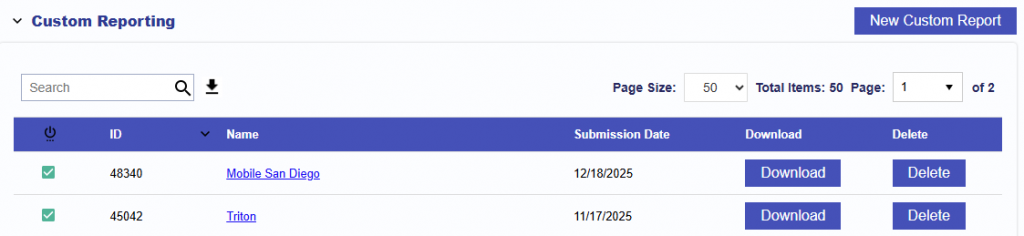
Custom Reporting
The Custom Reporting section allows users to analyze sample request data across one or multiple Deals in a downloadable report.
Custom Reports are useful when you want to analyze a larger sample set, compare several Deals, or focus on specific fields relevant to your targeting strategy.
Create A Custom Report
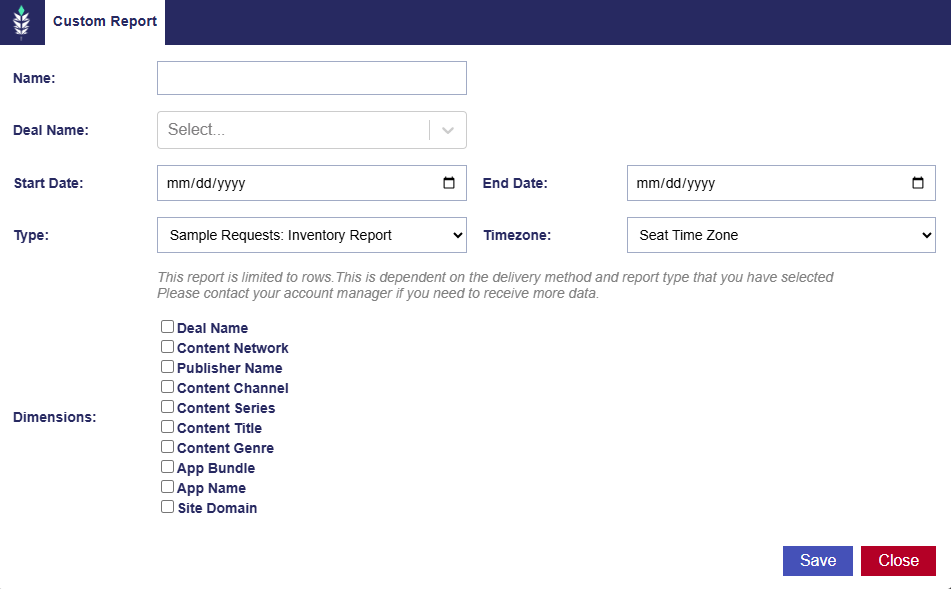
To create a report, navigate to the Custom Reporting section and select New Custom Report.
Fields
Name: Enter a name for the report.
Deal Name: Select one or multiple Deals to analyze. The report will include sample requests associated with the selected Deals.
Start Date: Select the beginning of the sample period.
End Date: Select the end of the sample period. Only sampled requests observed within the selected date range will be included.
Type: Select Sample Requests: Inventory Report.
Timezone: Select the timezone used for the report. By default, this is set to the Seat Time Zone.
Dimensions
Select the fields to include in the report output. These dimensions determine which inventory attributes can be analyzed.
Available dimensions include:
Deal Name
Content Network
Publisher Name
Content Channel
Content Series
Content Title
Content Genre
App Bundle
App Name
Site Domain
Field availability depends on the information supplied by the publisher or inventory source.
Example Use Case: Exploring Sports Inventory
The Custom Report can be used to identify and validate sports-related inventory before activating or scaling a campaign.
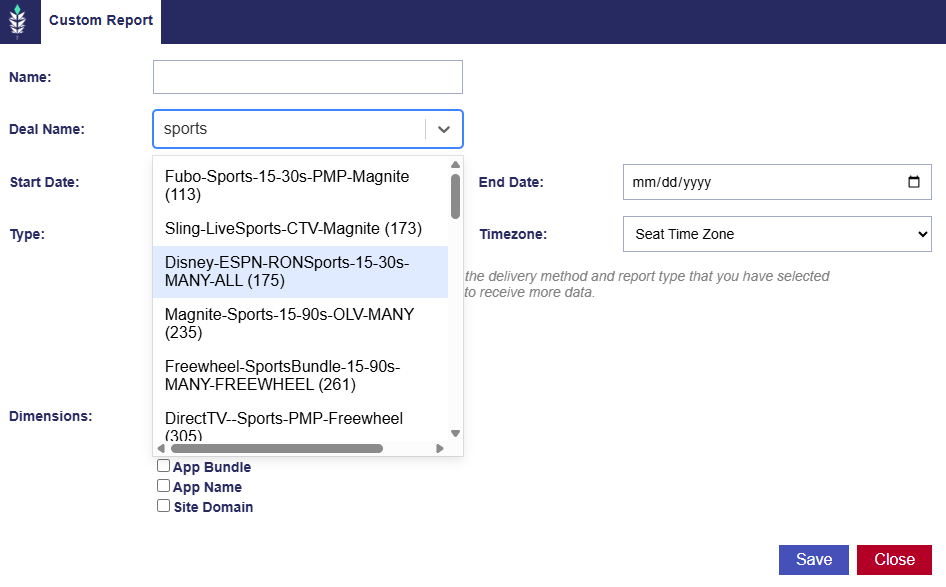
For example, search for “sports” in the Deal Name field to identify relevant Deals such as ESPN, Sling, or Fubo inventory. From there, generate a Custom Report to better understand the programming and metadata being passed within those Deals.
Useful dimensions may include:
Content Network: For example, ESPN or regional sports networks
Content Channel: For example, MLB, Golf Channel, or Fubo Sports Network
Content Series: For example, NBA Basketball or NASCAR Cup Series
Content Title: For example, individual games or sporting events
Reviewing these fields can help determine not only which Deals contain relevant inventory, but also how that inventory should be targeted.
For example, one publisher may consistently identify sports through Content Genre, while another may rely more heavily on Content Channel or Content Series. If the desired inventory is represented across several fields, users can apply Multi-Field targeting to search across those fields rather than relying on a single metadata value.
This analysis can help users:
Understand which sports programming is represented within each Deal
Validate that inventory aligns with campaign objectives
Compare multiple Deals before selecting inventory
Identify the most reliable fields for targeting
Build Multi-Field targeting strategies based on observed data
Set expectations for the level of content detail available in reporting
Make more informed decisions before activating or increasing spend
ART Public Links
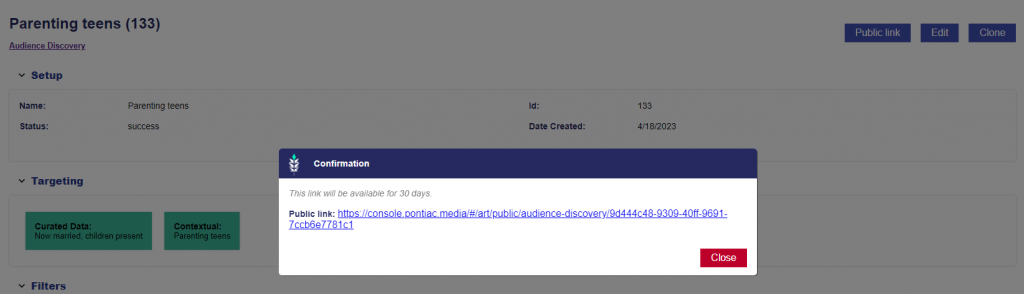
Within all three tools of the ART platform, you will have the ability to create a public link and share this report with clients or partners that do not have access to the Pontiac platform. Share insights with an Advertiser about their web traffic and their ideal target audience for future campaigns. This link can be opened to view the full report as it appears in Pontiac and will be valid for 30 days.