Deal Landscape Tool
The Deal Landscape tool provides visibility into the inventory available to your Seat through the Pontiac Bidder. It is designed to help users explore available Deals, understand the data being passed in bid requests, and determine which targeting and reporting options are supported by the inventory before activating or scaling a campaign.
The Deal Landscape is Seat-specific and includes:
- Deals negotiated for your Seat
- Pontiac Public Deals available to your Seat
Because publishers and media owners do not always pass the same fields or level of detail in programmatic bid requests, the data available for targeting and reporting can vary significantly from one Deal to another.
The Deal Landscape provides transparency into the fields Pontiac receives in bidder logs, giving users a source of truth for how inventory is actually represented within a specific Deal. This can help determine which fields are most appropriate for targeting. For example, inventory may be identified more consistently by App Name, App Bundle ID, or a combination of multiple fields.
For content-based inventory, the same approach can help determine when Multi-Field targeting is appropriate. A concept such as Music, for example, may be represented differently across publishers and requests. One source may pass music in Content Genre, while another may identify relevant inventory through Publisher Name, Content Channel, Content Series, or Content Title.
By reviewing the Deal Landscape first, users can identify where relevant values are actually being passed and build a targeting strategy across the appropriate fields rather than relying on assumptions about how a publisher structures its data.
The Deal Landscape can be used to:
- Explore the inventory available to your Seat
- Compare Deals and inventory sources
- Understand which fields are populated within a Deal
- Determine the most reliable fields to use for targeting
- Identify opportunities for Multi-Field targeting
- Validate inventory before activating or increasing spend
- Understand what level of detail may be available in reportinghe Deal Landscape can be used to:
The Deal Landscape has two sections:
- Transparency
- Custom Reporting
Transparency Report
The Transparency Report provides a high-level view of the inventory and data available across Deals accessible to your Seat.
By aggregating data observed in bid requests through the Pontiac Bidder, the report shows which fields are being populated for each Deal and provides visibility into the level of transparency available from each inventory source.
The chart and table are dynamic and change depending on the selected Time Period. The Metrics filter only impacts the Chart displayed.
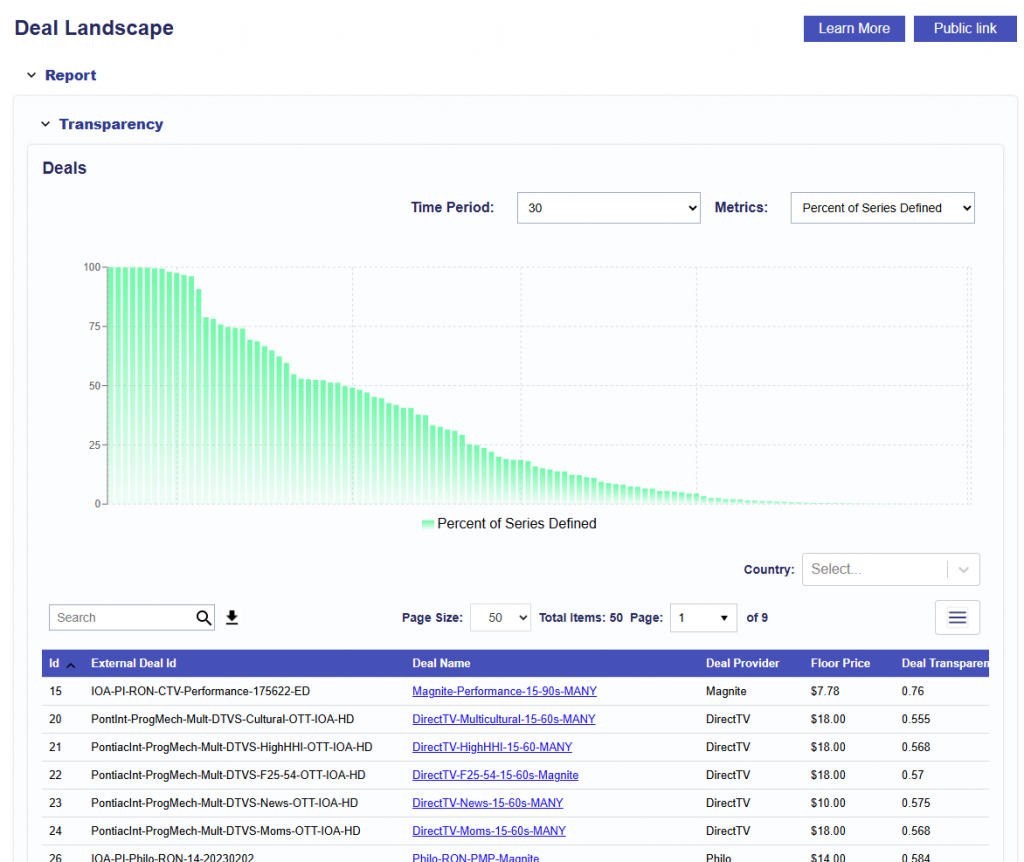
In the table, each row represents an individual Deal available to your Seat, including Seat-specific negotiated Deals and Pontiac Public Deals.
The following columns are available for review:
- ID: Pontiac’s internal identifier for the Deal.
- External Deal ID: The Deal ID provided by the publisher or supply partner.
- Deal Name: The name of the Deal in Pontiac.
- Deal Provider: The publisher or inventory provider associated with the Deal.
- Floor Price: The configured CPM floor associated with the Deal.
- Deal Transparency: An overall indicator of the level of data transparency observed for the Deal.
- Countries: Countries associated with the available inventory.
- Creative Types: Creative formats supported by the Deal, such as video.
- Inventory Type: The inventory environments observed for the Deal, such as in-app or web.
- Percent of Series Defined: Percentage of sampled requests where Content Series is populated.
- Percent of Titles Defined: Percentage of sampled requests where Content Title is populated.
- Percent of Networks Defined: Percentage of sampled requests where Content Network is populated.
- Percent of Channels Defined: Percentage of sampled requests where Content Channel is populated.
- Percent of Lat/Long Defined: Percentage of sampled requests where latitude and longitude are populated.
- Full IP Reported: Percentage of sampled requests where a full IP address is provided.
- Impressions: Sample volume observed for the Deal during the applicable reporting period.
- These counts represent a sample of the bid requests received through the Deal or publisher during the selected time period. They should not be interpreted as the total number of impressions available or as a forecast of future inventory.
These fields allow users to compare not only the Deals available to their Seat, but also the amount and consistency of information Pontiac receives from each source of inventory.
For example, a Deal with a high percentage of Content Network, Content Channel, and Content Series values may support more detailed content-based analysis and targeting than a Deal where those fields are rarely populated.
The percentages are based on sampled bid requests and may change over time as publisher integrations, programming, and available inventory change.
To explore the complete Deal set, select the download arrow next to the search bar to export the full table.
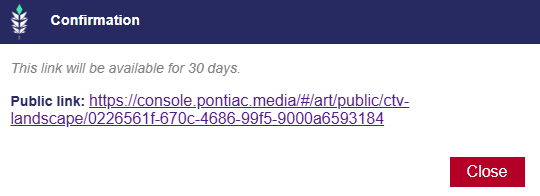
In the upper-right corner, select Public Link to generate a link that can be shared with clients or colleagues for 30 days.
Deal Sample Logs
Select a Deal Name from the Transparency Report to open the Deal Sample Logs for that Deal.
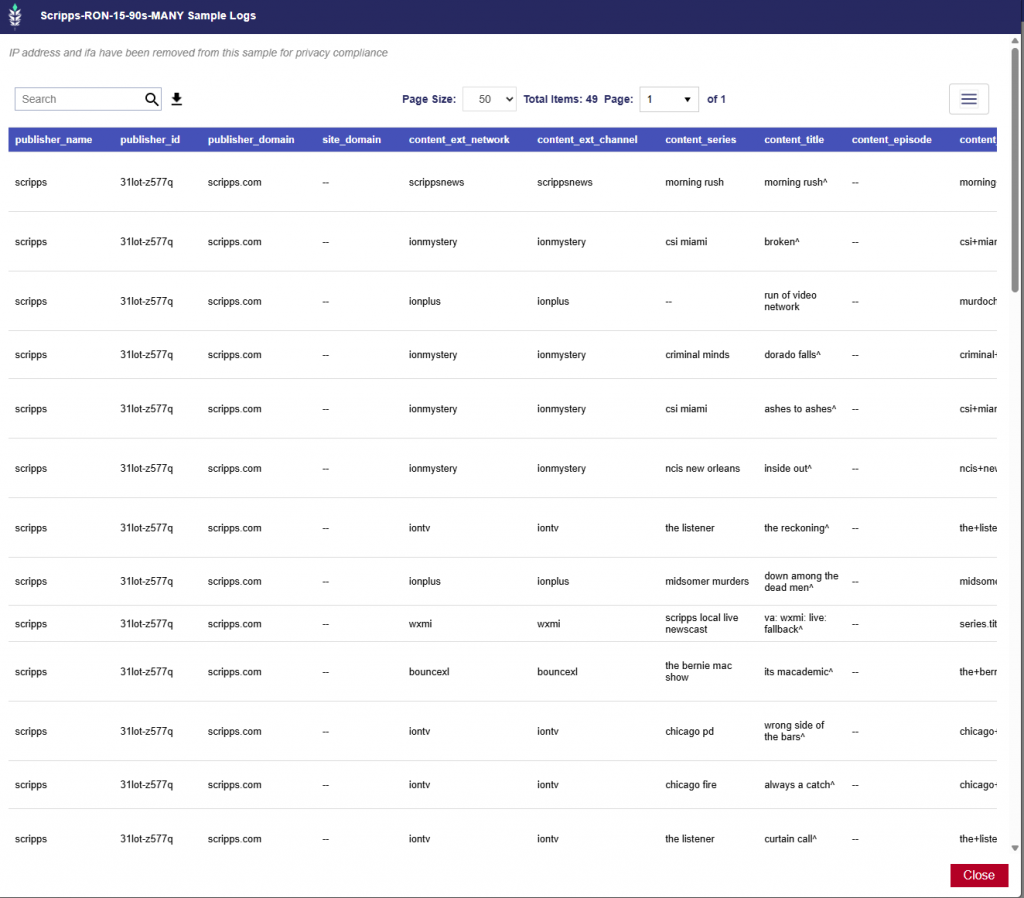
Deal Sample Logs provide a detailed view of individual sampled bid requests received through the Pontiac Bidder. This allows users to move beyond the summarized percentages in the Transparency Report and inspect the actual values publishers are passing.
Depending on the publisher and inventory source, users may be able to review fields such as:
- Publisher Name
- Publisher Domain
- Content Network
- Content Channel
- Content Series
- Content Title
- Content Genre
- Content Category
- App Name
- App Bundle ID
- Site Domain
- Device information
- Geographic information
- Deal and bid floor information
- Additional fields passed within the bid request
For example, sample requests from a sports Deal may show:
- Content Network: NFL, Disney, FOX, NBCU
- Content Channel: NFL Network, ESPN, FOX Sports 1, Golf Channel
- Content Series: College Football, NFL Football, MLB Baseball, PGA Tour Golf
- Content Genre: Sports
- App Name: Spectrum TV
- App Bundle ID: Values identifying the specific app environment
Reviewing these values can help establish the best targeting approach for a particular Deal. For example, if App Name is consistently populated while multiple App Bundle IDs are present, targeting by App Name may provide a simpler way to reach the intended inventory. In other cases, App Bundle ID or a combination of fields may provide greater precision.
The same applies to content targeting. If a desired concept is represented across different fields—for example, sports inventory appearing within Content Genre, Content Network, Content Channel, Content Series, or Content Title—the sample logs can help identify those patterns and inform a Multi-Field targeting strategy.
Deal Sample Logs can be used to:
- Identify the values actually being passed for a specific Deal
- Determine the most reliable field or combination of fields to use for targeting
- Validate App Name versus App Bundle ID targeting
- Identify opportunities for Multi-Field content targeting
- Understand how publishers structure content and inventory metadata
- Validate what level of detail may be available in reporting
- Investigate inventory before activating or scaling a campaign
Because these logs reflect sampled bid requests, the values shown represent observed inventory and may change over time as publishers, programming, and available inventory change.
Deal Sample Log Field Definitions
Deal Sample Logs expose fields received in bid requests through the Pontiac Bidder. Most fields correspond directly to the IAB Tech Lab OpenRTB 2.6 specification. Field availability depends on the publisher, exchange, Deal, and individual bid request.
The definitions below describe the meaning of each field according to the applicable OpenRTB object. Fields identified as Pontiac/Internal are included in Pontiac’s logs but are not standard IAB OpenRTB fields.
Publisher and Site
| Field | IAB / OpenRTB Field | Definition |
|---|---|---|
| publisher_name | publisher.name | Name of the seller or publisher supplying the inventory. |
| publisher_id | publisher.id | Exchange-specific seller identifier. Under OpenRTB, this identifier maps to a single entity being paid for the inventory and corresponds to the seller’s seller_id in the exchange’s sellers.json file. |
| publisher_domain | publisher.domain | Highest-level domain of the seller or publisher. |
| site_domain | site.domain | Domain of the website where the impression opportunity occurs. |
The IAB Publisher object represents the entity that directly supplies inventory to and is paid by the exchange; this may be a publisher, intermediary exchange, ad network, or similar seller.
Content
| Field | IAB / OpenRTB Field | Definition |
|---|---|---|
| content_ext_network | content.network.name | Name of the network on which the content appears. A Network is generally the parent entity that owns, licenses, or organizes one or more content channels. Examples include ABC, Discovery, or similar media networks. |
| content_ext_channel | content.channel.name | Name of the channel on which the content appears. A Channel represents a specific curated content library or stream, such as a television channel or audio station. |
| content_series | content.series | Name of the content series, such as a television program, franchise, podcast, or recurring content property. |
| content_title | content.title | Title of the individual content being consumed, such as an episode, movie, article, or other content item. |
| content_episode | content.episode | Episode number associated with the content. |
| content_season | content.season | Season associated with the content, such as Season 3. |
| content_genre | content.genre | Free-form genre that best describes the content, such as sports, rock, or pop. |
| content_cat | content.cat | One or more IAB content-category IDs describing the content. The applicable category taxonomy is defined by content.cattax; if it is not supplied, OpenRTB specifies the default taxonomy. |
| content_url | content.url | URL of the content, provided for contextualization or review by the buyer. |
| content_livestream | content.livestream | Indicates the method of broadcast. 0 means the broadcast is not scheduled, such as VOD or user-initiated content. 1 means the broadcast is scheduled or linear. This does not necessarily mean the underlying event is occurring live. |
| content_contentrating | content.contentrating | Content rating, such as an MPAA rating. |
| content_id | content.id | Publisher-provided identifier that uniquely identifies the content. |
| content_context | content.context | IAB enumerated value describing the type or context of the content, such as video, game, or text content. |
| content_len | content.len | Length of the content in seconds, generally applicable to video or audio. |
| content_prodq | content.prodq | IAB enumerated value describing the production quality of the content. |
| content_producer_name | content.producer.name | Name of the producer or originator of the content. The producer may differ from the publisher when content is syndicated. |
OpenRTB’s Content object describes the actual programming or content in which the ad will appear. Network and Channel became standardized OpenRTB objects for describing CTV and similar inventory.
Note: content_ext_network and content_ext_channel are Pontiac’s flattened column names. In current OpenRTB 2.6 terminology, these values correspond to the standardized Network and Channel objects, typically their name fields.
App
| Field | IAB / OpenRTB Field | Definition |
|---|---|---|
| app_bundle | app.bundle | Store-assigned identifier for the app. For mobile apps this may be a package/bundle identifier or numeric App Store ID; CTV platforms may use their own store-assigned identifiers. |
| app_id | app.id | Exchange-specific identifier for the application. This is distinct from the store-assigned App Bundle ID. |
| app_name | app.name | Human-readable application name. |
| app_cat | app.cat | Array of IAB content-category IDs describing the application. |
| app_storeurl | app.storeurl | URL of the app’s listing in an application store. |
OpenRTB distinguishes between the exchange-specific App ID and the App Bundle, which is intended to identify the application within an app store. This distinction is especially useful when reviewing Deal Landscape logs to determine which identifier is most consistently supplied for targeting.
Exchange and Request Restrictions
| Field | IAB / OpenRTB Field | Definition |
|---|---|---|
| exchange | Pontiac/Internal | Supply exchange or SSP through which Pontiac received the bid request. This is a Pontiac log field rather than a standard OpenRTB bid-request attribute. |
| request_bcat | bcat | Advertiser categories blocked from bidding on the request. Categories use the taxonomy identified by cattax; if cattax is absent, the OpenRTB default taxonomy applies. |
bcat describes advertiser categories that the supply source does not permit for the request.
Geography
| Field | IAB / OpenRTB Field | Definition |
|---|---|---|
| geo_country | device.geo.country | Country represented as an ISO-3166-1 alpha-3 country code, such as USA. |
| geo_metro | device.geo.metro | Google metro code. IAB notes that this is similar to, but not exactly the same as, Nielsen DMA coding. |
| geo_region | device.geo.region | Region represented using ISO-3166-2; for the United States, this is generally the two-letter state code. |
| geo_type | device.geo.type | IAB enumerated value indicating the source or method used to determine the geographic location. |
| geo_utcoffset | device.geo.utcoffset | Local time offset from UTC expressed in minutes. |
| geo_zip | device.geo.zip | ZIP or postal code associated with the location. |
| geo_ipservice | device.geo.ipservice | IAB enumerated value identifying the service or provider used to determine geographic location from an IP address when IP-derived location is used. |
When Geo is subordinate to the Device object, it describes the location of the device, which may be interpreted as the user’s current location.
Device
| Field | IAB / OpenRTB Field | Definition |
|---|---|---|
| device_language | device.language | Browser/device language using an ISO-639-1 two-letter language code. |
| device_make | device.make | Manufacturer or make of the device, such as Samsung or Apple. |
| device_model | device.model | Device model, such as a particular television, phone, or device model. |
| device_os | device.os | Operating system of the device, such as iOS, Android, Roku, or another platform-reported OS. |
| device_devicetype | device.devicetype | IAB enumerated value representing the general type of device. |
| device_dnt | device.dnt | Do Not Track signal. 0 means tracking is unrestricted; 1 means Do Not Track is enabled. |
| device_dpidsha1 | device.dpidsha1 | SHA-1 hashed platform-specific device identifier. Deprecated in OpenRTB 2.6. |
| device_osv | device.osv | Device operating-system version. |
| device_ua | device.ua | Raw browser or device User-Agent string supplied with the request. |
| device_lmt | device.lmt | Limit Ad Tracking signal. 0 means tracking is unrestricted; 1 means tracking should be limited according to applicable platform guidelines. |
| device_connectiontype | device.connectiontype | IAB enumerated value indicating the device’s network connection type. |
The Device object describes the hardware, operating system, connection, privacy signals, and other characteristics of the device on which the impression will be displayed.
Source
| Field | IAB / OpenRTB Field | Definition |
|---|---|---|
| source_fd | source.fd | Indicates which entity controls the final impression-sale decision. 0 means the exchange makes the final decision; 1 means an upstream source makes the final decision. |
| source_pchain | source.pchain | Payment ID chain string using the TAG Payment ID protocol. It identifies participants associated with the payment path for the transaction. |
The OpenRTB Source object describes the upstream source of the bid request and is particularly relevant when auction decisioning occurs upstream of the exchange.
Impression
| Field | IAB / OpenRTB Field | Definition |
|---|---|---|
| imp_displaymanager | imp.displaymanager | Name of the ad mediation partner, SDK, player, or other technology responsible for rendering the ad. Commonly used for video and app inventory. |
| imp_displaymanagerver | imp.displaymanagerver | Version of the ad mediation partner, SDK, player, or rendering technology identified in displaymanager. |
| imp_exp | imp.exp | Advisory number of seconds that may elapse between the auction and the actual impression. |
| imp_instl | imp.instl | Indicates whether the impression is interstitial or full screen. 1 = interstitial/full screen; 0 = not interstitial. |
| imp_secure | imp.secure | Indicates whether the impression requires secure HTTPS creative assets and markup. 1 = secure required; 0 = non-secure. If omitted, the secure state is unknown. |
| imp_tagid | imp.tagid | Identifier for the specific ad placement or ad tag that initiated the auction. |
| imp_bidfloor | imp.bidfloor | Minimum CPM bid for the overall impression opportunity. |
| imp_bidfloorcur | imp.bidfloorcur | Currency of the impression-level bid floor, using an ISO-4217 currency code. Defaults to USD under OpenRTB when omitted. |
The Impression object describes the individual ad opportunity being auctioned. Its bid floor applies to the impression generally, whereas a Deal can specify its own Deal-specific floor.
Privacy and Regulations
| Field | IAB / OpenRTB Field | Definition |
|---|---|---|
| regs_coppa | regs.coppa | Indicates whether the request is subject to the U.S. Children’s Online Privacy Protection Act (COPPA). 0 = no; 1 = yes. |
| regs_ext_usprivacy | regs.us_privacy | U.S. privacy signal communicated with the request. The export’s regs_ext_usprivacy naming reflects how the value is stored/flattened; current OpenRTB 2.6 defines us_privacy directly on the Regs object. |
The Regs object contains legal, governmental, or industry privacy signals that the sender considers applicable to the request.
Bid Request
| Field | IAB / OpenRTB Field | Definition |
|---|---|---|
| request_at | BidRequest.at | Overall auction type. Standard OpenRTB values include 1 = First Price and 2 = Second Price Plus. Exchanges may define additional exchange-specific values. |
| request_cur | BidRequest.cur | Array of currencies the exchange accepts for bids, expressed using ISO-4217 currency codes. |
| request_id | BidRequest.id | Exchange-assigned identifier for the bid request or auction. |
| request_tmax | BidRequest.tmax | Maximum amount of time, in milliseconds, that the exchange allows for the bidder to respond, including network latency. |
These values apply at the overall bid-request level rather than to an individual Deal or impression.
PMP and Deal
| Field | IAB / OpenRTB Field | Definition |
|---|---|---|
| deal_id | deal.id | Unique identifier for the direct Deal being offered. |
| deal_bidfloor | deal.bidfloor | Minimum bid for the impression when transacting through that specific Deal, expressed in CPM. |
| deal_bidfloorcur | deal.bidfloorcur | Currency of the Deal floor using an ISO-4217 currency code. The IAB specifies that this field does not inherit from imp.bidfloorcur; if omitted it defaults independently to USD. |
| deal_at | deal.at | Optional Deal-level override of the overall auction type. 1 = First Price, 2 = Second Price Plus, and 3 = the value supplied in bidfloor represents the agreed Deal price. Additional exchange-specific auction types may also exist. |
| pmp_private_auction | pmp.private_auction | Indicates whether auction participation is restricted to the Deals defined in the PMP object. 0 = bids outside the specified Deals may also be accepted; 1 = bids are restricted to the specified Deals and their terms. |
A Deal object represents terms agreed between a buyer and seller for an impression opportunity. The PMP object acts as the container for Deals associated with the impression.
Pontiac Log Metadata
| Field | IAB / OpenRTB Field | Definition |
|---|---|---|
| timestamp | Pontiac/Internal | Timestamp associated with the request as recorded in Pontiac’s bidder logs. This is not a standard OpenRTB bid-request field. |
| ds | Pontiac/Internal | Date partition used in Pontiac’s log storage/reporting. This is not a standard OpenRTB field. |
These fields describe Pontiac’s stored log record rather than information defined by the IAB OpenRTB bid request.
Custom Reporting
The Custom Reporting section allows users to analyze sample request data across one or multiple Deals in a downloadable report.
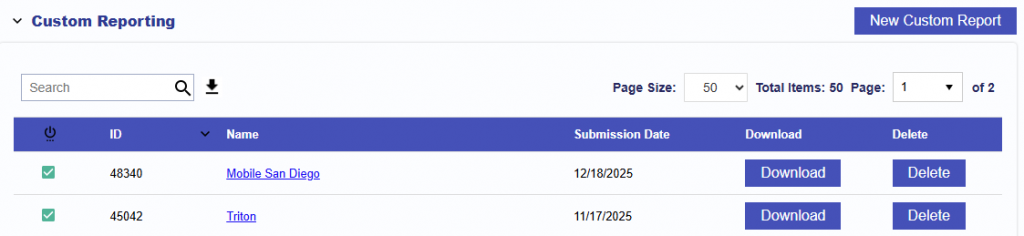
Custom Reports are useful when you want to analyze a larger sample set, compare several Deals, or focus on specific fields relevant to your targeting strategy.
Create A Custom Report
To create a report, navigate to the Custom Reporting section and select New Custom Report.
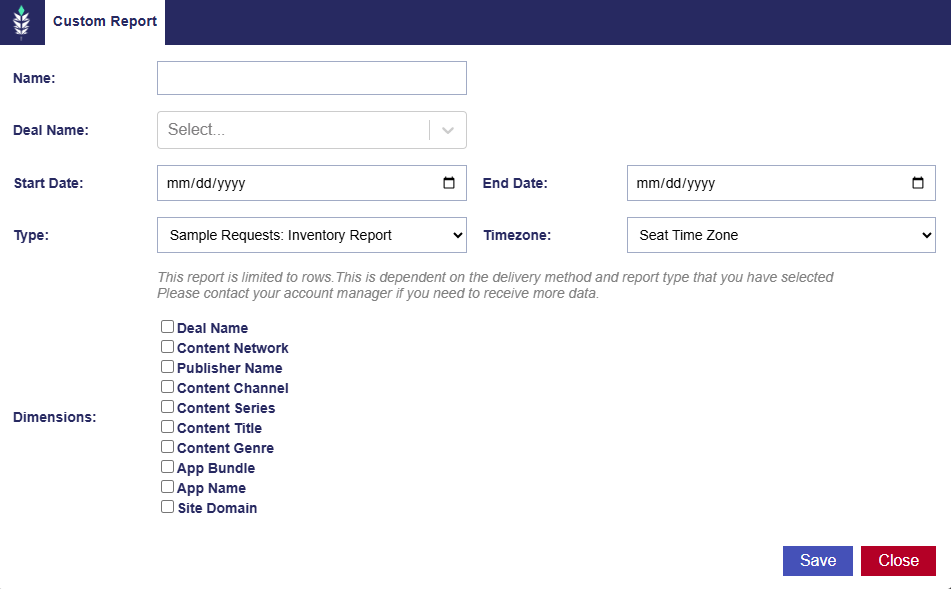
Fields
- Name: Enter a name for the report.
- Deal Name: Select one or multiple Deals to analyze. The report will include sample requests associated with the selected Deals.
- Start Date: Select the beginning of the sample period.
- End Date: Select the end of the sample period. Only sampled requests observed within the selected date range will be included.
- Type: Select Sample Requests: Inventory Report.
- Timezone: Select the timezone used for the report. By default, this is set to the Seat Time Zone.
Dimensions
Select the fields to include in the report output. These dimensions determine which inventory attributes can be analyzed.
Available dimensions include:
- Deal Name
- Content Network
- Publisher Name
- Content Channel
- Content Series
- Content Title
- Content Genre
- App Bundle
- App Name
- Site Domain
Field availability depends on the information supplied by the publisher or inventory source.
Example Use Case: Exploring Sports Inventory
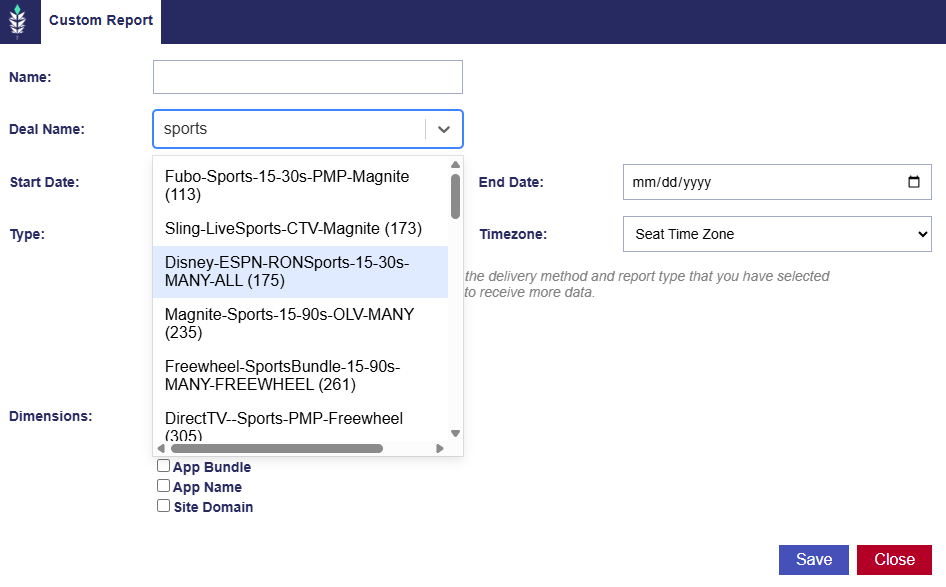
The Custom Report can be used to identify and validate sports-related inventory before activating or scaling a campaign.
For example, search for “sports” in the Deal Name field to identify relevant Deals such as ESPN, Sling, or Fubo inventory. From there, generate a Custom Report to better understand the programming and metadata being passed within those Deals.
Useful dimensions may include:
- Content Network: For example, ESPN or regional sports networks
- Content Channel: For example, MLB, Golf Channel, or Fubo Sports Network
- Content Series: For example, NBA Basketball or NASCAR Cup Series
- Content Title: For example, individual games or sporting events
Reviewing these fields can help determine not only which Deals contain relevant inventory, but also how that inventory should be targeted.
For example, one publisher may consistently identify sports through Content Genre, while another may rely more heavily on Content Channel or Content Series. If the desired inventory is represented across several fields, users can apply Multi-Field targeting to search across those fields rather than relying on a single metadata value.
This analysis can help users:
- Understand which sports programming is represented within each Deal
- Validate that inventory aligns with campaign objectives
- Compare multiple Deals before selecting inventory
- Identify the most reliable fields for targeting
- Build Multi-Field targeting strategies based on observed data
- Set expectations for the level of content detail available in reporting
- Make more informed decisions before activating or increasing spend