New UDM Set Up
To upload your UDM file, follow the following steps:
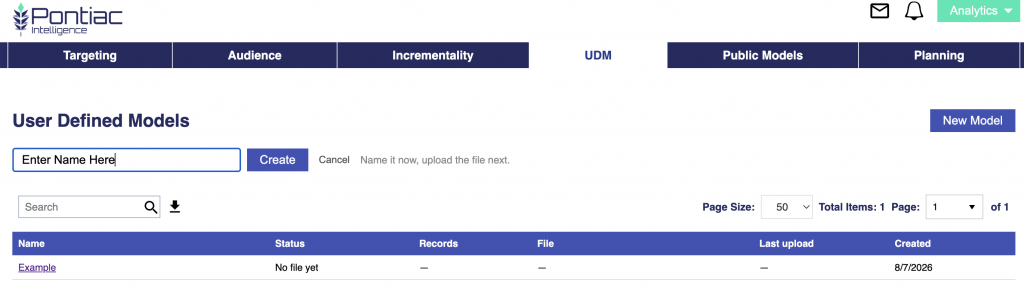
- Navigate to the UDM tab and click New Model.
- Enter the model’s name and then click Create.
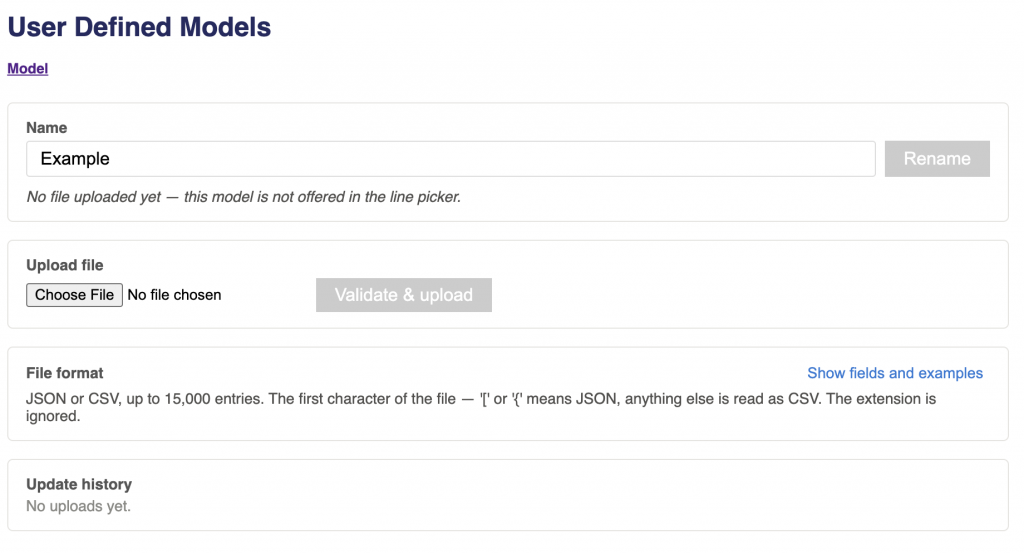
- Upload a file that meet’s the following conditions:
- File Type: JSON or CSV
- Limit: 15,000 entries.
- File Detection: A first character of
[or{is read as JSON. Anything else is read as CSV. The file extension is ignored. - Scores: Must be between
-1and1. Scores are relative, not absolute. Reserve values near ±1 for the strongest signals. - Score of 0: Valid and not ignored. It counts as a match and pulls the combined result toward the neutral midpoint. If no influence is intended, omit the entry instead.
- Formatting Entries: Values are lowercased and trimmed on both sides, so casing and surrounding spaces never matter. Nothing else is normalised — the comparison is otherwise exact.
- Missing Entries: Entries whose value is “_missing_”, “missing”, “nan”, “none”, “null” or empty are dropped — the bidder never sends those, so they could never match.
- Field Weights: Optional. JSON models may include a
field_weightsmap. CSV models may include field-weight rows using theweightcolumn. - See the sections above for accepted fields and model-entry formats.
JSON Example
Without custom field weights, the existing JSON array format remains unchanged:
[
  {
    "feature": "geo_zip",
    "value": "10025",
    "score": 0.95
  },
  {
    "feature": "device_type",
    "value": "4",
    "score": 0.3
  },
  {
    "feature": "publisher_name",
    "value": "iheartmedia",
    "score": 0.4
  },
  {
    "feature1": "geo_zip",
    "feature2": "device_type",
    "combination": "10025 × 4",
    "score": 0.9
  },
  {
    "feature1": "geo_zip",
    "feature2": "publisher_name",
    "feature3": "device_type",
    "combination": "10025 × iheartmedia × 4",
    "score": 0.85
  }
]
Notes
- Combination values are separated by
xand must appear in the same order as the feature keys.
CSV Example
feature,value,feature1,feature2,feature3,combination,score
geo_zip,10025,,,,,0.95
device_type,4,,,,,0.30
publisher_name,iheartmedia,,,,,0.40
,,geo_zip,device_type,,10025 × 4,0.90
,,geo_zip,publisher_name,device_type,10025 × iheartmedia × 4,0.85
Notes
- Extra columns are ignored, so a value_rankings or 2way_combinations export from any report can be edited and uploaded as-is — add a ‘feature’ column to a value_rankings file to say which field its values belong to.
- Combination values are separated by
xand must appear in the same order as the feature keys.
Field Groups and Values
| Field | Group | How to write the value |
|---|---|---|
geo_region | Geography | Lowercase, exactly as it appears in the logs. |
geo_zip | Geography | Postal code as it appears in the logs. US ZIPs must keep their leading zero (‘04501’). Non-US formats are fine (‘1000-001’, ‘SW1A 1AA’). |
publisher_name | Inventory | Lowercase, exactly as it appears in the logs. |
site_domain | Inventory | Lowercase, exactly as it appears in the logs. |
app_bundle | Inventory | Lowercase, exactly as it appears in the logs. |
exchange | Inventory | Lowercase, exactly as it appears in the logs. |
deal_id | Inventory | Lowercase, exactly as it appears in the logs. |
content_channel | Content | Lowercase, exactly as it appears in the logs. |
content_network | Content | Lowercase, exactly as it appears in the logs. |
content_series | Content | Lowercase, exactly as it appears in the logs. |
content_title | Content | Lowercase, exactly as it appears in the logs. |
content_genre | Content | Lowercase, exactly as it appears in the logs. |
content_livestream | Content | ‘0’ or ‘1’. |
device_type | Device | IAB code as a whole number — ‘3’, never ‘3.0’ and never ‘Connected TV’. |
day | Time | Lowercase three-letter code (mon, tue, wed, thu, fri, sat, sun), in UTC. |
hour | Time | Whole number 0-23, in the user’s LOCAL time. |
- Click the Validate & upload button.
- Confirm upload was valid and accepted.
- Success Message: Uploaded. Tells the user how many records and how many 1-field, 2-field, and 3-field records the file contains. The model is now live wherever it is already in use.
- Replace file: Users can upload a new model that will replace the model everywhere it is already in use. Nothing needs to be re-attached, and a file that fails validation leaves the current one running.

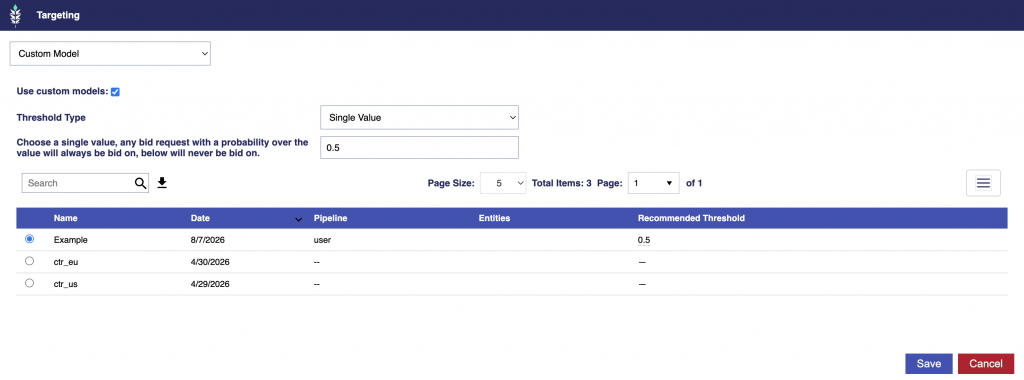
- Associate the uploaded model with the desired Campaign or Line by following: Model Association