The Targeting model analyzes campaign performance to identify which variables and combinations are most strongly driving conversions. It surfaces patterns across inventory, geography, device, and time to help optimize how and where ads are delivered.
Model outputs can be directly applied to lines to improve real-time bidding and delivery efficiency, enabling smarter, more automated optimization.
Use Case Examples
Improve Performance While Campaigns Are Live
Continuously learn from campaign performance and adjust delivery in real time. Improve results without manually breaking out dozens of lines or constantly adjusting targeting.
Reduce Waste and Focus Spend on What Works
Automatically prioritize high-performing impressions and avoid low-value ones, ensuring budget is spent more efficiently over time.
Note:
Optimize towards Conversions or Clicks.
Edit the report/model associate to your Line and click the Save & Rerun button to easily refresh the model
New Report Set Up
Instructions for generating a Targeting Report/Model. Follow the steps below:
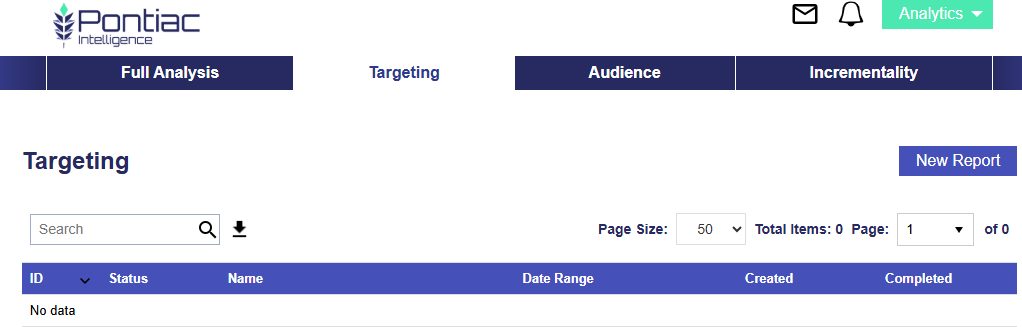
Navigate to the Targeting Tab.
Click New Report button.
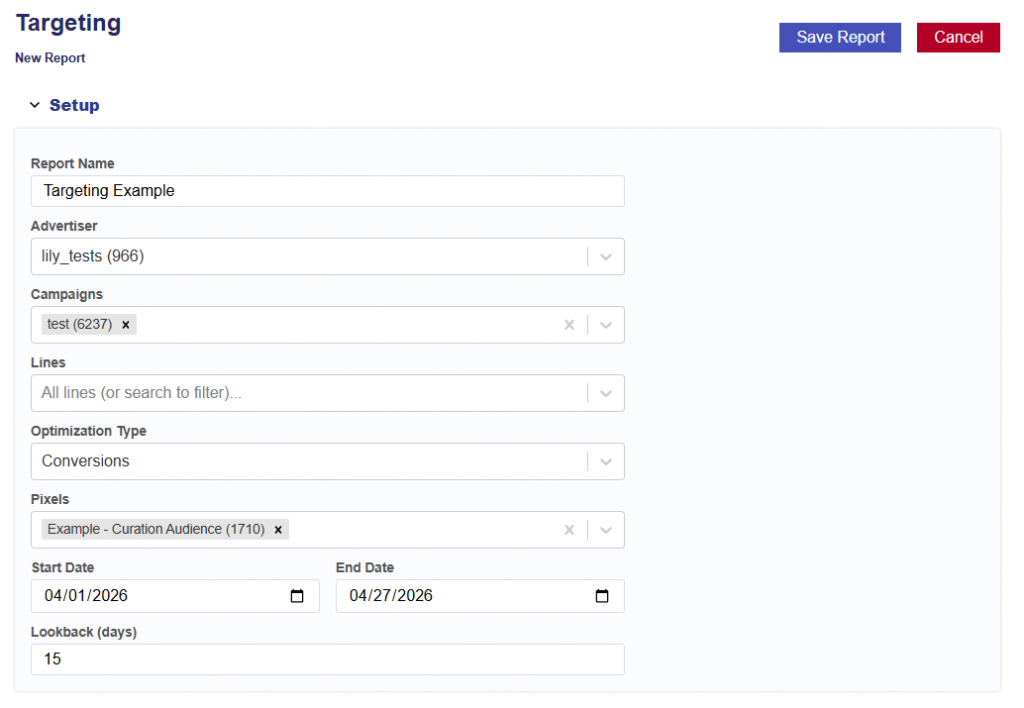
Give the report/model a name.
Select the Advertiser to run the analysis on.
Select the Campaign(s) within the chosen Advertiser.
If no campaigns are selected, all campaigns will be included.
Select the Line(s) within the chosen Campaign(s).
If no lines are selected, all lines will be included.
Select the Optimization Type:
Conversions
If selected, choose the conversion pixel to be used for optimization.
Clicks
Select the analysis Start Date.
Select the analysis End Date.
Enter the desired lookback window (in days).
Default is 30 days.
This defines how far back the model will attribute conversions or clicks to ad exposure.
Select what Bid Request Fields are used.
Only the checked fields are considered when the model is built. Unchecking one removes it from the regression entirely, so it can never influence a bid.
All are checked by default, but users can make it customizable.
Fields list:
Geography:
Region / State
ZIP Code
Inventory:
Publisher
App Bundle
Deal ID
Site Domain
Exchange
Content
Channel
Series
Title
Genre
Network
Livestream
Device
Device Type
Time
Day of Week
Hour
Operating System
Browser
Select what the Inventory Scope is.
This looks at which impressions the model learns from. This is different from the fields above: unchecking a field removes it from the model, while unchecking inventory here removes those impressions from the analysis entirely — they influence no score, and the campaign average every score is compared against is calculated without them. No filter = the model trains on all inventory.
Exchanges
Display / App
Index
Microsoft
DV+
Video / CTV
Magnite
Freewheel
Audio
Triton
Adswizz
Device Types
Desktop
Personal Computer
Mobile
Phone
Mobile / Tablet (generic)
Tablet
TV
Connected TV
Set Top Box
Other
Connected Device
Unknown / Not Provided
Choose whether the report should run once or repeat on a schedule.
Run once builds a single report.
Schedule re-runs it on the chosen cadence — each run retrains the model, replaces the live model in S3 when Replace the live model each run is enabled, and is saved as a new run grouped under this report.
Rerun Interval:
Weekly
Every 2 Weeks
Monthly
Rerun Day of Week:
Monday
Tuesday
Wednesday
Thursday
Friday
Saturday
Sunday
Replace the live model each run checkbox
On: each run’s new model overwrites the live model so it goes live automatically.
Off: runs still produce reports and archived models, but the live model is left untouched.
Click the Save Report button.
Additional Notes
Ensure selected campaigns and lines have sufficient data for reliable analysis.
Recommended: ~2,000 conversions for stable model performance.
The lookback window should align with typical user conversion behavior.
Once the report and model are generated, view the results. Users can also edit the report and models setup and rerun the report.
Report Results
The Reports results include the pipeline used, date created, when the report started, and when the reported completed. The output is separated into 6 sections:
Summary
Dashboard
Multi Variable
Explorer
Charts
Downloads
This information provides a complete audit trail and transparency into the model, allowing users to understand how results are generated and directly tie insights back to campaign performance, rather than relying on a black-box approach.
Summary
The Summary section provides a high-level overview of the analysis, including the Report ID, Advertiser ID, and Date Range, along with an automatically generated Executive Summary that explains what is driving performance and helps inform optimization decisions using model-based predictions.
Tip: You can input the Executive Summary into your preferred LLM (e.g., ChatGPT or Claude) to quickly generate a presentation deck or case study based on the results.
Dashboard
The Dashboard section provides a visual overview of campaign performance. It shows which features drive conversions, geographic performance with drill-down maps, temporal patterns, CPA predictions, and the model’s top and bottom performers across all dimensions.
Dashboard Sections:
Tile Metrics
What Drives Conversions – Feature Importance (SHAP)
Feature Impact Distribution
Geographic Performance – Click a State to See ZIP Codes
Geo Zip – Best vs Worst Performers
Device Type – Best vs Worst Performers
Content Genre – Best vs Worst Performers
Conversion Rate by Day of Week
Conversion Rate by Hour
Time to Conversion
Impression Frequency & Conversion Rate
Cumulative eCPA Over Time
Cost Efficiency by Feature
Content Genre
Content Livestream
Day
Device Type
Geo Region
Geo Zip
Hour
Tile Metrics
Total Impressions: Total Ad impressions served across all geographies.
Unique Users: Unique IP addresses reached.
Note that IP does not equal a person. Shared IPs (Households, offices, etc.) mean actual reach may differ.
Attributed Impressions: Impressions that were part of a conversion path. Multiple impressions can contribute to the same conversion.
Total Spend: Total media cost for the reports date range.
ECPM: Effective cost per thousand impressions.
What Drives Conversions – Feature Importance (SHAP)
At a high level, this section shows which factors matter most, which helps you quickly focus on the biggest drivers of performance. If certain features are not shown, it means they were not included in the report and did not have a statistically meaningful impact on the model.
Chart View
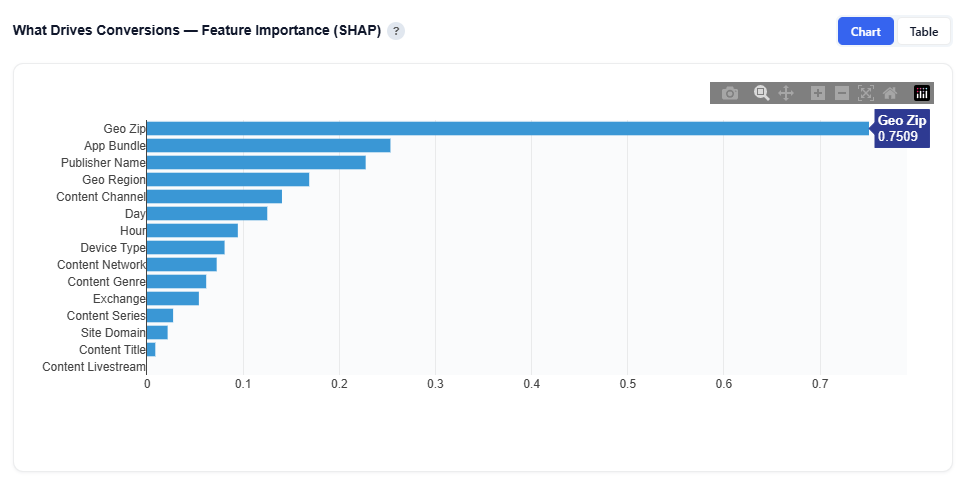
This view ranks the factors that have the greatest impact on conversions based on the model’s analysis. It uses SHAP (Shapley values) to quantify how much each feature contributes to performance.
In the above example, features such as Geo Zip, Device Type, Content Genre, Day, Geo Region, Hour, and Content Livestream are ranked by their impact on conversions, where higher values indicate a stronger influence on outcomes. Hover over the bar chart to see the features mean absolute SHAP value.
Example insight from the above model:
Geo Zip is the strongest driver
Followed by App Bundle, then Publisher Name, and Geo Region
Table View
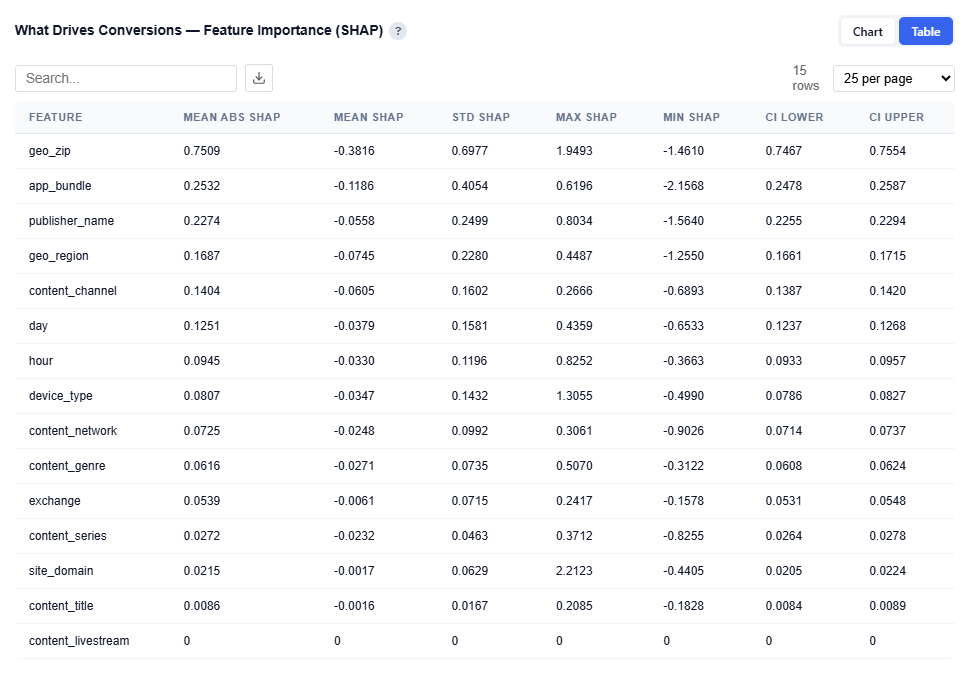
Provides detailed statistics for each feature:
Mean Abs SHAP: Overall importance (primary ranking metric)
Mean SHAP: Direction of impact (positive or negative influence)
STD SHAP: Variability across observations
Max / Min SHAP: Range of impact
Confidence Intervals (CI Lower / Upper): Stability and reliability of the importance score
Users can download this table as a CSV file for further analysis.
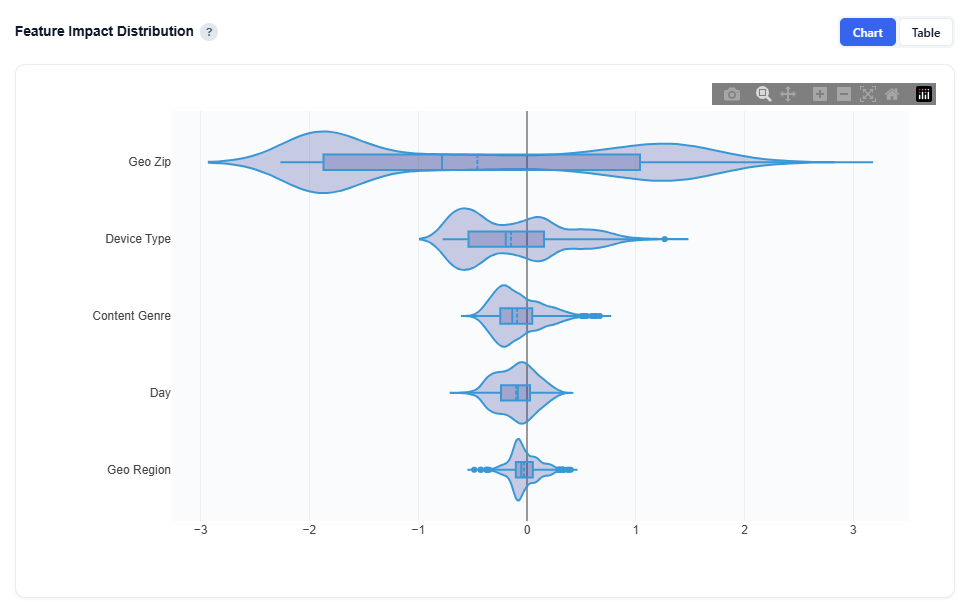
Feature Impact Distribution
At a high level, this section shows how each feature influences conversions directionally across all predictions, not just how important it is.
Chart View
Each violin represents the distribution of SHAP values for a feature:
Wide Spread: more predictions fall at that impact level
Right of zero: pushes toward conversion
Left of zero: pushes away from conversion
The box inside each violin shows:
Median: Center line
Quartiles: Interquartile range of typical values
How to Interpret:
Wide spread: Feature impact varies significantly across observations
Centered Near Zero: Limited average influence on predictions
Skewed Right: Generally contributes positively to conversion
Skewed Left: Generally contributes negatively to conversion
Example insights from the above model:
Geo Zip has the widest spread, ranging roughly from -3 to +3, with density on both sides of zero.
This means geography can both strongly increase and decrease conversion likelihood depending on the ZIP—it’s highly impactful but varies significantly across users.
Device Type is mostly concentrated between -0.5 and +1.5, with more density on the positive side.
This indicates device generally has a positive influence on conversions, but with moderate variability.
Content Genre is tightly clustered around 0 to +0.5, slightly right-skewed.
This suggests a consistent but smaller positive effect on conversion likelihood.
Day is centered very close to zero with a narrow spread (roughly -0.3 to +0.3).
This indicates limited overall impact, with only minor variation by day.
These insights reflect how the model predicts conversion likelihood and help explain what is driving those predictions. The resulting prediction scores are then used to inform bidding decisions, where impressions above or below defined thresholds influence whether the system chooses to bid in real time.
Table View
This table contains the same data as the What Drives Conversions — Feature Importance (SHAP) section and is available for download for further analysis.
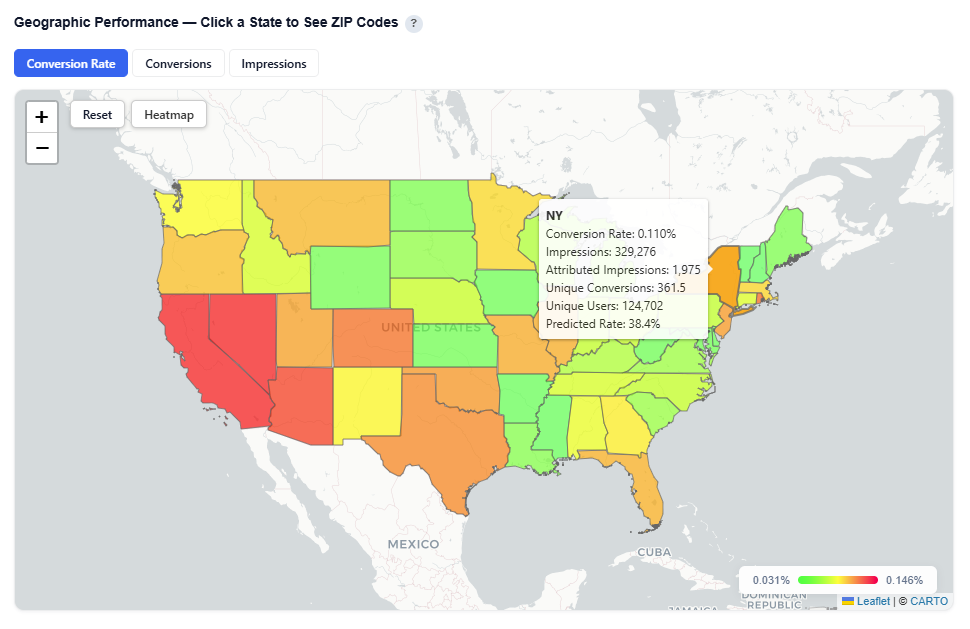
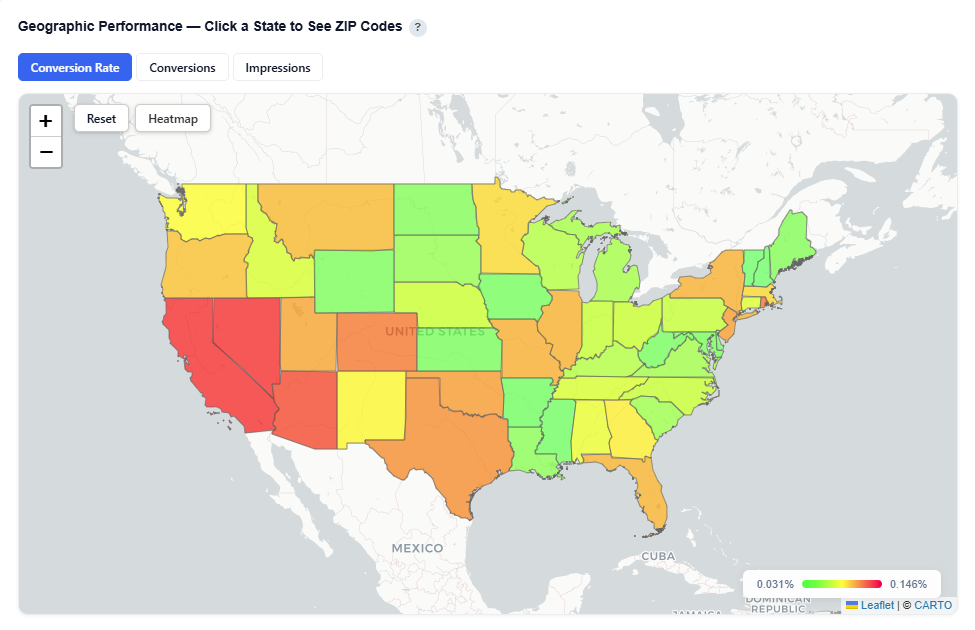
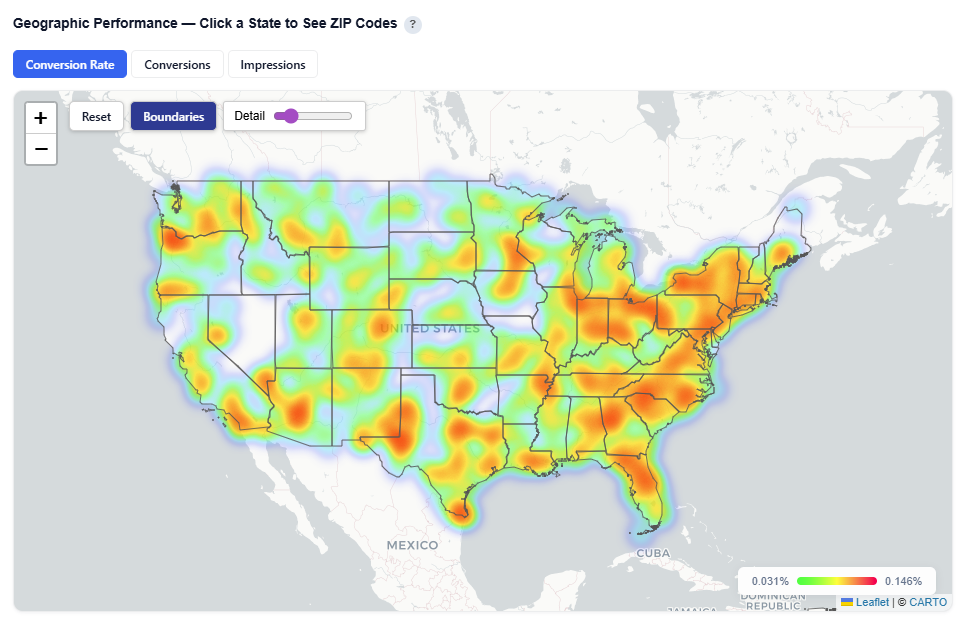
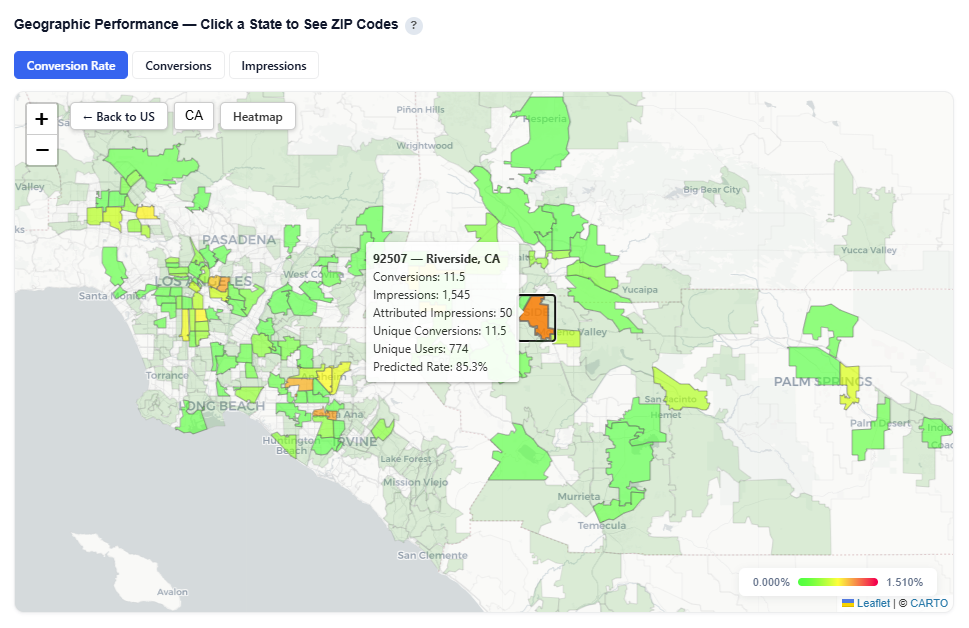
Geographic Performance – Click a State to See ZIP Codes
This section provides an interactive map view of campaign performance by geography, allowing you to quickly identify high- and low-performing regions.
What It Shows:
Performance by State, with the ability to drill down into ZIP code level data
Toggle between key metric views:
Conversion Rate
Conversions
Impressions
Toggle between Heatmap and Boundaries view
Boundaries: Clearly outlines geographic regions
Heatmap: Highlights performance intensity across regions
Boundaries View
Heatmap View
Interactions:
Hover over a state to view:
State Name
Conversion Rate
Impressions
Attributed Impressions
Unique Conversions
Unique Users
Predicted Rate
Click a state to drill down into ZIP level performance – Zip code view:
Zip code
Zip code name
Conversions
Impressions
Attributed Impressions
Unique Conversions
Unique Users
Predicted Rate
Zip Code View
Metric Views
The map can be toggled between three key performance views:
Conversion Rate: Shows efficiency by geography (conversions ÷ impressions).
Best for identifying high-performing, efficient areas to scale.
Conversions: Shows total conversion volume by geography. Use Conversions to validate impact and volume.
Best for understanding where results are coming from at scale.
Impressions: Shows delivery volume by geography.
Best for identifying where ads are being served and any gaps in delivery.
Table View
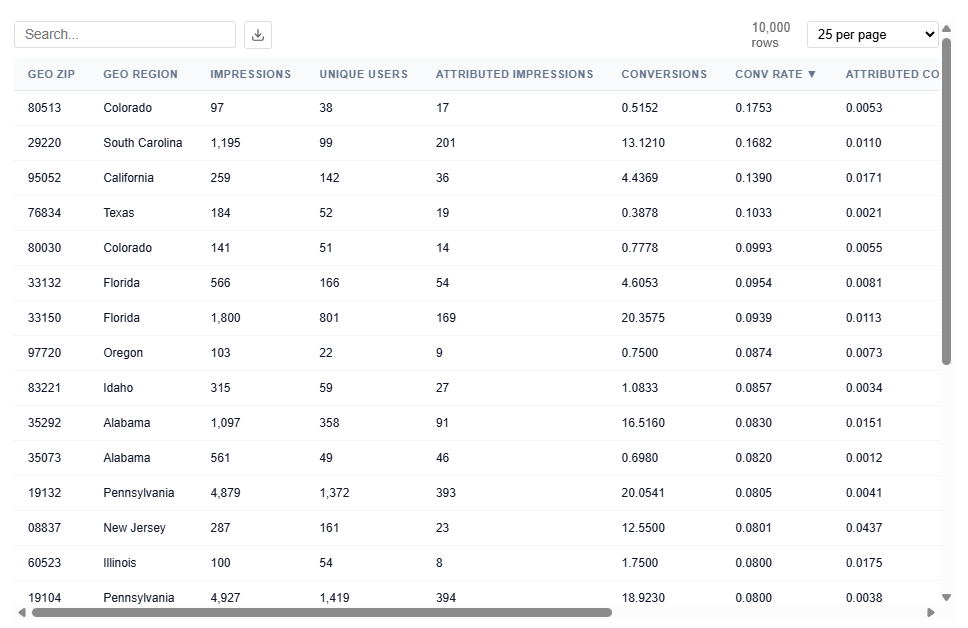
This table contains the underlying data used to power the Geographic Performance map, providing detailed metrics at the ZIP code level.
Each row represents a ZIP code and its associated performance, which is aggregated to render state-level views in the map.
What It Includes:
Geographic identifiers
Geo Zip
Geo Region Name
City
State ID
Delivery Metrics
Impressions: Total number of times ads were served
Attributed Impressions: Impressions tied to users who later converted within the lookback window
Unique Users: Number of distinct users exposed to ads
Performance Metrics
Conversions: Total number of conversion events attributed to the campaign
80513 (CO) shows a high Conversion Rate (17.53%) and Attributed Conversion Rate of 0.53% with a strong z-score (~7.9), indicating performance well above average.
Best vs Worst Performers
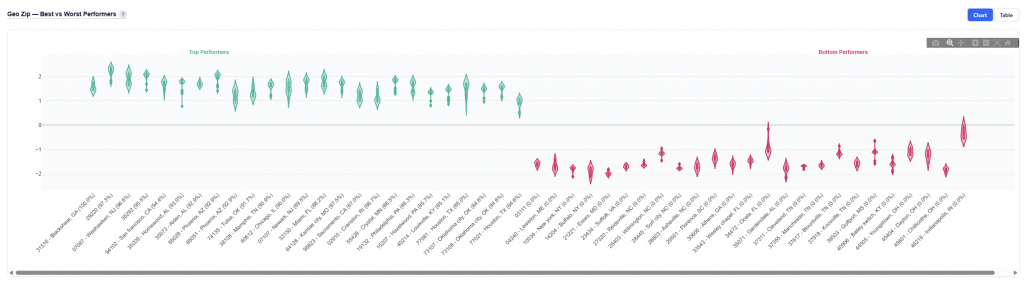
This section highlights the highest and lowest performing values for a given dimension based on the model’s predictions and observed conversion rates.
Features include:
Geo Zip
Device Type
Content Genre
At a high level, it shows which values are driving strong positive or negative performance, along with how consistently they perform.
Chart View
Geo Zip Example:
Displays the distribution of SHAP values for top and bottom performing ZIP codes
Green violins = top performers (high predicted contribution to conversions)
Red violins = bottom performers (negative impact on conversion likelihood)
How to Read:
Above Zero (Green): Increases likelihood of conversion.
Below Zero (Red): Decreases likelihood of conversion.
Narrow Shape: Consistent performance across users.
Wide Shape: Variable performance across users.
Box Plot (inside the violin) – Shows the median (center line) and quartiles (typical range of values)
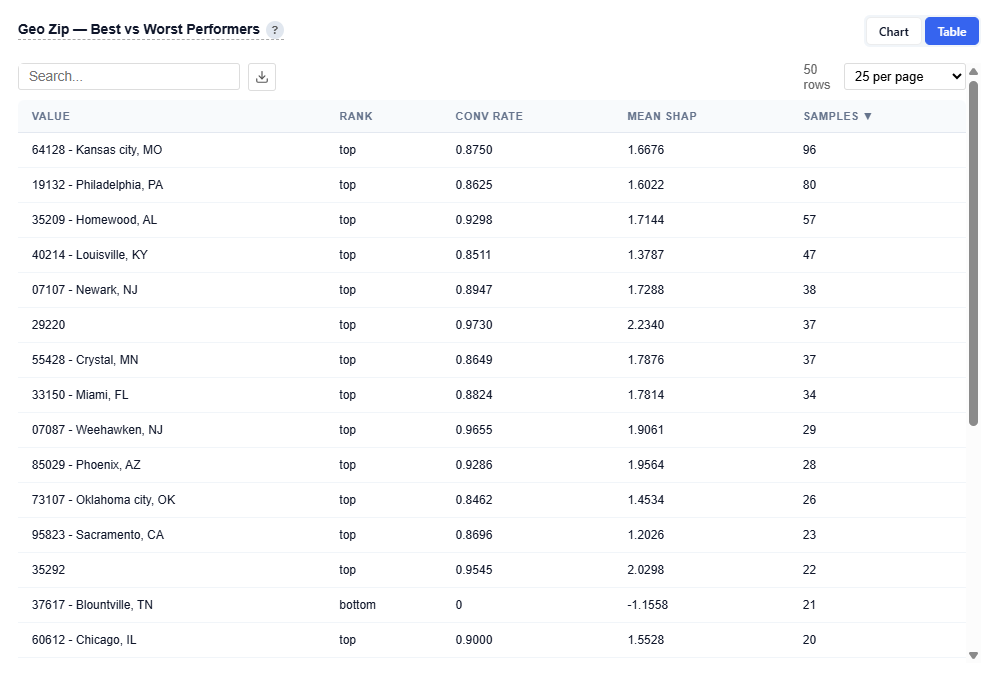
Table View
Provides detailed metrics for each feature:
Value: Feature dependent examples
Geo Zip: 85029 – Phoenix, AZ
Device Type: 3 – Connected TV (CTV)
Content Genre: food & cookiing
Rank: Top or Bottom performer
Conversion Rate : Observed conversion rate
Mean SHAP: Average contribution to model predictions
Samples: Number of observations (data volume)
Example Insight
64128 (Kansas City, MO) shows a strong conversion rate (87.50%) with a high positive mean SHAP (~1.67) and a solid sample size (96), indicating a reliable, high-performing market with both scale and consistency
Conversion Rate by Day of Week
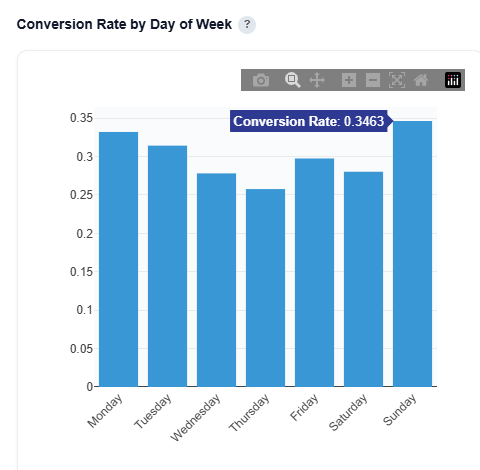
This section breaks down conversion rate by the day the ad was served, helping identify which days drive the strongest performance and can be used as a day parting optimization. These insights can be applied manually within the platform. If the model is applied to the campaign or line, day-of-week performance is automatically incorporated into real-time bidding decisions.
What It Shows:
Conversion rate for each day of the week
Performance trends across Monday–Sunday
Relative differences in efficiency by day
How to Use:
Identify high-performing days to increase spend or prioritize delivery
Identify underperforming days to reduce spend or adjust bidding
Inform dayparting strategies to improve overall efficiency
Conversion Rate by Hour
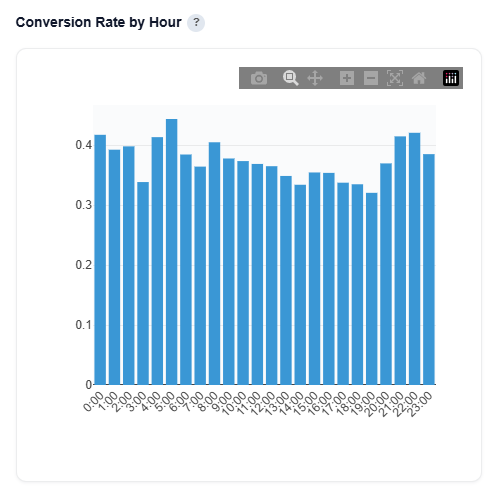
This section breaks down conversion rate by the hour the ad was served (0–23), helping identify peak performance windows throughout the day. These insights can be applied manually within the platform. If the model is applied to the campaign or line, day-of-week performance is automatically incorporated into real-time bidding decisions.
What It Shows:
Conversion rate for each hour of the day (0–23)
Performance trends across morning, afternoon, evening, and overnight
Relative differences in efficiency by hour
How to Use:
Identify peak hours to increase bids or prioritize delivery
Identify low-performing hours to reduce spend or adjust bidding
Inform hour-of-day bid adjustments to improve efficiency
Time to Conversion
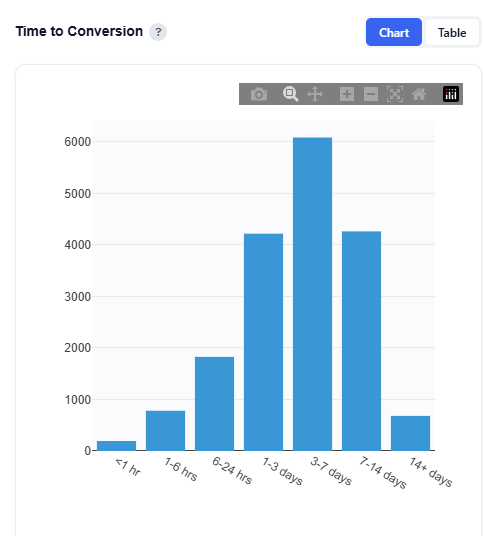
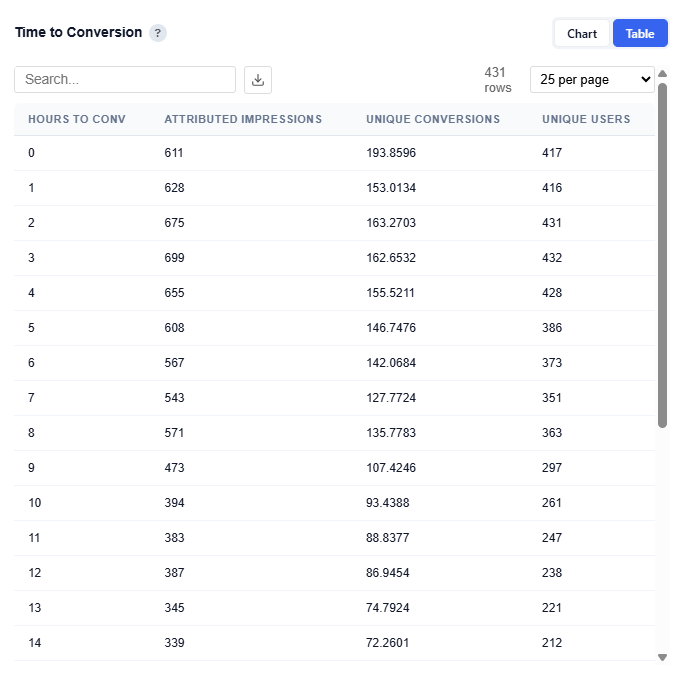
This section shows the distribution of time between when an ad was served and when a user converted, helping you understand how long the typical conversion path takes. Short times suggest direct response; long times suggest consideration-based purchase behavior.
Chart View
What It Shows:
Time between impression to conversion, grouped into time buckets:
<1 hr
1–6 hrs
6-24 hrs
1–3 days
3-7 days
7-14 days
14+ days
Volume of conversions occurring within each time window (hover to see the value).
Overall shape of the conversion lag distribution
Interpretation:
Short time to conversion indicates more direct response behavior
Longer time to conversion indicates more consideration-based or delayed decision-making
Peaks in specific time ranges highlight when users are most likely to convert after exposure
Table View
Example Insights:
Conversions are highest within the first few hours (0–3 hrs), indicating strong immediate response behavior
There is a secondary concentration in the 1–7 day range, suggesting some users convert after additional consideration
Very long conversion windows (14+ days) show lower volume, indicating diminishing impact over time
This distribution helps inform lookback window selection, attribution settings, and frequency strategy.
If conversions happen quickly (short lag), higher frequency over a shorter window can be effective.
If conversions take longer (delayed lag), sustained frequency over time is needed to stay top of mind.
Helps avoid overexposing users too early or underexposing during longer consideration periods.
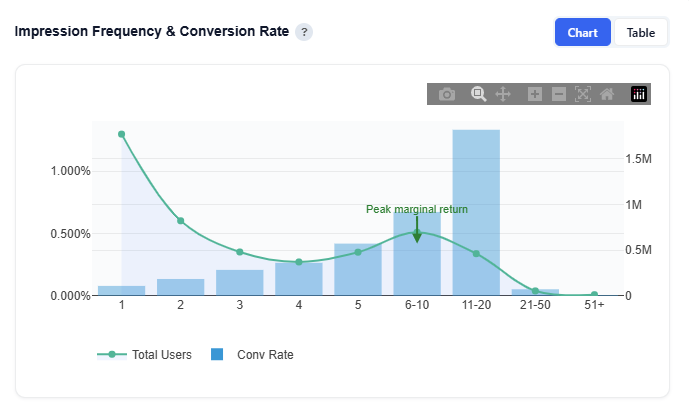
Impression Frequency & Conversion Rate
This section shows how conversion rate changes as users are exposed to more impressions, helping identify the optimal frequency for performance. Higher-frequency users typically had more time in the campaign, so results reflect correlation, not causation. Frequency should be interpreted alongside time-to-conversion and campaign duration.
Chart View
What It Shows:
Bars: Conversion rate at each impression frequency
Line: Total users reached at each frequency level
Green arrow annotation: Peak marginal return, the point where each additional impression drives the most incremental lift
How to Interpret:
Rising conversion rate: additional impressions are improving performance
Peak point (green marker): optimal frequency where incremental lift is highest
After peak: diminishing returns, where additional impressions add less value
User curve (line) : shows how many users are exposed at each frequency level
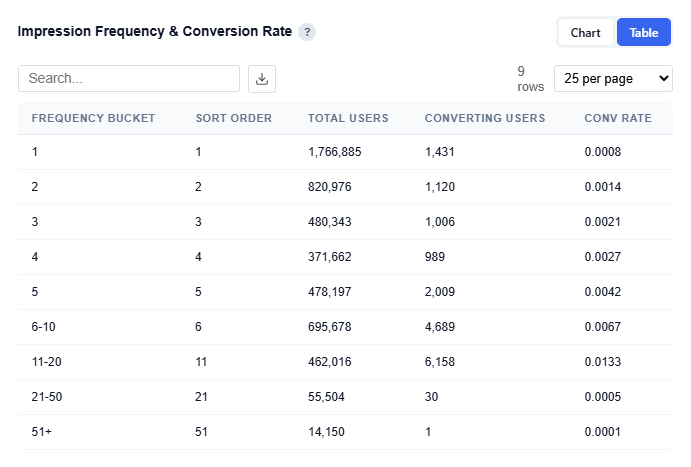
Table View
Provides detailed performance metrics at each impression frequency level:
Frequency Bucket: Number of impressions served per user
Total Users: Number of users reached at that frequency
Converting Users: Number of users who converted at that frequency
Conversion Rate: Conversion rate at that frequency level
Interpretation:
Find the optimal frequency
Identify the point where conversion rate is highest before diminishing returns.
Avoid overexposure
If performance drops at higher frequencies, you’re wasting impressions.
Balance scale vs efficiency
Higher frequency may increase conversion rate but reach fewer users.
Inform frequency caps and bidding strategy
Helps determine how often to show ads per user
Additional Notes:
Higher frequency users often had more time in the campaign, so results are correlated, not causal
Should be used alongside:
User volume (Total Users)
Time to conversion
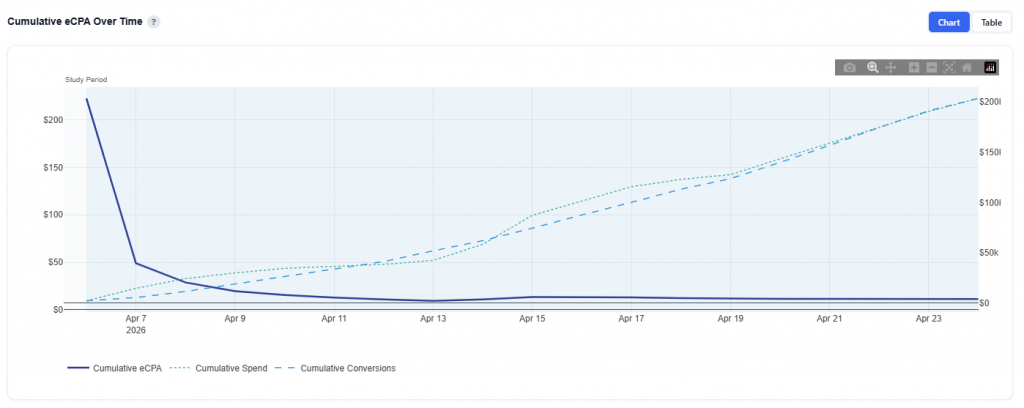
Cumulative eCPA Over Time
This section shows how spend and conversions accumulate over time, providing a complete view of attribution across the campaign and its lookback window.
Chart View
What It Shows:
Blue line: Cumulative eCPA (efficiency over time)
Green dotted line: Cumulative spend
Blue dotted line: Cumulative conversions
Shaded region: Actual study period (active campaign dates)
Interpretation:
Spend begins accumulating before the study period due to the lookback window
onversions continue after impressions are served, as users convert over time
Early in the timeline, eCPA may appear inflated or volatile because not all conversions have occurred yet
As time progresses, the lookback “tail” fills in, and eCPA stabilizes
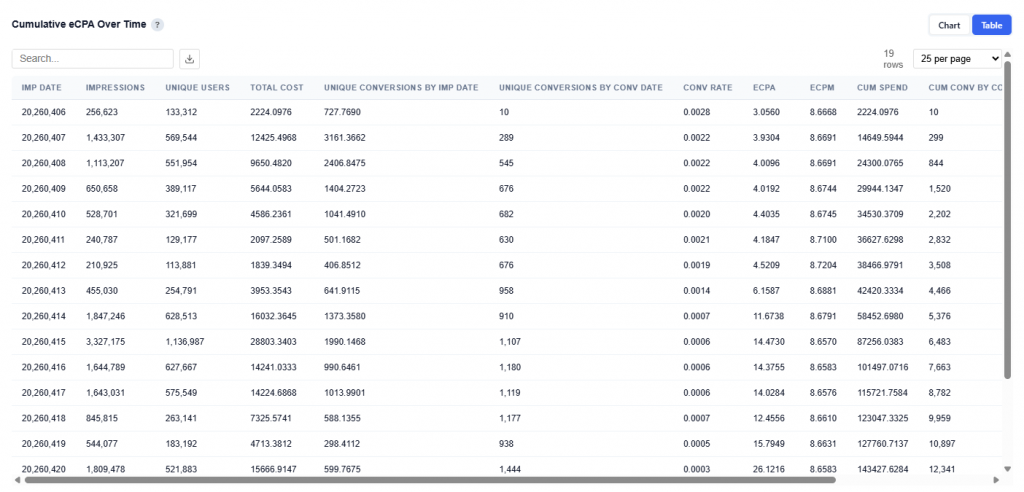
Table View
Provides a daily breakdown of spend, conversions, and efficiency metrics used to build the cumulative chart.
Columns:
Imp Date: Date impressions were served.
Impressions: Total impressions delivered on that date.
Unique Users: Number of distinct users reached.
Total Cost: Spend for that day.
Unique Conversions by Imp Date: Conversions attributed back to the date the impression occurred.
Unique Conversions by Conv Date: Conversions counted on the date the conversion actually happened.
Conversion Rate: Conversions relative to impressions for that day.
eCPA: Cost per acquisition or conversion. Calculated as: Total cost / Conversions.
eCPM: Cost per thousand impressions. Calculated as: Total cost / Impressions.
Cumulative Spend: Running total of spend over time.
Cumulative Conversions by Imp Date: Running total of conversions attributed back to impression dates.
Cumulative Conversions by Conv Date: Running total of conversions based on when conversions actually occurred.
Cumulative eCPA: Running cost per conversion over time, calculated from cumulative spend and cumulative conversions.
Cost Efficiency by Feature
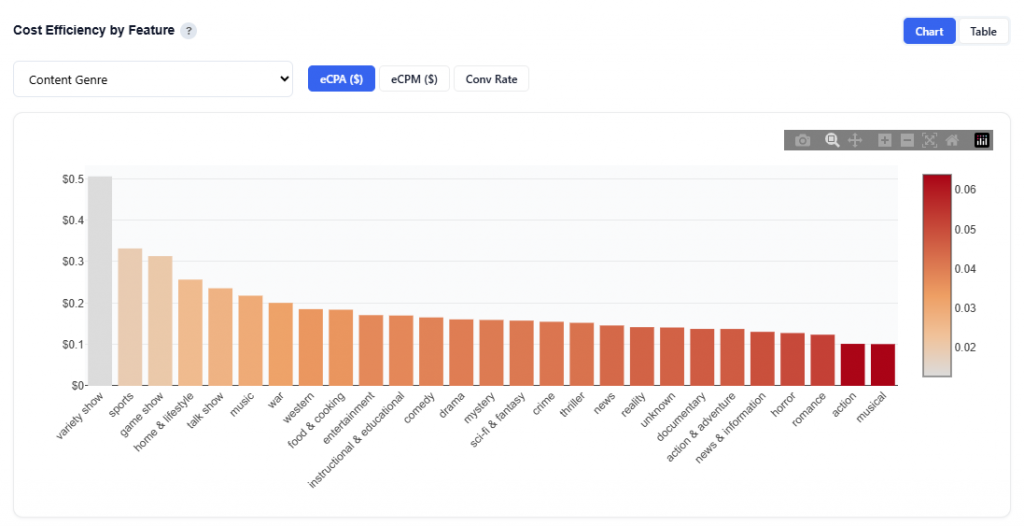
This section compares cost and performance metrics across values of a selected feature, helping identify the most efficient segments to prioritize.
Select from the following features:
App Bundle
Content Genre
Content Series
Day
Device Type
Geo Region
Geo Zip
Hour
Publisher Name
Site Domain
Content Genre Example
eCPA ($): Cost per acquisition or conversion. Calculated as: Total cost / Conversions.
Shows cost per acquisition by feature value
Bars are sorted from lowest to highest eCPA
Color intensity reflects efficiency (darker = higher cost / less efficient)
Interpretation:
Look for shorter bars and lighter color. These are the most efficient segments.
These represent lowest cost per conversion (best ROI).
This is the primary view for optimization decisions
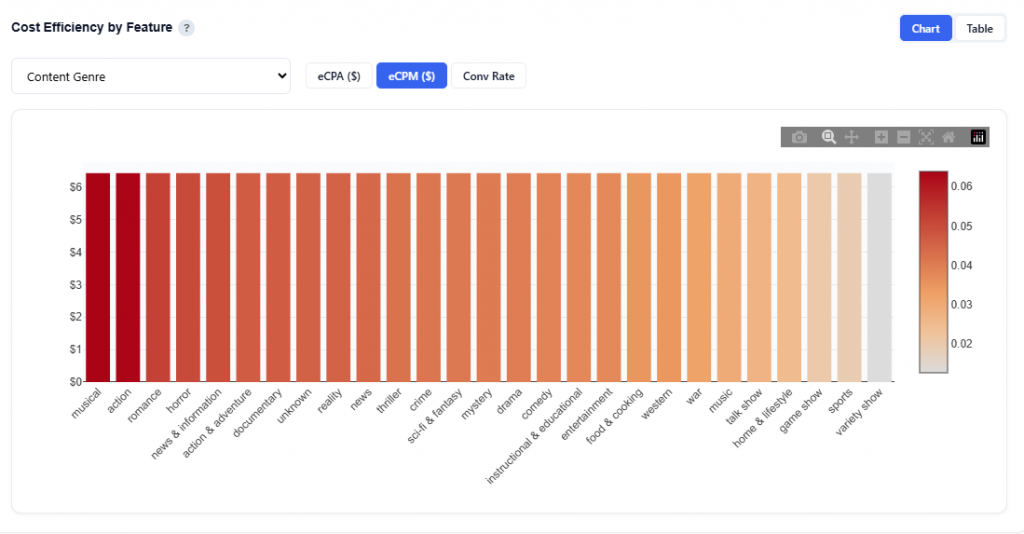
eCPM ($): Cost per thousand impressions. Calculated as: Total cost / Impressions.
Shows cost per thousand impressions by feature value
Bars are sorted from highest to lowest cost
Color intensity reflects relative cost (darker = more expensive)
Interpretation:
Look for shorter bars and lighter color. This is lower-cost inventory.
Use this to understand where you’re paying more or less to reach users.
Low cost doesn’t always mean good performance.
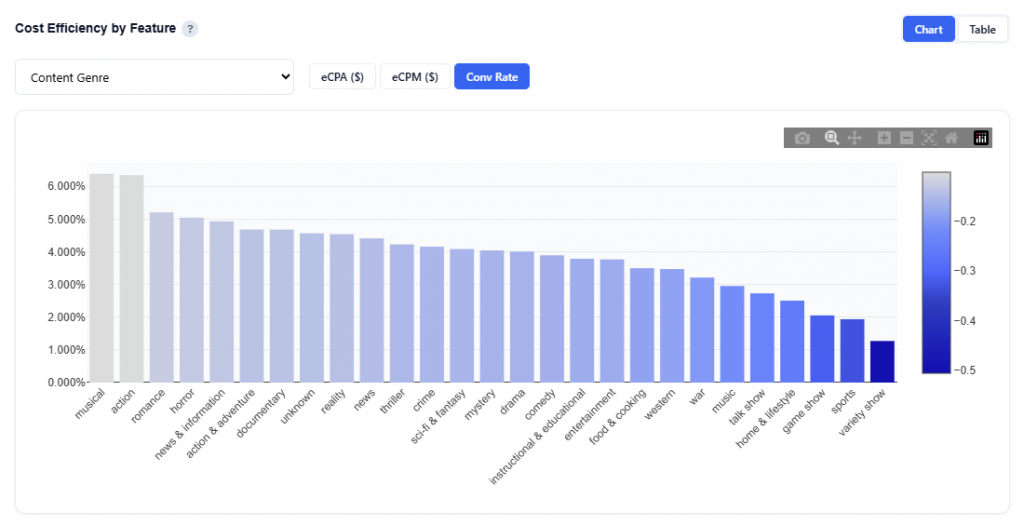
Conversion Rate: Efficiency of converting impressions
Shows conversion rate by feature value
Bars are sorted from highest to lowest conversion rate
Color reflects relative performance (darker = lower performance)
Interpretation:
Look for taller bars and lighter color. These are higher-performing segments.
These indicate where users are most likely to convert
Use this to identify strong audiences or content
Multi Variable
This section explores how multiple features interact together to influence conversion performance, rather than looking at each feature in isolation.
It helps uncover combinations of variables (e.g., Geo + Device + Content) that drive stronger or weaker outcomes.
Subsections:
Waterfalls
High Single Variables
Low Single Variables
High 2-Way
Low 2-Way
High 3-Way
Low 3-Way
Waterfalls
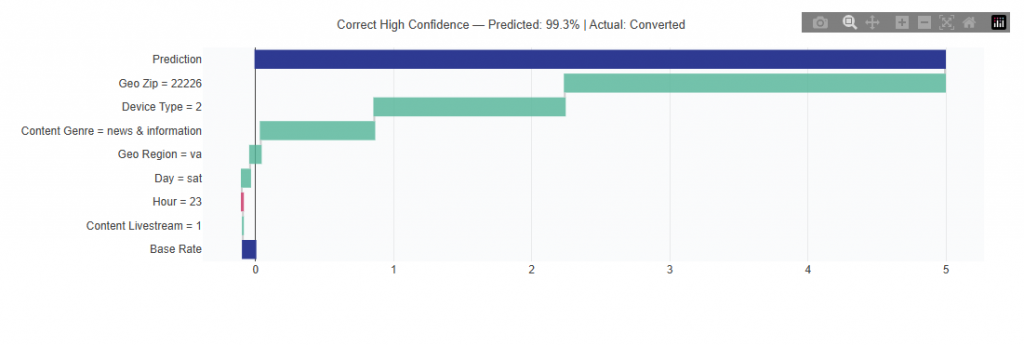
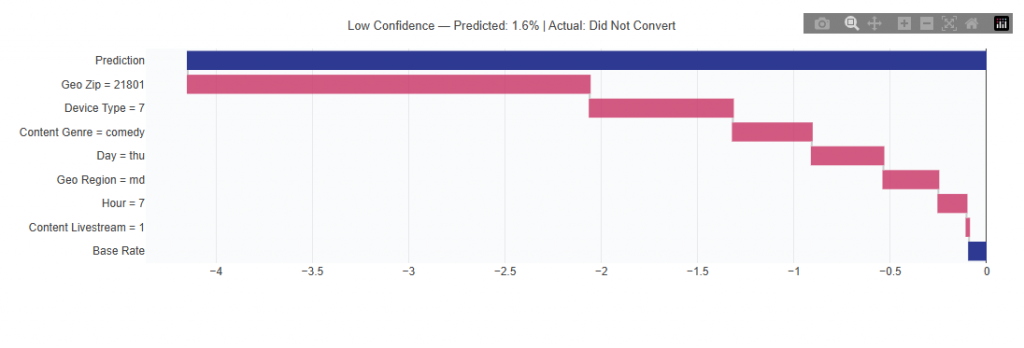
This view explains how the model builds individual predictions. Each chart starts from a base rate and shows how each feature pushes the prediction up (green) or down (red) to reach the final score, making the model transparent rather than a black box.
High Confidence Example
Low Confidence Example
What It Shows:
Each chart starts from a base conversion rate (baseline prediction) Individual features are then added step-by-step
Each feature pushes the prediction up or down:
Green bars increase likelihood of conversion
Red bars decrease likelihood of conversion
The final value represents the model’s predicted conversion score
Interpretation:
Start at the base rate (average performance)
Follow each step to see how features contribute to the final prediction
Larger bars = stronger impact on the prediction
The final value shows how likely that specific combination is to convert
High Single Variables
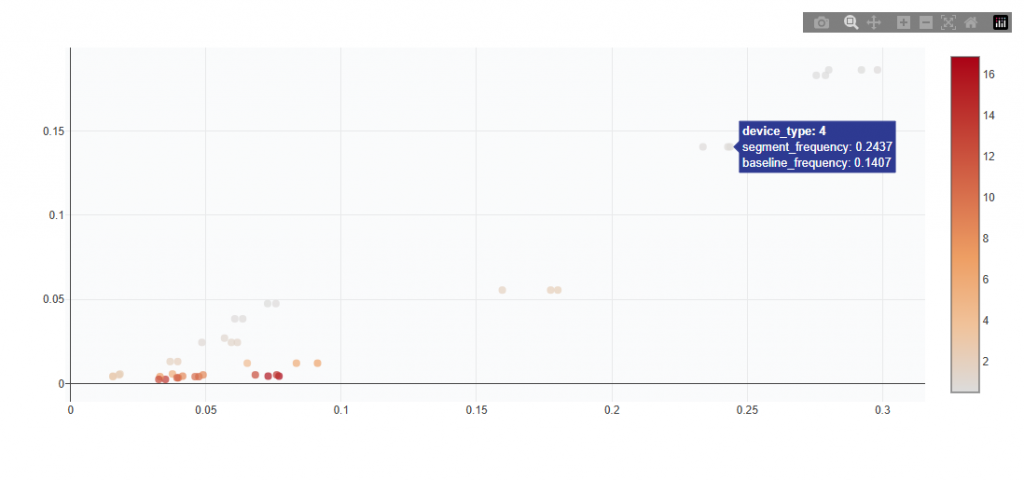
This section identifies individual feature values that appear significantly more often in top-converting predictions than in the overall population. High lift means strong positive signal for targeting.\
Chart View
What It Shows:
Each point represents a single feature value (e.g., a specific ZIP, device type, or content genre)
Compares:
Overall frequency (how often it appears in the dataset)
Top-converting frequency (how often it appears in high-performing predictions)
Color indicates lift strength (darker = stronger signal)
Interpretation:
Points above the baseline appear more often in top-performing outcomes
Points further right are more common overall
Points higher on the chart show stronger positive signal
Darker color indicates higher lift and a stronger targeting signal
Table View
Provides detailed metrics for each high-performing single feature value identified by the model. Users can download the table as a CSV for further analysis.
Columns:
Segment: Which classification it falls under
Feature: The dimension being analyzed (e.g., Geo Zip, Device Type, Content Genre)
Value: The specific value within that feature
Segment Frequency: Share of this value within top-performing predictions
Baseline Frequency: Share of this value across the overall dataset
Lift: Ratio of Segment Frequency to Baseline Frequency showing how much more often this value appears in top-performing outcomes vs. normal.
Segment Count: Number of occurrences of this value within top-performing predictions
Unique IPs: Number of unique users associated with this value
Score: Model-derived strength of the signal. The higher the value the stronger the posititive contribution to conversion likelihood.
Interpretation:
High lift with high segment count indicates a strong and scalable opportunity
High lift with low segment count indicates a niche but promising segment that should be tested before scaling
Score reflects how impactful the value is within the model and helps prioritize which signals matter most
Low Single Variables
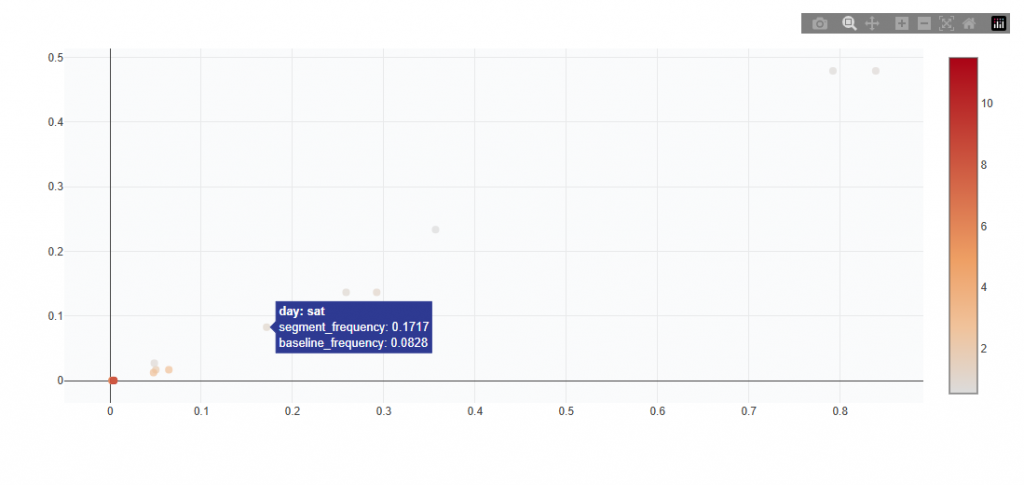
This section identifies individual feature values that appear significantly more often in low-converting predictions than in the overall population. Low lift indicates a negative signal and these segments may be deprioritized or excluded from targeting.
Chart View
What It Shows:
Each point represents a single feature value (e.g., a specific ZIP, device type, or content genre)
Compares:
Overall frequency (how often it appears in the dataset)
Low-converting frequency (how often it appears in low-performing predictions)
Color indicates lift strength (darker = stronger negative signal)
Interpretation:
Points above the baseline appear more often in low-performing outcomes
Points further right are more common overall
Points higher on the chart show stronger negative signal
Darker color indicates lower lift and a stronger signal to avoid
Table View
Provides detailed metrics for each low-performing single feature value identified by the model. Users can download the table as a CSV for further analysis.
Columns:
Segment: Which classification it falls under
Feature: The dimension being analyzed (e.g., Geo Zip, Device Type, Content Genre)
Value: The specific value within that feature
Segment Frequency: Share of this value within top-performing predictions
Baseline Frequency: Share of this value across the overall dataset
Lift: Ratio of Segment Frequency to Baseline Frequency showing how much more often this value appears in top-performing outcomes vs. normal.
Segment Count: Number of occurrences of this value within top-performing predictions
Unique IPs: Number of unique users associated with this value
Score: Model-derived strength of the signal. The higher the value the stronger the posititive contribution to conversion likelihood.
Interpretation:
Low lift with high segment count indicates a consistently underperforming segment that may be worth reducing or excluding
Low lift with low segment count indicates a weaker signal with limited impact
Score reflects how negatively the value impacts performance and helps prioritize what to deprioritize
High 2-Way and High 3-Way
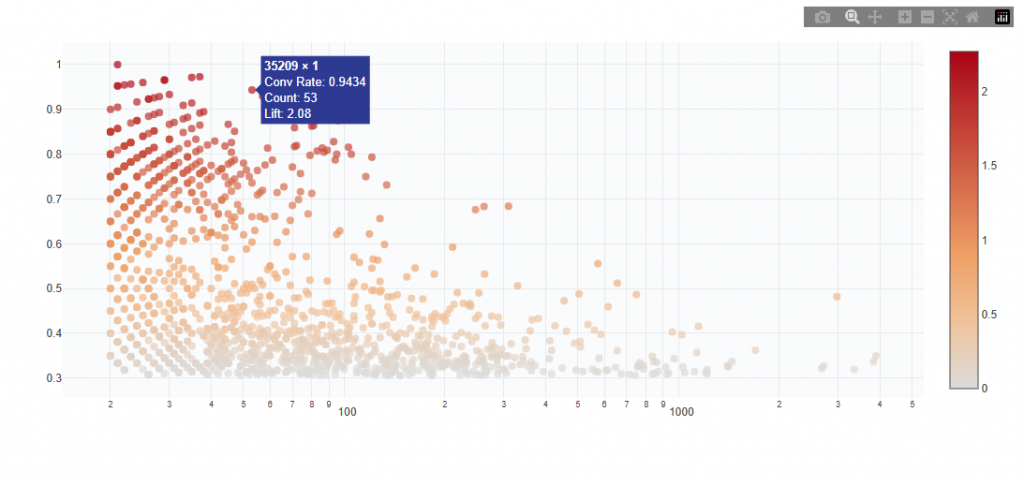
These sections identify combinations of feature values that together produce conversion rates above the campaign average.
2-Way: Combinations of two features (e.g., Geo Zip + Device)
3-Way: Combinations of three features (e.g., Geo Zip + Device + Day)
These represent layered signals, where performance improves when features are used together.
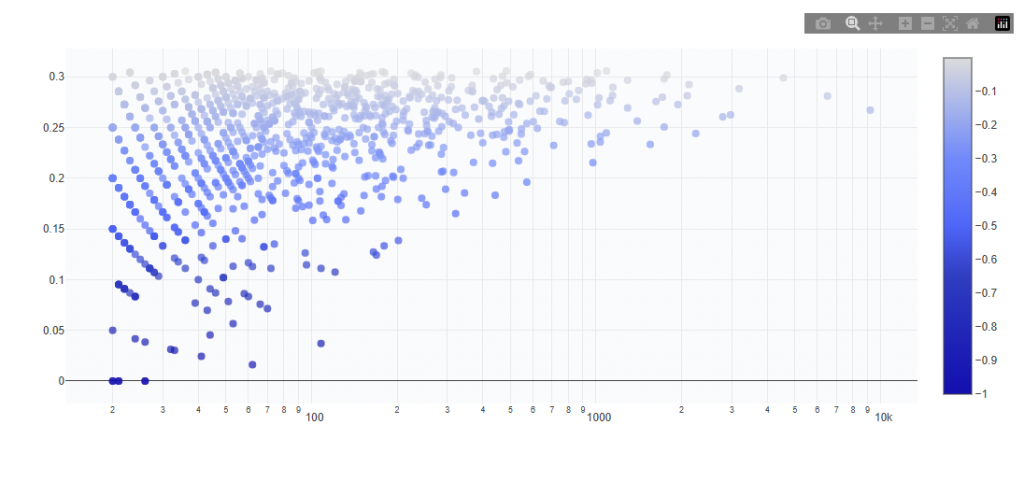
Chart View
What It Shows:
Each point represents a combination of feature values (e.g., 35209 × 1)
X-axis shows total count / volume (log scale)
Y-axis shows conversion rate
Color indicates lift vs campaign average (darker = stronger performance)
Interpretation:
Points higher on the chart have higher conversion rate
Points further right have more volume (more scalable)
Top-right quadrant contains the best combinations (high performance + scale)
Top-left quadrant contains high performance but low volume (niche opportunities)
Bottom-right quadrant contains high volume but lower performance (less efficient)
Color intensity shows stronger lift vs average (darker = better signal)
Example Insight:
35209 × 1 shows:
Very high conversion rate (~0.94)
Strong lift (~2.08x vs average)
Moderate volume (53 samples)
This indicates a high-performing combination with meaningful scale, making it a strong candidate for targeting.
Table View
Provides detailed metrics for each high-performing combination. Users can download the table as a CSV for further analysis.
Columns:
Feature 1: First dimension in the combination
Feature 2: Second dimension (and Feature 3 for 3-way analysis)
Conversion Rate: Conversion rate for this specific combination
Conversions: Total conversions generated
Total Count: Number of observations for this combination
Unique IPs: Number of unique users associated with this combination
Lift vs Avg: Performance relative to campaign average (>1 = above average performance)
Score: Model-derived strength of the signal (higher = stronger positive contribution to conversion likelihood)
p-value: Statistical significance of the result
p-adjusted: Adjusted p-value accounting for multiple comparisons
Significant: Indicates whether the result is statistically significant (TRUE/FALSE)
Interpretation:
High lift with high total count indicates a strong and scalable combination
High lift with low count indicates a promising but niche combination
Statistically significant results provide higher confidence in the signal
Score helps prioritize which combinations have the strongest impact
Low 2-Way and Low 3-Way
These sections identify combinations of feature values that together produce conversion rates below the campaign average.
2-Way = combinations of two features
3-Way = combinations of three features
These represent negative interaction signals, where performance declines when features are combined.
Chart View
What It Shows:
Each point represents a combination of feature values
X-axis shows total count / volume (log scale)
Y-axis shows conversion rate
Color indicates lift vs campaign average (darker blue = more negative performance)
Interpretation:
Points higher on the chart have higher conversion rate
Points further right have more volume (more scalable)
Bottom-right quadrant contains the worst combinations (low performance + high volume)
Bottom-left quadrant contains low performance but low volume (limited impact)
Top-right quadrant contains higher volume with moderate performance (mixed efficiency)
Top-left quadrant contains stronger performance but low volume (niche and less impactful)
Color intensity shows stronger negative lift vs average (darker = worse signal)
Table View
Provides detailed metrics for each low-performing combination of feature values. Users can download the table as a CSV for further analysis.
Columns:
Feature 1: First dimension in the combination
Feature 2: Second dimension (and Feature 3 for 3-way analysis)
Combination: Combined feature values
Conversion Rate: Conversion rate for this combination
Conversions: Total conversions generated
Total Count: Number of observations for this combination
Unique IPs: Number of unique users associated with this combination
Lift vs Avg: Performance relative to campaign average (<1 = below average performance)
Score: Model-derived strength of the signal (lower = stronger negative impact on conversion likelihood)
p-value: Statistical significance of the result
p-adjusted: Adjusted p-value accounting for multiple comparisons
Significant: Indicates whether the result is statistically significant (TRUE/FALSE)
Interpretation:
Low lift with high total count indicates a consistently underperforming combination that should be reduced or excluded
Low lift with low total count indicates a weaker signal with limited impact
Statistically significant results provide higher confidence in deprioritization decisions
Score reflects how strongly the combination negatively impacts performance and helps prioritize what to avoid
Explorer
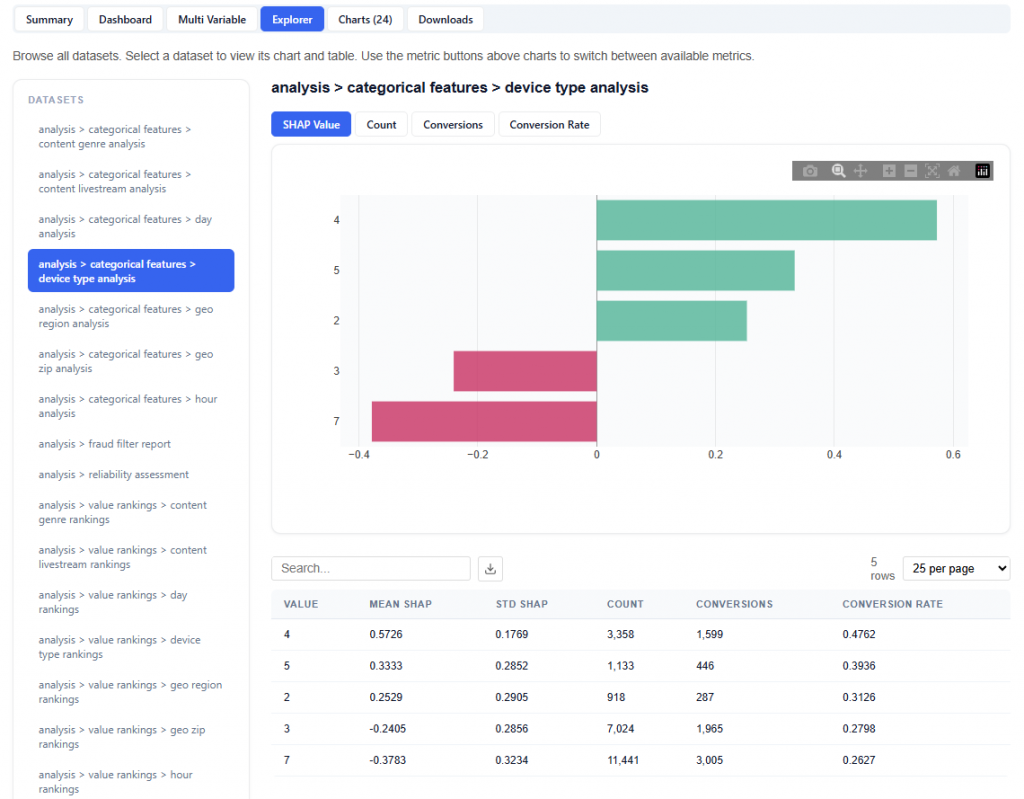
The Explorer tab allows you to browse and interact with all available datasets used in the model. Select a dataset to view its chart and table. Use the metric buttons above charts to switch between available metrics.
What It Does:
Lists all datasets in the left-hand panel
Displays each selection as a chart and table
Allows switching between multiple metrics:
SHAP Value
Count
Conversions
Conversion Rate
This section is intentionally extensive and exploratory. Users are encouraged to navigate different datasets and metrics to uncover additional insights.
Charts
The Charts tab provides access to all visualizations generated by the model, organized into categories for easier navigation and analysis.
Charts are grouped into the following sections:
Categorical Features: Visual breakdowns of performance across individual feature dimensions
Waterfall Analysis: Shows how the model builds predictions step-by-step
SHAP Summary: Provides a comprehensive view of feature importance and impact across the model using multiple visualization types:
Heatmap: Shows how feature values impact predictions across observations
Decision Plot: Visualizes how features combine step-by-step to form predictions
Beeswarm Plot: Displays the distribution and direction of feature impact across all data
Bar Chart: Ranks features by overall importance
Feature Violin: Distribution of feature impact across all predictions
Downloads
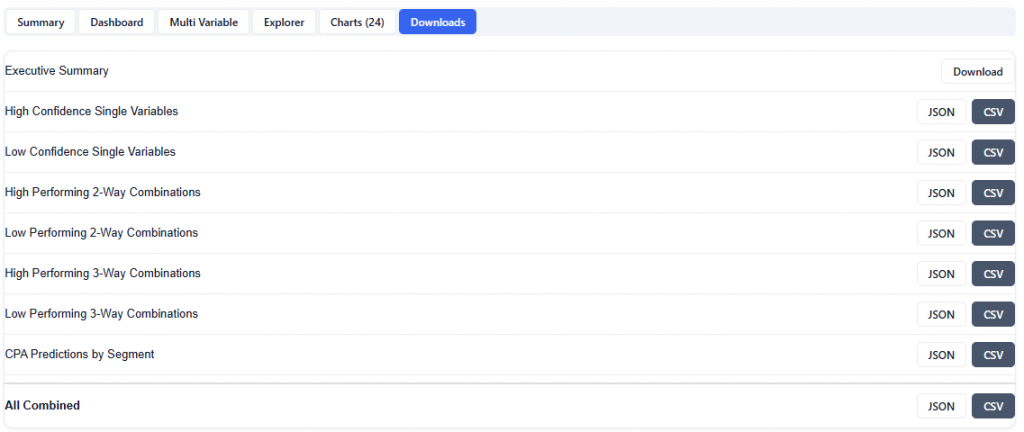
The Downloads section provides full access to all model outputs, enabling deeper analysis, reporting, and sharing across teams. These outputs can be used for investigation and validation, but more importantly, the model can be applied directly to campaigns or line items, allowing insights to seamlessly translate into real-time bidding and optimization.
Available Downloads (JSON & CSV):
Executive Summary: High-level summary of findings, insights, and key drivers
High Confidence Single Variables: Top-performing individual feature values with strong positive signals
Low Confidence Single Variables: Underperforming individual feature values to deprioritize
High Performing 2-Way Combinations: Top-performing pairs of feature values
Low Performing 2-Way Combinations: Underperforming pairs of feature values
High Performing 3-Way Combinations: Top-performing combinations of three features
Low Performing 3-Way Combinations: Underperforming combinations of three features
CPA Predictions by Segment: Model-predicted cost efficiency across segments
All Combined: Complete dataset including all outputs in a single export
Understanding and Using Model Outputs
The downloadable files provide the underlying model results used to identify high- and low-performing variables and combinations. Depending on the file selected, results represent:
A single variable, such as device_type = 4
A 2-way combination, such as geo_zip = 33147 and device_type = 4
A 3-way combination, such as geo_zip = 60602, publisher_name = iheartmedia, and device_type = 6
The All Combined file includes these outputs together in a single export.
Single-Variable Results
Single-variable outputs identify individual feature values that are more strongly associated with high- or low-performing segments.
ZIP Code 60602 + Publisher iHeartMedia + Device Type 6
The model identified the exact combination of these three values as a high-performing pattern in the analyzed dataset.
Creating Your Own Model
The model generated outputs are easy to apply to a campaign with a click of a button, but users are not limited to the exact combinations provided by the model. Users can also create their own custom JSON file using the same general structure as the model outputs.
This allows users to define variables and combinations based on their own campaign learnings, business rules, historical performance, or optimization goals. For example, a user may already know that a certain geography, publisher, device type, content genre, or day of week is strategically important and can build those values into a custom model.