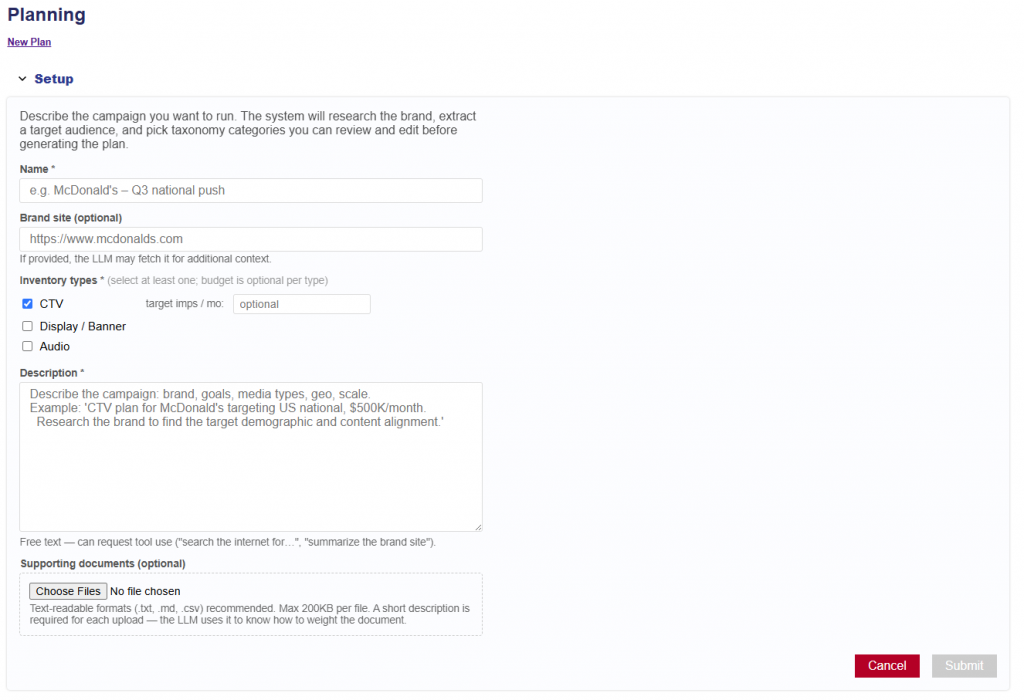
New Plan Set Up
Describe the campaign you want to run. The system will research the brand, extract a target audience, and pick taxonomy categories you can review and edit before generating the plan.
Instructions for generating a Media Plan. Follow the steps below:
- Name: Enter a name for the Planning report. For example: McDonald’s – Q3 National Push.
- Brand Site: Enter the brand’s site. This is an optional field, but if provided, the LLM may fetch it for additional context.
- Inventory Types: Select at least one inventory type: CTV, Display / Banner, or Audio. Budget is optional for each selected inventory type. Users can also enter a target number of impressions per month.
- Description: Enter a description of the campaign, including relevant details such as the brand, goals, media types, geography, budget, and desired scale.
- Example: CTV plan for McDonald’s targeting the U.S. nationally with a $500K monthly budget. Research the brand to identify the target demographic and relevant content alignment.
- Users can enter free-text instructions and request tool use, such as “Search the internet for…” or “Summarize the brand site.”
- Supporting documents: Upload optional supporting files in a text-readable format, including .txt, .md, or .csv. Files can be up to 200 KB each. A short description is required for each upload so the LLM can understand the document’s purpose and how it should be weighted when generating the plan.
- Click Submit.
- Once the report is submitted, it will process and the status will change to Draft.
- Move onto the next set of steps: New Plan Draft