New Report Set Up
Choose how you want to analyze campaign impact, then configure campaign inputs, dates, and optimization settings to generate the report results and incremental model.
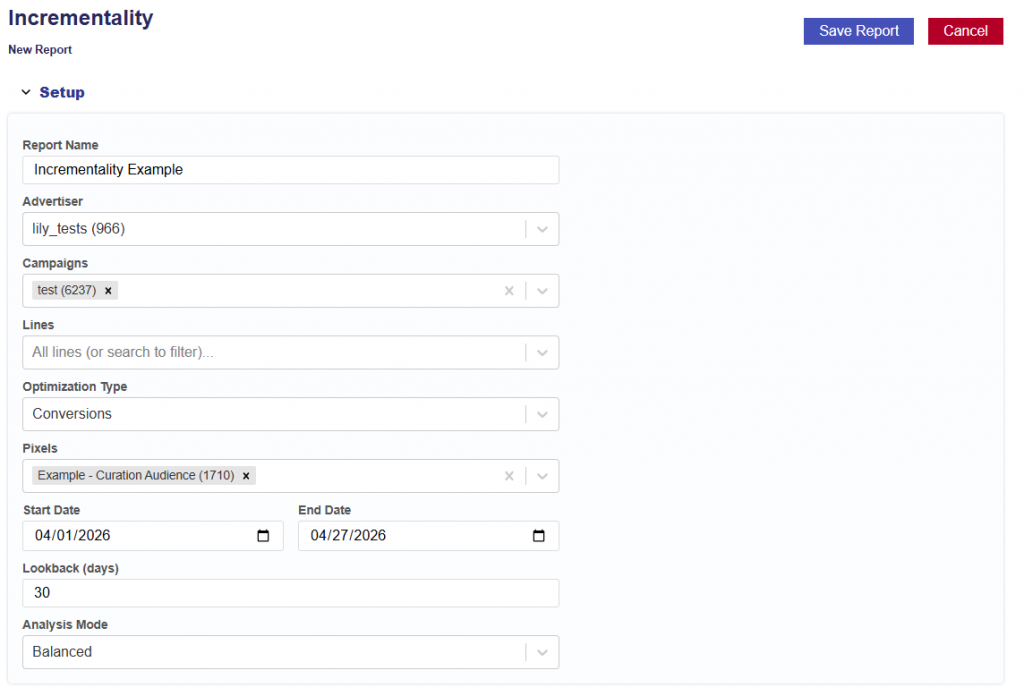
Instructions for generating a Incrementality Report and Model. Follow the steps for initial setup below:
- Navigate to the Incrementality Tab
- Click the New Report button
- Give the report a name
- Select the Advertiser to run the analysis on
- Select the Campaign(s) within the chosen Advertiser.
- If no campaigns are selected, all campaigns will be included.
- Select the Line(s) within the chosen Campaign(s).
- If no lines are selected, all lines will be included.
- Optimization Type:
- Conversions: Choose the conversion pixel to be used for optimization.
- Select the analysis Start Date.
- Select the analysis End Date.
- Enter the desired lookback window (in days).
- Default is 30 days.
- This defines how far back the model will attribute conversions or clicks to ad exposure.
- Select the Analysis Mode:
- Fast: Runs quickly using a smaller sample size for directional insights with lower statistical confidence.
- Balanced: Provides a balance between speed and statistical reliability, suitable for most analyses.
- Thorough: Uses the largest sample and most rigorous evaluation for maximum accuracy and highest statistical confidence.
- Choose whether the report should run once or repeat on a schedule.
- Run once builds a single report.
- Schedule re-runs it on the chosen cadence — each run retrains the model, replaces the live model in S3 when Replace the live model each run is enabled, and is saved as a new run grouped under this report.
- Rerun Interval:
- Weekly
- Every 2 Weeks
- Monthly
- Rerun Day of Week:
- Monday
- Tuesday
- Wednesday
- Thursday
- Friday
- Saturday
- Sunday
- Replace the live model each run checkbox
- On: each run’s new model overwrites the live model so it goes live automatically.
- Off: runs still produce reports and archived models, but the live model is left untouched.
- Rerun Interval:
- Click the Save Report button.
Key Notes:
- Requires campaign delivery and pixel fires to measure incrementality
- Uses exposed vs. control methodology to train a model that classifies ZIP-level performance
- Outputs are directly usable for targeting, budget allocation, and real-time bidding strategies