Pontiac Wiki Pontiac Wiki

September 2026

September 2026

  • Advertiser Campaign Setup Download Update
  • Banner Creative Trackers UI Update
  • Clone Campaign – Display All Lines by Default
  • Creatives Table Flights Column Tooltip
  • Default Creative Type for New Creative Uploads
  • Share Master Seat Site, App, and Deal Lists with Sub Seats
  • Standard Reporting Geo Map Views
  • App Name Targeting
  • Audience Groups
  • Completion Events Chart Renamed
  • Scheduled Reporting Time Zone Reporting Window Update
  • Frequency Cap Alignment Troubleshoot Check
  1. Home
  2. Platform Updates
  3. New Features
  4. September 2026

Creatives Table Flights Column Tooltip

Release Date: September 9th, 2026

The Flights row tooltip in Creatives tables has been updated to display the flight dates configured for each Creative.

This update applies anywhere the Creatives table appears at the Advertiser, Campaign, or Line level.

When Creative flights are enabled, hover over the Flights Enabled indicator to view each configured flight, including its Start Date and End Date.

  • Each flight is displayed on a separate line.
  • Flights are listed in chronological order by Start Date.
  • If a flight does not have an End Date, No End Date is displayed.

For Example:

  • Flights enabled.
    Start Date: 07/15/2026 – End Date: 07/31/2026
    Start Date: 08/16/2026 – End Date: No End Date

Share Master Seat Site, App, and Deal Lists with Sub Seats

Release Date: September 9th, 2026

For Master Seats, Site Lists, App Lists, and Deal Lists can now be shared across all associated Sub Seats.

This option is available when creating or updating Inventory Lists in the Inventory Tab:

  • Site Lists
  • App Lists
  • Deal Lists

On the New and Update windows, a Share to All Subseats checkbox is available below the Name field.

Share to All Subseats

  • The checkbox is unchecked by default.
  • When selected, the list is available to the Master Seat and all associated Sub Seats.
  • When unselected, the list remains available only within the Seat where it was created.
  • The setting can be updated at any time from the applicable Update List window on the Master Seat.

If an existing list is updated from unshared to shared, it becomes available across all associated Sub Seats. If it is updated from shared to unshared, it is no longer available to the Sub Seats.

Standard Reporting Geo Map Views

Release Date: September 9th, 2026

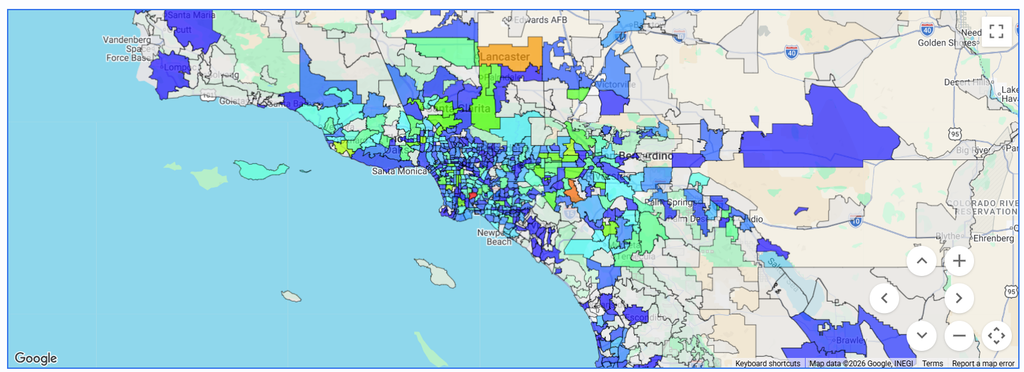
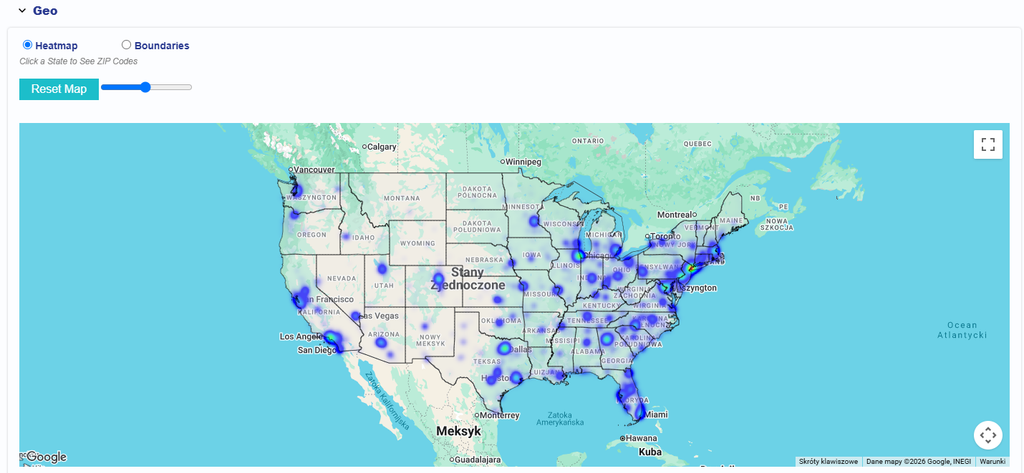
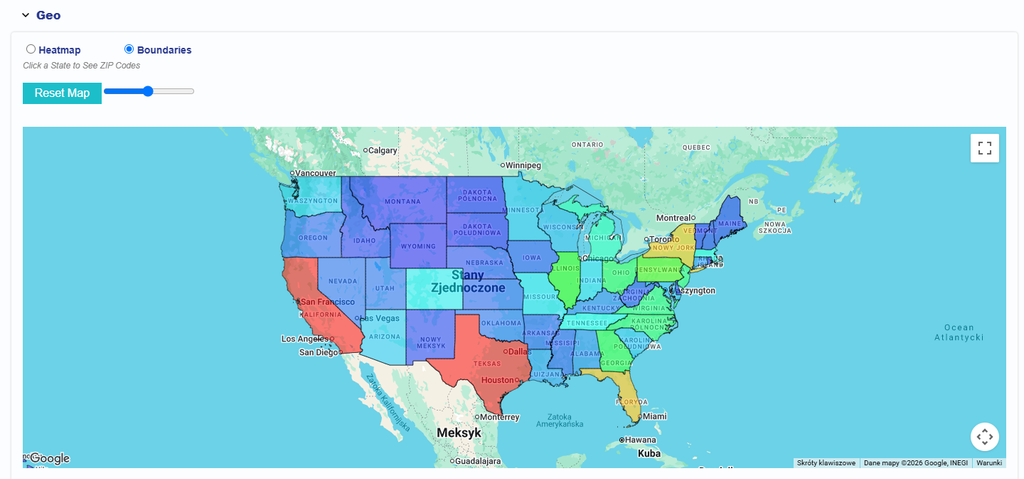
In Reporting > Standard Reporting > Geo > Map, users can switch between two map views using the available radio buttons:

  • Heatmap: The default map view. Impression volume is displayed as a heatmap. Select a state to view the ZIP code boundaries within that state.
  • Boundaries: Displays state or region boundaries, with each region shaded based on Impression volume. Select a state to view the ZIP code boundaries within that state.

Below the map view options, the following informational message is displayed:

Click a State to See ZIP Codes

Heatmap View Example

Boundaries View Example

State Zip Code View Example

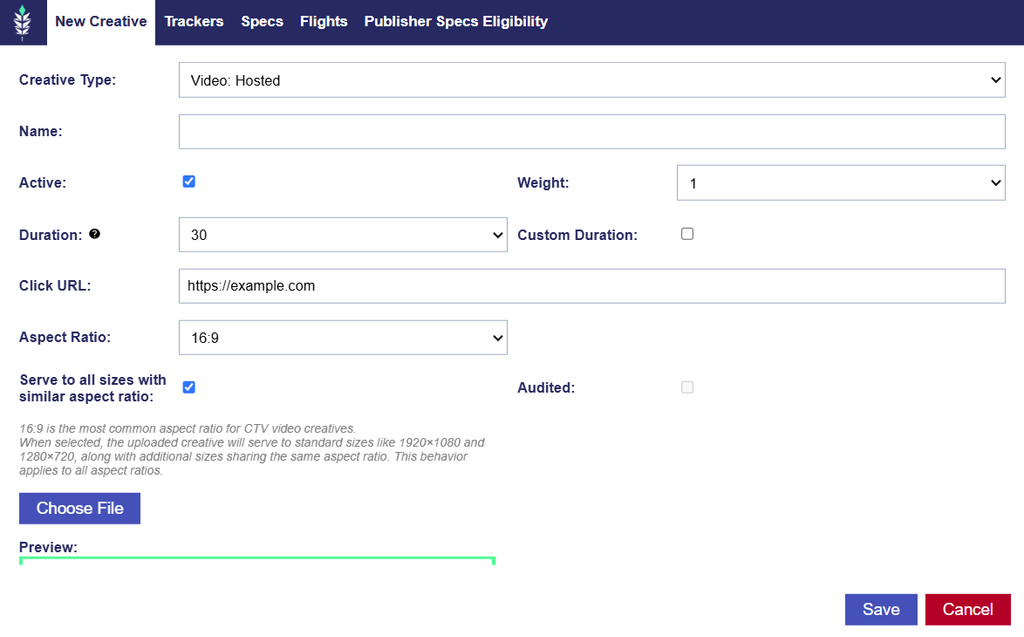
Default Creative Type for New Creative Uploads

Release Date: September 9th, 2026

In the New Creative Upload window, the default Creative Type has been updated to Video: Hosted.

All other Creative upload options and behavior remain unchanged.

Banner Creative Trackers UI Update

Release Date: September 9th, 2026

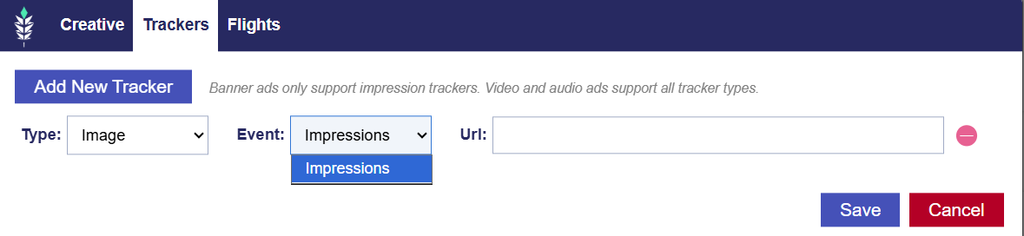
Banner creatives support Impression Trackers only.

Video specific tracking events, including Start, First Quartile, Midpoint, Third Quartile, and Completion, are not supported for banner creatives.

The Trackers tab has been updated so that when the Creative Type is Banner: Hosted or Banner: 3rd Party, only Impression tracking is available. This is a UI clarification only and does not represent a change to existing banner tracking functionality.

Advertiser Campaign Setup Download Update

Release Date: September 9th, 2026

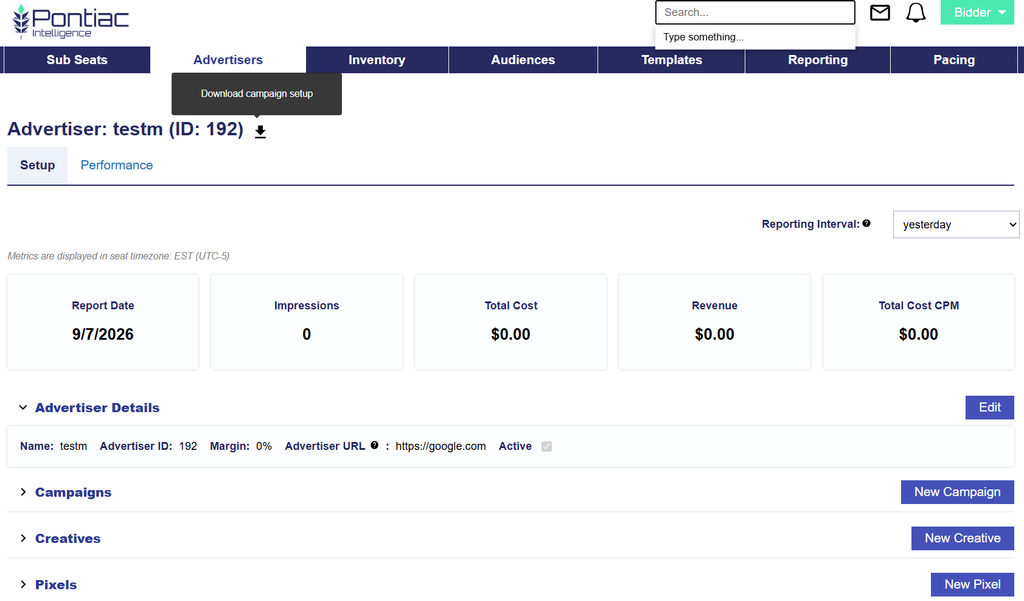
The Download Campaign Setup option on the Advertiser Details page has been updated for a more streamlined layout.

The existing Download Campaign Setup button has been removed and replaced with a download icon displayed next to the Advertiser Name at the top of the page.

Hover over the download icon to display the tooltip “Download campaign setup.” Select the icon to download the campaign setup as usual.

This is a UI update only and does not change the existing download functionality.

Clone Campaign - Display All Lines by Default

Release Date: September 9th, 2026

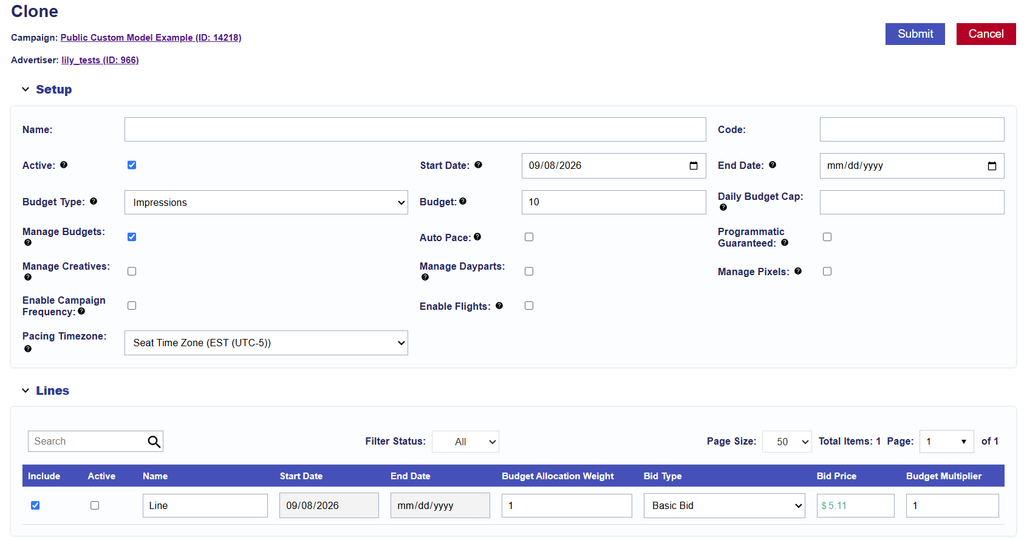
When cloning a campaign, the Lines section now defaults to Filter Status: All instead of Active.

This ensures that all lines being carried over from the original campaign are visible during the cloning process, including inactive lines from campaigns that have already ended.

Users can review the included lines and update their status to Active while cloning, if needed. All other campaign cloning behavior remains unchanged.

Audience Groups

Release Date: September 23rd, 2026

Saved Audience Groups allow users to create, name, save, and reuse Audience targeting configurations across multiple Campaigns and Lines. Each Audience Group retains its selected Audience segments, groupings, and Any / All Boolean logic, eliminating the need to rebuild the same configuration for each Campaign or Line.

Audience Groups can be created and managed from the Audiences tab or saved directly from an existing Campaign or Line configuration.

1. Creating and Managing Audience Groups

UI Location: Audiences > Audiences > Audience Groups

A new Audience Groups expandable section is available on the Audiences tab. This section displays a table of saved Audience Groups, including their Audience Group ID and Name.

Users can search for Audience Groups, filter by status, and adjust the table’s page size and pagination.

Creating a New Audience Group

Select Add New Audience Group to open the Audience Group configuration window.

  1. Enter a Name for the Audience Group.
  2. Use the Active checkbox to set the Audience Group’s status.
  3. Search for and select Audience segments from the available categories:
    • Custom Audiences
    • Third Party Audiences, including Geo Fence Audiences
    • Contextual Audiences
    • ART Audiences
  4. Add the selected segments to the targeting configuration on the right side of the window.
  5. Create additional groups as needed and configure the Any / All Boolean logic between and within groups.
  6. Review the configuration and select Save.

Once saved, the Audience Group is assigned a unique ID and added to the Audience Groups table. The saved configuration includes its Name, Active/Inactive status, selected Audience segments, groupings, and Boolean logic.

Editing an Existing Audience Group

Select an Audience Group’s name from the table to open its saved configuration.

Users can modify the Audience segments, groupings, Boolean logic, Name, or status, then select Update to save their changes or Cancel to discard them.

When updating an Audience Group, a confirmation message explains that changes will apply only to future associations.

Important: Updating a saved Audience Group does not modify existing Campaigns or Lines that previously used the group. Those configurations remain unchanged.

2. Applying Saved Audience Groups to Campaigns and Lines

UI Location: Campaign or Line > Audiences > Associate Segments

A new Audience Groups expandable section is available in the Associate Segments window.

The section displays saved Audience Groups with their Audience Group ID and Name.

Associating an Audience Group

  1. Open the Associate Segments window for the applicable Campaign or Line.
  2. Expand the Audience Groups section.
  3. Locate the desired Audience Group.
  4. Select the green + button next to the Audience Group.
  5. Review the populated targeting configuration and save your changes.

The saved Audience Group’s segments, internal groupings, and Boolean logic populate the targeting configuration on the right side of the window, as though they had been configured manually.

Once populated, users can add or remove segments, adjust groupings, and modify the Boolean logic before saving.

Changes made at the Campaign or Line level affect only that Campaign or Line and do not modify the original saved Audience Group.

Boolean Logic Warning

If the Boolean operator currently configured in the Associate Segments window differs from the selected Audience Group’s saved Boolean logic, a warning appears before the Audience Group is added.

Users can select:

  • Accept: Adds the Audience Group while retaining the current Boolean operator in the Associate Segments window.
  • Cancel: Closes the warning without adding the Audience Group.

This confirmation helps prevent unintended changes to existing targeting logic when combining saved Audience Groups with an existing configuration.

3. Saving Campaign or Line Audiences as an Audience Group

UI Location: Campaign or Line > Audiences > Associate Segments

A new Save As Group button is available in the Associate Segments window, allowing users to save an existing Audience targeting configuration as a reusable template.

Saving an Audience Group

  1. Open the Associate Segments window for the applicable Campaign or Line.
  2. Configure the desired Audience segments, groupings, and Any / All Boolean logic.
  3. Select Save As Group.
  4. Enter a name in the required Audience Group Name field.
  5. Select Save.

The current Audience configuration is saved as a new Audience Group, including all selected segments, groupings, and Boolean logic.

The new Audience Group is assigned a unique ID and becomes immediately available under Audiences > Audiences > Audience Groups, as well as within the Associate Segments window for other Campaigns and Lines.

4. Audience Group Templates and Campaign/Line Independence

Saved Audience Groups function as reusable templates rather than shared configurations that update automatically.

When an Audience Group is applied to a Campaign or Line, its configuration is copied into that Campaign or Line.

  • Changes to the Campaign or Line configuration do not update the saved Audience Group.
  • Changes to a saved Audience Group apply only to future associations and do not update Campaigns or Lines that previously used it.
  • Each Campaign or Line can independently modify its Audience segments, groupings, and Boolean logic after an Audience Group has been applied.

The Audiences expandable section on the Campaign and Line details screens displays the resulting Audience segments, groupings, and Boolean logic using the same format as manually configured Audience targeting.
Completion Events Chart Renamed

Release Date: September 23rd, 2026

UI Location: Reporting > Standard Reporting > Summary

The Video Events chart in the Summary section has been renamed to Completion Events to reflect that it displays performance data for both Video and Audio campaigns.

This update also aligns the chart title with the existing Completion Events section on the Performance tab.

Scheduled Reporting Time Zone Reporting Window Update

Release Date: September 23rd, 2026

UI Location: Reporting > Custom Reporting > Scheduled Reports

Scheduled Reports have been updated to use the selected Time Zone when determining reporting windows and report delivery times. This ensures that each reporting period is complete before the report is generated and sent, preventing the most recent date from containing only partial-day data.

Updated Reporting Behavior

  • Specific Time Zone: Reports are processed and sent only after the reporting period has fully ended in the selected Time Zone.
  • User Time Zone: When User Time Zone is selected, reports are processed and sent after 12:00 PM UTC on the following day to ensure the previous calendar day is complete across all user time zones.

This update applies to both the reporting window and report delivery, ensuring that scheduled reports include complete daily data based on the selected Time Zone.

New Scheduled Reporting Notice

A new informational message is displayed at the top of the Scheduled Reports tab to clarify when reports are processed and delivered:

Scheduled reports are sent after the reporting period has ended in the selected Time Zone: {Selected Time Zone}. If User Time Zone is selected, reports are processed and sent after 12:00 PM UTC on the following day to ensure the previous calendar day is complete across all time zones.

App Name Targeting

Release Date: September 23rd, 2026

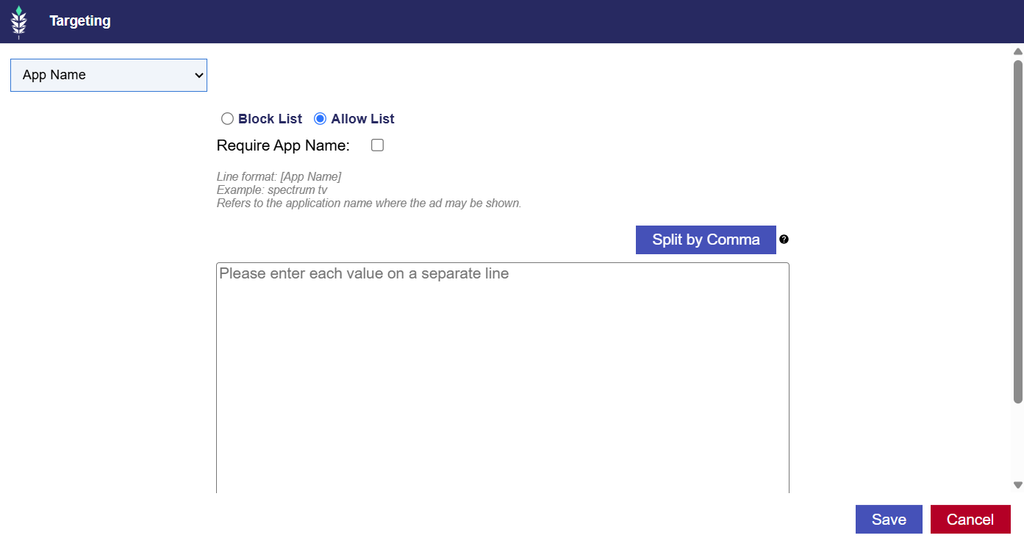
App Name Targeting has been added as a separate targeting option, allowing users to target inventory based on the name of the application where an ad may be shown.

App Name Targeting supports the same functionality as App Bundle Targeting, including:

  • Allow List: Target specific application names.
  • Block List: Exclude specific application names.
  • Require: Only impressions where the App Name field is present are eligible.
  • Split by Commas: Enter multiple application names separated by commas.

The existing validation and save functionality also applies to App Name Targeting.

Configuring App Name Targeting

  1. Navigate to the Targeting section of the applicable Campaign or Line and select Edit Targeting.
  2. Select App Name from the Targeting dropdown menu.
  3. Enter the application names you want to allow or block.
  4. Configure Require and Split by Commas, if applicable.
  5. Select Save to apply the targeting configuration.

Input Format:

  • Line format: [App Name]
  • Example: spectrum tv

App Name refers to the name of the application where the ad may be shown. Unlike App Bundle Targeting, which uses an application’s bundle identifier, App Name Targeting allows users to target the application by name.

Frequency Cap Alignment Troubleshoot Check

Release Date: September 23rd, 2026

A new Frequency Cap Alignment check has been added to Troubleshooting to identify differences between the Cap By settings configured at the Campaign and Line levels.

When frequency capping is enabled at both levels, this check compares the selected identifiers and highlights potential differences that may impact delivery.

Check Results

  • Pass: Campaign and Line frequency caps use the same Cap By setting: {cap_by}.
  • Pass – Not Applicable: Frequency capping is configured at the {level} level using {cap_by}. Frequency capping is not enabled at the other level, so Campaign and Line Cap By alignment is not applicable.
  • Warning – Different Settings: Campaign and Line frequency caps use different identifiers. Campaign Cap By: {campaign_cap_by}. Line Cap By: {line_cap_by}. Frequency caps at both levels are applied independently, which may further restrict delivery. Confirm that the settings are intentional and appropriate for the targeted inventory.

Supported Cap By Settings

Cap ByDescription
IPCaps impressions at the household level using IP address.
IFACaps impressions at the device level using the Identifier for Advertising.
CookiesCaps impressions at the browser level using cookies.
IFA-IPUses the IFA when available and falls back to IP when an IFA is unavailable.

© 2026 Pontiac Wiki Sec · All Rights Reserved · Developed by RDK

  • Contact Us
  • Privacy Policy
  • Terms & Conditions
  • Pontiac.media