Lat Long Custom Audiences
Release Date: October 7th, 2026
Lat Long Custom Audiences allow users to create location-based targeting around specific geographic coordinates. This targeting method is useful when a Campaign requires more precise geographic targeting than broader ZIP, DMA, state, or regional targeting.
Unlike Geo Fencing Audiences, which use OnSpot data to build an Audience of users who have previously visited a defined area, Lat Long Custom Audiences directly target the geographic areas surrounding the coordinates entered in the Audience.
Create a Lat Long Custom Audience
- Navigate to Audiences > Custom.
- Select New Custom Audience.
- Enter an Audience Name.
- Select Lat Long from the Type dropdown.
- Select the Radius (meters) to apply to all locations in the Audience.
- Minimum: 150 meters
- Maximum: 1,000 meters
- Enter the Latitude and Longitude values in the Audience Data field, with one location per line using the following format:
[Latitude],[Longitude] - Select Save.
Example:
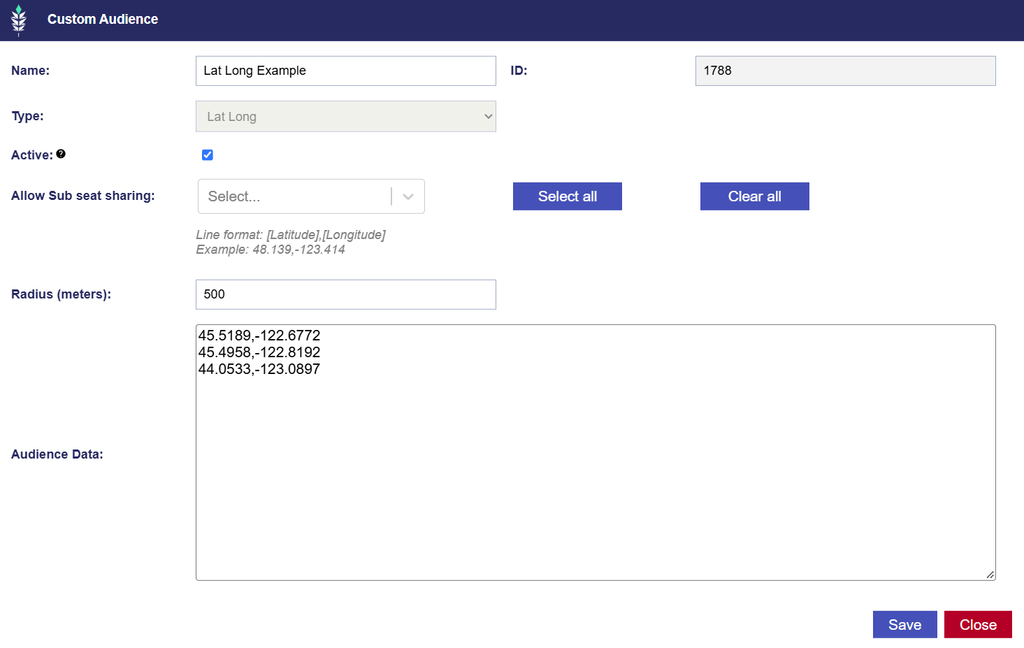
The entered radius applies uniformly to every coordinate included in the Audience. For example, the radius is set to 500 meters, so each Lat Long pair creates a targetable geographic area extending approximately 500 meters around that point.
Pontiac validates the coordinate records when the Audience is submitted. Invalid or improperly formatted records must be corrected before the Audience can be saved.
When to Use Lat Long Targeting
Lat Long Custom Audiences are useful when you already know the geographic coordinates you want to target. Common use cases include:
- Retail locations
- Dealerships
- Event venues
- Campuses
- Points of interest
- Other known geographic coordinates
View and Edit a Lat Long Custom Audience
Existing Lat Long Custom Audiences can be viewed under Audiences > Custom.
The Records column displays the number of coordinate records included in the Audience. For example, an Audience containing three Latitude / Longitude pairs will display 3 Records.
To edit an existing Audience:
- Navigate to Audiences > Custom.
- Select the Audience Name.
- Update the Audience status, Radius, or Latitude / Longitude records as needed.
- Select Save.
The Audience Type cannot be changed after the Audience has been created. Coordinate records can be added, removed, or updated, and the Records count will update to reflect the currently saved Audience data.
Because an existing Audience may already be associated with active Campaigns or Lines, review current targeting before making significant changes.
Associate a Lat Long Custom Audience
Once saved, the Lat Long Custom Audience is available for targeting or anti-targeting on eligible Campaigns and Lines.
- Navigate to the applicable Campaign or Line.
- Enter Edit mode.
- Open Audiences and select Associate Segments.
- Select Custom Audiences.
- Search for the Lat Long Audience by Name or ID.
- Select Add New Group and add the Audience to the desired targeting group.
- Select the green + to target the Audience or the red – to anti-target it.
- Configure any additional Audience or Boolean logic as needed.
- Close the Associate Segments window and Save the Campaign or Line.
For additional information on combining multiple Audiences and configuring Any / All logic, see Associate Segments and Boolean Logic.