Pacing metrics have been added and updated across Campaign and Line tables for easier visibility, comparison, and monitoring of delivery.
What’s New:
Lifetime Pacing: The existing Pacing columns have been renamed to Lifetime Pacing for clarity.
Flight Pacing: Added to the Campaigns table for campaigns with Flights enabled, allowing users to compare lifetime and flight pacing side by side.
Daily Pacing: Added to the Lines table, allowing users to easily compare lifetime and daily pacing.
Updated Tooltips: Additional explanations clarify how each pacing metric is calculated and how frequently it updates.
Note: Lifetime and Flight Pacing update daily using spend through the previous day, while Daily Pacing updates throughout the day. Optimal pacing for all metrics is between 90–110%.
Custom Reporting: Organized Dimensions, Metrics, and Columns
Release Date: October 21st, 2026
Navigation: Bidder > Reporting > Custom Reporting
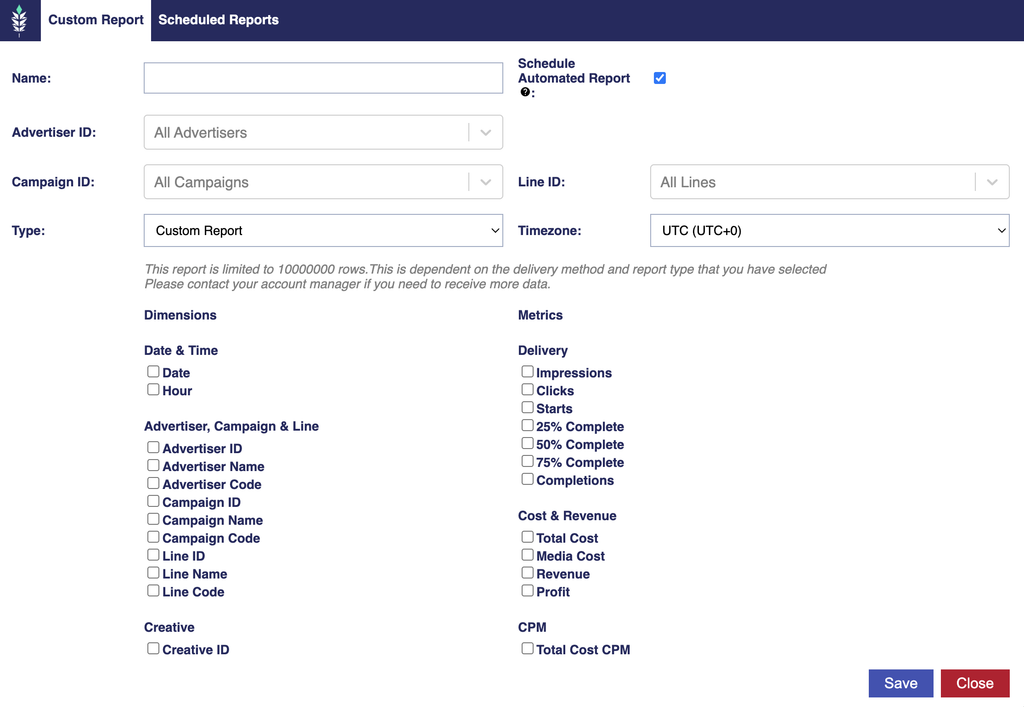
The Dimensions, Metrics, and Columns selectors in Custom Reporting have been reorganized into logical categories to make it easier to find and select reporting fields.
What’s New:
Organized Field Categories: Dimensions, Metrics, and Columns are grouped into clearly labeled categories, making it easier to locate related reporting fields.
Improved Layout: Dimensions, Metrics, and Columns headings now appear above their respective selection lists for easier navigation.
Existing Functionality Preserved: Report configuration, field selection, underlying data, and calculations remain unchanged.
Supported Report Types
These updates apply to the following report types within Custom Reporting:
Custom
IP Conversion: Path to Conversion
IP Conversion: Page Visits
IP Conversion: Conversion Rate
Cookies: Path to Conversion
Log Level
Reach/Frequency
Field Organization
Available categories vary depending on the selected report type.
Dimensions and Columns may be organized into categories such as:
Date & Time: Dates, timestamps, and time-related fields.
Advertiser, Campaign & Line: Campaign hierarchy names, IDs, and codes.
Creative: Creative identification, attributes, and specifications.
Inventory: Deals, exchanges, sites, apps, and inventory details.
Location: Geographic and location-related fields.
Device: Device characteristics, browsers, and operating systems.
Content: Publisher, channel, genre, series, and other content metadata.
Pixel & Conversion: Pixel information, conversion identifiers, and associated details.
Attribution & Identifiers: Attribution information and available identifiers.
Custom Parameters: Custom variables and additional parameters.
Auction, Video, and Delivery: Additional technical and performance fields available in certain report types.
Metrics may be organized into categories such as:
Delivery: Impressions, clicks, video starts, and completions.
Conversions & Attribution: Conversion and attribution-related metrics.
Cost & Revenue: Spend, revenue, and profit.
CPM: Cost and revenue metrics expressed as CPM.
Fees: Platform, data, and other applicable fees.
Creating a Report
Navigate to Bidder > Reporting > Custom Reporting.
Select the desired Report Type.
Browse the available Dimensions, Metrics, or Columns by category.
Select the fields you want to include in your report.
Complete the remaining report settings and generate your report as usual.
Note: These updates are organizational only. They do not change report data, calculations, or the way fields are selected. Not all categories or fields are available for every report type.
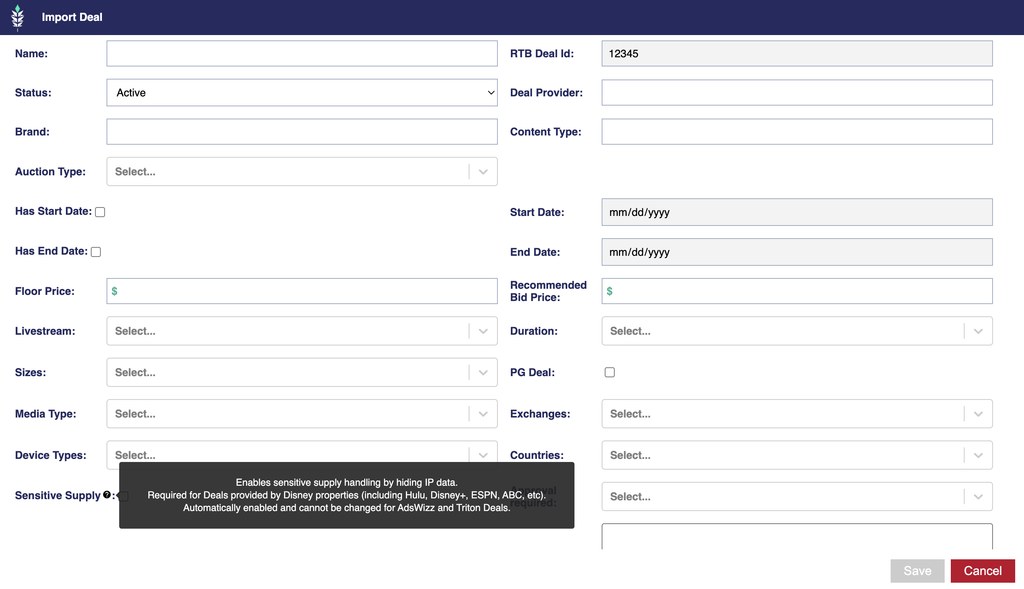
The Sensitive Supply checkbox has been added to support privacy requirements across additional exchanges and inventory sources.
What’s New:
Sensitive Supply: When enabled, IP data is hidden for the associated imported Negotiated Deal.
Disney Deals: Sensitive Supply should be enabled for Deals provided by Disney properties, including Hulu, Disney+, ESPN, and ABC. If not selected during import, Disney Deals will be automatically identified through sample bid requests and Sensitive Supply will be enabled.
AdsWizz & Triton Deals: Sensitive Supply is automatically enabled and cannot be modified for Deals from these exchanges.
This update helps ensure sensitive inventory is handled appropriately while simplifying Deal imports for exchanges with specific privacy requirements.
Need Help?
Release Date: October 21st, 2026
A new Need Help? button has been added to the footer of the Pontiac Platform.
Clicking Need Help? opens a popup with three options for getting assistance:
Pontiac Assistant: Click Open the Assistant to get help with Campaign setup, delivery, optimization, and other platform questions. The Assistant can also automate many platform features.
Help Center: Click Go to the Help Center to submit a support ticket if additional assistance is needed.
Managed Services: For hands-on Campaign management assistance, contact ebogris@progmechs.com.
Users can also access the Pontiac Assistant using the blue chat icon and the Help Center using the envelope icon in the upper-right corner of the platform at any time.
Related Documentation:
Pontiac Assistant: Learn about the Assistant’s capabilities, supported workflows, and example prompts.
Help Center: Learn how to submit and manage support tickets through the Help Center.
Native Creative Audit Status
Release Date: October 21st, 2026
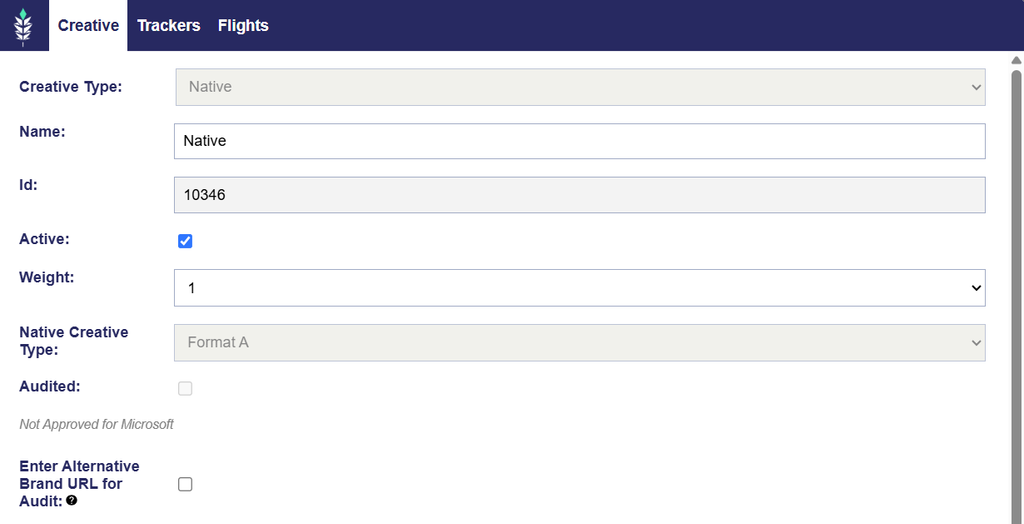
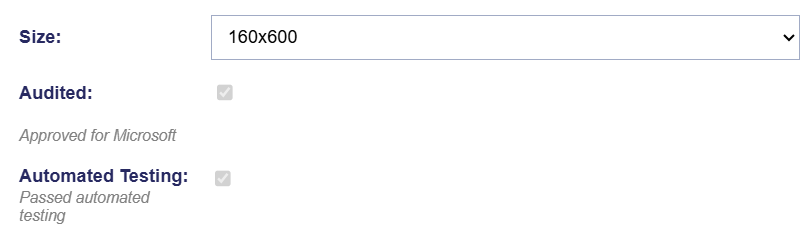
The Native Creative dialog has been updated to display Audited and Publisher Approval Status, consistent with other Creative Types.
Audited: Indicates whether the Creative has been reviewed through Pontiac’s Creative Audit process. A checked box means the Creative has been audited, but does not necessarily mean it has been approved by a publisher/SSP.
Publisher Approval Status: Displays whether the Creative is Approved for Microsoft or Approved for Index, depending on the Exchange being targeted.
These fields provide greater visibility into Native Creative audit and approval status directly within the Creative dialog, making it easier to identify Creatives that may require additional review before serving.
Active Status Troubleshoot Check Update
Release Date: October 21st, 2026
The existing Advertiser, Campaign, and Line Status Troubleshoot Check has been renamed to Active Status and now includes the current Flight when Flights are enabled.
This check verifies that the Advertiser, Campaign, Line, and current Flight (if applicable) are all active and eligible for delivery.
Possible Results:
Pass: All applicable objects are active.
Fail: One or more objects are inactive. The check identifies the inactive objects by name and ID so users can update their status.
Warning: Flights are enabled, but no Flight covers the current date. This may be intentional if delivery is paused. Users should review their Flight dates if delivery is expected.
If multiple issues are identified, the check displays all applicable messages, with Fail taking priority over Warning.
This update provides better visibility into inactive objects and Flight scheduling issues that may prevent delivery.
Campaign Download Updates
Release Date: October 21st, 2026
The Campaign Setup Download has been updated to provide additional visibility into Campaign and Line configurations.
Updates to the Campaign and Lines tabs include:
Recency: Updated the Campaign Recency and Line Recency column names to include “(min)”, clarifying that values are displayed in minutes.
Site Targeting: Added columns for Required, Allow List, and Block List settings.
App Bundle Targeting: Added columns for Required, Allow List, and Block List settings.
App Name Targeting: Added columns for Required, Allow List, and Block List settings.
Custom Model Thresholds: Added columns for Threshold Type (Single or Spread) and the corresponding threshold values.
Line Bid Settings: Updated the export to correctly display Max Bid Price separately from other bid settings, including Bid at Floor Plus.
These updates make it easier to review and QA Campaign and Line configurations using the downloaded setup file.
Lat Long Custom Audiences
Release Date: October 7th, 2026
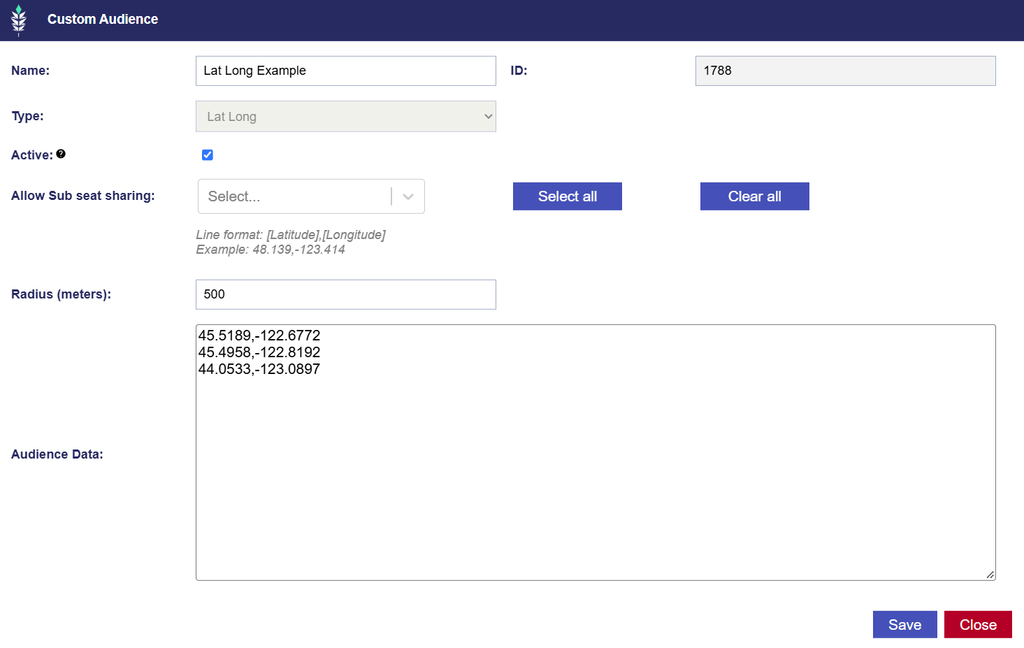
Lat Long Custom Audiences allow users to create location-based targeting around specific geographic coordinates. This targeting method is useful when a Campaign requires more precise geographic targeting than broader ZIP, DMA, state, or regional targeting.
Unlike Geo Fencing Audiences, which use OnSpot data to build an Audience of users who have previously visited a defined area, Lat Long Custom Audiences directly target the geographic areas surrounding the coordinates entered in the Audience.
Create a Lat Long Custom Audience
Navigate to Audiences > Custom.
Select New Custom Audience.
Enter an Audience Name.
Select Lat Long from the Type dropdown.
Select the Radius (meters) to apply to all locations in the Audience.
Minimum: 150 meters
Maximum: 1,000 meters
Enter the Latitude and Longitude values in the Audience Data field, with one location per line using the following format: [Latitude],[Longitude]
Select Save.
Example:
The entered radius applies uniformly to every coordinate included in the Audience. For example, the radius is set to 500 meters, so each Lat Long pair creates a targetable geographic area extending approximately 500 meters around that point.
Pontiac validates the coordinate records when the Audience is submitted. Invalid or improperly formatted records must be corrected before the Audience can be saved.
When to Use Lat Long Targeting
Lat Long Custom Audiences are useful when you already know the geographic coordinates you want to target. Common use cases include:
Retail locations
Dealerships
Event venues
Campuses
Points of interest
Other known geographic coordinates
View and Edit a Lat Long Custom Audience
Existing Lat Long Custom Audiences can be viewed under Audiences > Custom.
The Records column displays the number of coordinate records included in the Audience. For example, an Audience containing three Latitude / Longitude pairs will display 3 Records.
To edit an existing Audience:
Navigate to Audiences > Custom.
Select the Audience Name.
Update the Audience status, Radius, or Latitude / Longitude records as needed.
Select Save.
The Audience Type cannot be changed after the Audience has been created. Coordinate records can be added, removed, or updated, and the Records count will update to reflect the currently saved Audience data.
Because an existing Audience may already be associated with active Campaigns or Lines, review current targeting before making significant changes.
Associate a Lat Long Custom Audience
Once saved, the Lat Long Custom Audience is available for targeting or anti-targeting on eligible Campaigns and Lines.
Navigate to the applicable Campaign or Line.
Enter Edit mode.
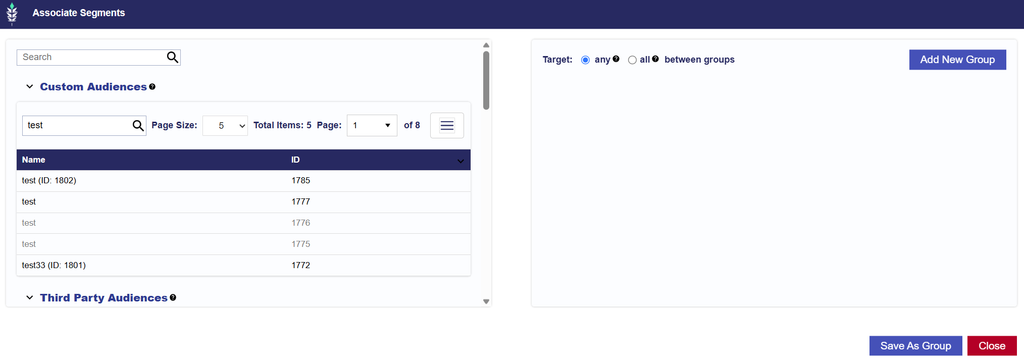
Open Audiences and select Associate Segments.
Select Custom Audiences.
Search for the Lat Long Audience by Name or ID.
Select Add New Group and add the Audience to the desired targeting group.
Select the green + to target the Audience or the red – to anti-target it.
Configure any additional Audience or Boolean logic as needed.
Close the Associate Segments window and Save the Campaign or Line.
For additional information on combining multiple Audiences and configuring Any / All logic, see Associate Segments and Boolean Logic.
Associate Audience Pagination Updates
Release Date: October 6th, 2026
Pagination has been added to Custom Audiences, Contextual Audiences, ART Audiences, and Audience Groups and is available when associating segments at the Campaign or Line level and when creating or editing Audience Groups.
Pagination is now available for:
Custom Audiences
Third Party Audiences
Contextual Audiences
ART Audiences
Audience Groups
The updated pagination controls include:
Page Size: Select how many Audiences are displayed per page.
Total Items: Displays the total number of rows on the current page size.
Page X of Y: Shows the current page number and total number of available pages, with the option to navigate between pages.
This update applies to:
Campaign and Line > Associate Segments
Audiences > Audience Groups > New Audience Group
Audiences > Audience Groups > Existing Audience Group
Users can now navigate larger Audience lists more easily and control how many results are displayed at a time.
Bid at Total eCPM
Release Date: October 6th, 2026
A Bid at Total eCPM option has been added to Basic Bid to allow the entered bid price to include applicable static fees.
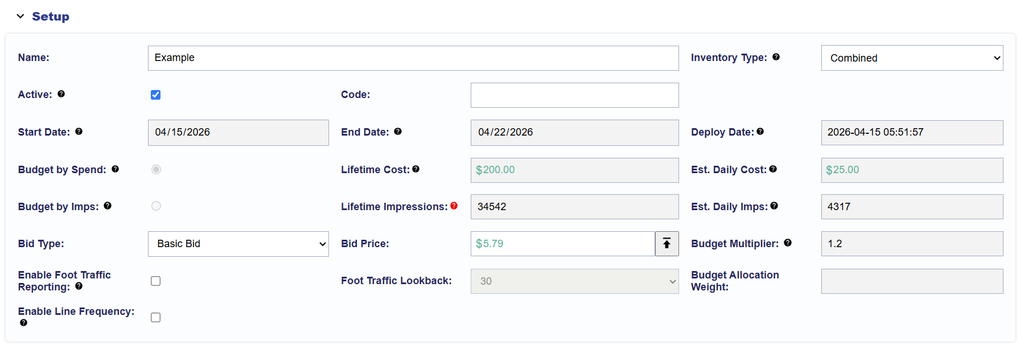
To enable this feature, navigate to the Line Setup section. When Bid Type = Basic Bid, select the button next to the Bid Price field.
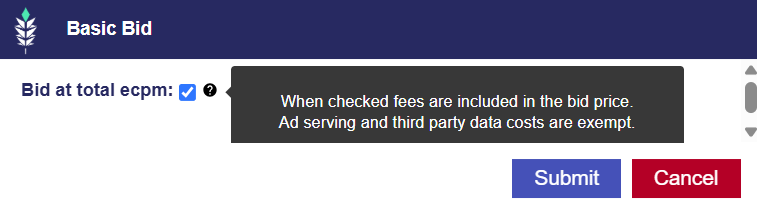
The following window will appear:
When Bid at Total eCPM is selected, Pontiac adjusts the bid amount to account for the following fees so that the total eCPM remains within the entered bid price:
Margin
Foot Traffic Fee
Chalice Fee
Ad serving fees and third party data costs are excluded and are not included in this calculation.
The tooltip displays:
When checked, fees are included in the bid price. Ad serving and third party data costs are exempt.
Campaign Line Allocation Updates
Release Date: October 6th, 2026
The Lines table at the Campaign level has been updated when Flights are enabled to provide clearer visibility into Line allocation values. This is a UI/display update only and does not change how budget allocation is calculated or applied.
The Allocation column now includes the following tooltip:
The Line’s actual budget allocation percentage based on spend, which may change over time as allocation rates adjust.
The Budget Allocation Weights column has also been added to the right of Allocation. This displays the target allocation weight configured for each Line in the Flights section.
For display purposes, the reference the current active Flight. If no Flight is currently active, the next upcoming Flight is used.
The Budget Allocation Weights tooltip now reads:
The Line’s target Budget Allocation Weights, configured in the Flights section. Displays weights for the current active Flight, or the next upcoming Flight if none is active.
No underlying Flight or budget allocation functionality has changed.
Companion Banners for Audio Creatives
Release Date: October 6th, 2026
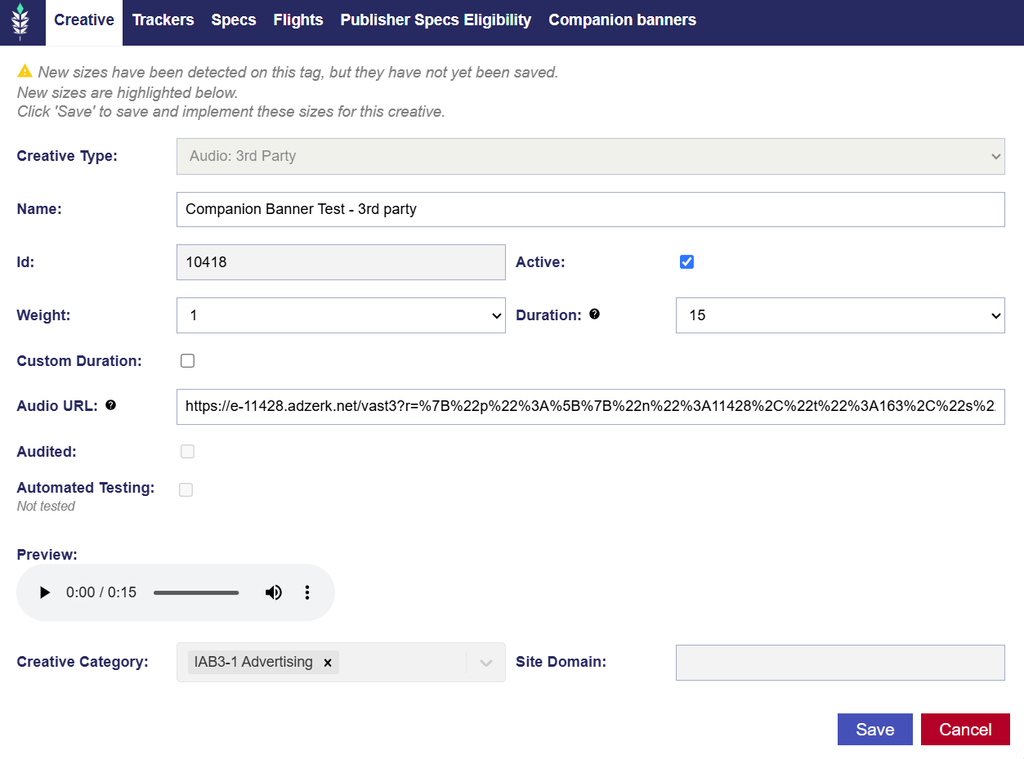
Companion Banners are available for both First Party and Third Party Audio creatives. Companion Banners are uploaded directly as image files and are hosted and prepared for delivery by Pontiac.
After the Audio creative has been uploaded, a new Companion Banners tab will become available on the creative.
Adding Companion Banners
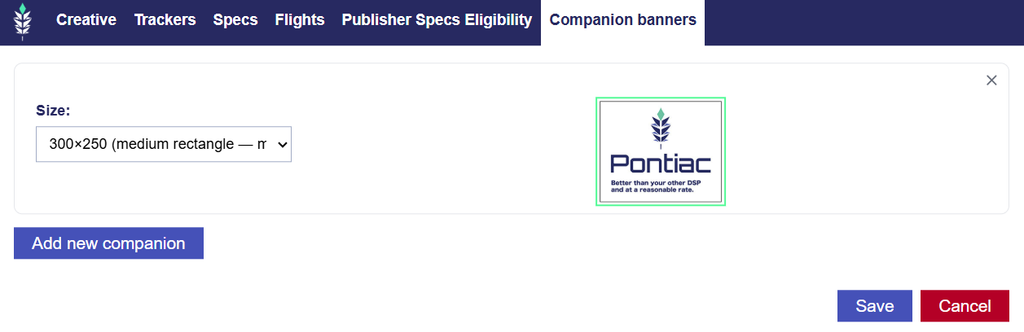
Navigate to the Companion Banners tab and select Add New Companion to upload an image.
Once uploaded:
A preview of the Companion Banner will display.
Additional Companion Banners can be added as needed.
Existing Companion Banners can be removed.
Pontiac will automatically prepare uploaded Companion Banners for delivery with the Audio creative.
Supported Sizes
The following Companion Banner sizes are supported:
300×250 – Medium Rectangle
728×90 – Leaderboard
160×600 – Wide Skyscraper
320×50 – Mobile Banner
300×600 – Half Page
Supported File Types
Companion Banners can be uploaded as:
PNG
JPG
JPEG
GIF
Adding, replacing, or removing a Companion Banner after the creative has been audited will return the creative to Pending status so the updated creative package can be reviewed again.
Note: Companion Banners are currently supported for Audio creatives only. While they can be associated with both First Party and Third Party Audio creatives, the Companion Banner itself is uploaded and hosted as a First Party asset.
Deal Exchange Compatibility Check Update
Release Date: October 6th, 2026
The Deal Exchange Compatibility troubleshoot check has been updated to better distinguish between confirmed targeting issues and cases where there is not enough sample data to verify compatibility.
The check now displays:
Pass when the targeted Deal(s) and exchange(s) are aligned.
Fail when sample data confirms that the targeted Deal(s) and exchange(s) are not aligned.
Warning when there is not enough Deal sample log data available to verify exchange compatibility.
When a Warning is returned, the following message will display:
Unable to verify exchange compatibility for the targeted Deal(s): {deal_1}: {exchange_1}, {deal_2}: {exchange_2}. Insufficient deal sample log data is available. Please verify exchange compatibility manually.
This update prevents Deals from being marked as failed when compatibility cannot be confirmed due to limited or unavailable sample data.
Flight Pacing Added to Pacing Tab
Release Date: October 6th, 2026
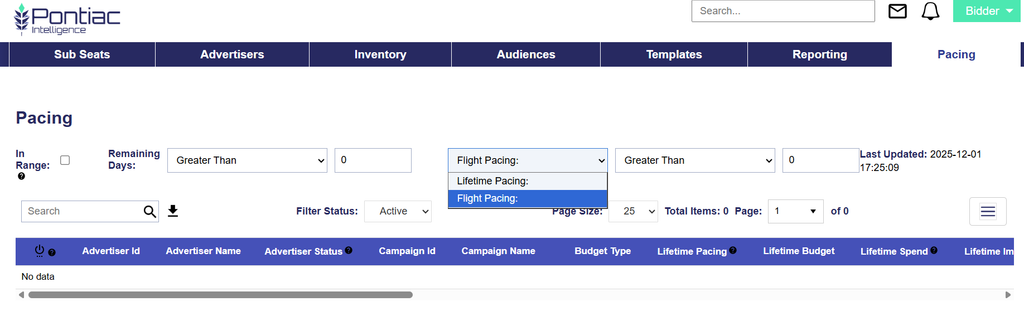
The Pacing tab has been updated to include Flight Pacing, providing additional visibility into Campaign pacing against the current Flight.
The pacing filter at the top of the page has also been updated to a dropdown, allowing users to filter Campaigns based on either:
Lifetime Pacing (Selected by Default)
Flight Pacing
Users can select the desired pacing type and apply the existing threshold filter to identify Campaigns above or below a specified pacing percentage.
Geo Fencing Tooltip
Release Date: October 6th, 2026
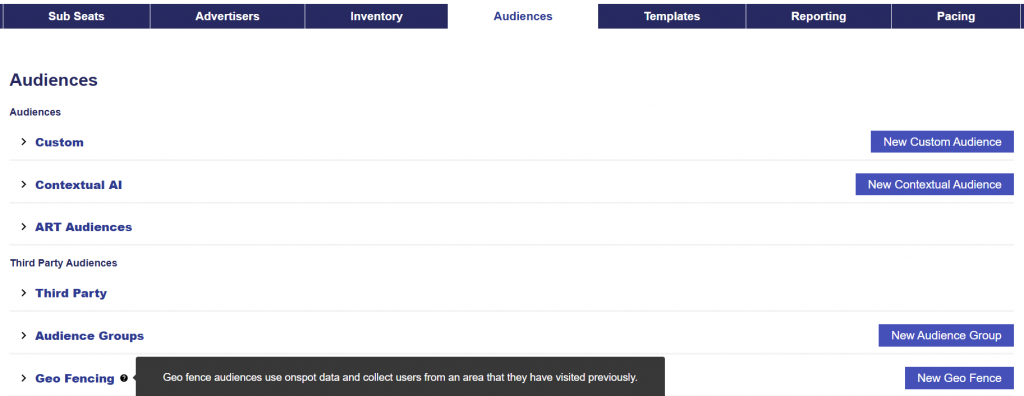
The Geo Fencing tooltip has been updated to provide additional context on how Geo Fence Audiences are created: Geo Fence Audiences use OnSpot data to identify users who have previously visited a specified geographic area.
Inventory Availability Report Selectable Lookback
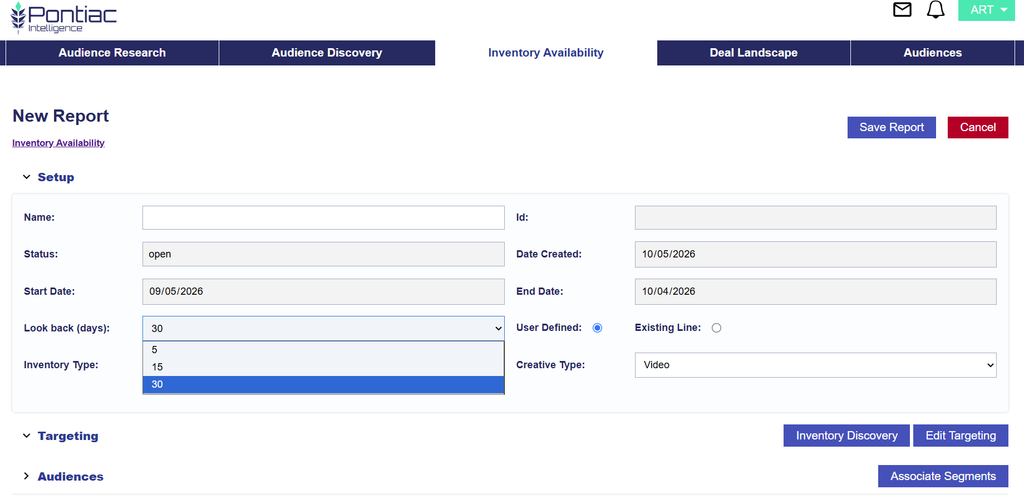
The Inventory Availability report now allows users to select the lookback period used to evaluate available inventory.
When creating a report, use the Look back (days) dropdown in the Setup section to select:
5 days
15 days
30 days
The Start Date and End Date automatically update based on the selected lookback period.
This option is available for both User Defined and Existing Line Inventory Availability reports and allows users to evaluate inventory using a shorter or longer recent data window depending on their needs.
Microsoft Native Creative Audit
Release Date: October 6th, 2026
Native creatives are now submitted to Microsoft for creative audit, expanding Microsoft audit support to include the Native creative type.
No additional action is required from users. Native creatives will be submitted for Microsoft audit automatically and their audit status will update as results are returned.
The Microsoft audit status will be displayed in gray text directly beneath Pontiac’s internal creative audit status Audited checkbox.
Pacing & Dayparts Weights Curve Update
Release Date: October 6th, 2026
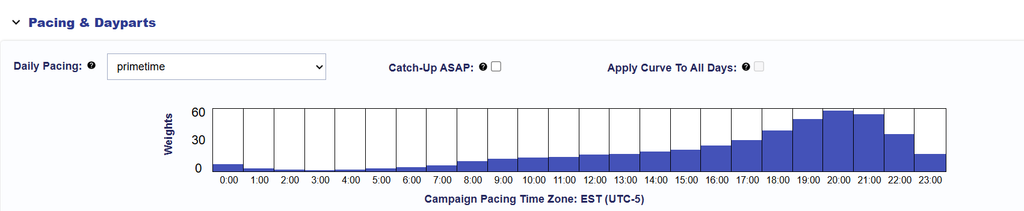
The Pacing & Dayparts weights curve has been updated to make it clearer which time zone is being used for hourly pacing.
When Daily Pacing is set to Primetime or Custom, the Campaign’s selected Pacing Time Zone is now displayed beneath the hourly weights curve.
For example: Campaign Pacing Time Zone: EST (UTC-5)
This label appears at both the Campaign and Line levels and automatically reflects the Pacing Time Zone selected in Campaign Setup.
This is a UI update only and does not change how pacing or dayparting is applied.
Percent of Lat Long Defined Added to Deal Landscape
Release Date: October 6th, 2026
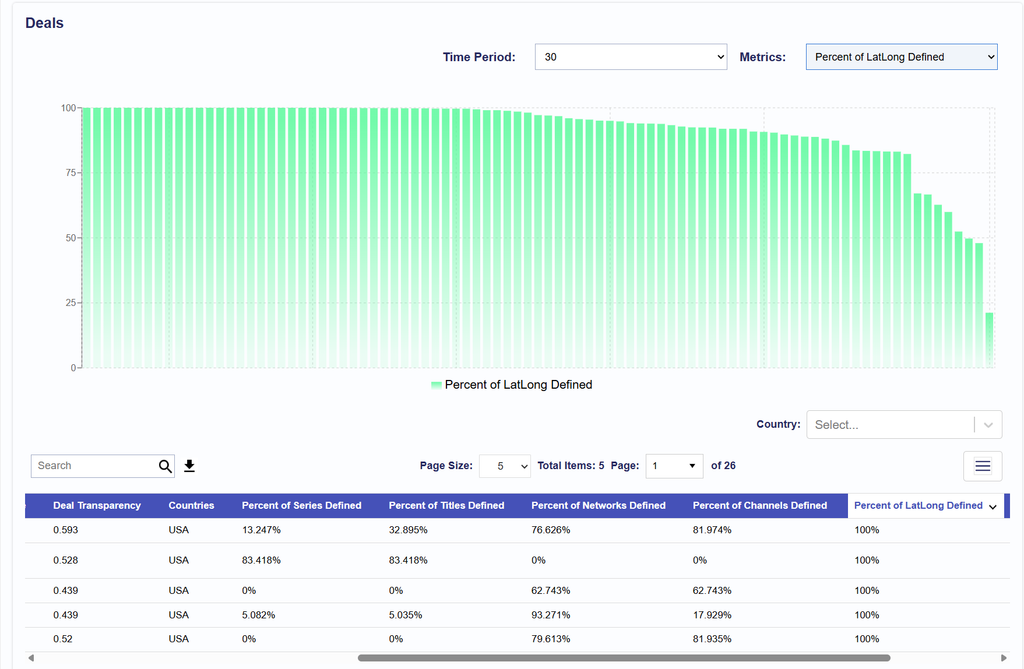
A new Percent of Lat Long Defined metric column has been added to Deal Landscape.
This metric shows the percentage of In App requests for the Deal that include both latitude and longitude values. If no In-App requests are available for the Deal, the metric will display --.
Wildcard Support for Site Targeting
Release Date: October 6th, 2026
Site targeting now supports wildcards, allowing users to target subdomains without adding each subdomain individually.
This functionality is available for:
Sites
Site List – Configured in Inventory > Site Lists and then targeted on the Campaign or Line level > Targeting > Site Lists
Allow Lists
Block Lists
To include subdomains of a domain, add *. before the domain.
Block List Example
If *.abc.com is included in a Block List, requests from matching subdomains will be blocked.
For example:
Bid Request Domain
Result
www.abc.com
Blocked
news.abc.com
Blocked
sports.news.abc.com
Blocked
xyz.com
Eligible to serve, assuming it is not blocked by another targeting setting
Allow List Example
If *.abc.com is included in an Allow List, requests from matching subdomains can serve.
For example:
Bid Request Domain
Result
www.abc.com
Eligible to serve
news.abc.com
Eligible to serve
sports.news.abc.com
Eligible to serve
xyz.com
Not eligible to serve
Domains entered without a wildcard will continue to use the existing domain-matching behavior.