On the Advertiser, Campaign, and Line level, when a user downloads the Creatives table, the file now contains a Tag column for easy troubleshooting and QA needs. This is automatically added by default and will output something similar to the following csv example:
Creative Rejection Reason Display
Release Date: June 1st, 2026
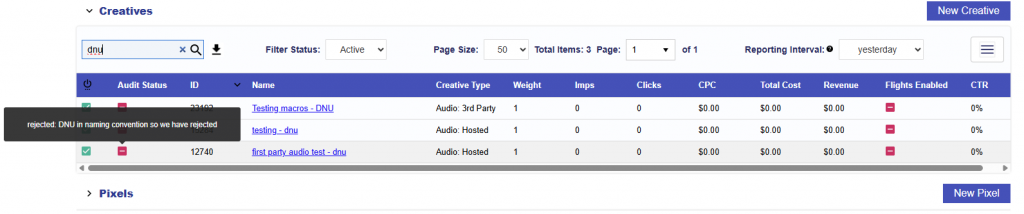
At the Advertiser, Campaign, and Line levels, the Creatives table displays all creatives associated with that level, along with their current audit status.
When a creative is rejected, users can hover over the Audit Status to view the rejection reason. This allows users to quickly understand why the creative did not pass audit.
Custom Duration for Hosted Creatives
Release Date: June 1st, 2026
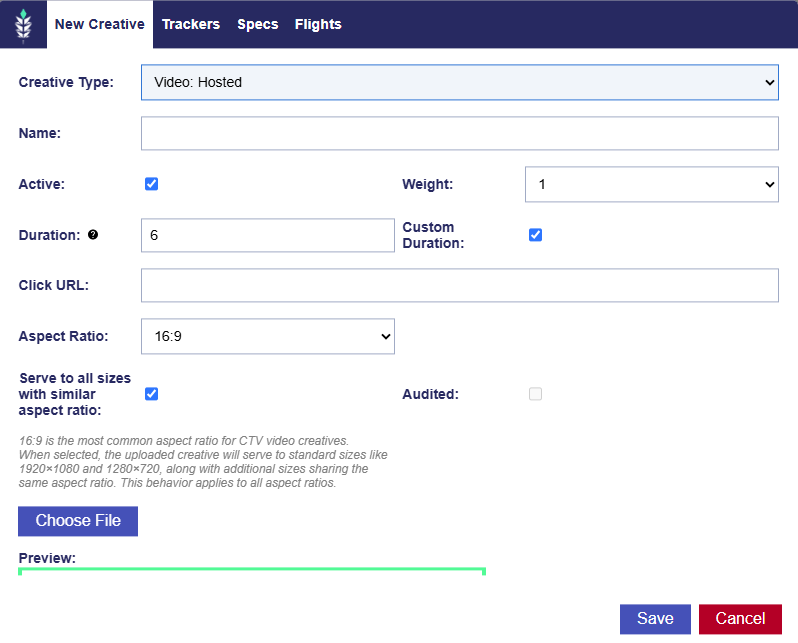
When uploading a Video: Hosted or Audio: Hosted creative, users can now select the Custom Duration option to manually enter the creative’s duration.
This allows users to enter a custom duration in seconds when the standard duration options do not match the creative’s actual length. This is the duration that will be used to generate the creative’s VAST tag. If the creative duration includes a partial second, users should round up to the nearest whole second. For example, a creative that is 5.75 seconds long should be entered as 6 seconds.
Log Level Reporting Alternative Currency Option
Release Date: June 1st, 2026
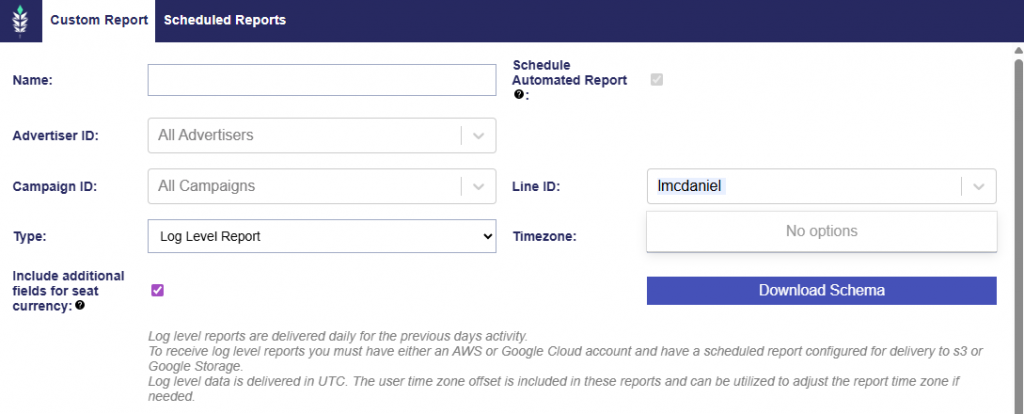
When configuring a Log Level Report for a seat with a default currency other than USD, additional seat currency cost fields are now selected by default.
All cost fields remain available in USD by default. This update adds additional cost fields in the seat’s specified currency, allowing users to view cost data in both USD and the seat currency. These additional fields can be unselected before the report is generated, but included by default.
IP Conversion Pixel: Path To Conversion Alternative Currency Option
Release Date: June 1st, 2026
When configuring an IP Conversion Pixel: Path to Conversion report for a seat with a default currency other than USD, additional seat currency cost fields are now selected by default.
All cost fields remain available in USD by default. This update adds additional cost fields in the seat’s specified currency, allowing users to view cost data in both USD and the seat currency. These additional fields can be unselected before the report is generated, but are included by default.
Cookies: Path to Conversion Alternative Currency Option
Release Date: June 3rd, 2026
When configuring a Cookie: Path to Conversion report for a seat with a default currency other than USD, additional seat currency cost fields are now selected by default.
All cost fields remain available in USD by default. This update adds additional cost fields in the seat’s specified currency, allowing users to view cost data in both USD and the seat currency. These additional fields can be unselected before the report is generated, but are included by default.
Last Month Reporting Interval
Release Date: June 10th, 2026
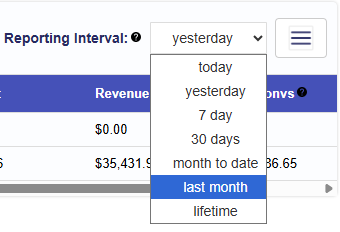
A new Last Month option has been added to the Reporting Interval dropdown.
When selected, reporting metrics will update to show data for the full previous calendar month. For example, if today is June 10th, selecting Last Month will show data from May 1 through May 31.
This option is available in the following areas:
Advertiser, Campaign, and Line top tiles
Advertiser > Campaigns table
Advertiser > Creatives table
Advertiser > Pixels table
Campaign > Lines table
Campaign > Creatives table
Campaign > Pixels table
Line > Creatives table
Line > Pixels table
All displayed metrics will update to match the selected reporting interval.
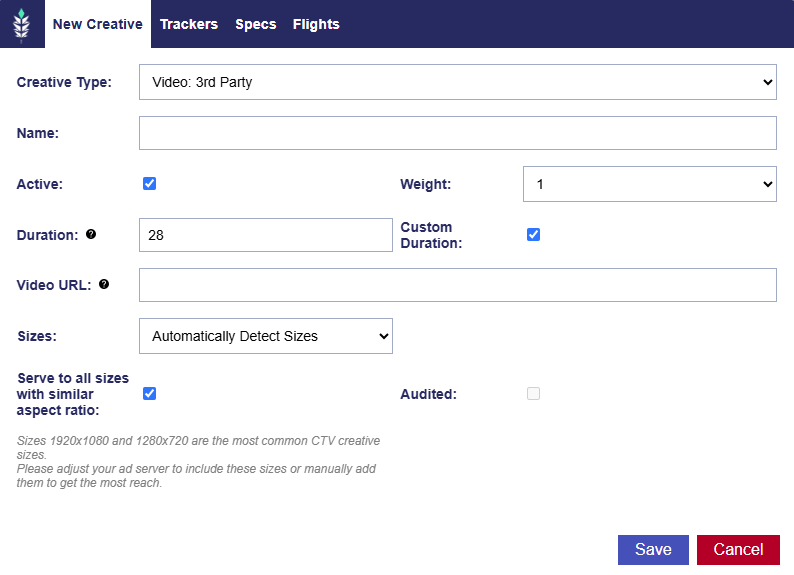
Custom Duration for 3rd Party Creatives
Release Date: June 10th, 2026
When uploading a Video: 3rd Party or Audio: 3rd Party creative, users can now select the Custom Duration option to manually enter the creative’s duration.
This allows users to enter a custom duration in seconds when the standard duration options do not match the creative’s actual length. If the creative duration includes a partial second, users should round up to the nearest whole second. For example, a creative that is 5.75 seconds long should be entered as 6 seconds.
Deal Media Types Updated
Release Date: June 10th, 2026
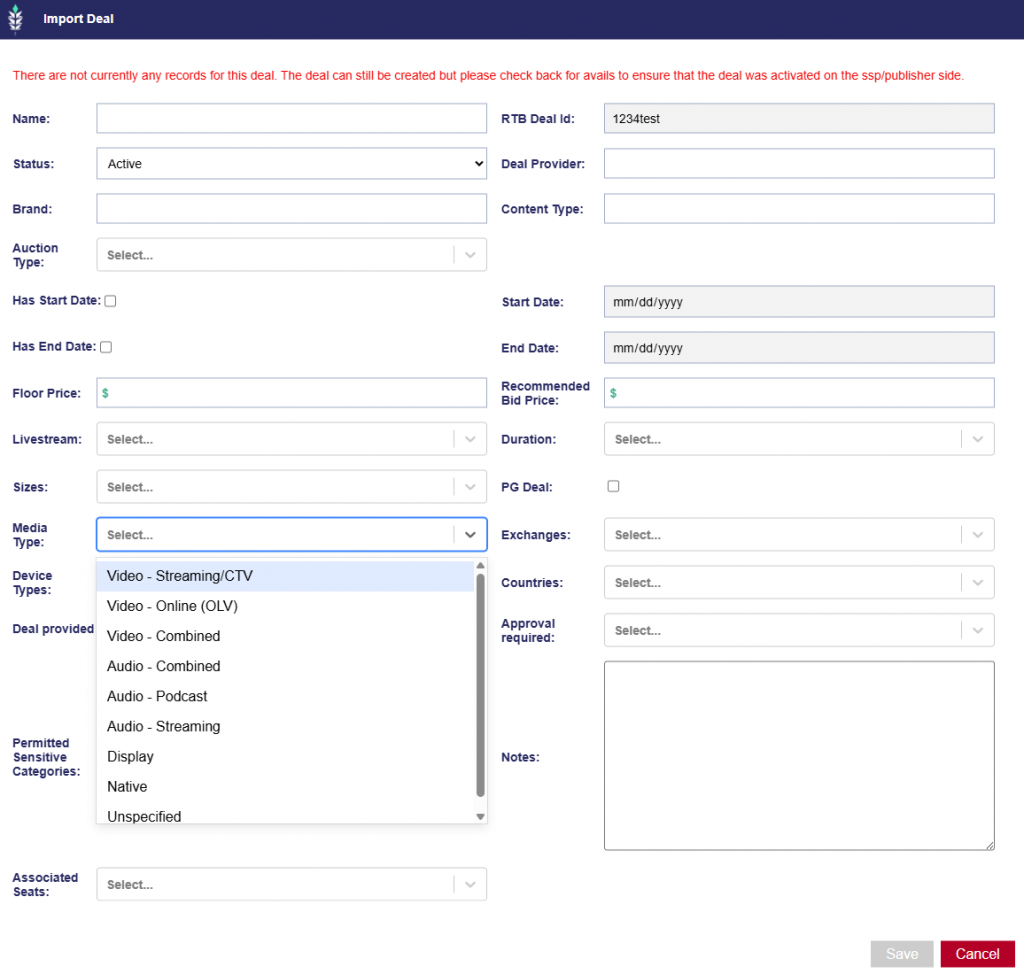
The available Deal Media Type values have been updated to better distinguish between video and audio inventory types.
This update applies when importing deals from Inventory > Import Deal > Media Type.
The updated media type values will also appear consistently in the Deals and Negotiated Deals tables.
The Media Type dropdown now includes the following values:
Video – Streaming/CTV
Video – Online (OLV)
Video – Combined
Audio – Combined
Audio – Podcast
Audio – Streaming
Display
Native
Unspecified
Events Added to Log Level Reports
Release Date: June 10th, 2026
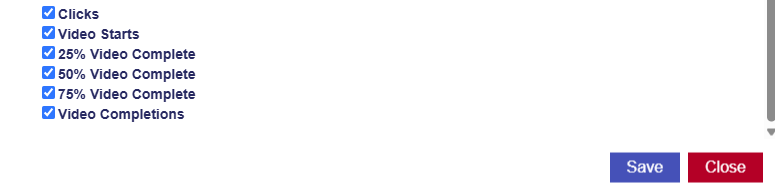
New event dimensions have been added to log-level reports. Each event column uses a binary flag to indicate whether the event occurred.
1 = event occurred
0 = event did not occur
Clicks: Indicates whether the ad received a click. 1 = event occurred, 0 = event did not occur.
Video Starts: Indicates whether the video started.1 = event occurred, 0 = event did not occur.
25% Video Complete: Indicates whether the video reached 25% completion. 1 = event occurred, 0 = event did not occur.
50% Video Complete: Indicates whether the video reached 50% completion. 1 = event occurred, 0 = event did not occur.
75% Video Complete: Indicates whether the video reached 75% completion. 1 = event occurred, 0 = event did not occur.
Video Completions: Indicates whether the video completed. 1 = event occurred, 0 = event did not occur.
These dimensions are selected by default when creating or editing a log-level report, but they can be unselected if they are not needed.
For more information about log level reporting, see the documentation link here: Log Level Reporting
Index Curation Target CTR
Release Date: June 10th, 2026
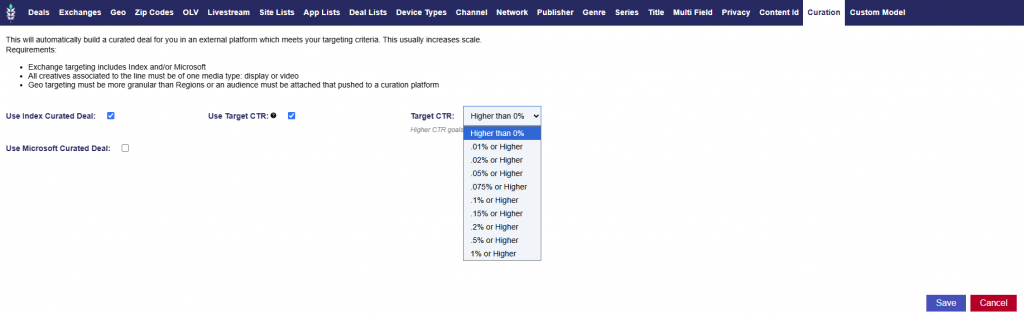
When automatically creating an Index Curate Deal, users can now optionally declare a Target CTR goal. This setting only applies to Index Curate Deals and does not apply to Microsoft curated deals.
On the Line level > Targeting > Curation tab, users can select Use Index Curated Deal. Once this setting is selected, the Use Target CTR option becomes available, allowing the user to select the desired Target CTR used to generate the deal. By default, Use Target CTR is unchecked and disabled.
A tooltip is available for the Use Target CTR setting: This will attempt to filter inventory to a specific CTR goal and could limit delivery. This will not work with CTV or audio campaigns.
The selectable Target CTR options are:
Higher than 0%
.01% or Higher
.02% or Higher
.05% or Higher
.075% or Higher
.1% or Higher
.15% or Higher
.2% or Higher
.5% or Higher
1% or Higher
Note: Higher CTR goals will restrict delivery.
Additional Troubleshoot Checks
Release Date: June 17th, 2026
Three new checks have been added under Line > Performance > Troubleshoot to help identify common reasons a line may not be eligible to deliver:
Daily Budget
Dayparts Status
Advertiser, Campaign, and Line Status
Daily Budget
The Daily Budget check confirms that the line’s calculated daily budget is greater than $0.
Check Messages:
Pass Message: The line has a daily budget of {Line Daily Budget} and is eligible to spend.
Fail:
The check fails when the line’s calculated daily budget is $0.
The failure message identifies the applicable budget setting or settings that may be preventing the line from spending. Depending on the campaign configuration, this may include:
Line Budget Allocation Weight
Line Budget Multiplier
Current Flight Budget
Current Flight Line Budget Allocation Weight
Current Flight Line Budget Multiplier
A calculated daily budget may also be $0 when the campaign, flight, or line has no remaining budget.
Only settings that apply to the line’s current budget and flight configuration are included in the message.
Dayparts Status
The Dayparts Status check determines whether the line is currently eligible to serve based on its configured dayparting schedule. Because dayparting is time-dependent, the result is based on the current day and time when the troubleshoot check is run.
The check evaluates:
Campaign level dayparting when dayparts are managed at the campaign level
Line level dayparting when dayparts are managed at the line level
The user time zone when Daypart in User Time Zone is enabled
The selected pacing time zone when the user time zone setting is not enabled
Check Messages:
Pass Message: The line is currently inside its active daypart window and is eligible to serve based on its dayparting schedule.
Fail Message: The line is currently outside of its active daypart window and is not eligible to serve based on its configured dayparting schedule.
Note that a failed result only indicates that the line is not eligible to serve at the time the check is run. The line may become eligible when its next active daypart window begins.
Advertiser, Campaign, and Line Status
The Advertiser, Campaign, and Line Status check confirms that all objects associated with the line are active.
Check Messages:
Pass Message: The Advertiser, Campaign, and Line are all active.
Fail Message: The following are inactive: {Campaign Name} (ID: {123}). To resolve this issue, set the inactive object(s) to active.
Note that the message lists only the inactive objects and includes their names and IDs.
Update Click URLs for Hosted Creatives
Release Date: June 17th, 2026
Users can now edit the Click URL for hosted creatives directly from the advertiser-level creative dialog.
This update applies to:
Banner: Hosted
HTML5
Native
Audio: Hosted
Video: Hosted
Editing the Click URL replaces the creative’s existing URL and automatically triggers a new creative audit. The creative will stop serving while the audit is pending and will remain ineligible to serve until the reaudit is completed.
Targeting > Deals Pagination Added
Release Date: June 17th, 2026
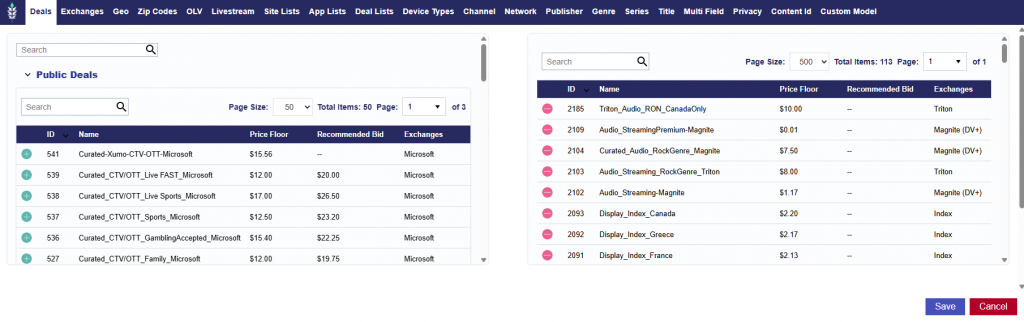
Pagination has been added to the Deals and Negotiated Deals sections under campaign and line level targeting window.
The Deals tab now includes:
Page Size
Total Items
Current Page and total number of pages
Page navigation controls
The default page size is 50, and users can select a page size of 100 or 500 to display more deals at once.
For example, when the page size is set to 500 and Total Items is 113, all 113 targeted deals are displayed on page 1 of 1 and can be reviewed by scrolling through the table.
Click Dimension Added to IP and Cookie Path to Conversion Reports
Release Date: June 17th, 2026
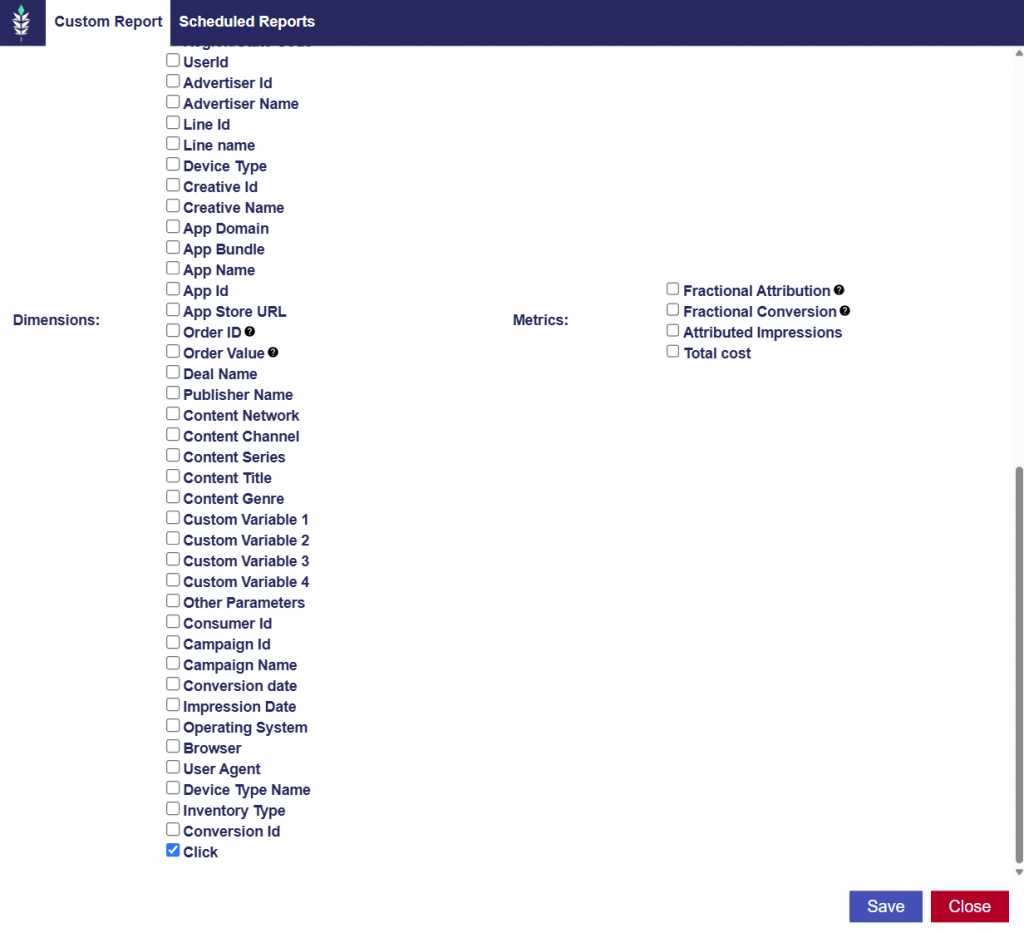
In the Path to Conversion report, for both the IP and Cookie versions, Click has been added as a new optional dimension and indicates whether an impression that led to an IP or cookie-based conversion was associated with a click event.
1: The impression led to an IP- or cookie-based conversion and was associated with a click event.
0: The impression led to an IP- or cookie-based conversion but was not associated with a click event.