Pontiac Wiki Pontiac Wiki

August 2026

August 2026

  • Targeting Split by Comma Feature
  • Click and CTR Added to Standard Reporting
  • Automatic Size Save for Third Party Creatives
  • Default Rolling Geo Fencing Lookback
  • Multi Select Pixels in Conversion Reports
  • Browser and OS Targeting Support
  • Blockers Line Performance Graph
  • Publisher Specs Eligibility for 3rd Party Video and Audio Creatives
  • Piggyback Pixels
  • Metric Timezones
  • Clone Campaign Inherit Line Budget Settings
  • Custom Reports Over 90 Days
  • Standard Reporting Timezone Filter
  • Release Popup Notification
  • Chrome Conversions Depreciated
  • Latitude Longitude Radius Geo Fencing
  • Pacing & Dayparts Updates
  1. Home
  2. Platform Updates
  3. New Features
  4. August 2026

Targeting Split by Comma Feature

Release Date: August 4th, 2026

A new Split by Commas button is available in both the Campaign and Line targeting fields that support multiple values.

The button is available in the following targeting tabs:

  • Sites
  • Apps
  • Channel
  • Content ID
  • Genre
  • Network
  • Publisher
  • Series
  • Title
  • Multi Field

When selected, the button:

  • Replaces each comma with a line break
  • Removes extra spaces around each value
  • Removes blank entries
  • Allows you to review and edit the results before saving

Tooltip: Replaces each comma with a line break. Review the results before saving and restore any commas that belong within a value.

Example

User Input:

Barbie, Oppenheimer, , I, Robot

After clicking Split by Commas, the input box will display:

Barbie
Oppenheimer
I
Robot

Because some values may contain commas, review the results before saving. In this example, to target the complete movie title, update the final entries to:

Barbie
Oppenheimer
I, Robot
Click and CTR Added to Standard Reporting

Release Date: August 4th, 2026

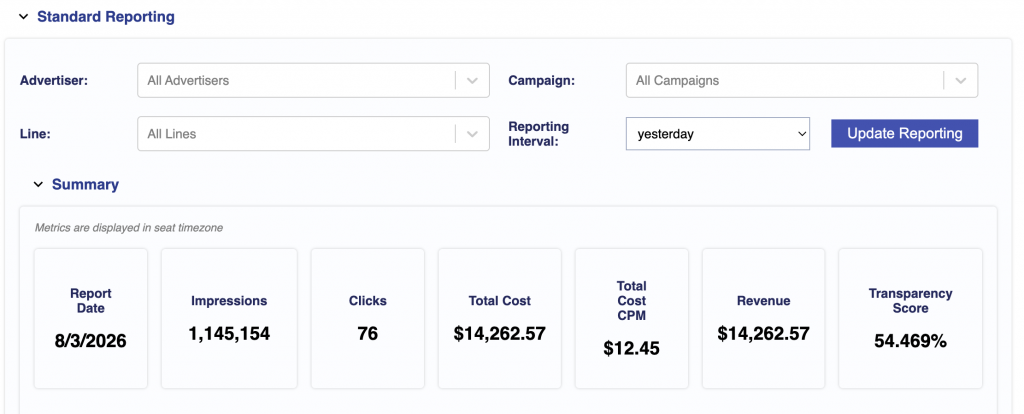
Standard Reporting has been updated to make Clicks and Click Through Rate (CTR) more consistently available across applicable charts and tables in the platform.

Users can now view Clicks and CTR in more chart metric selectors, hover details, and table columns throughout Standard Reporting. These metrics are also included when the applicable table columns are selected and downloaded as a CSV.

Automatic Size Save for Third Party Creatives

Release Date: August 4th, 2026

Third party creatives will now be saved automatically when additional creative sizes are detected and the following conditions are met:

  • The creative is Active and Serving
  • Automatically Detect Sizes is enabled

Newly detected sizes will be processed, added, and saved automatically. Users may still manually open and save the creative, but a manual update is no longer required for the new sizes to take effect.

Default Rolling Geo Fencing Lookback

Release Date: August 4th, 2026

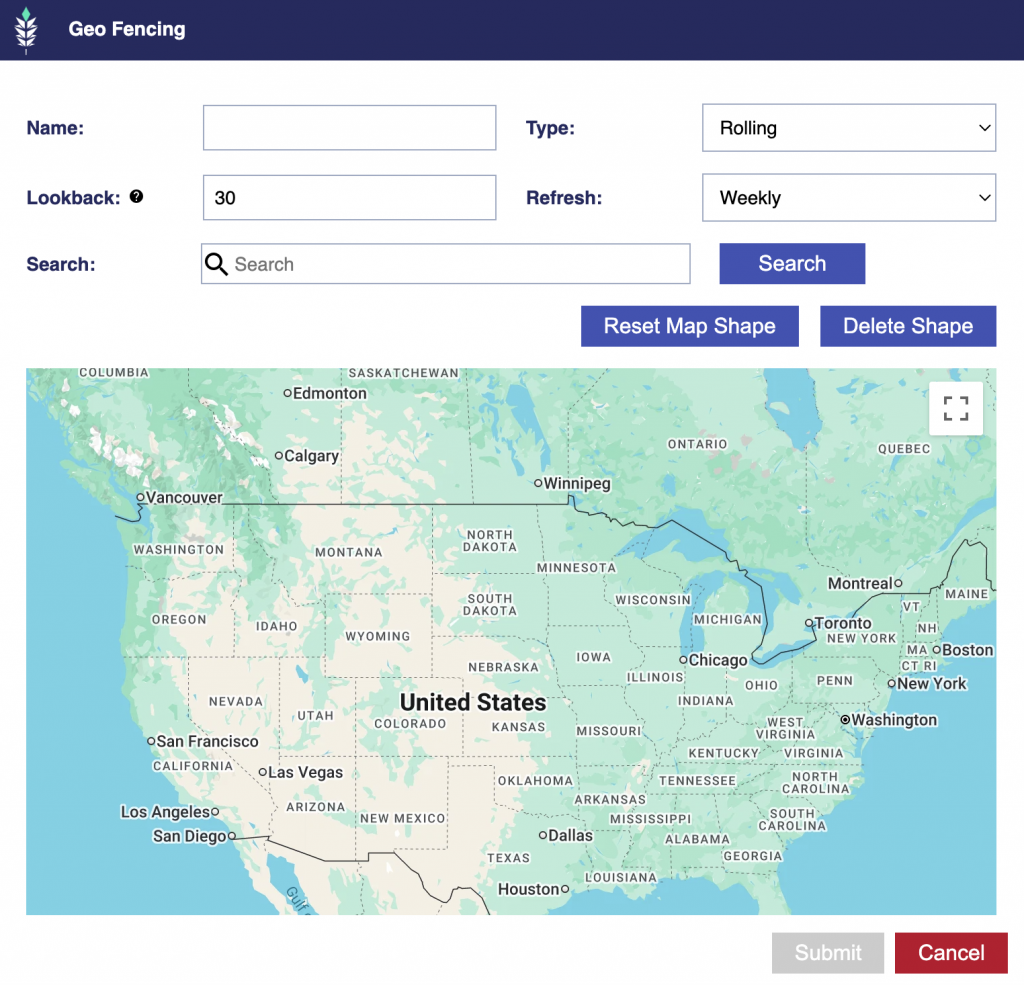
The default lookback period for rolling Geo Fencing audiences is now 30 days. Users can adjust the lookback period as needed, up to a maximum of 90 days.

Tooltip: Enter the number of days of historical location data to include. The maximum lookback is 90 days.

Multi Select Pixels in Conversion Reports

Release Date: August 4th, 2026

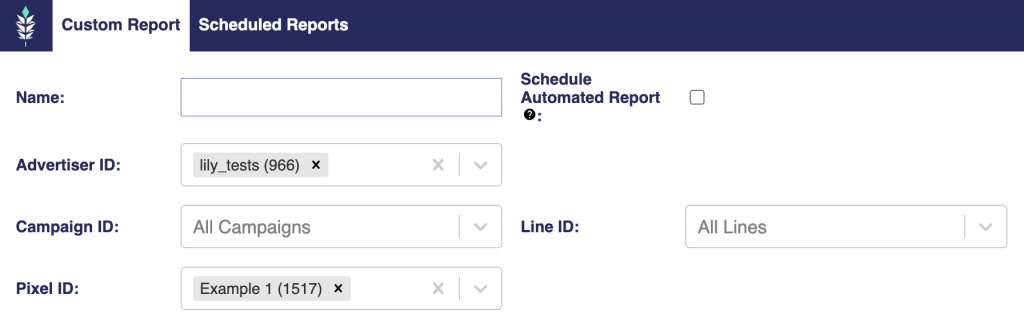
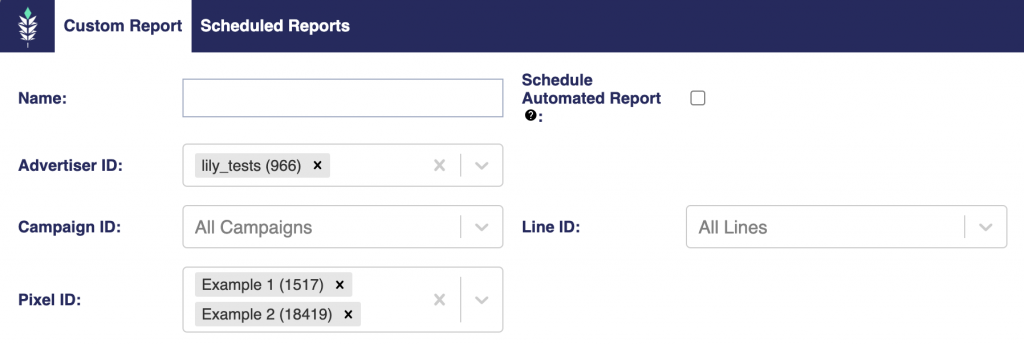
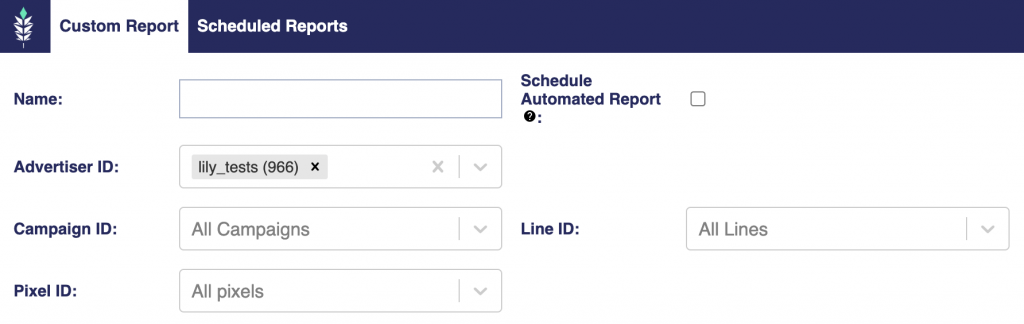
Users can now select one pixel, multiple pixels, or all pixels under an Advertiser when creating the following reports:

  • IP Conversion Pixel: Path to Conversion
  • IP Conversion Pixel: Page Visits
  • IP Conversion Pixel: Conversion Rate
  • Cookies: Path to Conversion
  • Path to Conversion V2

This update provides greater flexibility to customize each report by selecting one pixel, multiple pixels, or all pixels under an Advertiser.

One Pixel Example

Multiple Pixels Example

All Pixels Example

Browser and OS Targeting Support

Release Date: August 4th, 2026

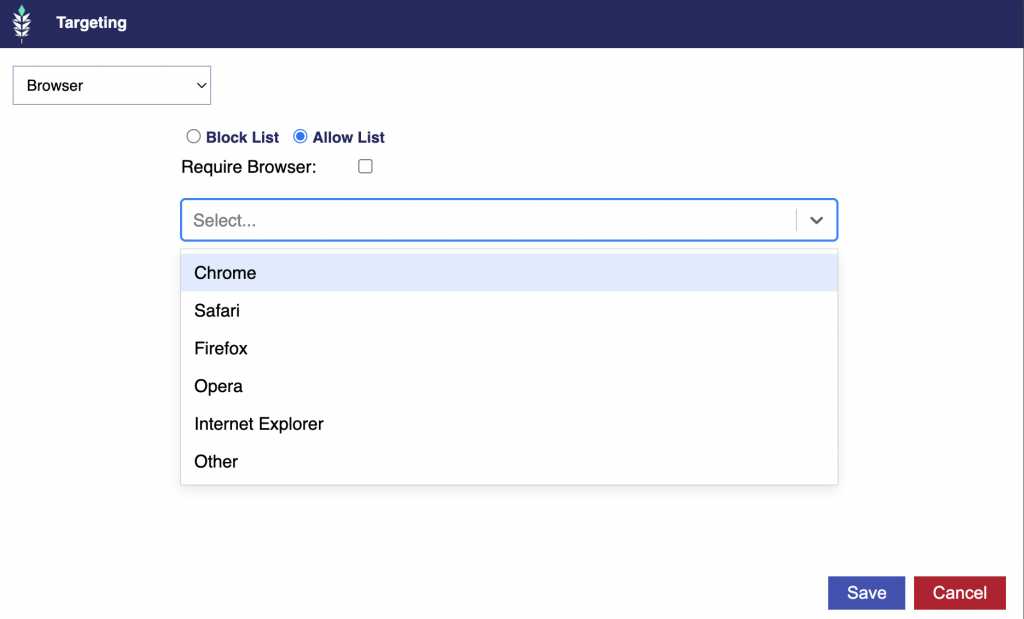
Browser

New browser and operating system targeting options are now available.

Users can target the following browser types:

  • Chrome
  • Safari
  • Firefox
  • Opera
  • Internet Explorer
  • Other: Includes browser values received in bid requests that do not match one of the defined browser types.

Operating System (OS)

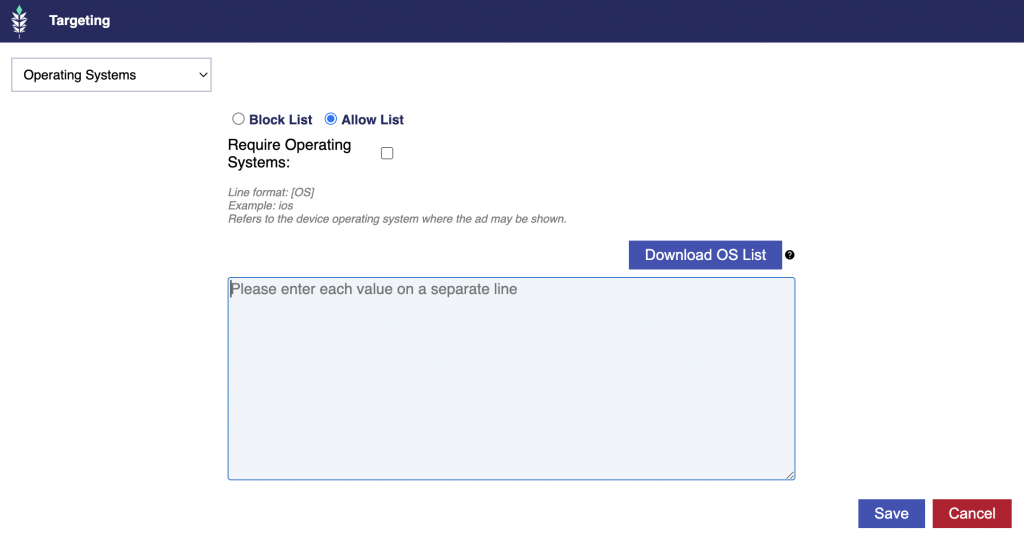
For operating system targeting, users can enter values directly into the Operating System field, with each value on a separate line.

A new Download OS List button is also available. This downloads a CSV of operating system values observed in bid requests and available for targeting. Users can copy & paste the values directly from the CSV file into the input box.

Targeting Behavior

Both Browser and Operating System targeting support the following options:

  • Allow List: Only requests matching one of the selected values are eligible.
  • Block List: Requests matching any selected value are ineligible.
  • Require Browser / Operating System: When enabled, requests must contain a browser or operating system value that is not null. When disabled, requests without a value may still be eligible, provided they do not conflict with the selected allow or block list.

Blockers Line Performance Graph

Release Date: August 4th, 2026

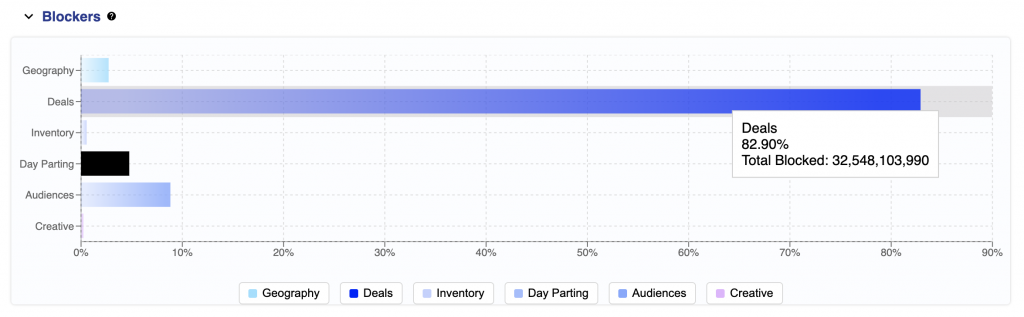
A new horizontal bar chart is available in Line Performance to show the percentage of bid requests blocked by each targeting category:

  • Geography
  • Deals
  • Inventory
  • Dayparting
  • Audiences
  • Creative

This horizontal bar graph shows the percentage of bid requests blocked by each category before the requests become eligible. Category percentages are calculated independently, so the chart is not a step-by-step funnel and the same request may be counted in more than one category. Total Blocked shows the number of requests blocked by that category. Click a category in the legend to hide or restore it, and the chart will automatically rescale. 

Publisher Specs Eligibility for 3rd Party Video and Audio Creatives

Release Date: August 4th, 2026

Publisher Specs Eligibility is now available for third party video and audio creatives.

For third party audio creatives, eligibility checks follow the same process and messaging used for hosted audio creatives.

For third party video creatives, publisher and SSP requirements are evaluated using the creative details available in the platform. Audio bitrate cannot be validated for third party video creatives. Where an audio bitrate requirement applies, the eligibility results will display:

  • Unable to validate Audio Bitrate; Required: 192 Kbps or higher

The Publisher Specs Eligibility tab for third party video creatives also includes the following notice:

  • Publisher Specs Eligibility is a technical spec check only. A Pass result means the creative appears to meet the listed requirements, but does not indicate final approval by Pontiac, the publisher, or the SSP. Audio bitrate cannot be validated for third party video creatives. Contact your ad server to confirm that the audio bitrate meets the publisher’s specifications.

Piggyback Pixels

Release Date: August 18th, 2026

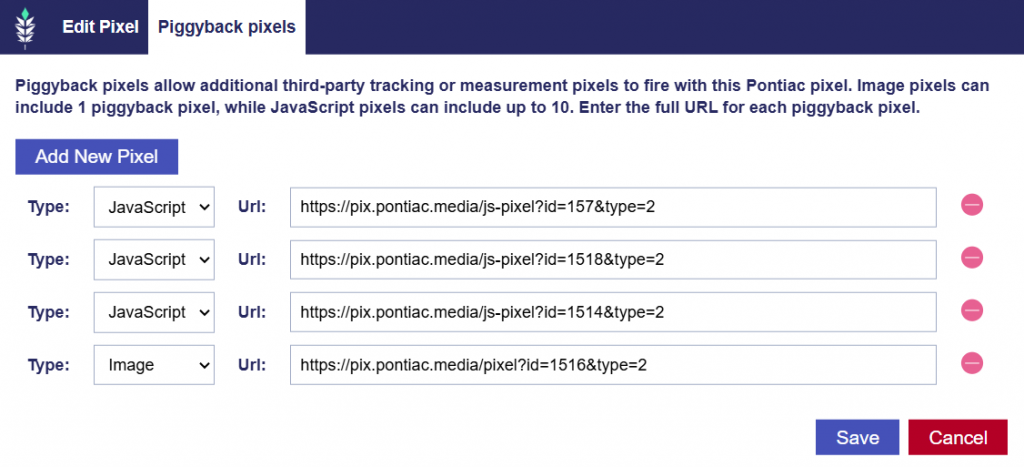
Support for Piggyback Pixels has been added so additional third-party pixels can fire through a Pontiac JavaScript or Image pixel. A new Piggyback Pixels tab is available when creating or editing a pixel. The interface follows the existing tracker setup, allowing users to add each piggyback pixel and enter its URL.

For JavaScript pixels:

  • Up to 10 piggyback pixels can be added.
  • When the Pontiac JavaScript pixel fires, it uses document.write to fire the associated piggyback image pixels.

For Image pixels:

  • A maximum of 1 piggyback pixel can be added.
  • When the Pontiac Image pixel fires, the request redirects to the configured piggyback pixel URL.

Metric Timezones

Release Date: August 18th, 2026

Timezone handling has been updated on the Advertiser, Campaign, and Line Details screens so the displayed figures and timezone tooltip reflect the appropriate timezone for each level.

  • Advertiser Details: Metrics are displayed in seat timezone: {seat timezone}
  • Campaign Details: Metrics are displayed in the campaign’s pacing timezone: {pacing timezone}
  • Line Details: Metrics are displayed in the campaign’s pacing timezone: {pacing timezone}

The figures displayed throughout each details screen now follow the same timezone referenced in the tooltip.

Clone Campaign Inherit Line Budget Settings

Release Date: August 18th, 2026 

The Clone Campaign behavior has been updated for campaigns with Manage Budgets and Flights enabled. When cloning a campaign that is active or has already ended, the Lines section now displays each line’s Budget Allocation Weight and Budget Multiplier from the campaign’s most recent active flight.

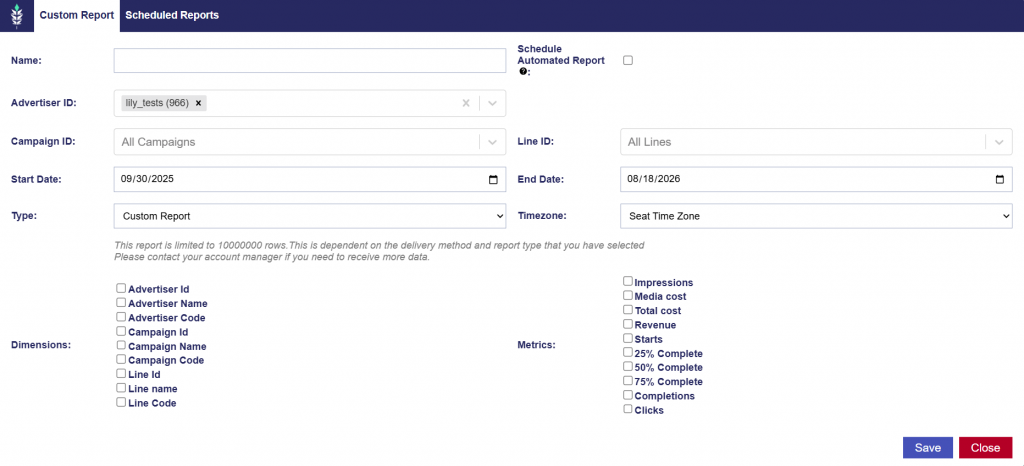
Custom Reports Over 90 Days

Release Date: August 18th, 2026

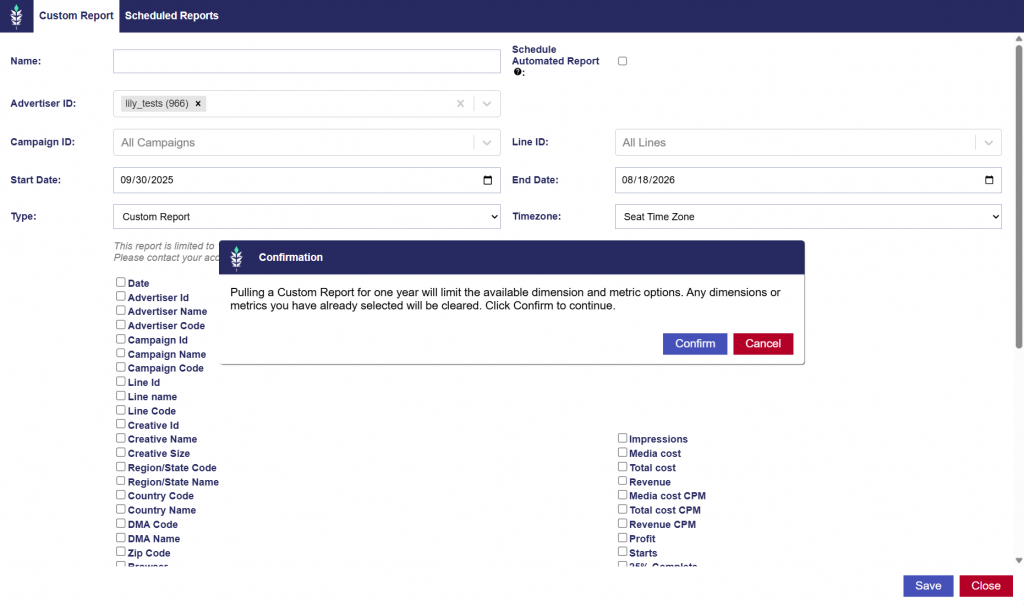
Custom Reports can be pulled for date ranges of more than 90 days and up to 1 year. For these longer date ranges, the available dimensions and metrics are limited to ensure the report can be generated successfully.

When a date range over 90 days is selected, a confirmation message is displayed notifying you that any previously selected dimensions, metrics, and settings will be cleared.

  • Select Cancel to return to the previous screen without making changes.
  • Select Confirm to continue. Your current selections will be cleared, and the available dimensions and metrics will be limited to those supported for the selected date range.

Supported dimensions include:

  • Advertiser ID
  • Advertiser Name
  • Campaign ID
  • Campaign Name
  • Line ID
  • Line Name
  • Date

Supported metrics include:

  • Impressions
  • Media Cost
  • Total Cost
  • Revenue
  • Clicks
  • Completions

Standard Reporting Timezone Filter

Release Date: August 18th, 2026 

In Reporting > Standard Reporting, the Timezone dropdown is available in the report settings and applies the selected time zone across all reporting metrics. The Volume By Hour section includes a Display in User Time Zone checkbox, which is selected by default. Uncheck this option to display the heatmap using the time zone selected in the report settings.

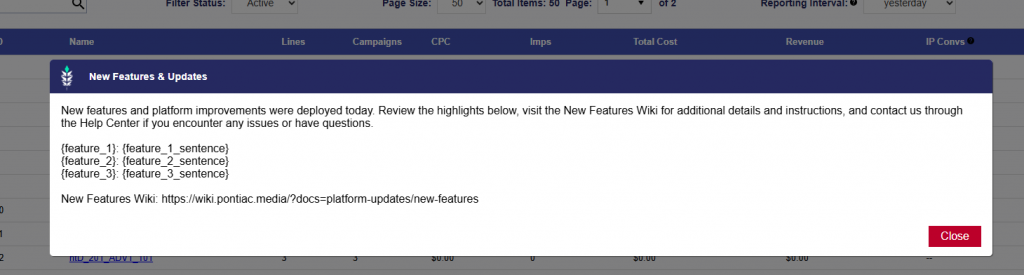
Release Popup Notification

Release Date: August 26th, 2026 

A Release Announcement popup is displayed when new features and platform improvements are deployed.

The popup appears the first time a user logs in on the release date and highlights the features included in that release. Once the announcement has been viewed, it will not appear again if the user logs out and logs back in later that same day.

Each release announcement includes a brief summary of the deployment, a list of the released features and descriptions, and a link to the New Features Wiki for additional details and instructions.

The popup uses the following standard message:

New features and platform improvements were deployed today. Review the highlights below, visit the New Features Wiki for additional details and instructions, and contact us through the Help Center if you encounter any issues or have questions.

The released features are listed beneath the message with a short description of each update.

New Features Wiki:
https://wiki.pontiac.media/?docs=platform-updates/new-features

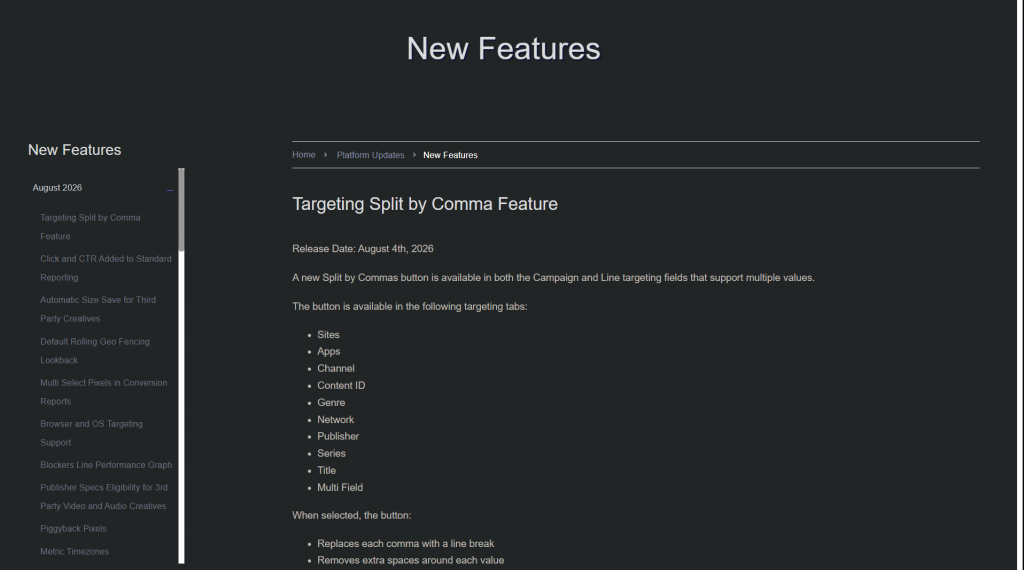
The link will take you to the New Features page. Releases are organized by month and year. Expand the applicable section, then select a feature name to open the corresponding article and view additional details and instructions for that feature.

Chrome Conversions Depreciated

Release Date: August 26th, 2026 

Support for Chrome Conversions has been deprecated and removed from the platform.

As part of this update:

  • The Chrome Conversions metric is no longer available in Custom Reports.
  • The Track Chrome Conversions option has been removed from Pixel Include Query String Macros settings.
  • Related Chrome Conversions functionality is no longer supported.

No action is required for existing campaigns or pixels.

Pacing & Dayparts Updates

Release Date: August 26th, 2026 

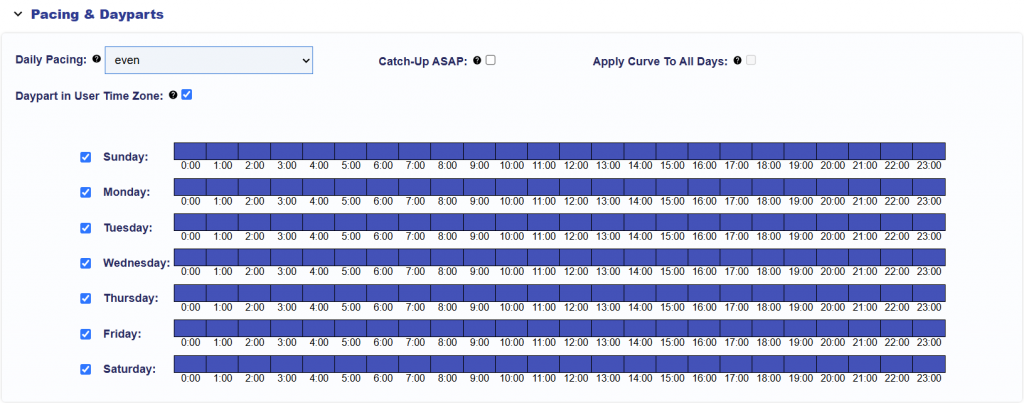
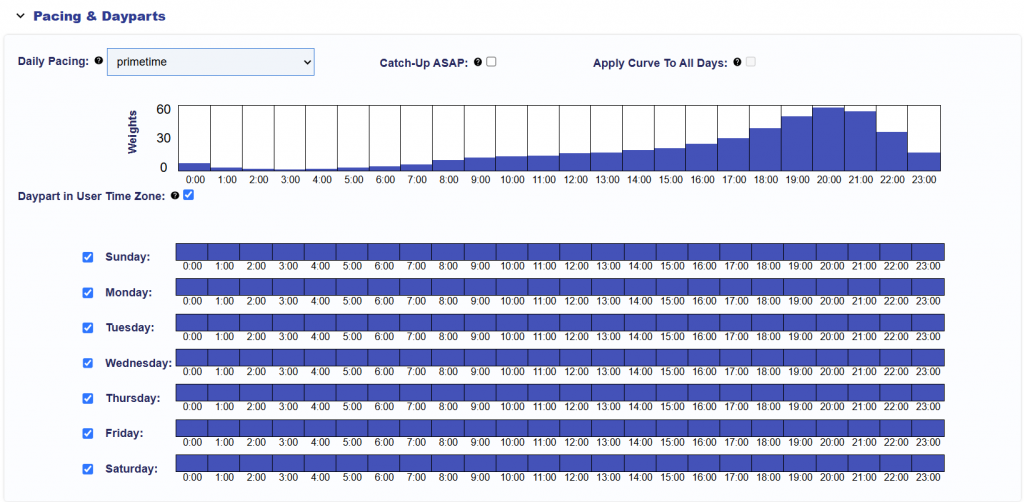
The Pacing & Dayparts section on the Campaign and Line levels has been updated to improve the layout and provide clearer tooltips around pacing and daypart behavior.

Layout

The Daily Pacing controls now use a more compact layout, with Apply Curve to All Days displayed alongside Daily Pacing and Catch-Up ASAP. When Primetime or Custom Daily Pacing is selected, Daypart in User Time Zone now appears below the pacing chart and above the day and hour selections.

Tooltips

The associated tooltips have also been updated to clarify how each setting works:

  • Daily Pacing: Controls how the daily budget is distributed throughout each pacing day. Daily Pacing weights are evaluated using the campaign’s selected Pacing Time Zone: {campaign_pacing_timezone}.
    • Even: Spends the daily and lifetime budgets as evenly as possible.
    • ASAP: Spends the daily budget as quickly as possible while pacing the lifetime budget evenly.
    • Primetime: Uses a predefined hourly weighting curve to favor higher-weighted hours in the selected Pacing Time Zone.
    • Custom: Uses the configured hourly weighting curve in the selected Pacing Time Zone.
  • Daypart in User Time Zone: When enabled, Dayparts determine impression eligibility using each user’s local day and hour.
    When disabled, Dayparts use the campaign’s selected Pacing Time Zone: {campaign_pacing_timezone}. This setting affects Daypart eligibility only. It does not shift Daily Pacing or its hourly weights into the user’s local time zone.
  • Apply Curve to All Days: Available only when Primetime or Custom Daily Pacing is selected. The weights are evaluated using the campaign’s selected Pacing Time Zone: {campaign_pacing_timezone}. When enabled, the same hourly pacing weights are applied to all selected days. When disabled, custom pacing weights can be configured independently for each selected day and hour.

Latitude Longitude Radius Geo Fencing

Release Date: August 26th, 2026 

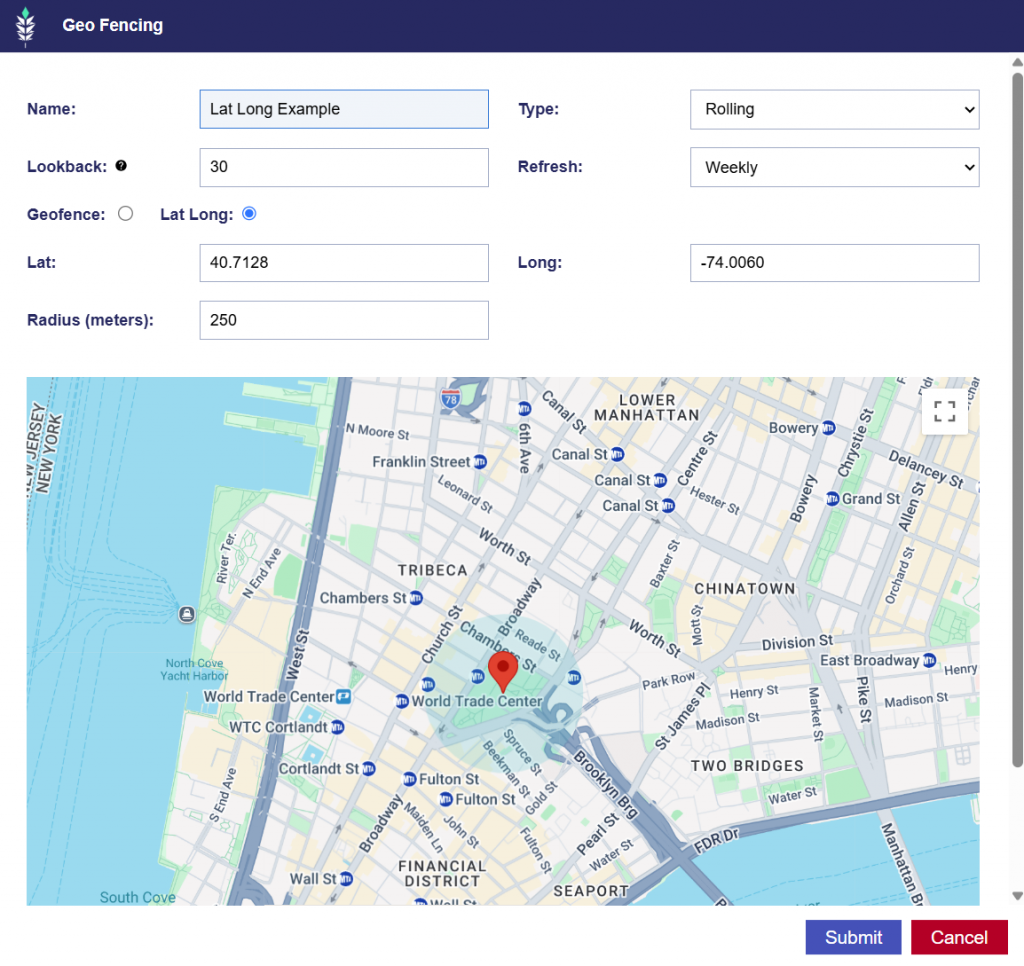
The Geo Fencing tool in the Audiences tab now supports an additional targeting method using Latitude, Longitude, and Radius.

Users can choose between two location options:

  • Geofence: Selected by default and allows users to draw and manage a custom map shape.
  • Lat/Long: Allows users to define a location using latitude, longitude, and radius instead of drawing a geofence.

When Lat/Long is selected, the map shape controls are replaced with fields for:

  • Latitude: 40.7128
  • Longitude: -74.0060
  • Radius in meters: 250

Latitude and longitude accept decimal values, and the radius is entered in meters.

The selected targeting method and location values are saved with the audience and used when the audience is submitted for processing. The Rolling and Static types remain consistent with the Geo Fence targeting method.

© 2026 Pontiac Wiki Sec · All Rights Reserved · Developed by RDK

  • Contact Us
  • Privacy Policy
  • Terms & Conditions
  • Pontiac.media