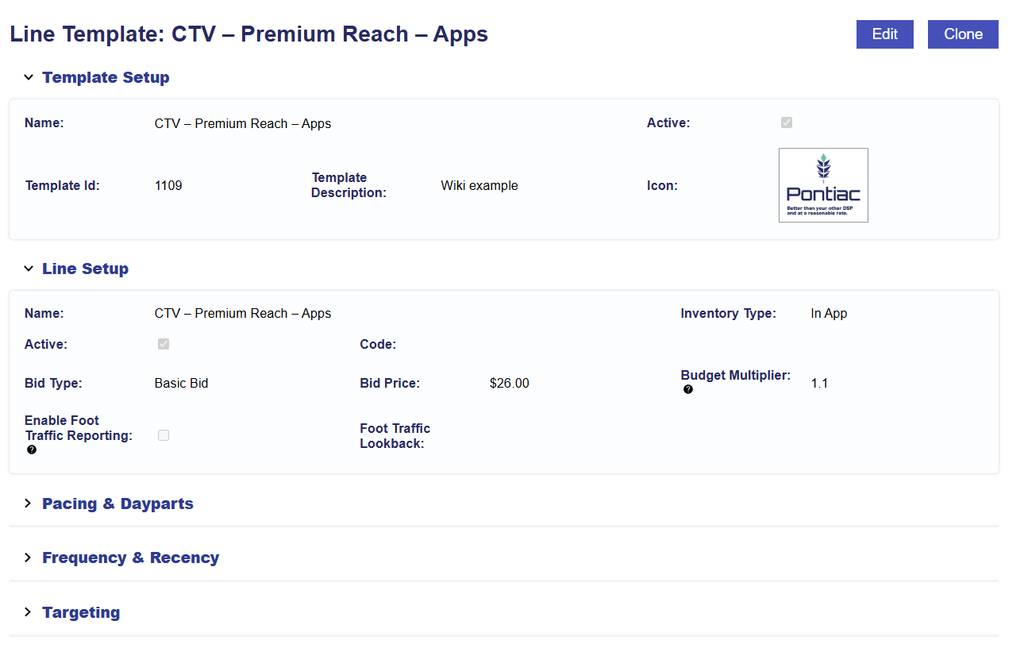
Saved Line Templates can be used when creating a new Line within a Campaign. Depending on the available Templates, users can select a Custom Line Template created for the Seat or a Public Line Template provided by Pontiac.
To create a new Line from a Template:
Navigate to the applicable Campaign.
Expand the Line Templates section.
Locate the desired Template and select its icon.
A new Line will be created using the settings stored in the Template.
Review the resulting Line configuration and make any Campaign-specific adjustments.
Save the Line when configuration is complete.
Templates provide a starting configuration. Before launch, review applicable budgets, bids, Deals, targeting, pacing, frequency settings, and other Line requirements to confirm they are appropriate for the new Campaign.
Public Line Templates provide a ready-made starting point for common publisher and inventory strategies. Instead of manually selecting every Deal, bid, and targeting setting, users can select a Public Line Template and begin with a configuration already created by the Pontiac team.
Depending on the Template, the Line may include:
Relevant Deals
Advanced bid prices
Inventory targeting
Publisher-specific configuration
Other settings associated with the selected strategy
Users can use the resulting Line as configured or make adjustments before launch.
Available Public Line Templates include:
843 – Spectrum
868 – ESPN
869 – Channel-Network Targeted (Sports Streaming)
870 – NFL
871 – NBA
872 – MLB
873 – College Football 2025
874 – NFL Live
875 – Roku
876 – Fire TV
877 – Paramount
878 – Samsung
879 – Sling
880 – Pluto
881 – Tubi
882 – Fubo
883 – Philo
884 – Scripps
885 – DirectTV
895 – News & Weather
896 – Entertainment
897 – Discovery
898 – Food & Home Channel-Network
907 – Channel-Network Various
909 – High Transparency (Deals with over 80% transparency)
Create a Line Template
Custom Line Templates can be created from an existing Line or from a newly configured Line. Save a Line as a Template when you expect to reuse the same strategy, targeting, bidding, or other configuration in future Campaigns.
To save a Line as a Template:
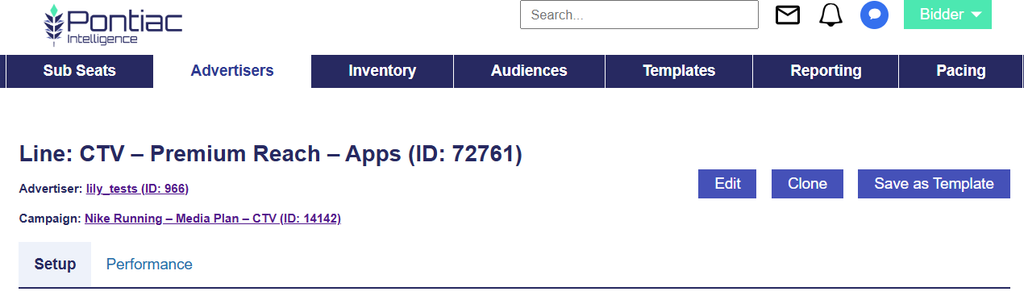
Navigate to the Line page of the Line you want to use as a Template or create a new Line.
Select the Save as Template button located at the top right corner.
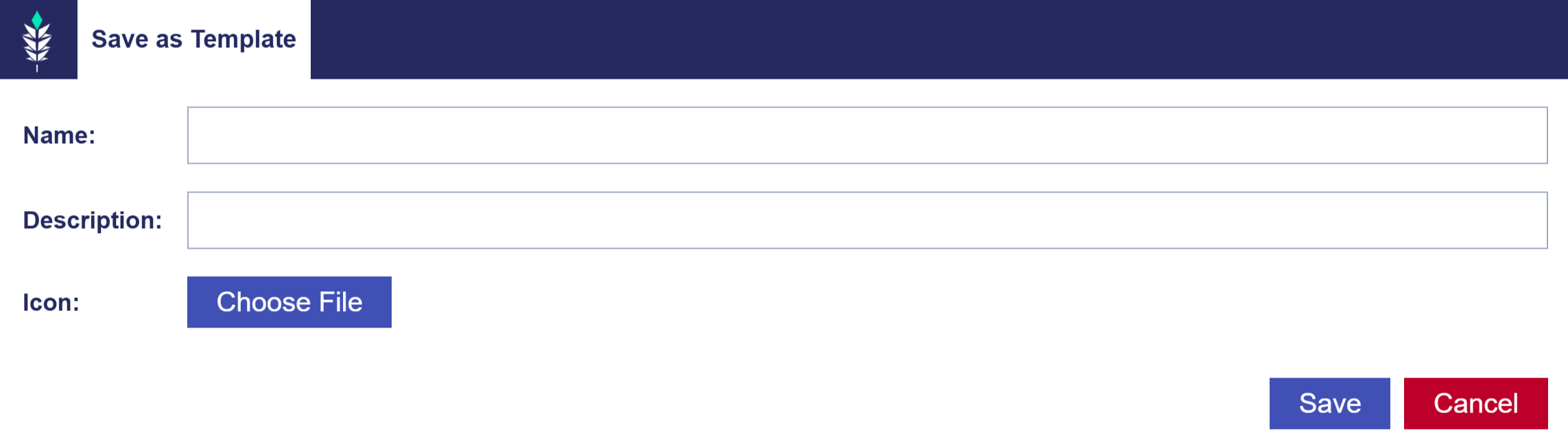
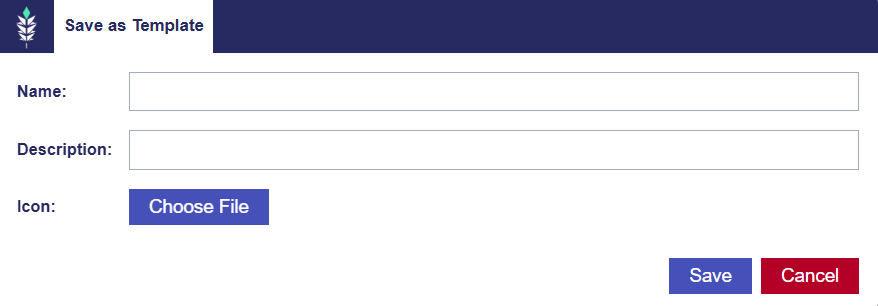
Enter a Name, Description, and Icon for the Line Template.
All three are required and the Icon must be a 1:1 aspect ratio.
Select Save to save the Line as a template.
You can now use this template later to create a new Line with the same structure. This will help save time, reduce mistakes, and ensure consistency in Line setup. Manage all Campaign and Line Templates on the Seat Level in the Templates tab. For more details, refer to the Create Line from Template documentation.
Find and Manage Line Templates
Saved Line Templates are managed at the Seat level.
To locate an existing Line Template:
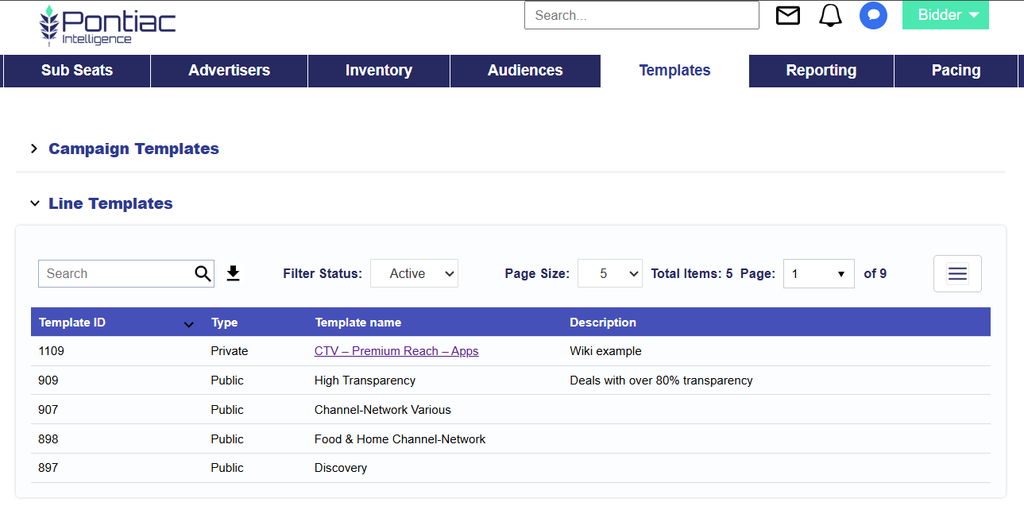
Navigate to the Templates tab.
Expand the Line Templates section.
Locate the Template by its Name, Description, or Icon.
Select the Template Name to open and review its saved configuration. From the Template page, users can View, Edit, or Clone the Template.
Changes made to a saved Template will apply when the Template is used to create future Lines; they do not update Lines that were previously created from the Template.
Edit a Line Template
Select Edit from the applicable Line Template to update the configuration that will be used when creating future Lines.
Setup Section
In the Setup section, edit the following fields:
Name: Enter a unique name for your new Line Template to identify it easily.
Inventory Type: Web, In App, Combined
Active Status: Check the ‘Active’ box if you want the Line to be live, but uncheck it if you want to create an Inactive Line or to pause the Line.
Code: Optional and for reporting purposes.
Bid Type:
Basic Bid: Standard bid price applied across all inventory of the Line.
Bid at Floor Price: The maximum bid price and CPM floor allowed for an auction.
Advanced Bid Controls: A feature that allows setting a maximum bid price for Deals, giving more control over bid adjustments and spending limits.
Bid Price: The bid price determines how much you are willing to spend based on the selected bid type. For Advanced Bid Controls, set a Default Bid Price and custom bid prices. Deals must be associated at the Campaign and Line level to allow for custom bid prices. When new Deals are added to the Line if a custom bid is not set, the bid price will default to the value set in the Default Bid Price field on the Line.
Budget Multiplier: This feature allows the user to specify a multiplier on the daily budget. For example, setting a 1.1 multiplier will allow the Line to adjust the daily budget up to 110% of its typical daily budget. The new daily spend is calculated as Budget Multiplier x Daily Budget = New Daily Spend. Keep in mind, the daily budget may adjust based on pacing, and the actual daily spend could exceed the set multiplier.
Enable Foot Traffic Reporting: Foot Traffic Reporting allows you to enter specific commercial addresses and track whether users that were served your Ads visited those locations.
Foot Traffic Lookback: Set the time window for tracking foot traffic data.
Template Description: A brief explanation that helps you and other users understand the purpose of the Template.
Icon: An image that makes the template easily identifiable, helping users quickly recognize it.
Pacing & Dayparts
If ‘Manage Dayparts’ is NOT enabled on the Campaign Template Setup section and you want to edit the Pacing & Dayparts section of the Line Template, follow these steps:
Navigate to the Pacing & Dayparts section within the Line Template.
Make the necessary changes to the Pacing & Dayparts settings. Refer to the documentation page to review available Pacing & Dayparts options: Line Pacing & Dayparts
If you have finished editing the Template, click the ‘Submit’ button in the top right corner of the page to save and apply all changes. If you do not want to apply the edits, press ‘Cancel’ to discard changes and revert the Campaign to its previous settings. To continue making edits, proceed to other sections.
If ‘Manage Dayparts’ is enabled on the Campaign Template Setup section and you want to edit the Pacing & Dayparts section of the Line Template, follow these steps:
Navigate to the Pacing & Dayparts section within the Campaign Template that the Line belongs to.
Edit the Campaign Template and uncheck the ‘Manage Dayparts’ box to enable Line Level control.
Once disabled, go to the Line Template and update the Pacing & Dayparts settings. Refer to the documentation page to review available Pacing & Dayparts options: Line Pacing & Dayparts
If you have finished editing, click the ‘Submit’ button in the top right corner of the page to save and apply all changes. If you do not want to apply the edits, press ‘Cancel’ to discard changes and revert the Line to its previous settings. To continue making edits, proceed to another section.
Frequency & Recency
If the ‘Enable Line Frequency’ feature is checked in the Line Template Setup section and you want to edit the Frequency & Recency section of the Line Template, follow these steps:
Navigate to the Frequency & Recency section within the Line Template.
Make the necessary changes to the Frequency & Recency settings. Refer to the documentation page to review available Frequency & Recency options: Line Frequency & Recency
If you have finished editing the Template, close the window and click the ‘Submit’ button in the top right corner of the page to save and apply all changes. If you do not want to apply the edits, press ‘Cancel’ to discard changes and revert the Line Template to its previous settings. To continue making edits, proceed to other sections.
Foot Traffic Reporting
If the ‘Enable Foot Traffic Reporting’ feature is checked in the Line Template Setup section and you want to edit the Locations of the Line Template, follow these steps:
Navigate to the Foot Traffic Reporting section within the Line Template.
Add or delete Locations using one of the below methods. Refer to the following documentation for instructions on setting up a new location using each method: Line Foot Traffic Reporting
Address
Latitude Longitude (Lat Long)
Geofence
Bulk Upload
If you have finished editing the Template, close the window and click the ‘Submit’ button in the top right corner of the page to save and apply all changes. If you do not want to apply the edits, press ‘Cancel’ to discard changes and revert the Line Template to its previous settings. To continue making edits, proceed to other sections.
Targeting
To edit the Targeting section of a Line, follow these steps:
Navigate to the Targeting section within the Line Template.
Click ‘Edit Targeting’ to modify targeting settings.
Make the necessary changes to the targeting settings. Refer to the documentation page to review available targeting options: Line Targeting
Click ‘Save’ in the bottom right corner of the popup window to apply all changes. To discard changes and revert to the previous settings, click ‘Cancel’.
If you have finished editing the Template, close the window and click the ‘Submit’ button in the top right corner of the page to save and apply all changes. If you do not want to apply the edits, press ‘Cancel’ to discard changes and revert the Line Template to its previous settings. To continue making edits, proceed to the other sections.
Clone a Line Template
Select Clone when you want to create a new variation of an existing Line Template without modifying the original.
Open the Line Template you want to clone.
Select Clone.
Enter a new Template Name.
Adjust the settings as needed.
Select Submit.
The Line Template is now ready to be used when creating a new Line. Refer to the following documentation for more details on this process: Create Line from Template