Edit a Campaign Template
Editing a Campaign Template updates the configuration that will be used when the Template is selected to create future Campaigns.
Changes made to a Campaign Template do not update Campaigns that were previously created from that Template.
To edit a Campaign Template:
- Navigate to Templates > Campaign Templates.
- Open the applicable Campaign Template.
- Select Edit.
- Update the applicable Template sections.
- Select Submit to save all changes.
Template Setup
The Template Setup section controls the Template itself, including how it is identified and displayed within the Templates section.

Available fields include:
- Name: A unique name used to identify the Campaign Template.
- Active Status: Determines whether the Campaign Template itself is Active or Inactive.
- Template Description: Describes the intended purpose or strategy of the Template.
- Icon: Provides a visual identifier that can make the Template easier to recognize.
These settings apply to the saved Template, not to the Campaign created from it.
Campaign Setup
The Campaign Setup section controls the Campaign configuration stored within the Template and used when creating a new Campaign.

Available fields include:
- Name: The Campaign Name that will be used as part of the Template configuration.
- Code: Optional and for reporting purposes.
- Budget Type: Spend or Impressions
- Active Status: Determines whether Campaigns created from the Template are Active or Inactive.
- Manage Budgets: When enabled, Lines included in the Campaign will follow the Campaign Start Date, End Date, and Budget Type. Budgets are allocated to Lines by weights.
- Auto Pace: Enables automatic Campaign pacing by allowing Line budgets to remain fluid between Lines, helping the Campaign achieve its overall pacing goal.
- Manage Creatives: Allows Creatives to be managed at the Campaign level.
- Manage Dayparts: Allows pacing and daypart settings to be managed at the Campaign level.
- Programmatic Guaranteed:Configures the Campaign for Programmatic Guaranteed delivery. Enabling this option removes previously configured targeting or settings that are not applicable to PG Campaigns. Publisher-side Deal configuration controls targeting and delivery.
- Enable Flights: Allows Campaign flights to be configured with Start Dates, End Dates, budgets, and applicable rollover settings.
- Pacing Timezone: Defines the time zone used for Campaign pacing.
Note: The Name and Active Status fields appear in both Template Setup and Campaign Setup, but they control different things. Template Setup applies to the reusable Template itself, while Campaign Setup applies to the Campaign configuration stored within the Template.
For complete definitions and behavior of these settings, see Campaign Setup.
Lines
The Lines section determines which Lines from the source Campaign are included when the Campaign Template is used to create a new Campaign.
Campaign Templates include all Lines from the source Campaign by default. Use this section to remove Lines that should not be recreated with the Template.
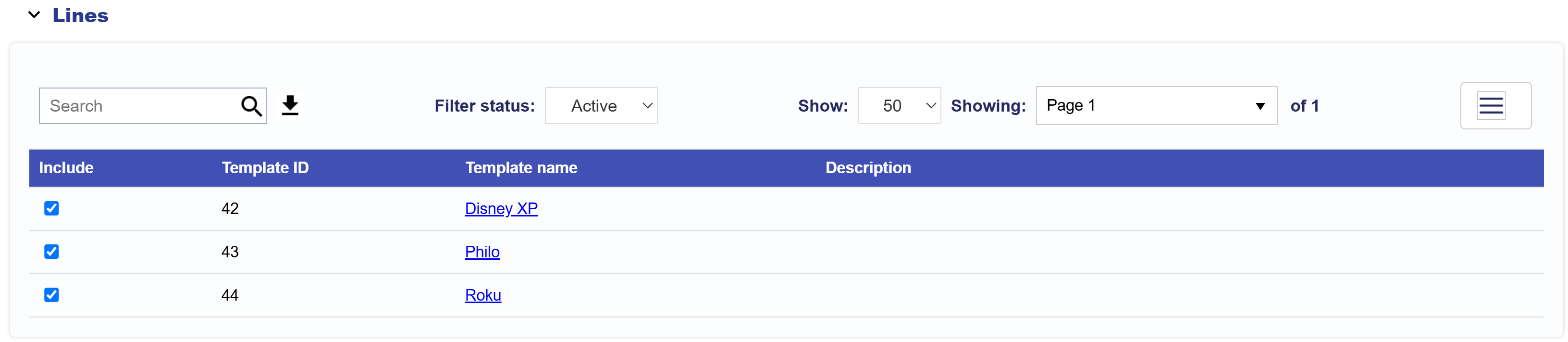
To manage included Lines:
- Navigate to the Lines section.
- Check Include next to each Line that should remain part of the Template.
- Uncheck Include next to any Line that should not be included.
- Select Submit when all Template edits are complete.
Use included Lines when the same multi-Line strategy should be recreated together.
Pacing & Dayparts Section
If Manage Dayparts is enabled in the Campaign Setup section of the Template, Campaign-level Pacing & Dayparts settings can be stored and edited within the Template.
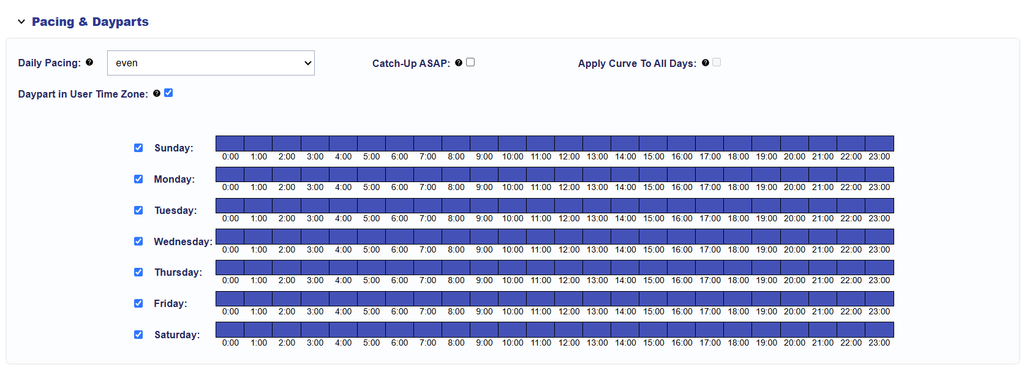
To update these settings:
- Navigate to the Pacing & Dayparts section within the Campaign Template.
- Update the applicable pacing and Daypart settings.
- Select Submit when all Template edits are complete.
The saved Pacing & Dayparts configuration will be used as the starting configuration when the Template is used to create a new Campaign.
For complete definitions and configuration options, see Pacing & Dayparts.
Frequency & Recency Section
If Enable Campaign Frequency is enabled in the Campaign Setup section of the Template, Campaign-level Frequency & Recency settings can be stored and edited within the Template.

To update these settings:
- Navigate to Frequency & Recency.
- Update the applicable Frequency & Recency settings.
- Select Submit when all Template edits are complete.
The saved configuration will be applied as the starting Campaign-level Frequency & Recency settings when a new Campaign is created from the Template.
For complete definitions and configuration options, see Frequency & Recency.
Targeting Section
The Targeting section controls the Campaign-level Targeting stored within the Template.

To update Campaign-level Targeting:
- Navigate to the Targeting section within the Campaign Template.
- Select Edit Targeting.
- Update the applicable targeting settings.
- Select Save in the targeting window.
- Select Submit when all Template edits are complete.
Targeting stored in the Template is copied into the new Campaign when the Template is used.
Important: Review saved Targeting whenever a Template is reused. Targeting that was appropriate for the original Campaign may not be appropriate for a different Advertiser, geography, Deal, inventory strategy, or Campaign objective.
For details on available Targeting options, see Targeting Methods.