Streaming & Video
Streaming & Video Targeting allows users to restrict delivery based on whether content is livestreamed and, for Online Video (OLV), the video placement, player size, and playback method associated with an impression.
These settings can be configured at both the Campaign and Line levels. Campaign-level targeting applies shared requirements to every Line, while Line-level targeting allows users to apply additional restrictions to an individual Line.
How to Access Streaming & Video Targeting
- Create a new Campaign or Line, or open an existing one in Edit mode.
- Navigate to the Targeting section.
- Select Edit Targeting.
- Under Streaming & Video, select Livestream or OLV from the Targeting dropdown menu.
- Configure the desired targeting options and select Save.
- Complete and save the Campaign or Line configuration.
Important: Campaign and Line targeting are evaluated together. An impression must satisfy all applicable targeting requirements at both levels to be eligible to serve. Conflicting or overly restrictive settings can reduce available inventory or prevent delivery.
Livestream
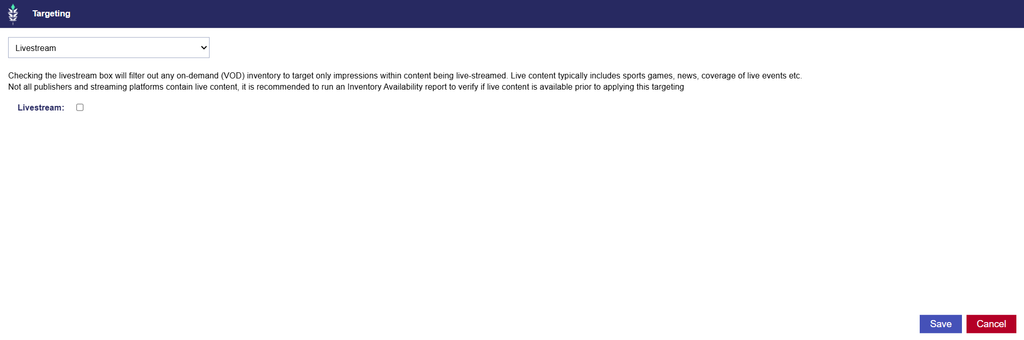
Checking the livestream box will filter out any on-demand (VOD) inventory to target only impressions within content being live-streamed. Live content typically includes sports games, news, coverage of live events etc.
Not all publishers and streaming platforms contain live content, it is recommended to run an Inventory Availability report to verify if live content is available prior to applying this targeting
Live content can include sports, news, and other live events.
Configuring Livestream Targeting
- Navigate to the Targeting section of the applicable Campaign or Line and select Edit Targeting.
- Under Streaming & Video, select Livestream from the Targeting dropdown menu.
- Enable the Livestream checkbox.
- Select Save to apply the targeting configuration.
Important Considerations
- Livestream vs. Video on Demand
- Livestream and VOD refer to how content is made available to viewers.
- Livestream content is broadcast in real time, while VOD allows viewers to access prerecorded content when they choose.
- Enabling Livestream specifically restricts delivery to the former.
- Inventory Availability
- Not all publishers and streaming platforms offer live programming. Available Livestream inventory can vary significantly by publisher, Exchange, geography, and other targeting requirements.
- Before enabling Livestream, run an Inventory Availability Report to evaluate whether sufficient live inventory is available for your targeting configuration.
- Campaign and Line Targeting
- Livestream targeting configured at the Campaign level applies to every Line within that Campaign.
- Review any additional Line-level targeting to ensure that the targeted Deals, Exchanges, and other requirements are compatible with live inventory.
- Additional Inventory Restrictions
- Enabling Livestream does not override other targeting settings.
- The impression must also satisfy all applicable inventory, geographic, device, audience, and other Campaign and Line requirements.
OLV
Online Video (OLV) Targeting allows users to restrict video inventory based on the placement and playback characteristics of the video player. These settings provide additional control over where a video ad appears, the size of the player displaying it, and how playback is initiated.
OLV Targeting includes three categories:
| Targeting Category | Description |
|---|---|
| Video Playback Type | Determines where the advertisement appears in relation to video content or other page content. |
| Video Player Size | Restricts inventory based on the reported width of the video player. |
| Video Playback Method | Restricts inventory based on how video playback is initiated and whether sound is enabled by default. |
OLV Targeting is available at both the Campaign and Line levels.
Configuring OLV Targeting
- Navigate to the Targeting section of the applicable Campaign or Line and select Edit Targeting.
- Under Streaming & Video, select OLV from the Targeting dropdown menu.
- Configure the applicable Video Playback Type, Video Player Size, and Video Playback Method options.
- Review your selections and select Save to apply the targeting configuration.
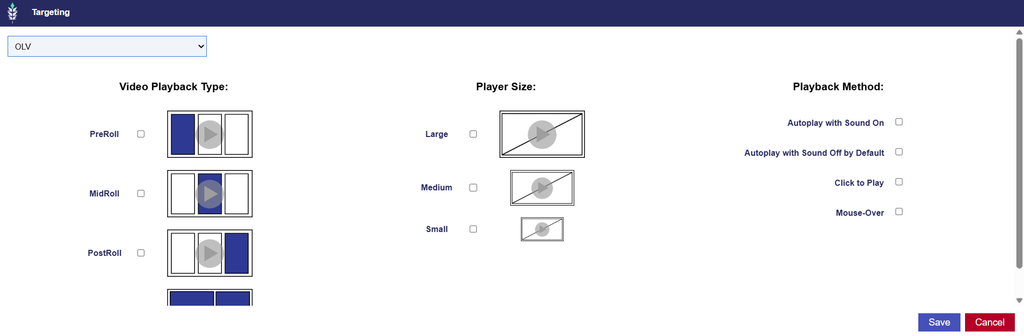
- Video Playback Type: Identifies where a video advertisement appears in relation to the video content being viewed.
- Pre-Roll: An instream advertisement that plays before the primary video content begins.
- Mid-Roll: An instream advertisement that plays during the primary video content.
- Post-Roll: An instream advertisement that plays after the primary video content ends.
- Outstream: A video advertisement displayed outside a traditional video-content player, such as within a web article or mobile game.
- Video Player Size: Allows users to restrict inventory based on the reported width of the video player. These thresholds correspond to the player-size definitions in Pontiac’s OLV targeting documentation.
- Large: 640 pixels or greater
- Medium: 320–639 pixels
- Small: 319 pixels or less
- Video Playback Method: Allows users to restrict inventory based on how video playback is initiated and the default sound behavior associated with the player.
- Autoplay with Sound On: Video playback starts automatically with sound enabled.
- Autoplay with Sound Off by Default: Video playback starts automatically with sound muted by default.
- Click to Play: Video playback begins when the user clicks or otherwise activates the video player.
- Mouse-Over: Video playback is initiated when the user moves their cursor over the applicable video area.
Important Considerations
- Inventory Type and Device Type
- OLV Targeting should be configured alongside Inventory Type and Device Type targeting.
- For example, an OLV Campaign designed to reach users on desktop and mobile devices can use the appropriate Web or In App inventory settings together with Phone, Tablet, and Personal Computer targeting.
- Exchange Compatibility
- Select Exchanges that support the intended OLV inventory.
- Available video inventory and supported playback characteristics may vary across Exchanges.
- Deal Targeting
- When purchasing OLV inventory through Deals, select Deals that correspond to the intended video environment.
- Ensure that the selected Deals and Exchanges are compatible with the OLV targeting requirements.
- Campaign and Line Targeting
- OLV targeting configured at the Campaign and Line levels is evaluated together.
- For example, if a Campaign is restricted to Pre-Roll inventory while an individual Line is restricted to Outstream, the conflicting playback requirements may prevent the Line from serving.
- Inventory Availability
- Combining multiple restrictive OLV settings can significantly reduce eligible inventory.
- For example, selecting Pre-Roll, Large Player Size, and Click to Play restricts delivery to inventory satisfying all three conditions.
- Use an Inventory Availability Report to evaluate available inventory before applying highly restrictive OLV targeting.