National US Campaign Setup
This guide outlines recommended pacing settings and geographic targeting options for running national United States Campaigns on the Pontiac platform.
1. Campaign Setup and Pacing Time Zone
Create your Campaign and configure the standard Campaign settings based on your advertising goals.
Pacing Time Zone
The Campaign’s Pacing Time Zone determines the start and end of each day for Campaign pacing and delivery.
For example, if your Campaign End Date is January 31 and the Pacing Time Zone is Eastern Time, the Campaign will stop delivering at 11:59:59 PM Eastern Time on January 31.
Recommended Pacing Time Zone for National US Campaigns
For national US Campaigns using a single Pacing Time Zone, Central Time is recommended as a practical default because it provides a balanced reference point across Eastern, Central, Mountain, and Pacific time zones. The ideal Pacing Time Zone may vary depending on your geographic targeting and delivery goals.
- Eastern Time (ET)
- Central Time (CT)
- Mountain Time (MT)
- Pacific Time (PT)
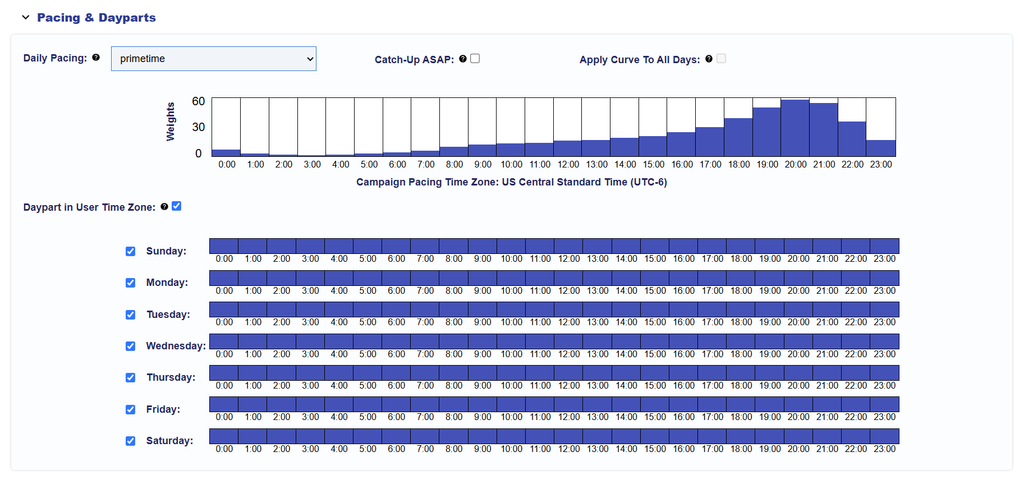
A single Pacing Time Zone will not perfectly align pacing with local hours across all US regions. If targeting Alaska or Hawaii, their respective time zones should also be considered.
Note: Pacing Time Zone determines the Campaign’s pacing schedule and daily boundaries. Daypart Targeting is configured separately and can be used to restrict delivery to specific days and hours.
Primetime Pacing for National US Campaigns
For national Campaigns using Primetime pacing, consider configuring a Custom pacing curve that combines Primetime hours across the targeted US time zones.
For example, when Central Time is selected as the Campaign Pacing Time Zone, an 8 PM local Primetime peak corresponds to:
| Targeted Time Zone | Equivalent Central Time |
|---|---|
| Eastern (ET) | 7 PM CT |
| Central (CT) | 8 PM CT |
| Mountain (MT) | 9 PM CT |
| Pacific (PT) | 10 PM CT |
Instead of concentrating delivery around a single Primetime peak, a Custom pacing curve can distribute higher pacing weights across a broader evening window, helping align delivery with Primetime hours throughout the country.
For more precise local Primetime pacing, consider creating separate Campaigns by time zone, with corresponding geographic targeting and Pacing Time Zone settings.
2. United States Geographic Targeting
Pontiac supports geographic targeting at the Country, Region, DMA, and ZIP Code levels.
Targeting can be configured at the Campaign or Line level. When targeting is applied at both levels, the requirements are evaluated together and must be compatible.
Country-Level Targeting
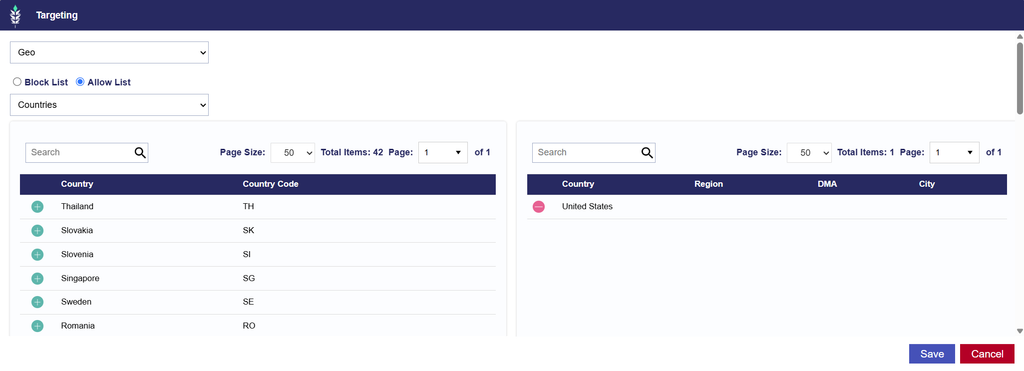
To target the entire United States:
- Navigate to Edit Targeting > Location & Device > Geo.
- Select Countries and search for United States.
- Click the green plus (+) button to add the United States to your targeting.
- Save your changes.
Region-Level Targeting
To target specific US states or regions:
- Navigate to Edit Targeting > Location & Device > Geo.
- Select Regions from the dropdown.
- Search for United States to view available US Regions.
- Click the green plus (+) button to add your desired Regions.
- Save your changes.
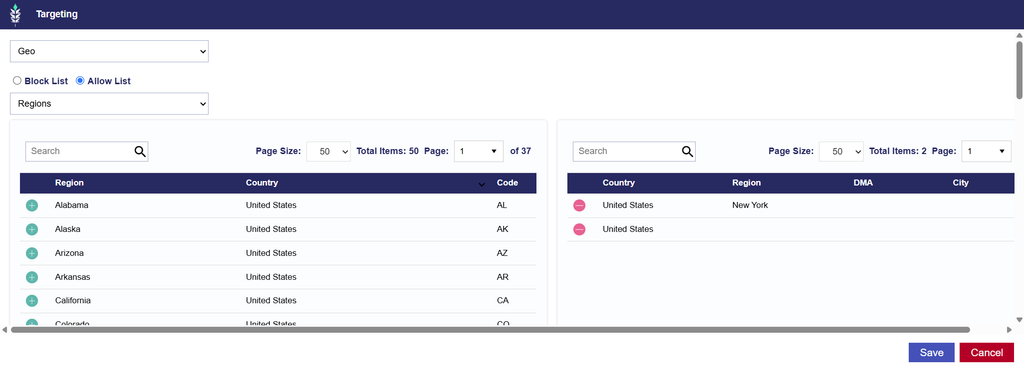
Use the Block List option to exclude specific Regions from delivery.
DMA-Level Targeting
To target specific US Designated Market Areas (DMAs):
- Navigate to Edit Targeting > Location & Device > Geo.
- Select DMAs from the dropdown.
- Search for United States to view available US DMAs.
- Click the green plus (+) button to add your desired DMAs.
- Save your changes.
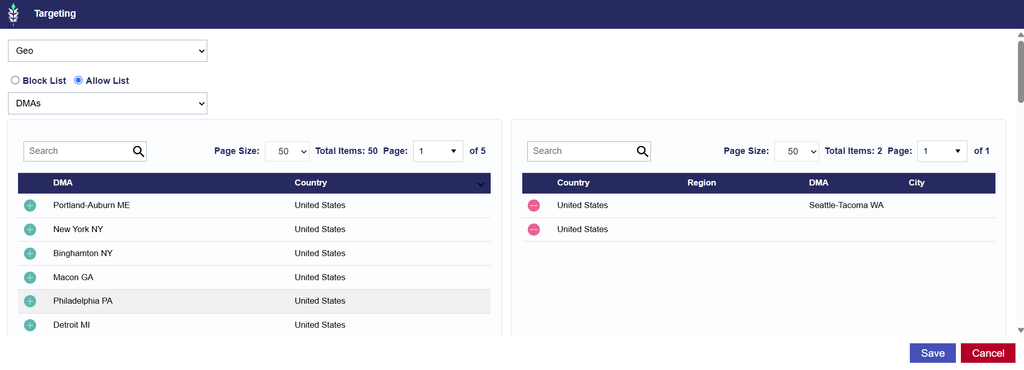
Use the Block List option to exclude specific DMAs from delivery.
ZIP Code Targeting
To target specific US ZIP codes:
- Navigate to Edit Targeting > Location & Device > Zip Codes.
- Select United States as the Country.
- Enter or paste your ZIP code list using the standard five-digit format (e.g.,
10001). - Select Validate Zips to verify the entered values.
- Save your changes.
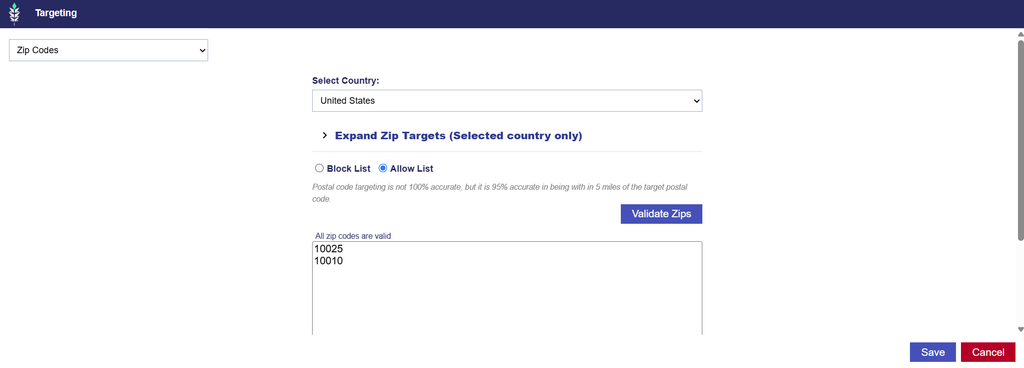
Use the Block List option to exclude specific ZIP codes from delivery.
Important: Geographic targeting requirements are cumulative. If Country, Region, DMA, or ZIP Code targeting is configured at both the Campaign and Line levels, all applicable restrictions must align. Conflicting geographic requirements can prevent delivery.
3. Deals and Inventory Availability
If your Campaign will target specific Deals:
- Navigate to Inventory to explore available Public or Negotiated Deals.
- Filter the Country to USA to identify inventory available in the United States.
- Confirm that the Deal’s Media Type is compatible with your Campaign’s Creatives and intended inventory.
- Associate the selected Deals with your Campaign or Line under Edit Targeting > Inventory > Deals.
Available Deals and inventory offerings may change over time.
For additional targeting information, see the Targeting Methods Documentation.