Pontiac Wiki Pontiac Wiki

Setup Guides

Setup Guides

  • Overview
  • Display Setup
  • Audio Setup
  • CTV Setup
  • OLV Setup
  • OTT Setup
  • Native Setup
  • National US Campaign Setup
  • Canada Campaign Setup
  • Political Campaign Setup
  • Sensitive Categories Setup
  • Programmatic Guaranteed (PG) Setup
  • Index and Microsoft Curation Setup
  1. Home
  2. Bidder Documentation
  3. Setup Guides

Overview

The Campaign Setup Guides provide recommended configuration and targeting guidance for common media types, geographic strategies, and specialized Campaign workflows in Pontiac. Each guide outlines the Campaign and Line settings, inventory, targeting, Creatives, Audiences, and bidding considerations that are most relevant to that strategy.

If you are new to Pontiac or looking for an end-to-end walkthrough of the Campaign creation process, start with How to Launch Your First Campaign.

Important: Every Campaign must have at least one Line created under it in order to deliver impressions. The Campaign organizes and can control shared settings, but the Line is the object that executes bidding and delivery.

The guides below include setup recommendations for:

  • Display
  • Audio
  • CTV
  • Online Video (OLV)
  • OTT
  • Native
  • National US Campaigns
  • Canada Campaigns
  • Political Campaigns
  • Sensitive Categories
  • Programmatic Guaranteed (PG)
  • Index and Microsoft Curation

Use the guide that most closely matches the Campaign’s media type or strategy. Requirements may vary based on inventory, Deals, publishers, targeting, and Campaign goals. Reach out through the Help Center if you have any further questions.

Display Setup

Display campaigns allow advertisers to serve Banner and HTML5 creatives across supported exchanges: Index Exchange, Microsoft, OpenX and Magnite (DV+).

Pontiac supports multiple methods for accessing Display inventory:

  • Curated Deals (Recommended): Automatically create curated Deals through Index Exchange or Microsoft based on your Line’s targeting settings. This can help increase available inventory and improve delivery scale.
  • Open Exchange: Access eligible Display inventory directly through supported exchanges without targeting a specific Deal.
  • Public PMP Deals: Target Pontiac’s pre-negotiated Display Deals available under Inventory > Public Deals. Ensure the Deal’s Media Type = Display and Creative Type = Banner.
  • Negotiated PMP Deals: Target Display Deals negotiated directly with publishers or supply partners and made available to your Seat.

When setting up a Display Campaign, it’s important to ensure that your Creatives and targeting settings are compatible with Display inventory. All other Campaign and Line settings, including budgets, bidding, pacing, geographic targeting, and audiences, remain customizable based on your Campaign goals.

1. Upload Display Creatives

  1. Navigate to your Advertiser, or create a new Advertiser if needed.
  2. Upload your Banner or HTML5 Creatives.
  3. Allow up to 24 hours for the Pontiac Creative Audit to complete.
    • Note: Some exchanges require additional creative approval beyond Pontiac’s Creative Audit. Index Exchange, Microsoft, and Magnite (DV+) may take up to an additional 48 hours to approve creatives.

2. Create Your Campaign and Lines

Under your Advertiser, create a Campaign and one or more Lines.

Display Inventory and Targeting Recommendations

When configuring your Campaign and Line targeting, ensure that the selected inventory is compatible with Banner and HTML5 Creatives.

  • Inventory Type: Select Web, Combined, or In App. We recommend Web or Combined for the best scale, as In App Banner inventory can be more limited.
  • Exchanges: Target exchanges that support Display inventory: Index Exchange, Microsoft, OpenX, and Magnite (DV+).
  • Deals and Deal Lists: Ensure targeted Deals support Display/Banner inventory. For Public Deals, confirm Media Type = Display and Creative Type = Banner. CTV-only, Audio-only, and Video-only Deals are not compatible with standard Banner/HTML5 Creatives. Exchange targeting must also align with the selected Deals.
  • Sites and Apps: Site and Site List targeting applies to Web inventory, while App Name, App Bundle, and App List targeting applies to In App inventory. Ensure these settings align with the selected Inventory Type. For example, selecting Web inventory with an App List Allow List will prevent delivery.
  • Device Types: Select device categories compatible with Display inventory, such as Personal Computer, Phone, or Tablet. Restricting targeting exclusively to Connected TV or Set Top Box devices may prevent standard Banner delivery.
  • Content Targeting: Content fields such as Channel, Genre, Series, and Title are more commonly available in streaming and video inventory. Restrictive Content targeting or enabling Require Field can limit Display delivery when the corresponding metadata is unavailable in Banner bid requests.
  • Streaming & Video Targeting: Avoid OLV targeting for standard Banner/HTML5 Campaigns, as these settings are intended for video inventory. Livestream targeting can also significantly restrict eligible inventory and should only be used when the targeted Display supply supports it.

Important: Campaign and Line targeting are evaluated together. Conflicting targeting requirements or settings that do not align with the associated creative format can prevent delivery, even when the Campaign and Line are otherwise configured correctly.

Other targeting options, including Audiences, geographic targeting, Browser, Operating Systems, and advanced settings, can be customized based on your Campaign goals. Highly restrictive targeting or requirements for fields not consistently available in Display bid requests may reduce eligible inventory.

For more information on targeting options, see the Targeting Methods Documentation.

3. Select Your Display Inventory Setup

Display Campaigns can run through Curated Deals, Open Exchange inventory, or existing Public and Negotiated PMP Deals.

Option A: Index and Microsoft Curated Deals (Recommended)

Pontiac’s Curation feature automatically creates curated Deals through Index Exchange and Microsoft based on your Line’s targeting settings.

When enabled, Pontiac builds a curated Deal that reflects the Line’s targeting criteria and automatically associates the generated Deal with the Line. This can help increase available inventory and improve delivery scale.

How to Enable Curation

  1. Open your Line in Edit Mode.
  2. Navigate to Edit Targeting > Curation.
  3. Ensure your Exchange targeting includes Index Exchange and/or Microsoft.
  4. Enable the applicable option:
    • Use Index Curated Deal: Automatically generates a curated Deal through Index Exchange.
    • Use Microsoft Curated Deal: Automatically generates a curated Deal through Microsoft.

Curation Requirements

To use the Curation feature, the following requirements must be met:

  • Exchange targeting must include Index Exchange and/or Microsoft, depending on the selected Curation option.
  • All Creatives associated with the Line must be of the same media type (Display or Video).
  • Geographic targeting must be more granular than Regions, or an eligible Audience must be attached that can be pushed to the curation platform.

Important: If these requirements are not met, the Line will fail to save and you will be redirected to the Line setup page to correct the configuration.

Optional: Target CTR (Index Exchange)

When using an Index Curated Deal, you can optionally enable Use Target CTR to filter inventory based on a desired Click-Through Rate.

Available thresholds range from Higher than 0% to 1% or Higher.

Note: Higher CTR goals restrict eligible inventory and may limit delivery. Target CTR is not supported for CTV or Audio Campaigns.

Option B: Open Exchange Display Inventory

Display Campaigns can also run directly through supported Open Exchanges without enabling the Curation feature.

To run on Open Exchange inventory, select the appropriate Exchange(s) in your Campaign or Line targeting and leave the Curation options disabled:

  • Index
  • Microsoft
  • OpenX
  • Magnite (DV+)

Option C: Public and Negotiated Display PMP Deals

Display Campaigns can also run through existing Public or Negotiated PMP Deals that support Banner/HTML5 inventory.

  • Public Deals: Navigate to Inventory > Public Deals to explore Pontiac’s available Display Deals.
  • Negotiated Deals: Navigate to Inventory > Negotiated Deals to view Deals associated with your Seat.

To target these Deals:

  1. Open your Campaign or Line in Edit Mode.
  2. Navigate to Edit Targeting > Inventory > Deals.
  3. Select the applicable Public or Negotiated Display Deals.
  4. Confirm that the Deals support Banner/HTML5 inventory and that Exchange targeting includes the Exchanges associated with those Deals.
  5. Save your targeting settings.

Important: Not all Deals support Display inventory. Targeting CTV-only, Audio-only, or Video-only Deals with Banner/HTML5 Creatives will prevent delivery. Confirm that the selected Deals support the intended creative format.

For more information, see the Deals Documentation.

4. Review Display Inventory Compatibility

Before launching, confirm that:

  • Your Lines have approved Banner or HTML5 Creatives associated.
  • Your targeted Exchanges support Display inventory.
  • Any targeted Deals or Deal Lists contain compatible Display/Banner inventory.
  • Inventory Type, Device Types, and Site/App targeting align with your intended Display environment.
  • No incompatible Streaming & Video targeting is applied.
  • If using Curated Deals, the Curation requirements are satisfied.
  • Any required exchange-specific creative approvals have been completed.

Note: A Line may save successfully even if its targeted inventory is incompatible with its associated Creatives. Always verify inventory compatibility to avoid delivery issues.

Once the Campaign is active, monitor delivery and bidding performance under the Performance tab at the Campaign and Line levels.

For additional Campaign setup and targeting guidance, refer to the relevant Pontiac Wiki articles or contact the Help Center.
Audio Setup

Audio Campaigns allow advertisers to serve 15, 30, 45, 60, 75, or 90-second Audio Creatives across streaming music, digital radio, podcasts, and other digital audio inventory.

Available publishers and inventory providers include Spotify, Pandora, SiriusXM, SoundCloud, iHeartMedia, DAX, and other audio publishers, with inventory accessible through Magnite (DV+), Triton, AdsWizz, and Microsoft.

Pontiac supports two methods for accessing Audio inventory:

  • Deals (Recommended): Target Public or Negotiated Audio Deals to access specific publishers, podcasts, streaming services, or audio inventory packages.
  • Open Exchange: Access eligible Audio inventory directly through supported Exchanges. Additional App, Site, or Content targeting can help refine delivery to the desired audio environments.

When setting up an Audio Campaign, ensure that your Creatives, targeted Exchanges, Deals, and targeting settings are compatible with Audio inventory. All other Campaign and Line settings, including budgets, bidding, pacing, geographic targeting, and conversion tracking, remain customizable based on your Campaign goals.

1. Upload Audio Creatives

  1. Navigate to your Advertiser, or create a new Advertiser if needed.
  2. Upload one or more Audio Creatives that meet the applicable Creative Specs.
  3. Allow up to 24 hours for the Pontiac Creative Audit to complete.
  4. Associate the approved Audio Creatives with your Lines.

Note: Some publishers and Exchanges may require additional creative approval or have specific requirements for audio duration, MIME type, and file format.

2. Create Your Campaign and Lines

Under your Advertiser, create a Campaign and one or more Lines.

Audio Inventory and Targeting Recommendations

When configuring your Campaign and Line targeting, consider the following recommendations to ensure your settings are compatible with Audio inventory.

  • Inventory Type: Select Web, In App, or Combined based on your intended inventory. We recommend Combined for the broadest scale, as Audio inventory can be available across both websites and applications.
  • Exchanges: Target Exchanges supporting Audio inventory, including Magnite (DV+), Triton, AdsWizz, and Microsoft.
  • Deals and Deal Lists: Select Deals with Media Type = Audio. Confirm that the selected Deals support your intended publishers, content, and Audio Creatives. Targeting CTV-only, Display-only, or Video-only Deals with Audio Creatives will prevent delivery.
  • Device Types: Select device categories appropriate for your Audio strategy, such as Personal Computer, Phone, Tablet, or Connected Device. Restrictive Device Type targeting may exclude eligible streaming audio inventory.
  • Sites and Apps: Audio inventory can be available through both websites and applications. Use Sites, Site Lists, App Names, App Bundles, or App Lists to target specific audio publishers and streaming services. Ensure these settings align with your selected Inventory Type.
    • Important: Site and App Allow Lists cannot be combined on the same Line. If you want to target both specific websites and applications, create separate Lines: one targeting your Site/Site List Allow List and another targeting your App Name/App Bundle/App List Allow List.
  • Content Targeting: Audio inventory may include metadata such as Channel, Network, Publisher, Genre, Series, and Title. These fields are particularly useful for podcast and digital radio targeting. Review available Deal sample requests to confirm which fields and values are populated before applying restrictive targeting.
    • Multi Field Targeting: Allows matching across multiple supported Content fields rather than requiring the value to appear in one specific field. This can be helpful when publishers pass podcast or program information in different fields.
  • Frequency Capping: We recommend No Cap for maximum scale, as Audio publishers may not consistently provide usable device or user identifiers.
    • Important: If frequency capping is needed, we recommend selecting IFA-IP under Cap By. This uses the IFA (Identifier for Advertising) when available and falls back to the IP address when an IFA is not provided, helping maintain frequency capping coverage across inventory with varying identifier availability.
  • Audience Targeting: ART Audiences can be used to target ZIP codes that over-index for your desired audience. Other supported audience types can also be applied, although match rates and availability vary by inventory source and may limit scale.
  • Bid Price: Use Deal floors as guidance when bidding on Audio PMPs. Audio Deal floors have historically ranged from approximately $7–$20 CPM, depending on the publisher and inventory. For Open Exchange Audio, consider starting around $13 CPM and adjusting based on available inventory, bidding performance, and delivery.

Important: Campaign and Line targeting are evaluated together. Conflicting targeting requirements or settings that do not align with Audio inventory can prevent delivery, even when the Campaign and Line are otherwise configured correctly.

Other targeting options, including geographic targeting, Browser, Operating Systems, and advanced settings, can be customized according to your Campaign goals. Highly restrictive targeting may reduce eligible Audio inventory.

For additional information, see the Targeting Methods Documentation.

3. Select Your Audio Inventory Setup

Option A: Audio Campaigns Using Deals (Recommended)

We recommend using Public or Negotiated Audio Deals to access specific streaming services, podcasts, digital radio stations, and publisher inventory.

Targeting multiple compatible Deals can help increase available inventory and improve delivery scale.

How to Target Audio Deals

  1. Navigate to Inventory to explore available Public or Negotiated Deals.
  2. Identify Deals with Media Type = Audio.
  3. Review the publisher, inventory availability, Deal floor, and supported Audio Creative requirements.
  4. Open your Campaign or Line in Edit Mode.
  5. Navigate to Edit Targeting > Inventory > Deals or Deal Lists.
  6. Select the applicable Audio Deals or Deal Lists.
  7. Leave Exchange targeting unselected to avoid excluding Exchanges associated with your selected Deals.
  8. Save your targeting settings.

Note: Audio Deals may contain different inventory types, including streaming music, podcasts, and digital radio. Review Deal information and available sample requests to confirm that the inventory aligns with your Campaign goals.

For more information, see the Deals Documentation.

Option B: Audio Campaigns Using Open Exchange

Audio Campaigns can also run directly through eligible Open Exchange inventory.

How to Configure Open Exchange Audio Inventory

  1. Open your Campaign or Line in Edit Mode.
  2. Navigate to Edit Targeting > Inventory > Exchanges.
  3. Select the Exchanges through which you want to purchase Audio inventory:
    • Magnite (DV+)
    • Triton
    • AdsWizz
    • Microsoft
  4. Optionally, apply Site, Site List, App Name, App Bundle, or App List targeting to focus delivery on specific publishers or streaming services.
    • Important: Site and App Allow Lists cannot be combined on the same Line. If you want to target both specific websites and applications, create separate Lines: one targeting your Site/Site List Allow List and another targeting your App Name/App Bundle/App List Allow List.
  5. If targeting specific content, review available metadata and configure the appropriate Content targeting fields.
  6. Save your targeting settings.

Important: Open Exchange Audio inventory is not automatically restricted to specific podcast genres, shows, streaming services, or publishers. Additional inventory and Content targeting may be needed to reach the desired audio environments.

4. Review Audio Inventory Compatibility

Before launching, confirm that:

  • Your Lines have approved Audio Creatives that meet the applicable publisher and Exchange specifications.
  • Your targeted Deals or Exchanges support Audio inventory.
  • Any targeted Deals or Deal Lists have Media Type = Audio.
  • Inventory Type, Device Types, and Site/App targeting align with your intended Audio environment.
  • Any Content targeting values are supported by the available publisher metadata.
  • Frequency Capping is set to No Cap, if prioritizing maximum scale.
  • Any Audience targeting is appropriate for the selected inventory.
  • Any required publisher or Exchange creative approvals have been completed.

Note: A Line may save successfully even when its targeting configuration does not align with the intended Audio inventory. Always verify inventory and Creative compatibility before launching to avoid delivery issues.

Once your Campaign is active, monitor delivery and bidding performance under the Performance tab at both the Campaign and Line levels.

For additional Campaign setup and targeting guidance, refer to the relevant Pontiac Wiki articles or contact the Help Center.
CTV Setup

CTV (Connected TV) is a subset of OTT, referring to television content streamed over an internet connection and viewed on Smart TVs, connected streaming devices, gaming consoles, and Set Top Boxes.

Pontiac supports two methods for accessing CTV inventory:

  • Deals (Recommended): Target Public or Negotiated Deals offering CTV or OTT/CTV inventory. This provides greater control over the streaming publishers, content, and environments where your ads appear.
  • Open Exchange: Access eligible CTV inventory directly through supported Exchanges. Additional App targeting is recommended to restrict delivery to streaming TV applications.

When setting up a CTV Campaign, ensure that your Creatives, targeted inventory, Device Types, and targeting settings are compatible with CTV. All other Campaign and Line settings, including budgets, bidding, pacing, geographic targeting, and conversion tracking, remain customizable based on your Campaign goals.

1. Upload CTV Creatives

  1. Navigate to your Advertiser, or create a new Advertiser if needed.
  2. Upload one or more Video Creatives that meet the Creative Specs.
  3. Allow up to 24 hours for the Pontiac Creative Audit to complete.

Note: Some publishers and Exchanges may require additional creative approval before your Creatives are eligible to serve.

2. Create Your Campaign and Lines

Under your Advertiser, create a Campaign and one or more Lines.

CTV Inventory and Targeting Recommendations

When configuring your Campaign and Line targeting, consider the following recommendations to ensure your settings are compatible with CTV inventory.

  • Inventory Type: Select In App, as CTV inventory is typically delivered through applications on Smart TVs and connected devices.
  • Deals and Deal Lists: Target Deals offering CTV or OTT/CTV inventory. Confirm that the selected Deals support Video Creatives and provide inventory on Connected TV, Connected Device, or Set Top Box devices. OTT/CTV Deals may also contain Mobile, Tablet, or Desktop inventory that will not be eligible under CTV-specific Device Type targeting.
  • Device Types: Select Connected TV, Connected Device, and Set Top Box to focus delivery on CTV environments.
  • Sites and Apps: For Open Exchange delivery, use App Name, App Bundle, or App List targeting to identify streaming TV applications. Without these restrictions, delivery may extend to other applications available on Connected TV devices that are not primarily streaming TV services.
  • Frequency Capping: Select No Cap. CTV publishers may not consistently provide usable device or user identifiers, making frequency capping less reliable and potentially restricting delivery.
  • Audience Targeting: Custom Audiences and ART Audiences can be used for CTV Campaigns. ART Audiences allow advertisers to target ZIP codes that over-index for their desired audience. Audience availability and matching may vary across CTV inventory, and restrictive audience targeting can limit delivery scale.
  • Bid Price: For PMP Deals, use the Deal floors as guidance and consider starting approximately 40–50% above the floor, adjusting based on bidding performance and delivery. Premium CTV inventory can be competitive, and clearing prices vary by publisher, content, and inventory availability.
  • Video Playback Targeting: We recommend leaving Video Playback Type and Video Player Size unrestricted, particularly when targeting CTV-specific Deals. Additional restrictions may limit eligible inventory if publishers do not consistently provide the corresponding video metadata.

Important: Campaign and Line targeting are evaluated together. Conflicting targeting requirements or settings that do not align with CTV inventory can prevent delivery, even when the Campaign and Line are otherwise configured correctly.

Other targeting options, including geographic targeting and advanced settings, can be customized based on your Campaign goals. Highly restrictive targeting may reduce eligible CTV inventory.

For additional information, see the Targeting Methods Documentation.

3. Select Your CTV Inventory Setup

Option A: CTV Campaigns Using Deals (Recommended)

We recommend using Public or Negotiated CTV Deals to access streaming TV inventory with greater control over publishers, content, and supply sources.

For inventory that most closely resembles traditional linear television, consider selecting Deals offering Live or Long Form content, such as live programming and full television episodes.

Targeting multiple compatible CTV Deals can help increase available inventory and improve delivery scale.

How to Target CTV Deals

  1. Navigate to Inventory to explore available Public or Negotiated Deals.
  2. Identify Deals offering CTV or OTT/CTV inventory.
  3. Confirm that the Deals support Video Creatives and provide inventory on Connected TV, Connected Device, or Set Top Box devices.
  4. Open your Campaign or Line in Edit Mode.
  5. Navigate to Edit Targeting > Inventory > Deals or Deal Lists.
  6. Select the applicable CTV Deals or Deal Lists.
  7. Leave Exchange targeting unselected to avoid excluding Exchanges associated with your selected Deals.
  8. Save your targeting settings.

Note: Not all OTT/CTV Deals provide inventory across every device category. Review the available Device Types for each Deal to confirm that it supports CTV delivery.

For more information, see the Deals Documentation.

Option B: CTV Campaigns Using Open Exchange

CTV Campaigns can also run through eligible Open Exchange inventory. However, additional App targeting is recommended to ensure delivery is focused on streaming TV applications.

Without App targeting, a Line may serve across other applications available on Connected TV devices, including weather, news, and other non-streaming TV environments.

How to Configure Open Exchange CTV Inventory

  1. Open your Campaign or Line in Edit Mode.
  2. Navigate to Edit Targeting > Inventory > Exchanges.
  3. Select the Exchanges through which you want to purchase CTV inventory, such as Index Exchange, Microsoft, OpenX, Magnite, or Freewheel, where eligible Open Exchange CTV supply is available.
  4. Under Inventory targeting, apply an App Name, App Bundle, or App List Allow List containing your desired streaming TV applications.
  5. Confirm that Inventory Type is set to In App and Device Type targeting includes Connected TV, Connected Device, and/or Set Top Box.
  6. Save your targeting settings.

Important: Open Exchange inventory is not automatically restricted to traditional streaming TV content. Targeting appropriate CTV applications is recommended to avoid delivery across other connected device environments.

4. Review CTV Inventory Compatibility

Before launching, confirm that:

  • Your Lines have approved Video Creatives that meet the applicable CTV specifications.
  • Your targeted Deals or Exchanges provide CTV inventory.
  • Inventory Type is set to In App.
  • Device Type targeting includes Connected TV, Connected Device, and/or Set Top Box.
  • Frequency Capping is set to No Cap.
  • Video Playback Type and Video Player Size are left unrestricted unless specifically required.
  • If using Audience Targeting, the selected segments are appropriate for CTV inventory.
  • For Open Exchange delivery, an App Allow List is configured to target the intended streaming TV applications.
  • Any required publisher or Exchange creative approvals have been completed.

Note: A Line may save successfully even when its targeting configuration does not align with the intended CTV inventory. Always verify inventory compatibility before launching to avoid delivery issues.

Once your Campaign is active, monitor delivery and bidding performance under the Performance tab at both the Campaign and Line levels.

For additional Campaign setup and targeting guidance, refer to the relevant Pontiac Wiki articles or contact the Help Center.
OLV Setup

Online Video (OLV) Campaigns allow advertisers to serve Video Creatives across websites and mobile applications, including instream and outstream video placements.

  • Instream Video: Video ads served within video content, including Pre-Roll, Mid-Roll, and Post-Roll placements.
  • Outstream Video: Video ads served outside traditional video players, such as within website articles or other page content.

Pontiac supports two methods for accessing OLV inventory:

  • Deals (Recommended): Target Public or Negotiated Deals offering Online Video inventory to access specific publishers, video placements, or inventory packages.
  • Open Exchange: Access eligible OLV inventory directly through supported Exchanges, with optional Site or App targeting to refine delivery.

When setting up an OLV Campaign, ensure that your Creatives, targeted Exchanges, Deals, and Video targeting settings are compatible with Online Video inventory. All other Campaign and Line settings, including budgets, bidding, pacing, geographic targeting, and audiences, remain customizable based on your Campaign goals.

1. Upload OLV Creatives

  1. Navigate to your Advertiser, or create a new Advertiser if needed.
  2. Upload one or more Video Creatives that meet the applicable Creative Specs.
  3. Allow up to 24 hours for the Pontiac Creative Audit to complete.

Note: Some publishers and Exchanges may require additional creative approval before your Creatives are eligible to serve.

2. Create Your Campaign and Lines

Under your Advertiser, create a Campaign and one or more Lines.

OLV Inventory and Targeting Recommendations

When configuring your Campaign and Line targeting, consider the following recommendations to ensure your settings are compatible with OLV inventory.

  • Inventory Type: Select Combined for the broadest scale, as OLV inventory can be available across both Web and In App environments. Select Web or In App when targeting a specific environment.
  • Exchanges: Target Exchanges supporting Online Video inventory, including Index Exchange, Microsoft, Magnite (DV+), Freewheel, and OpenX, where eligible OLV supply is available.
  • Deals and Deal Lists: Select Deals with Media Type = Online Video. Confirm that the Deals support your intended Video Creatives and placement types. Targeting CTV-only, Audio-only, or Display-only Deals with OLV Creatives may prevent delivery.
  • Device Types: Select Personal Computer, Phone, and/or Tablet, depending on your strategy. Restricting targeting to Connected TV or Set Top Box devices may exclude eligible OLV inventory.
  • Sites and Apps: For Open Exchange delivery, use Site, Site List, App Name, App Bundle, or App List targeting to focus delivery on specific websites or applications. Ensure these settings align with your selected Inventory Type.
    • Important: Site and App Allow Lists should be configured on separate Lines. If targeting both specific websites and applications, create one Line for Site/Site List targeting and another for App Name/App Bundle/App List targeting.
  • Video Playback Type: Configure your preferred video placement under Edit Targeting > Streaming & Video > OLV.
    • Pre-Roll: Video ads served before the primary video content. Recommended for instream OLV Campaigns.
    • Mid-Roll: Video ads served during the primary video content.
    • Post-Roll: Video ads served after the primary video content.
    • Outstream: Video ads served outside traditional video content, such as within articles or other page placements.
    • Select the playback types that align with your Campaign goals. More restrictive selections may reduce eligible inventory.
  • Video Player Size: Select Large, Medium, or Small based on your requirements, or leave unrestricted for maximum scale.
  • Video Playback Method: Optionally target specific playback behaviors, such as Autoplay with Sound On, Autoplay with Sound Off, Click to Play, or Mouse-Over. Restrictive settings may reduce available inventory.
  • Livestream: Enable Livestream only when targeting live video content, such as sports, news, or live events. This excludes on-demand inventory and may significantly limit scale.
  • Content Targeting: Content metadata such as Channel, Network, Publisher, Genre, Series, and Title may be available for certain OLV inventory. Review available Deal sample requests before applying restrictive Content targeting.
  • Frequency Capping: We recommend No Cap for maximum scale. If frequency capping is needed, consider IFA-IP under Cap By, which caps by IFA when available and falls back to IP when an IFA is not provided.
  • Audience Targeting: Custom, Contextual, Third-Party, and ART Audiences can be used to refine OLV targeting. Audience availability and match rates vary by inventory source, and restrictive targeting may limit delivery.
  • Bid Price: Use Deal floors as guidance when bidding on OLV PMPs. For Open Exchange OLV, consider starting around $6–$8 CPM and adjusting based on bidding performance and available inventory.

Important: Campaign and Line targeting are evaluated together. Conflicting targeting requirements or settings that do not align with Online Video inventory can prevent delivery, even when the Campaign and Line are otherwise configured correctly.

For additional information, see the Targeting Methods Documentation.

3. Select Your OLV Inventory Setup

Option A: OLV Campaigns Using Deals (Recommended)

We recommend using Public or Negotiated Online Video Deals to access specific publishers, video placements, and inventory packages.

How to Target OLV Deals

  1. Navigate to Inventory to explore available Public or Negotiated Deals.
  2. Identify Deals with Media Type = Online Video.
  3. Review the available publishers, placement types, Device Types, and Deal floors.
  4. Open your Campaign or Line in Edit Mode.
  5. Navigate to Edit Targeting > Inventory > Deals or Deal Lists.
  6. Select the applicable OLV Deals or Deal Lists.
  7. Leave Exchange targeting unselected to avoid excluding Exchanges associated with your selected Deals.
  8. Save your targeting settings.

Note: Not all OLV Deals contain the same placement types. Some may provide exclusively instream or outstream inventory. Confirm that your Video Playback Type targeting aligns with the selected Deals.

For more information, see the Deals Documentation.

Option B: OLV Campaigns Using Open Exchange

OLV Campaigns can also run directly through supported Open Exchanges.

How to Configure Open Exchange OLV Inventory

  1. Open your Campaign or Line in Edit Mode.
  2. Navigate to Edit Targeting > Inventory > Exchanges.
  3. Select the Exchanges through which you want to purchase OLV inventory.
  4. Optionally, apply Site, Site List, App Name, App Bundle, or App List targeting to focus delivery on specific websites or applications.
  5. Under Edit Targeting > Streaming & Video > OLV, select your desired Video Playback Types:
    • Pre-Roll
    • Mid-Roll
    • Post-Roll
    • Outstream
  6. Optionally, configure Video Player Size and Video Playback Method.
  7. Confirm that Device Type targeting includes Personal Computer, Phone, and/or Tablet.
  8. Save your targeting settings.

Important: Open Exchange OLV inventory may contain a variety of video placement types and publisher environments. Configure Video Playback Type and optional Site/App targeting to align delivery with your intended video strategy.

4. Review OLV Inventory Compatibility

Before launching, confirm that:

  • Your Lines have approved Video Creatives that meet the applicable Video specifications.
  • Your targeted Exchanges support OLV inventory.
  • Any targeted Deals or Deal Lists contain compatible Online Video inventory.
  • Inventory Type and Device Type targeting align with your intended Web or In App environments.
  • Video Playback Type targeting matches your desired instream or outstream placements.
  • Video Player Size and Playback Method settings are configured appropriately, if used.
  • Any Site or App targeting aligns with the intended inventory environment.
  • Any required publisher or Exchange creative approvals have been completed.

Note: A Line may save successfully even when its targeting configuration does not align with the intended OLV inventory. Always verify inventory and Creative compatibility before launching to avoid delivery issues.

Once your Campaign is active, monitor delivery and bidding performance under the Performance tab at both the Campaign and Line levels.

For additional Campaign setup and targeting guidance, refer to the relevant Pontiac Wiki articles or contact the Help Center.
OTT Setup

OTT (Over-the-Top) refers to television content delivered over an internet connection. For this guide, OTT specifically refers to streaming TV content delivered on Mobile Phones, Tablets, and Desktop/Personal Computers, excluding Connected TV (CTV) devices.

Pontiac supports two methods for accessing OTT inventory:

  • Deals (Recommended): Target Public or Negotiated Deals offering OTT or OTT/CTV inventory. This provides greater control over the streaming publishers and environments where your ads appear.
  • Open Exchange: Access eligible OTT inventory through supported Exchanges. Additional App targeting is strongly recommended to restrict delivery to streaming TV applications rather than general mobile or desktop inventory.

When setting up an OTT Campaign, ensure that your Creatives, targeted inventory, Device Types, and Video targeting settings are compatible with OTT. All other Campaign and Line settings, including budgets, bidding, pacing, geographic targeting, and conversion tracking, remain customizable based on your Campaign goals.

1. Upload OTT Creatives

  1. Navigate to your Advertiser, or create a new Advertiser if needed.
  2. Upload one or more Video Creatives that meet the Creative Specs.
  3. Allow up to 24 hours for the Pontiac Creative Audit to complete.

Note: Some publishers and Exchanges may require additional creative approval before your Creatives are eligible to serve.

2. Create Your Campaign and Lines

Under your Advertiser, create a Campaign and one or more Lines.

OTT Inventory and Targeting Recommendations

When configuring your Campaign and Line targeting, consider the following recommendations to ensure your settings are compatible with OTT inventory.

  • Inventory Type: We recommend Combined for the broadest scale, as OTT inventory can be available across both Web and In App environments. Select Web or In App when targeting a specific environment.
  • Deals and Deal Lists: Target Deals offering OTT or OTT/CTV inventory. Confirm that the selected Deals support Video Creatives and provide inventory on Mobile, Tablet, or Desktop devices. Deals exclusively offering Connected TV inventory will not be eligible under the recommended OTT Device Type targeting.
  • Device Types: Select Phone, Tablet, and Personal Computer. Avoid targeting Connected TV and Set Top Box devices, as this guide focuses on OTT delivery outside the CTV environment.
  • Sites and Apps: For Open Exchange delivery, use Site, Site List, App Name, App Bundle, or App List targeting to identify streaming TV publishers and applications. Without these restrictions, delivery may extend to other video-enabled websites or applications that are not OTT streaming services.
  • Frequency Capping: Select No Cap. OTT publishers may not consistently provide usable device or user identifiers, making frequency capping less reliable and potentially restricting delivery.
  • Audience Targeting: We recommend using audiences from TruAudience (TransUnion) for OTT Campaigns, as these segments are designed for OTT environments. Alternatively, ART Audiences can be used to target ZIP codes that over-index for your desired audience. Keep in mind that audience targeting may reduce available inventory and limit delivery scale.
  • Video Playback Targeting: We recommend leaving Video Playback Type and Video Player Size unrestricted for OTT Campaigns, particularly when using OTT-specific Deals. Applying additional restrictions may limit eligible inventory.
  • Bid Price: For PMP Deals, use the Deal floors as guidance and consider starting approximately 40–50% above the floor, adjusting based on bidding performance and delivery.

Important: Campaign and Line targeting are evaluated together. Conflicting targeting requirements or settings that do not align with OTT inventory can prevent delivery, even when the Campaign and Line are otherwise configured correctly.

Other targeting options, including geographic targeting, Browser, Operating Systems, and advanced settings, can be customized based on your Campaign goals. Highly restrictive targeting may reduce eligible OTT inventory.

For additional information, see the Targeting Methods Documentation.

3. Select Your OTT Inventory Setup

Option A: OTT Campaigns Using Deals (Recommended)

We recommend using Public or Negotiated OTT Deals to access streaming TV inventory with greater control over publishers and supply sources.

How to Target OTT Deals

  1. Navigate to Inventory to explore available Public or Negotiated Deals.
  2. Identify Deals offering OTT or OTT/CTV inventory.
  3. Confirm that the Deals support Video Creatives and provide inventory on Mobile, Tablet, or Desktop devices.
  4. Open your Campaign or Line in Edit Mode.
  5. Navigate to Edit Targeting > Inventory > Deals.
  6. Select the applicable OTT Deals.
  7. Leave Exchange targeting unselected to avoid excluding Exchanges associated with your selected Deals.
  8. Save your targeting settings.

Note: Not all OTT/CTV Deals provide inventory across every device category. Review the available Device Types for each Deal to confirm that it supports OTT delivery.

For more information, see the Deals Documentation.

Option B: OTT Campaigns Using Open Exchange

OTT Campaigns can also run through eligible Open Exchange inventory. However, additional App targeting is strongly recommended to ensure delivery is restricted to streaming TV applications.

Without App targeting, a Line may serve across other applications offering video placements, including mobile games, news applications, and other non-OTT environments.

How to Configure Open Exchange OTT Inventory

  1. Open your Campaign or Line in Edit Mode.
  2. Navigate to Edit Targeting > Inventory > Exchanges.
  3. Select the Exchanges through which you want to purchase OTT inventory.
  4. Under Inventory targeting, apply a Site, Site List, App Name, App Bundle, or App List Allow List containing your desired streaming TV publishers or applications. Ensure these settings align with your selected Inventory Type.
  5. Confirm that Device Type targeting includes Phone, Tablet, and/or Personal Computer.
  6. Save your targeting settings.

Important: Open Exchange inventory is not automatically restricted to OTT streaming TV content. Targeting appropriate streaming TV applications is recommended to avoid delivery across other video environments.

4. Review OTT Inventory Compatibility

Before launching, confirm that:

  • Your Lines have approved Video Creatives that meet the applicable OTT/CTV specifications.
  • Your targeted Deals or Exchanges provide OTT streaming TV inventory.
  • Inventory Type and Device Type targeting align with the intended OTT environments (Mobile, Tablet, and Desktop).
  • Frequency Capping is set to No Cap.
  • Video Playback Type and Video Player Size are left unrestricted unless specifically required.
  • If using Audience Targeting, the selected segments are appropriate for OTT inventory.
  • For Open Exchange delivery, Site or App Allow Lists are configured to target the intended streaming TV publishers or applications.
  • Any required publisher or Exchange creative approvals have been completed.

Note: A Line may save successfully even when its targeting configuration does not align with the intended OTT inventory. Always verify inventory compatibility before launching to avoid delivery issues.

Once your Campaign is active, monitor delivery and bidding performance under the Performance tab at both the Campaign and Line levels.

For additional Campaign setup and targeting guidance, refer to the relevant Pontiac Wiki articles or contact the Help Center.
Native Setup

Native Campaigns allow advertisers to serve Native Format A Creatives across supported exchanges, including Index Exchange and Microsoft.

Native advertising integrates promotional content into the appearance and layout of the website or application where the ad is displayed.

When setting up a Native Campaign, it’s important to ensure that your Creatives and targeting settings are compatible with Native inventory. All other Campaign and Line settings, including budgets, bidding, pacing, geographic targeting, and audiences, remain customizable based on your Campaign goals.

1. Upload Native Creatives

  1. Navigate to your Advertiser, or create a new Advertiser if needed.
  2. Upload one or more Native Format A Creatives.
  3. Allow up to 24 hours for the Pontiac Creative Audit to complete.
    • Note: Index Exchange and Microsoft require additional creative approval beyond Pontiac’s Creative Audit. This approval must be completed before Creatives are eligible to serve on the respective exchanges.

2. Create Your Campaign and Lines

Under your Advertiser, create a Campaign and one or more Lines.

Native Inventory and Targeting Recommendations

When configuring your Campaign and Line targeting, consider the following recommendations to ensure your settings are compatible with Native inventory.

  • Inventory Type: Select Web, Combined, or In App. We recommend Combined for the broadest reach, while In App may be appropriate for mobile-native strategies and Web for website-specific campaigns.
  • Exchanges: Target Index Exchange and/or Microsoft, which support Native inventory.
  • Deals and Deal Lists: If targeting Deals, ensure they contain Native inventory and support Native Format A Creatives. Targeting Deals intended exclusively for CTV, Audio, Display, or Video inventory will prevent Native Creative delivery.
  • Sites and Apps: Site and Site List targeting applies to Web inventory, while App Name, App Bundle, and App List targeting applies to In App inventory. Ensure these settings align with your selected Inventory Type.
  • Device Types: Select device categories compatible with Native inventory, such as Personal Computer, Phone, or Tablet. Restricting targeting exclusively to Connected TV or Set Top Box devices may prevent delivery.
  • Content Targeting: Content-level fields such as Channel, Genre, Series, and Title may not be consistently available in Native bid requests. Restrictive Content targeting or enabling Require Field may significantly limit eligible inventory.
  • Streaming & Video Targeting: Avoid enabling Livestream or OLV targeting for standard Native Campaigns, as these settings are intended for streaming and video inventory and may prevent eligible Native impressions from matching.

Important: Campaign and Line targeting are evaluated together. Conflicting targeting requirements or targeting that does not align with Native inventory can prevent delivery, even when the Campaign and Line are otherwise configured correctly.

Other targeting options, including Audiences, geographic targeting, Browser, Operating Systems, and advanced settings, can be customized as needed. Highly restrictive targeting may reduce available Native inventory.

For more information on available targeting options, see the Targeting Methods Documentation.

3. Select Your Native Inventory

Native Campaigns can run through supported Native Deals available on Index Exchange and Microsoft.

How to Target Native Deals

  1. Navigate to Inventory to explore available Public or Negotiated Deals.
  2. Identify Deals that support Native inventory and Native Format A Creatives.
  3. Open your Campaign or Line in Edit Mode.
  4. Navigate to Edit Targeting > Inventory > Deals.
  5. Select the applicable Native Deals.
  6. Confirm that your Exchange targeting includes the Exchange associated with each selected Deal.
  7. Save your targeting settings.

Important: Not all Deals support Native inventory. Confirm that the selected Deals support the intended Native creative format before launching.

For more information on available Deals, see the Deals Documentation.

4. Associate Native Creatives

  1. Open your Line in Edit Mode.
  2. Associate your uploaded Native Format A Creatives.
  3. Confirm that the Creatives have passed Pontiac’s Creative Audit and any required exchange-specific approvals.
  4. Save your Line.

Note: Index Exchange and Microsoft require additional creative approval before Native Creatives are eligible to serve.

For assistance with exchange-specific creative approvals, contact the Help Center.

5. Review Native Inventory Compatibility

Before launching, confirm that:

  • Your Lines have approved Native Format A Creatives associated.
  • Your targeted Exchanges support Native inventory (Index Exchange and/or Microsoft).
  • Any targeted Deals or Deal Lists contain compatible Native inventory.
  • Inventory Type, Device Types, and Site/App targeting align with your intended Native environment.
  • No incompatible Streaming & Video targeting is applied.
  • Any required exchange-specific creative approvals have been completed.

Note: A Line may save successfully even if its targeted inventory is incompatible with its associated Creatives. Always verify inventory compatibility to avoid delivery issues.

Once your Campaign is active, monitor delivery and bidding performance under the Performance tab at both the Campaign and Line levels.

For additional Campaign setup and targeting guidance, refer to the relevant Pontiac Wiki articles or contact the Help Center.
National US Campaign Setup

This guide outlines recommended pacing settings and geographic targeting options for running national United States Campaigns on the Pontiac platform.

1. Campaign Setup and Pacing Time Zone

Create your Campaign and configure the standard Campaign settings based on your advertising goals.

Pacing Time Zone

The Campaign’s Pacing Time Zone determines the start and end of each day for Campaign pacing and delivery.

For example, if your Campaign End Date is January 31 and the Pacing Time Zone is Eastern Time, the Campaign will stop delivering at 11:59:59 PM Eastern Time on January 31.

Recommended Pacing Time Zone for National US Campaigns

For national US Campaigns using a single Pacing Time Zone, Central Time is recommended as a practical default because it provides a balanced reference point across Eastern, Central, Mountain, and Pacific time zones. The ideal Pacing Time Zone may vary depending on your geographic targeting and delivery goals.

  • Eastern Time (ET)
  • Central Time (CT)
  • Mountain Time (MT)
  • Pacific Time (PT)

A single Pacing Time Zone will not perfectly align pacing with local hours across all US regions. If targeting Alaska or Hawaii, their respective time zones should also be considered.

Note: Pacing Time Zone determines the Campaign’s pacing schedule and daily boundaries. Daypart Targeting is configured separately and can be used to restrict delivery to specific days and hours.

Primetime Pacing for National US Campaigns

For national Campaigns using Primetime pacing, consider configuring a Custom pacing curve that combines Primetime hours across the targeted US time zones.

For example, when Central Time is selected as the Campaign Pacing Time Zone, an 8 PM local Primetime peak corresponds to:

Targeted Time ZoneEquivalent Central Time
Eastern (ET)7 PM CT
Central (CT)8 PM CT
Mountain (MT)9 PM CT
Pacific (PT)10 PM CT

Instead of concentrating delivery around a single Primetime peak, a Custom pacing curve can distribute higher pacing weights across a broader evening window, helping align delivery with Primetime hours throughout the country.

For more precise local Primetime pacing, consider creating separate Campaigns by time zone, with corresponding geographic targeting and Pacing Time Zone settings.

2. United States Geographic Targeting

Pontiac supports geographic targeting at the Country, Region, DMA, and ZIP Code levels.

Targeting can be configured at the Campaign or Line level. When targeting is applied at both levels, the requirements are evaluated together and must be compatible.

Country-Level Targeting

To target the entire United States:

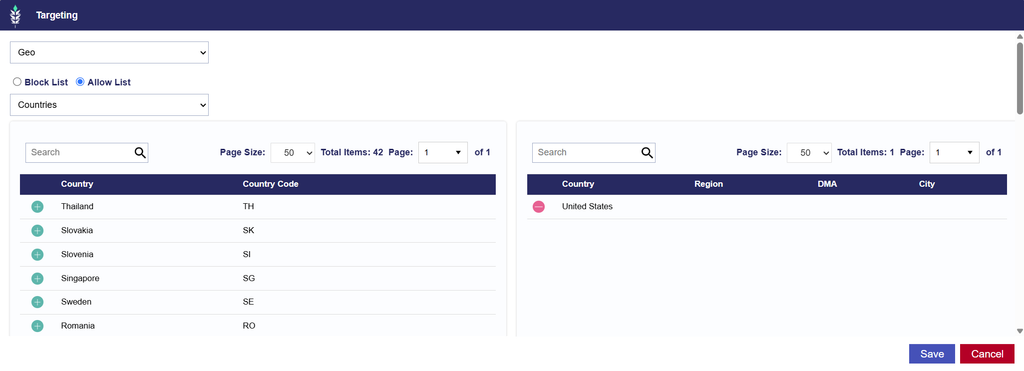
  1. Navigate to Edit Targeting > Location & Device > Geo.
  2. Select Countries and search for United States.
  3. Click the green plus (+) button to add the United States to your targeting.
  4. Save your changes.

Region-Level Targeting

To target specific US states or regions:

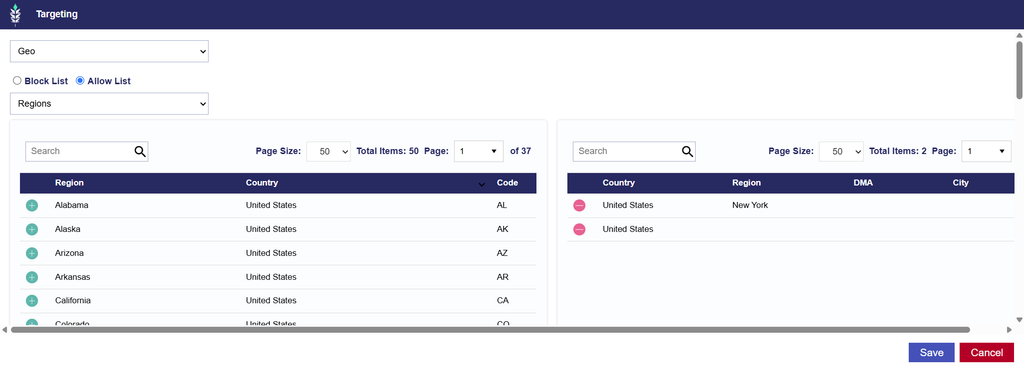
  1. Navigate to Edit Targeting > Location & Device > Geo.
  2. Select Regions from the dropdown.
  3. Search for United States to view available US Regions.
  4. Click the green plus (+) button to add your desired Regions.
  5. Save your changes.

Use the Block List option to exclude specific Regions from delivery.

DMA-Level Targeting

To target specific US Designated Market Areas (DMAs):

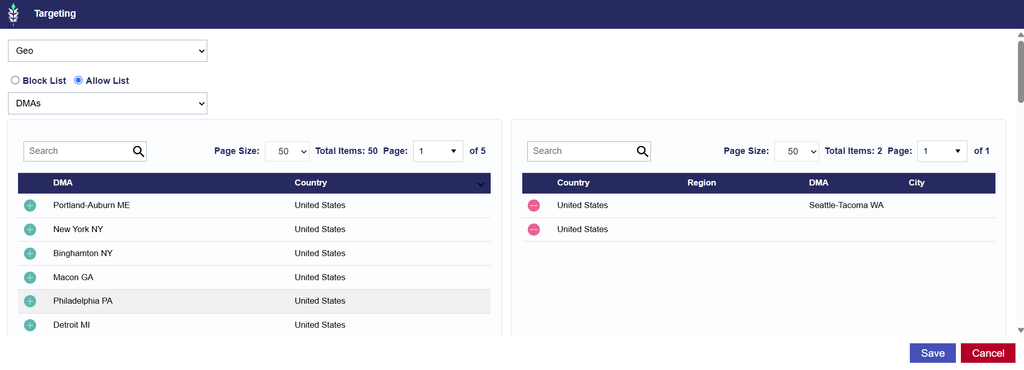
  1. Navigate to Edit Targeting > Location & Device > Geo.
  2. Select DMAs from the dropdown.
  3. Search for United States to view available US DMAs.
  4. Click the green plus (+) button to add your desired DMAs.
  5. Save your changes.

Use the Block List option to exclude specific DMAs from delivery.

ZIP Code Targeting

To target specific US ZIP codes:

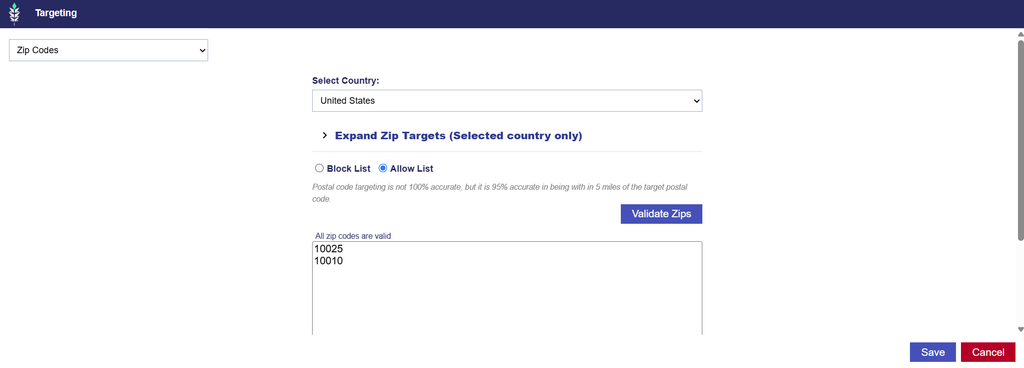
  1. Navigate to Edit Targeting > Location & Device > Zip Codes.
  2. Select United States as the Country.
  3. Enter or paste your ZIP code list using the standard five-digit format (e.g., 10001).
  4. Select Validate Zips to verify the entered values.
  5. Save your changes.

Use the Block List option to exclude specific ZIP codes from delivery.

Important: Geographic targeting requirements are cumulative. If Country, Region, DMA, or ZIP Code targeting is configured at both the Campaign and Line levels, all applicable restrictions must align. Conflicting geographic requirements can prevent delivery.

3. Deals and Inventory Availability

If your Campaign will target specific Deals:

  1. Navigate to Inventory to explore available Public or Negotiated Deals.
  2. Filter the Country to USA to identify inventory available in the United States.
  3. Confirm that the Deal’s Media Type is compatible with your Campaign’s Creatives and intended inventory.
  4. Associate the selected Deals with your Campaign or Line under Edit Targeting > Inventory > Deals.

Available Deals and inventory offerings may change over time.

For additional targeting information, see the Targeting Methods Documentation.

Canada Campaign Setup

This guide outlines recommended pacing settings and geographic targeting options for running national Canadian Campaigns on the Pontiac platform.

1. Campaign Setup and Pacing Time Zone

Create your Campaign and configure the standard Campaign settings based on your advertising goals.

Pacing Time Zone

The Campaign’s Pacing Time Zone determines the start and end of each day for Campaign pacing and delivery.

For example, if your Campaign End Date is January 31 and the Pacing Time Zone is Eastern Time, the Campaign will stop delivering at 11:59:59 PM Eastern Time on January 31.

Recommended Pacing Time Zone for National Canadian Campaigns

For national Canadian Campaigns using a single Pacing Time Zone, Eastern Time is recommended as a practical default because a large share of Canada’s population is concentrated in the Eastern Time Zone.

Canada spans six primary time zones:

  • Pacific Time (PT)
  • Mountain Time (MT)
  • Central Time (CT)
  • Eastern Time (ET)
  • Atlantic Time (AT)
  • Newfoundland Time (NT)

A single Pacing Time Zone will not perfectly align pacing with local hours across the entire country. The ideal selection may vary depending on your geographic targeting and delivery goals.

Primetime Pacing for National Canadian Campaigns

For national Campaigns using Primetime pacing, consider configuring a Custom pacing curve that combines Primetime hours across the targeted Canadian time zones.

For example, when Eastern Time is selected as the Campaign Pacing Time Zone, an 8 PM local Primetime peak corresponds to:

Targeted Time ZoneEquivalent Eastern Time
Pacific (PT)11 PM ET
Mountain (MT)10 PM ET
Central (CT)9 PM ET
Eastern (ET)8 PM ET
Atlantic (AT)7 PM ET
Newfoundland (NT)6:30 PM ET

Instead of concentrating delivery around a single Primetime peak, a Custom pacing curve can distribute higher pacing weights across a broader evening window, helping align delivery with Primetime hours throughout Canada.

For more precise local Primetime pacing, consider creating separate Campaigns by time zone with corresponding geographic targeting and Pacing Time Zone settings.

Note: Pacing Time Zone determines the Campaign’s pacing schedule and daily boundaries. Daypart Targeting is configured separately and can be used to restrict delivery to specific days and hours. Daylight saving time differences may also affect local time alignment in certain regions.

2. Canada Geographic Targeting

Pontiac supports geographic targeting in Canada at the Country, Region, and Postal Code levels.

Targeting can be configured at the Campaign or Line level. When targeting is applied at both levels, the requirements are evaluated together and must be compatible.

Country-Level Targeting

To target the entire country of Canada:

  1. Navigate to Edit Targeting > Location & Device > Geo.
  2. Select Countries and search for Canada.
  3. Click the green plus (+) button to add Canada to your targeting.
  4. Save your changes.

Region-Level Targeting

To target specific Canadian provinces or territories:

  1. Navigate to Edit Targeting > Location & Device > Geo.
  2. Select Regions from the dropdown.
  3. Search for Canada to view available Canadian Regions.
  4. Click the green plus (+) button to add your desired Regions.
  5. Save your changes.

Use the Block List option to exclude specific Regions from delivery.

Postal Code Targeting

Pontiac supports Canadian postal code targeting using the three-character Forward Sortation Area (FSA) format rather than the full six-character postal code.

For example, A0K is a valid Canadian FSA format consisting of a letter, number, and letter.

To target specific Canadian FSAs:

  1. Navigate to Edit Targeting > Location & Device > Zip Codes.
  2. Select Canada as the Country.
  3. Enter or paste your FSA list using the three-character alphanumeric format (e.g., A0K).
  4. Select Validate Zips to verify the entered values.
  5. Save your changes.

Use the Block List option to exclude specific FSAs from delivery.

Important: Geographic targeting requirements are cumulative. If Country, Region, or Postal Code targeting is configured at both the Campaign and Line levels, all applicable restrictions must align. Conflicting geographic requirements can prevent delivery.

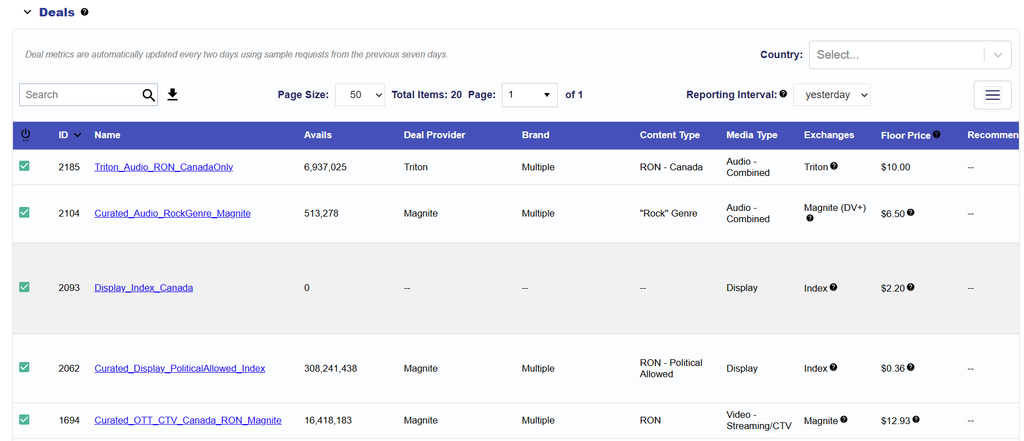
3. Deals and Inventory Availability

If your Campaign will target specific Deals:

  1. Navigate to Inventory to explore available Public or Negotiated Deals.
  2. Filter the Country to Canada to identify inventory available in Canada.
  3. Confirm that the Deal’s Media Type is compatible with your Campaign’s Creatives and intended inventory.
  4. Associate the selected Deals with your Campaign or Line under Edit Targeting > Inventory > Deals.

Note: The Deal inventory screenshot reflects availability as of October 20th, 2026. Current Deal offerings may differ.

For additional targeting information, see the Targeting Methods Documentation.

Political Campaign Setup

Pontiac supports Political advertising relating to elections, ballot initiatives, and political candidates in the United States. Political Campaigns are subject to additional advertiser verification, disclosure requirements, creative approvals, and inventory restrictions.

Important: All Political Creatives must run under an Advertiser with the Political checkbox enabled and the required disclosure form completed. If a Creative is identified as Political during the Creative Audit and the Advertiser has not completed the required disclosures, the Advertiser and all associated Campaigns will be disabled until the required information has been provided.

Political Creatives are only eligible to serve through Deals that explicitly permit Political advertising.

1. Create Your Political Advertiser

Before uploading Political Creatives or launching a Campaign, ensure that your Advertiser is properly configured.

  1. Navigate to Advertisers.
  2. Create a new Advertiser.
  3. Enable the Political checkbox.
  4. Complete the required Political Advertising disclosure form directly in the Pontiac platform.
  5. Save your Advertiser.

The platform will guide you through a series of questions regarding the Political Advertiser and the organization purchasing the advertising.

Depending on the type of Political advertising and applicable state or local requirements, additional certification information may be required.

Important: All applicable disclosure information must be completed in the platform. If the required information is missing and a Creative is flagged as Political during the Creative Audit, the Advertiser and all associated Campaigns will be disabled until the disclosures are completed.

Political advertising must also comply with applicable federal, state, and local laws.

2. Upload Political Creatives

  1. Open your Political Advertiser.
  2. Upload the Creatives you intend to use for your Campaign.
  3. Allow up to 24 hours for the Pontiac Creative Audit to complete.

Creatives identified as Sensitive will display a green triangle in the Audit Status column.

  • Hover over the triangle to view the assigned Sensitive Category.
  • Open the Creative details to review its Sensitive Category and attributes displayed below the Creative preview.
  • Confirm that the Creative is correctly identified as Political.

Note: Political Creatives may require additional publisher or Exchange approval before they are eligible to serve.

For more information, see the Political Creatives Documentation.

3. Identify Deals That Permit Political Advertising

Political Creatives are only eligible to serve through Deals that explicitly allow Political advertising.

To identify compatible Deals:

  1. Navigate to Inventory > Deals.
  2. Locate the Permitted Sensitive Categories column.
  3. Identify Deals that list Political as a permitted category.
  4. Review the Publisher Approval Required field to determine whether additional approval is needed.
  5. Confirm that the Deal’s Media Type and Inventory Type are compatible with your Creative and intended Campaign setup.

Publisher Approval Requirements

Some publishers and supply partners require additional approval before Political Creatives can run through their Deals.

If the Publisher Approval Required field indicates that approval is necessary, contact the Help Center to request approval for the applicable Deal.

Important: A Deal must explicitly permit Political advertising and support the Creative’s media format. A Deal allowing Political advertising will not be eligible for a Political Banner Creative if it only supports CTV inventory.

4. Create Your Campaign and Lines

Under your Political Advertiser, create a Campaign and one or more Lines.

Political Inventory and Targeting Recommendations

When configuring your Campaign and Line targeting, consider the following recommendations:

  • Inventory Type: Select Web, In App, or Combined based on the inventory available through your targeted Deals.
  • Deals and Deal Lists: Target Deals that explicitly permit Political advertising. If using Deal Lists, confirm that the included Deals allow Political content and support the Creative format.
  • Exchanges: Ensure Exchange targeting aligns with the Exchanges associated with your selected Deals. When targeting exclusively through Deals, we recommend leaving Exchange targeting unselected to avoid unintentionally excluding eligible inventory.
  • Device Types: Select Device Types compatible with the intended Creative format and available Deal inventory.
  • Bid Price: Use the Deal floors as guidance and adjust based on bidding performance and inventory availability.

Important: Campaign and Line targeting are evaluated together. Conflicting targeting requirements or settings that do not align with eligible Political inventory can prevent delivery.

All other Campaign and Line settings, including budgets, pacing, geographic targeting, and audiences, remain customizable based on your Campaign goals, subject to applicable platform, publisher, and legal restrictions.

For more information, see the Targeting Methods Documentation.

5. Associate Political Creatives and Target Compatible Deals

Once your Campaign and Lines are created:

  1. Open your Campaign or Line in Edit Mode.
  2. Navigate to Edit Targeting > Inventory > Deals.
  3. Select Deals that explicitly permit Political advertising.
  4. Confirm that any required publisher approvals have been completed.
  5. Associate your approved Political Creatives with the Campaign or Line.
  6. Save your changes.

6. Review Political Campaign Compatibility

Before launching, confirm that:

  • The Advertiser has the Political checkbox enabled.
  • The required Political Advertising disclosure form has been completed.
  • Political Creatives have completed the Pontiac Creative Audit.
  • The Creatives are correctly identified under the Political Sensitive Category.
  • Targeted Deals explicitly permit Political advertising.
  • The selected Deals support the Creatives’ Media Type and Inventory Type.
  • Any required publisher approvals have been completed.
  • Exchange and Device Type targeting align with the selected Deals.

Important: Political advertising may have limited eligible inventory even when correctly configured. Publisher, Exchange, and jurisdiction-specific restrictions can affect availability and delivery.

Once your Campaign is active, monitor delivery and bidding performance under the Performance tab at both the Campaign and Line levels.

For additional information, see the Political Creatives Documentation or contact the Help Center.

Sensitive Categories Setup

Pontiac supports select sensitive advertising categories. However, Creatives containing sensitive content are subject to additional restrictions, approvals, and inventory limitations.

Sensitive Campaigns must target Deals that explicitly permit the Creative’s sensitive category. Follow the recommendations below to ensure your Creatives and targeting settings are compatible with eligible inventory.

1. Upload and Identify Sensitive Creatives

  1. Navigate to your Advertiser, or create a new Advertiser if needed.
  2. Upload your Creatives.
  3. Allow up to 24 hours for the Pontiac Creative Audit to complete.

Creatives identified as Sensitive will display a green triangle in the Audit Status column.

  • Hover over the triangle to view the assigned Sensitive Category.
  • Click the Creative name to open its details and review the Sensitive Category and attributes displayed beneath the Creative preview.

Supported Sensitive Categories

  • Political
  • Gambling
  • Religion
  • Pharma
  • Liquor
  • Beer & Wine
  • Cannabis
  • CBD
  • Tobacco
  • Firearms & Weapons
  • Lawyer Advertising

For additional information about Sensitive Creative identification and approval requirements, see the Sensitive Creatives Documentation.

2. Identify Deals That Permit Sensitive Categories

Sensitive Creatives are only eligible to serve through Deals that explicitly allow their assigned Sensitive Category.

To identify compatible Deals:

  1. Navigate to Inventory > Deals.
  2. Locate the Permitted Sensitive Categories column.
  3. Identify Deals that explicitly permit the category assigned to your Creative.
  4. Confirm that the Deal’s Media Type and Inventory Type are compatible with your Creative and intended Campaign setup.

Important: A Deal must permit the Creative’s Sensitive Category and support its media format. For example, a Deal permitting Political advertising will not be eligible for a Political Banner Creative if the Deal only supports CTV inventory.

Available Sensitive Category permissions may vary by publisher, Exchange, and Deal.

3. Create Your Campaign and Lines

Under your Advertiser, create a Campaign and one or more Lines.

Sensitive Inventory and Targeting Recommendations

When configuring your Campaign and Line targeting, consider the following recommendations:

  • Inventory Type: Select Web, In App, or Combined based on the inventory available through your targeted Deals. Ensure the selected Inventory Type aligns with the Deal’s supported inventory environment.
  • Deals and Deal Lists: Target Deals that explicitly permit your Creative’s Sensitive Category. If using Deal Lists, confirm that the included Deals support the applicable Sensitive Category and Creative format.
  • Exchanges: Ensure Exchange targeting includes the Exchanges associated with your selected Deals. When targeting exclusively through Deals, we recommend leaving Exchange targeting unselected to avoid unintentionally excluding eligible inventory.
  • Device Types: Select Device Types compatible with the intended Creative format and available Deal inventory.
  • Bid Price: Use the Deal floors as guidance and consider starting approximately 40–50% above the floor, adjusting based on bidding performance and delivery.

Important: Campaign and Line targeting are evaluated together. Conflicting targeting requirements or settings that do not align with the eligible Sensitive Category Deals can prevent delivery.

All other Campaign and Line settings, including budgets, pacing, geographic targeting, and audiences, remain customizable based on your Campaign goals. Keep in mind that additional targeting restrictions may further limit the already restricted inventory available for Sensitive Categories.

For more information, see the Targeting Methods Documentation.

4. Associate Sensitive Creatives and Target Compatible Deals

Once your Campaign and Lines are created:

  1. Open your Campaign or Line in Edit Mode.
  2. Navigate to Edit Targeting > Inventory > Deals.
  3. Select the Deals that explicitly permit the Sensitive Category assigned to your Creatives.
  4. Confirm that the selected Deals support the Creative’s Media Type and intended Inventory Type.
  5. Associate your approved Sensitive Creatives with the Campaign or Line.
  6. Save your changes.

Note: If your Campaign or Line contains Creatives assigned to different Sensitive Categories, confirm that the targeted Deals permit all applicable categories. Consider separating Creatives into different Lines when their eligible inventory differs.

5. Review Sensitive Campaign Compatibility

Before launching, confirm that:

  • Your Sensitive Creatives have completed the Pontiac Creative Audit.
  • The assigned Sensitive Categories have been reviewed.
  • Your targeted Deals explicitly permit the associated Sensitive Categories.
  • The Deals support the Media Type and Inventory Type of your Creatives.
  • Exchange and Device Type targeting align with the selected Deals.
  • Any additional publisher or Exchange approvals have been completed.

Important: Sensitive Creatives may have limited eligible inventory even when properly configured. Publishers and Exchanges may apply additional restrictions or approval requirements.

Once your Campaign is active, monitor delivery and bidding performance under the Performance tab at both the Campaign and Line levels.

For additional information about Sensitive Creative requirements and available inventory, refer to the Sensitive Creatives Documentation or contact the Help Center.

Programmatic Guaranteed (PG) Setup

Programmatic Guaranteed (PG) Campaigns allow advertisers to purchase a guaranteed volume of impressions directly from a publisher at a fixed CPM through a prearranged Deal.

Unlike standard Programmatic Marketplace (PMP) Deals, PG Deals do not participate in a competitive auction. The advertiser agrees to purchase the impressions delivered through the Deal according to the terms established with the publisher.

Important PG Considerations:

  • Publisher-Controlled Delivery: Budgets, flight dates, and delivery commitments must be configured with the publisher. Pontiac’s Campaign and Line budgets and flight dates are used for monitoring and pacing visibility only and are not enforced by the bidder.
  • Supply-Side Targeting: All targeting requirements must be applied by the publisher or SSP when configuring the PG Deal. Standard Pontiac targeting restrictions are not available for PG Campaigns.
  • One Deal per Line: Each PG Line must target exactly one Programmatic Guaranteed Deal.
  • PG Campaign Setting: The Programmatic Guaranteed checkbox must be enabled at the Campaign level.

1. Import Your Programmatic Guaranteed Deal

Before setting up your PG Campaign, ensure that the publisher has created the Deal and that it is available in Pontiac.

  1. Coordinate with your publisher or SSP to establish the PG Deal, including the fixed CPM, budget, flight dates, targeting, and guaranteed impression volume.
  2. Navigate to Inventory > Import Deal.
  3. Import the Programmatic Guaranteed Deal using the information provided by the publisher.
  4. Once the Deal becomes available, it can be associated with your PG Line.

Note: We recommend importing the PG Deal before it begins appearing in Pontiac’s database to help avoid launch delays.

For detailed instructions, see the Import Deal Documentation.

2. Create Your PG Campaign

Under your Advertiser, create a new Campaign.

  1. Configure the Campaign’s standard setup fields.
  2. Enable the Programmatic Guaranteed checkbox.
  3. Enter the Campaign’s Budget Type, Budget, and Flight Dates for monitoring and pacing visibility.
  4. Optionally, enable Manage Creatives and Manage Pixels if you want to associate the same Creatives or Pixels across all Lines.
  5. Save your Campaign.

Important: Enabling Programmatic Guaranteed restricts Campaign and Line targeting and capabilities to respect the publisher’s PG Deal configuration.

The Budget Type, Budget, and Flight Dates entered in Pontiac are for monitoring purposes only. They do not control or limit actual PG delivery. The publisher must enforce the agreed budget and flight dates on the supply side.

3. Create Your PG Line

Under your PG Campaign, create a Line.

  1. Configure the Line’s setup fields.
  2. Enter the Line’s Budget Type, Budget, and Flight Dates for monitoring and pacing visibility.
  3. Navigate to Edit Targeting > Inventory > Deals.
  4. Select the Programmatic Guaranteed Deal associated with the Line.
  5. If Creatives and Pixels are not managed at the Campaign level, associate them directly with the Line.
  6. Save your Line.

PG Line Requirements:

  • Each Line must target exactly one PG Deal.
  • Only Programmatic Guaranteed Deals will be available for selection in the Deals targeting window.
  • Standard targeting restrictions are not configurable because eligibility is determined by the publisher’s Deal setup.
  • Line budgets and flight dates are used for monitoring only and are not enforced by the bidder.

If you need to target multiple PG Deals, create a separate Line for each Deal.

4. Review Your PG Campaign Setup

Before launching, confirm that:

  • The PG Deal has been created by the publisher and imported into Pontiac.
  • The publisher has configured the agreed budget, flight dates, CPM, guaranteed volume, and targeting requirements.
  • The Programmatic Guaranteed checkbox is enabled at the Campaign level.
  • Each PG Line targets exactly one PG Deal.
  • Appropriate Creatives are associated at the Campaign or Line level.
  • Budget and Flight Date values in Pontiac align with the publisher’s agreed terms for accurate monitoring.

Important: Pontiac does not enforce Campaign or Line budgets, flight dates, or standard targeting restrictions for PG Campaigns. Confirm all delivery requirements directly with the publisher before launch.

Once your Campaign is active, monitor delivery and pacing progress in Pontiac to compare actual delivery against the agreed campaign goals.

For assistance with PG Deal imports, setup, or delivery, contact your Account Manager or the Help Center.

Index and Microsoft Curation Setup

Pontiac’s Curation feature allows advertisers to automatically create curated Deals through Index Exchange and Microsoft based on a Line’s targeting settings.

When enabled, Pontiac builds a curated marketplace Deal in the selected external platform that reflects the Line’s targeting criteria and automatically associates the generated Deal with the Line. This can help increase available inventory and improve delivery scale.

Curation supports Display and Video Campaigns, with the following requirements:

  • All Creatives associated with a Line must be of the same media type: Display or Video.
  • Exchange targeting must include Index Exchange and/or Microsoft.
  • Geographic targeting must be more granular than Regions, or an eligible Audience must be attached that can be pushed to the curation platform.

All other Campaign and Line settings, including budgets, bidding, pacing, and additional targeting, remain customizable based on your Campaign goals.

1. Upload Creatives

  1. Navigate to your Advertiser, or create a new Advertiser if needed.
  2. Upload your Display or Video Creatives.
  3. Allow up to 24 hours for the Pontiac Creative Audit to complete.

Important: Each Line must contain Creatives from only one media type. Lines combining Display and Video Creatives are not eligible for Curation.

Note: Index Exchange and Microsoft require additional creative approval beyond Pontiac’s Creative Audit, which may take up to an additional 48 hours.

2. Create Your Campaign and Lines

Under your Advertiser, create a Campaign and one or more Lines.

Curation Inventory and Targeting Recommendations

When configuring your Campaign and Line targeting, consider the following recommendations:

  • Inventory Type: Select Web, In App, or Combined based on your intended inventory and creative format.
    • Display: We recommend Web or Combined for the best scale, as In App Banner inventory can be more limited.
    • Video: For CTV inventory, select In App. For OLV inventory, select Web or Combined, with Combined recommended when broader video scale is the priority.
  • Exchanges: Target Index Exchange and/or Microsoft, depending on which Curation option you intend to enable.
  • Creatives: Associate only Display or only Video Creatives with each Line. Mixing media types on the same Line will prevent Curation from being enabled successfully.
  • Geographic and Audience Targeting: Geographic targeting must be more granular than Regions, or an eligible Audience must be attached that can be pushed to the curation platform.
  • Additional Targeting: Ensure that Device Types, Sites, Apps, and other targeting settings align with the selected media type and intended inventory environment.

Important: Campaign and Line targeting are evaluated together. Conflicting targeting requirements or settings that do not align with the intended Display or Video inventory may limit or prevent delivery.

For more information, see the Targeting Methods Documentation.

3. Enable the Curation Feature

The Curation feature is available under Inventory targeting at the Line level only.

How to Enable Curation

  1. Open your Line in Edit Mode.
  2. Navigate to Edit Targeting > Inventory > Curation.
  3. Ensure your Exchange targeting includes Index Exchange and/or Microsoft.
  4. Enable one or both of the following options:
    • Use Index Curated Deal: Automatically generates a curated Deal through Index Exchange.
    • Use Microsoft Curated Deal: Automatically generates a curated Deal through Microsoft.
  5. Configure any optional Curation settings.
  6. Save your Line.

When enabled, Pontiac automatically generates and associates the curated Deal with the corresponding Line.

4. Optional: Target CTR (Index Exchange)

When Use Index Curated Deal is enabled, you can optionally select Use Target CTR to filter inventory based on a desired Click-Through Rate (CTR).

Available Target CTR thresholds include:

  • Higher than 0%
  • 0.01% or Higher
  • 0.02% or Higher
  • 0.05% or Higher
  • 0.075% or Higher
  • 0.1% or Higher
  • 0.15% or Higher
  • 0.2% or Higher
  • 0.5% or Higher
  • 1% or Higher

Note: Higher Target CTR thresholds restrict eligible inventory and may limit delivery. Target CTR is not supported for CTV or Audio Campaigns.

5. Review Curation Requirements

Before launching, confirm that:

  • All Creatives associated with the Line are of the same media type (Display or Video).
  • The selected Inventory Type and Device Types align with the intended media format.
  • Exchange targeting includes Index Exchange and/or Microsoft.
  • Geographic targeting is more granular than Regions, or an eligible Audience is attached that can be pushed to the curation platform.
  • The appropriate Curation option is enabled at the Line level.
  • Any optional Target CTR settings align with your Campaign goals.
  • Creatives have passed the required Pontiac and exchange-specific approvals.

Important: If the Curation validation requirements are not met, the Line will fail to save and you will be redirected to the Line setup page to correct the configuration.

Once your Campaign is active, monitor delivery and bidding performance under the Performance tab at both the Campaign and Line levels.

For assistance with Curation setup or creative approvals, contact the Help Center.

© 2026 Pontiac Wiki Sec · All Rights Reserved · Developed by RDK

  • Contact Us
  • Privacy Policy
  • Terms & Conditions
  • Pontiac.media