Overview
Standard Reporting provides an interactive view of performance for selected Advertisers, Campaigns, and Lines. Use the dashboard to review overall delivery, compare performance metrics, analyze inventory and Creative performance, review geographic delivery, and export supporting data for additional analysis.
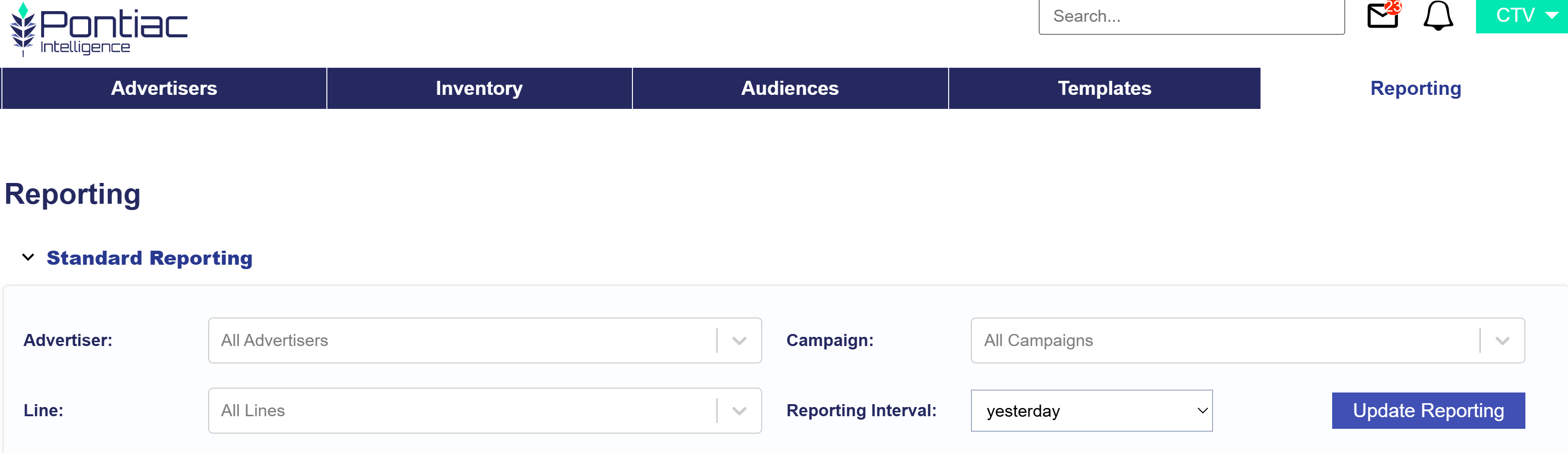
Standard Reporting includes the following views:
- Summary
- Inventory
- Creatives
- Device Type
- Network
- Deal
- Channel
- App
- Foot Traffic
- Geo
Each view uses the Advertiser, Campaign, Line, Reporting Interval, and applicable Timezone settings selected at the top of the report.
Create a Standard Report
To create a Standard Report:
- Navigate to Reporting > Standard Reporting.
- Select the Advertiser you want to analyze.
- Select the applicable Campaign.
- Select one or more Lines, if needed.
- Select the Timezone used to display reporting metrics.
- Select the Reporting Interval.
- Select Update to generate the report.
The selected filters apply across the Standard Reporting views, allowing users to analyze the same reporting scope across Summary, Inventory, Creatives, Device Type, and other sections.
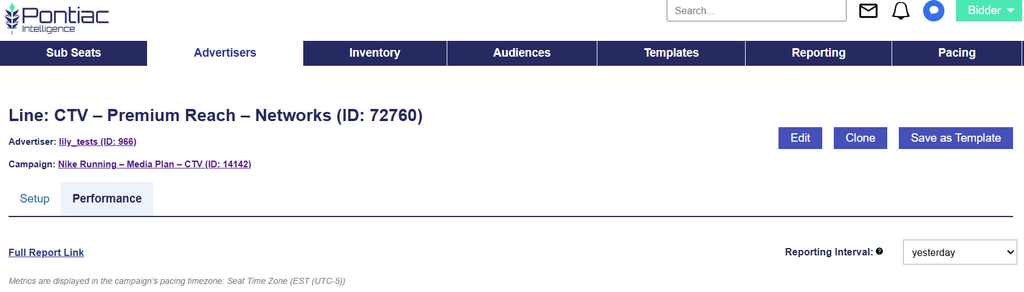
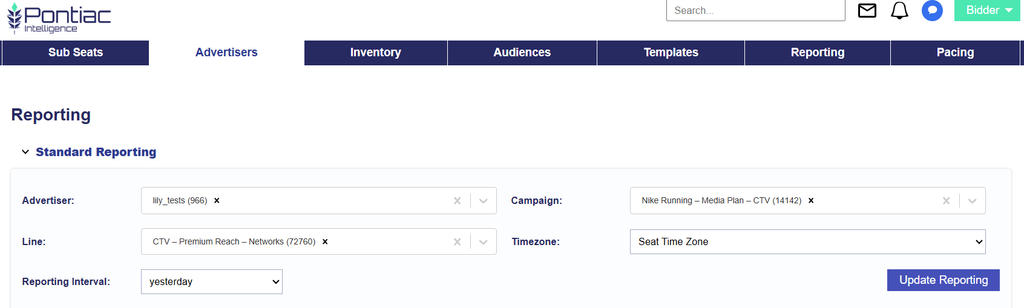
Users can also open Standard Reporting directly from the Performance tab of an Advertiser, Campaign, or Line by selecting the Full Report Link. The applicable Advertiser, Campaign, and Line fields will automatically populate in Standard Reporting.
Report Filters & Timezone
The filters at the top of Standard Reporting determine the data included throughout the report.
- Advertiser: Select the Advertiser whose performance you want to analyze.
- Campaign: Select a Campaign associated with the selected Advertiser.
- Line: Select one or more Lines associated with the selected Campaign. Leave the selection broad when you want to review Campaign-level performance across multiple Lines.
- Timezone: Select the timezone used to display reporting metrics throughout Standard Reporting. The Volume by Hour heatmap displays data in User Time Zone by default; uncheck Display in User Time Zone to display the heatmap using the selected Standard Reporting Timezone.
- Reporting Interval: Select the date range used for the report.
- Update Reporting: Apply the selected filters and refresh the Standard Reporting data.
The report displays the selected reporting timezone at the top of the page: Metrics are displayed in the selected timezone: {timezone}
Changing the reporting timezone can cause activity to appear under different dates or hours. When comparing Standard Reporting with another report or platform view, confirm that the same Reporting Interval and Timezone are being used.