Path To Conversion
There are two Path to Conversion report types available:
- IP Conversion Pixel: Path to Conversion
- Cookie: Path to Conversion
The Path to Conversion report shows the Impression activity associated with users who later completed an IP- or Cookie-based conversion. It provides the sequence from an attributed Impression through the recorded conversion, allowing users to analyze the media, Creative, inventory, and other attributes associated with conversion activity.
Key time fields include:
- Impression Time: The date and time the attributed Impression was served.
- The total number of ‘imp_times’ shows how many impressions were served to users who then converted, corresponding to the ‘Attributed Imps’ field in the IP Conversion Pixel metrics under the Advertiser.
- Conversion Time: The date and time the associated conversion was recorded.
- The total number of unique ‘conv_times’ represents the total number of conversions or visits driven by the campaign, corresponding to the ‘Total Convs’ field in the IP Conversion Pixel metrics under the Advertiser.
Multiple Impressions may be associated with the same conversion. The report can therefore be used to evaluate the sequence of Impressions that occurred before a conversion and the fractional attribution assigned to each Impression.
Lookback Window
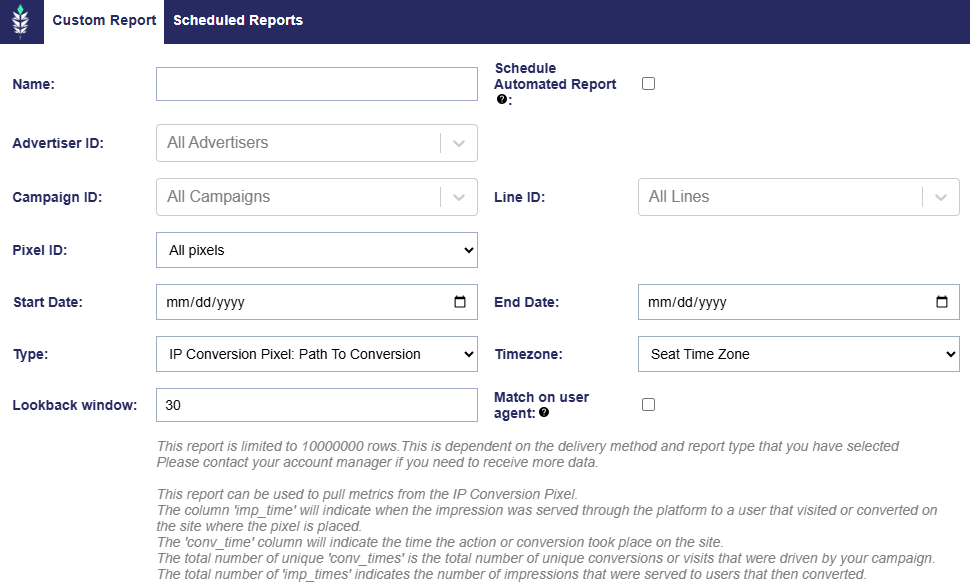
- The Lookback Window determines how far before each conversion Pontiac searches for eligible Impressions to include in the conversion path.
- By default, Path to Conversion reports use a 30-day lookback window. Enter a custom Lookback Window when needed.
- For assistance with a longer Lookback Window, contact your Account Manager or reach out through the Help Center.
Create a Path to Conversion Report
- Navigate to Reporting > Custom Reporting.
- Select New Custom Report.
- Select either:
- IP Conversion Pixel: Path to Conversion, or
- Cookie: Path to Conversion
- Select the applicable Advertisers, Campaigns, Lines, and Pixels.
- Select the Start Date and End Date.
- Configure the applicable report settings, Dimensions, and Metrics.
- Select Save.
- Once the report has processed, select Download next to the report name.
- If Scheduled Automated Reports were selected, the report will be delivered via your chosen delivery method.
- Select Run Now to generate a current report and deliver it using the configured delivery method.
Report Settings
- Name: Enter a name for the report.
- Schedule Automated Report: Enable this option to generate and deliver the report automatically on a recurring schedule. See Scheduled Reports for setup details.
- Advertiser ID: Select the Advertisers to include. By default, all Advertisers are included.
- Campaign ID: Select the Campaigns to include. By default, all Campaigns under the selected Advertisers are included.
- Line ID: Select the Lines to include. By default, all Lines under the selected Advertisers and Campaigns are included.
- Pixel ID: Select the Pixels to include. By default, all applicable Pixels are included.
- Start Date: Select the beginning of the Reporting Interval.
- End Date: Select the end of the Reporting Interval.
- Type: Select the applicable Path to Conversion report type. IP or Cookies.
- Time Zone: Select the time zone used to generate the report.
- Lookback Window: Select how far before each conversion Pontiac should look for eligible attributed Impressions.
- Match on User Agent: When enabled, conversion matching also considers the User Agent. This may be useful for OLV or Display Campaigns where the Impression and conversion are expected to occur on the same device.
- Dimensions: Select the categorical fields used to describe and group the conversion path.
- Metrics: Select the quantitative values included in the report.
Dimensions
Available Dimensions are organized into the following categories.
Date & Time
- Conversion Date: The calendar date on which the conversion was recorded.
- Conversion Time: The date and time the conversion was recorded.
- Impression Date: The calendar date on which the attributed Impression was served.
- Impression Time: The date and time the attributed Impression was served.
Advertiser, Campaign & Line
- Advertiser ID: The unique numeric Pontiac ID assigned to the Advertiser.
- Advertiser Name: The name of the Advertiser.
- Campaign ID: The unique numeric Pontiac ID assigned to the Campaign.
- Campaign Name: The name of the Campaign.
- Line ID: The unique numeric Pontiac ID assigned to the Line.
- Line Name: The name of the Line.
Creative
- Creative ID: The unique numeric Pontiac ID assigned to the Creative.
- Creative Name: The name of the Creative.
Pixel & Conversion
- Pixel ID: The unique Pontiac ID assigned to the Pixel associated with the conversion.
- Pixel Name: The name of the Pixel associated with the conversion.
- Conversion ID: The identifier associated with the recorded conversion event.
- Order ID: The order or transaction identifier passed to the Pixel. This field is populated only when an Order ID value is dynamically passed with the Pixel request.
- Order Value: The order or conversion value passed to the Pixel. This field is populated only when an Order Value is dynamically passed with the Pixel request.
- Click: Indicates whether the attributed Impression was associated with a click event.
1: A click was associated with the attributed Impression.0: No click was associated with the attributed Impression.
Inventory
- Deal Name: The name of the Deal associated with the attributed Impression.
- Exchange: The Exchange or SSP through which the inventory was purchased, such as
magniteorindexfor example. - Site Domain: The website domain associated with the inventory, when provided. This field may be blank for App inventory.
- Site Page: The webpage associated with the inventory, when provided.
- App Bundle: The App Bundle ID associated with the inventory. Values may be numeric or alphanumeric.
- App Domain: The domain associated with the App inventory, when provided, such as
samsungtvplus.com. - App ID: The App identifier provided with the inventory request.
- App Name: The App name provided with the inventory request.
- App Store URL: The URL of the App’s store listing, when available.
- Inventory Type: The inventory environment associated with the Impression, such as
app.
Location
- Region/State Code: The region or state code associated with the attributed impression, such as
ORorNY. - Zip Code: The ZIP or postal code associated with the attributed impression.
- Home or Business: The residential or business classification associated with the IP address, when available.
Device
- Browser: The browser value associated with the attributed impression, when available, such as
safari. - Device Type: The numeric device type value associated with the attributed impression. For example,
3represents Connected TV and7represents Set Top Box in the sample output. - Device Type Name: The human-readable device type associated with the numeric Device Type value, such as
connectedTvorsetTopBox. - Operating System: The operating system associated with the device on which the attributed Impression was served.
- User Agent: The User Agent associated with the device or browser, when available.
Content
- Content Channel: The content channel provided with the attributed Impression, when available.
- Content Genre: The content genre provided with the attributed Impression, when available.
- Content Network: The content network provided with the attributed Impression, when available.
- Publisher Name: The publisher name associated with the attributed Impression, when available.
- Content Series: The content series provided with the attributed Impression, when available.
- Content Title: The content title provided with the attributed Impression, when available.
Attribution & Identifiers
- Auction ID: The identifier associated with the auction.
- Auction ID (SSP): The auction identifier provided by the SSP.
- User ID: The user identifier associated with the conversion path, when available.
- Consumer ID: The Consumer ID dynamically passed to the Pixel, when provided.
The following identifier differs by report type:
- IP Conversion: Path to Conversion – IP Address Hashed: A hashed version of the IP address associated with the activity for privacy.
- Cookies: Path to Conversion – Cookie ID: The Cookie identifier associated with the conversion path.
Custom Parameters
- Custom Variable 1: The value dynamically passed to the Pixel using
var1, when provided. - Custom Variable 2: The value dynamically passed to the Pixel using
var2, when provided. - Custom Variable 3: The value dynamically passed to the Pixel using
var3, when provided. - Custom Variable 4: The value dynamically passed to the Pixel using
var4, when provided. - Other Parameters: Additional parameter values associated with the Pixel request, when available.
Pixel Query String Parameters
The following fields are populated from optional query string parameters passed when the Pixel fires:
- Order ID: The order or transaction identifier associated with the conversion, when provided.
- Order Value: The order or conversion value associated with the conversion, when provided.
- Custom Variable 1–4: Custom values associated with the conversion, when provided.
- Consumer ID: The customer identifier associated with the conversion, when provided.
These values must be dynamically populated by the website, tag manager, or other Pixel implementation and will only appear in reporting when included in the Pixel request.
See Pixel Query String Parameters for implementation details.
Metrics
Attribution & Conversions
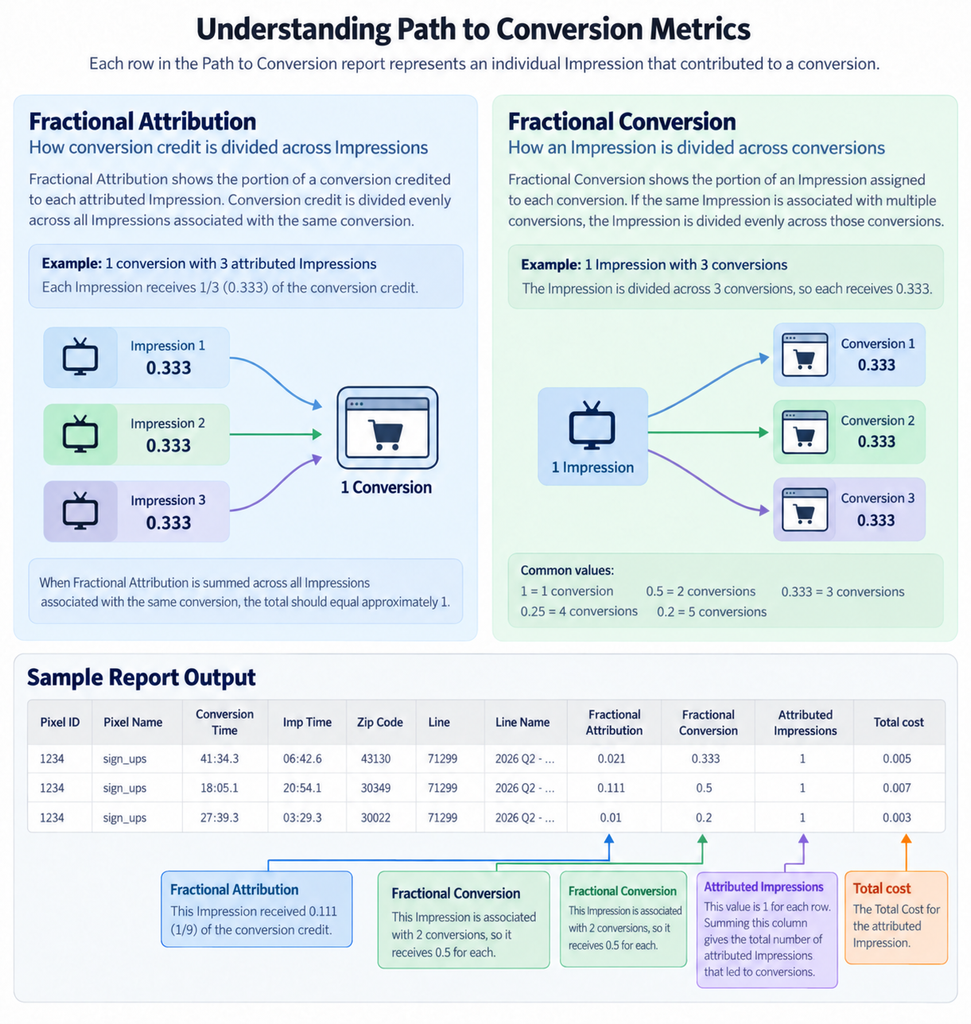
- Fractional Attribution: The portion of a conversion credited to the Attributed Impression represented by the row. Conversion credit is divided evenly across all Impressions associated with that conversion.
- For example, if a conversion has 9 attributed Impressions, each Impression receives approximately
0.111Fractional Attribution (1 ÷ 9). - A value of
0.021indicates that the Impression received approximately 1/48 of the conversion credit. - When Fractional Attribution is summed across all Impressions associated with the same conversion, the total should equal approximately
1.
- For example, if a conversion has 9 attributed Impressions, each Impression receives approximately
- Fractional Conversion: The portion of an attributed Impression assigned to the conversion represented by the row. If the same Impression is associated with multiple conversions, the Impression is divided evenly across those conversions.
1indicates that the Impression is associated with one conversion.0.5indicates that the Impression is associated with two conversions.0.333indicates approximately three conversions.0.25indicates four conversions.0.2indicates five conversions.
- Attributed Impressions: The number of attributed Impressions represented by the row. Because the Path to Conversion report is Impression-level, this value is typically 1 per row. Summing this column across the report provides the total number of Impressions attributed to conversions.
Cost
- Total Cost: The Total Cost associated with the attributed Impression represented by the row.