How to Use It
Where to Find It
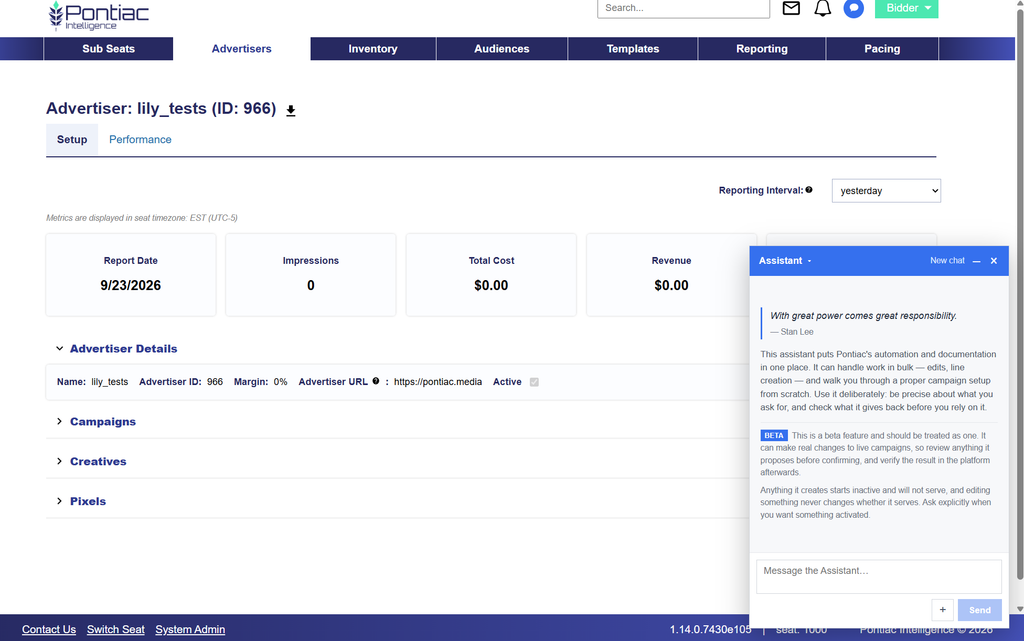
The Pontiac Assistant can be accessed directly from the main Pontiac navigation bar. Select the blue chat icon in the upper-right corner of the platform, next to the notifications bell, to open the Pontiac Assistant.

Once opened, enter a question or instruction in the chat. Prompts can be written naturally—you do not need to know API endpoints, database fields, or MCP tool names.
Managing Your Assistant Window and Chat History
- Minimize the Assistant:
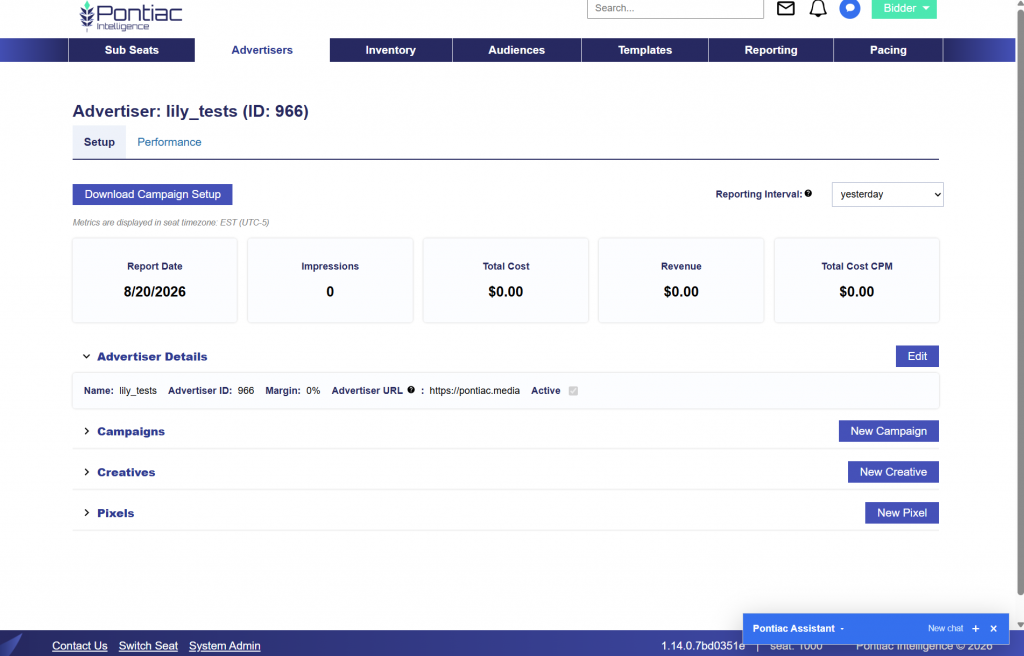
- You can minimize the Pontiac Assistant at any time while continuing to work elsewhere in the platform.
- Select the minimize icon at the top of the Assistant window to collapse the chat.
- To reopen it, select the plus icon between New chat and the X.
- Minimizing the Assistant allows you to move between the conversation and other areas of Pontiac without ending the chat.
- Close the Assistant:
- Select the X at the top of the Assistant window to close it.
- Closing the Assistant removes the chat window from your current view, but you can reopen the Assistant at any time by selecting the blue chat icon in the main navigation bar.
- Review Previous Chats:
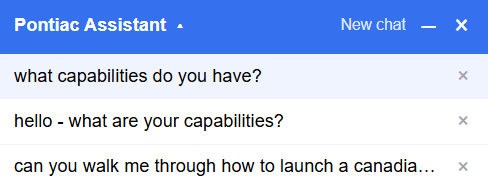
- Previously saved conversations can be reopened from the Assistant’s chat history. This allows you to review earlier questions, responses, recommendations, and completed workflows without starting over.
- Select the arrow button next to the Pontiac Assistant name to view your previous chats.
- Click each rows x to clear the chat from the history.
- Chat history is isolated by both user and seat:
- User: Your conversations are private to your Pontiac user. Other users within the same seat do not see your Assistant chat history.
- Seat: Chat history is also specific to the seat in which the conversation occurred. If you have access to multiple seats, conversations from one seat will not appear while working within another seat.
- Continuing a Previous Conversation
- Select a previous chat to reopen it and review the conversation history. You can then continue asking follow-up questions within that same conversation.
- Keep in mind that campaign settings and performance data may have changed since the conversation originally took place. When returning to an older chat, ask the Assistant to recheck the current setup or performance before relying on previously returned information.
How to Upload a Creative
Creatives can also be uploaded directly through the Pontiac Assistant, either individually or in bulk.
- Open the Pontiac Assistant.
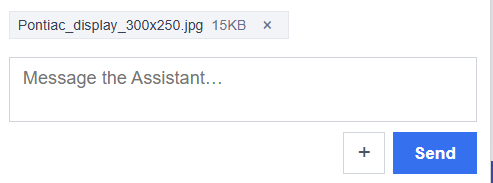
- Select the + button next to Send.
- Choose the creative file you want to upload.
- Send the file to the Assistant and follow the prompts to complete the creative upload.
The Pontiac Assistant accepts the following creative formats:
- Image
- ZIP
- Video
- Audio