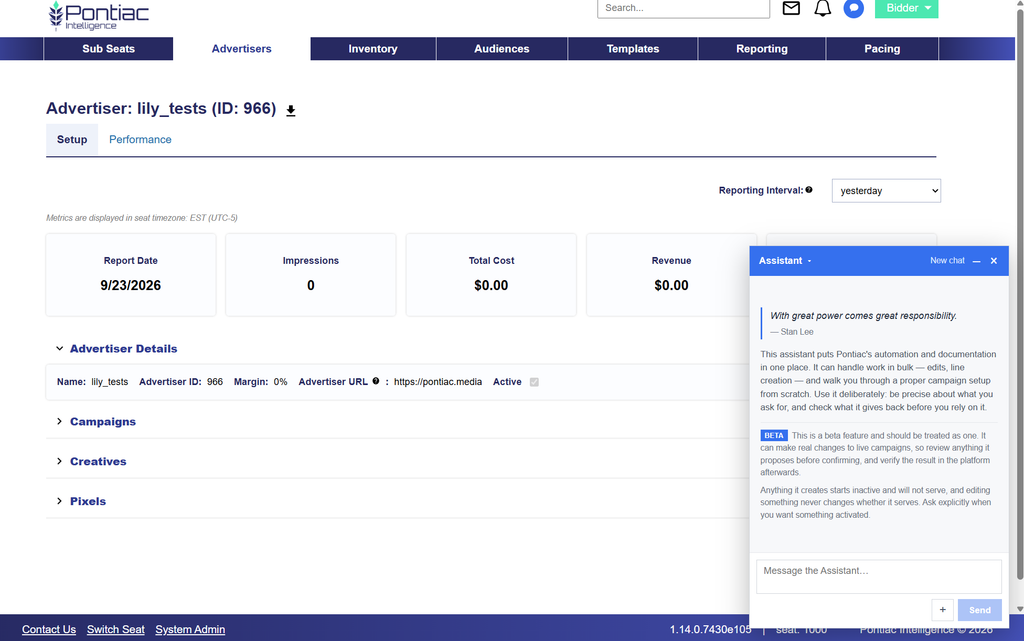
With great power comes great responsibility. – Stan Lee
The Pontiac Assistant brings Pontiac MCP capabilities directly into the Pontiac platform, allowing users to interact with the DSP using natural language without leaving the interface.
Instead of navigating through multiple screens, manually building reports, or searching for individual campaign settings, users can ask the Assistant questions or give it instructions directly within Pontiac.
The Assistant brings Pontiac’s automation, campaign management tools, reporting, and documentation together in one conversational interface. It can perform work in bulk, create and edit campaigns and lines, analyze performance, troubleshoot delivery, and guide you through campaign setup from scratch.
Use the Assistant deliberately. Be specific about what you want it to do and review the information it returns before relying on it.
Beta: The Pontiac Assistant is currently a beta feature. It can make real changes to your Pontiac account and live campaign configurations. Review proposed changes before confirming them and verify completed changes in the platform afterward.
Anything created through the Assistant is inactive by default and will not begin serving automatically. Editing an existing campaign or line also does not change its active status unless activation is explicitly requested.
How to Use It
Where to Find It
The Pontiac Assistant can be accessed directly from the main Pontiac navigation bar. Select the blue chat icon in the upper-right corner of the platform, next to the notifications bell, to open the Pontiac Assistant.
Once opened, enter a question or instruction in the chat. Prompts can be written naturally—you do not need to know API endpoints, database fields, or MCP tool names.
Managing Your Assistant Window and Chat History
Minimize the Assistant:
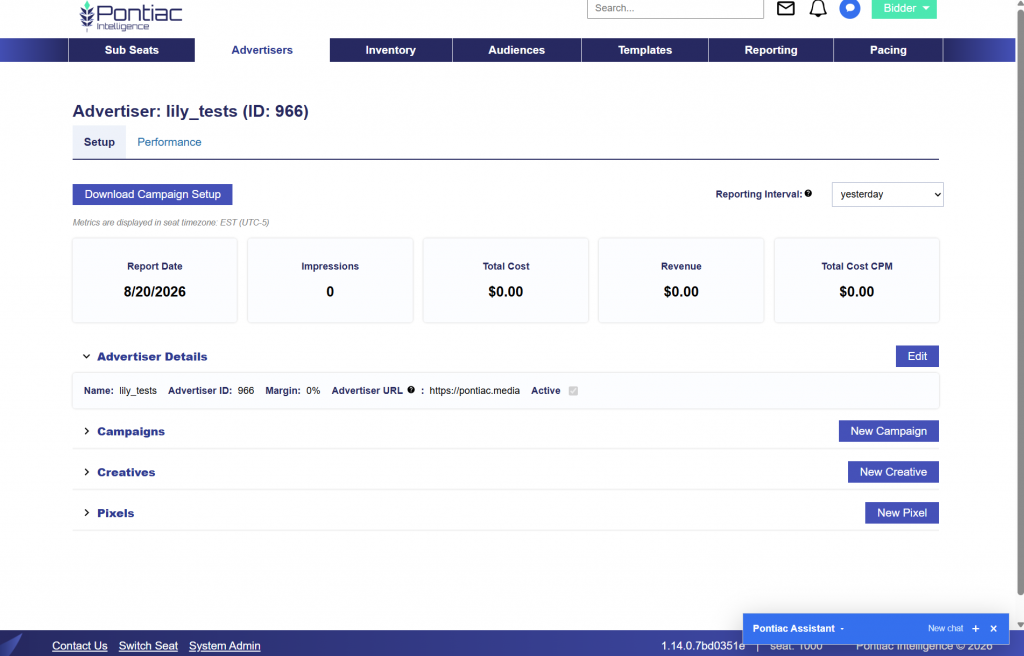
You can minimize the Pontiac Assistant at any time while continuing to work elsewhere in the platform.
Select the minimize icon at the top of the Assistant window to collapse the chat.
To reopen it, select the plus icon between New chat and the X.
Minimizing the Assistant allows you to move between the conversation and other areas of Pontiac without ending the chat.
Close the Assistant:
Select the X at the top of the Assistant window to close it.
Closing the Assistant removes the chat window from your current view, but you can reopen the Assistant at any time by selecting the blue chat icon in the main navigation bar.
Review Previous Chats:
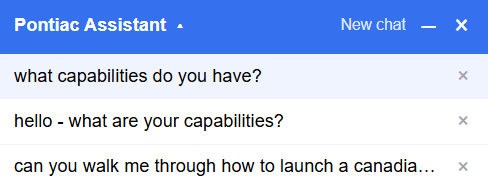
Previously saved conversations can be reopened from the Assistant’s chat history. This allows you to review earlier questions, responses, recommendations, and completed workflows without starting over.
Select the arrow button next to the Pontiac Assistant name to view your previous chats.
Click each rows x to clear the chat from the history.
Chat history is isolated by both user and seat:
User: Your conversations are private to your Pontiac user. Other users within the same seat do not see your Assistant chat history.
Seat: Chat history is also specific to the seat in which the conversation occurred. If you have access to multiple seats, conversations from one seat will not appear while working within another seat.
Continuing a Previous Conversation
Select a previous chat to reopen it and review the conversation history. You can then continue asking follow-up questions within that same conversation.
Keep in mind that campaign settings and performance data may have changed since the conversation originally took place. When returning to an older chat, ask the Assistant to recheck the current setup or performance before relying on previously returned information.
How to Upload a Creative
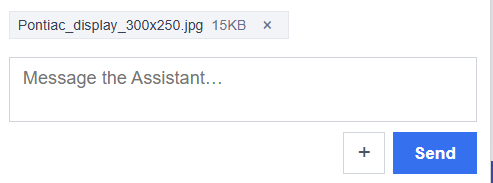
Creatives can also be uploaded directly through the Pontiac Assistant, either individually or in bulk.
Open the Pontiac Assistant.
Select the + button next to Send.
Choose the creative file you want to upload.
Send the file to the Assistant and follow the prompts to complete the creative upload.
The Pontiac Assistant accepts the following creative formats:
Image
ZIP
Video
Audio
Starting A Conversation
Now that you’ve seen how the Pontiac Assistant works, start experimenting with your own prompts.
Ask questions, explore campaign performance, review setup, troubleshoot delivery, or try supported bulk updates. The more specific you are about what you want to accomplish, the more useful the Assistant can be.
A few ideas to try:
“Show me all active campaigns.”
“Which campaigns are under pacing?”
“Summarize the setup for Campaign 14142.”
“Why is this line not spending?”
“What creatives are approved for this advertiser?”
“Show me performance by exchange for the last 7 days.”
“How does Primetime pacing work?”
“Walk me through creating a new campaign.”
You can also ask follow-up questions and build on the same conversation rather than starting over.
Start simple, review the results, and keep exploring. The Pontiac Assistant is designed to help you spend less time navigating the platform and more time getting things done.
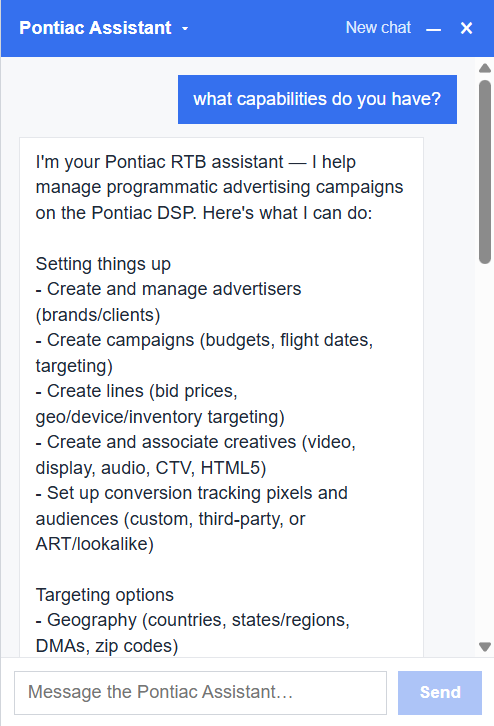
Not sure where to begin? Ask the Assistant what it can do.
Example Prompt: What capabilities do you have?
Example Output:
I’m your Pontiac RTB assistant — I help manage programmatic advertising campaigns on the Pontiac DSP. Here’s what I can do:
Cloning a proven campaign as a starting point for a new one
Other useful things
Searching across all your entities by name or ID
Reference data lookups (DMAs, regions, exchanges, IAB categories, etc.)
Templates for quick campaign/line setup
A guided step-by-step campaign builder for more complex setups
Wiki search for how-to and conceptual questions about the platform
Support ticketing if you need to reach the Pontiac team
Example Prompts
Bulk Update: Increase the bid price by $1.00 on all active lines under Campaign 14142
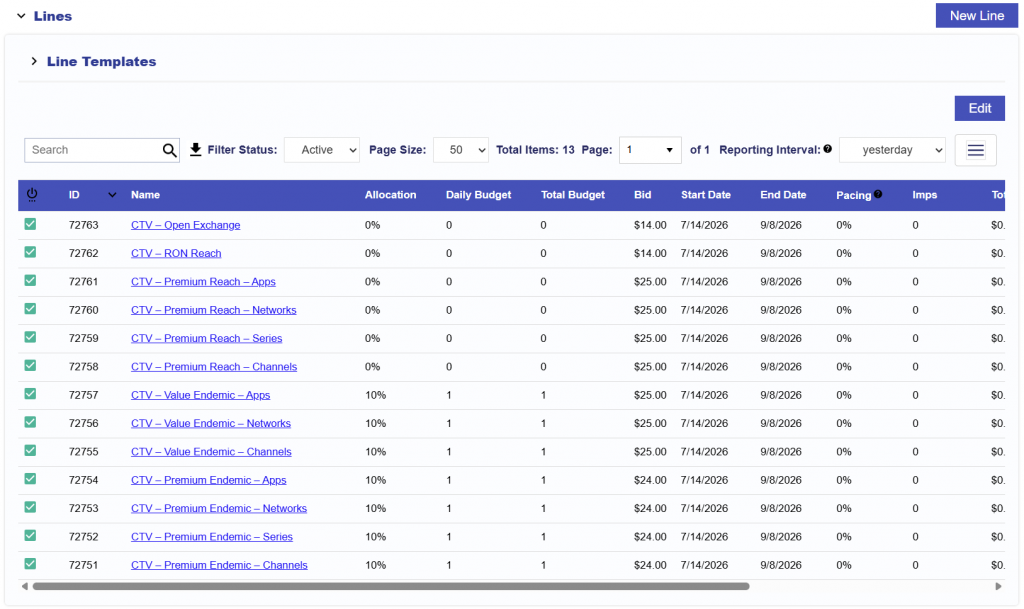
Currently, the line has the following bid prices for the following 13 lines.
Example Response:
All 13 lines under campaign 14142 are currently active.
Here’s the current state and the new $1.00 increase:
Group A — currently $24.00 → new $25.00 (4 lines)
72751 CTV – Premium Endemic – Channels
72752 CTV – Premium Endemic – Series
72753 CTV – Premium Endemic – Networks
72754 CTV – Premium Endemic – Apps
Group B — currently $25.00 → new $26.00 (7 lines)
72755 CTV – Value Endemic – Channels
72756 CTV – Value Endemic – Networks
72757 CTV – Value Endemic – Apps
72758 CTV – Premium Reach – Channels
72759 CTV – Premium Reach – Series
72760 CTV – Premium Reach – Networks
72761 CTV – Premium Reach – Apps
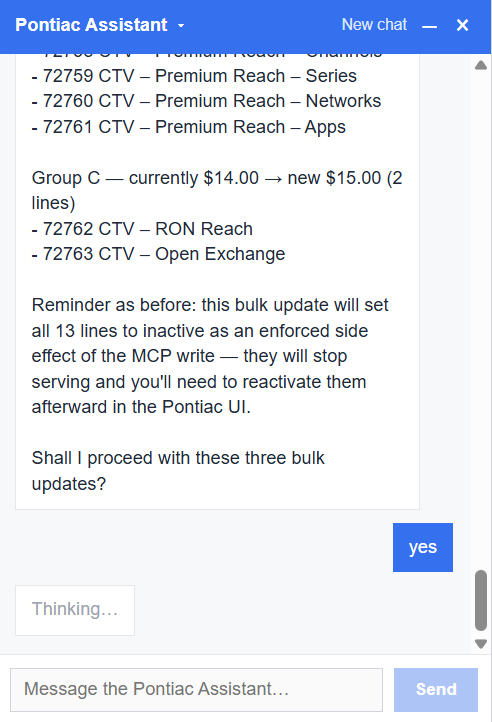
Group C — currently $14.00 → new $15.00 (2 lines)
72762 CTV – RON Reach
72763 CTV – Open Exchange
Reminder: this bulk update will set all 13 lines to inactive as an enforced side effect of the MCP write — they will stop serving and you’ll need to reactivate them afterward in the Pontiac UI.
Shall I proceed with these three bulk updates?
User Response: Yes
Example Response:
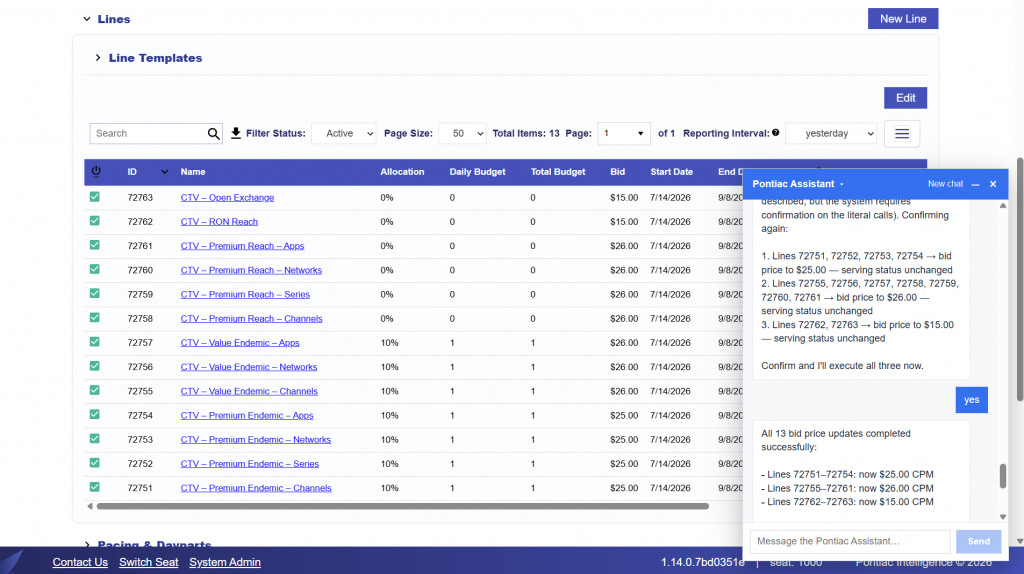
All 13 bid price updates completed successfully:
Lines 72751–72754: now $25.00 CPM
Lines 72755–72761: now $26.00 CPM
Lines 72762–72763: now $15.00 CPM
Result:
Refreshing the page, you can see that the bid prices did increase by $1.00.
Upload A Creative
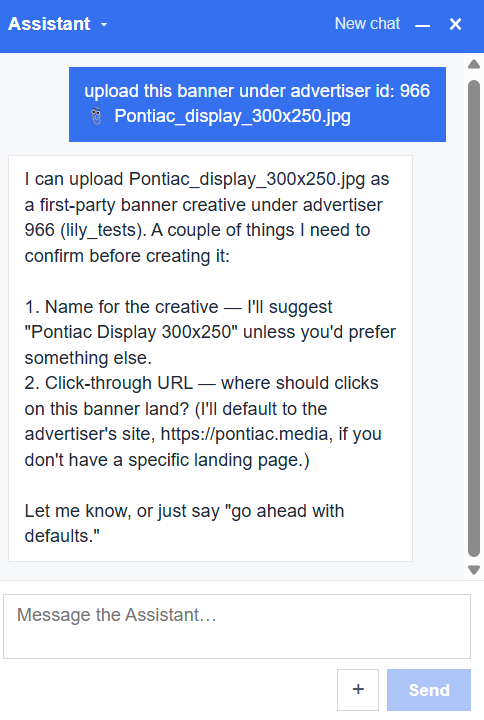
Example Prompt: Upload this banner under advertiser id: 966
Example Response:
I can upload Pontiac_display_300x250.jpg as a first-party banner creative under advertiser 966 (lily_tests). A couple of things I need to confirm before creating it:
Name for the creative — I’ll suggest “Pontiac Display 300×250” unless you’d prefer something else.
Click-through URL — where should clicks on this banner land? (I’ll default to the advertiser’s site, https://pontiac.media, if you don’t have a specific landing page.)
Let me know, or just say “go ahead with defaults.”
Proceed with the upload and refresh the page to ensure the creative uploaded successfully! The creative will automatically go through Pontiac’s auditing system and once approved, is ready to begin serving impressions.
Start Exploring
Now that you’ve seen how the Pontiac Assistant works, start experimenting with your own prompts.
Ask questions, explore campaign performance, review setup, troubleshoot delivery, or try supported bulk updates. The more specific you are about what you want to accomplish, the more useful the Assistant can be.
A few ideas to try:
“Show me all active campaigns.”
“Which campaigns are under pacing?”
“Summarize the setup for Campaign 14142.”
“Why is this line not spending?”
“What creatives are approved for this advertiser?”
“Show me performance by exchange for the last 7 days.”
“How does Primetime pacing work?”
“Walk me through creating a new campaign.”
You can also ask follow-up questions and build on the same conversation rather than starting over.
Start simple, review the results, and keep exploring. The Pontiac Assistant is designed to help you spend less time navigating the platform and more time getting things done.