Pontiac Wiki Pontiac Wiki

Pacing & Dayparts

Bidder Documentation

  • Overview
    • Hierarchy
    • Navigating the Pontiac Platform
    • How to Launch Your First Campaign
    • Terminology
    • Strategy Guide
    • Inventory & Planning
      • Deal Catalog
      • Planning Tool
      • Deal Landscape Tool
      • Inventory Availability Tool
      • Audience Research Tool
      • Audience Discovery Tool
    • Analytics Suite
    • Bid Recommendations
  • Troubleshooting
    • Troubleshooting Overview
    • Need Help? Footer Button
    • Bid Data
    • Inventory Availability
    • Blockers Graph
    • Troubleshoot Feature
    • Ask the Pontiac Assistant
    • Help Center
    • Campaign vs. Line Level Targeting
    • Creative Issues
  • ETA Guidance
  • MCP
    • Overview
    • ChatGPT Setup
    • Claude Code Setup
    • Prompts
  • Pontiac Assistant: In Platform Chatbot
    • Overview
    • How to Use It
    • Starting A Conversation
    • Example Prompts
  • Seats
    • Seats Overview
    • Seat Settings
      • Users
      • Addendums
      • Preferences
    • GDPR Compliant Seats
      • GDPR Countries
      • GDPR Query String Macros
      • GDPR Third Party Tag Handling
    • Sub Seats
  • Admin
    • Billing
    • Seat Settings
    • Help Center
    • Notifications
    • Wiki
  • Audiences
    • Audiences Overview
    • Custom Audiences
    • Contextual AI
    • ART Audiences
    • Third Party Audiences
    • Geo Fencing Audiences
    • Associate Segments
    • Audience Groups
    • Boolean Logic
  • Advertisers
    • Advertisers Overview
    • Create an Advertiser
    • Edit an Advertiser
    • Navigating the Advertiser Tab
      • Filter Advertisers
      • Advertiser Level Metrics
      • Advertiser Setup Tab
      • Advertiser Performance Tab
    • Download Campaign Setup
  • Creatives
    • Creative Overview
    • Creative Types
    • Creative Upload Process
      • Overview
      • Creative Acceptance Policy
      • New Creative Tab
      • Trackers Tab
      • Specs Tab
      • Flights Tab
      • Publisher Specs Eligibility Tab
    • Creative Specs
    • Creative Audit
      • Overview
      • Creative Brand & IAB Category
      • Sensitive Creatives
      • Political Creatives
      • Prohibited Content
    • Creative Macros
    • Edit Creatives
    • Bulk Upload
    • Creative Malicious Intent Test
    • Publisher Specs & Approval Process
  • Macros
    • Macros Overview
    • Supported Macros
  • Pixels
    • Pixels Overview
    • IP Conversion Pixels
    • Create an IP Conversion Pixel
    • Edit an IP Conversion Pixel
    • Piggyback Pixels
    • Query String Macro Parameters
    • Whitelabel Pixel Domain Setup
    • Shopify Custom Pixel Implementation
  • Targeting Methods
    • Overview
    • Campaign and Line Targeting
    • Inventory
    • Location & Device
    • Content
    • Streaming & Video
    • Advanced
    • Audience Targeting
  • Pacing & Dayparts
  • Frequency & Recency
  • Setup Guides
    • Overview
    • Display Setup
    • Audio Setup
    • CTV Setup
    • OLV Setup
    • OTT Setup
    • Native Setup
    • National US Campaign Setup
    • Canada Campaign Setup
    • Political Campaign Setup
    • Sensitive Categories Setup
    • Programmatic Guaranteed (PG) Setup
    • Index and Microsoft Curation Setup
  • Campaigns
    • Campaign Overview
    • Create a Campaign
      • Overview
      • Campaign Setup
      • Campaign Targeting
      • Campaign Audiences
      • Campaign Creatives
      • Campaign Pixels
      • Campaign Pacing & Dayparts
      • Campaign Flights
      • Campaign Frequency & Recency
    • Campaign Flights
      • Overview
      • Flights Tab
      • Enable Flights
      • Configure Flight Line Settings
      • Flight Pacing and Monitoring
      • Manage Flights
    • Mange Campaigns
      • Manage Lines from a Campaign
      • Clone a Campaign
      • Edit a Campaign
    • Campaign Templates
    • Campaign Performance Tab
      • Overview
      • Campaign Metrics
      • Bid Data
      • Bid/Imp Ratios
      • Line Performance
      • Campaign Daily Performance
      • Completion Events
  • Lines
    • Overview
    • Create a Line
      • Line Setup
      • Line Pacing & Dayparts
      • Line Frequency & Recency
      • Line Foot Traffic Reporting
      • Line Targeting
      • Line Creatives
      • Line Audiences
      • Line Pixels
    • Edit a Line
    • Clone a Line
    • Line Templates
    • Line Performance Tab
      • Overview
      • Line Metrics
      • Inventory Availability
      • Bid Data
      • Bid/Imp Ratios
      • Blockers
      • Troubleshoot Checks
      • Line Daily Performance
      • Completion Events
  • Inventory
    • Inventory Overview
    • Inventory Targeting
    • Inventory Lists
      • Inventory Lists Overview
      • Site Lists
      • App Lists
      • Deal Lists
    • Deals
    • Deal Identifiers Explained
    • Negotiated Deals
    • Import Deal
  • Templates
    • Overview
    • Campaign Templates
      • Use a Campaign Template to Create a New Campaign
      • Create a Campaign Template
      • Find and Manage Campaign Templates
      • Edit a Campaign Template
      • Clone a Campaign Template
    • Line Templates
      • Use a Line Template to Create a New Line
      • Public Line Templates
      • Create a Line Template
      • Find and Manage Line Templates
      • Edit a Line Template
      • Clone a Line Template
  • Reporting
    • Reporting Overview
      • Reporting Timezones
      • Standard Reporting vs Custom Reporting
    • Standard Reporting
      • Overview
      • Summary
      • Inventory
      • Creatives
      • Device Type
      • Network
      • Deal
      • Channel
      • App
      • Foot Traffic
      • Geo
    • Custom Reporting
      • Overview
      • Scheduled Reports
      • Custom Report
      • Path To Conversion
      • IP Conversion Pixel: Page Visits
      • IP Conversion Pixel: Conversion Rate
      • Log Level Reporting
      • Reach/Frequency Report
    • Sub Seat Reporting
    • Conversion Tracking
    • Foot Traffic Studies
  • Pacing
    • Overview
    • Campaign Pacing Tab
    • Sub Seats Pacing Tab
  1. Home
  2. Bidder Documentation
  3. Pacing & Dayparts

Pacing & Dayparts

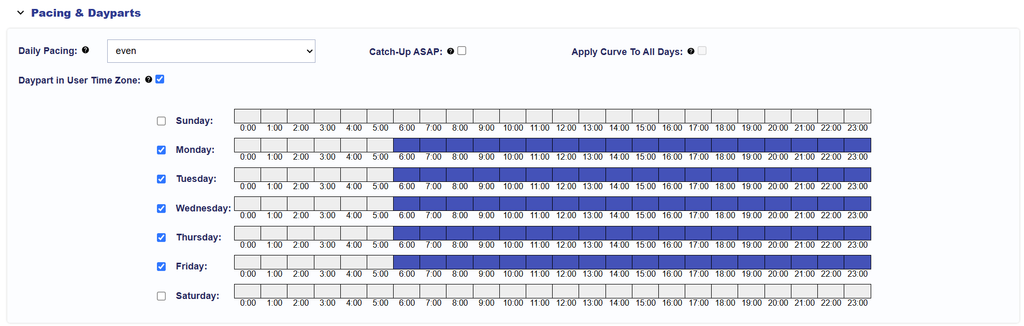
Pacing & Dayparts control how budget is distributed throughout each day and when impressions are eligible to serve.

These settings can be configured at either the Campaign or Line level:

  • When Manage Dayparts is enabled on the Campaign, the Campaign’s Pacing & Dayparts settings apply across its Lines.
  • When Manage Dayparts is not enabled, Pacing & Dayparts can be configured independently at the Line level.

Use Campaign-level settings when the same pacing strategy and schedule should apply across all Lines. Use Line-level settings when individual Lines require different pacing behavior or delivery windows.
Configure Pacing & Dayparts

  1. Open the applicable Campaign or Line in Edit mode.
  2. Navigate to the Pacing & Dayparts section.
  3. Select the applicable Daily Pacing Type.
  4. Configure the pacing curve settings, when applicable.
  5. Enable or disable Catch-up ASAP as needed.
  6. Configure the applicable Dayparts.
  7. Choose whether Dayparts should be evaluated in the User Time Zone.
  8. Review the configuration and select Submit to save.

Pacing Time Zone

The Campaign Pacing Time Zone, configured in Campaign Setup, determines the time zone used to define daily pacing boundaries and evaluate Daily Pacing weights.

Primetime and Custom pacing weighted curves are evaluated according to this time zone.

Dayparts also use the Campaign Pacing Time Zone unless Daypart in User Time Zone is enabled.

Daily Pacing Type

Daily Pacing Type controls how the available daily budget is distributed throughout each pacing day.

Available pacing types include:

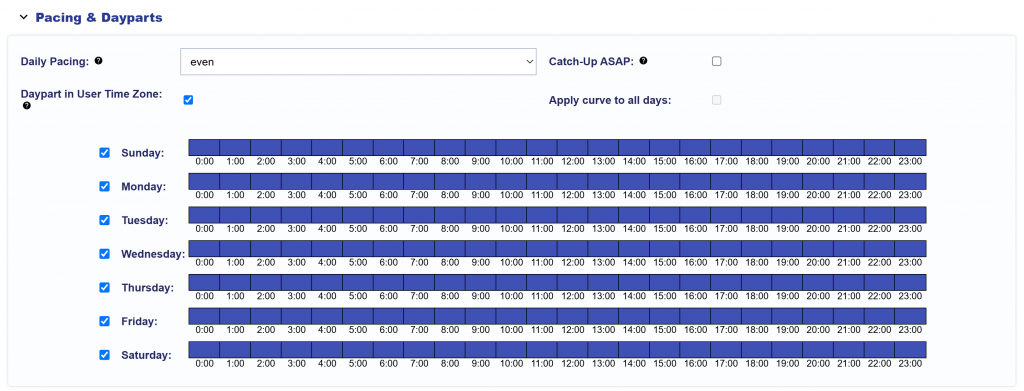
  • Even: Spends the daily and lifetime budgets as evenly as possible.
  • ASAP: Spends the daily budget as quickly as possible while pacing the lifetime budget evenly.
  • Primetime: Uses a predefined hourly weighting curve to favor higher-weighted hours in the selected Pacing Time Zone.

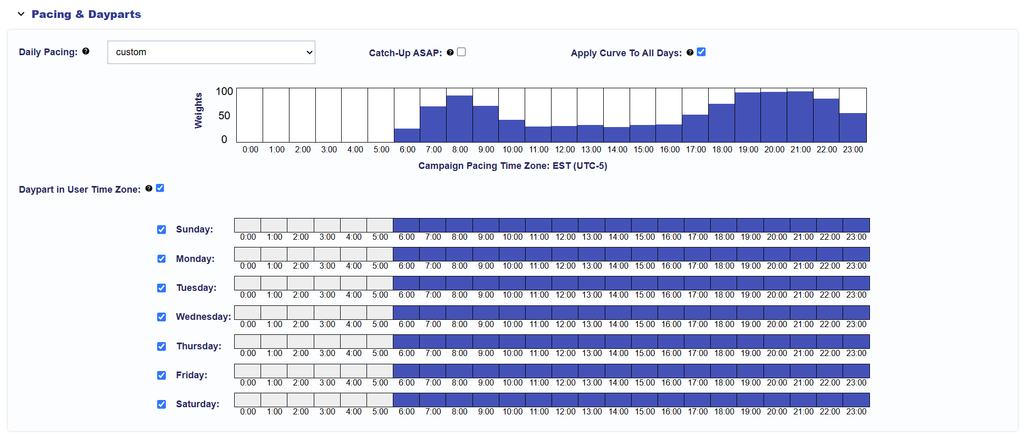
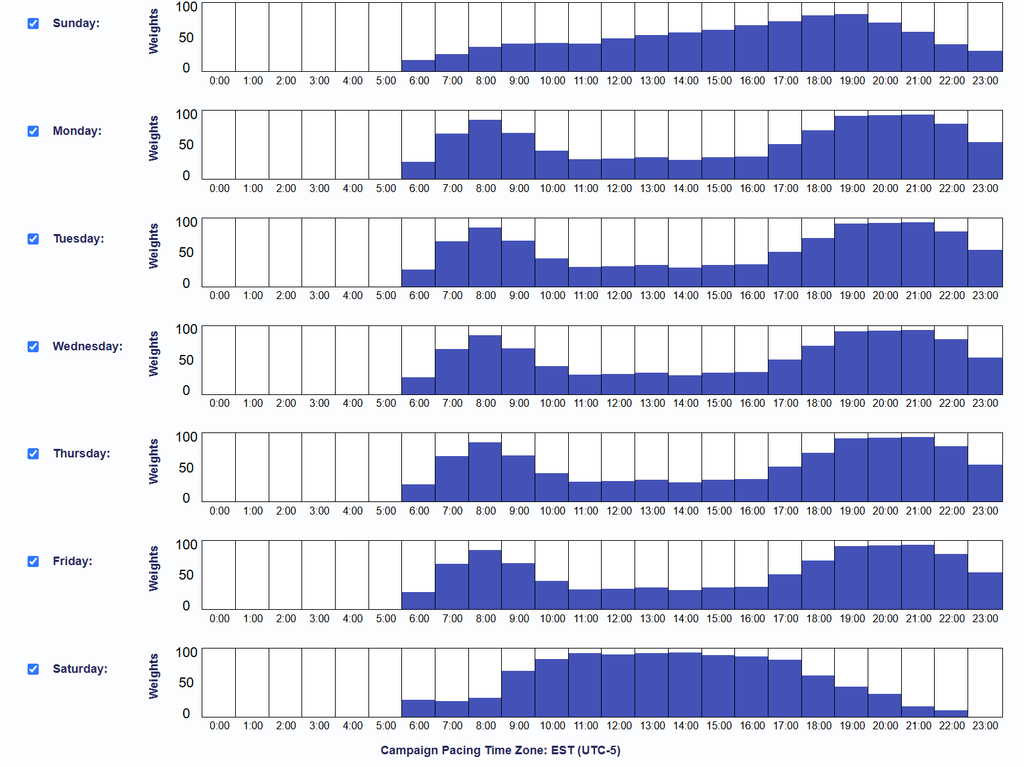
  • Custom: Uses a user-configured hourly weighting curve in the selected Pacing Time Zone. Apply the custom curve to all days or configure individual curves by day.

Apply Curve to All Days

Apply Curve to All Days is available when Custom Daily Pacing is selected and is selected by default for Primetime.

When enabled, the same hourly pacing weights are applied across all selected days. When disabled, pacing weights can be configured independently for each selected day and hour.

Custom Daily Curve Applied to All Days Example
Individual Custom Daily Curves Example
Catch-up ASAP

Catch-up ASAP allows underspent budget to spend more aggressively when delivery falls behind pace.

While Catch-up ASAP is active, it overrides the configured Daily Budget and Daily Pacing Type so delivery can increase until pacing returns to 100%.

Once pacing catches up, delivery returns to the selected Daily Pacing configuration.

Catch-up ASAP is different from selecting ASAP as the Daily Pacing Type:

  • ASAP Daily Pacing: Controls how the current day’s available budget is spent. The daily budget is spent as quickly as possible while the overall lifetime budget continues pacing toward the Campaign or Line goal.
  • Catch-up ASAP: Activates only when delivery is behind pace. It temporarily overrides the configured Daily Budget and Daily Pacing Type to help recover underspent budget, then returns to the configured pacing settings once pacing reaches 100%.

Catch-up ASAP should be used carefully when a restrictive Daily Budget Cap is configured, because the cap may limit the additional delivery needed to catch up.

Daypart in User Time Zone

Daypart in User Time Zone determines which time zone is used to evaluate Daypart eligibility.

  • When enabled, Dayparts are evaluated using each user’s local day and hour.
  • When disabled, Dayparts are evaluated using the Campaign’s selected Pacing Time Zone.

This setting affects Daypart eligibility only. It does not shift Daily Pacing or its hourly weighting curve into the user’s local time zone.

Dayparts

Dayparts determine the days and hours when impressions are eligible to serve.

Use Dayparts to restrict delivery to selected periods, such as:

  • Specific days of the week
  • Business hours
  • Evening or Primetime periods
  • Other scheduled delivery windows

An impression is eligible only when it falls within an enabled Daypart period.

US National Best Practices

For national US Campaigns using a single Pacing Time Zone, Central Time is recommended as a practical default because it provides a more balanced alignment across Eastern, Central, Mountain, and Pacific audiences.

For national campaigns using Primetime pacing, consider using a Custom pacing curve that combines the Primetime periods of the targeted US time zones.

If Central Time is used as the Pacing Time Zone, an 8 PM local Primetime peak corresponds approximately to:

  • Eastern Time: 7 PM CT
  • Central Time: 8 PM CT
  • Mountain Time: 9 PM CT
  • Pacific Time: 10 PM CT

If targeting the broader US, Alaska Time and Hawaii-Aleutian Time can also be incorporated into the Custom curve.

Rather than producing a single sharp Primetime peak, a combined curve creates a broader evening delivery window as Primetime moves across the country.

Choosing Campaign-Level vs Line-Level Pacing

Use Campaign-level Pacing & Dayparts when:

  • The same Daily Pacing Type should apply across all Lines.
  • All Lines should follow the same Daypart schedule.
  • Centralized pacing management is preferred.

Use Line-level Pacing & Dayparts when:

  • Different Lines require different Daily Pacing Types.
  • Different Lines need different Daypart schedules.
  • Individual Line strategies should be managed independently.

© 2026 Pontiac Wiki Sec · All Rights Reserved · Developed by RDK

  • Contact Us
  • Privacy Policy
  • Terms & Conditions
  • Pontiac.media