Overview
What is Pontiac MCP?
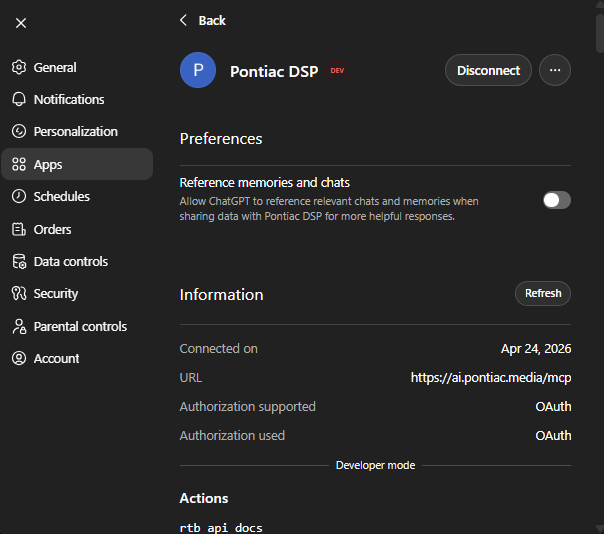
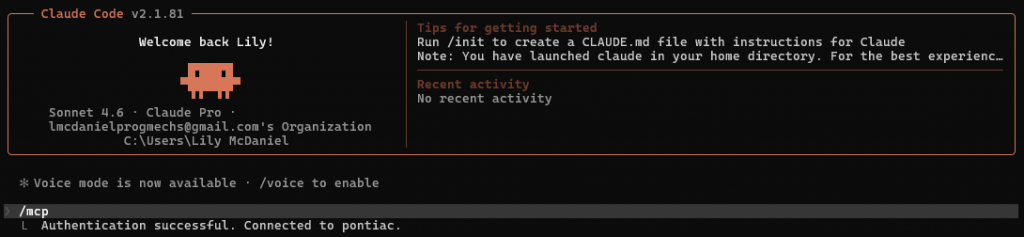
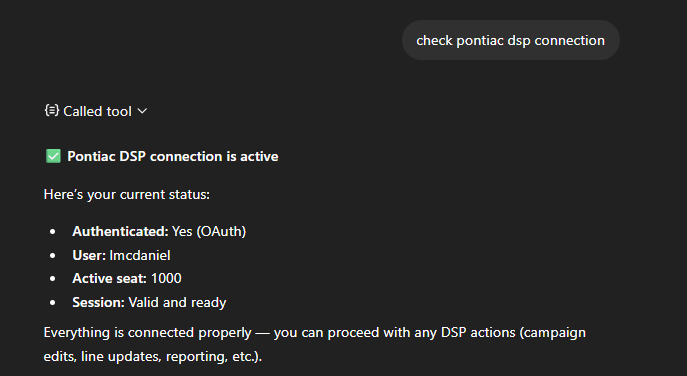
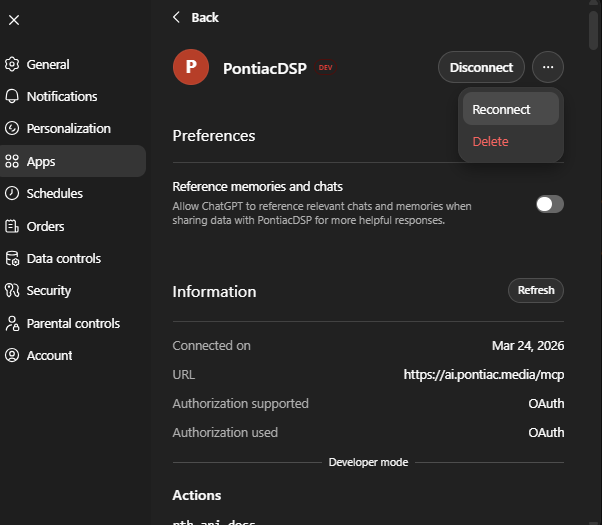
Pontiac MCP (Model Context Protocol) is a secure integration that allows ChatGPT and Claude Code to connect directly to the Pontiac DSP platform.
It enables users to:
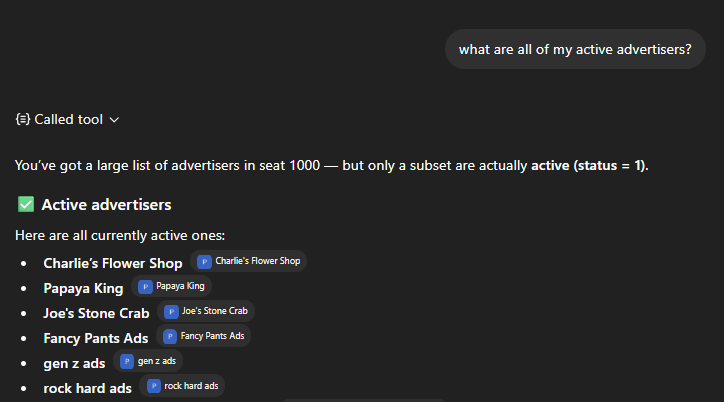
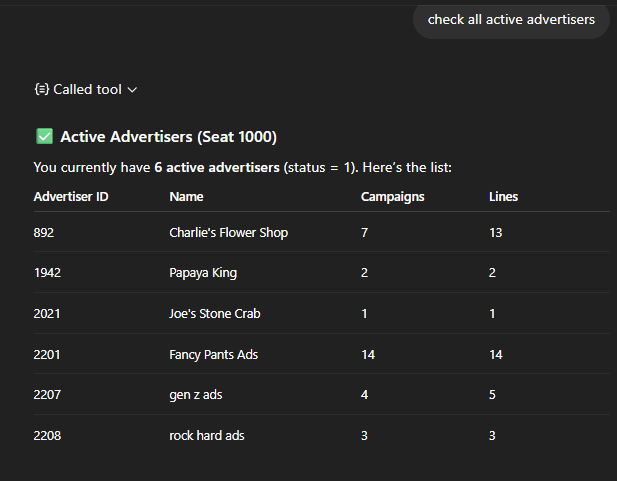
- View and manage advertisers, campaigns, and lines
- Pull performance data and pacing insights
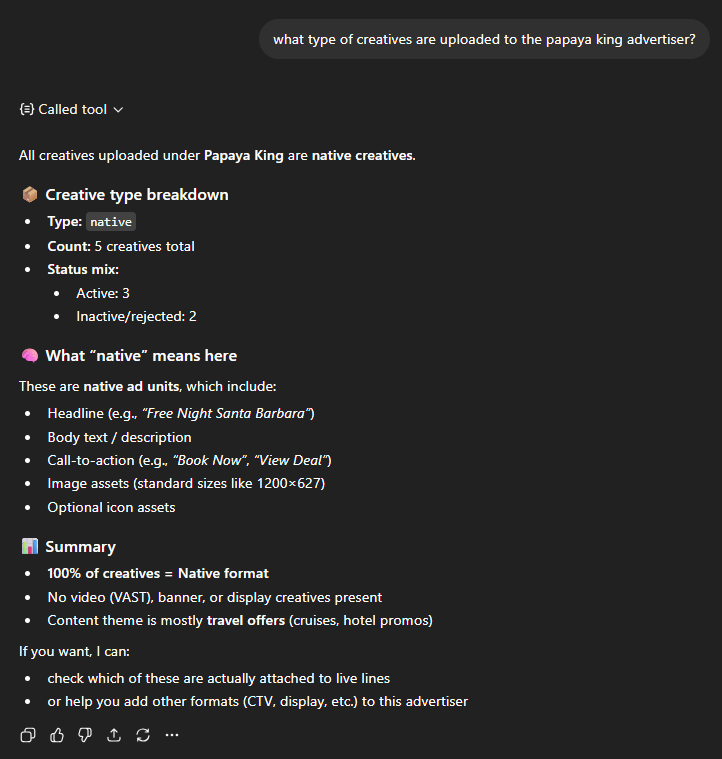
- Create and update campaigns, creatives, and targeting
- Explore inventory, deals, and audiences
In short: it lets you operate Pontiac using natural language inside ChatGPT or Claude Code instead of navigating the UI manually.
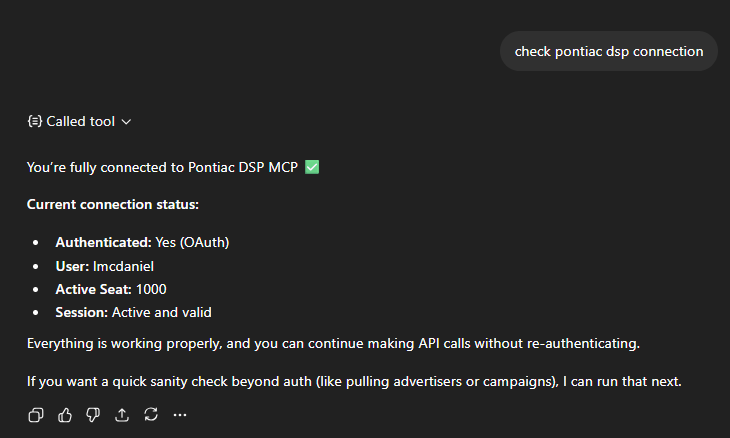
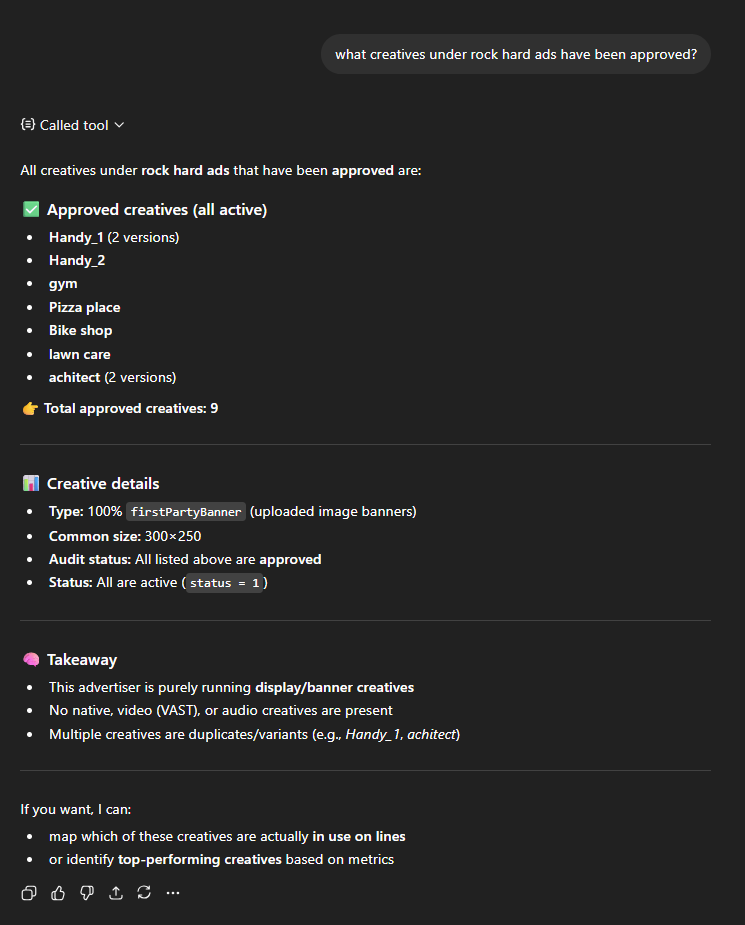
Once connected, you can ask ChatGPT things like:
- “Show me campaigns that are under pacing”
- “Create a new CTV campaign for $10K in California”
- “What’s my spend this week by campaign?”
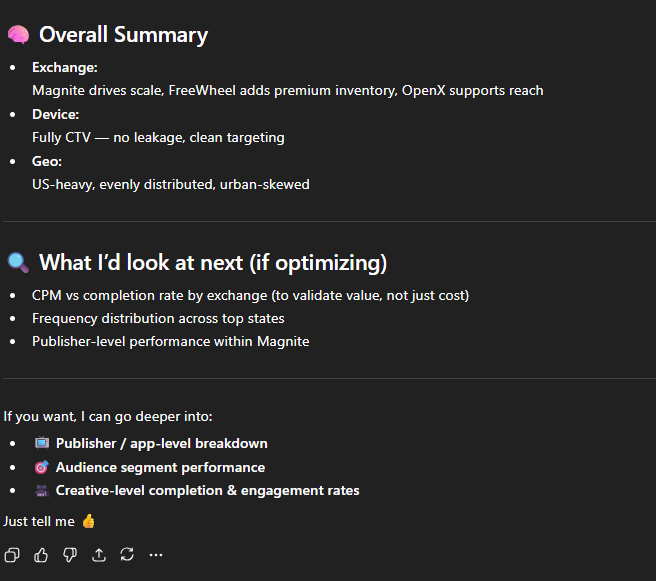
This turns ChatGPT into a hands-on campaign management assistant.
What is the MCP Best Used For?
Pontiac MCP is most powerful when used to speed up workflows, reduce manual effort, and surface insights instantly.
Campaign Management
- Quickly create, update, or duplicate campaigns without navigating multiple UI pages
- Make bulk edits or adjustments using simple prompts
Performance Monitoring
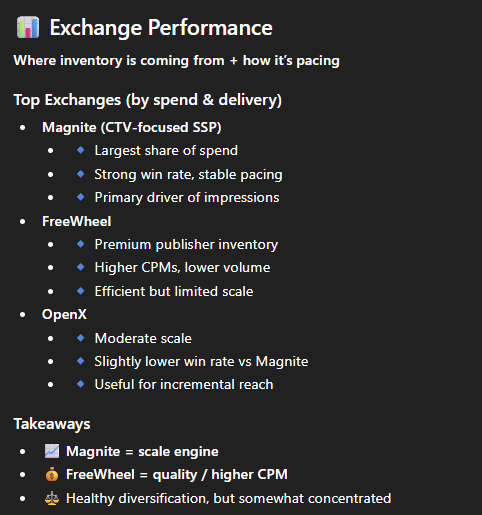
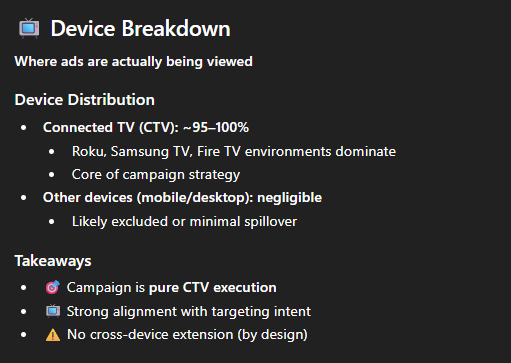
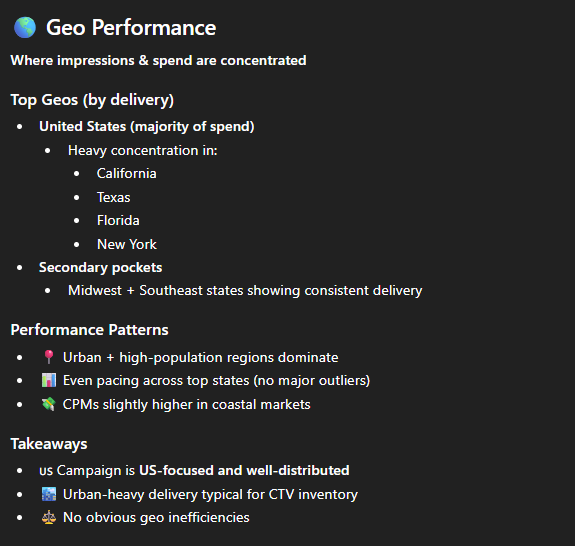
- Instantly check pacing, spend, and performance across campaigns
- Identify underperforming or overspending campaigns in seconds
Troubleshooting & Optimization
- Diagnose delivery issues (e.g., under pacing, no eligible bids)
- Quickly adjust targeting, budgets, or creatives
Data Exploration
- Pull reports and break down performance without building manually in the interface
- Ask questions and get answers in real time instead of digging through dashboards
Operational Efficiency
- Reduce time spent on repetitive tasks
- Minimize context switching between tools
- Enable faster decision-making and execution
MCP turns Pontiac into a conversational interface for campaign management, helping you move faster, work smarter, and focus on strategy instead of manual setup.