Line Templates
Line Templates allow users to save and reuse individual Line configurations for strategies that may be used across multiple Campaigns.
Use a Line Template when the same bidding, inventory, targeting, pacing, or other Line setup is expected to be reused.
Line Templates can include:
- Line setup and bidding configuration
- Targeting
- Pacing & Dayparts
- Frequency & Recency
- Foot Traffic Reporting settings, when applicable
Pontiac also provides Public Line Templates for common publisher, inventory, and media-buying strategies. For information on Pontiac-provided Templates, see Public Line Templates.
For an overview of how Campaign and Line Templates work, see the Templates documentation.
Create a Line From a Template
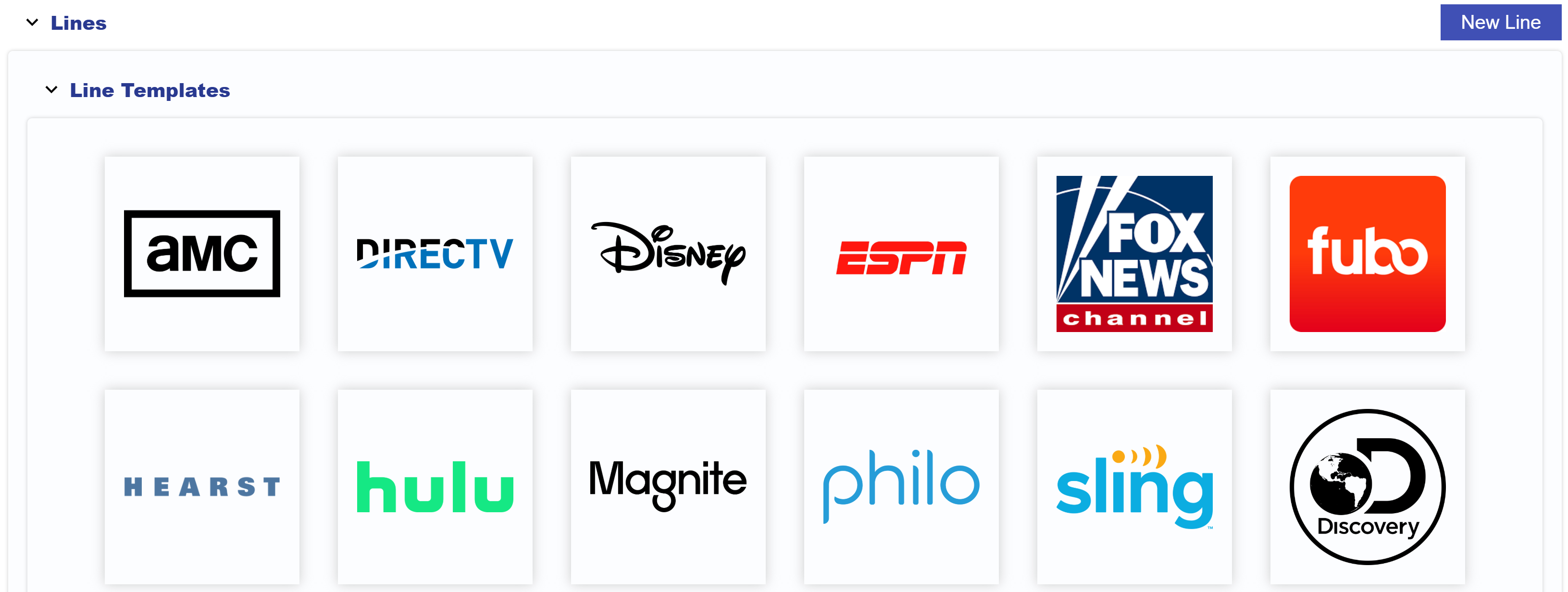
Saved Line Templates can be used when creating a new Line within a Campaign.
- Navigate to the applicable Advertiser > Campaign.
- Within the Lines section, expand Line Templates.
- Select the desired Line Template icon.
- Enter the new Line’s:
- Name
- Lifetime Impression or Spend Budget
- Budget Multiplier
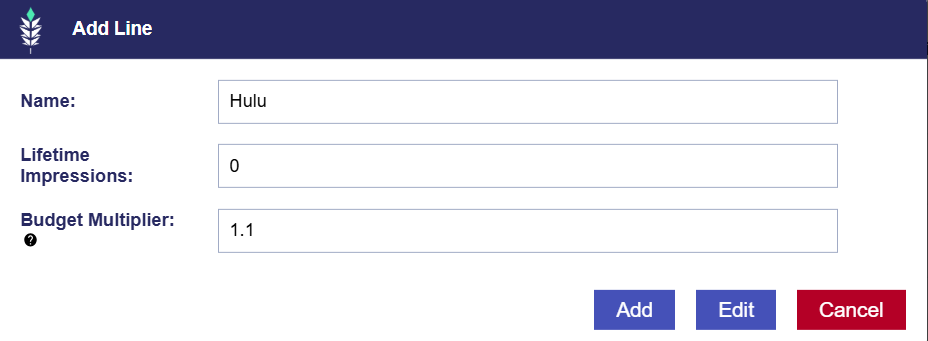
- Make any Line-specific changes needed for the new Campaign.
- Select Submit to save the Line.
Templates provide a starting configuration. Before launch, review applicable budgets, bids, Deals, targeting, pacing, Frequency & Recency settings, and other Line requirements to confirm they are appropriate for the new Campaign.
Save a Line as a Template
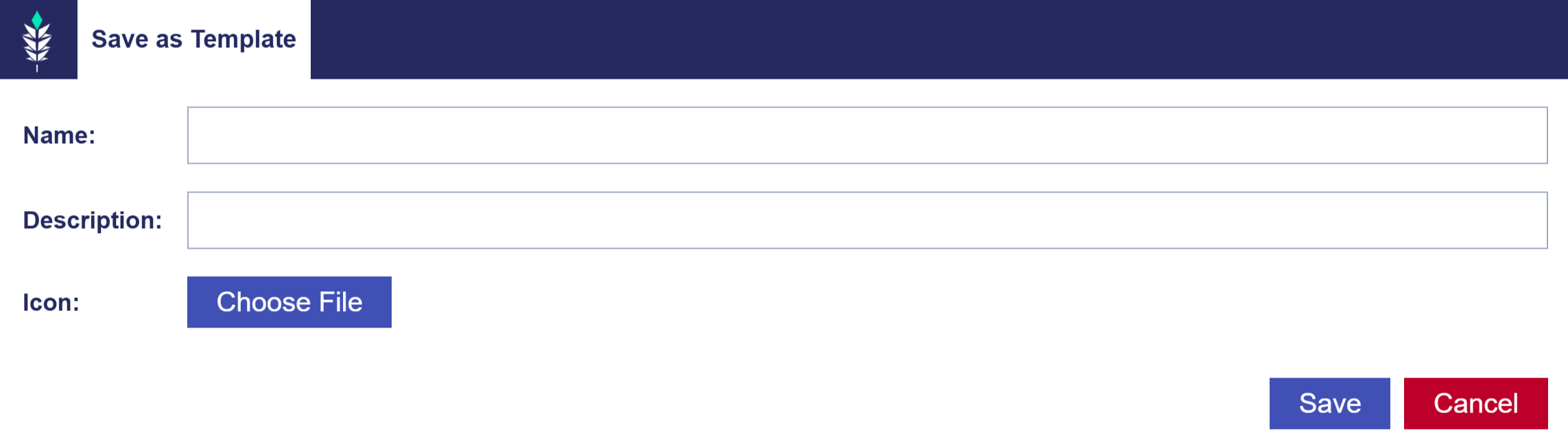
Save a Line as a Template when its configuration is expected to be reused in future Campaigns.
- Open the Line you want to use as the basis for the Template, or create and configure a new Line.
- Select Save as Template in the upper-right corner.
- Enter a Name, Description, and Icon for the Line Template. Name and Icon are required fields.
- Select Save.
The Line Template is then available for future Line creation and can be managed from the Seat-level Templates tab.
Manage Line Templates
Saved Line Templates are managed at the Seat level under Templates > Line Templates.
From the Line Template page, users can:
- View the saved Line configuration
- Edit the Template
- Clone the Template to create a new variation
Changes made to a Line Template affect Lines created from the Template in the future. They do not update Lines that were previously created from that Template.
For detailed instructions on editing, cloning, and managing saved Line Templates, see the Templates documentation.