Pontiac Wiki Pontiac Wiki

Create a Line

Create a Line

  • Line Setup
  • Line Pacing & Dayparts
  • Line Frequency & Recency
  • Line Foot Traffic Reporting
  • Line Targeting
  • Line Creatives
  • Line Audiences
  • Line Pixels
  1. Home
  2. Bidder Documentation
  3. Lines
  4. Create a Line

Line Setup

All Campaigns must have at least one active Line in order to deliver impressions.

To create a Line:

  1. Navigate to the applicable Advertiser > Campaign.
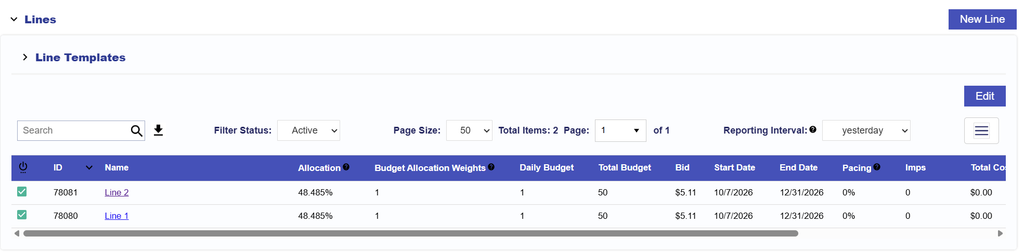
  2. Navigate to the Lines section.
  3. Select New Line.
  4. Configure the Line Setup settings.
  5. Continue through the applicable Line sections.
  6. Select Submit to create the Line.

Setup

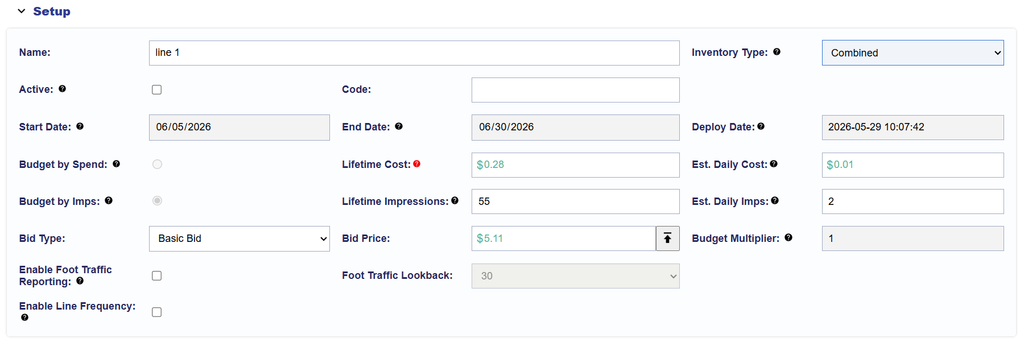
The Setup section contains the primary Line configuration.
General Settings

  • Name: Enter a name for the Line.
  • Code: Optional value used for reporting.
  • Active Status: Determines whether the Line is active.
  • Start Date: Available when budgets are not managed at the Campaign level.
  • End Date: Available when budgets are not managed at the Campaign level.
  • Deploy Date: Read-only field showing when the Line was created.

Budget Settings

  • Budget: Line budget by spend. This may be inherited from the Campaign or configured at the Line level.
  • Lifetime Cost: Total estimated Line cost based on serving dates and bids.
  • Estimated Daily Cost: Estimated daily spend if the Line budget were distributed evenly across its flight dates. This is not the actual Daily Budget.
  • Budget by Impressions: Line budget by impressions.
  • Lifetime Impressions: Estimated total impressions for the Line.
  • Estimated Daily Impressions: Estimated daily impressions if the budget were distributed evenly across the flight dates.
  • Budget Multiplier: Allows the daily budget to scale by a configured multiplier.
  • Budget Allocation: Uses weighted allocations across Lines when Manage Budgets is enabled at the Campaign level.

Bid Controls

The Bid Controls section determines how Pontiac calculates and submits bids for eligible inventory.

When setting up a Line, select the applicable Bid Type and configure the associated bid settings. Closing bids reflect the total cost of the media, including applicable Audience or Foot Traffic fees.

Available bid types include:

  • Basic Bid
    • Bid at Total eCPM
  • Bid at Floor
    • Bid at Floor Plus
  • Advanced Bid Controls

For bidding strategy guidance, see Bid Recommendations.

Basic Bid

Basic Bid applies a standard bid price across all eligible inventory for the Line.

If the final clearing price is lower than the configured bid, Pontiac adjusts the bid to one cent above the next-highest bid when possible to secure the impression efficiently.
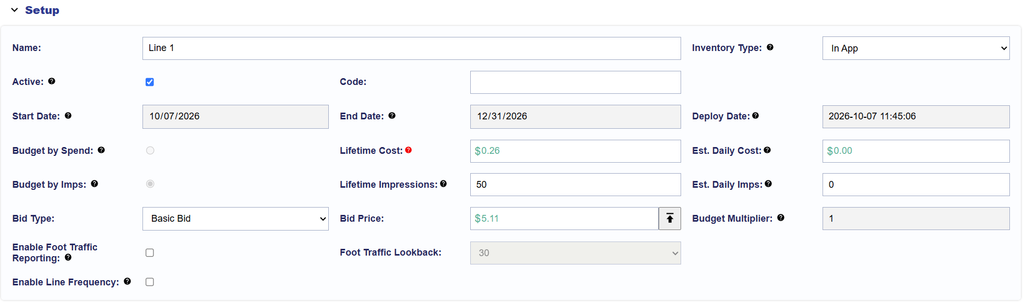
  • Bid Price: Enter the CPM amount the Line is willing to bid. Default value is $5.11.

Bid at Total eCPM

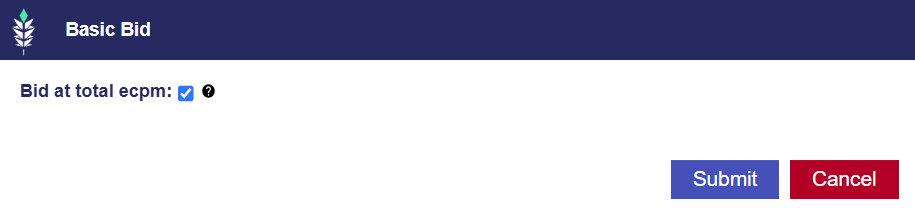
When Bid at Total eCPM is enabled, Pontiac adjusts the media bid so that the total eCPM remains within the entered Bid Price after applicable fees are included. This feature is disabled by default. If you would like it to be enabled by default, reach out through the Help Center or to your Account Manager requesting this update.

The following fees are included in the calculation:

  • Margin
  • Foot Traffic Fee
  • Chalice Fee

Ad serving fees and third-party data costs are excluded from the Bid at Total eCPM calculation.

To enable Bid at Total eCPM:

  1. Navigate to the Line Setup section.
  2. Set Bid Type to Basic Bid.
  3. Select the arrow next to the Bid Price field.
  4. Enable Bid at Total eCPM.

Bid at Floor Price

Bid at Floor Price allows Pontiac to bid based on the CPM floor provided in the bid request, up to the configured Max Bid Price. If the bid floor exceeds the configured Max Bid Price, the Line will not bid on that request.

  • Max Bid Price: Sets the maximum amount the Line can bid.
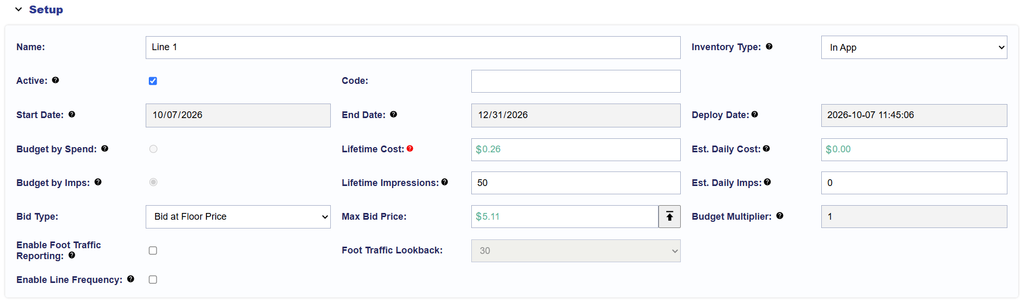
Bid at Floor Price Plus

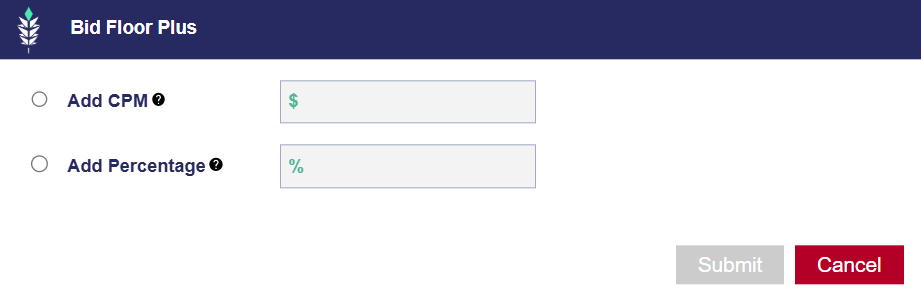
When Bid at Floor Price is selected, you can optionally increase the bid above the provided floor to improve auction competitiveness while continuing to respect the configured Max Bid Price.

Available options include:

  • Add CPM: Adds a specified CPM amount to the bid floor.
  • Add Percentage: Adds a specified percentage of the bid floor.

To configure Bid at Floor Price:

  1. Navigate to the Line Setup section.
  2. Set Bid Type to Bid at Floor Price.
  3. Enter the desired Max Bid Price.
  4. Select the arrow next to the Max Bid Price field.
  5. Enter either:
    • a static CPM amount to add to the floor, or
    • a percentage to add to the floor.

Bidding above the exact floor may improve auction competitiveness.

Example

If:

  • Max Bid Price = $15.00
  • Bid at Floor Price Plus = 10%
  • Bid Floor = $14.00

The calculated bid is:

$14.00 × 1.10 = $15.40

Because the calculated bid exceeds the configured Max Bid Price, Pontiac bids the $15.00 Max Bid Price.

Advanced Bid Controls

Advanced Bid Controls allow you to configure an overall Max Bid Price and customize bid prices for individual Deals.

Access Advanced Bid Controls by selecting Advanced Bid Controls as the Bid Type and then click the arrow next to the Max Bid Price field.
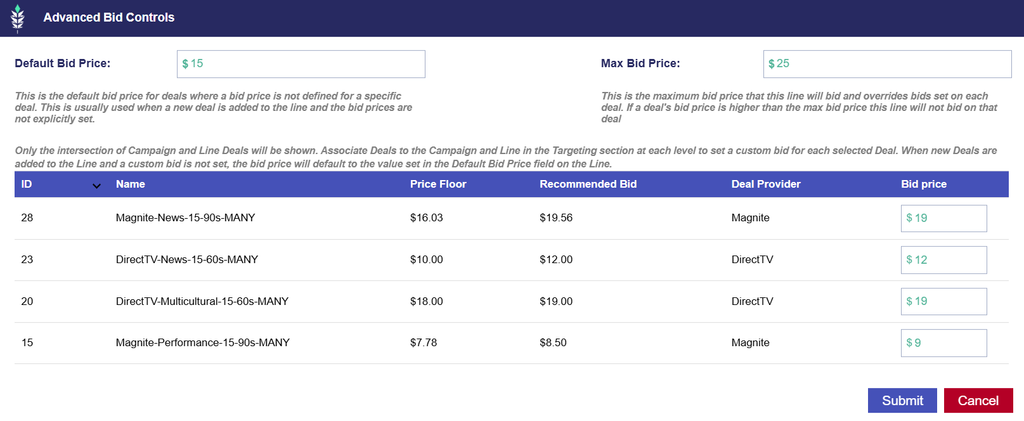
Available settings include:

  • Default Bid Price: The bid price used for targeted Deals that do not have a Deal-specific Bid Price configured.
  • Max Bid Price: The maximum amount the Line is permitted to bid.
  • Deal-Specific Bid Price: A unique Bid Price configured for an individual eligible Deal.

The Max Bid Price takes precedence over Deal-specific Bid Prices. If a Deal-specific Bid Price exceeds the Max Bid Price, the Line will not bid on that Deal.

Deal Eligibility in Advanced Bid Controls

The Deals displayed in Advanced Bid Controls depend on where Deal targeting is configured.

  • If Deals are targeted only at the Campaign level, all targeted Campaign Deals appear.
  • If Deals are targeted only at the Line level, all targeted Line Deals appear.
  • If Deals are targeted at both the Campaign and Line levels, only Deals targeted at both levels appear.

When targeting exists at both levels, the eligible Deal set is the intersection of the Campaign and Line Deal targeting.

If a new Deal is added through targeting and no Deal-specific Bid Price has been configured, the Deal initially uses the Default Bid Price.

Example Scenarios

Scenario 1: Max Bid Price is higher than all Deal Bid Prices
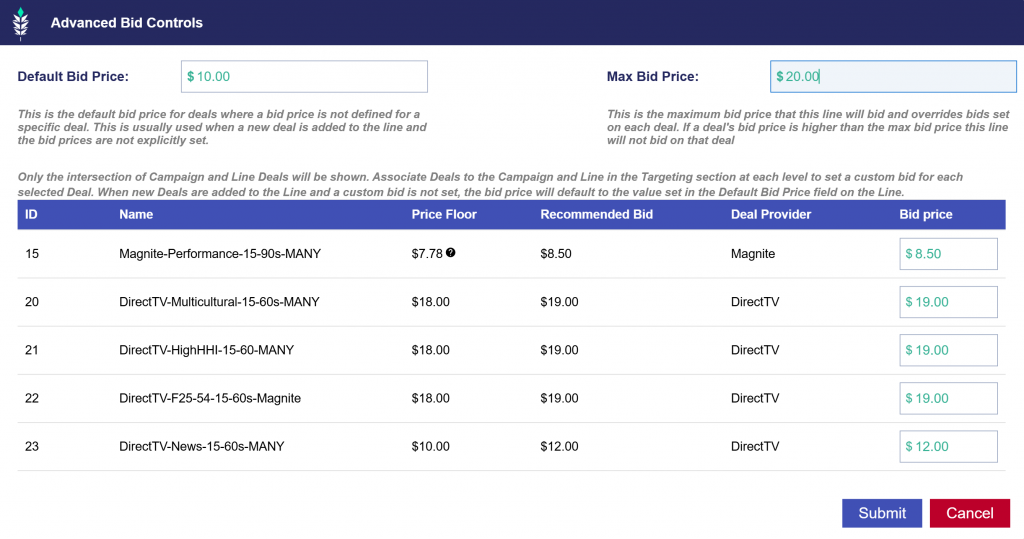
  • Default Bid Price = $10.00
  • Max Bid Price = $20.00

All targeted Deals in this example have Deal-specific Bid Prices below the $20.00 Max Bid Price. The Line is therefore eligible to bid on inventory from all displayed Deals.

If a new Deal is added through targeting and no Deal-specific Bid Price has been configured, it initially uses the $10.00 Default Bid Price. Because the Default Bid Price is below the $20.00 Max Bid Price, the new Deal is also eligible for bidding.

Scenario 2: Max Bid Price is higher than some Deal Bid Prices
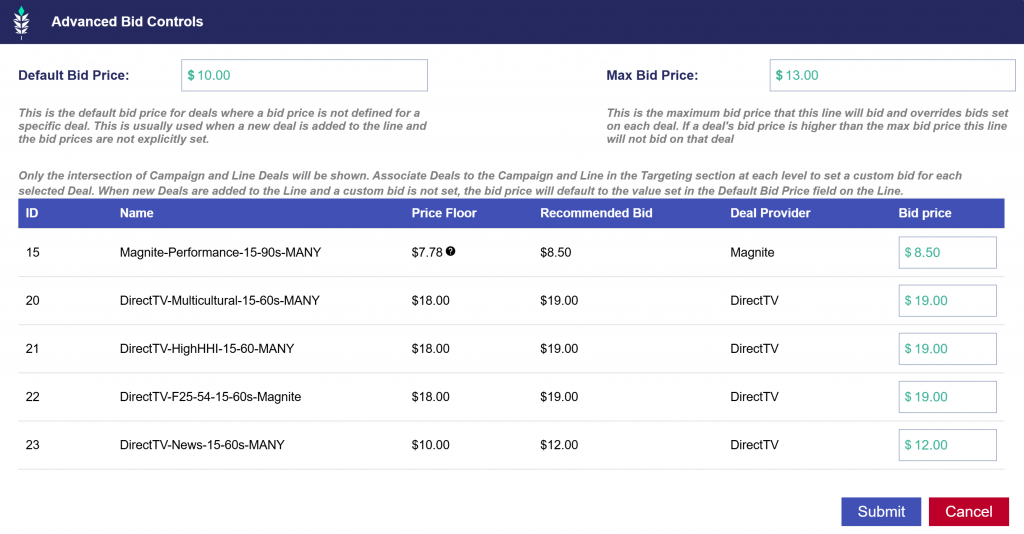
  • Default Bid Price: $10.00
  • Max Bid Price: $13.00

In this example, only Deal IDs 15 and 23 have Deal-specific Bid Prices below the configured Max Bid Price.

The Line can therefore bid on inventory through Deals 15 and 23.

The Line will not bid on Deal IDs 20, 21, and 22 because their configured Deal Bid Prices exceed the $13.00 Max Bid Price.

If a new Deal is added through targeting and does not yet have a Deal-specific Bid Price, it initially uses the $10.00 Default Bid Price. Because $10.00 is below the $13.00 Max Bid Price, the new Deal is eligible for bidding.

Deal Floor Price Tooltip

Within the Advanced Bid Controls window, hover over the question mark icon for a Deal to view observed bid floor pricing from the previous day’s sample requests.
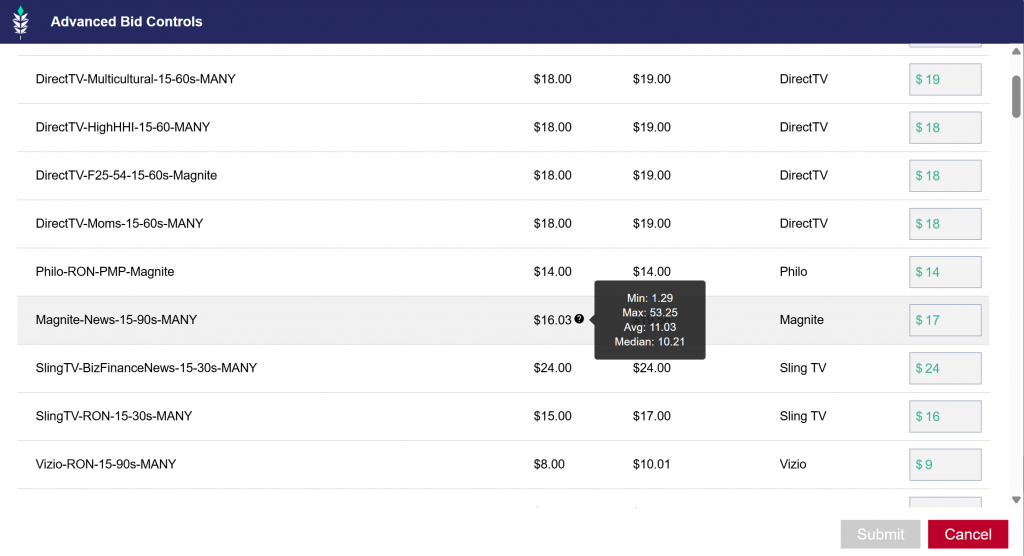
The tooltip includes:

  • Min: Lowest observed floor price
  • Max: Highest observed floor price
  • Avg: Average observed floor price
  • Median: Median observed floor priceay

These values provide visibility into the range and distribution of recently observed floor prices for the Deal and can help inform bid adjustments.

Budget Multiplier

Budget Multiplier allows the Line’s calculated daily budget to be increased by a configured multiplier.

For example, a Budget Multiplier of 1.1 allows the Line to spend up to 110% of its calculated daily budget.

The daily budget may adjust based on pacing, so actual daily spend may vary.

Foot Traffic Reporting

Enable Foot Traffic Reporting to track whether users served an ad later visited configured commercial locations.

When enabled, the Foot Traffic Reporting section becomes available.

For full setup instructions, supported location methods, attribution settings, and fees, see Foot Traffic Reporting.

Line Frequency

Enable Line Frequency to configure Frequency & Recency at the Line level.

For configuration options and Cap By definitions, see Frequency & Recency.
Line Pacing & Dayparts

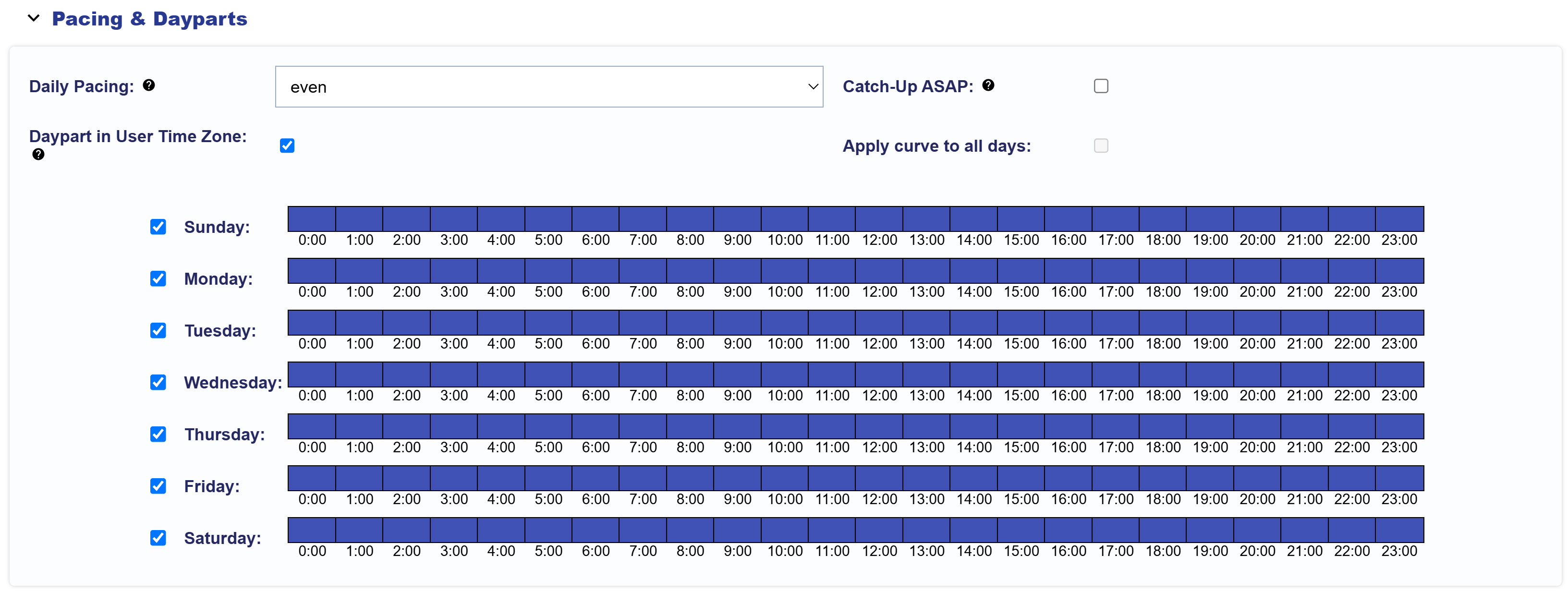
Pacing & Dayparts can be configured at the Line level when Manage Dayparts is not enabled at the Campaign level.

If Manage Dayparts is enabled at the Campaign level, the Campaign-level Pacing & Dayparts settings apply to all associated Lines and Line-level controls are not available.

To configure Pacing & Dayparts for a Line:

  1. Navigate to the applicable Line.
  2. Select Edit.
  3. Open the Pacing & Dayparts section.
  4. Configure the applicable pacing and daypart settings.
  5. Select Submit to save the changes.

Available settings include:

  • Daily Pacing Type
    • Even
    • ASAP
    • Primetime
    • Custom
  • Apply Curve to All Days
  • Catch-up ASAP
  • Daypart in User Time Zone
  • Day and hour eligibility
  • Custom pacing weights

Pacing weights and Dayparts may use the Campaign’s selected Pacing Time Zone, depending on the selected configuration.

For definitions, configuration details, timezone behavior, Catch-up ASAP logic, Primetime and Custom pacing, and US national Campaign best practices, see Pacing & Dayparts.

Line Frequency & Recency

Frequency & Recency can be configured at the Line level when Enable Line Frequency is selected in Line Setup.

To configure Frequency & Recency for a Line:

  1. Navigate to the applicable Line.
  2. Select Edit.
  3. Ensure Enable Line Frequency is selected in the Setup section.
  4. Open the Frequency & Recency section.
  5. Configure the applicable settings.
  6. Select Submit to save the changes.

Available settings include:

  • Line Frequency
  • Time Frame Days
  • Line Recency
  • Campaign Frequency and Recency, when applicable
  • Cap By

Campaign- and Line-level Frequency & Recency settings may both apply to the same Line. When configured at both levels, delivery must satisfy the applicable caps at each level.

For definitions, supported values, Cap By options, Campaign-vs-Line behavior, and configuration examples, see Frequency & Recency.

Line Foot Traffic Reporting

Foot Traffic Reporting allows you to measure whether users who were served an ad later visited specified physical locations.

Foot Traffic Reporting is configured at the Line level. When enabled, a Foot Traffic Reporting section becomes available where locations can be added and managed. Foot Traffic Reports are available in the Reporting tab.

A Foot Traffic Attribution fee may apply when this feature is enabled. The fee is configured at the Seat level and may vary by account. Contact your Account Manager or reach out through the Help Center if you have questions about the applicable fee.

Enable Foot Traffic Reporting

To begin:

  1. Navigate to the applicable Line.
  2. Select Edit.
  3. Enable Foot Traffic Reporting in the Setup section.
  4. Navigate to the Foot Traffic Reporting section.
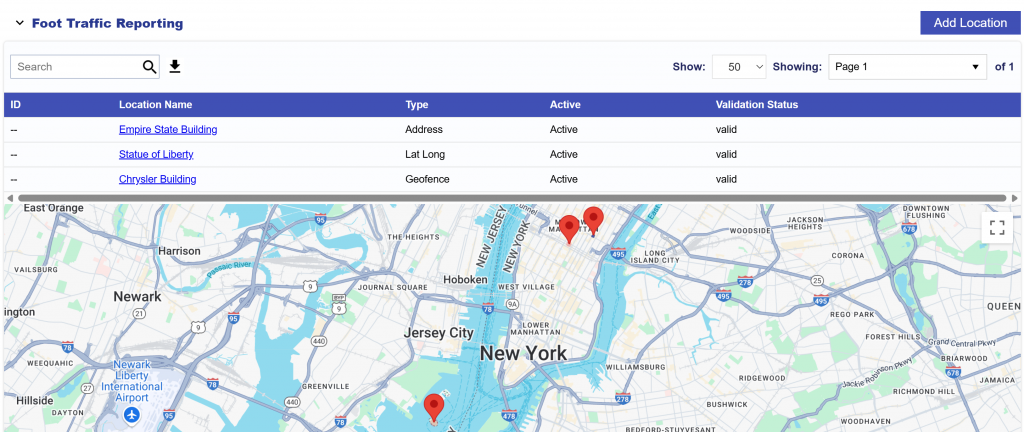
  5. Select Add Location.

Locations can be added using one of the following methods:

  • Address
  • Latitude Longitude (Lat Long)
  • Geofence
  • Bulk Upload

Choose the method that best matches the location information available.

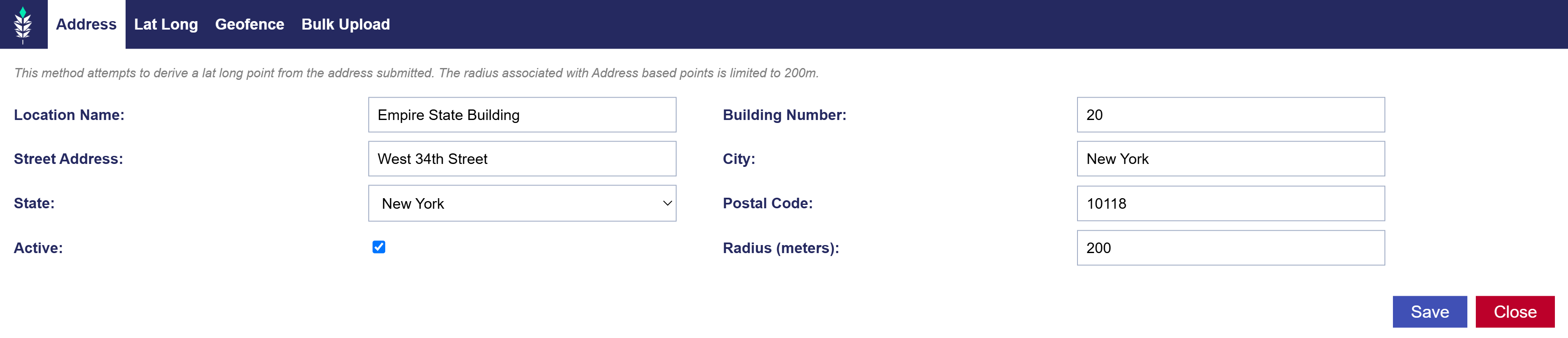
Address

Use the Address method when you have a standard street address.

Pontiac attempts to convert the submitted address into a Latitude / Longitude point. Address-based locations support a maximum radius of 200 meters.

To add a location by Address:

  1. Select Add Location.
  2. Open the Address tab.
  3. Enter the applicable location details:
    • Location Name
    • Building Number
    • Street Address
    • City
    • State
    • Postal Code
    • Active Status
    • Radius (meters)
  4. Select Save.

Use the Radius field to define the area around the location that should be considered for Foot Traffic Attribution.

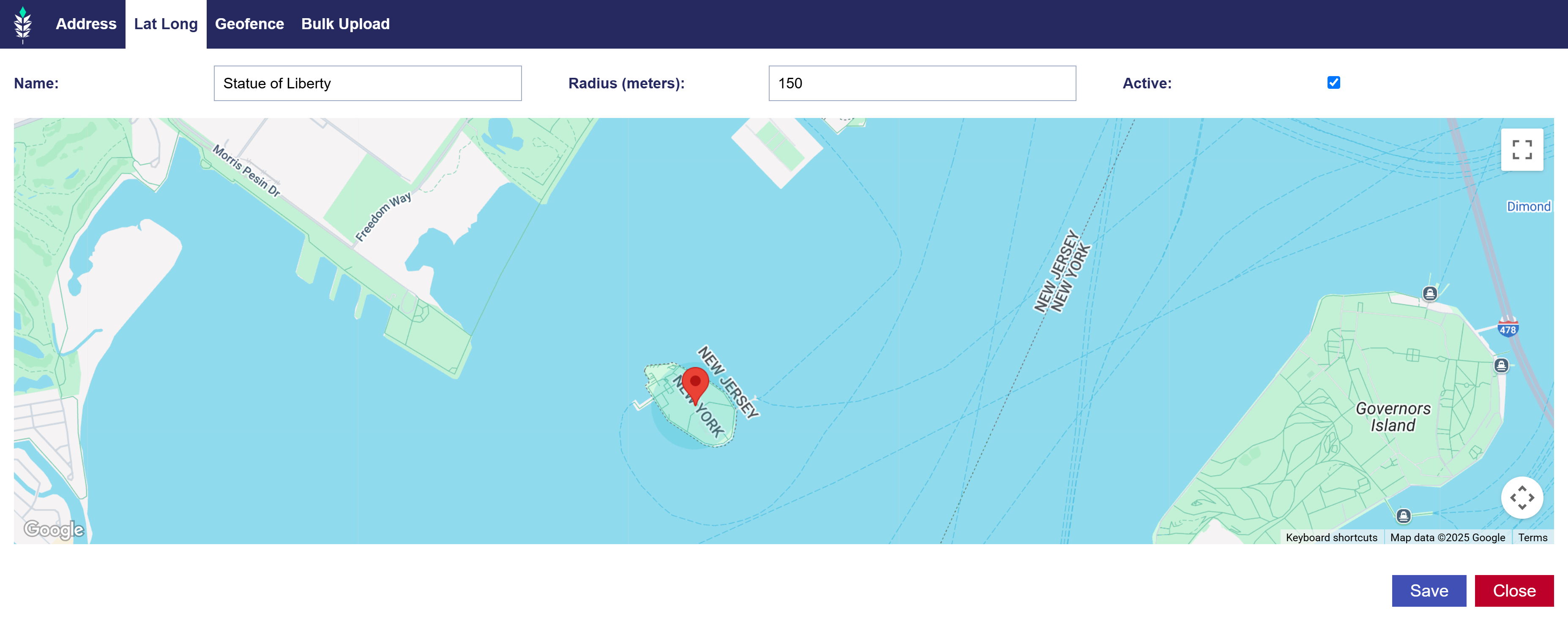
Latitude / Longitude (Lat Long)

Use the Lat Long method when you want to define the location using a specific geographic point.

To add a location using Latitude / Longitude:

  1. Select Add Location.
  2. Open the Lat Long tab.
  3. Enter a name for the location.
  4. Use the map to select the desired Latitude / Longitude point.
  5. Select Save.

This method can be useful when a standard street address does not accurately represent the location you want to measure.

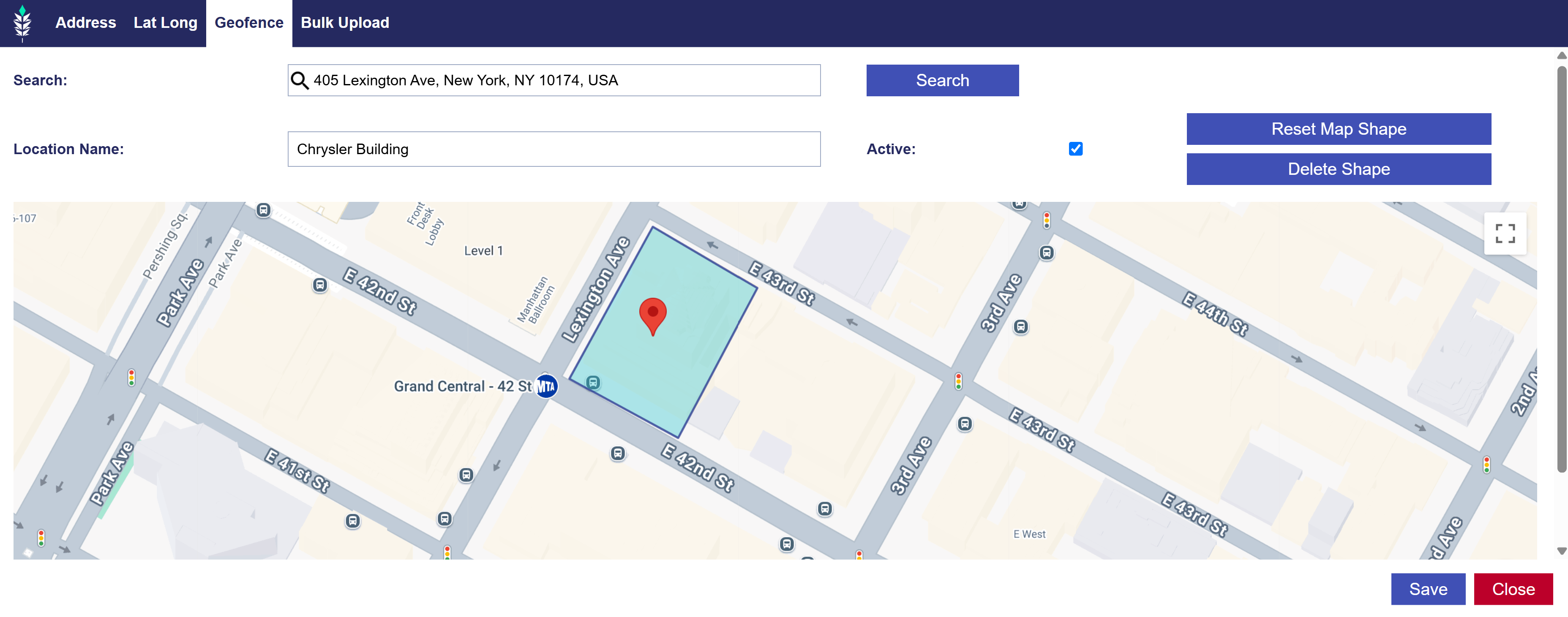
Geofence

Use the Geofence method when a custom geographic boundary is more appropriate than a single point and radius.

To add a Geofence:

  1. Select Add Location.
  2. Open the Geofence tab.
  3. Use the Search tool to locate the desired area.
  4. Enter a name for the location.
  5. Select points on the map to create the Geofence shape.
  6. Use Reset Map Shape or Delete Shape as needed to adjust the boundary.
  7. Select Save.

Use Geofences when the physical location has an irregular footprint or cannot be represented accurately by a simple radius.

Bulk Upload

Use Bulk Upload to add multiple locations at once. The Bulk Upload option supports up to 200 locations per upload.

The required format is:

  • Format: Name, Building Number, Street Address, City, State, Postal Code, Active, Radius
  • Example Line: City Grill, 10701, Balls Ford Rd, Manassas, VA, 20109, 1, 117
  • Each field must be separated by a comma. The header row is optional.

Download the example file here:

sampleDownload

To upload locations in bulk:

  1. Select Add Location.
  2. Open the Bulk Upload tab.
  3. Format up to 200 locations using the required CSV structure.
  4. Upload the CSV file.
  5. Select Save.

Managing Foot Traffic Locations

After locations are added, review the configured locations to confirm that:

  • The correct physical locations are included.
  • Each location is active when it should be eligible for attribution.
  • Address, point, radius, or Geofence boundaries accurately represent the intended location.
  • Bulk-uploaded locations were added successfully.

Update or remove locations as needed before or during Line delivery.

Foot Traffic Attribution Reporting

Foot Traffic Reporting measures visits to the configured locations for users who were exposed to ads from the Line.

For additional information on Foot Traffic Attribution reporting and results, see Foot Traffic Studies.

Line Targeting

Line-level Targeting applies targeting requirements to an individual Line. Use it to define strategy-specific criteria that should apply only to that Line. Campaign and Line Targeting are evaluated together. An impression must satisfy the applicable criteria at both levels in order to be eligible to serve.

For complete definitions, formatting requirements, Allow and Block List behavior, and configuration guidance for each targeting option, see Targeting Methods.

To configure Line Targeting:

  1. Create a new Line or open an existing Line.
  2. Select Edit.
  3. Navigate to the Targeting section.
  4. Select Edit Targeting.
  5. Configure the applicable targeting options.
  6. Select Save.
  7. Select Submit on the Line to save all changes.

Line Targeting is organized into the following sections:

  • Inventory
    • Deals
    • Deal Lists
    • Exchanges
    • Sites
    • Site Lists
    • App Bundle
    • App Name
    • App Lists
    • Curation*
  • Location & Device
    • Geo
    • Zip Codes
    • Device Types
    • Browser
    • Operating Systems
  • Content
    • Channel
    • Content ID
    • Genre
    • Network
    • Publisher
    • Series
    • Title
    • Multi Field
  • Streaming & Video
    • Livestream
    • OLV
  • Advanced
    • Custom Model
    • Privacy

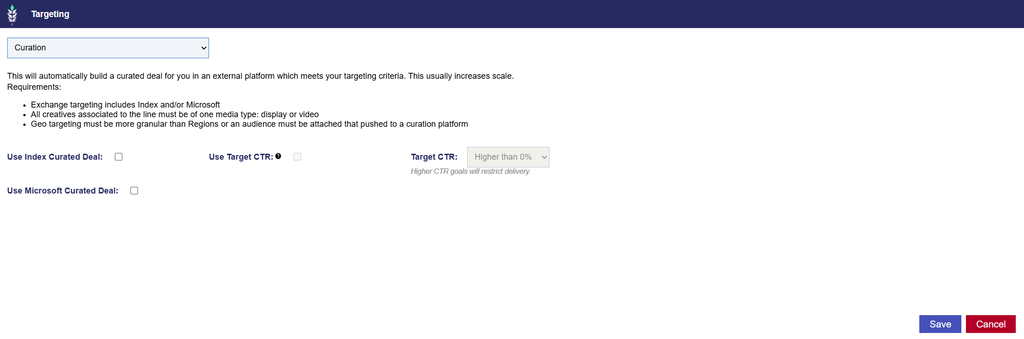
Curation

Curation is available under Inventory at the Line level only. It allows users to automatically create a curated Deal through Index or Microsoft using the Line’s targeting configuration.

When enabled, Pontiac creates a Deal in the selected partner’s marketplace that mirrors the applicable Line targeting parameters and automatically associates it with the Line. This can help increase scale by making inventory available through a curated Deal without requiring manual Deal creation.

Curation supports Display and Video Campaigns.

Available Curation Options

  • Index Curation: Enable Use Index Curated Deal to automatically create a curated Deal through Index Exchange.
    • Index Curation – Target CTR (Optional): Index Curation also provides an optional Use Target CTR feature that attempts to filter inventory based on a selected Click-Through Rate (CTR) goal.
    • When enabled, select a Target CTR threshold from the available dropdown options:
      • Higher than 0%
      • 0.01% or Higher
      • 0.02% or Higher
      • 0.05% or Higher
      • 0.075% or Higher
      • 0.1% or Higher
      • 0.15% or Higher
      • 0.2% or Higher
      • 0.5% or Higher
      • 1% or Higher
      • Important: Higher CTR goals introduce more restrictive inventory filtering and may limit delivery.
  • Microsoft Curation: Enable Use Microsoft Curated Deal to automatically create a curated Deal through Microsoft Exchange.

Both options can be enabled on the same Line and require the following:

  • Exchange targeting includes Index and/or Microsoft
  • All creatives associated to the line must be of one media type: display or video
  • Geo targeting must be more granular than Regions or an audience must be attached that pushed to a curation platform

Configuring Curation Targeting

  1. Create a new Line or open an existing Line in Edit mode.
  2. Navigate to the Targeting section.
  3. Under Inventory, select Curation from the Targeting dropdown menu.
  4. Enable Use Index Curated Deal and/or Use Microsoft Curated Deal.
  5. Confirm that the Line meets the applicable Exchange, creative, and targeting requirements.
  6. Select Save to apply the targeting configuration.

Important Considerations

  • Validation
    • If the required curation conditions are not met, the Line will fail to save and the user will be redirected to the Line setup page to correct the configuration.
  • Campaign and Line Targeting
    • Although Curation is configured at the Line level, Campaign level targeting requirements still apply.
    • Ensure that the Campaign’s inventory, geographic, Audience, and other applicable targeting restrictions do not conflict with the Line’s curated Deal configuration.
  • Inventory Availability
    • Curation can help increase scale but does not guarantee delivery. The curated Deal must receive eligible inventory that satisfies the applicable Campaign and Line targeting requirements.

See Targeting Methods for definitions, formatting requirements, configuration instructions, and best practices for shared Campaign and Line targeting options.

Line Creatives

Creatives can be managed at the Line level when different Lines within a Campaign require different Creative sets. Creatives must first be created under the Line’s Advertiser.

Use Line-level Creative management when Creatives should be associated with individual Lines rather than inherited across the Campaign. For example, a Campaign may contain separate Video, Audio, and Banner Lines. Managing Creatives at the Line level allows the applicable Creative assets to be associated only with the appropriate Line.

If Manage Creatives is enabled on the parent Campaign, Creatives are managed at the Campaign level and cannot be associated independently at the Line level. See Campaign Creatives

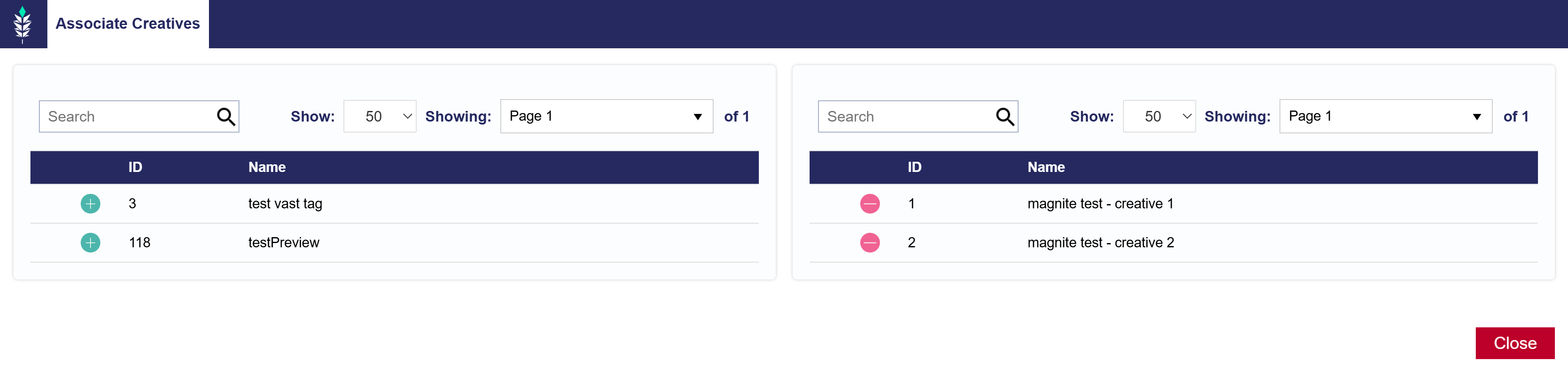
Associate a Creative to a Line

  1. Open the applicable Line and select Edit.
  2. Navigate to the Creatives section.
  3. Select Associate Creatives.
  4. Select the green plus sign (+) next to the applicable Creative or Creatives.
    • To remove an associated Creative, use the red minus sign (−).
  5. Repeat as needed to associate additional Creatives with the Line.
  6. Review the associated Creatives and close the Associate Creatives window.
  7. Select Submit to save the Line.

Repeat this process for other Lines when different Creative sets are required.

For information on creating, uploading, editing, auditing, eligibility, and general Creative management, see the Creatives documentation.

Line Audiences

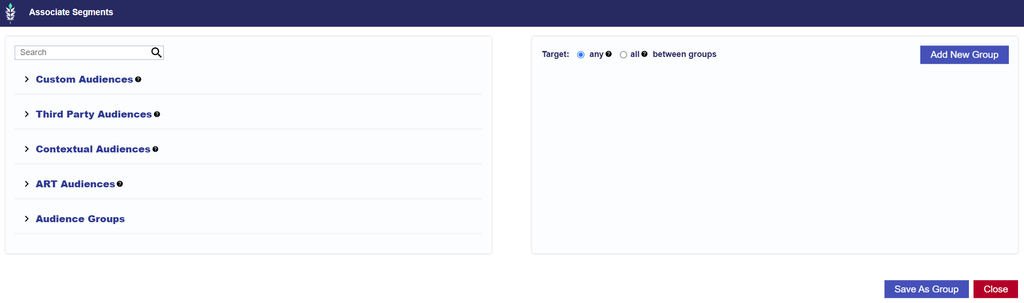
Audiences can be associated at the Line level when different Lines within a Campaign require different Audience targeting strategies.

Lines can use eligible:

  • Custom Audiences
  • Third Party Audiences
  • Contextual Audiences
  • ART Audiences
  • Audience Groups

Audiences are created and managed from the Audiences section at the Seat level. Once available, they can be associated with an individual Line for targeting or anti-targeting.

Use Line-level Audiences when different Lines require different Audience strategies. If the same Audience targeting should apply across all Lines in the Campaign, consider managing the Audience at the Campaign level instead.

Campaign and Line Audience targeting are evaluated together. If Audiences are applied at both levels, review the combined configuration to make sure it does not unintentionally restrict eligible inventory.

Important: When Audiences are applied at both the Campaign and Line levels, make sure the Audience type is compatible with any other targeting applied at either level. Audience targeting and other targeting criteria are evaluated together, so incompatible combinations can significantly restrict or prevent eligible inventory.

For example:

  • ART Audiences are ZIP-based. Layering an ART Audience with ZIP targeting, particularly a ZIP Allow List that does not align with the ART Audience, can prevent delivery.
  • Contextual Audiences target contextually relevant sites and content. Layering a Contextual Audience with a restrictive Site Allow List can limit or prevent delivery if the eligible sites do not overlap.

Review Campaign-level and Line-level targeting together before launch to confirm the targeting methods are compatible.

For instructions on associating Audience Segments, configuring Include or Exclude behavior, Audience Groups, and Boolean Logic, see Associate Segments.

For information on creating and managing Audience types, see Audiences.

Line Pixels

Pixels can be managed at the Line level when different Lines within a Campaign require different Pixel configurations.

Best Practice: When the same Pixel or Pixels apply across multiple Lines, manage them at the Campaign level. This makes the Pixel setup easier to review in the UI because all associated Pixels can be viewed and managed in one place across the Campaign’s Lines.

Reporting is not affected by whether the Pixel is associated at the Campaign or Line level; users can still select the applicable Pixels in reporting. The Campaign-level recommendation is primarily for easier setup, maintenance, and visibility.

Use Line-level Pixel management when a Pixel should apply only to a specific Line or when different Lines require different Pixel configurations.

Pixels must first be created under the Line’s Advertiser. Pixels cannot be created or edited directly from the Line.

If Manage Pixels is enabled on the parent Campaign, Pixels are managed at the Campaign level and cannot be associated independently at the Line level. See Campaign Pixels for Campaign-level setup.

Associate Pixels to a Line

  1. Open the applicable Line and select Edit.
  2. Navigate to the Pixels section.
  3. Select Associate Pixel.
  4. Select the green plus sign (+) next to the applicable Pixel or Pixels.
    • To remove an associated Pixel, use the red minus sign (−).
  5. Review the associated Pixels and close the Associate Pixel window.
  6. Select Submit to save the Line.

For information on creating, editing, and managing Pixels, see the Pixels documentation.

For Campaign-level Pixel management, see Campaign Pixels.

© 2026 Pontiac Wiki Sec · All Rights Reserved · Developed by RDK

  • Contact Us
  • Privacy Policy
  • Terms & Conditions
  • Pontiac.media