Pontiac Wiki Pontiac Wiki

Inventory Lists

Inventory Lists

  • Inventory Lists Overview
  • Site Lists
  • App Lists
  • Deal Lists
  1. Home
  2. Bidder Documentation
  3. Inventory
  4. Inventory Lists

Inventory Lists Overview

Inventory Lists allow users to group commonly used Site Domains, App Bundles, or Deals into reusable lists that can be applied across multiple Advertiser Campaigns and Lines.

Inventory Lists include:

  • Site Lists: Groups of website domains used for Web inventory targeting.
  • App Lists: Groups of App Bundles used for In App inventory targeting.
  • Deal Lists: Groups of Deals that can be reused across Campaigns and Lines.

Site and App List Targeting

Site and App Lists should be used based on the selected Inventory Type:

  • Web: Use Site Lists to allow or block website domains.
  • In App: Use App Lists to allow or block App Bundles.
  • Combined: Eligible for both Web and In App inventory, so Site and App targeting should be configured carefully based on the intended strategy.

Do not apply both a Site Allow List and an App Allow List to the same Campaign or Line. When both Allow Lists are applied, a bid request must satisfy both targeting criteria to be eligible. Since Web requests typically pass a Site Domain and In App requests typically pass an App Bundle, requiring both will generally prevent delivery.

If the intended strategy is to allow specific Sites for Web inventory and specific Apps for In App inventory, separate the strategy into different Lines:

  • Web Line: Select Web as the Inventory Type and apply the Site Allow List.
  • In App Line: Select In App as the Inventory Type and apply the App Allow List.

If needed, clone the existing Line and separate the Site and App targeting between the two Lines. This allows each inventory type to be evaluated against the appropriate Allow List.

Block Lists can still be used where appropriate to exclude unwanted Sites or Apps.
Site Lists

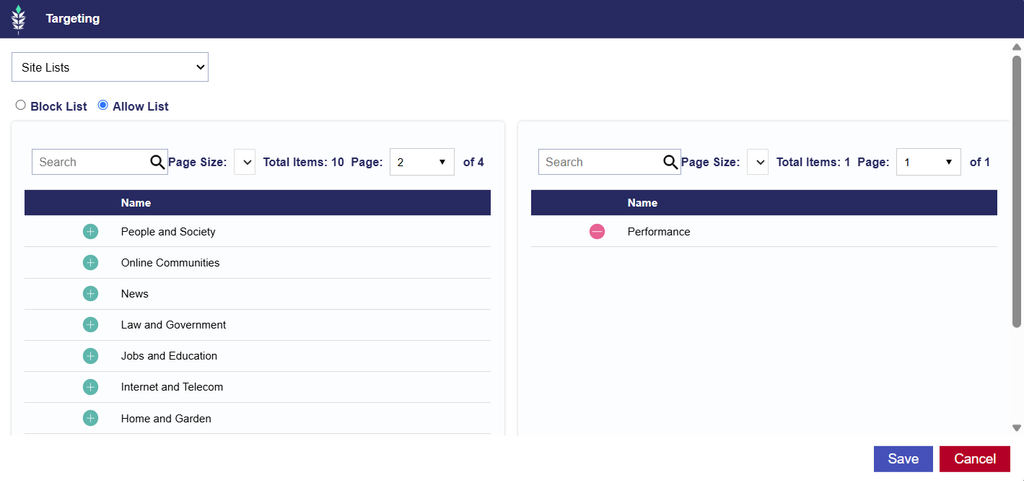
Site Lists are used to group website domains for targeting across Campaigns and Lines. They are intended for Web inventory and can be applied as either an Allow List or Block List.

If no Site List is applied, domain targeting remains open by default, subject to any other Campaign or Line targeting settings.

Create Custom Site Lists:

  1. Navigate to the Inventory tab.
  2. Select New Site List.
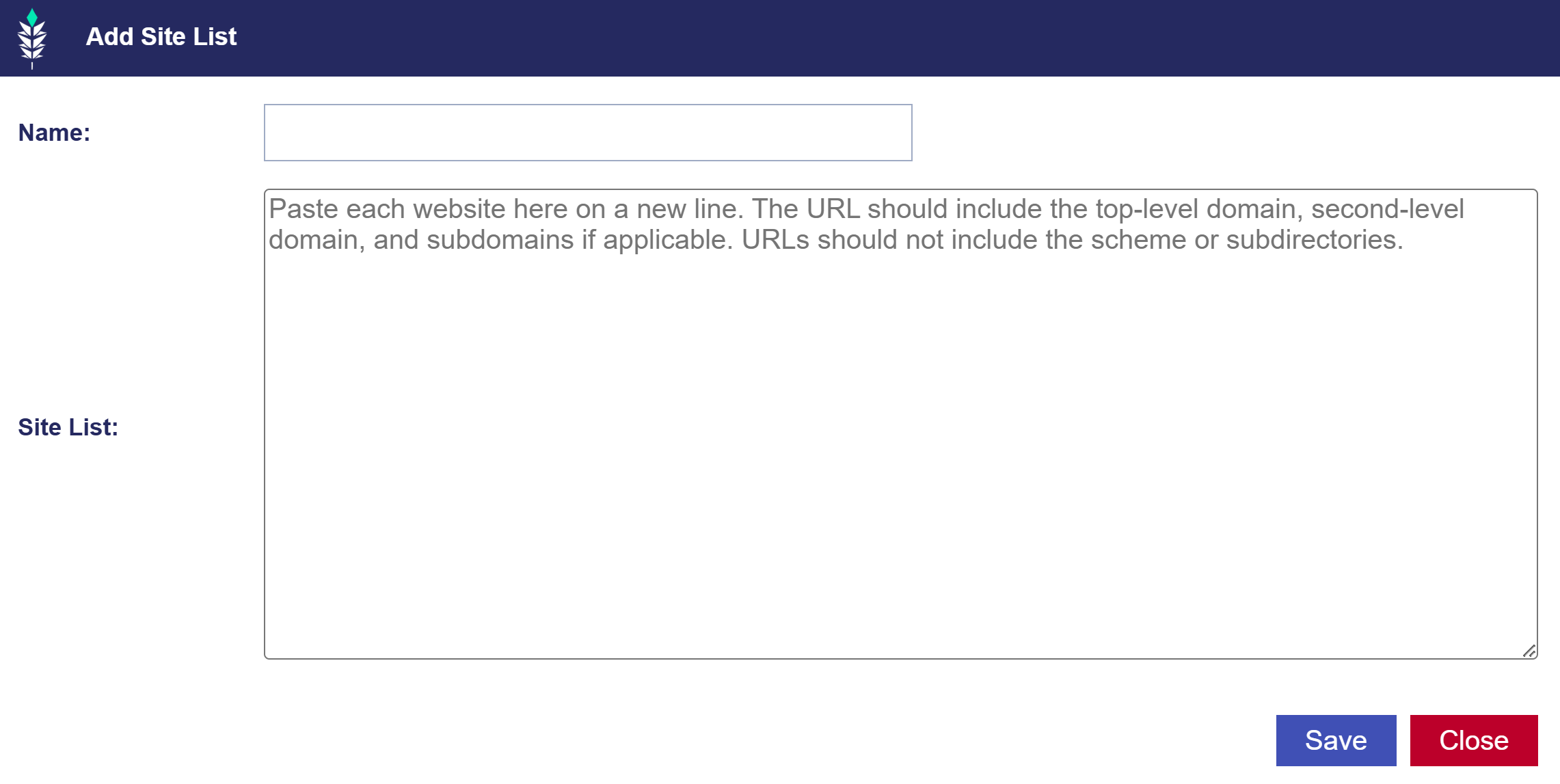
  3. Name the new Site List.
  4. Enter each website on a new line.
    • Note that the URL should include top-level domain, second-level domain, and subdomains if applicable. URLs should not include the scheme, such as https://, or subdirectories.
  5. Once saved, the Site List will automatically become available under the Campaign and Line Targeting menu:
    • Dropdown List > Inventory > Site Lists
    • The list can then be applied as an Allow List or Block List.

For guidance on using Site Lists with App Lists and different Inventory Types, see the Site and App List Targeting section: Inventory Overview

App Lists

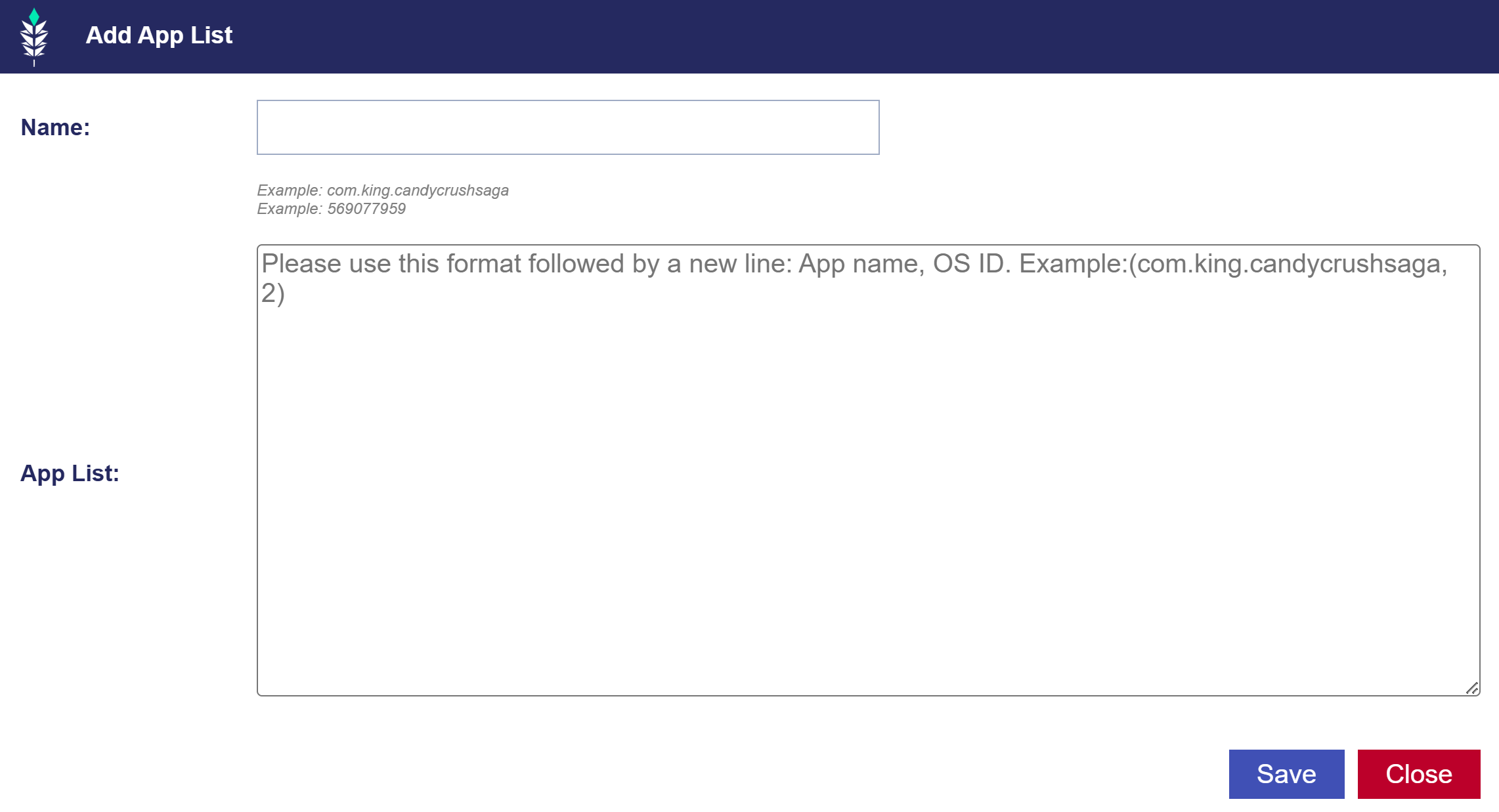
App Lists are used to group App Bundles for targeting across Campaigns and Lines. An App Bundle is the unique application identifier passed in the bid request and can be used to allow or block specific apps from serving. Once created, an App List can be reused across multiple Campaigns and Lines.

Create Custom App Lists:

  1. Navigate to the Inventory tab.
  2. Select New App List.
  3. Name the new App List.
  4. Enter each App Bundle on a new line in the following format:
    • Line Format: App Bundle
    • Line Example: com.king.candycrushsaga
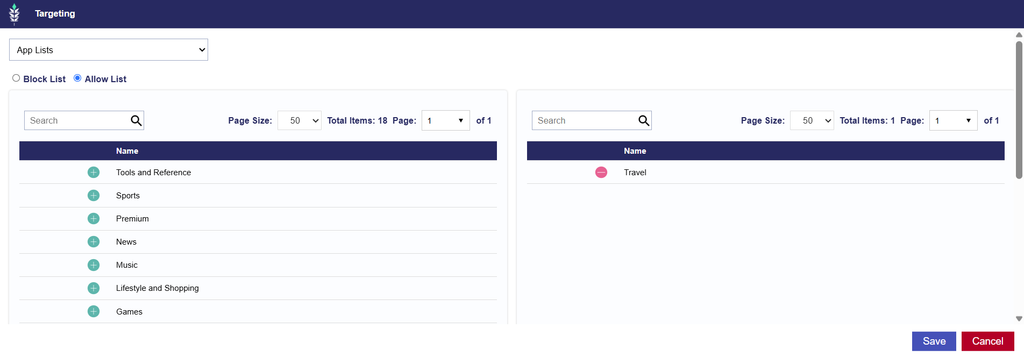
  5. Once saved, the list will automatically appear under the Campaign and Line Targeting menu:
    • Dropdown List > Inventory > App Lists
    • The list can then be applied as an Allow List or Block List.

For guidance on using Site Lists with App Lists and different Inventory Types, see the Site and App List Targeting section: Inventory Overview

Deal Lists

Deal Lists allow users to group multiple Deals into a reusable list that can be associated with Campaigns or Lines. They are useful when the same group of inventory Deals will be targeted across multiple strategies.

Create Custom Deal Lists

  1. Navigate to Inventory.
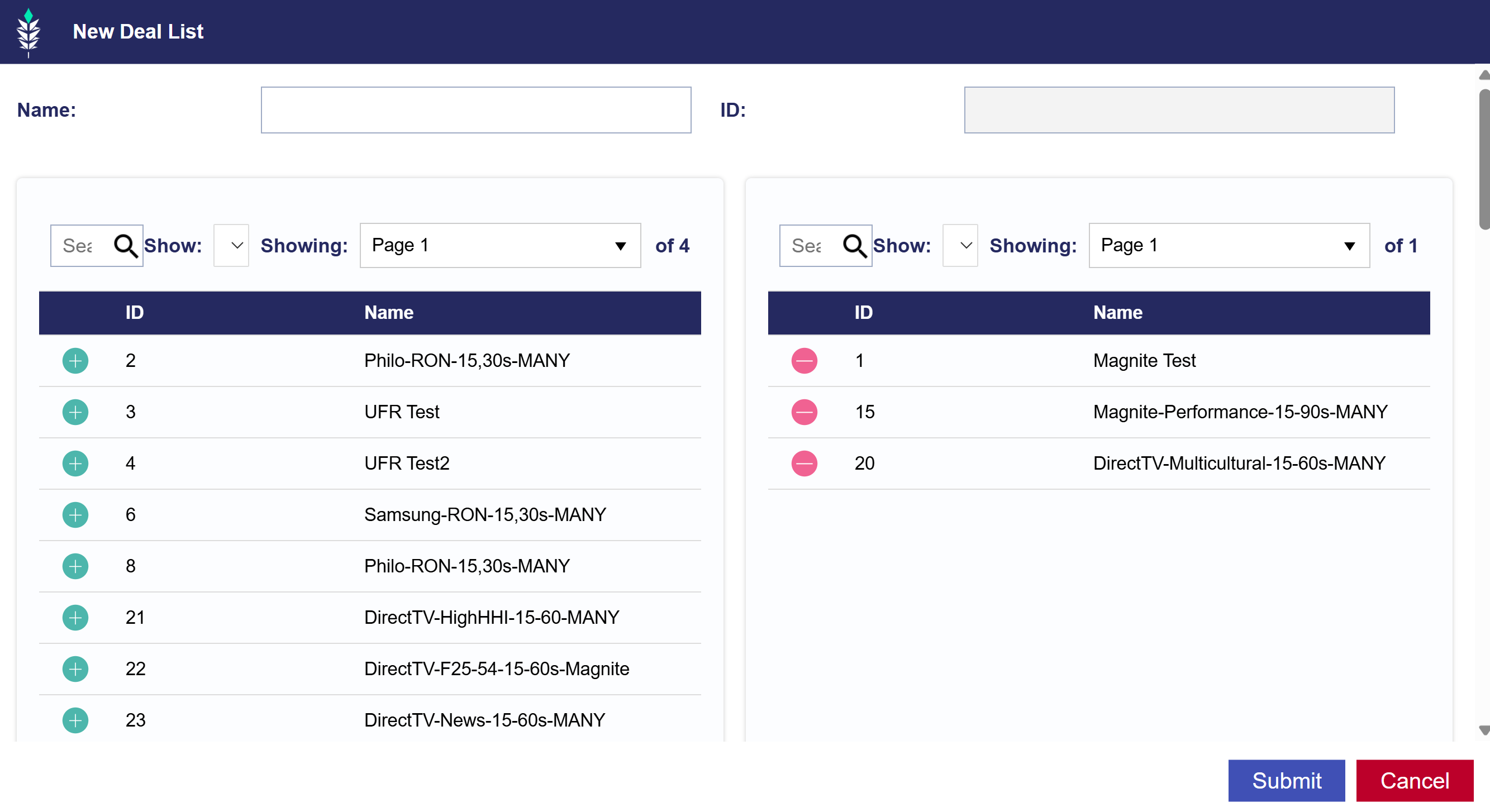
  2. Select New Deal List.
  3. Name the Deal List.
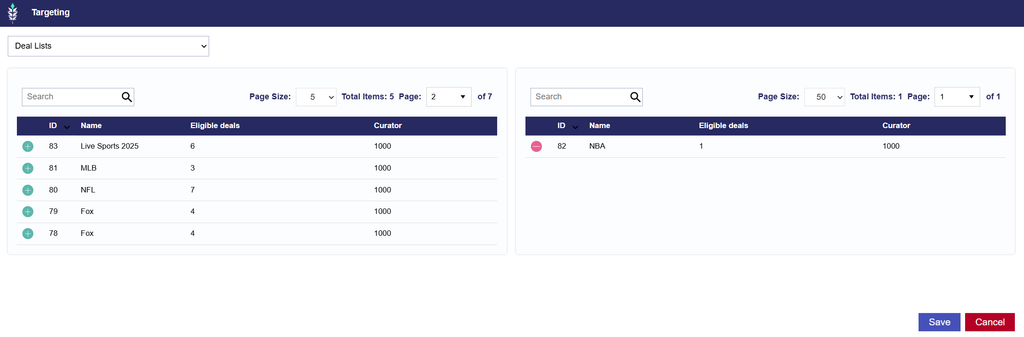
  4. Add Deals from the left table using the green + button.
    • Remove Deals using the red – button.
  5. Save the list.
  6. The Deal List will become available under the Campaign and Line Targeting menu.

© 2026 Pontiac Wiki Sec · All Rights Reserved · Developed by RDK

  • Contact Us
  • Privacy Policy
  • Terms & Conditions
  • Pontiac.media