Navigating the Pontiac Platform
The Pontiac Intelligence Platform provides tools for managing Advertisers, Campaigns, Lines, Inventory, Audiences, and Reporting. This guide covers how to navigate the platform and use common interface features, including searching, filtering, customizing table views, and reviewing performance data.
Switching Between Platform Sections
The dropdown in the upper-right corner allows users to switch between the available Pontiac platform sections.
Available options include:
- Bidder: Manage programmatic advertising Sub Seats (if enabled), Advertisers, Campaigns, Lines, Inventory, Audiences, Templates, and Reporting.
- ART: Access audience research and inventory availability tools.
- DOOH: Access digital out-of-home advertising tools.
- Analytics: Access Pontiac’s Analytics Suite for campaign planning, audience analysis, targeting optimization, and incrementality measurement.
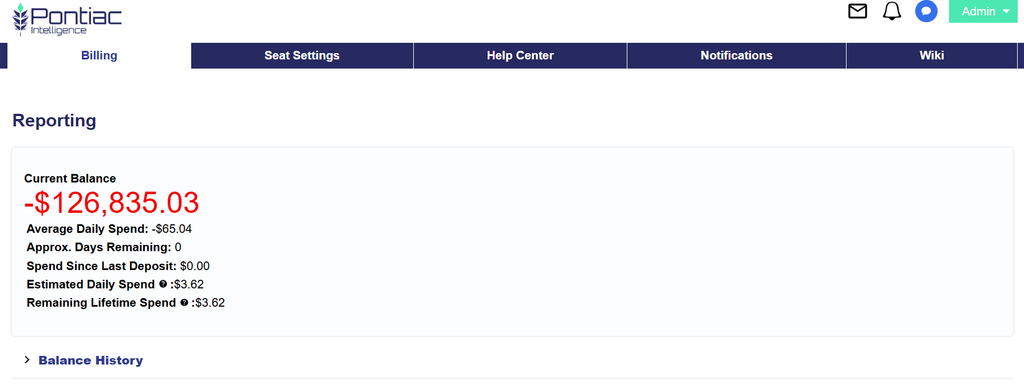
- Admin: Access account administration, Billing, Seat Settings, Help Center, Notifications, and Wiki.
- Logout: Sign out of the platform.
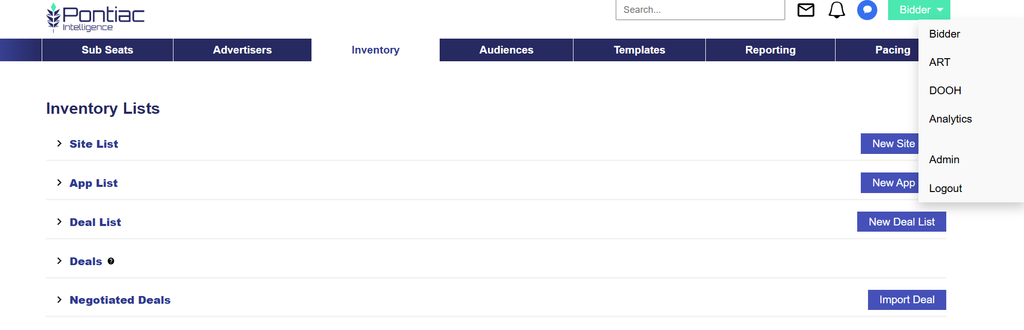
Select the desired section from the dropdown to switch between platform tools. Available options may vary based on account access and permissions.
Bidder Navigation Tabs
Within the Bidder section, the top navigation menu provides access to the following:
- Sub Seats: Access and manage Sub Seats, when enabled.
- Advertisers: Create and manage Advertisers, Campaigns, Lines, Creatives, and Pixels.
- Inventory: Manage Site, App, and Deal Lists, and access available and negotiated Deals.
- Audiences: Create and manage Audiences used for targeting.
- Templates: Manage reusable Campaign and Line templates.
- Reporting: Create and manage performance reports.
- Pacing: Monitor Campaign and Line budgets, pacing, and delivery.
Select a tab to access the corresponding features and tools.
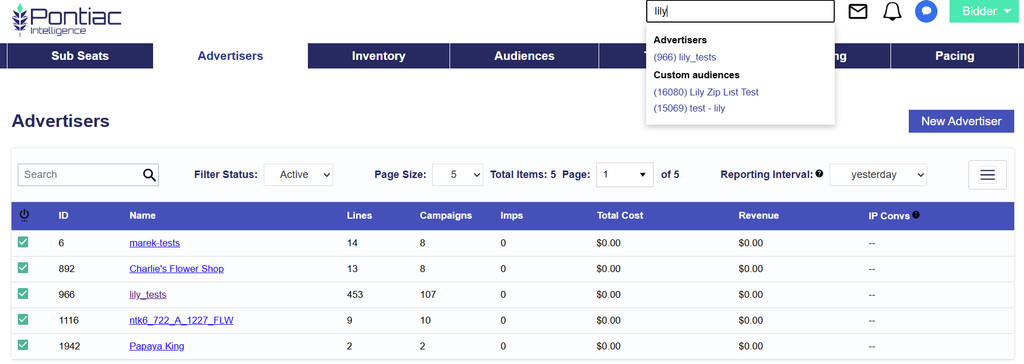
Global Search
The Search field in the upper-right corner of the platform allows users to search for Pontiac objects across the current Seat, including Advertisers, Campaigns, Lines, Creatives, and Audiences.
Enter a name or ID to locate an object and select a result to navigate directly to it.
Unlike the Search fields within individual tables, Global Search allows users to find objects without first navigating to their corresponding section.
Notifications and Help
Icons in the upper-right corner provide access to additional platform resources, including:
- Envelope Icon = Help Center: View and manage support requests and communications with the Pontiac Support team.
- Bell Icon = Notifications: View platform updates, new feature announcements, and other notifications.
- Chat Icon = Pontiac Assistant: Access Pontiac’s AI-powered assistant for help navigating the platform, understanding features, and managing Campaigns.

The Admin section also provides access to the Help Center, Notifications, and Wiki.
Pontiac Assistant
The Pontiac Assistant is an AI-powered tool designed to help users navigate the platform, understand available features, and streamline Campaign management.
Users can ask questions in natural language to get assistance with platform functionality, Campaign setup, troubleshooting, reporting, and other common workflows.
To access the Assistant, click the chat icon in the upper-right corner of the platform.
For more information on available capabilities, example prompts, and how to use the Assistant, see Pontiac Assistant.
Footer Navigation and Switching Seats
The footer provides quick access to additional navigation options, including:
- Contact Us: Access Pontiac contact and support resources.
- Switch Seat: Switch between Seats you have access to.
To switch Seats:
- Click Switch Seat in the footer.
- Enter the Seat ID or Seat Name you want to access.
- Select the desired Seat to switch to it.
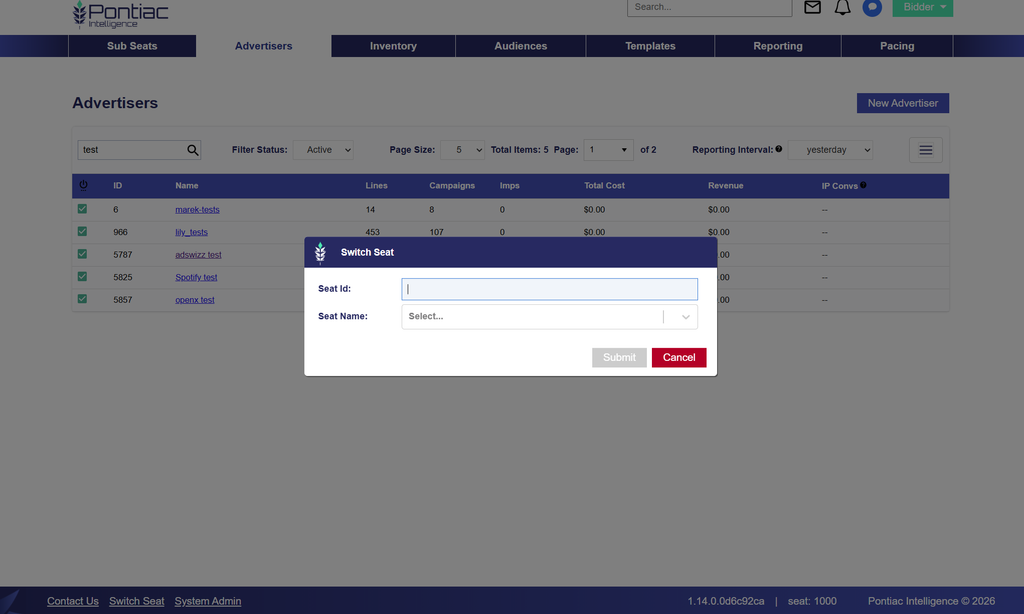
The footer also displays the current Seat ID and platform version.
Note: Always confirm the selected Seat before creating or modifying Campaigns, Inventory, or other settings.
Navigating Advertisers, Campaigns, and Lines
Pontiac organizes Campaign management into four primary levels:
Seat → Advertiser → Campaign → Line
- Seat: The account-level workspace for shared Inventory, Audiences, Templates, Reporting, and Seat Settings.
- Advertiser: Represents an individual brand, client, or product and contains its Campaigns, Creatives, and Pixels.
- Campaign: Organizes Lines under shared Campaign settings, such as budget, dates, Flights, pacing, and frequency caps.
- Line: Controls how media is purchased, including bidding, Inventory Type, targeting, and other delivery settings.
To navigate between levels:
- Select Advertisers from the Bidder navigation menu.
- Click the Advertiser Name to open the Advertiser.
- Select a Campaign from the Advertiser’s Campaigns table.
- Select a Line from the Campaign’s Lines table.
Each level provides access to settings, management tools, and performance information relevant to that object.
For a complete overview of the features available at each level, see Hierarchy.
Searching and Filtering Tables
Tables throughout Pontiac include controls for locating records, filtering results, adjusting page size, and customizing displayed information.
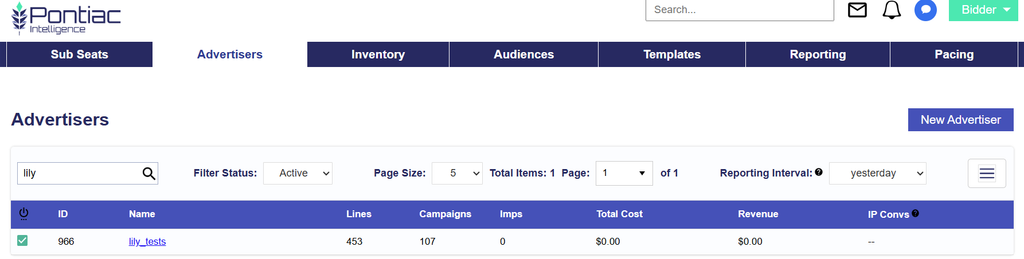
The Advertisers table below provides an example of these controls.
- Search bar
- Filter Status
- Page Size
- Total Items
- Page
- Reporting Interval
- Customizing Table Columns

Search
Use the Search field above a table to find specific records.
Enter a name or ID to narrow the results displayed in the table.
Search functionality may vary depending on the page.
Filter Status
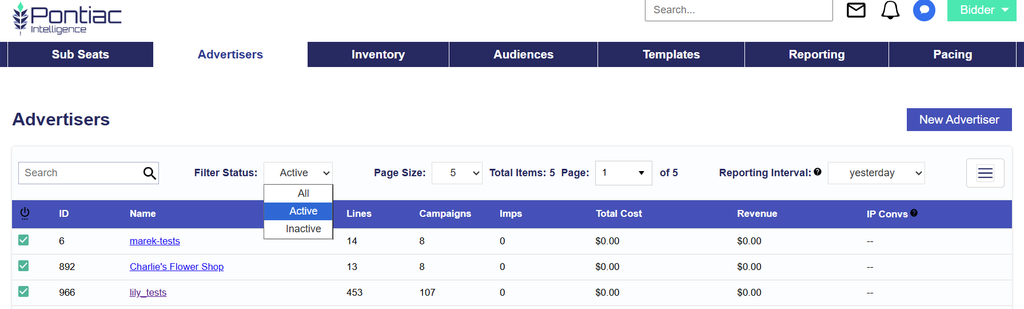
The Filter Status dropdown allows users to filter records by their current status.
- All: Displays both Active and Inactive records.
- Active: Displays only Active records.
- Inactive: Displays only Inactive records.
The default status filter may vary by page.
Changing this filter only affects which records are displayed in the table. It does not modify their actual status.
For example, if you cannot find an Advertiser, Campaign, or Line, check the Filter Status dropdown and select All to include Inactive records.
Understanding Status Indicators and Warnings
Pontiac uses status icons and color-coded indicators throughout the platform to help users identify whether objects are Active, Inactive, or require attention.
These indicators appear in areas such as Advertiser, Campaign, and Line tables, Troubleshoot Checks, Reports, and Creative Audits.
Active and Inactive Status
In Advertiser, Campaign, and Line tables, the Status column displays an object’s configured status.
- Green Check Mark (✓) – Active: The object is enabled.
- Red Minus (−) – Inactive: The object is disabled.
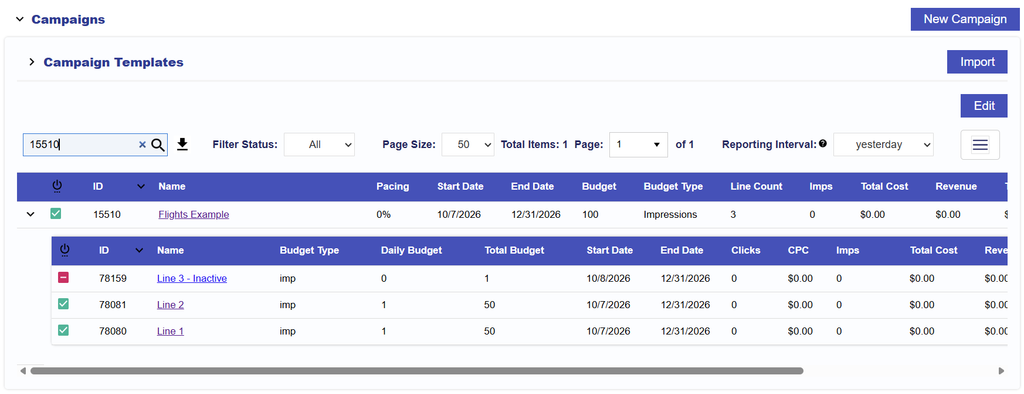
An Active status indicates that an object is enabled, but does not necessarily mean it is currently delivering impressions. Delivery also depends on Campaign and Line dates, budgets, targeting, Creative eligibility, and other settings.
An Inactive status indicates that the object is disabled and is not eligible to serve while inactive.
Note: The Status column displays an object’s configured status, while the Filter Status dropdown controls which objects are visible in the table. To see inactive objects, change the Filter Status to All or Inactive.
Validation Results: Pass, Fail, and Warning
Pontiac also displays validation results within tools such as Line-level Troubleshoot Checks and Creative Audits. These checks help identify potential configuration, eligibility, or delivery issues.
- Green Check Mark – Pass: The evaluated requirements were met.
- Red Indicator – Fail: One or more evaluated requirements were not met.
- Yellow Caution Icon – Warning: A potential issue was identified, or the available information is insufficient to verify the check.
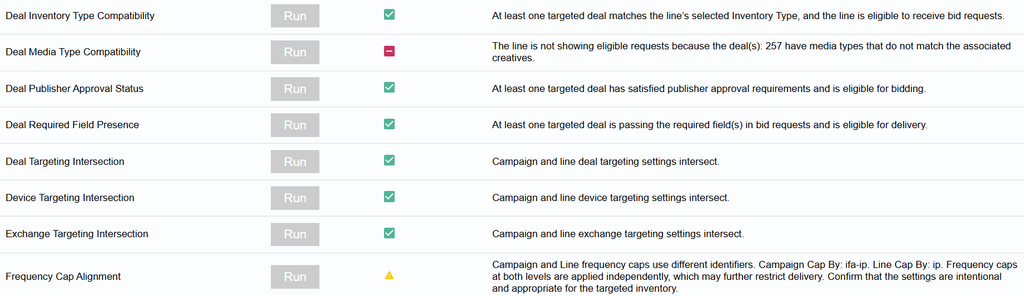
For example, within Line-level Troubleshoot Checks:
- Pass: The targeted Exchange is compatible with the targeted Deal.
- Fail: The targeted Exchange does not align with the Exchange associated with the targeted Deal.
- Warning: Insufficient sample request data is available to verify Deal Exchange compatibility.
Review the individual check results and accompanying messages to understand whether any changes or additional verification are needed.
Creative Audits and Publisher Eligibility
Creative Audit tools help users identify whether Creative assets meet technical requirements and publisher-specific specifications.
Depending on the Creative Type and applicable requirements, these checks may evaluate:
- Creative dimensions and aspect ratio
- Video duration
- Resolution and bitrate
- VAST version and compatibility
- Publisher-specific Creative requirements
A failed check indicates that the Creative does not meet an evaluated requirement and may need to be updated before serving on the applicable inventory.
A warning indicates that additional review or verification may be needed.
Review the individual Creative Audit results to identify which requirements passed, failed, or require attention.
Important: Active/Inactive and Pass/Fail/Warning represent different types of information.
- Active/Inactive indicates whether an Advertiser, Campaign, or Line is enabled.
- Pass/Fail/Warning indicates the outcome of a specific validation or eligibility check.
Although these indicators may use similar colors, they serve different purposes. An Active Campaign or Line may still fail a Troubleshoot Check, and a Creative may pass certain technical checks while failing others.
A green check mark does not guarantee that an object will deliver impressions. It only confirms that the specific status or check is satisfied.
Page Size and Pagination
The Page Size dropdown controls how many records appear on each page.
The Total Items field displays the number of records matching the current view, while the Page dropdown allows users to navigate between available pages.
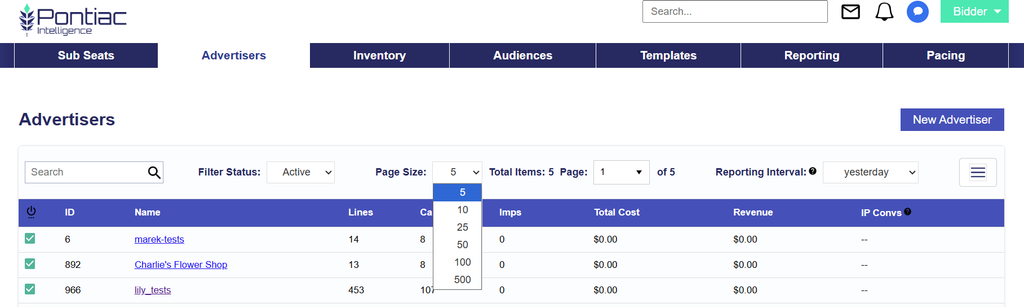
For example, if the table contains 200 records and the Page Size is set to 50, the results will be divided across four pages.
Increase Page Size to display more records at once, or use the Page dropdown to navigate between pages.
Reporting Interval
Many tables include a Reporting Interval dropdown that controls the period used to calculate and display performance metrics.
Depending on the table, available intervals may include Yesterday, Today, 7 Days, 30 Days, Month to Date, Last Month, and Lifetime.
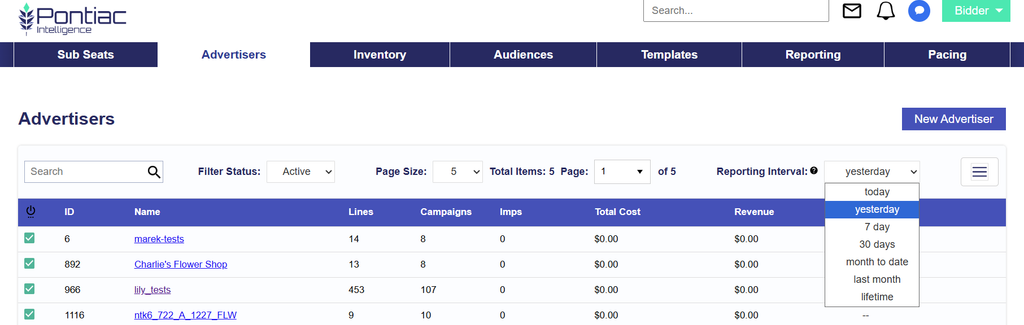
Selecting a different Reporting Interval updates the performance metrics displayed in the table, such as:
- Impressions
- Total Cost
- Revenue
- IP Conversions
- Other available performance metrics
For example, selecting Yesterday displays the previous day’s performance, while selecting 7 Days displays performance for the corresponding seven-day period.
Note: The Reporting Interval changes the reporting period for displayed metrics. It does not modify Campaign settings, budgets, or delivery.
Customizing Table Columns
Many tables allow users to customize which columns and metrics are displayed.
To customize a table:
- Click the column selection icon (three horizontal lines) in the upper-right corner of the table.
- A dropdown will display the available columns.
- Check a column to display it in the table.
- Uncheck a column to hide it from the table.
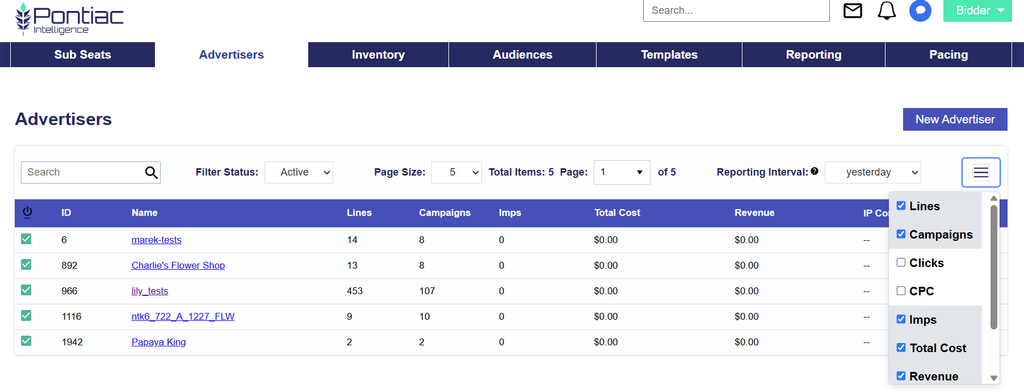
Changes to the selected columns update the information displayed in the table.
For example, users reviewing Advertiser performance may choose to display:
- Lines
- Campaigns
- Imps
- Total Cost
- Revenue
- IP Convs
- Clicks
- CPC
Available columns vary depending on the table and platform level.
Selecting Reporting Dimensions and Metrics
Within Pontiac’s Reporting tools, users can select the Dimensions and Metrics included in their reports.
- Dimensions determine how report data is grouped, such as by Advertiser, Campaign, Line, Creative, or Date.
- Metrics determine which performance values are displayed, such as Impressions, Total Cost, Revenue, or Conversions.
The selected Dimensions and Metrics determine both the columns included in the report and their order.
Important: The order in which Dimensions and Metrics are selected determines the order in which their corresponding columns appear in the report. To change the column order, adjust the selection order when configuring the report.
For additional information on generating reports and selecting available Dimensions and Metrics, see Reporting.
Related Documentation
- Hierarchy: Understand Pontiac’s Seat, Advertiser, Campaign, and Line structure.
- How to Launch Your First Campaign: Step-by-step instructions for creating and launching a Campaign.
- Reporting: Learn how to generate and customize performance reports.
- Pacing: Learn how to monitor Campaign and Line budgets and delivery.