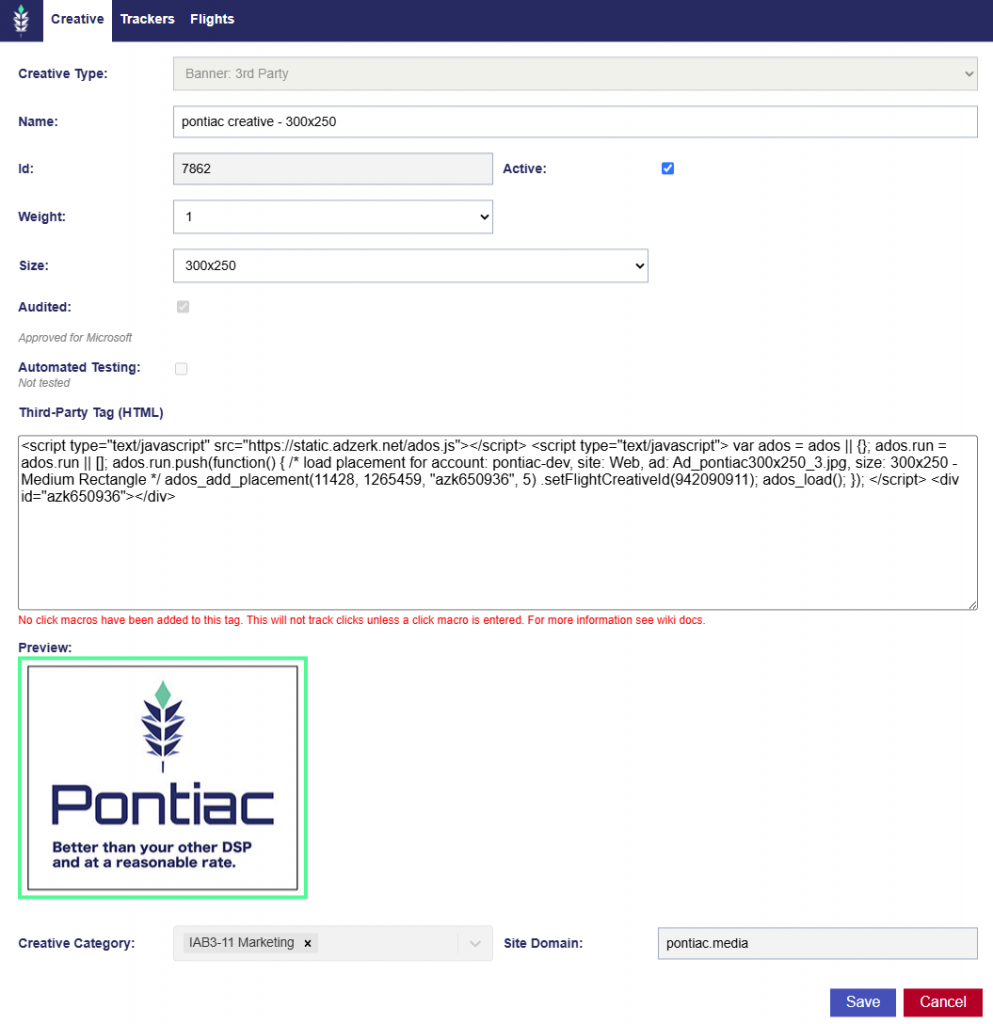
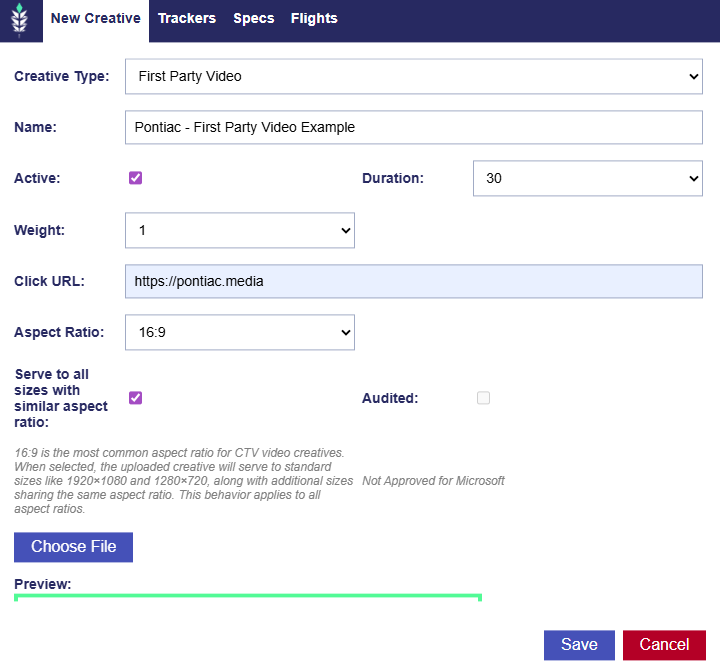
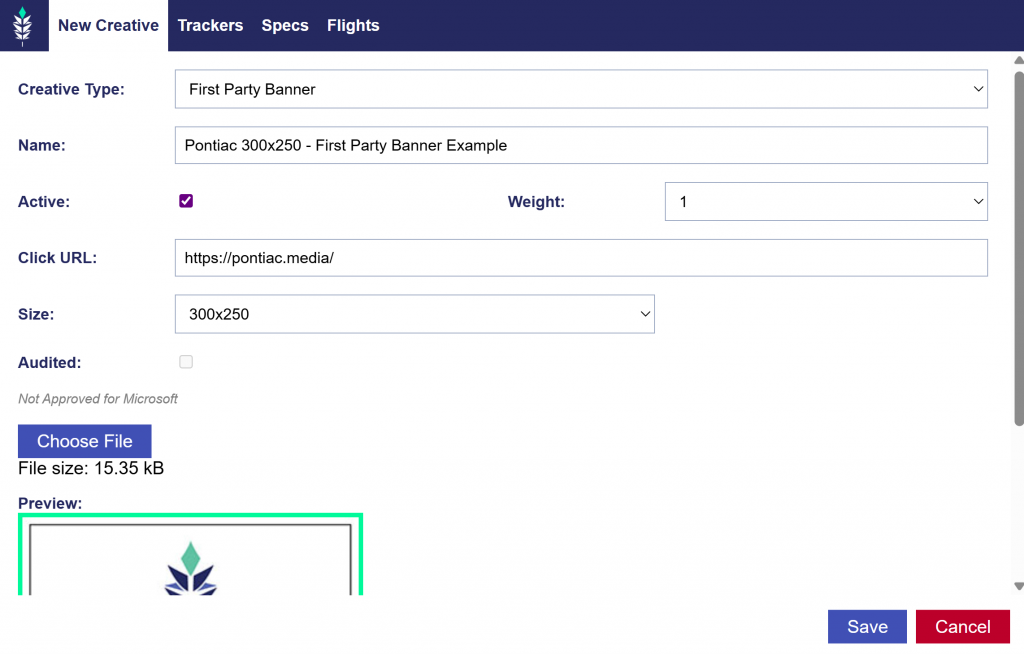
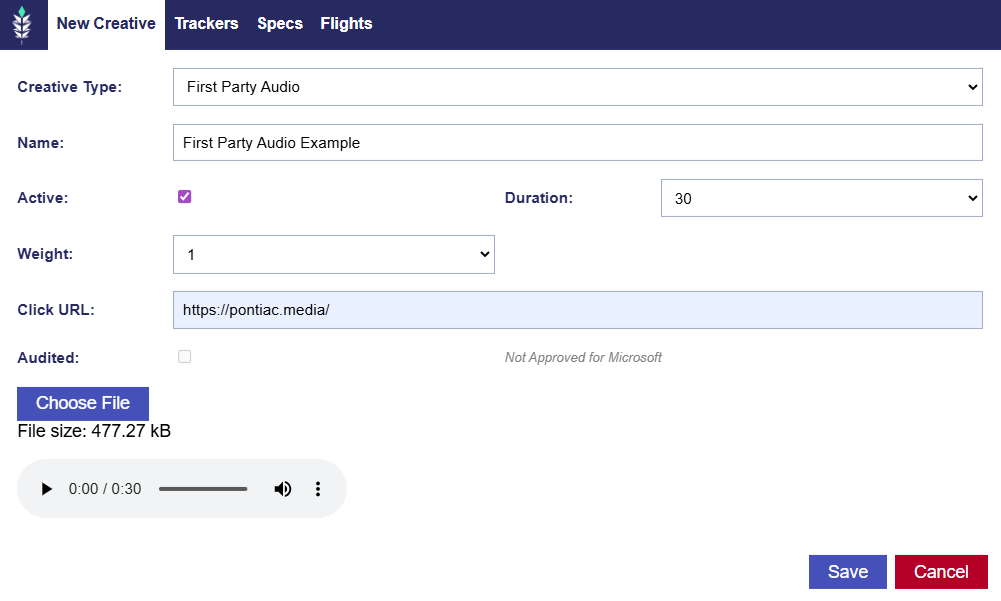
Creatives can be uploaded in the Advertiser details screen by selecting the ‘New Creative’ button. At this time the platform supports Video: 3rd Party (VAST tags from reputable Ad Servers), Videos: Hosted, Audio: 3rd Party, Audio: Hosted, Banner: 3rd Party, Banner: Hosted, HTML5, and Native (Format A) creatives. If you do not have access to an ad server to create VAST tags, Pontiac Bidder offers hosting services at an additional charge via Kevel. This additional CPM fee is applied to the Line Item for each impression served and is a part of the total line and campaign budgets. Reach out through the Help Center or your account manager for more information.
To upload a Creative, go to the Advertisers tab and click on the name of the Advertiser under which you would like to upload the Creative. Select ‘New Creative’ and select the type of Creative that you will be uploading. A preview of the Creative should appear in the green ‘Preview’ box. Ensure that the Creative does not extend outside this preview box and loads as expected. Complete all relevant fields, then click ‘Save’.
Please note that Creatives can only be edited at the Advertiser Level. Please navigate to the Advertiser Level to modify your creatives.
Please thoroughly review all Creative Policies before uploading Creative. All Creative units uploaded will be subject to the Pontiac Intelligence creative audit process as well as any additional SSP, publisher, media owner or other creative approval processes that may apply in the acquisition of ad space.
Pontiac Intelligence reserves the right to reject any creative unit at its discretion, and subsequently suspend the account without advanced warning. If your account is suspended, you will be notified in writing and an investigation will take place within three business days. If at any point your ad tags are flagged as malicious, your account balance will be forfeited to Pontiac and will not be refundable.
In addition to Pontiac Intelligence’s content policies, certain sellers have additional policies that apply to buyers of those sellers’ inventory and certain data providers have additional policies that apply to buyers of those data providers’ data. Pontiac Intelligence clients wishing to purchase such inventory or data are responsible for understanding and adhering to any such additional policies. Pontiac shall have no liability or responsibility of any kind if a third-party declines to serve any Ads proposed by a Pontiac user, regardless of whether the ads meet the Pontiac Ad Standards or are approved by Pontiac, and users agree to indemnify and hold harmless Pontiac from any losses arising from a third-party’s decision not to serve a user’s ads.
New Creative Tab
Creatives are managed on the Advertiser level. Navigate to the desired Advertiser and select the New Creative button to upload and configure creatives across video, display, audio, and native formats.
Getting Started
Click New Creative.
Select a Creative Type:
Banner/Display:
Banner: Hosted
First Party Banner
Banner: 3rd Party
Ad Server Tag Banner
HTML5
Native
Audio
Audio: Hosted
First Party Audio
Audio: 3rd Party
Ad Server Tag Audio
Companion Banners
First Party Audio or Third Party Audio
First Party Banner
Video
Video: Hosted
First Party Videos. Pontiac hosting fee will be applied and VAST tag will be created using Kevel.
Video: 3rd Party
Ad Server Tag Video (VAST) tags from reputable Ad Servers
Enter a Creative Name.
Set the creative to Active or Inactive (default is Active).
Continue below for detailed setup instructions and examples for each creative type.
For more details on creative specifications by type, see the Creative Specs documenation.
Video: Hosted
Upload Steps:
Start by clicking New Creative, then:
Select Creative Type: First Party Video
Name the creative.
Choose Active or Inactive. Creatives are automatically set to Active.
Select the creative’s duration. The default value is 30 seconds.
Supported Durations:
5, 10, 15, 30, 45, 60, 75, and 90.
Select the creative’s weight. The default value is 1.
Click URL: The Click URL will automatically populate with the Advertiser’s URL. The field remains editable if it needs to be edited.
If previously audited, editing the Click URL will force a reaudit of this creative and the creative will stop serving until the reaudit is completed.
Select the Aspect Ratio: 16:9 is selected by default.
16:9 is the most common aspect ratio for CTV video creatives. When selected, the uploaded creative will serve to standard sizes like 1920×1080 and 1280×720, along with additional sizes sharing the same aspect ratio.
All Supported Aspect Ratios:
16:9: Best for CTV and most desktop/mobile video placements. Standard for long-form and streaming content.
1:1: Square and common for feeds and mobile as it takes up more screen space than horizontal video.
9:16: Ideal for mobile, full screen experiences and OLV placements.
4:5: Common for mobile feeds.
Serve to all sizes with similar aspect ratio (recommended, enabled by default): When enabled, creatives run across more placements that support the same aspect ratios, increasing available inventory and campaign scale without distortion or cropping.
Click the Choose File button and upload the creative video file.
Preview the creative to ensure it is rendering correctly and there are no issues.
Click Save, which will send the creative to audit.
Banner: Hosted
Upload Steps:
Start by clicking New Creative, then:
Select Creative Type: First Party Banner
Name the creative.
Choose Active or Inactive. Creatives are automatically set to Active.
Select the creative’s weight. The default value is 1.
Click URL: The Click URL will automatically populate with the Advertiser’s URL. The field remains editable if it needs to be edited.
If previously audited, editing the Click URL will force a reaudit of this creative and the creative will stop serving until the reaudit is completed.
Click the Choose File button and upload the creative banner file.
Preview the creative to ensure it is rendering correctly and there are no issues.
Click Save, which will send the creative to audit.
Audio: Hosted
Upload Steps:
Start by clicking New Creative, then:
Select Creative Type: First Party Audio
Name the creative.
Choose Active or Inactive. Creatives are automatically set to Active.
Select the creative’s duration. The default value is 30 seconds.
Supported Durations:
5, 10, 15, 30, 45, 60, 75, and 90.
Select the creative’s weight. The default value is 1.
Click URL: The Click URL will automatically populate with the Advertiser’s URL. The field remains editable if it needs to be edited.
If previously audited, editing the Click URL will force a reaudit of this creative and the creative will stop serving until the reaudit is completed.
Click the Choose File button and upload the creative audio file.
MP3 audio file
Preview the creative to ensure it is rendering correctly and there are no issues.
Click Save, which will send the creative to audit.
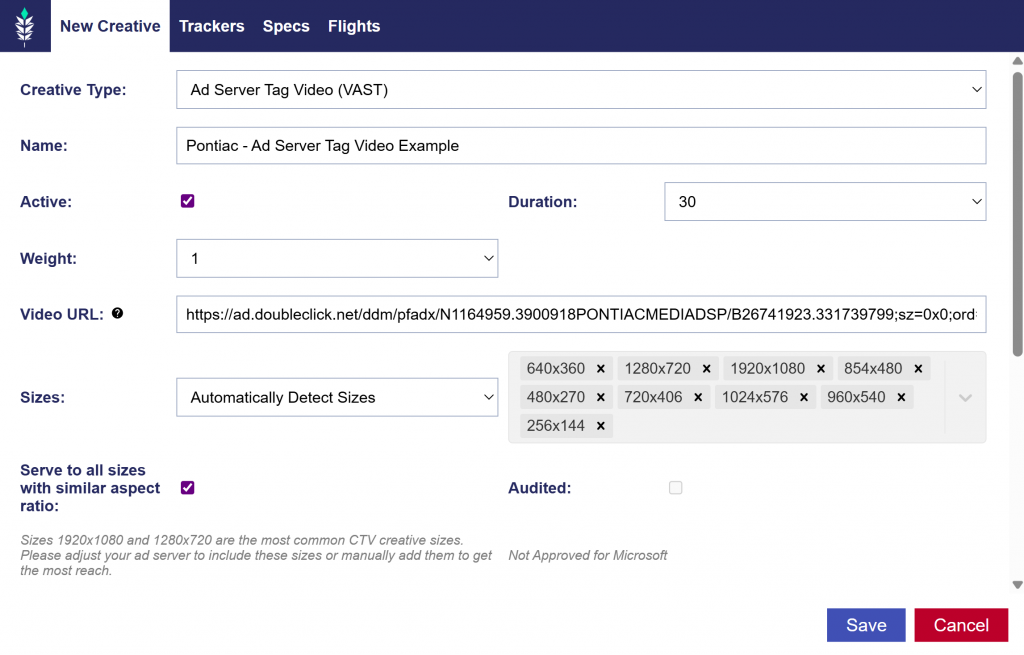
Video: 3rd Party
Upload Steps:
Start by clicking New Creative, then:
Select Creative Type: Ad Server Tag Video (VAST)
Name the creative.
Choose Active or Inactive. Creatives are automatically set to Active.
Select the creative’s duration. The default value is 30 seconds.
Supported Durations:
5, 10, 15, 30, 45, 60, 75, and 90.
Select the creative’s weight. The default value is 1.
Enter the Video VAST Tag URL
VAST 2, 3, and 4 are currently accepted
Select how the creative’s sizes are uploaded:
Automatically Detect Sizes
All sizes detected from the VAST tag will populate the box.
Manually Set Sizes
Select sizes from the right hand side drop down menu.
Serve to all sizes with similar aspect ratio (recommended, enabled by default): When enabled, creatives run across more placements that support the same aspect ratios, increasing available inventory and campaign scale without distortion or cropping.
Preview the creative to ensure it is rendering correctly and there are no issues.
Click Save, which will send the creative to audit.
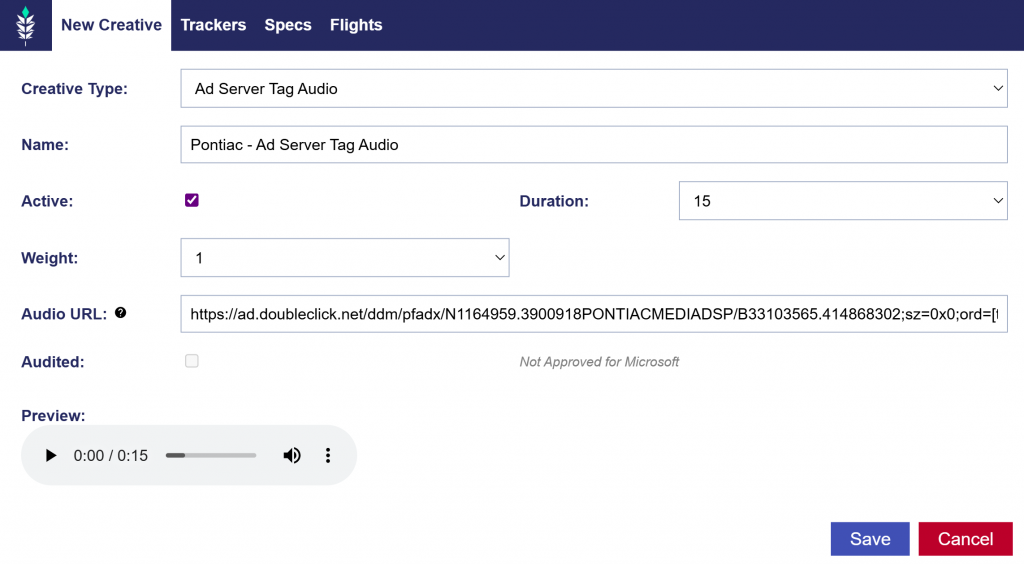
Audio: 3rd Party
Upload Steps:
Start by clicking New Creative, then:
Select Creative Type: Ad Server Tag Audio
Name the creative.
Choose Active or Inactive. Creatives are automatically set to Active.
Select the creative’s duration. The default value is 30 seconds.
Supported Durations:
5, 10, 15, 30, 45, 60, 75, and 90.
Select the creative’s weight. The default value is 1.
Enter the Audio VAST tag URL: Vast versions 2, 3 and 4 are currently accepted.
Preview the creative to ensure it is rendering correctly and there are no issues.
Click Save, which will send the creative to audit.
Companion Banners
Companion Banners are optional display assets that can be delivered alongside Audio creatives when supported by the available inventory. They are supported for both First Party Audio and Third Party Audio creatives. Companion Banners are uploaded directly as image files and are hosted and prepared for delivery by Pontiac.
Upload Steps:
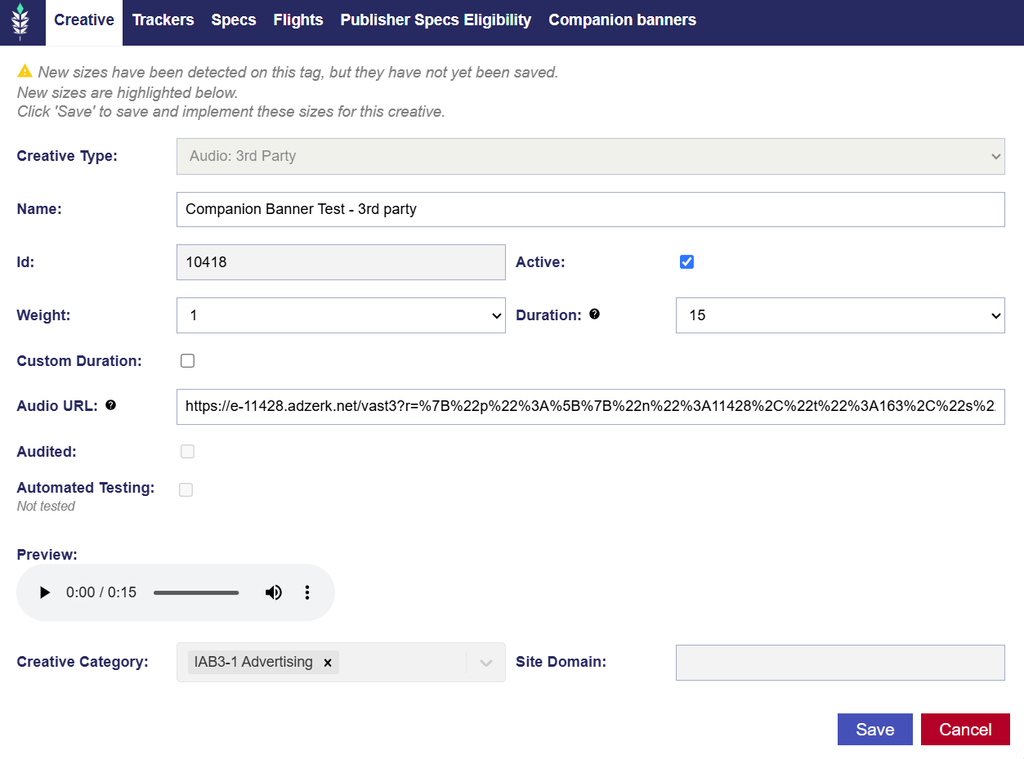
A First Party Audio or Third Party Audio creative must first be uploaded and saved before Companion Banners can be added.
Navigate to the Advertiser level and upload a new First Party Audio or Third Party Audio creative using the applicable upload steps.
Once the Audio creative has been saved, open the creative. A new Companion Banners tab will be available.
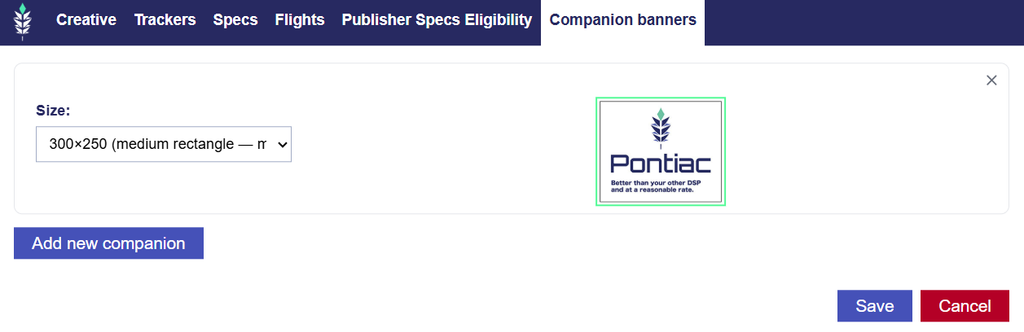
Navigate to the Companion Banners tab and click Add New Companion.
Select and upload the desired Companion Banner image file.
Select the correct size for the companion banner.
Once uploaded, a preview of the Companion Banner will appear.
Additional Companion Banners can be added as needed by selecting the Add new companion button. Existing Companion Banners can also be removed using the X button located in the top right corner.
Pontiac will automatically prepare the uploaded Companion Banners for delivery alongside the Audio creative.
Supported Sizes
300×250 – Medium Rectangle
728×90 – Leaderboard
160×600 – Wide Skyscraper
320×50 – Mobile Banner
300×600 – Half Page
Supported File Types
PNG
JPG
JPEG
GIF
Creative Audit
Adding, replacing, or removing a Companion Banner after the Audio creative has been audited will return the creative to Pending status. The updated creative must complete the audit process again before it is eligible to serve.
Note: Companion Banners are currently supported for Audio creatives only. While they can be associated with both First Party and Third Party Audio creatives, the Companion Banner itself is always uploaded and hosted as a First Party asset.
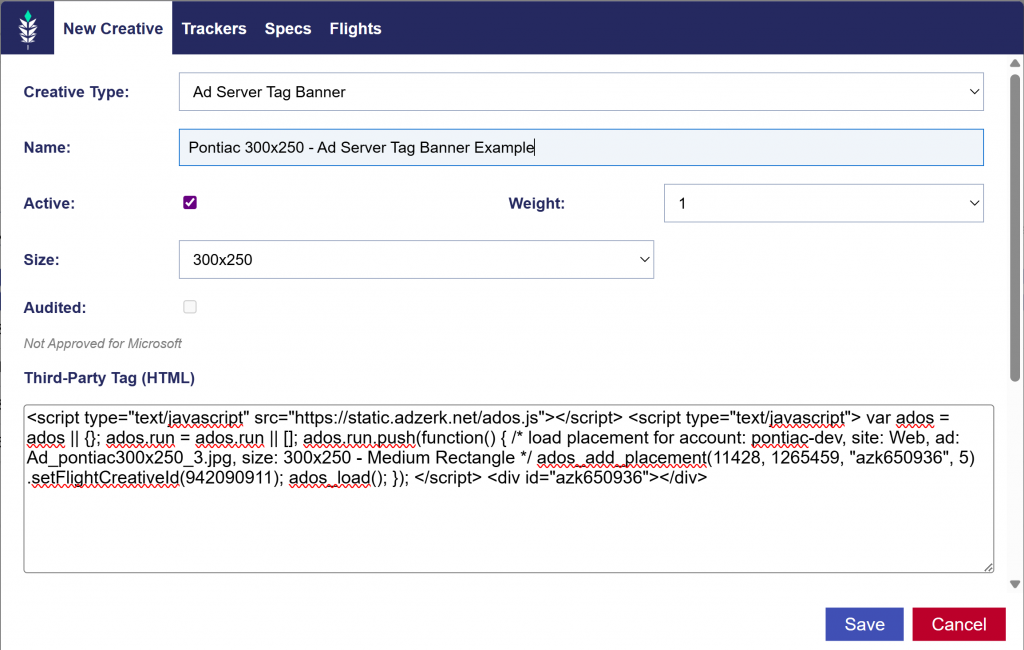
Banner: 3rd Party
Upload Steps:
Start by clicking New Creative, then:
Select Creative Type: Ad Server Tag Banner
Name the creative.
Choose Active or Inactive. Creatives are automatically set to Active.
Select the creative’s weight. The default value is 1.
Preview the creative to ensure it is rendering correctly and there are no issues.
Click Save, which will send the creative to audit.
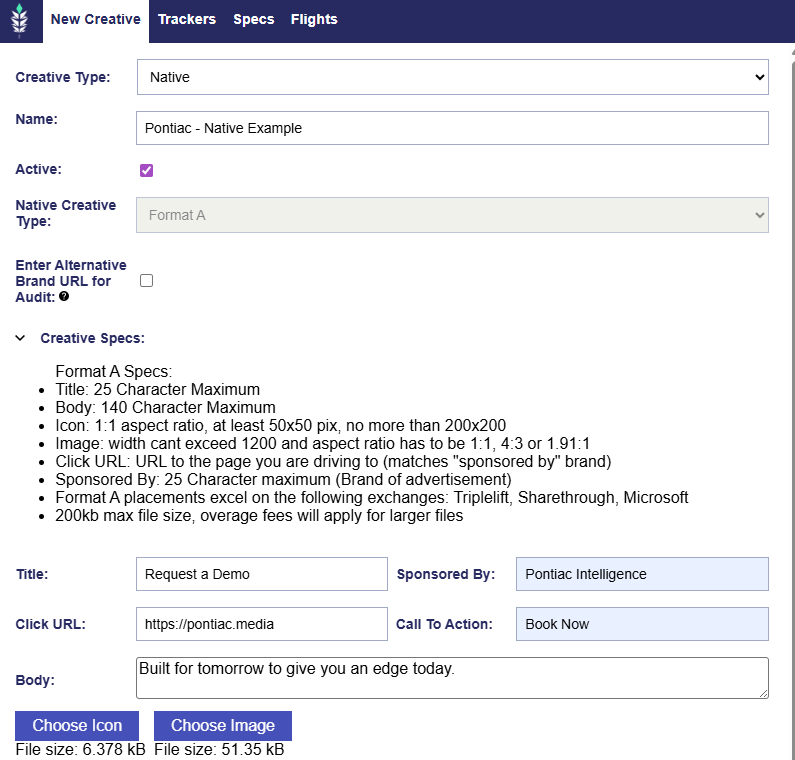
Native: Format A
Upload Steps:
Start by clicking New Creative, then:
Select Creative Type: Native
Name the creative.
Choose Active or Inactive. Creatives are automatically set to Active.
Native Creative Type: Format A is selected by default and currently the only supported version.
Enter Alternative Brand URL for Audit (if applicable): Applicable if you are using a Click URL to a site that does not represent your branding, such as Amazon, enter a URL that contains the same branding represented in your ad. The audit team will use this URL to validate the branding represented in the creative. This will not be used as the landing page for the creative.
Creative Specs: Expand this section to view the Native Format A requirements.
Title: 25 Character Maximum
Body: 140 Character Maximum
Icon: 1:1 aspect ratio, at least 50×50 pix, no more than 200×200
Image: width cant exceed 1200 and aspect ratio has to be 1:1, 4:3 or 1.91:1
Click URL: URL to the page you are driving to (matches “sponsored by” brand)
Sponsored By: 25 Character maximum (Brand of advertisement)
Format A placements excel on the following exchanges: Triplelift, Sharethrough, Microsoft
200kb max file size, overage fees will apply for larger files
Enter the required fields: Title, Sponsored By, Call to Action, and Body.
Click URL: The Click URL will automatically populate with the Advertiser’s URL. The field remains editable if it needs to be edited.
If previously audited, editing the Click URL will force a reaudit of this creative and the creative will stop serving until the reaudit is completed.
Upload the Icon.
Upload the Image.
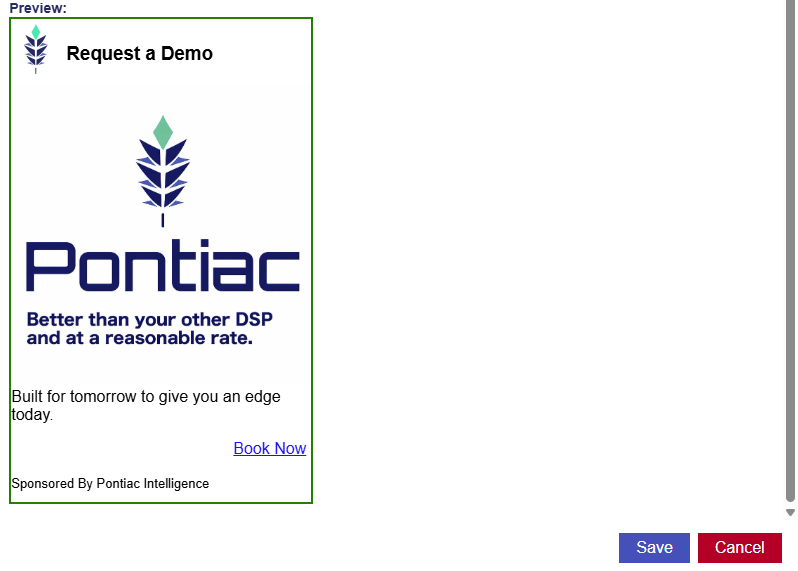
Preview the creative to ensure it is rendering correctly and there are no issues.
Click Save, which will send the creative to audit.
Example Preview:
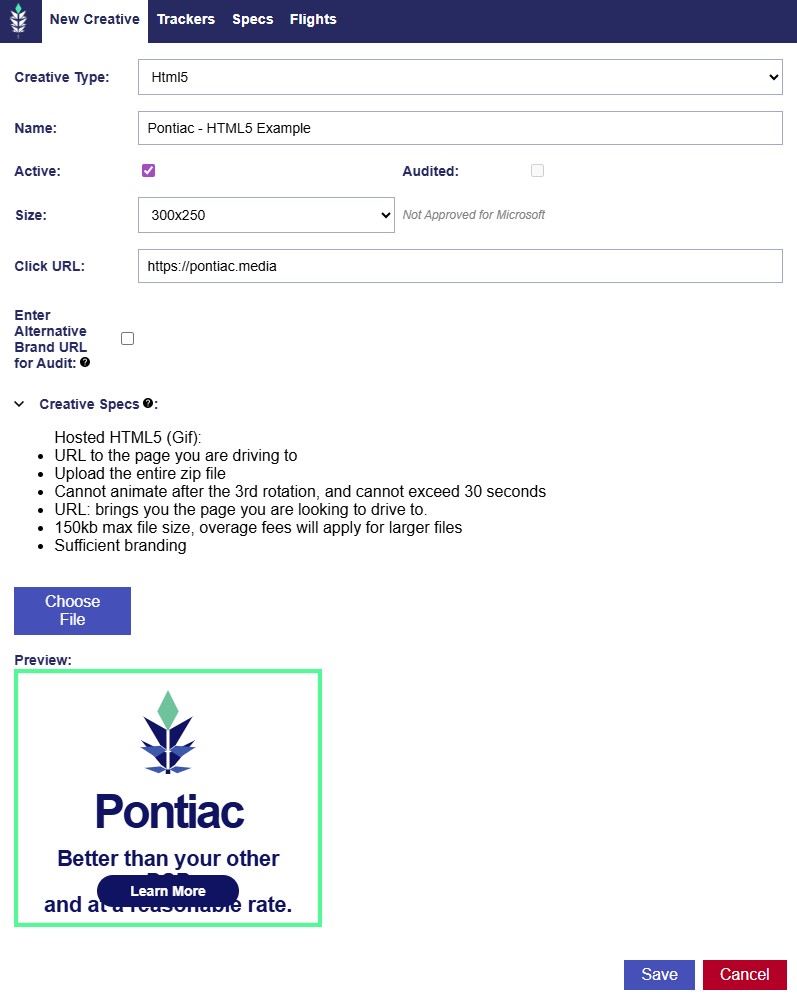
HTML5
Upload Steps:
Start by clicking New Creative, then:
Select Creative Type: Html5
Name the creative.
Choose Active or Inactive. Creatives are automatically set to Active.
Click URL: The Click URL will automatically populate with the Advertiser’s URL. The field remains editable if it needs to be edited.
If previously audited, editing the Click URL will force a reaudit of this creative and the creative will stop serving until the reaudit is completed.
Enter Alternative Brand URL for Audit (if applicable): Applicable if you are using a Click URL to a site that does not represent your branding, such as Amazon, enter a URL that contains the same branding represented in your ad. The audit team will use this URL to validate the branding represented in the creative. This will not be used as the landing page for the creative.
Creative Specs: Expand this section to view the html5 requirements.
Hosted HTML5 (Gif):
URL to the page you are driving to
Upload the entire zip file
Cannot animate after the 3rd rotation, and cannot exceed 30 seconds
150kb max file size, overage fees will apply for larger files
Sufficient branding
Click Choose File to upload the zip file.
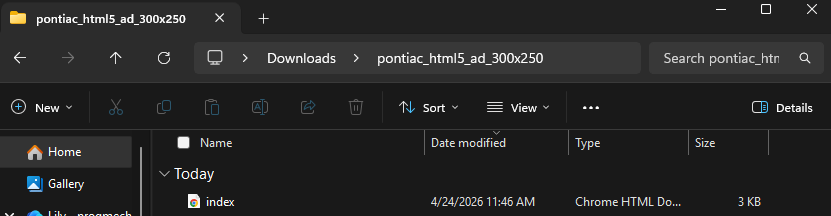
The zip file must contain an index.html, specifically called index.html, which much reside in the root of the zip file and not in a subfolder. Index.html should be complete and valid HTML document and not an HTML fragment. All external resources must be secure (https).
9. Preview the creative to ensure it is rendering correctly and there are no issues.
10. Click Save, which will send the creative to audit.
You could add a general note like this:
File Type Validation
When uploading an HTML5 creative ZIP, each file inside the ZIP must have a file extension that matches its actual file type.
If a file is mislabeled, for example, a file with a .ttf extension that is actually an OpenType font (.otf)- the upload may fail with the following warning:
The file extension does not match the detected file content. Please upload a file with the correct extension.
If you receive this warning, review the files inside the ZIP and confirm that each file’s extension correctly reflects its content type before uploading again.
Trackers Tab
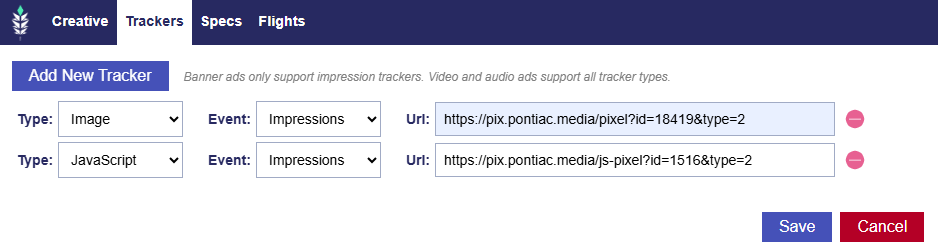
1×1 third party trackers can be added to creatives in Pontiac on upload or in the edit creative screen. In the creative window, open the Tracker tab and click Add New Tracker to enter the third-party tracking URL.
Image trackers are simple pixel URLs that fire when the creative loads. They are usually preferred because they are lightweight, broadly compatible, and less likely to be blocked by creative environments.
JavaScript trackers are used when the tracking provider requires script logic to run, such as setting additional parameters, firing multiple calls, or supporting more complex measurement behavior.
For most standard impression tracking, Image is the better default.
Additional Information:
Banner ads support impression trackers only.
Video and audio ads support all tracker types.
Third-party click trackers should be configured in your ad server as the creative’s click URL.
Please refer to the Pontiac Macros here: Creative Macros which can be used to pass additional information when the tracker fires.
Pontiac macros must be implemented using the exact macro format within the tracker URL to pass data correctly. Incorrect formatting will result in missing data.
For additional assistance, please reach out to your account manager or the Help Center.
Using Trackers for Audience Building:
In addition to measurement, trackers can be used to support audience creation.
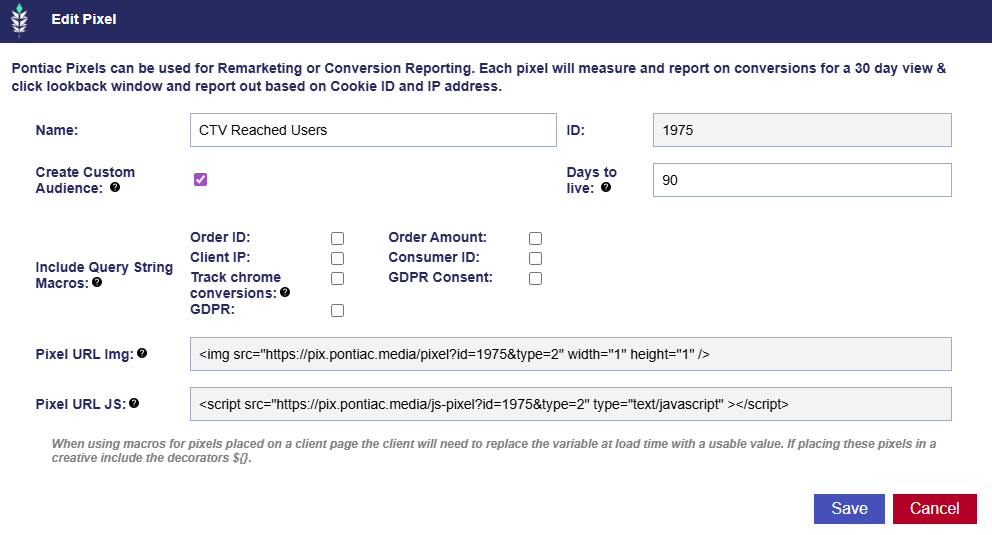
By adding a Pontiac pixel img as a tracker to a creative, you can capture exposed users and automatically build a custom audience based on IP data when the tracker fires.
Follow the following setups:
Create a pixel and check the Create Custom Audience feature and set days to live.
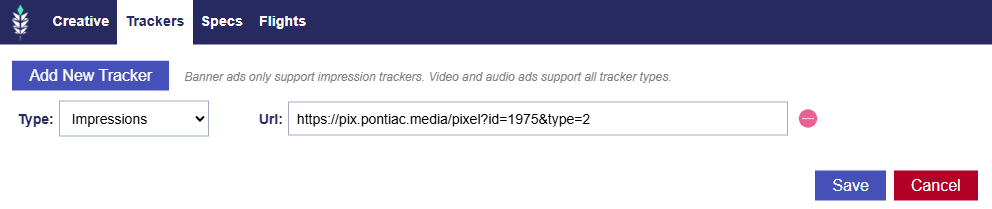
2. Add the Pixel URL Img to your desired creative (CTV, Display, Audio, etc.) to the trackers tab as an impression tracker.
3. Check that the audience has started collecting records in the Audience tab > Custom section. If there are records proceed to the next step. If not, ensure that the campaign has been live long enough to collect data.
4. On the Campaign or Line level associate the custom audience.
This enables workflows such as:
Building audiences from users exposed to ads
Applying those audiences to future campaigns
Retargeting across different media types (e.g., video, display, audio)
This approach allows you to extend campaign impact across channels and scale retargeting strategies.
Specs Tab
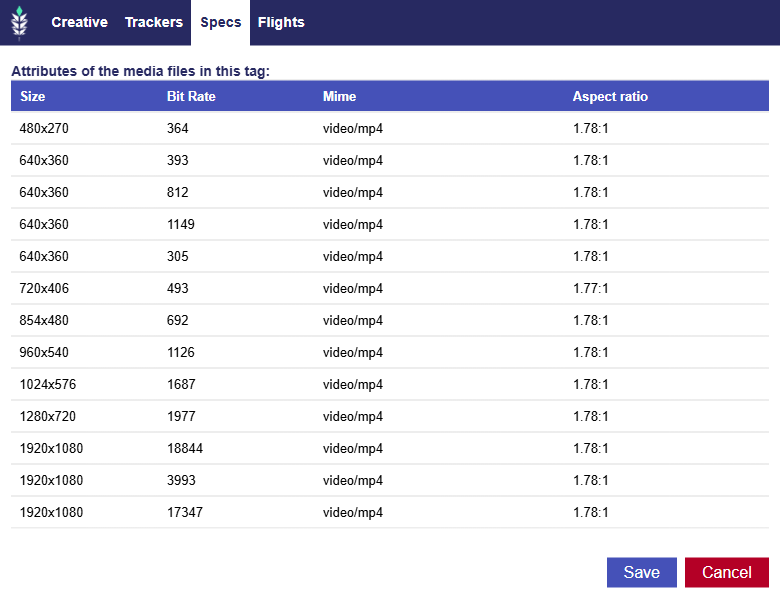
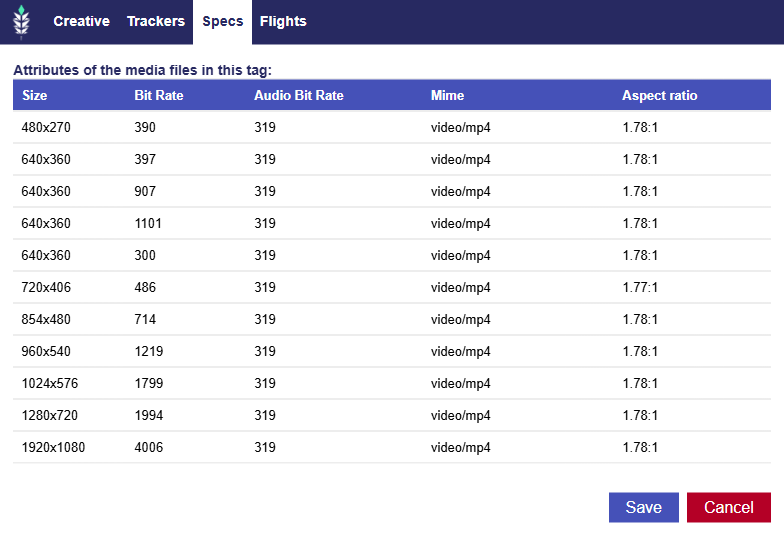
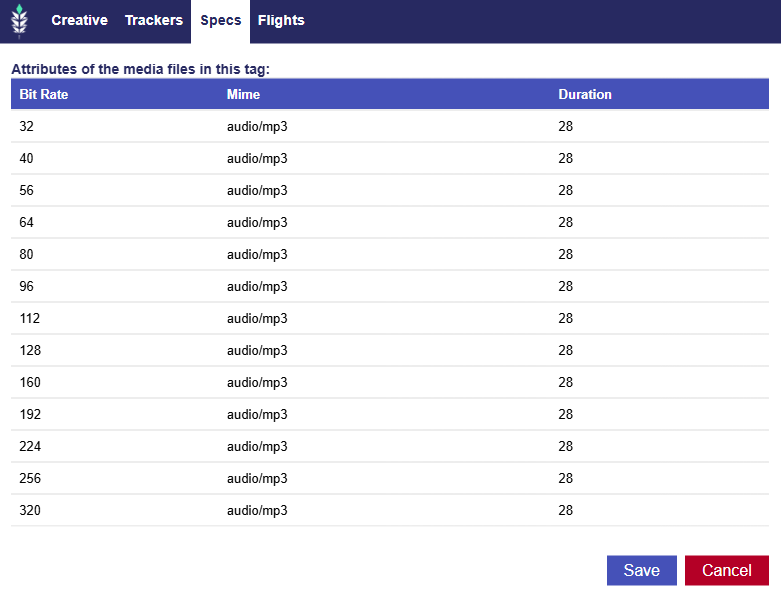
The Specs tab displays technical details for supported creative types, including creative size, bit rates, MIME type, aspect ratio, and duration where applicable.
Creative types without a Specs tab
The following creative types do not have a Specs tab because their details are available in the main creative dialog window:
Banner: Hosted
Banner: 3rd Party
HTML5
Native
Video: 3rd Party
Size
Bit Rate (Video and Audio Combined)
Mime
Aspect Ratio
Video: Hosted
Size
Bit Rate (Video)
Audio Bit Rate
Mime
Aspect Ratio
Audio: 3rd Party
Bit Rate (Audio)
Mime
Duration
Flights Tab
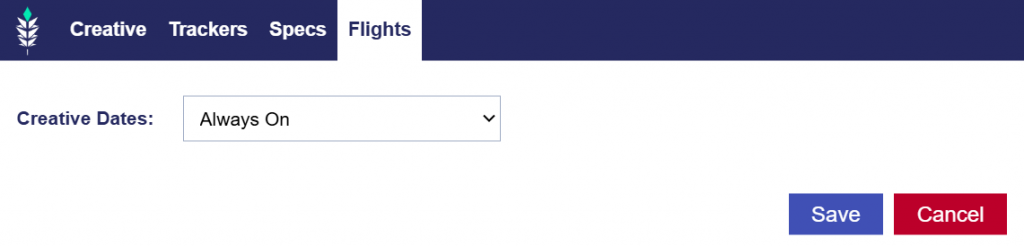
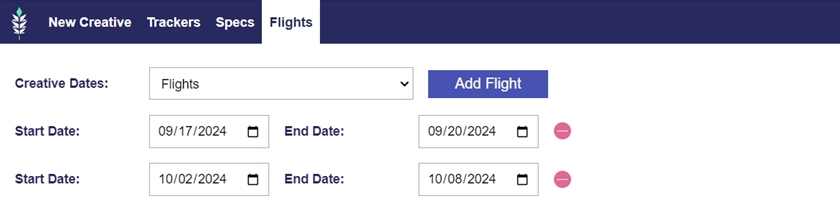
On the Flights tab, choose to have the Creative Always On or Active for a specific Flight.
Flight dates can be applied on each creative to easily schedule and facilitate creative swaps on a Line or Campaign. For example, if you have a new creative for each week of a Campaign, you can associate all of the creatives to the Campaign, and set flight dates accordingly so that you do not have to edit the Campaign and swap creatives each week. The creative will only be eligible to serve during the date intervals selected unless the creative is set to ‘Always On’, in which case it will be eligible to serve whenever it is assigned to a Line or creative with current flight dates.
In the creative upload or edit window, under the ‘Flights’ tab, you can change the creative dates setting to ‘Flights’ then configure the dates when you would like the creative to serve. To add multiple flights, select the ‘Add Flight’ button.
To remove a flight, click the red circle next to the selected dates. If a creative is switched from ‘Flights’ to ‘Always On’, all existing flights will be removed.
Publisher Specs Eligibility Tab
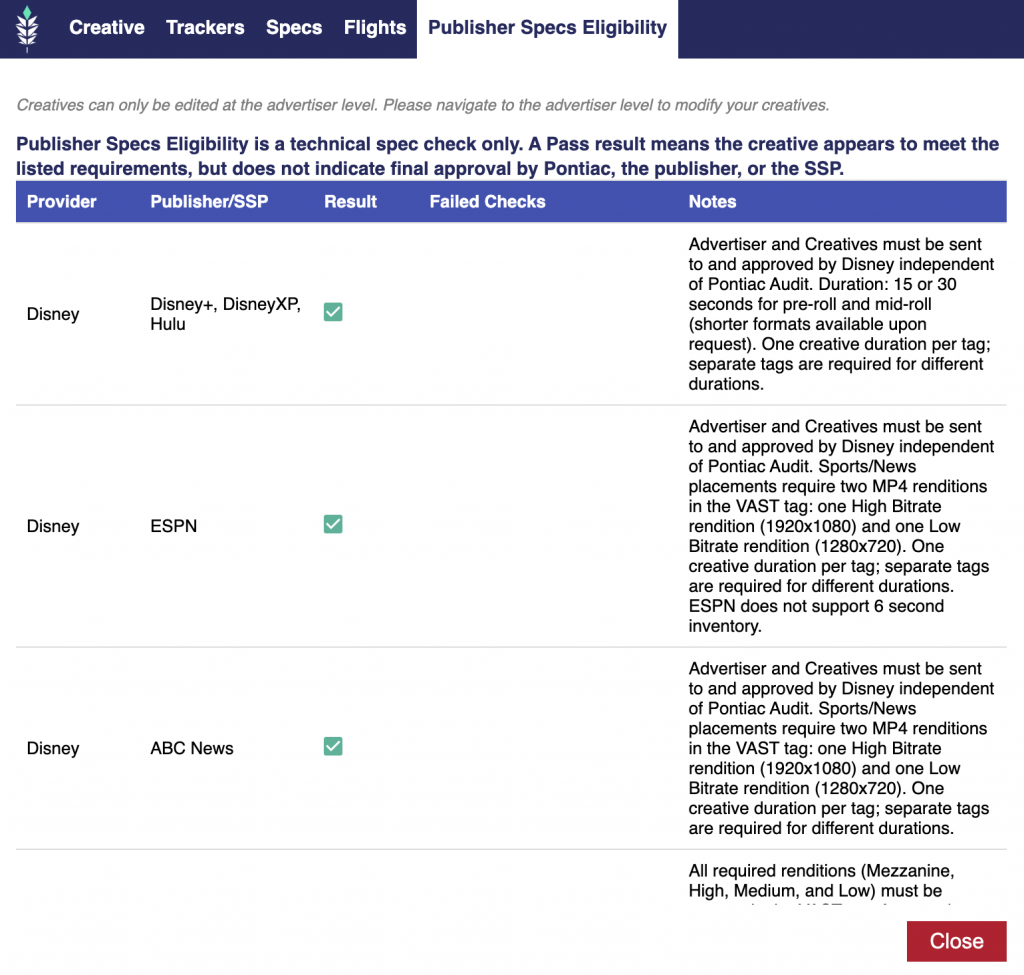
The Publisher Specs Eligibility tab is available in the Creative window for:
Video: Hosted
Video: 3rd Party
Audio: Hosted
Audio: 3rd Party
This tab evaluates whether a hosted creative appears to meet the technical requirements of supported publishers and SSPs.
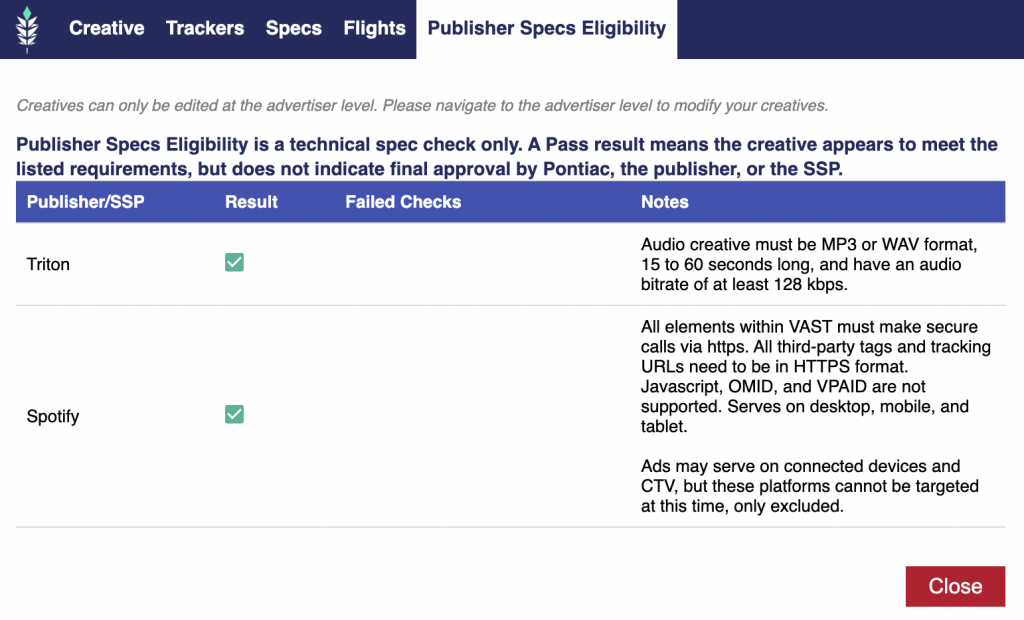
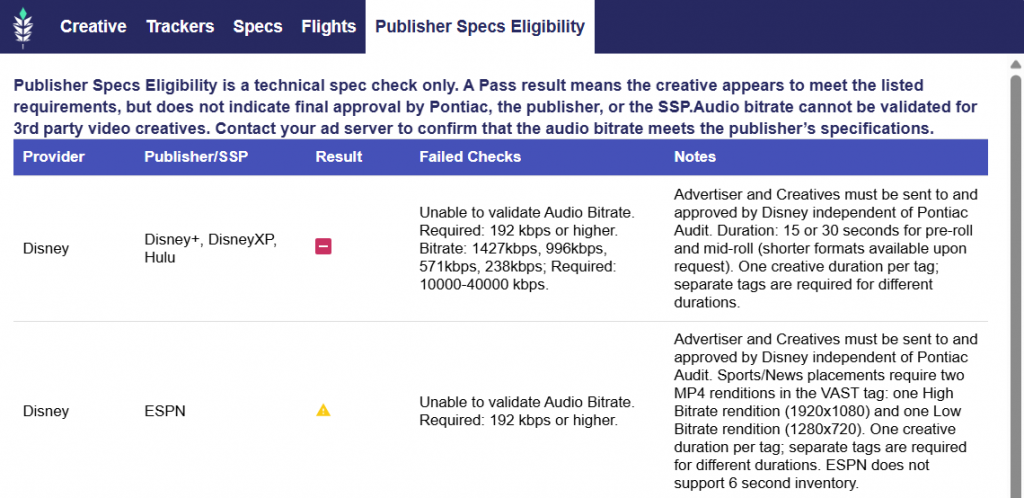
Publisher Specs Eligibility is a technical specification check only. A Pass result means the creative appears to meet the listed requirements, but it does not indicate final approval by Pontiac, the publisher, or the SSP. Publisher requirements are controlled by each publisher and are subject to change. Audio bitrate cannot be validated for 3rd party video creatives. Contact your ad server to confirm that the audio bitrate meets the publisher’s specifications.
For more information about publisher specific approval processes, contact your Account Manager or reach out through the Help Center.
Video Tests Check the Following:
Aspect Ratio
Duration
Sizes
Video Bitrate
Audio Bitrate (except 3rd party videos unable to check automatically and must be checked manually)
Video Publisher Test Requirements:
Disney
Disney+, DisneyXP, Hulu
Aspect Ratio: 16:9
Duration: 6, 15, or 30 seconds
Sizes: 1920×1080 (preferred) or 1280×720
Video Bitrate:
Minimum Bitrate: 10,000 Kbps
Maximum Bitrate: 40,000 Kbps
Audio Bitrate: 192 Kbps or higher
ESPN
Aspect Ratio: 16:9
Duration: 15 or 30 seconds
Sizes: 1920×1080 and 1280×720 required
Video Bitrate:
1920×1080: Minimum Bitrate: 10,000 Kbps and Maximum Bitrate: 40,000 Kbps
1280×720: Bitrate: 1,500 Kbps or less
Audio Bitrate: 192 Kbps or higher
ABC News
Aspect Ratio: 16:9
Duration: 6, 15, or 30 seconds
Sizes: 1920×1080 and 1280×720 required
Video Bitrate:
1920×1080: Minimum Bitrate: 10,000 Kbps and Maximum Bitrate: 40,000 Kbps
1280×720: Bitrate: 1,500 Kbps or less
Audio Bitrate: 192 Kbps or higher
NBCU
Aspect Ratio: 16:9
Duration: 6, 15, 30, 45, or 60 seconds
Sizes: All sizes required in the VAST tag
Mezz – 1920×1080 HD
High – 1920×1080 HD or 1280x 720 HD
Medium – 960×540 or 640×480
Low – 640×360 or 416×234
Video Bitrate
Mezz – 10,000-30,000 Kbps
High – 3,250-5,000 Kbps
Medium – 1,000-1,500 Kbps
Low – 340-460 Kbps
Audio Bitrate
Mezz – Minimum 192 kbps
High – Minimum 96 kbps
Medium – Minimum 96 kbps
Low – Minimum 96 kbps
Paramount
Aspect Ratio: 16:9
Duration: 15, 30, 60, or 90 seconds
Sizes: All sizes required in the VAST tag
1920×1080
1024×576
960×540
768×432
640×360
Video Bitrate
1920×1080:10,000 Kbps – 40,000 Kbps
1024×576: 2,100 kbps +/- 50 kbps
960×540: 1,500 kbps +/- 50 kbps
768×432: 750 kbps+/- 50 kbps
640×360: 375 kbps+/- 50 kbps
Audio Bitrate: 192 Kbps or higher
WBD
CNN, League Sports, MLB, NHL
Aspect Ratio: 16:9
Duration: 15 or 30 seconds
Sizes: All sizes required in the VAST tag
Mezz – 1920×1080
High – 1280x 720
Medium – 854×480
Low – 640×360
Video Bitrate
1920×1080: 15,000-30,000 Kbps
1280×720: Less than 15,000 Kbps
854×480: Less than 1,500 Kbps
640×360: Less than 1,000 Kbps
Audio Bitrate: 192 Kbps or higher
NCAA
Aspect Ratio: 16:9
Duration: 15 or 30 seconds
Sizes: 1920×1080
Video Bitrate: 18,000 – 30,000 Kbps
Audio Bitrate: 192 Kbps or higher
TBS, TNT, truTV
Aspect Ratio: 16:9
Duration: 15, 30, or 60 seconds
Sizes: All sizes required in the VAST tag
Mezz – 1920×1080
High – 1280x 720
Medium – 854×480
Low – 640×360
Video Bitrate
1920×1080: 15,000-30,000 Kbps
1280×720: Less than 15,000 Kbps
854×480: Less than 1,500 Kbps
640×360: Less than 1,000 Kbps
Audio Bitrate: 192 Kbps or higher
Discovery
Aspect Ratio: 16:9
Duration: 6, 15, 30, or 60 seconds
Sizes: All sizes required in the VAST tag
Mezz – 1920×1080
High – 1280x 720
Medium – 854×480
Low – 640×360
Video Bitrate: 10,000 Kbps minimum
Audio Bitrate: 192 Kbps or higher
HBO Max, WBD Stream
Aspect Ratio: 16:9
Duration: 15, 30, 45, or 60 seconds
Sizes: All 5 sizes required in the VAST tag
Mezz – 1920×1080 x 2 (2 1920×1080 sizes present in VAST tag)
High – 1280x 720
Medium – 854×480
Low – 640×360
Video Bitrate: 10,000 Kbps minimum
Audio Bitrate: 192 Kbps or higher
Audio Tests Check the Following:
Format
Audio Bitrate
Duration
Audio Publisher Test Requirements:
Triton
Format: MP3, MPEG, WAV
Audio Bitrate: 128 kbps minimum
Duration: up to 60 seconds
Spotify
Format: 3MPEG or MP3
Audio Bitrate: 192 kbps minimum
Duration: up to 30 seconds
Note: All elements within VAST must make secure calls via https. All third-party tags and tracking URLs need to be in HTTPS format. Javascript, OMID, and VPAID are not supported. Serves on desktop, mobile, and tablet. Ads may serve on connected devices and CTV, but these platforms cannot be targeted at this time, only excluded.
Failed checks will display the identified value in the creative and then the requirement for that test for easy comparison and updating.