Bulk Upload
Bulk Upload Third Party Creatives with Pontiac Assistant
Third party creatives can be uploaded in bulk through the Pontiac Assistant by providing a creative manifest in either JSON or CSV format. The manifest can include creatives across multiple Advertisers in a single upload.
Paste the JSON or CSV content directly into Pontiac Assistant. A separate file path is not required.
Required Fields
Each creative should include the following:
| Field | Description |
|---|---|
advertiserId | Advertiser ID the creative should be associated with. Different Advertiser IDs can be included in the same manifest. |
name | Creative name. |
creativeType | Use video or audio for VAST tags, or display for an HTML/JavaScript ad tag. |
creativeSizes | Creative dimensions. For video/audio, this is typically the player size, such as 640x480. For display, use the banner size, such as 300x250. |
duration | Required for all creative types. Enter the duration in seconds for video/audio. Use 0 for display creatives. |
vastTag | VAST XML URL. Required for video and audio third-party creatives. |
creativeData | Raw HTML/JavaScript ad tag. Required for display third-party creatives. |
The following fields are optional:
clickUrlweight— value from 1–10statuscategories— IAB category codestrackers— VAST tracking pixels for video/audio creativescodelanguage
Upload Using JSON
Paste a JSON array containing one object per creative into Pontiac Assistant.
[
{
“advertiserId”: 966,
“name”: “Brand Video 30s – VAST”,
“creativeType”: “video”,
“vastTag”: “https://example.com/vast/spot30.xml“,
“duration”: 30,
“creativeSizes”: [
{
“width”: 640,
“height”: 480
}
],
“weight”: 1
},
{
“advertiserId”: 966,
“name”: “Podcast Audio 15s”,
“creativeType”: “audio”,
“vastTag”: “https://example.com/vast/audio15.xml“,
“duration”: 15
},
{
“advertiserId”: 966,
“name”: “300×250 Ad Tag”,
“creativeType”: “display”,
“creativeData”: “”,
“duration”: 0,
“creativeSizes”: [
{
“width”: 300,
“height”: 250
}
],
“clickUrl”: “https://example.com/landing“
}
]
UI Walkthrough
- Assistant Prompt:
can you bulk upload these third party creatives to advertiser id 966:
JSON:
[
{“advertiserId”:966,”name”:”Brand Video 30s – VAST”,”creativeType”:”video”,”vastTag”:”https://example.com/vast/spot30.xml”,”duration”:30,”creativeSizes”:[{“width”:640,”height”:480}],”weight”:1},
{“advertiserId”:966,”name”:”Podcast Audio 15s”,”creativeType”:”audio”,”vastTag”:”https://example.com/vast/audio15.xml”,”duration”:15,”creativeSizes”:[{“width”:1,”height”:1}]}
{“advertiserId”:966,”name”:”300×250 Ad Tag”,”creativeType”:”display”,”creativeData”:””,”duration”:0,”creativeSizes”:[{“width”:300,”height”:250}],”clickUrl”:”https://example.com/landing”}
]
- Assistant Response:
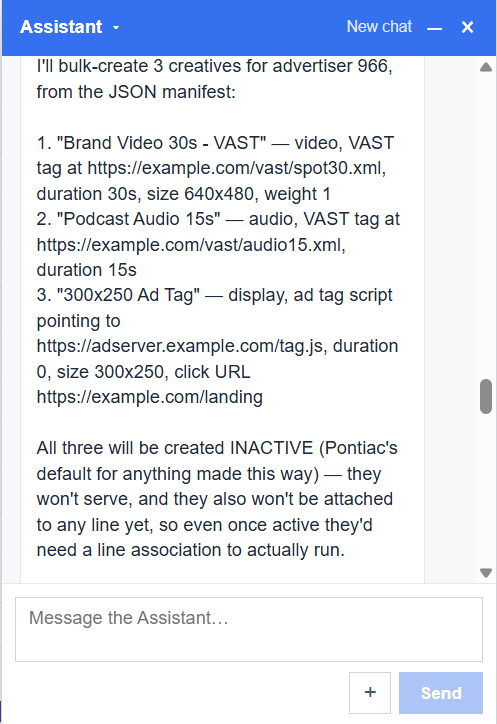
- UI Verification
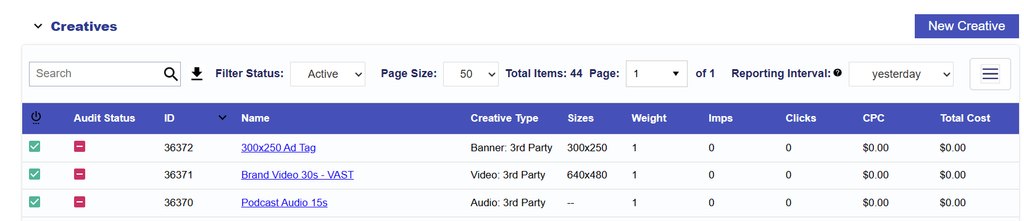
The three creatives were successfully uploaded to the Advertiser. In the example shown, the creatives were rejected for testing purposes. In a standard upload, newly uploaded creatives will display a Pending status while they go through the normal creative audit process and will update once approved.
Upload Using CSV
CSV uploads must include a header row. Each creative should be entered as a separate row.
advertiserId,name,creativeType,vastTag,creativeData,clickUrl,duration,creativeSizes,weight
966,Brand Video 30s – VAST,video,https://example.com/vast/spot30.xml,,,30,640×480,1
966,Podcast Audio 15s,audio,https://example.com/vast/audio15.xml,,,15,,
966,300×250 Ad Tag,display,,””,https://example.com/landing,0,300×250,
CSV Formatting
When including multiple values within a CSV field:
- Creative Sizes: separate multiple sizes with semicolons.
Example:640x480;300x250 - Trackers: use
type|urlpairs separated by semicolons.
Example:imps|https://track.example.com/imp;clicks|https://track.example.com/click - Categories: separate multiple IAB category codes with semicolons.
Once the manifest is ready, paste it into Pontiac Assistant and submit it to begin the bulk creative upload.