Pontiac Wiki Pontiac Wiki

Mange Campaigns

Mange Campaigns

  • Manage Lines from a Campaign
  • Clone a Campaign
  • Edit a Campaign
  1. Home
  2. Bidder Documentation
  3. Campaigns
  4. Mange Campaigns

Manage Lines from a Campaign

Create a New Line

From the Campaign level, you can create a new Line from scratch or by using a Line template.

Refer to the following documentation for detailed instructions:

  • Create a Line
  • Create Line From Template

Edit a Line from the Campaign

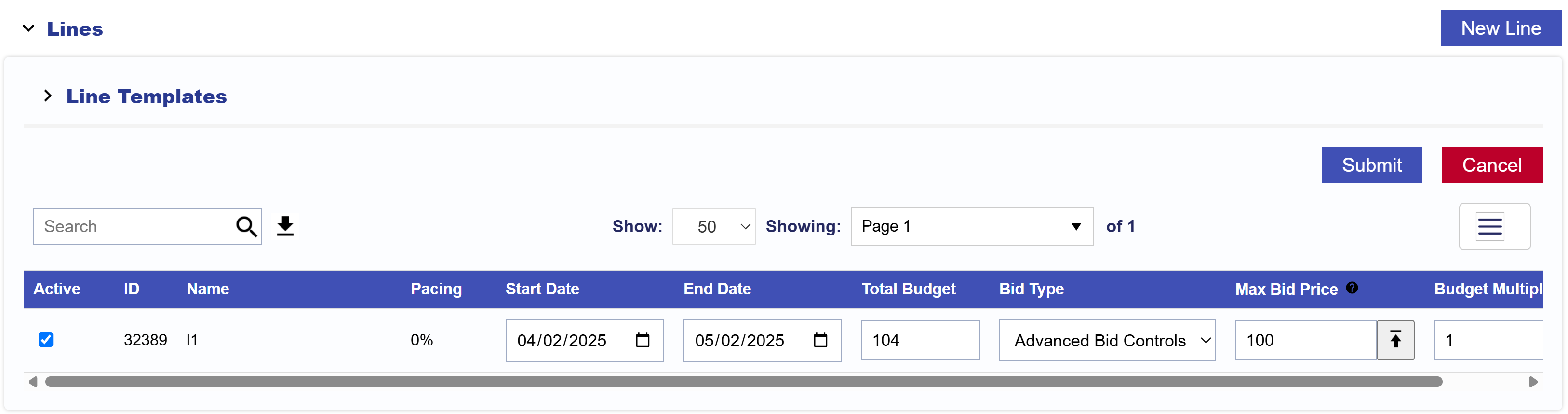
You can make basic Line updates directly from the Campaign page.

  1. Navigate to the Lines section of the Campaign.
  2. Select Edit to enable editing for the Lines section.
  3. Update the applicable Line fields:
    • Active Status
    • Start Date
    • End Date
    • Total Budget
    • Bid Type: For details, see Line Setup for details on the following Bid Types.
      • Basic Bid
      • Bid at Floor Price
      • Advanced Bid Controls
    • Bid Price
    • Budget Multiplier
  4. Select Submit to save the changes.
    • Select Cancel to discard your changes.

The fields available when editing Lines from the Campaign page may differ from the fields available when editing the Campaign itself.

To make additional changes to a Line, select the Line name to open the Line level and refer to Edit a Line.

Clone a Campaign

Cloning a Campaign creates a new Campaign under the same Advertiser using the existing Campaign as the starting configuration.

To clone a Campaign:

  1. Navigate to the Campaign you want to clone.
  2. Select Clone in the upper-right corner.
  3. Enter a name for the new Campaign.
  4. Review and update the Campaign settings as needed.
  5. Select Submit to create the cloned Campaign.

Refer to Edit a Campaign for additional information about Campaign settings.

Edit a Campaign

To edit an existing Campaign:

  1. Navigate to the applicable Advertiser.
  2. Open the Campaigns section.
  3. Select the Campaign you want to edit.
  4. Select Edit in the upper-right corner.
  5. Update the applicable Campaign sections.
  6. Select Submit to save your changes.

Select Cancel to discard your changes and restore the previously saved settings.

Setup

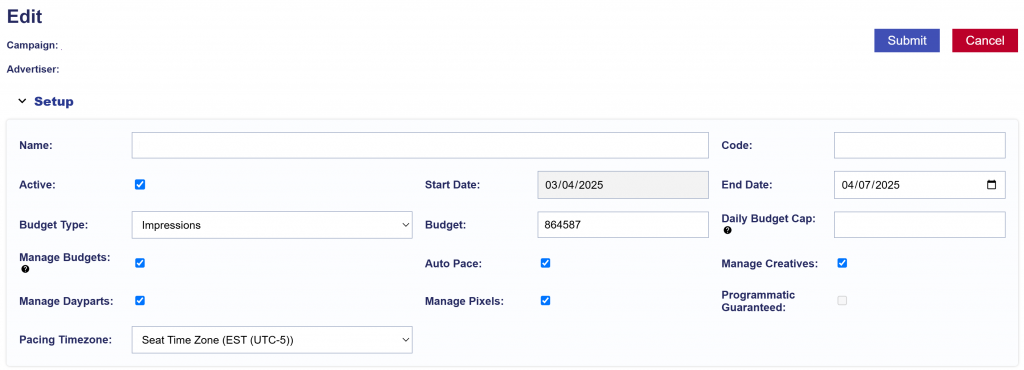
The Setup section contains the primary Campaign settings.

The following fields are editable:

  • Name: Rename the Campaign.
  • Code: Optional value used for reporting purposes.
  • Active Status: Determines whether the Campaign is active.
  • Start Date: Editable if the Campaign has not started.
  • End Date: Editable if the Campaign has not ended.
  • Budget Type: Spend or Impressions.
  • Budget: Enter the total Campaign budget based on the selected Budget Type.
  • Set a Daily Budget Cap: Sets an optional daily delivery limit for the Campaign.
  • Manage Budgets: Enables Campaign-level management of Line budgets.
  • Auto Pace: Allows the system to automatically pace the Campaign.
  • Manage Creatives: Enables Creative management at the Campaign level.
  • Manage Dayparts: Enables Pacing & Dayparts management at the Campaign level.
  • Manage Pixels: Enables Pixel management at the Campaign level.
  • Enable Flights: Enables Campaign Flights.
  • Pacing Timezone: Determines the timezone used for Campaign pacing.
  • Enable Campaign Frequency: Enables Campaign-level Frequency & Recency controls.

Daily Budget Cap

The Daily Budget Cap limits Campaign delivery within a single day.

If Manage Dayparts is enabled and the pacing timezone is controlled at the Campaign level, the Campaign pacing timezone is used to define the day. If pacing timezone is controlled by the Lines, the Seat timezone is used.

When the Daily Budget Cap is reached, all Lines under the Campaign stop bidding regardless of their individual budget or pacing settings.

Catch-up pacing is not recommended when a Daily Budget Cap is enabled, as the combination may cause inconsistent pacing behavior.

Manage Budgets

When Manage Budgets is enabled:

  • Line flight dates align with the Campaign Start Date and End Date.
  • Line Budget Type aligns with the Campaign Budget Type.
  • Line lifetime budgets are converted into allocation weights based on each Line’s percentage of the total Campaign budget.

Leave Manage Budgets disabled if Line budgets should continue to be managed independently.

Manage Creatives

When Manage Creatives is enabled, Creatives can be associated at the Campaign level.

Manage Dayparts

When Manage Dayparts is enabled, Pacing & Dayparts are controlled at the Campaign level and override Pacing & Dayparts settings configured on associated Lines.

Refer to Pacing & Dayparts for configuration options and instructions.

Manage Pixels

When Manage Pixels is enabled, Pixels can be associated at the Campaign level.

For Lines under the Campaign, Pixels configured at the Line level are removed and replaced by the Pixels selected at the Campaign level.

Enable Flights

When Enable Flights is selected, Campaign Flights can be configured with:
  • Start Date
  • End Date
  • Budget
  • Rollover Budgets
  • Rollover Type
    • Even
    • Next Flight

Refer to Campaign Flights for detailed Flight configuration.

Enable Campaign Frequency

When Enable Campaign Frequency is selected, Frequency & Recency can be managed at the Campaign level.

Refer to Frequency & Recency for available settings and configuration instructions.

Targeting

Campaign-level Targeting can be updated from the Campaign page.

  1. Navigate to the Targeting section.
  2. Select Edit Targeting.
  3. Update the applicable Targeting settings.
  4. Select Save to apply the changes within the Targeting window.
  5. Select Submit on the Campaign page to save the Campaign changes.

Select Cancel to discard changes.

Refer to Targeting Methods for available Targeting options and configuration instructions.

Audiences

Audience Segments can be associated with the Campaign from the Audiences section.

  1. Navigate to the Audiences section.
  2. Select Associate Segments.
  3. Add or remove the applicable Audience Segments.
  4. Close the window when complete.
  5. Select Submit to save the Campaign changes.

Refer to the Audience documentation for available Audience options and configuration instructions.

Flights

The Flights section is available when Enable Flights is selected in Campaign Setup.

To edit Campaign Flights:

  1. Navigate to the Campaign.
  2. Select Edit.
  3. Open the Flights section.
  4. Update the applicable Flight settings.
  5. Select Submit to save the changes.

Available Flight settings include:

  • Add or remove Flights
  • Active Status
  • Start Date
  • End Date
  • Flight Budget
  • Rollover Budgets
  • Rollover Type
    • Even
    • Next Flight

Refer to Campaign Flights for detailed Flight configuration.

Lines

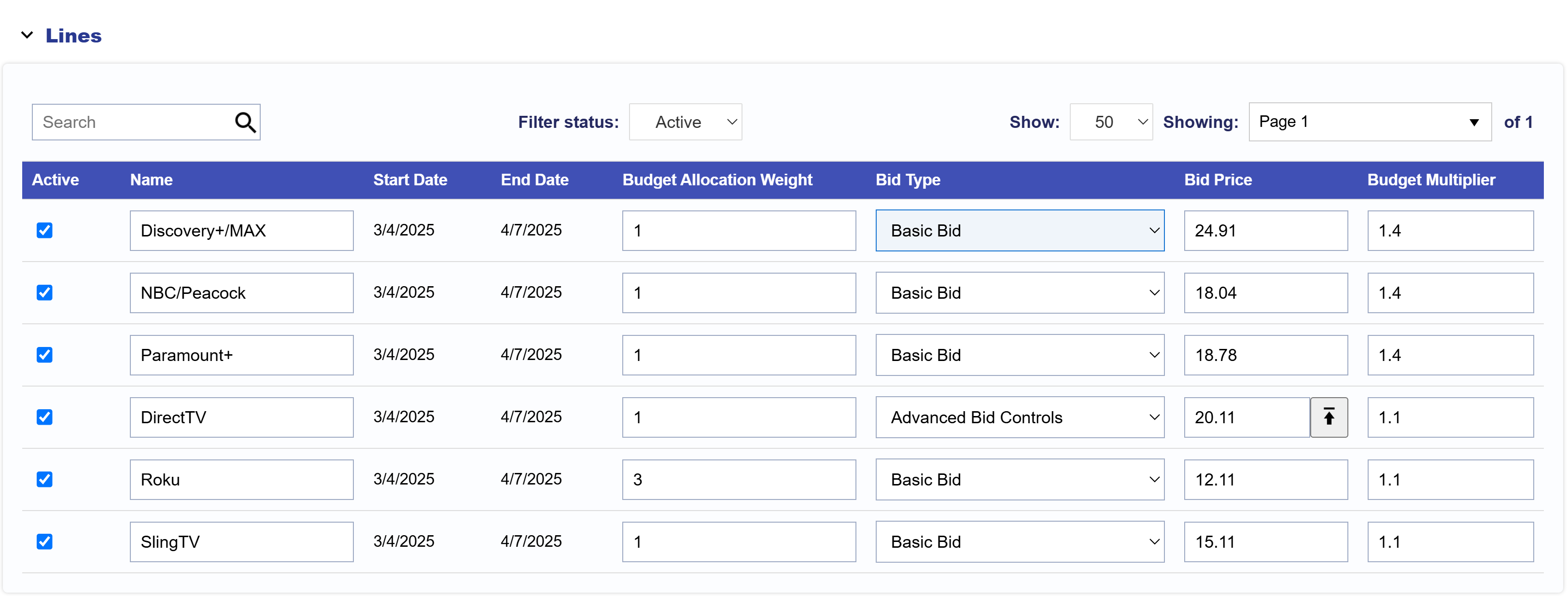
Basic Line settings can be updated directly from the Campaign page.

The following fields are editable:

  • Active Status
  • Line Name
  • Budget Allocation Weight
  • Bid Type
    • Basic Bid
    • Bid at Floor Price
    • Advanced Bid Controls
  • Bid Price
  • Budget Multiplier

Select Submit to save changes or Cancel to discard them.

For additional Line settings, open the applicable Line and refer to Edit a Line.

Pacing & Dayparts

When Manage Dayparts is enabled, Pacing & Dayparts can be configured at the Campaign level.

  1. Navigate to the Pacing & Dayparts section.
  2. Update the applicable settings.
  3. Select Submit to save the changes.

Refer to Pacing & Dayparts for configuration options and instructions.

Frequency & Recency

When Enable Campaign Frequency is enabled, Frequency & Recency can be configured at the Campaign level.

  1. Navigate to the Frequency & Recency section.
  2. Update the applicable settings.
  3. Select Submit to save the changes.

Refer to Frequency & Recency for available settings and configuration instructions.

Creatives

When Manage Creatives is enabled, Creatives can be associated with the Campaign.

  1. Navigate to the Creatives section.
  2. Select Associate Creatives.
  3. Add or remove the applicable Creatives.
  4. Close the window when complete.
  5. Select Submit to save the Campaign changes.

Creatives can only be created or edited at the Advertiser level.

Pixels

When Manage Pixels is enabled, Pixels can be associated with the Campaign.

  1. Navigate to the Pixels section.
  2. Select Associate Pixels.
  3. Add or remove the applicable Pixels.
  4. Close the window when complete.
  5. Select Submit to save the Campaign changes.

Pixels can only be created or edited at the Advertiser level.

© 2026 Pontiac Wiki Sec · All Rights Reserved · Developed by RDK

  • Contact Us
  • Privacy Policy
  • Terms & Conditions
  • Pontiac.media