Manage Flights
Use the Flights section of the Campaign’s Flights tab to view, add, and edit individual Flights.
Each Flight defines a specific date range and Budget within the Campaign’s overall Start Date and End Date. The Flight Budget Type is inherited from the Campaign.
View Flights
The Flights table displays each configured Flight along with its dates, Budget, remaining Budget, pacing, and rollover settings.
Use this section to review the Campaign’s Flight schedule and confirm that each Flight has the intended dates, Budget, and status.
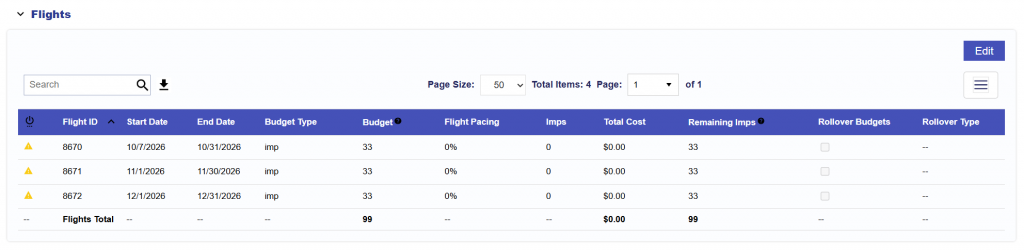
For definitions of the fields displayed in the Flights table, see Flights Tab.
Add a Flight
To add a new Flight:
- Open the applicable Campaign.
- Navigate to the Flights tab.
- In the Flights section, select Edit.
- Select Add Flight.
- Configure the Flight:
- Active: Determines whether the Flight is active.
- Start Date: The first date of the Flight.
- End Date: The final date of the Flight.
- Budget: Enter the Spend or Impression Budget for the Flight.
- Rollover Budgets: Enable if unused Budget should move into future Flights.
- Rollover Type: Select how unused Budget should be redistributed when rollover is enabled.
- Even
- Next Flight
- Select Save.
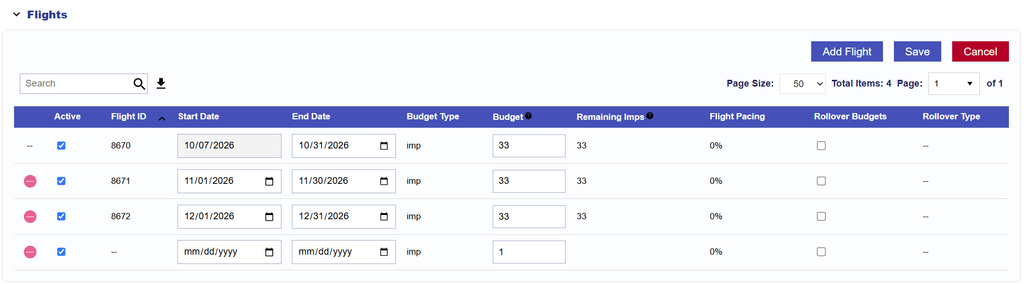
The Flight Budget Type is inherited from the Campaign:
- Spend: Enter the Flight Budget as a dollar amount.
- Impressions: Enter the Flight Budget as an impression amount.
Flight dates must fall within the Campaign’s overall Start Date and End Date.
Flights do not have to cover every date within the Campaign. Gaps between Flights are allowed and can be used intentionally to pause delivery. The Campaign can only spend during dates covered by an active Flight.
Edit a Flight
To edit an existing Flight:
- Open the applicable Campaign.
- Navigate to the Flights tab.
- In the Flights section, select Edit.
- Update the applicable Flight settings.
- Select Save.
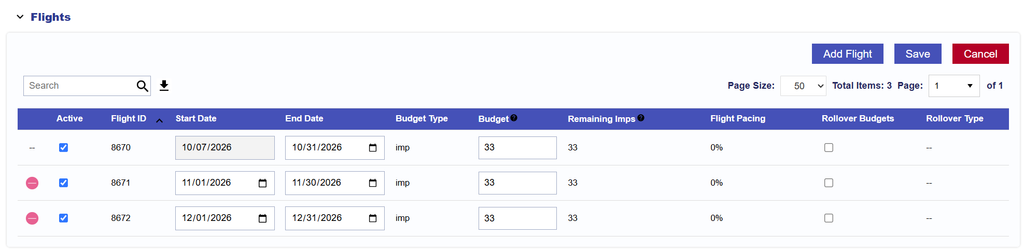
The following Flight settings can be edited where applicable:
- Delete future flights
- Active Status
- Start Date, if the Flight has not started
- End Date, if the Flight has not ended
- Flight Budget
- Rollover Budgets
- Rollover Type
Review the Flight schedule after making date or Budget changes to confirm that the Campaign still has the intended delivery coverage.
Active and Inactive Flights
The Active setting determines whether a Flight is eligible for delivery during its configured date range.
An inactive Flight will not allow Campaign delivery during that Flight period, even if the Campaign and its Lines are otherwise active.
The Flight Status indicator may also display warnings when required delivery inputs are missing or configured in a way that may prevent serving. See Flights Tab for Flight Status warning definitions.
Flight Budget
Each Flight has its own Budget within the Campaign.
The Flight Budget controls the amount of Campaign Budget available during that Flight period. How that Budget is distributed across Lines depends on the Campaign’s Manage Budgets setting:
- Manage Budgets enabled: The Flight Budget is distributed across Lines using Budget Allocation Weights.
- Manage Budgets disabled: Individual Line Flight Budgets are configured manually.
Flight-specific Line settings are configured separately under Flights > Lines after the Flights have been saved.
See Configure Flight Line Settings for detailed instructions.
Rollover Budgets
Rollover Budgets allows unused Budget from a Flight to move into future Flights.
Two Rollover Types are available:
- Even: Distributes the remaining Budget evenly across the remaining Flights.
- Next Flight: Moves the remaining Budget into the next scheduled Flight.
For example, if a Flight ends with 900 impressions remaining and three future Flights remain:
- Even: Each remaining Flight receives an additional 300 impressions.
- Next Flight: The next Flight receives the full additional 900 impressions.
Important: Once unused Budget has rolled over into future Flights, the rollover cannot be undone. Review the Flight Budget and Rollover Type before the Flight ends.
Rollover applies only when Rollover Budgets is enabled for the Flight.
Review future Flight Budgets after rollover occurs, particularly when Line allocations or Line Flight Budgets differ between Flights.
Best Practices
- Keep all Flight dates within the Campaign Start Date and End Date.
- Review the full Flight schedule after adding or editing Flights.
- Use intentional gaps only when Campaign delivery should pause.
- Confirm that each active Flight has sufficient Budget.
- Review rollover settings before a Flight ends.
- After changing a Flight Budget, review the associated Line settings under Flights > Lines to confirm the intended allocation.