Flights Tab
After Flights have been enabled and the Campaign has been saved, the Flights tab provides Campaign- and Flight-level delivery metrics, pacing information, and access to the individual Flights and Lines sections.
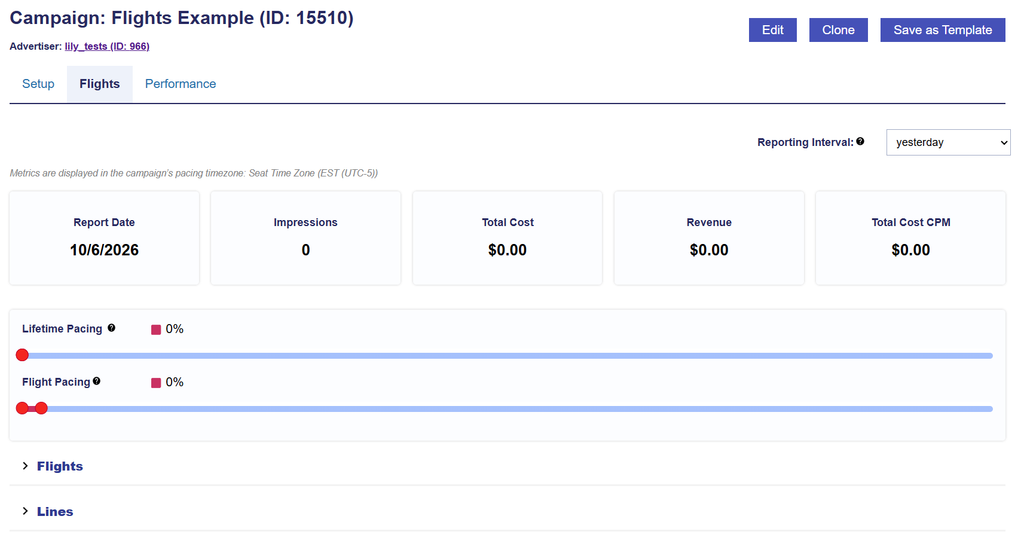
The Flights tab includes:
- Metric tiles for Report Date, Impressions, Total Cost, Revenue, and Total Cost CPM and a Reporting Interval
- Campaign Lifetime Pacing
- Flight Pacing
- A Flights section
- A Lines section
Metric Tiles and Reporting Interval
The Reporting Interval determines the date range used for the metric tiles displayed at the top of the Flights tab.
Changing the Reporting Interval updates the displayed Report Date, Impressions, Total Cost, Revenue, and Total Cost CPM for the selected period.
Metrics are displayed using the Campaign’s selected Pacing Time Zone.
The metric tiles provide a summary of Campaign performance for the selected Reporting Interval.
- Report Date: The date or date range represented by the selected Reporting Interval.
- Impressions: The total number of impressions delivered by the Campaign during the selected Reporting Interval.
- Total Cost: The total Campaign spend during the selected Reporting Interval, including media costs and any applicable margins or fees.
- Revenue: The total Campaign Revenue for the selected Reporting Interval.
- Total Cost CPM: The Campaign’s Total Cost per thousand impressions, calculated as:Total Cost CPM = (Total Cost / Impressions) × 1,000
The metric tiles reflect Campaign performance for the selected Reporting Interval and are separate from the Flight-specific budgets and pacing displayed elsewhere on the tab.
Campaign Lifetime and Flight Pacing
The top of the Flights tab provides pacing information for both the overall Campaign and the applicable Flight.
Campaign Lifetime Pacing
Lifetime Pacing shows how the Campaign is pacing against its overall Campaign Budget and full Campaign date range.
Lifetime Pacing considers the Campaign’s:
- Start Date
- End Date
- Campaign Budget
- Delivery to date
Use Lifetime Pacing to evaluate whether the Campaign as a whole is ahead of, behind, or aligned with its expected delivery pace.
Flight Pacing
Flight Pacing shows how the Campaign is pacing against the applicable Flight’s Budget and date range.
Flight Pacing considers the Flight’s:
- Start Date
- End Date
- Flight Budget
- Delivery attributed to that Flight
Because Lifetime Pacing evaluates the full Campaign while Flight Pacing evaluates an individual Flight period, the two pacing values may differ.
For example, a Campaign may be on pace across its full lifetime while the current Flight is temporarily underpacing, or the current Flight may be pacing well even if earlier Flights caused the Campaign’s Lifetime Pacing to fall behind.
Flights Section
The Flights section displays each configured Flight and its Campaign-level Flight settings.
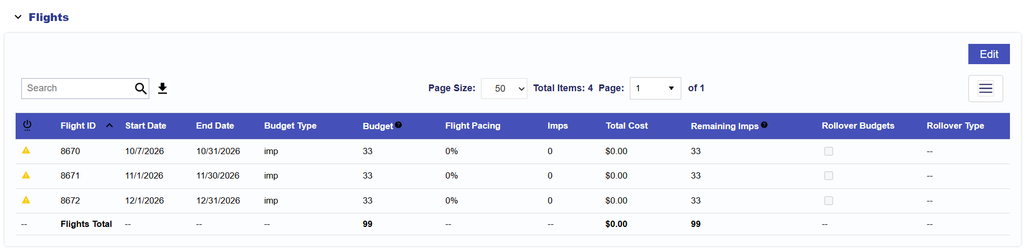
The Flights table includes:
- Status: Indicates whether the Flight is active and highlights configuration issues that may prevent the Flight from serving.
- When a potential delivery issue is detected, a warning icon is displayed. Hover over the icon to view the applicable message(s).
- The warning begins with: This flight may not serve because:
- Possible warnings include:
- No available Line Flight Budget: An active Line has no available budget for the Flight.
This flight’s line budget is 0 for: {line_name} ({line_id}) - Budget Allocation Weight is 0: An active Line has a Budget Allocation Weight of 0 for the Flight.
This flight’s line Budget Allocation Weight is 0 for: {line_name} ({line_id}) - Budget Multiplier is 0: An active Line has a Budget Multiplier of 0 for the Flight.
This flight’s line Budget Multiplier is 0 for: {line_name} ({line_id}) - No active Lines: No active Lines are associated with the Flight.
No active lines are associated with this flight. - No active Creatives: No active Creatives are associated with the Flight.
No active creatives are associated with this flight.
- No available Line Flight Budget: An active Line has no available budget for the Flight.
- Only applicable warnings are displayed. If multiple issues apply, each message appears on a separate line.
- Flight ID: The unique Pontiac ID assigned to the Flight.
- Start Date: The first date of the Flight.
- End Date: The final date of the Flight.
- Budget Type: Indicates whether the Flight Budget is based on Spend or Impressions. The Budget Type follows the Campaign Budget Type.
- Budget: The total Spend or Impression Budget assigned to the Flight.
- Remaining Spend / Remaining Impressions: The amount of the Flight Budget that remains available.
- Flight Pacing: The Flight’s delivery progress relative to its dates and Budget.
- Rollover Budgets: Indicates whether unused Flight Budget is configured to move into future Flights.
- Rollover Type: Indicates how unused Budget is redistributed when Rollover Budgets is enabled.
Users can review, add, and edit Flights from this section.
See Manage Flights for instructions on adding, editing, activating, and configuring Flight Budgets and rollover settings..
Lines Section
The Lines section displays Line-level configuration and delivery information for the Flight selected in the Flight dropdown.
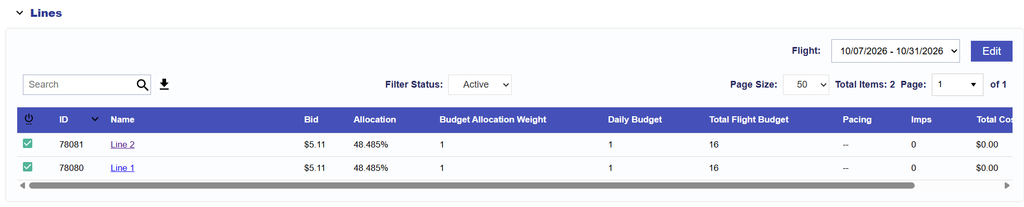
Use the Flight dropdown to move between Flights and review the Line configuration and performance for each period.
Depending on the Campaign’s Manage Budgets setting, the editable Line settings differ:
- Manage Budgets enabled: Budget Allocation Weight and Budget Multiplier
- Manage Budgets disabled: Flight Budget and Budget Multiplier
The Lines table may include:
- Active: Indicates whether the Line is active for the selected Flight.
- ID: The Line ID.
- Name: The Line Name.
- Bid: The Line’s configured Bid Price.
- Allocation: The Line’s actual percentage of the selected Flight Budget based on delivery to date. This value may change over time as spend and budget allocation rates adjust throughout the Flight.
- Budget Allocation Weight: The configured weight used to influence how the Flight Budget is distributed across Lines when Manage Budgets is enabled.
- Daily Budget: The Line’s applicable daily budget for the selected Flight.
- Total Flight Budget: The total Budget assigned to the Line for the selected Flight.
- Pacing: The Line’s delivery progress against its selected Flight Budget and dates.
- Impressions: Impressions delivered by the Line during the selected Flight.
- Total Cost: Total Cost attributed to the Line during the selected Flight.
- IP Conversions: IP-based conversions attributed to the Line during the selected Flight.
See Configure Flight Line Settings for instructions on configuring Budget Allocation Weights, Flight Budgets, Budget Multipliers, and settings that can be carried into future Flights.