Enable Flights
Flights must be enabled at the Campaign level before Flight-specific dates, budgets, pacing, and Line allocations can be configured.
Flights can be used with or without Manage Budgets enabled. However, enabling Manage Budgets is recommended when using Flights, as it allows Campaign Flight Budgets to be distributed across Lines using Budget Allocation Weights rather than requiring individual Line Flight Budgets to be maintained manually.
Important: Once Flights are enabled for a Campaign, they cannot be disabled. Review the Campaign setup before enabling Flights.
When Flights are first enabled, configure the Flight date ranges and Campaign-level Flight Budgets, then Submit the Campaign. Flight-specific Line settings cannot be configured until the Flights have been saved.
After the Campaign is saved, Line settings can be configured for each individual Flight under Flights > Lines. The available settings depend on whether Manage Budgets is enabled:
- Manage Budgets enabled: Configure each Line’s Budget Allocation Weight and Budget Multiplier by Flight.
- Manage Budgets disabled: Configure each Line’s Flight Budget and Budget Multiplier by Flight.
See Flight Line Settings for detailed instructions on configuring Line budgets, allocation weights, Budget Multipliers, and applying settings to future Flights.
Flight Date Coverage
Flights do not have to cover every date within the Campaign’s overall Start Date and End Date. However, the Campaign can only spend during dates that are covered by an active Flight.
If the configured Flights do not extend through the Campaign End Date, Pontiac displays a warning confirming that the Campaign will stop spending when the final Flight ends.
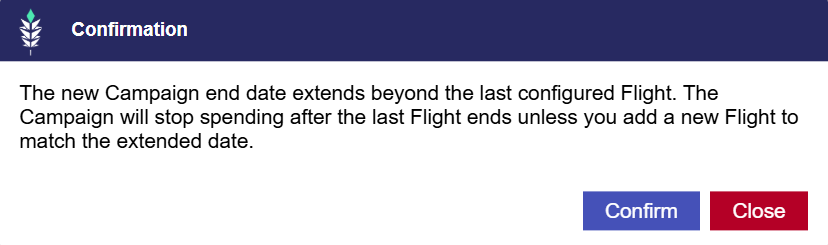
For example, if the Campaign End Date is 7/1/2027 but the last Flight ends on 3/31/2027, the Campaign will stop spending after 3/31/2027 unless another Flight is added.
Gaps between Flights are also allowed and can be used intentionally to pause delivery during specific periods.
Enable Flights on a New Campaign
To enable Flights while creating a new Campaign:
- Navigate to the applicable Advertiser and select New Campaign.
- Configure the Campaign Setup, including the Campaign Start Date, End Date, Budget Type, and Budget.
- Configure Manage Budgets as desired.
- Select Enable Flights.
- The Flights section will become available below the Campaign Setup.
- Configure the Flight date ranges, Flight Budgets, and applicable rollover settings.
- Continue setting up the Campaign and select Submit when finished.
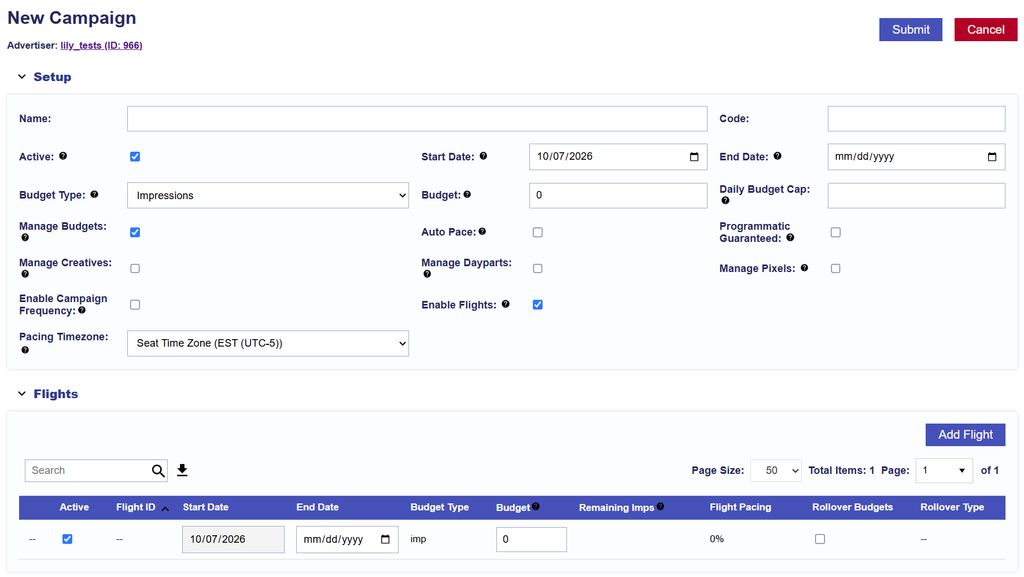
After the Campaign is saved, return to Flights > Lines to configure the Line settings for each individual Flight. See Flight Line Settings for additional instructions.
Enable Flights on an Existing Campaign
Flights can also be enabled for an existing Campaign. When Flights are enabled, the first Flight initially inherits the Campaign’s current Start Date and End Date.
Review the inherited Flight before saving and adjust the Flight structure based on the Campaign Start Date.
Scenario 1: The Campaign Start Date Is in the Past
If the Campaign Start Date has already passed, the first Flight should account for the Campaign period that has already elapsed.
For example, if the Campaign:
- Started on 7/22/2026
- Delivered media through 10/7/2026
- Should begin quarterly Flights on 10/8/2026
- Ends on 7/1/2027
The first Flight should cover 7/22/2026–10/7/2026. Additional Flights can then begin on 10/8/2026 and continue through the Campaign End Date of 7/1/2027.
This preserves the historical Campaign period before the new Flight schedule begins.
Scenario 2: The Campaign Start Date Is in the Future
If the Campaign has not started yet, there is no historical Campaign period to account for.
For example, a Campaign running from 10/8/2026–7/1/2027 could be divided into quarterly Flights beginning on 10/8/2026, without creating a separate historical Flight.
To enable Flights on an existing Campaign:
- Navigate to the applicable Campaign.
- Select Edit.
- In Campaign Setup, review the Campaign dates, Budget, and Manage Budgets setting.
- Select Enable Flights.
- Review the inherited first Flight.
- Adjust the first Flight and add additional Flights based on whether the Campaign Start Date is in the past or future.
- Configure the Campaign-level Flight Budgets and applicable rollover settings.
- Select Submit.
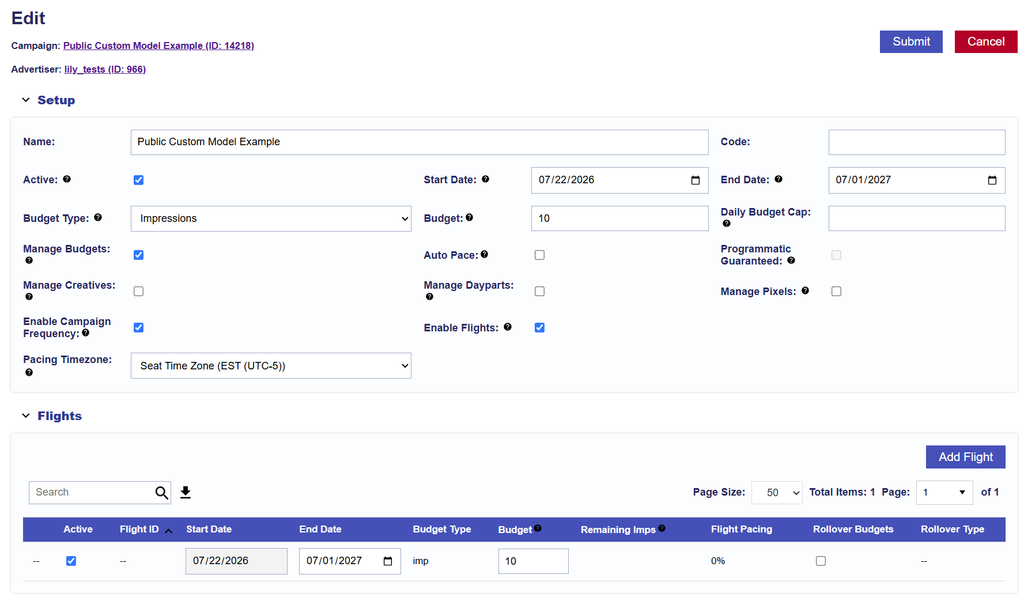
After the Campaign is saved, return to Flights > Lines to configure the Line-level settings for each Flight. See Flight Line Settings for additional instructions.