Configure Flight Line Settings
After Flights have been enabled and saved, Flight-specific Line settings can be managed from the Campaign’s Flights > Lines section.
Use the Flight dropdown to select the Flight you want to review or configure. Line settings can vary between Flights, allowing the same Line to have different budget allocations or Budget Multipliers throughout the Campaign.
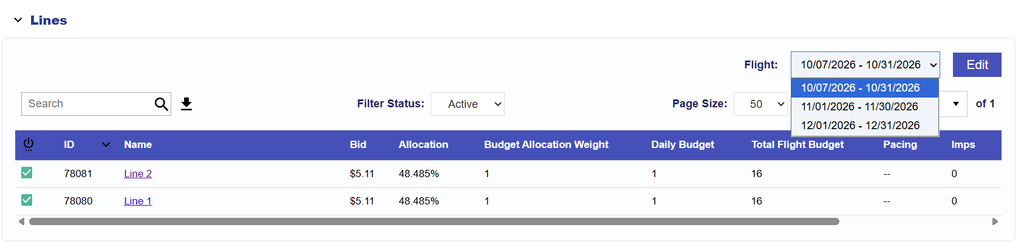
The available settings depend on whether Manage Budgets is enabled:
- Manage Budgets enabled: Configure Budget Allocation Weight and Budget Multiplier by Flight.
- Manage Budgets disabled: Configure Flight Budget and Budget Multiplier by Flight.
Manage Budgets Enabled
When Manage Budgets is enabled, the Campaign Flight Budget is distributed across Lines using Budget Allocation Weights.
To configure Line settings for a Flight:
- Open the applicable Campaign.
- Navigate to the Flights tab.
- Expand the Lines section.
- Select Edit.
- Use the Flight dropdown to select the Flight you want to configure.
- Update the Budget Allocation Weight for each Line.
- Update the Budget Multiplier, if needed.
- Select Save.
Budget Allocation Weights determine each Line’s target share of the Flight Budget and can be configured differently for each Flight.
For example, if a Flight has a Budget of 10,000 impressions and:
- Line A has a Budget Allocation Weight of 2
- Line B has a Budget Allocation Weight of 1
the target allocation would be approximately:
- Line A: 6,667 impressions
- Line B: 3,333 impressions
Manage Budgets Disabled
When Manage Budgets is not enabled, each Line’s budget is configured independently for each Flight.
The main Campaign Lines section displays each Line’s Total Budget across the full Campaign. This is separate from the Line’s individual Flight Budget.
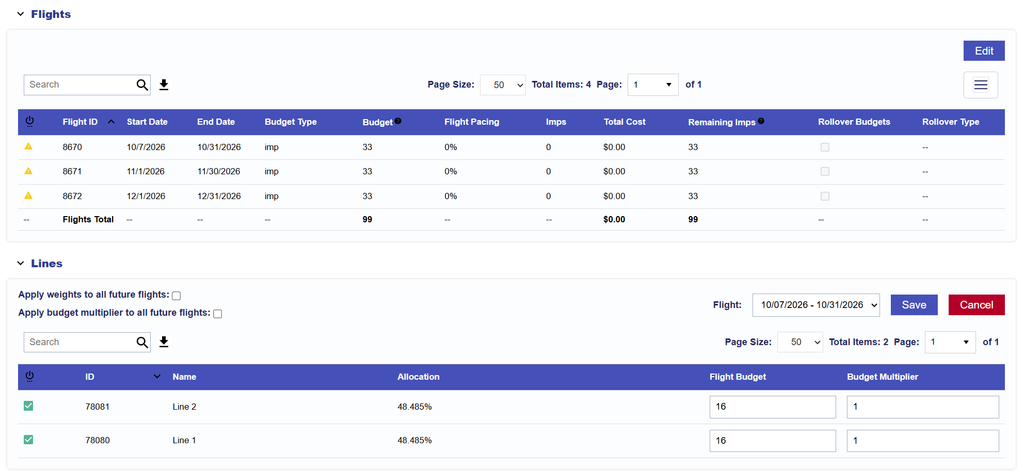
For example, if a Flight has a Budget of 33 impressions and the goal is to divide the budget approximately evenly across two Lines, each Line could be assigned a Flight Budget of 16 impressions, leaving 1 impression unallocated.
To configure individual Line Flight Budgets:
- Open the applicable Campaign.
- Navigate to the Flights tab.
- Expand the Lines section.
- Select Edit.
- Use the Flight dropdown to select the Flight you want to configure.
- Update the Flight Budget for each Line.
- Update the Budget Multiplier, if needed.
- Select Save.
The Line Flight Budget follows the Campaign Budget Type:
- Spend: Enter the Flight Budget as a dollar amount.
- Impressions: Enter the Flight Budget as an impression amount.
Because Line Flight Budgets are configured independently, review the combined Line Flight Budgets against the Campaign Flight Budget to avoid over- or under-allocation.
Configure Different Settings by Flight
Use the Flight dropdown in Flights > Lines to move between Flights and configure different Line settings for each period.
For example, the same Line could have:
- Flight 1: A larger Budget Allocation Weight or Flight Budget.
- Flight 2: A smaller allocation.
- Flight 3: A different Budget Multiplier.
This allows Line-level budget strategy to change throughout the Campaign without creating separate Campaigns or Lines.
Apply Settings to Future Flights
When editing Flight Line settings, users can apply selected settings to future Flights:
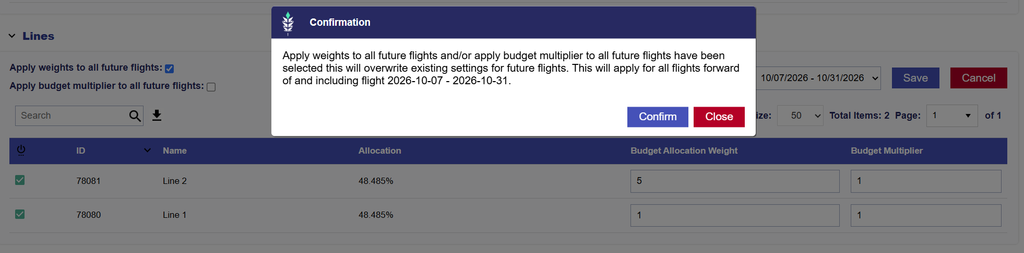
- Apply weights to all future flights: Applies the configured Budget Allocation Weights to future Flights.
- Available only when Manage Budgets is enabled.
- Apply budget multiplier to all future flights: Applies the configured Budget Multipliers to future Flights.
Use these options when the same Line configuration should continue across later Flights without updating each Flight individually.
Best Practices
- Confirm the selected Flight before making changes.
- When Manage Budgets is enabled, review Budget Allocation Weights across all active Lines within each Flight.
- When Manage Budgets is disabled, compare the combined Line Flight Budgets with the Campaign Flight Budget.
- Use the future Flight options when the same settings should carry forward.
- Review Flight Line settings whenever a new Flight is added or a Flight Budget is significantly changed.