Campaign Flights allow a Campaign to be divided into separate date ranges with individual budgets. Flights provide more granular control over when Campaign budget is available and how that budget is distributed across Lines throughout the Campaign.
Flights are optional and are enabled at the Campaign level. When Flights are not enabled, the Campaign and its Lines operate against their standard Campaign and Line date and budget settings. When Flights are enabled, the Campaign can contain multiple Flight periods within the overall Campaign date range. Pasted text
A single Line can participate across multiple Flights. Depending on whether Manage Budgets is enabled, each Flight can use different Line Budget Allocation Weights or manually configured Line Flight Budgets.
Flights are useful for Campaigns that need to:
Divide budget by week, month, promotion, or other scheduled period.
Allocate different amounts of budget to different Lines throughout the Campaign.
Pause delivery between scheduled periods.
Roll unused budget into future Flights.
Monitor pacing against a specific Flight in addition to the overall Campaign.
Flight Hierarchy
Flights are managed within the Campaign but do not change the relationship between the Campaign and its Lines.
Each Campaign belongs to a single Advertiser and contains one or more Lines, which control bidding and delivery. Campaigns can optionally use Flights to divide the Campaign into separate date ranges with individual budgets and Line allocation settings.
When Flights are enabled, the same Line can participate across multiple Flights with different budget allocations without changing the Campaign-to-Line hierarchy.
Flights Tab
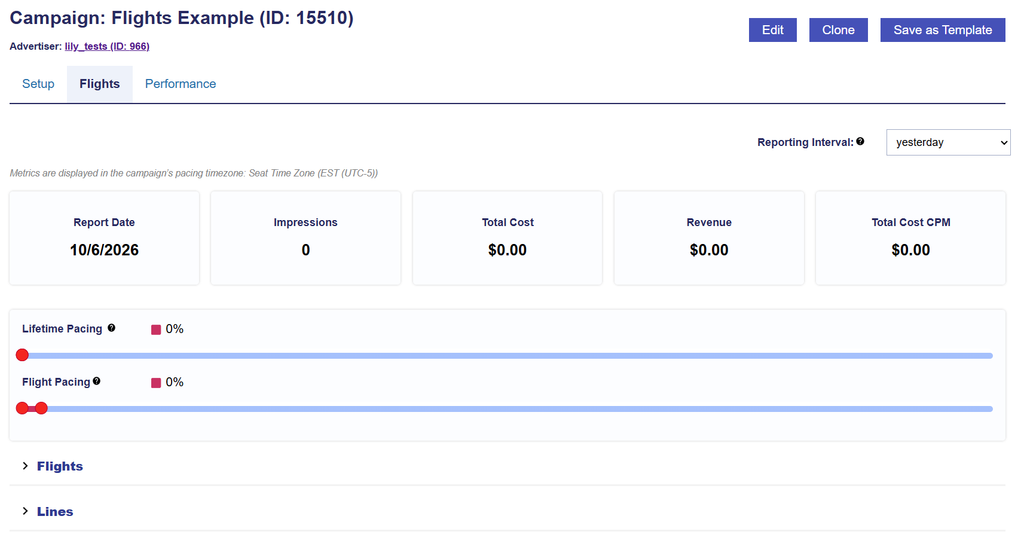
After Flights have been enabled and the Campaign has been saved, the Flights tab provides Campaign- and Flight-level delivery metrics, pacing information, and access to the individual Flights and Lines sections.
The Flights tab includes:
Metric tiles for Report Date, Impressions, Total Cost, Revenue, and Total Cost CPM and a Reporting Interval
Campaign Lifetime Pacing
Flight Pacing
A Flights section
A Lines section
Metric Tiles and Reporting Interval
The Reporting Interval determines the date range used for the metric tiles displayed at the top of the Flights tab.
Changing the Reporting Interval updates the displayed Report Date, Impressions, Total Cost, Revenue, and Total Cost CPM for the selected period.
Metrics are displayed using the Campaign’s selected Pacing Time Zone.
The metric tiles provide a summary of Campaign performance for the selected Reporting Interval.
Report Date: The date or date range represented by the selected Reporting Interval.
Impressions: The total number of impressions delivered by the Campaign during the selected Reporting Interval.
Total Cost: The total Campaign spend during the selected Reporting Interval, including media costs and any applicable margins or fees.
Revenue: The total Campaign Revenue for the selected Reporting Interval.
Total Cost CPM: The Campaign’s Total Cost per thousand impressions, calculated as:Total Cost CPM = (Total Cost / Impressions) × 1,000
The metric tiles reflect Campaign performance for the selected Reporting Interval and are separate from the Flight-specific budgets and pacing displayed elsewhere on the tab.
Campaign Lifetime and Flight Pacing
The top of the Flights tab provides pacing information for both the overall Campaign and the applicable Flight.
Campaign Lifetime Pacing
Lifetime Pacing shows how the Campaign is pacing against its overall Campaign Budget and full Campaign date range.
Lifetime Pacing considers the Campaign’s:
Start Date
End Date
Campaign Budget
Delivery to date
Use Lifetime Pacing to evaluate whether the Campaign as a whole is ahead of, behind, or aligned with its expected delivery pace.
Flight Pacing
Flight Pacing shows how the Campaign is pacing against the applicable Flight’s Budget and date range.
Flight Pacing considers the Flight’s:
Start Date
End Date
Flight Budget
Delivery attributed to that Flight
Because Lifetime Pacing evaluates the full Campaign while Flight Pacing evaluates an individual Flight period, the two pacing values may differ.
For example, a Campaign may be on pace across its full lifetime while the current Flight is temporarily underpacing, or the current Flight may be pacing well even if earlier Flights caused the Campaign’s Lifetime Pacing to fall behind.
Flights Section
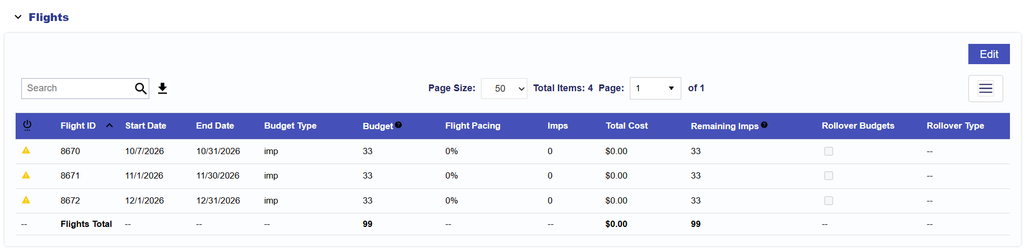
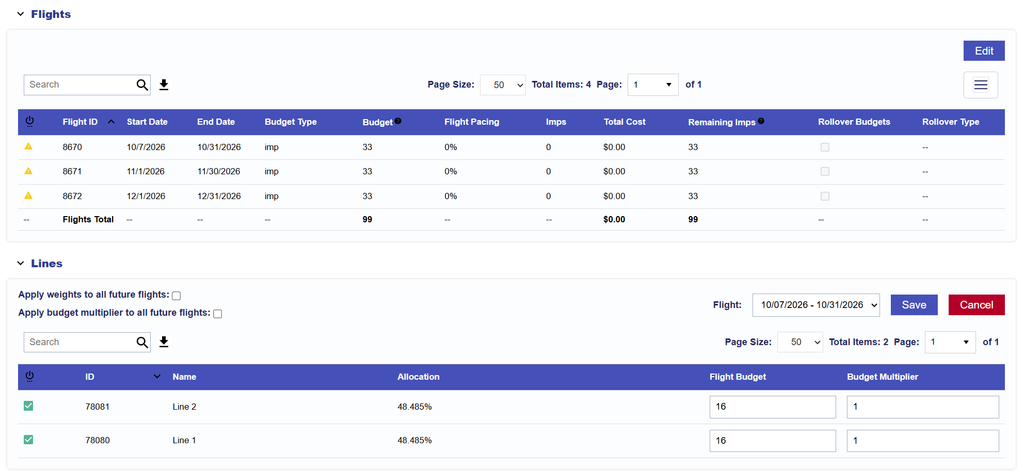
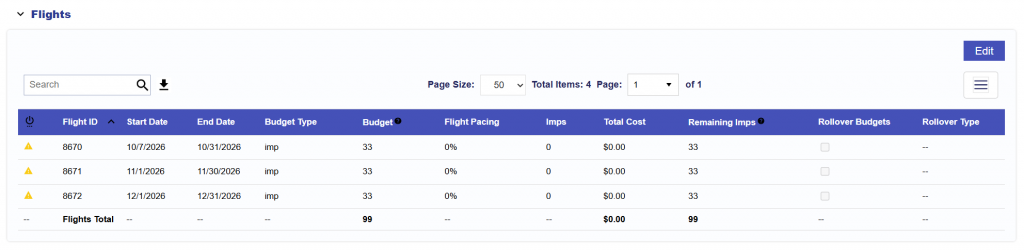
The Flights section displays each configured Flight and its Campaign-level Flight settings.
The Flights table includes:
Status: Indicates whether the Flight is active and highlights configuration issues that may prevent the Flight from serving.
When a potential delivery issue is detected, a warning icon is displayed. Hover over the icon to view the applicable message(s).
The warning begins with: This flight may not serve because:
Possible warnings include:
No available Line Flight Budget: An active Line has no available budget for the Flight. This flight’s line budget is 0 for: {line_name} ({line_id})
Budget Allocation Weight is 0: An active Line has a Budget Allocation Weight of 0 for the Flight. This flight’s line Budget Allocation Weight is 0 for: {line_name} ({line_id})
Budget Multiplier is 0: An active Line has a Budget Multiplier of 0 for the Flight. This flight’s line Budget Multiplier is 0 for: {line_name} ({line_id})
No active Lines: No active Lines are associated with the Flight. No active lines are associated with this flight.
No active Creatives: No active Creatives are associated with the Flight. No active creatives are associated with this flight.
Only applicable warnings are displayed. If multiple issues apply, each message appears on a separate line.
Flight ID: The unique Pontiac ID assigned to the Flight.
Start Date: The first date of the Flight.
End Date: The final date of the Flight.
Budget Type: Indicates whether the Flight Budget is based on Spend or Impressions. The Budget Type follows the Campaign Budget Type.
Budget: The total Spend or Impression Budget assigned to the Flight.
Remaining Spend / Remaining Impressions: The amount of the Flight Budget that remains available.
Flight Pacing: The Flight’s delivery progress relative to its dates and Budget.
Rollover Budgets: Indicates whether unused Flight Budget is configured to move into future Flights.
Rollover Type: Indicates how unused Budget is redistributed when Rollover Budgets is enabled.
Users can review, add, and edit Flights from this section.
See Manage Flights for instructions on adding, editing, activating, and configuring Flight Budgets and rollover settings..
Lines Section
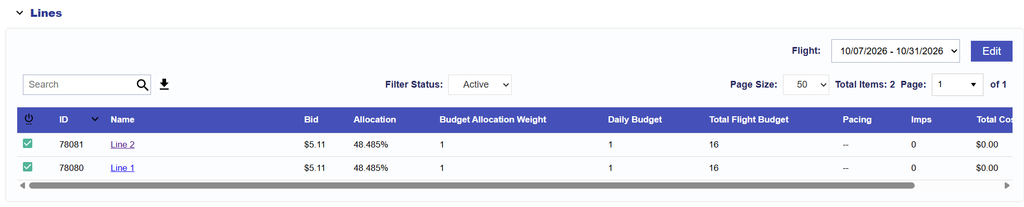
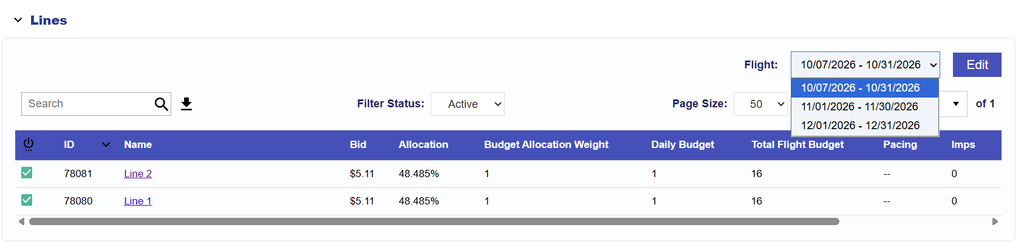
The Lines section displays Line-level configuration and delivery information for the Flight selected in the Flight dropdown.
Use the Flight dropdown to move between Flights and review the Line configuration and performance for each period.
Depending on the Campaign’s Manage Budgets setting, the editable Line settings differ:
Manage Budgets enabled: Budget Allocation Weight and Budget Multiplier
Manage Budgets disabled: Flight Budget and Budget Multiplier
The Lines table may include:
Active: Indicates whether the Line is active for the selected Flight.
ID: The Line ID.
Name: The Line Name.
Bid: The Line’s configured Bid Price.
Allocation: The Line’s actual percentage of the selected Flight Budget based on delivery to date. This value may change over time as spend and budget allocation rates adjust throughout the Flight.
Budget Allocation Weight: The configured weight used to influence how the Flight Budget is distributed across Lines when Manage Budgets is enabled.
Daily Budget: The Line’s applicable daily budget for the selected Flight.
Total Flight Budget: The total Budget assigned to the Line for the selected Flight.
Pacing: The Line’s delivery progress against its selected Flight Budget and dates.
Impressions: Impressions delivered by the Line during the selected Flight.
Total Cost: Total Cost attributed to the Line during the selected Flight.
IP Conversions: IP-based conversions attributed to the Line during the selected Flight.
See Configure Flight Line Settings for instructions on configuring Budget Allocation Weights, Flight Budgets, Budget Multipliers, and settings that can be carried into future Flights.
Enable Flights
Flights must be enabled at the Campaign level before Flight-specific dates, budgets, pacing, and Line allocations can be configured.
Flights can be used with or without Manage Budgets enabled. However, enabling Manage Budgets is recommended when using Flights, as it allows Campaign Flight Budgets to be distributed across Lines using Budget Allocation Weights rather than requiring individual Line Flight Budgets to be maintained manually.
Important: Once Flights are enabled for a Campaign, they cannot be disabled. Review the Campaign setup before enabling Flights.
When Flights are first enabled, configure the Flight date ranges and Campaign-level Flight Budgets, then Submit the Campaign. Flight-specific Line settings cannot be configured until the Flights have been saved.
After the Campaign is saved, Line settings can be configured for each individual Flight under Flights > Lines. The available settings depend on whether Manage Budgets is enabled:
Manage Budgets enabled: Configure each Line’s Budget Allocation Weight and Budget Multiplier by Flight.
Manage Budgets disabled: Configure each Line’s Flight Budget and Budget Multiplier by Flight.
See Flight Line Settings for detailed instructions on configuring Line budgets, allocation weights, Budget Multipliers, and applying settings to future Flights.
Flight Date Coverage
Flights do not have to cover every date within the Campaign’s overall Start Date and End Date. However, the Campaign can only spend during dates that are covered by an active Flight.
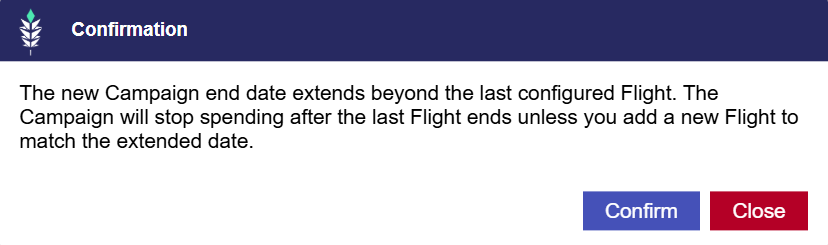
If the configured Flights do not extend through the Campaign End Date, Pontiac displays a warning confirming that the Campaign will stop spending when the final Flight ends.
For example, if the Campaign End Date is 7/1/2027 but the last Flight ends on 3/31/2027, the Campaign will stop spending after 3/31/2027 unless another Flight is added.
Gaps between Flights are also allowed and can be used intentionally to pause delivery during specific periods.
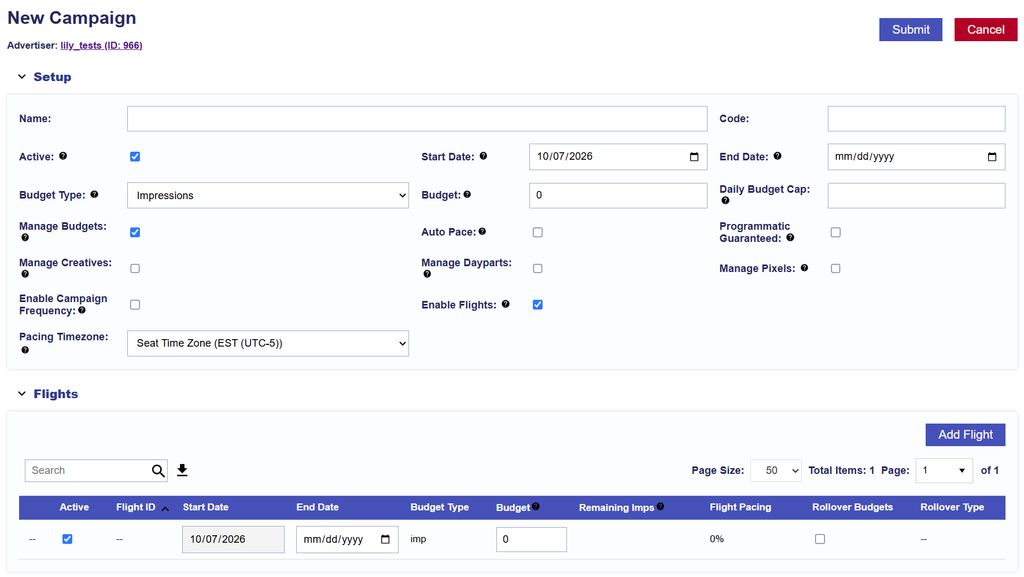
Enable Flights on a New Campaign
To enable Flights while creating a new Campaign:
Navigate to the applicable Advertiser and select New Campaign.
Configure the Campaign Setup, including the Campaign Start Date, End Date, Budget Type, and Budget.
Configure Manage Budgets as desired.
Select Enable Flights.
The Flights section will become available below the Campaign Setup.
Configure the Flight date ranges, Flight Budgets, and applicable rollover settings.
Continue setting up the Campaign and select Submit when finished.
After the Campaign is saved, return to Flights > Lines to configure the Line settings for each individual Flight. See Flight Line Settings for additional instructions.
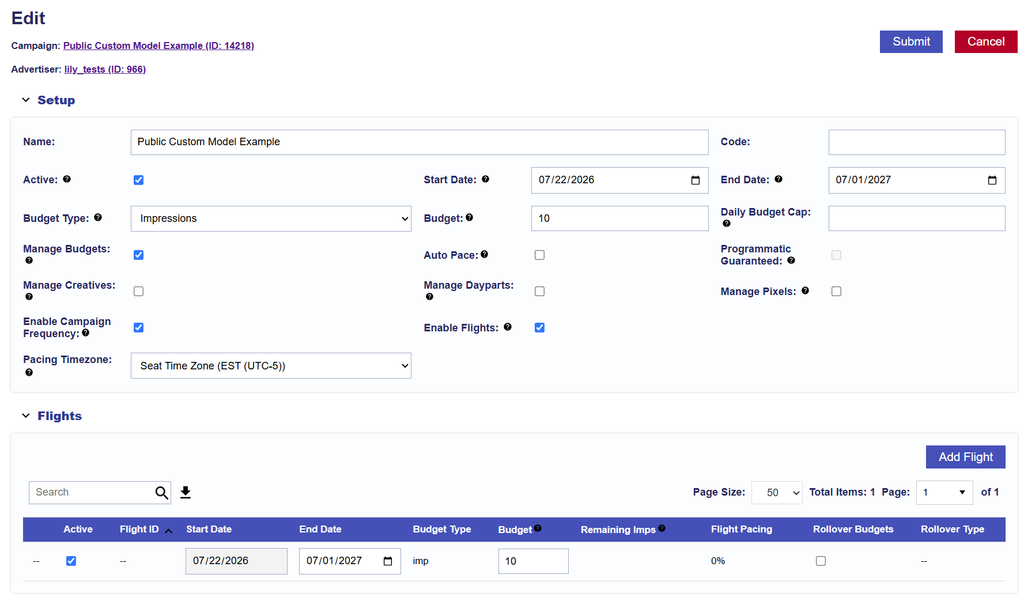
Enable Flights on an Existing Campaign
Flights can also be enabled for an existing Campaign. When Flights are enabled, the first Flight initially inherits the Campaign’s current Start Date and End Date.
Review the inherited Flight before saving and adjust the Flight structure based on the Campaign Start Date.
Scenario 1: The Campaign Start Date Is in the Past
If the Campaign Start Date has already passed, the first Flight should account for the Campaign period that has already elapsed.
For example, if the Campaign:
Started on 7/22/2026
Delivered media through 10/7/2026
Should begin quarterly Flights on 10/8/2026
Ends on 7/1/2027
The first Flight should cover 7/22/2026–10/7/2026. Additional Flights can then begin on 10/8/2026 and continue through the Campaign End Date of 7/1/2027.
This preserves the historical Campaign period before the new Flight schedule begins.
Scenario 2: The Campaign Start Date Is in the Future
If the Campaign has not started yet, there is no historical Campaign period to account for.
For example, a Campaign running from 10/8/2026–7/1/2027 could be divided into quarterly Flights beginning on 10/8/2026, without creating a separate historical Flight.
To enable Flights on an existing Campaign:
Navigate to the applicable Campaign.
Select Edit.
In Campaign Setup, review the Campaign dates, Budget, and Manage Budgets setting.
Select Enable Flights.
Review the inherited first Flight.
Adjust the first Flight and add additional Flights based on whether the Campaign Start Date is in the past or future.
Configure the Campaign-level Flight Budgets and applicable rollover settings.
Select Submit.
After the Campaign is saved, return to Flights > Lines to configure the Line-level settings for each Flight. See Flight Line Settings for additional instructions.
Configure Flight Line Settings
After Flights have been enabled and saved, Flight-specific Line settings can be managed from the Campaign’s Flights > Lines section.
Use the Flight dropdown to select the Flight you want to review or configure. Line settings can vary between Flights, allowing the same Line to have different budget allocations or Budget Multipliers throughout the Campaign.
The available settings depend on whether Manage Budgets is enabled:
Manage Budgets enabled: Configure Budget Allocation Weight and Budget Multiplier by Flight.
Manage Budgets disabled: Configure Flight Budget and Budget Multiplier by Flight.
Manage Budgets Enabled
When Manage Budgets is enabled, the Campaign Flight Budget is distributed across Lines using Budget Allocation Weights.
To configure Line settings for a Flight:
Open the applicable Campaign.
Navigate to the Flights tab.
Expand the Lines section.
Select Edit.
Use the Flight dropdown to select the Flight you want to configure.
Update the Budget Allocation Weight for each Line.
Update the Budget Multiplier, if needed.
Select Save.
Budget Allocation Weights determine each Line’s target share of the Flight Budget and can be configured differently for each Flight.
For example, if a Flight has a Budget of 10,000 impressions and:
Line A has a Budget Allocation Weight of 2
Line B has a Budget Allocation Weight of 1
the target allocation would be approximately:
Line A: 6,667 impressions
Line B: 3,333 impressions
Manage Budgets Disabled
When Manage Budgets is not enabled, each Line’s budget is configured independently for each Flight.
The main Campaign Lines section displays each Line’s Total Budget across the full Campaign. This is separate from the Line’s individual Flight Budget.
For example, if a Flight has a Budget of 33 impressions and the goal is to divide the budget approximately evenly across two Lines, each Line could be assigned a Flight Budget of 16 impressions, leaving 1 impression unallocated.
To configure individual Line Flight Budgets:
Open the applicable Campaign.
Navigate to the Flights tab.
Expand the Lines section.
Select Edit.
Use the Flight dropdown to select the Flight you want to configure.
Update the Flight Budget for each Line.
Update the Budget Multiplier, if needed.
Select Save.
The Line Flight Budget follows the Campaign Budget Type:
Spend: Enter the Flight Budget as a dollar amount.
Impressions: Enter the Flight Budget as an impression amount.
Because Line Flight Budgets are configured independently, review the combined Line Flight Budgets against the Campaign Flight Budget to avoid over- or under-allocation.
Configure Different Settings by Flight
Use the Flight dropdown in Flights > Lines to move between Flights and configure different Line settings for each period.
For example, the same Line could have:
Flight 1: A larger Budget Allocation Weight or Flight Budget.
Flight 2: A smaller allocation.
Flight 3: A different Budget Multiplier.
This allows Line-level budget strategy to change throughout the Campaign without creating separate Campaigns or Lines.
Apply Settings to Future Flights
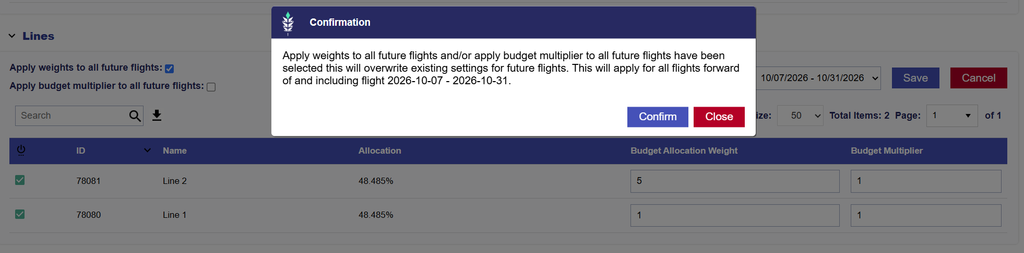
When editing Flight Line settings, users can apply selected settings to future Flights:
Apply weights to all future flights: Applies the configured Budget Allocation Weights to future Flights.
Available only when Manage Budgets is enabled.
Apply budget multiplier to all future flights: Applies the configured Budget Multipliers to future Flights.
Use these options when the same Line configuration should continue across later Flights without updating each Flight individually.
Best Practices
Confirm the selected Flight before making changes.
When Manage Budgets is enabled, review Budget Allocation Weights across all active Lines within each Flight.
When Manage Budgets is disabled, compare the combined Line Flight Budgets with the Campaign Flight Budget.
Use the future Flight options when the same settings should carry forward.
Review Flight Line settings whenever a new Flight is added or a Flight Budget is significantly changed.
Flight Pacing and Monitoring
Use Campaign Lifetime Pacing, Flight Pacing, and the Flights > Lines section together to monitor delivery and identify where pacing issues are occurring.
For definitions of the metrics and fields displayed on the Flights tab, see Flights Tab.
Compare Campaign Lifetime and Flight Pacing
Campaign Lifetime Pacing and Flight Pacing may differ because they evaluate delivery against different budgets and date ranges.
Review both when monitoring Campaign performance:
Campaign Lifetime Pacing shows progress toward the overall Campaign goal.
Flight Pacing shows progress within the applicable Flight.
For example, the current Flight may be pacing normally while Campaign Lifetime Pacing remains behind because an earlier Flight underdelivered.
Conversely, the overall Campaign may be on pace while the current Flight is temporarily behind.
Monitor Line Pacing
If Flight Pacing is above or below the desired range, use Flights > Lines to identify which Lines are contributing to the difference.
Use the Flight dropdown to select the applicable Flight and review each Line’s:
Pacing
Allocation
Budget Allocation Weight or Flight Budget
Budget Multiplier
Impressions
Total Cost
This helps determine whether the pacing issue affects the full Flight or is concentrated on specific Lines.
Budget Multiplier
The Budget Multiplier can be configured separately for each Line and Flight to adjust how aggressively the Line can spend against its available budget.
In general:
Increasing the Budget Multiplier allows more aggressive delivery.
Decreasing the Budget Multiplier restricts delivery.
A Budget Multiplier of 0 will prevent the Line from serving during the Flight.
Use Budget Multiplier when a Line needs to spend faster or slower without changing its underlying Budget Allocation Weight or Flight Budget.
If the same Budget Multiplier should apply to later Flights, select Apply budget multiplier to all future flights.
Using Budget Multiplier to Adjust Pacing
Before changing the Budget Multiplier, confirm that the Line has enough eligible inventory to support additional delivery.
If a Line is underpacing:
Review its available budget and pacing.
Confirm the Bid is competitive.
Confirm targeting and inventory are not overly restrictive.
Check for Flight Status warnings.
If delivery is primarily budget constrained, consider increasing the Budget Multiplier.
If a Line is delivering too quickly:
Review its Allocation or Flight Budget.
Review the current Budget Multiplier.
Consider lowering the Budget Multiplier to restrict delivery.
Continue monitoring pacing after making changes to confirm the adjustment has the intended effect.
Changes to these settings can alter how quickly budget is expected to deliver during the remainder of the Flight.
Best Practices
Review Campaign Lifetime Pacing and Flight Pacing together.
Use Flights > Lines to investigate Flight-level pacing differences.
Confirm inventory and eligibility before increasing Budget Multiplier.
Make pacing adjustments at the Line level only when needed.
Continue monitoring after changes to confirm delivery responds as expected.
Manage Flights
Use the Flights section of the Campaign’s Flights tab to view, add, and edit individual Flights.
Each Flight defines a specific date range and Budget within the Campaign’s overall Start Date and End Date. The Flight Budget Type is inherited from the Campaign.
View Flights
The Flights table displays each configured Flight along with its dates, Budget, remaining Budget, pacing, and rollover settings.
Use this section to review the Campaign’s Flight schedule and confirm that each Flight has the intended dates, Budget, and status.
For definitions of the fields displayed in the Flights table, see Flights Tab.
Add a Flight
To add a new Flight:
Open the applicable Campaign.
Navigate to the Flights tab.
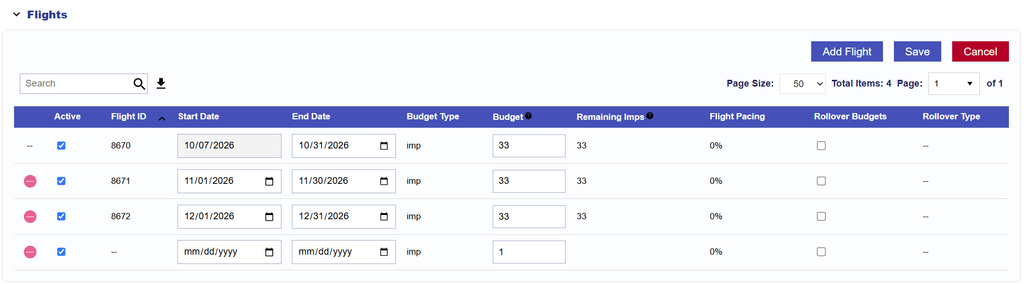
In the Flights section, select Edit.
Select Add Flight.
Configure the Flight:
Active: Determines whether the Flight is active.
Start Date: The first date of the Flight.
End Date: The final date of the Flight.
Budget: Enter the Spend or Impression Budget for the Flight.
Rollover Budgets: Enable if unused Budget should move into future Flights.
Rollover Type: Select how unused Budget should be redistributed when rollover is enabled.
Even
Next Flight
Select Save.
The Flight Budget Type is inherited from the Campaign:
Spend: Enter the Flight Budget as a dollar amount.
Impressions: Enter the Flight Budget as an impression amount.
Flight dates must fall within the Campaign’s overall Start Date and End Date.
Flights do not have to cover every date within the Campaign. Gaps between Flights are allowed and can be used intentionally to pause delivery. The Campaign can only spend during dates covered by an active Flight.
Edit a Flight
To edit an existing Flight:
Open the applicable Campaign.
Navigate to the Flights tab.
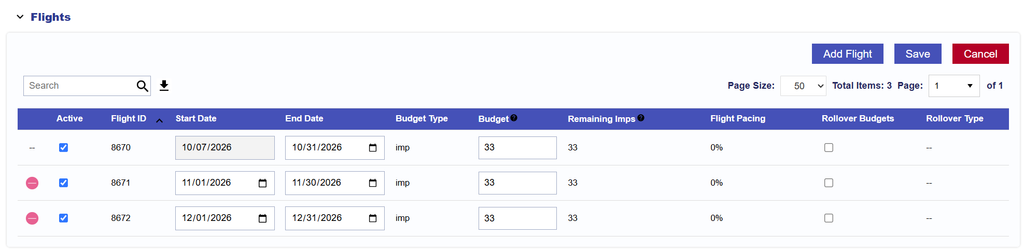
In the Flights section, select Edit.
Update the applicable Flight settings.
Select Save.
The following Flight settings can be edited where applicable:
Delete future flights
Active Status
Start Date, if the Flight has not started
End Date, if the Flight has not ended
Flight Budget
Rollover Budgets
Rollover Type
Review the Flight schedule after making date or Budget changes to confirm that the Campaign still has the intended delivery coverage.
Active and Inactive Flights
The Active setting determines whether a Flight is eligible for delivery during its configured date range.
An inactive Flight will not allow Campaign delivery during that Flight period, even if the Campaign and its Lines are otherwise active.
The Flight Status indicator may also display warnings when required delivery inputs are missing or configured in a way that may prevent serving. See Flights Tab for Flight Status warning definitions.
Flight Budget
Each Flight has its own Budget within the Campaign.
The Flight Budget controls the amount of Campaign Budget available during that Flight period. How that Budget is distributed across Lines depends on the Campaign’s Manage Budgets setting:
Manage Budgets enabled: The Flight Budget is distributed across Lines using Budget Allocation Weights.
Manage Budgets disabled: Individual Line Flight Budgets are configured manually.
Flight-specific Line settings are configured separately under Flights > Lines after the Flights have been saved.
See Configure Flight Line Settings for detailed instructions.
Rollover Budgets
Rollover Budgets allows unused Budget from a Flight to move into future Flights.
Two Rollover Types are available:
Even: Distributes the remaining Budget evenly across the remaining Flights.
Next Flight: Moves the remaining Budget into the next scheduled Flight.
For example, if a Flight ends with 900 impressions remaining and three future Flights remain:
Even: Each remaining Flight receives an additional 300 impressions.
Next Flight: The next Flight receives the full additional 900 impressions.
Important: Once unused Budget has rolled over into future Flights, the rollover cannot be undone. Review the Flight Budget and Rollover Type before the Flight ends.
Rollover applies only when Rollover Budgets is enabled for the Flight.
Review future Flight Budgets after rollover occurs, particularly when Line allocations or Line Flight Budgets differ between Flights.
Best Practices
Keep all Flight dates within the Campaign Start Date and End Date.
Review the full Flight schedule after adding or editing Flights.
Use intentional gaps only when Campaign delivery should pause.
Confirm that each active Flight has sufficient Budget.
Review rollover settings before a Flight ends.
After changing a Flight Budget, review the associated Line settings under Flights > Lines to confirm the intended allocation.