Campaigns are created under an Advertiser and organize one or more Lines under shared Campaign settings. A Campaign must contain at least one Line to be eligible to deliver Impressions.
When creating a Campaign, first configure the core Campaign Setup, then apply any settings that should be shared across the Lines within the Campaign.
The general Campaign creation workflow is:
Navigate to the applicable Advertiser.
Select New Campaign.
Configure the Campaign Setup.
Configure any Campaign-level Targeting and Audiences that should apply to all Lines.
Configure optional Campaign-level features such as Creatives, Pixels, Pacing & Dayparts, Flights, and Frequency & Recency, when enabled.
Create at least one Line under the Campaign.
Review the Campaign and Line configuration and select Submit to save.
Important: Campaign-level settings should generally be used only when they should apply to every Line within the Campaign. Campaign and Line targeting are evaluated together, so overlapping or conflicting settings can restrict eligible inventory and limit delivery.
Campaign Setup
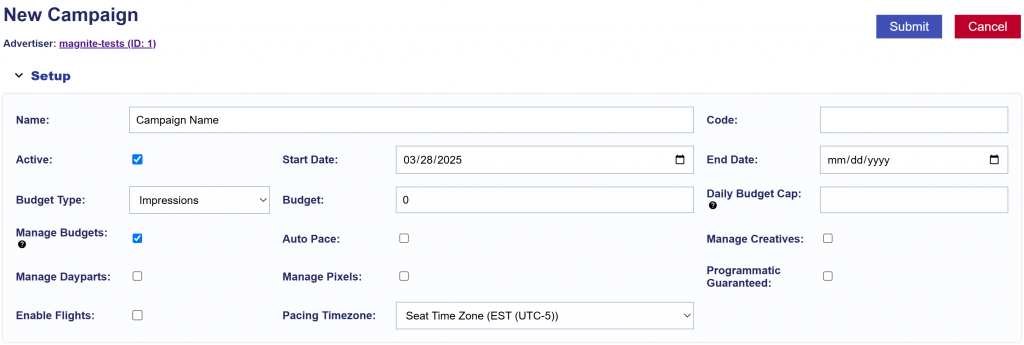
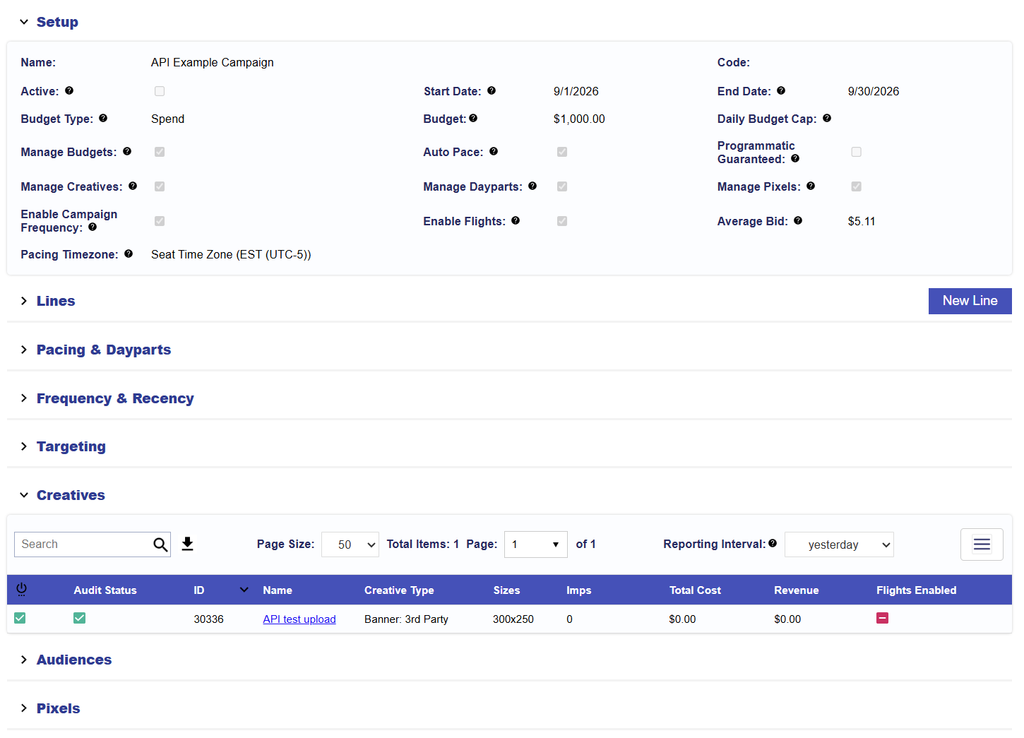
The Campaign Setup section defines the Campaign’s overall dates, budget, pacing configuration, and which settings will be controlled at the Campaign level.
Basic Campaign Settings
Name: Enter a name used to identify the Campaign.
Code: Optional field that can be used to associate an external identifier with the Campaign for reporting.
Active: Determines whether the Campaign is Active or Inactive.
Start Date: The date the Campaign becomes eligible to begin delivering.
End Date: The final date the Campaign is eligible to deliver.
The Campaign Start Date and End Date define the overall Campaign flight. Individual Line dates must fall within the Campaign’s applicable date range.
Budget Type: Select whether the Campaign budget is based on Spend or Impressions.
Budget: Enter the Campaign’s total Spend or Impression budget based on the selected Budget Type.
Daily Budget Cap
Daily Budget Cap is an optional limit on the total amount of Spend or Impressions the Campaign can deliver within a pacing day. When the Daily Budget Cap is reached, all Lines under the Campaign stop bidding for the remainder of that day, regardless of their individual budgets or pacing.
The time zone used to define the day depends on the Campaign configuration:
When Campaign-level pacing controls the Lines, the Campaign’s Pacing Time Zone is used.
When pacing is controlled independently by the Lines, the Seat Time Zone is used.
Note: Catch-up ASAP is generally not recommended in combination with a restrictive Daily Budget Cap because Catch-up ASAP attempts to increase delivery when the Campaign is behind pace while the Daily Budget Cap limits how much can be delivered in a day.
Manage Budgets
Enable Manage Budgets when the Campaign should centrally control the Start Date, End Date, Budget Type, and budget allocation for its Lines.
When enabled:
Lines align to the Campaign’s Start Date and End Date.
Lines use the Campaign’s Budget Type.
Line budgets are managed using Budget Allocation Weights rather than independent lifetime budgets.
Changes to applicable Campaign budget and flight settings are reflected in the Line budget configuration.
Budget Allocation Weights determine how Campaign budget is distributed across Lines.
For example, for a $10,000 Campaign Budget:
Line A Weight = 2
Line B Weight = 1
The target allocation is:
Line A: $10,000 × 2/3 = $6,666.67
Line B: $10,000 × 1/3 = $3,333.33
If Manage Budgets is not enabled, Lines maintain their own individual budgets and flight settings. Line budgets do not need to equal the Campaign Budget, so Campaign and Line allocations should be reviewed to avoid over- or under-allocation.
Campaign Level Management Options
Auto Pace: Available with Manage Budgets to allow Campaign budget to remain fluid between Lines and optimize delivery toward the overall Campaign goal. Budget Allocation Weights therefore act as target allocations while Auto Pace is enabled.
Manage Creatives: Enable when the same Creative set should apply across the Campaign’s Lines. See Campaign Creatives for setup instructions.
Manage Dayparts: Enable when Pacing & Dayparts should be controlled at the Campaign level. See Campaign Pacing & Dayparts for detailed configuration.
Manage Pixels: Enable when the same Pixel configuration should apply across the Campaign’s Lines. See Campaign Pixels for setup instructions.
Enable Flights: Divide the Campaign into separate date ranges with individual Flight Budgets. See Campaign Flights for setup instructions.
Enable Campaign Frequency: Apply Frequency & Recency controls across Campaign Lines. See Campaign Frequency & Recency for setup instructions.
Pacing Timezone
Select the Pacing Time Zone used to define the start and end of each Campaign pacing day. The Pacing Time Zone affects Campaign-level functionality that depends on daily boundaries, including pacing curves, Campaign flight dates, and applicable Daypart behavior.
For geographic-specific recommendations, see the applicable Campaign Setup Guide.
Programmatic Guaranteed
Enable Programmatic Guaranteed only for Campaigns using a Programmatic Guaranteed Deal. When enabled, Pontiac restricts Campaign and Line configuration to support the terms established through the publisher’s PG Deal. Targeting is controlled on the supply side, and Campaign Budget and flight dates in Pontiac are used for monitoring rather than controlling delivery.
Campaign-level Targeting applies shared targeting requirements across every Line in the Campaign. Use it only when the selected criteria should apply universally. Campaign and Line Targeting are evaluated together. An impression must satisfy the applicable criteria at both levels.
To configure Campaign Targeting:
Create a new Campaign or open an existing Campaign.
Select Edit.
Navigate to the Targeting section.
Select Edit Targeting.
Configure the applicable targeting options.
Select Save.
Submit the Campaign when finished.
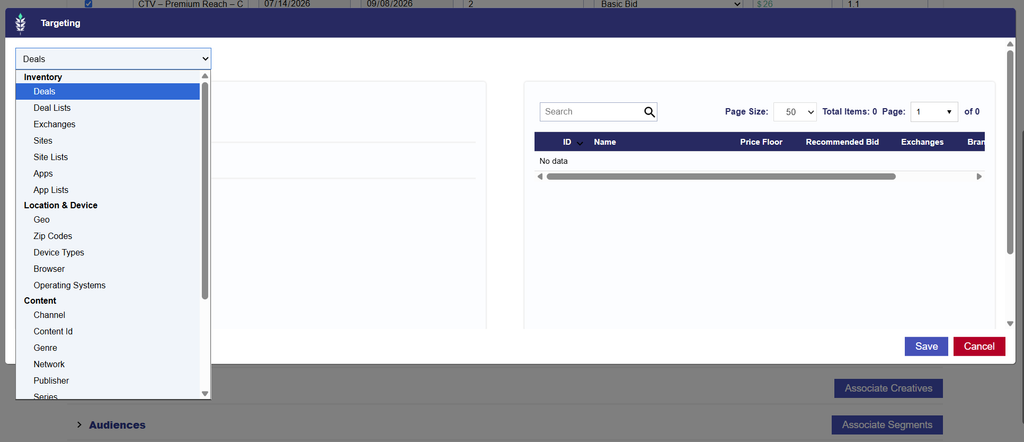
Campaign Targeting is organized into the following sections:
Inventory
Deals
Deal Lists
Exchanges
Sites
Site Lists
App Bundle
App Name
App Lists
Location & Device
Geo
Zip Codes
Device Types
Browser
Operating Systems
Content
Channel
Content ID
Genre
Network
Publisher
Series
Title
Multi Field
Streaming & Video
Livestream
OLV
Advanced
Custom Model
Privacy
See Targeting Methods for definitions, formatting requirements, configuration instructions, and best practices for all targeting options.
Campaign Audiences
Audiences can be associated at the Campaign level when the same Audience targeting should apply across all Lines within the Campaign.
Audiences are created and managed from the Audiences section at the Seat level. Once available, they can be associated with a Campaign for targeting or anti-targeting.
Use Campaign-level Audiences when the same Audience requirements should apply across all Lines in the Campaign. If different Lines require different Audience strategies, manage those Audiences at the Line level instead.
Campaign and Line Audience targeting are evaluated together. If Audiences are applied at both levels, review the combined configuration to make sure it does not unintentionally restrict eligible inventory.
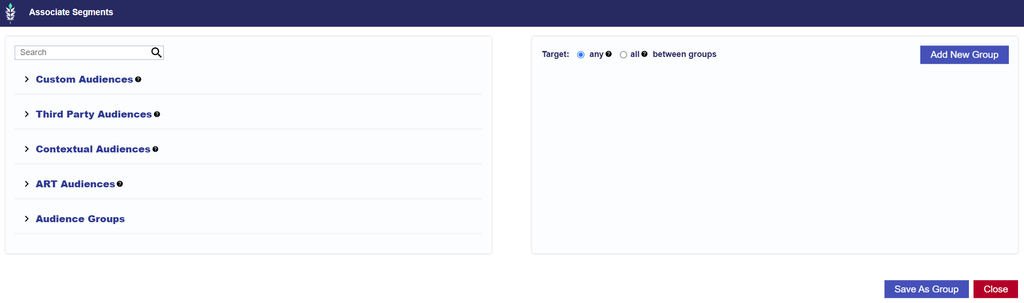
For instructions on associating Audience Segments, configuring Include or Exclude behavior, Audience Groups, and Boolean Logic, see Associate Segments.
For information on creating and managing Audience types, see Audiences.
Campaign Creatives
Creatives can be managed at the Campaign level when the same Creative set should apply across all Lines within the Campaign.
When Manage Creatives is enabled in Campaign Setup, Creatives associated with the Campaign are inherited by its Lines.
Use Campaign-level Creative management when the same Creatives should be eligible across the full Campaign. If different Lines require different Creative sets, manage Creatives at the Line level instead.
Creatives must first be created under the Campaign’s Advertiser. Creatives cannot be uploaded or edited directly from the Campaign.
Associate a Creative to the Campaign
Open the applicable Campaign.
Select Edit.
Confirm Manage Creatives is enabled or enable in Campaign Setup.
Navigate to the Creatives section.
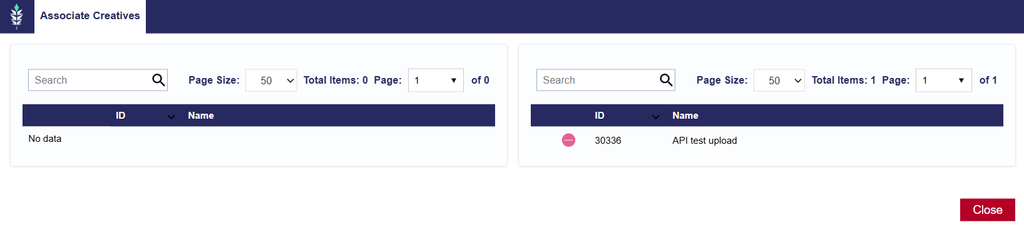
Select Associate Creatives.
Select the green plus sign (+) next to the applicable Creative or Creatives.
To remove an associated Creative, use the red minus sign (−).
Review the associated Creatives and close the Associate Creatives window.
Select Submit in the upper-right corner of the screen to save.
For information on uploading, editing, auditing, and managing Creatives, see the Creatives documentation.
Campaign Pixels
Pixels can be managed at the Campaign level when the same Pixel configuration should apply across all Lines within the Campaign.
When Manage Pixels is enabled in Campaign Setup, Pixels associated with the Campaign apply across its Lines.
Pixels must first be created under the Campaign’s Advertiser. Pixels cannot be created or edited directly from the Campaign.
Associate Pixels to the Campaign
Open the applicable Campaign and select Edit.
Confirm Manage Pixels is enabled in Campaign Setup.
Navigate to the Pixels section.
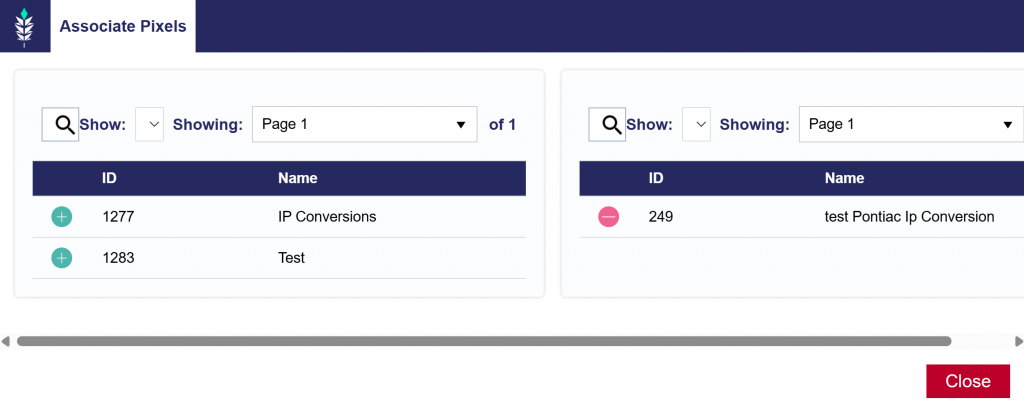
Select Associate Pixel.
Select the green plus sign (+) next to the applicable Pixel or Pixels.
To remove an associated Pixel, use the red minus sign (−).
Review the associated Pixels and close the Associate Pixel window.
Select Submit to save the Campaign.
For information on creating, editing, and managing Pixels, see the Pixels documentation.
Campaign Pacing & Dayparts
Use Campaign-level Pacing & Dayparts when the same pacing strategy and Daypart schedule should apply across all Lines within the Campaign.
When Manage Dayparts is enabled in Campaign Setup, the Campaign controls Pacing & Dayparts for its Lines.
To configure Campaign-level Pacing & Dayparts:
Open the applicable Campaign and select Edit.
Confirm Manage Dayparts is enabled in Campaign Setup.
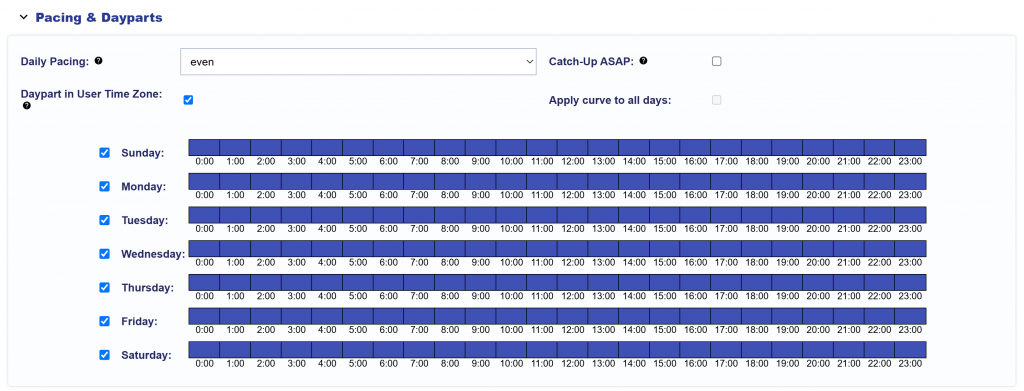
Navigate to the Pacing & Dayparts section.
Configure the applicable pacing and Daypart settings.
Select Submit to save the Campaign.
Campaign-level settings can include:
Daily Pacing Type
Primetime or Custom pacing curves
Apply Curve to All Days
Catch-up ASAP
Daypart in User Time Zone
Dayparts
These settings are evaluated using the Campaign’s selected Pacing Time Zone, except when Daypart in User Time Zone is enabled for Daypart eligibility.
For detailed definitions, setup instructions, pacing behavior, and US national best practices, see Pacing & Dayparts.
If different Lines require different pacing strategies or Daypart schedules, leave Manage Dayparts disabled and configure Pacing & Dayparts at the Line level instead.
Campaign Flights
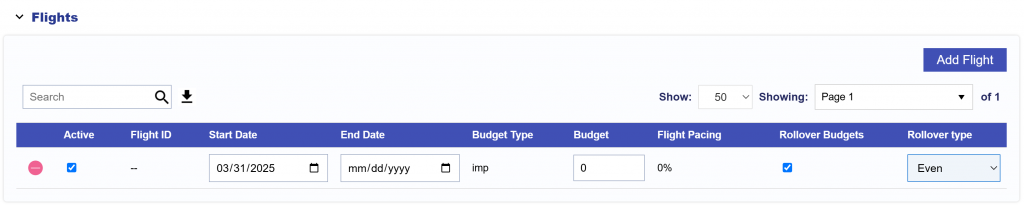
Use Campaign Flights when the Campaign needs to be divided into separate date ranges with individual budgets.
When Enable Flights is selected in Campaign Setup, the Campaign can use multiple Flight periods within its overall Start Date and End Date.
Flights can be used to:
Divide budget across scheduled periods such as weeks, months, or promotions.
Use different budget allocations across Lines by Flight.
Pause delivery between Flight periods.
Roll unused budget into future Flights.
Monitor pacing for an individual Flight in addition to the overall Campaign.
Important: Once Flights are enabled for a Campaign, they cannot be disabled.
To begin using Flights:
Open the applicable Campaign and select Edit.
In Campaign Setup, select Enable Flights.
Configure the initial Flight date ranges and Campaign-level Flight Budgets.
Select Submit to save the Campaign.
After the Flights are saved, use the Flights tab to manage Flights and configure Flight-specific Line settings.
For detailed setup and management instructions, see Campaign Flights, including: