National US Campaign Setup
The following is a walkthrough for setting up a successful United States campaign on the Pontiac platform.
United States Setup
- Enter the Campaign setup fields as usual.
- Pacing Time Zone: Determines the time zone used to define the start and end of each day for campaign pacing.
- For example, if the end date is 1/31 and the Pacing Time Zone is Eastern Time, the campaign will stop delivering at 11:59:59 pm Eastern Time on that date.
- For national US campaigns using a single Pacing Time Zone, Central Time is recommended as a practical default, as it provides a more balanced alignment across Eastern, Central, Mountain, and Pacific audiences.
- The continental US spans four primary time zones: Eastern, Central, Mountain, and Pacific, so a single Pacing Time Zone will not perfectly align pacing with local hours across the entire country.
- If targeting the broader US, Alaska Time and Hawaii-Aleutian Time should also be considered.
- For national US campaigns using Primetime pacing, consider using a Custom pacing curve that combines the Primetime curves for the targeted US time zones. This provides broader alignment with local Primetime hours across the country.
- If Central Time is used as the campaign Pacing Time Zone, an 8pm local Primetime peak corresponds to:
- Eastern Time (ET): 7pm CT
- Central Time (CT): 8pm CT
- Mountain Time (MT): 9pm CT
- Pacific Time (PT): 10pm CT
- Rather than producing one sharp Primetime peak, the combined Custom curve can create a broader evening window as Primetime moves across the country.
- For the most precise local Primetime pacing, campaigns can instead be separated by time zone with corresponding geographic targeting and Pacing Time Zones.
- If Central Time is used as the campaign Pacing Time Zone, an 8pm local Primetime peak corresponds to:
United States Targeting
For US campaigns, users can target at the country, region, DMA, and ZIP code level.
If using a Deal/Deals:
- Deals can be identified in the Inventory tab, then associated with the Campaign or Line under Targeting.
- Filter the Country to USA. Ensure that the Media Type aligns with your Inventory and Device types.
Note that available Deal offerings may change over time.
Country Level
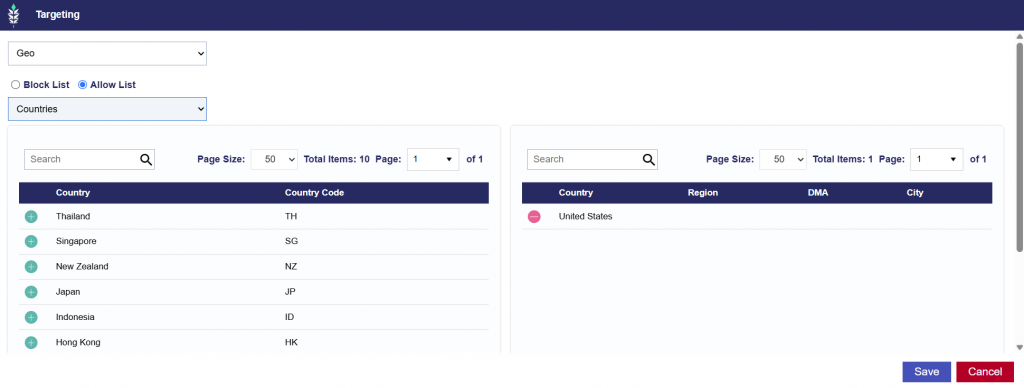
To target an open United States campaign, navigate to the default Geo targeting tab, search for United States as a country, click the green plus button, and save.
Region Level
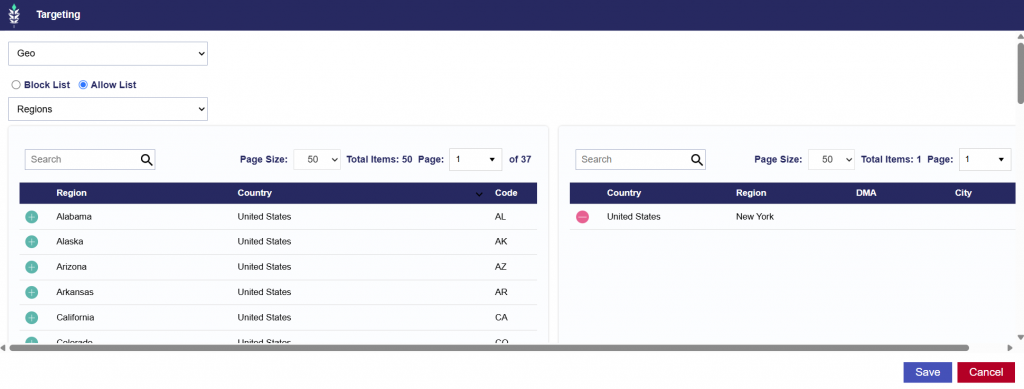
To target at the regional level, change the top-left dropdown to filter for Regions, then search for United States in the search bar to view the available US regions. Click the green plus button next to the desired region to add it to targeting, then save. This will target the US ZIP codes associated with the selected region. Users can also exclude specific regions using the Block List option. When doing so, ensure that the targeting layers are aligned.
DMA Level
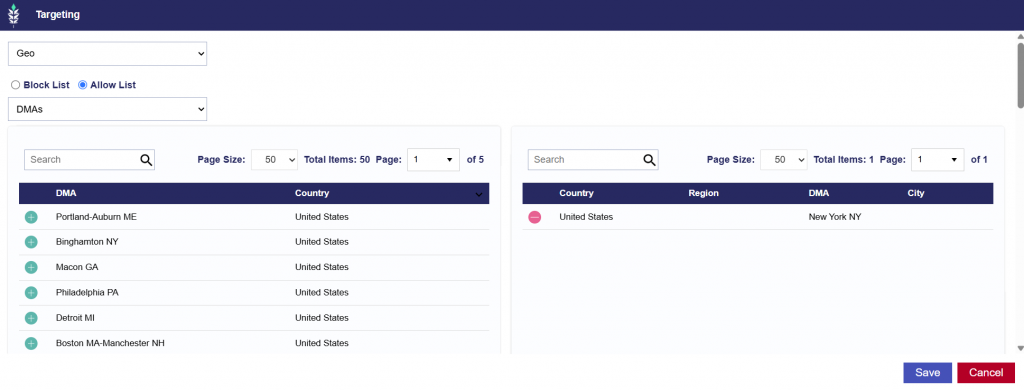
To target at the DMA level, change the top-left dropdown to filter for DMAs, then search for United States in the search bar to view the available US DMAs. Click the green plus button next to the desired DMA to add it to targeting, then save. This will target the US ZIP codes associated with the selected DMA. Users can also exclude specific DMAs using the Block List option. When doing so, ensure that the targeting layers are aligned.
ZIP Code Level
To target US ZIP codes, navigate to the Zip targeting tab. Select United States as the Country and input the desired ZIP code list.
US ZIP codes should be entered in the standard 5-digit format, for example 10001. Select Validate Zips to confirm proper formatting, then save to target the specified ZIP codes. Users can also exclude specific ZIP codes using the Block List option. When doing so, ensure that the targeting layers are aligned.