Canada Campaign Setup
The following is a walkthrough for setting up a successful Canada campaign on the Pontiac platform:
Canada Setup
- Enter the Campaign setup fields usual normal
- Pacing Time Zone: Determines the time zone used to define the start and end of each day for campaign pacing.
- For example, if end date is 1/31 and pacing time zone is EST, the campaign will stop delivering at 11:59:59 pm EST on that date.
- For national Canadian campaigns using a single Pacing Time Zone, Eastern Time is recommended as a practical default, as a large share of the Canadian population is concentrated in the Eastern Time Zone.
- Canada spans multiple time zones, including Pacific, Mountain, Central, Eastern, Atlantic, and Newfoundland, so a single Pacing Time Zone will not perfectly align pacing with local hours across the entire country.
- For national Canadian campaigns using Primetime pacing, consider using a Custom pacing curve that combines the Primetime curves for the targeted Canadian time zones. This provides broader alignment with local Primetime hours across the country.
Canada Targeting
For Canada campaigns, users can target on the country, region, and zip code level.
If using a Deal/Deals:
- Deals can be identified in the ‘Inventory’ tab, then associated to the Campaign or Line under ‘Targeting’.
- Filter the Country to Canada. See the Deals Filtered for Canada screenshot below for reference. Ensure that the Media Type aligns with your Inventory and Device types.
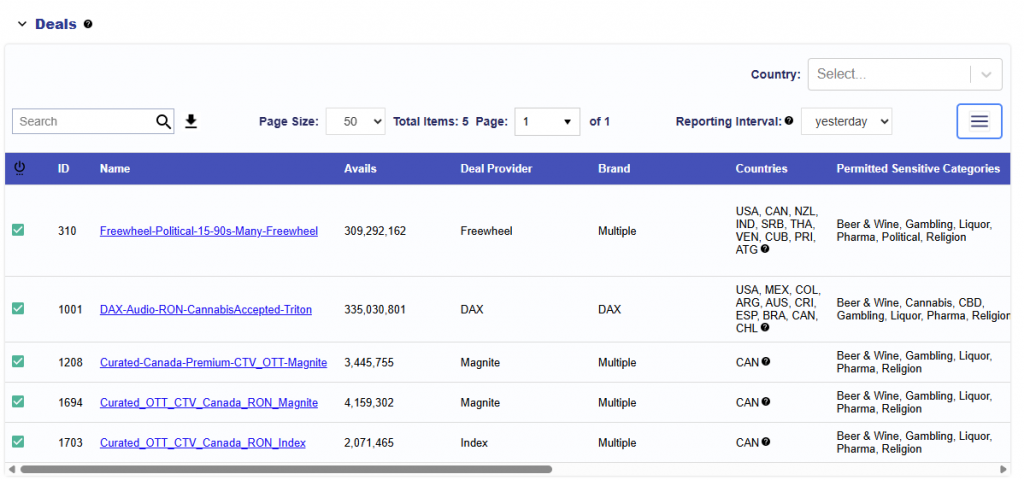
Note that the above data is from February 4th, 2026 and current Deal offerings may differ.
Country Level
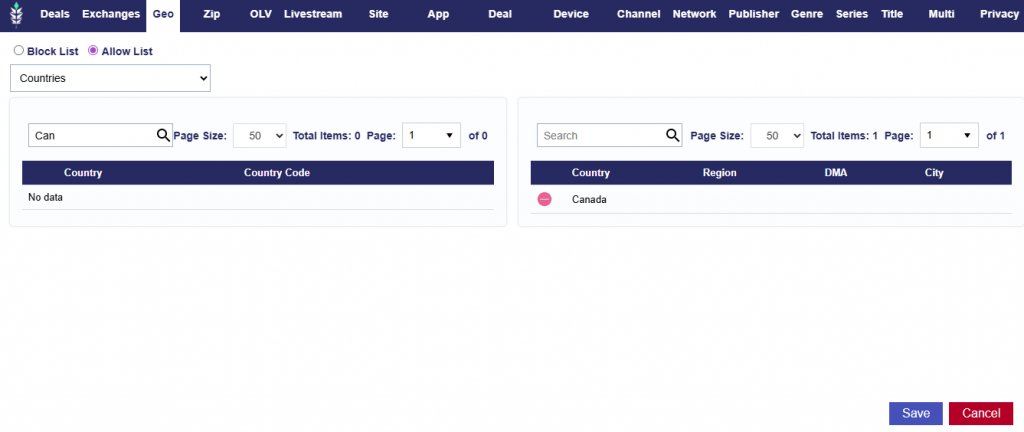
To target an open Canada campaign, in the defaulted Geo targeting tab, search for Canada as a country and click the green plus button and save.
Region Level
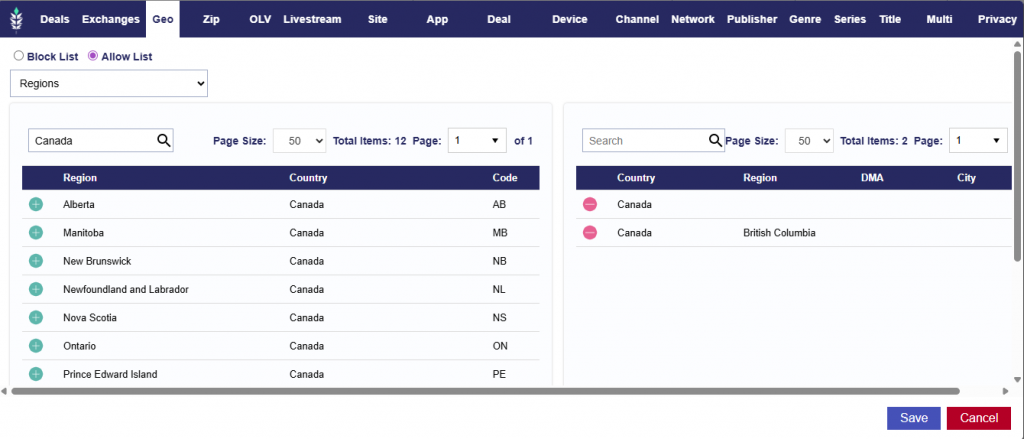
To target at the regional level, change the top left drop down to filter for Regions and then search for Canada in the search bar to view all available Canada regions. Click the green plus button by the desired region to add to targeting and then save. This will target all Canadian zip codes within the specified region.
Note that users are also able to exclude specific regions using the Block List option. When doing so ensure that the targeting layers are aligned.
Zip Code Level
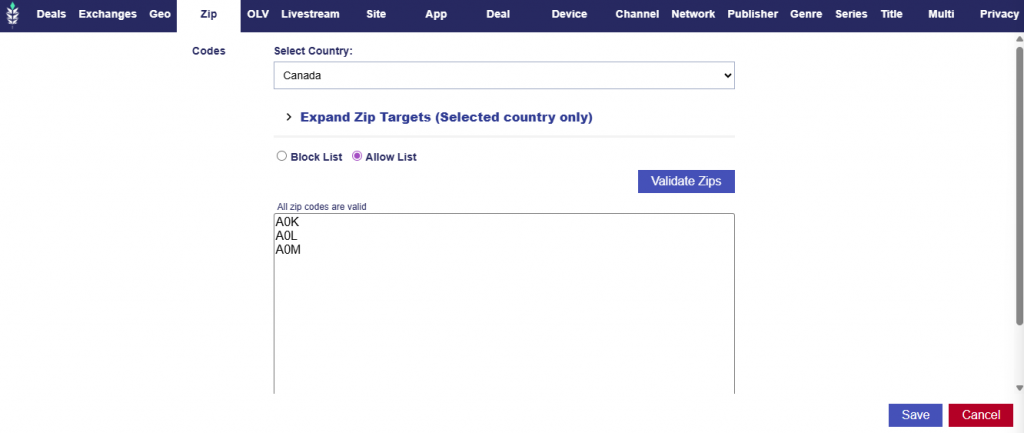
To target Canada zips, navigate to the Zip targeting tab. Select Canada as the Country and input your zip code list. The accepted Canadian format is a 3-character alphanumeric Canadian postal codes, typically formatted as “A0K” (capitalized letter – number – capitalized letter). Ensure to press the validate zips button to check proper formatting. Save and the specified zip codes with be targeted.
Note that users are also able to exclude specific zip codes using the Block List option. When doing so ensure that the targeting layers are aligned.