The Campaign Setup Guides provide recommended configuration and targeting guidance for common media types, geographic strategies, and specialized Campaign workflows in Pontiac. Each guide outlines the Campaign and Line settings, inventory, targeting, Creatives, Audiences, and bidding considerations that are most relevant to that strategy.
If you are new to Pontiac or looking for an end-to-end walkthrough of the Campaign creation process, start with How to Launch Your First Campaign.
Important: Every Campaign must have at least one Line created under it in order to deliver impressions. The Campaign organizes and can control shared settings, but the Line is the object that executes bidding and delivery.
The guides below include setup recommendations for:
Display
Native
CTV
Audio
Online Video (OLV)
OTT
National US Campaigns
Canada Campaigns
Programmatic Guaranteed (PG)
Sensitive Categories
Index and Microsoft Curation
Use the guide that most closely matches the Campaign’s media type or strategy. Requirements may vary based on inventory, Deals, publishers, targeting, and Campaign goals. Reach out through the Help Center if you have any further questions.
Display Setup
Display campaigns allow advertisers to serve Banner and HTML5 creatives across supported exchanges: Index Exchange, Microsoft, and Magnite (DV+). Follow the guides below to launch your display campaigns.
Index and Microsoft Display Campaign Setup Using Curate Deal Feature (recommended):
To run a Display Campaign on the Bidder, you can do so by automatically creating an Index Curated Deal, by enabling our Curated Deal (Beta) feature! This helps increase scale. First, start off by following these steps:
Upload Creative:
If you do not yet have an Advertiser created for this Campaign, first create the Advertiser. Then open the Advertiser and upload one or more of your Display Creatives.
The Creative will need to pass the Creative Audit which may take up to 24 hours.
Setup a Campaign and then your Line Item:
Under the Advertiser, create a Campaign and then Line Item following these recommendations:
Inventory Type: Web, Combined, or In App.
It is highly recommended to select Web or Combined for the best scale. In App banner inventory can be extremely limited.
Start Date
End Date
Budget Type: Select Spend or Impressions.
Bid Type:
Basic Bid: Enter the bid price. Default value is $5.11.
Advanced Bid Control: Select Advanced Bid Controls and input a Default Bid Price and Max Bid for each Deal associated to the Campaign and Lines. Note that only the intersection of Campaign and Line Deals will be shown. Associate Deals the Campaign and Line in the Targeting section at each level or either (one or the other) to set a custom bid for each selected Deal. When new Deals are added to the Line and a custom bid is not set, the bid price will default to the value set in the Default Bid Price field on the Line.
Bid at Floor: Bid at the deal’s floor automatically. This is very helpful when the bid floors are dynamic and change.
Bid at Floor Plus: When the Bid at Floor is selected, next to the Max Bid Price (the bid price ceiling) there is an option to add an additional fixed CPM or % to the floor price. This enables you to bid at the floor price plus some extra, so you are not directly competing with those bidding at the floor.
Bid Price: In general, we recommend using the price floors for guidance and adding an additional 40-50% to start the bidding. If you are not achieving the desired scale, continue to increase bids.
Budget Multiplier: This feature allows the user to specify a multiplier on the daily budget. For example, a 1.1 multiplier will allow the Campaign to adjust the daily budget up to 110% of it’s typical daily budget. The calculation is Budget Multiplier * Daily Budget = New Daily Spend.
EnableFoot Traffic Reporting: Optionally, enable Foot Traffic Reporting which allows you to enter specific commercial addresses and track whether users that were served your ads visited those locations. This is available for Banners at a $1.50 CPM, add this additional cost to your bid CPM.
Budget Allocation Weight: If Manage Budgets is enabled on the Campaign level, establish the budget allocation weight for each Line that sits underneath the Campaign. If three lines have a weight of 1, the budget will be evenly distributed across all lines to be a 1/3 = 33.33% budget allocation per Line.
Targeting and Audiences
You must use the Curation tab to curate a display specific deal in order for the curation to work.
Index and/or Microsoft must be targeted exchanges.
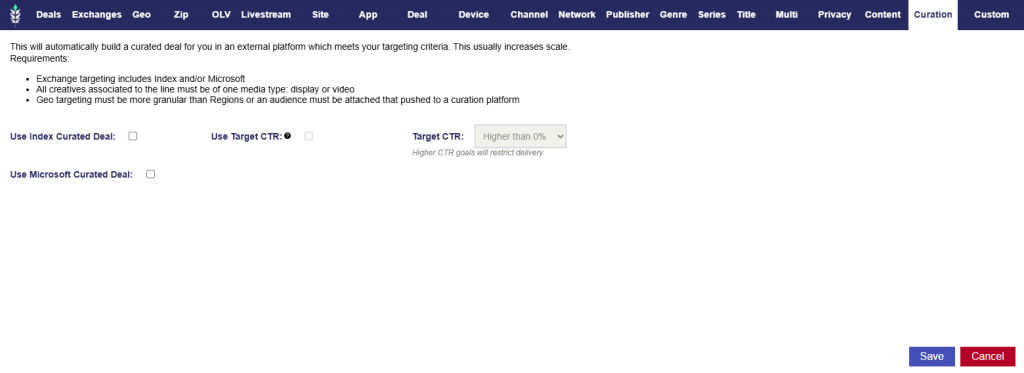
See below for visual reference.
Creatives
Associate your Display/Banner Creatives. Note that Index and Microsoft must approve creatives in addition to Pontiac Bidder approval, which can take up to an additional 48 hours. Please reach out to the Ticketing Center to expedite the process for a specific Campaign if needed.
This feature enables automatic deal creation in Index and Microsoft Exchange based on a line’s targeting and can be used to run Display Campaigns only. When activated, Pontiac builds a curated marketplace deal in Index that mirrors the line’s targeting parameters and associates it directly with that line automatically.
How to Use the Curation feature:
In the Targeting dialog box of the Line, a new tab “Curation” is displayed on the left hand side of the window. Here, the section includes the following text and checkbox to enable the curation:
This will automatically build a curated deal for you in an external platform which meets your targeting criteria. This usually increases scale.
Requirements:
Exchange targeting includes Index and/or Microsoft
All creatives associated to the line must be of one media type: display or video
Geo targeting must be more granular than Regions or an audience must be attached that pushed to a curation platform.
Checkboxes:
Use Index Curated Deal: This generates a curated deal through Index.
Optional Feature: Use Target CTR
When checked, this will attempt to filter inventory to a specific CTR goal and could limit delivery. This will not work with CTV or audio campaigns.
Target CTR: Select from the following options:
Higher than 0%
.01% or Higher
.02% or Higher
.05% or Higher
.075% or Higher
.1% or Higher
.15% or Higher
.2% or Higher
.5% or Higher
1% or Higher
Note: Higher CTR goals will restrict delivery.
Use Microsoft Curated Deal: This generates a curated deal through Microsoft.
Note that if validation criteria are not met, the line will fail to save and the user will be redirected back to the line setup page.
Index Display Campaign Setup for the Open Exchange:
To run a Display Campaign on Index, follow the same Display campaign instructions as above. Target Index as the exchange, but do not check the Curation feature. Note that Index must approve creatives in addition to Pontiac Bidder approval, which can take up to 48 hours. Reach out to the Help Center to expediate the approval process.
Microsoft Display Campaign Setup for the Open Exchange:
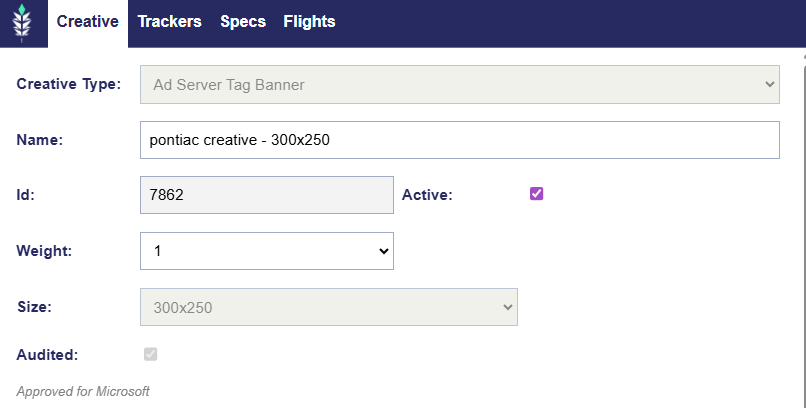
To run a Display Campaign on Microsoft Inventory, you can also do so by selecting Microsoft as the desired exchange. Display can be run on Microsoft open or through Microsoft curated deals. Reach out to your account manager or the help center for more information on how to push curated deals to Pontiac. Note that Microsoft must approve creatives in addition to Pontiac Bidder approval. To check if your creatives have been approved for Microsoft, click your creative name and under the audit checkbox, there will be text that indicates Microsoft approval.
Magnite (DV+) Display Campaign Setup for the Open Exchange:
To run a Display Campaign on Magnite (DV+), follow the same Display campaign instructions as above. Target Magnite (DV+) as the exchange but do not check the Curation feature. Note that Magnite (DV+) must approve creatives in addition to Pontiac Bidder approval, which can take up to 48 hours.
Native Setup
Native campaigns allow advertisers to serve Native format A creatives across supported exchanges: Index Exchange and Microsoft. Follow the guides below to launch your Native campaigns.
To run a Native Campaign on the Bidder, you can do so by following these steps:
Upload Creative:
If you do not yet have an Advertiser created for this Campaign, first create the Advertiser. Then open the Advertiser and upload one or more of your Native Creatives.
The Creative will need to pass the Creative Audit which may take up to 24 hours.
Setup a Campaign. If you add any targeting or audiences to this level, ensure that aligns with Native media types.
Setup your Line Item:
Under the Advertiser, create a Campaign and then Line Item following these recommendations:
Inventory Type: In App, Web, or Combined
Combined inventory for maximum scale
In App for mobile-native strategies
Web only when specifically required
Start Date
End Date
Budget Type: Select Spend or Impressions.
Bid Type:
Basic Bid: Enter the bid price. Default value is $5.11.
Advanced Bid Control: Select Advanced Bid Controls and input a Default Bid Price and Max Bid for each Deal associated to the Campaign and Lines. Note that only the intersection of Campaign and Line Deals will be shown. Associate Deals the Campaign and Line in the Targeting section at each level or either (one or the other) to set a custom bid for each selected Deal. When new Deals are added to the Line and a custom bid is not set, the bid price will default to the value set in the Default Bid Price field on the Line.
Bid at Floor: Bid at the deal’s floor automatically. This is very helpful when the bid floors are dynamic and change.
Bid at Floor Plus: When the Bid at Floor is selected, next to the Max Bid Price (the bid price ceiling) there is an option to add an additional fixed CPM or % to the floor price. This enables you to bid at the floor price plus some extra, so you are not directly competing with those bidding at the floor.
Bid Price: In general, we recommend using the price floors for guidance and adding an additional 40-50% to start the bidding. If you are not achieving the desired scale, continue to increase bids.
Budget Multiplier: This feature allows the user to specify a multiplier on the daily budget. For example, a 1.1 multiplier will allow the Campaign to adjust the daily budget up to 110% of it’s typical daily budget. The calculation is Budget Multiplier * Daily Budget = New Daily Spend.
Enable Foot Traffic Reporting: Optionally, enable Foot Traffic Reporting which allows you to enter specific commercial addresses and track whether users that were served your ads visited those locations. This is available for Banners at a $1.50 CPM, add this additional cost to your bid CPM.
Budget Allocation Weight: If Manage Budgets is enabled on the Campaign level, establish the budget allocation weight for each Line that sits underneath the Campaign. If three lines have a weight of 1, the budget will be evenly distributed across all lines to be a 1/3 = 33.33% budget allocation per Line.
Targeting and Audiences
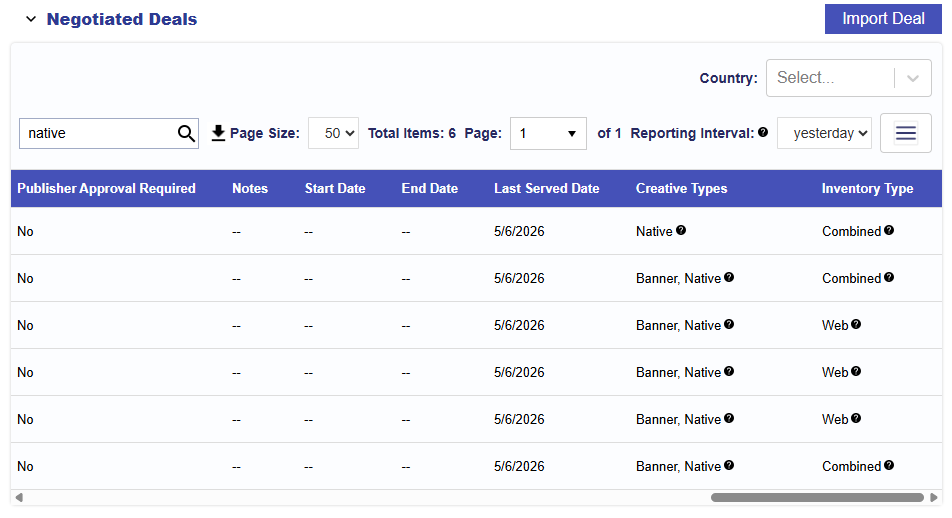
Target Deals that have Native Creative Type inventory
5. Creatives
Associate your Native Creatives. Note that Index and Microsoft must approve creatives in addition to Pontiac Bidder approval.
CTV Setup
Overview
CTV is a specific subset of OTT, defined as content streamed only on televisions that are connected to the internet via Smart TV apps, Game Consoles, and Set Top Boxes.
The following is an overview of the best practices for setting up a successful CTV campaign on the Pontiac platform:
Run through Deals as opposed to the Open Exchange, as this will allow for premium, fraud free placements.
Deal access can be requested in the ‘Inventory’ tab, then associated to the Line under ‘Targeting’. Select Deals with ‘Inventory Types’ that are ‘CTV’ or ‘OTT/CTV’.
Note that although Frequency Capping is available for CTV Lines, it is often inaccurate and will severely limit scale as many CTV publishers do not consistently pass device IDs and user IDs across platforms.
Target ‘Instream’ Inventory by selecting ‘PreRoll’, ‘MidRoll’ and ‘PostRoll’ video playback types.
CTV Setup Using Deals
Select from our Deals or Create or Select a Deal List:
The first step in setting up a successful CTV campaign is to select the PMPs or ‘Deals’ that the Line will target. Read more on Deal Inventory here: Open Exchange vs. Deal Inventory
For CTV Campaign and Lines, select Deals with the Inventory Type ‘CTV’ or ‘OTT/CTV’. As a best practice we recommend selecting and targeting every Deal that fits your campaign’s needs. There is no limit to the number of Deals that can be associated to the Campaign and Line and due to the premium nature of this inventory the auctions can be very competitive. Selecting many Deals will increase the ability of the Campaign and Line to scale. Additionally, for content that most closely mimics a linear TV experience, we recommend focusing on Deals with the formats ‘Live’ and ‘Long Form’ as this will display your ad either during live shows or full episodes. You can also select from pre-set ‘CTV’, ‘Long Form CTV’ and ‘CTV – Full Episode’ Deals lists or create your own custom Deal List that can easily be added to multiple Campaigns and Lines. In the ‘Inventory’ tab, request access to the Deals you would like to use. Deal access will be approved in 1-2 business days and from there the Deals can be associated with a Campaign or Line Item for targeting.
If you would like to upload your own Negotiated Deal, reach out through the Help Center to get the deal available on your seat. Once available, you can target your own Negotiated Deal as well.
Upload Creative:
If you do not yet have an Advertiser created for this Campaign, first create the Advertiser. Then open the Advertiser and upload one or more Creatives that meet the OTT/CTV Specs, see here: Creative Specs
The Creative will need to pass the Creative Audit which may take up to 24 hours.
Setup a Line Item:
Under the Advertiser, create a Campaign and then Line Item following these recommendations:
Inventory Type: In App
Start Date
End Date
Budget Type: Select Spend or Impressions.
Bid Type:
Advanced Bid Control: Select Advanced Bid Controls and input a Default Bid Price and Max Bid for each Deal associated to the Campaign and Lines. Note that only the intersection of Campaign and Line Deals will be shown. Associate Deals the Campaign and Line in the Targeting section at each level or either (one or the other) to set a custom bid for each selected Deal. When new Deals are added to the Line and a custom bid is not set, the bid price will default to the value set in the Default Bid Price field on the Line.
Bid at Floor: Bid at the deal’s floor automatically. This is very helpful when the bid floors are dynamic and change.
Bid at Floor Plus: When the Bid at Floor is selected, next to the Max Bid Price (the bid price ceiling) there is an option to add an additional fixed CPM or % to the floor price. This enables you to bid at the floor price plus some extra, so you are not directly competing with those bidding at the floor.
Bid Strategy: The PMPs are real-time bidding environments with a specified price floor as defined by the publisher. This is the minimum CPM bid required to enter the auction. These auctions can be very competitive and typically, PMPs will clear somewhere between 40-80% higher than the Deal Price Floor. Closing CPMs are on average in the $30-60 range, with the most premium inventory running between $60-100 CPMs. Closing CPMs will vary greatly according to the caliber of publishers and inventory selected, where the PMP falls in the publisher waterfall, the level of competition, the format (Live, Short Form etc), the time of year and more. In general, we recommend using the price floors for guidance and adding an additional 40-50% to start the bidding. If you are not achieving the desired scale, continue to increase bids.
Budget Multiplier: Default value is 1. This feature allows the user to specify a multiplier on the daily budget. For example, a 1.1 multiplier will allow the Campaign to adjust the daily budget up to 110% of it’s typical daily budget. The calculation is Budget Multiplier * Daily Budget = New Daily Spend.
Enable Foot Traffic Reporting: Optionally, enable Foot Traffic Reporting which allows you to enter specific commercial addresses and track whether users that were served your ads visited those locations. This is available for CTV at a $4 CPM, add this additional cost to your bid CPM.
Budget Allocation Weight: Establish the budget allocation weight for each Line that sits underneath the Campaign.
Exchanges: Include the exchanges that are applicable to the deals being targeted and the exchanges that you want to purchase inventory through: Microsoft, Index, Magnite, Freewheel
Deals: Select the CTV Deals that you would like to purchase inventory through, or in the ‘Deal List’ tab, add Pontiac Curated Deal Lists or your own Custom Deal List to associated all Deals within that list.
Geo Targeting: Zip Code, DMA, State, or Country
Device Types: Select ‘Connected TV’, ‘Connected Device’ and ‘Set Top Boxes’.
Creative: Associate a Creative that meets the OTT/CTV Specs.
Audience Targeting: Associate Segments from Custom or ART Audiences if desired.
Pixels: To track online conversions driven by a CTV Line, you can use an IP Conversion pixel. Read more here: IP Conversion Pixels
CTV Setup Using Open Exchange
Create an App List (Optional)
If you would like to run through the Open Exchange, it is highly recommended that you target an app list to specify the apps/channels where you would like the Line to run. For CTV, if you do not supply an app list, the Line will run may be able to run on TV apps that are not strictly for streaming TV content. For example, TV Weather apps.
To create a custom CTV app list, go to the ‘Inventory’ tab and enter the app domains you would like to target. For example, in the Custom App List box enter ‘com.slingtv.ctv.aetv.roku’ to target the Roku A&E app. You must then add the App List to the Line.
Upload Creative
If you do not yet have an Advertiser created for this campaign, first create the Advertiser. Then open the Advertiser and upload one or more Creatives that meet the OTT/CTV Specs, see here: Pontiac CTV & OTT Specs
The Creative will need to pass the Creative Audit which may take up to 24 hours.
Setup a Campaign and then your Line Item
Under the Advertiser, create a Campaign and then Line Item following these recommendations:
Inventory Type: In App
Frequency Caps: Frequency-capped CTV video campaigns can be more challenging to scale than desktop and mobile campaigns. For this reason, we recommend setting caps to 0.
Bid Strategy: Closing CPMs are typically in the $20-40 range. However, this will vary greatly according to the caliber of the publishers and inventory being targeted. We recommend starting with bids in this range, and if you are not achieving the desired scale, continue to increase bids.
Enable Foot Traffic Reporting: This is available for CTV at a $4 CPM, add this additional cost to your bid CPM.
Exchanges: Include the Exchanges through which you would like to purchase inventory. Under the ‘CTV/OTT’ Exchange category you will find the predominately CTV based Exchanges. It is recommended to select exchanges from this section.
Geo Targeting: Zip Code, DMA, State, or Country
App List: If you created an app list to target, associate this list to the Line as an ‘Allow’ list.
Device Types: Leave the Device Types set to ‘Connected TV’, ‘Connected Devices’ and ‘Set Top Boxes’.
OLV: Select Video Playback types ‘PreRoll’, ‘MidRoll’, and ‘PostRoll’, recommended to include all three. Do NOT select ‘Outstream’.
Video Size: Do not select a size.
Creative: Associate a Creative that meets the OTT/CTV Specs.
Audience Targeting: It is only recommended to use audiences from the providers TruAudience (Tru Optik), Lotame and Comscore. Associate the selected audience to the Advertiser, then to the Line Item under ‘Associate Segments’. Keep in mind that these audiences are intended for CTV, but they may still limit scale.
Pixels: To track online conversions driven by a CTV Line, you can use an IP Conversion pixel. Read more here: IP Conversion Pixels
Audio Setup
Audio campaigns allow you to serve 15, 30, 45, 60, 75, or 90 second audio advertisements across a variety of audio streaming services through Audio Deals. These include DAX, Magnite (DV+), Triton (iHeart Media), Spotify, Pandora, SiriusXM, and SoundCloud, plus additional publisher inventory as Pontiac’s current deal providers and run through Magnite (DV+), Triton, AdsWizz and Microsoft exchanges. Audio delivers a high engagement rate with CTRs between 0.7% -0.9% and over 1% when combined with remarketing. Audio ads are effective for creating brand awareness and driving traffic to sites.
Audio Setup
Select from Deals or Run Open on Magnite (DV+), Triton, AdsWizz and Microsoft:
The first step in setting up a successful Audio campaign is to select the PMPs or ‘Deals’ that the Line will target.
Select them individually or create your own Deal List and target them on your Line.
For Audio Campaigns and Lines, select Deals with the Media Type ‘Audio’. To look through all Audio deals, go to the Inventory tab > Deals > and search audio. As a best practice we recommend selecting and targeting every Deal that fits your campaign’s needs. There is no limit to the number of Deals that can be associated to the Campaign and Line. Selecting many Deals will increase the ability of the Campaign and Line to scale.
If you would like to upload your own Negotiated Deal, reach out through the Help Center to get the deal available on your seat. Once available, you can target your own Negotiated Deal as well.
Users can also audio on the open exchange on: Magnite (DV+), Triton, AdsWizz and Microsoft
Upload Creative:
If you do not yet have an Advertiser created for this Campaign, first create the Advertiser. Then open the Advertiser and upload one or more Creatives that meet the Audio Specs, see here: Creative Specs
The Creative will need to pass the Creative Audit which may take up to 24 hours.
Setup a Campaign:
The Campaign is used to organize a group of strategies for a set period of time under a single budget. All Campaigns must have at least 1 Line Item created underneath them, or they will not deliver impressions. The Campaign object can control the budget of associated Lines, but it does not execute the Campaign spend.
Targeting: The Targeting and Audience sections of the Campaign can be used as an additional filter for all Lines associated. It is recommended to use these sections, only if the targeting parameters apply to ALL Lines. For example, if all of your Lines are targeting the same Geos, these can be applied in the Campaign Targeting section instead of each individual Line. Note that an impression must meet ALL conditions for the targeting applied to both the Campaign and the Line to be eligible.
If using Deals, note that only the intersection of Campaign and Line Deals will be shown. Associate Deals to the Campaign and Line in the Targeting section at each level to set a custom bid for each selected Deal.
Setup a Line Item:
Under the Advertiser and Campaign, create your Line Item following these recommendations:
Inventory Type: Select In App, Web, or Combined
Start Date
End Date
Budget Type: Select Spend or Impressions.
Bid Type:
Advanced Bid Control: Select Advanced Bid Controls and input a Default Bid Price and Max Bid for each Deal associated to the Campaign and Lines. Note that only the intersection of Campaign and Line Deals will be shown. Associate Deals the Campaign and Line in the Targeting section at each level or either (one or the other) to set a custom bid for each selected Deal. When new Deals are added to the Line and a custom bid is not set, the bid price will default to the value set in the Default Bid Price field on the Line.
Bid at Floor: Bid at the deal’s floor automatically. This is very helpful when the bid floors are dynamic and change.
Bid at Floor Plus: When the Bid at Floor is selected, next to the Max Bid Price (the bid price ceiling) there is an option to add an additional fixed CPM or % to the floor price. This enables you to bid at the floor price plus some extra, so you are not directly competing with those bidding at the floor.
Bid Pricing:
Deals: Often in the $7 – $20 range, dependent on deal.
The PMPs are real-time bidding environments with a specified price floor as defined by the publisher. This is the minimum CPM bid required to enter the auction. If you are not achieving the desired scale, continue to increase bids.
Open Exchange: Set a minimum of $13.
Budget Multiplier: Default value is 1. This feature allows the user to specify a multiplier on the daily budget. For example, a 1.1 multiplier will allow the Campaign to adjust the daily budget up to 110% of it’s typical daily budget. The calculation is Budget Multiplier * Daily Budget = New Daily Spend.
Enable Foot Traffic Reporting (optional): Optionally, enable Foot Traffic Reporting which allows you to enter specific commercial addresses and track whether users that were served your ads visited those locations. This is available for Audio at a $4 CPM, add this additional cost to your bid CPM.
Select Foot traffic lookback period.
Budget Allocation Weight: Establish the budget allocation weight for each Line that sits underneath the Campaign.
If ‘Manage Budgets’ is selected on the campaign, the total budget will be the dollar amount or impression number entered at the campaign level. The budget for each individual line item can be set as a weight. The total campaign budget will be allocated across associated line items according to the weights applied to each Line.
If ‘Manage Budgets’ is selected and ‘Auto Pace’ is also applied, the overall campaign budget will remain fluid between the associated line items. Each line item budget will be set as a ‘target’ allocation, but real allocations and daily budgets will shift according to real line pacing and available impressions.
If ‘Manage Budgets’ is not applied to the campaign, then each line item can have a fixed budget set as an impression or dollar amount. The budget type will match the budget type that is set on the campaign. Each line will pace according to the individual budget entered on the line as opposed to the over-arching campaign goal.
Line Frequency: Not recommended due to frequency capping utilizing IP addresses and can severely limit spend.
Targeting Options: Users can either use allow lists or block lists.
Deals: Individually select the Audio Deals that you would like to purchase inventory through, or in the ‘Deal List’ tab, add your own Custom Deal List to associated all Deals within that list to the Line.
Geo Targeting: Allow or Block Zip Code, DMA, State, or Country
Site or App List: Allow or Block list
Device Types: Select any or all ‘Personal Computer’, ‘Phone’, ‘Tablet’, ‘Connected Device’ depending on your strategy.
Privacy:
Serve to COPPA: If this box is checked inventory regulated “coppa” (Children’s Online Privacy Protection Act)) will be purchased.
Serve to DNT: If this box is checked users who have elected not to be tracked will be served to.
Additional Granular Targeting Options:
Channel, Network, Publisher, Genre, Series, and Title Targeting: Look through Deal’s sample bids to see what targetable information gets passed to precisely target the content your audience is interested in and block the inventory that you are not interested in purchasing.
Multi Field: The multi-field option enables targeting across multiple fields simultaneously. If content matches any of the selected fields (genre, series, title, etc), ad will be shown to the viewer.
Creative: Associate the Creative that was uploaded under the Advertiser and meets the Audio Specs.
Audience Targeting: Apply Zip Code Targeting if desired. Run an Audience Research to identify your audience’s key characteristics and find lookalike zip codes that over index for your audiences key characteristics and target those zips.
Pixels: To track online conversions driven by an Audio Line, you can use an IP Conversion pixel. Read more here: Pixels
OLV Setup
Video environment targeting can be found in the ‘OLV’ tab of the ‘Targeting’ section on both the Campaign and Line Item levels. Video campaigns are an effective strategy to create brand awareness and drive traffic to your site with high CTRs.
Follow these steps to launch an Online Video (OLV) Campaigns:
Select Device Types: Phone, Tablet, Personal Computer
Select Video Playback Type: Recommend selecting PreRoll, but can select MidRoll, and Outsream depending on campaign goals as well.
Lastly, select some or all of the OLV Deals that match your targeting goals.
For more details, refer to the below walkthrough.
OLV Setup:
Select from our Deals or Create or Select a Deal List:
The first step in setting up a successful OLV campaign is to select the PMPs or ‘Deals’ that the Line will target.
Select them individually or create your own Deal List and target them on your Line.
For OLV Campaigns and Lines, select Deals with the Media Type ‘Online Video’. To look through all OLV deals, go to the Inventory tab > Deals > and search online video. As a best practice we recommend selecting and targeting every Deal that fits your campaign’s needs. There is no limit to the number of Deals that can be associated to the Campaign and Line. Selecting many Deals will increase the ability of the Campaign and Line to scale.
If you would like to upload your own Negotiated Deal, reach out through the Help Center to get the deal available on your seat. Once available, you can target your own Negotiated Deal as well.
Upload Creative:
If you do not yet have an Advertiser created for this Campaign, first create the Advertiser. Then open the Advertiser and upload one or more Creatives that meet the Video Specs, see here: Creative Specs
The Creative will need to pass the Creative Audit which may take up to 24 hours.
Setup a Campaign:
The Campaign is used to organize a group of strategies for a set period of time under a single budget. All Campaigns must have at least 1 Line Item created underneath them, or they will not deliver impressions. The Campaign object can control the budget of associated Lines, but it does not execute the Campaign spend.
Targeting: The Targeting and Audience sections of the Campaign can be used as an additional filter for all Lines associated. It is recommended to use these sections, only if the targeting parameters apply to ALL Lines. For example, if all of your Lines are targeting the same Geos, these can be applied in the Campaign Targeting section instead of each individual Line. Note that an impression must meet ALL conditions for the targeting applied to both the Campaign and the Line to be eligible.
If using Deals, note that only the intersection of Campaign and Line Deals will be shown. Associate Deals to the Campaign and Line in the Targeting section at each level to set a custom bid for each selected Deal.
Setup a Line Item:
Under the Advertiser and Campaign, create your Line Item following these recommendations:
Inventory Type: Select Combined
Start Date
End Date
Budget Type: Select Spend or Impressions.
Bid Type:
Deals: Select Advanced Bid Controls and input a Default Bid Price and Max Bid for each Deal associated to the Campaign and Lines. As mentioned above, only the intersection of Campaign and Line Deals will be shown. Associate Deals to the Campaign and Line in the Targeting section at each level to set a custom bid for each selected Deal. When new Deals are added to the Line and a custom bid is not set, the bid price will default to the value set in the Default Bid Price field on the Line.
Open Exchange: Basic Bid or Bid at Floor Price
Bid Pricing:
Deals: Bids vary for video inventory and deal, but we recommend a bid structure of at least an $6-$8 base bid.
The PMPs are real-time bidding environments with a specified price floor as defined by the publisher. This is the minimum CPM bid required to enter the auction. If you are not achieving the desired scale, continue to increase bids.
Open Exchange: We recommend a bid minimum of at least $6-$8.
Budget Multiplier (optional): This feature allows the user to specify a multiplier on the daily budget. For example, a 1.1 multiplier will allow the Campaign to adjust the daily budget up to 110% of it’s typical daily budget. The calculation is Budget Multiplier * Daily Budget = New Daily Spend.
Enable Foot Traffic Reporting (optional): Optionally, enable Foot Traffic Reporting which allows you to enter specific commercial addresses and track whether users that were served your ads visited those locations. This is available for Video at a $4 CPM, add this additional cost to your bid CPM.
Select Foot traffic lookback period.
Budget Allocation Weight: Establish the budget allocation weight for each Line that sits underneath the Campaign.
If ‘Manage Budgets’ is selected on the campaign, the total budget will be the dollar amount or impression number entered at the campaign level. The budget for each individual line item can be set as a weight. The total campaign budget will be allocated across associated line items according to the weights applied to each Line.
If ‘Manage Budgets’ is selected and ‘Auto Pace’ is also applied, the overall campaign budget will remain fluid between the associated line items. Each line item budget will be set as a ‘target’ allocation, but real allocations and daily budgets will shift according to real line pacing and available impressions.
If ‘Manage Budgets’ is not applied to the campaign, then each line item can have a fixed budget set as an impression or dollar amount. The budget type will match the budget type that is set on the campaign. Each line will pace according to the individual budget entered on the line as opposed to the over-arching campaign goal.
Line Frequency: Not recommended due to frequency capping utilizing IP addresses and can severely limit spend.
Targeting Options:
Deals: Individually select the Online Video (OLV) Deals that you would like to purchase inventory through, or in the ‘Deal List’ tab, add your own Custom Deal List to associated all Deals within that list to the Line.
Exchanges: Freewheel, Index, Magnite (DV +), Microsoft
Geo Targeting: Allow or Block Zip Code, DMA, State, or Country
OLV:
Video Playback Types: Recommend selecting PreRoll, but can select MidRoll, and Outsream depending on campaign goals as well.
Player Size: Select all Large, Medium, Small.
Playback Method: Select playback methods if desired.
Livestream:
Checking the livestream box will filter out any on-demand (VOD) inventory to target only impressions within content being live-streamed. Live content typically includes sports games, news, coverage of live events etc.
Not all publishers and streaming platforms contain live content, it is recommended to run an Inventory Availability report to verify if live content is available prior to applying this targeting.
Site or App List: Recommended if buying through the open exchange.
Device Types: Select any or all ‘Personal Computer’, ‘Phone’, ‘Tablet’ depending on your strategy.
Privacy:
Serve to COPPA: If this box is checked inventory regulated “coppa” (Children’s Online Privacy Protection Act)) will be purchased.
Serve to DNT: If this box is checked users who have elected not to be tracked will be served to.
Additional Granular Targeting Options:
Channel, Network, Publisher, Genre, Series, and Title Targeting: Look through Deal’s sample bids to see what targetable information gets passed to precisely target the content your audience is interested in.
Multi Field: The multi-field option enables targeting across multiple fields simultaneously. If content matches any of the selected fields (genre, series, title, etc), ad will be shown to the viewer.
Creative: Associate the Creative that was uploaded under the Advertiser and meets the Video Specs.
Audience Targeting: Associate Segments from Custom, Contextual, or ART Audiences if desired but can limit the campaign’s ability to serve. Add audience segment associated CPMs to bidding.
Pixels: To track online conversions driven by an OLV Line, you can use an IP Conversion pixel. Read more here: Pixels
Once completed, your OLV campaign should be properly configured and ready to run.
OTT Setup
OTT is defined here as TV content delivered via an internet connection that is streamed on Mobile, Desktop, and Tablets ONLY.
The following is an overview of the best practices for setting up a successful OTT campaign on the platform:
Run through Deals as opposed to the Open Exchange, as this will allow for premium, fraud free placements. Deal access can be requested in the ‘Inventory’ tab, then associated to the Line under ‘Targeting’. To ensure the Line only serves through selected Deals, DO NOT ASSOCIATE ANY EXCHANGES.
Do not add frequency caps. Although Frequency Capping is available for OTT lines, it is often inaccurate and will severely limit scale as many OTT publishers do not consistently pass device IDs and user IDs across platforms.
Target ‘Instream’ Inventory by selecting ‘PreRoll’, ‘MidRoll’ and ‘PostRoll’ video playback types. Choose according to your Campaign goals.
It is only recommended to use audiences from the providers TruAudience (Tru Optik), Lotame and Comscore. While these audiences are intended for OTT, they may still limit scale.
OTT Setup using Deals
Selecting Deals for an OTT Campaign
Upload Creative
If you do not yet have an Advertiser created for this campaign, first create the Advertiser. Then open the Advertiser and upload one or more Creatives that meet the OTT/CTV Specs, see here: Pontiac CTV & OTT Specs
The Creative will need to pass the Creative Audit which may take up to 24 hours.
Set up a Campaign
Under the Advertiser, create a Campaign configured depending on your strategy.
Set up a Line Item
Under the Advertiser and Campaign, create a Line Item following these recommendations:
Inventory Type: Combined
Frequency Caps:
The best setting depends on your campaign goals and the types of devices you’re targeting.
However, for OTT campaigns, frequency capping is less reliable due to limited user/device identifiers.
Because this can limit scale and cause delivery issues, we recommend setting frequency caps to 0 (i.e., no cap) for OTT campaigns to allow for better pacing and reach.
Bid Strategy: The PMPs are real-time bidding environments with a specified price floor as defined by the publisher. This is the minimum CPM bid required to enter the auction. These auctions can be very competitive and typically PMPs will clear somewhere between 40-80% higher than the Deal Price Floor. Closing CPMs are on average in the $20-40 range. However, this will vary greatly according to the caliber of publishers and inventory selected, where the PMP falls in the publisher waterfall, the level of competition, the format (Live, Short Form etc), the time of year and more. In general, we recommend using the price floors for guidance and adding an additional 40-50% to start the bidding. If you are not achieving the desired scale, continue to increase bids.
Foot Traffic Attribution: This is available for OTT at a $4 CPM, add this additional cost to your bid CPM.
Exchanges: Remove ALL Exchanges
Deals: Select Deals with the ‘OTT’ or ‘OTT/CTV’ Inventory type that meet your needs.
Video Playback: Select from ‘PreRoll’, ‘MidRoll’,and ‘PostRoll’, recommended to include all three. Do NOT select ‘Outstream’.
Video Size: Do not select a size.
Creative: Associate a Creative that meets the OTT/CTV Specs.
Audience Targeting: It is only recommended to use audiences from the providers TruAudience (Tru Optik), Lotame and Comscore. These can be found by filtering by ‘Provider’ in the Audience tab. Associate the selected audience to the Advertiser, then to the Line Item under ‘Associate Segments’. Keep in mind that these audiences are intended for OTT, but they may still limit scale.
Pixel: To track online conversions driven by an OTT Line, you can associate an IP Conversion pixel to the Campaign or Line. Read more here: Pixels
OTT Setup Using Open Exchange
Create an App List (Optional)
If you would like to run through the Open Exchange, it is highly recommended that you target an App List to specify the apps/channels where you would like the Line to run. For OTT, if you do not supply an app list, the Line will run on ANY mobile/desktop application and will not be restricted to streaming TV content. For example, Mobile Games, Weather apps, News apps etc.
To create a custom OTT app list, go to the ‘Inventory’ tab and enter the app domains you would like to target. For example, in the Custom App List box enter ‘571711580’ to target the Apple A&E app. You must then add the App List to the Line.
Upload Creative
If you do not yet have an Advertiser created for this campaign, first create the Advertiser. Then open the Advertiser and upload one or more Creatives that meet the OTT/CTV Specs, see here: Creative Specs
The Creative will need to pass the Creative Audit which may take up to 24 hours.
Set up Line Item
Under the Advertiser, create a Line Item following these recommendations:
Inventory Type: OTT
Frequency Caps: Because device IDs and user IDs are not always available, frequency-capped CTV video campaigns can be more challenging to scale than desktop and mobile campaigns. For this reason, we recommend setting caps to 0.
Bid Strategy: Closing CPMs are typically in the $15-25 range. However, this will vary greatly according to the caliber of the publishers and inventory being targeted. We recommend starting with bids in this range, and if you are not achieving the desired scale, continue to increase bids.
Foot Traffic Reporting: This is available for OTT at a $4 CPM, add this additional cost to your bid CPM.
Exchanges: Include the Exchanges through which you would like to purchase inventory.
App List: If you created an app list to target, associate this list to the Line as an ‘Allow’ list.
Video Playback: Select from ‘PreRoll’, ‘MidRoll’,and ‘PostRoll’, recommended to include all three. Do NOT select ‘Outstream’.
Video Size: Do not select a size.
Creative: Associate a Creative that meets the OTT/CTV Specs.
Audience Targeting: It is only recommended to use audiences from the providers TruAudience (Tru Optik), Lotame and Comscore. These can be found by filtering by ‘Provider’ in the Audience tab. Associate the selected audience to the Advertiser, then to the Line Item under ‘Associate Segments’. Keep in mind that these audiences are intended for OTT, but they may still limit scale.
Pixel: To track online conversions driven by a OTT Line, you can use an IP Conversion pixel. Read more here: Pixels
National US Campaign Setup
The following is a walkthrough for setting up a successful United States campaign on the Pontiac platform.
United States Setup
Enter the Campaign setup fields as usual.
Pacing Time Zone: Determines the time zone used to define the start and end of each day for campaign pacing.
For example, if the end date is 1/31 and the Pacing Time Zone is Eastern Time, the campaign will stop delivering at 11:59:59 pm Eastern Time on that date.
For national US campaigns using a single Pacing Time Zone, Central Time is recommended as a practical default, as it provides a more balanced alignment across Eastern, Central, Mountain, and Pacific audiences.
The continental US spans four primary time zones: Eastern, Central, Mountain, and Pacific, so a single Pacing Time Zone will not perfectly align pacing with local hours across the entire country.
If targeting the broader US, Alaska Time and Hawaii-Aleutian Time should also be considered.
For national US campaigns using Primetime pacing, consider using a Custom pacing curve that combines the Primetime curves for the targeted US time zones. This provides broader alignment with local Primetime hours across the country.
If Central Time is used as the campaign Pacing Time Zone, an 8pm local Primetime peak corresponds to:
Eastern Time (ET): 7pm CT
Central Time (CT): 8pm CT
Mountain Time (MT): 9pm CT
Pacific Time (PT): 10pm CT
Rather than producing one sharp Primetime peak, the combined Custom curve can create a broader evening window as Primetime moves across the country.
For the most precise local Primetime pacing, campaigns can instead be separated by time zone with corresponding geographic targeting and Pacing Time Zones.
United States Targeting
For US campaigns, users can target at the country, region, DMA, and ZIP code level.
If using a Deal/Deals:
Deals can be identified in the Inventory tab, then associated with the Campaign or Line under Targeting.
Filter the Country to USA. Ensure that the Media Type aligns with your Inventory and Device types.
Note that available Deal offerings may change over time.
Country Level
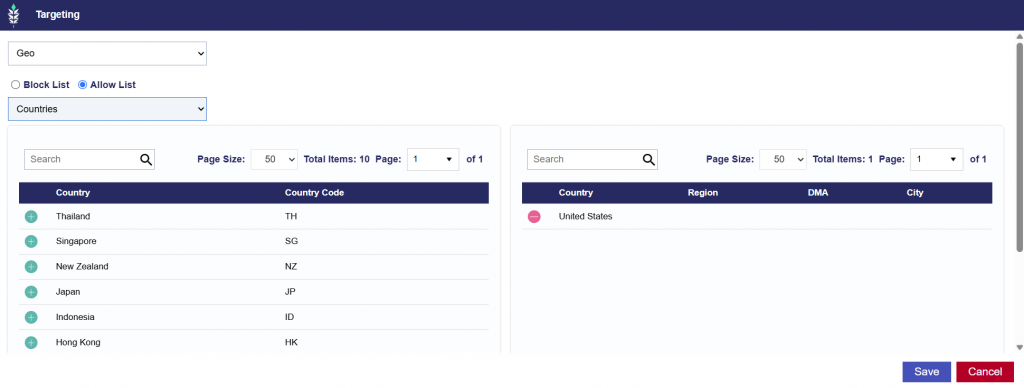
To target an open United States campaign, navigate to the default Geo targeting tab, search for United States as a country, click the green plus button, and save.
Region Level
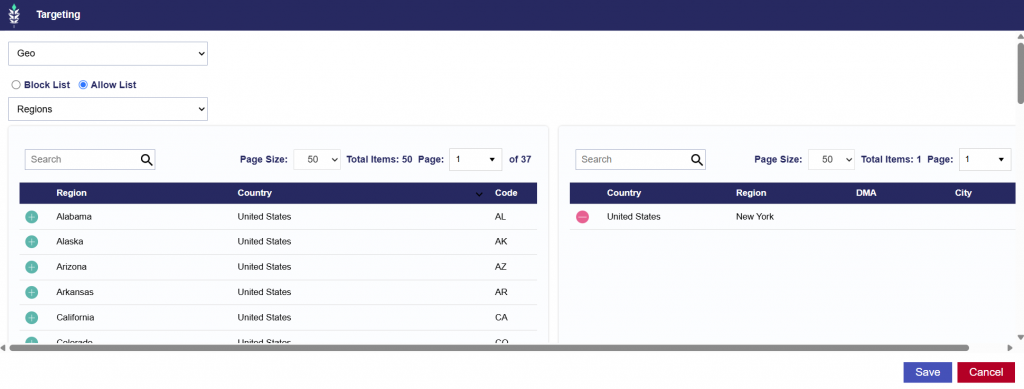
To target at the regional level, change the top-left dropdown to filter for Regions, then search for United States in the search bar to view the available US regions. Click the green plus button next to the desired region to add it to targeting, then save. This will target the US ZIP codes associated with the selected region. Users can also exclude specific regions using the Block List option. When doing so, ensure that the targeting layers are aligned.
DMA Level
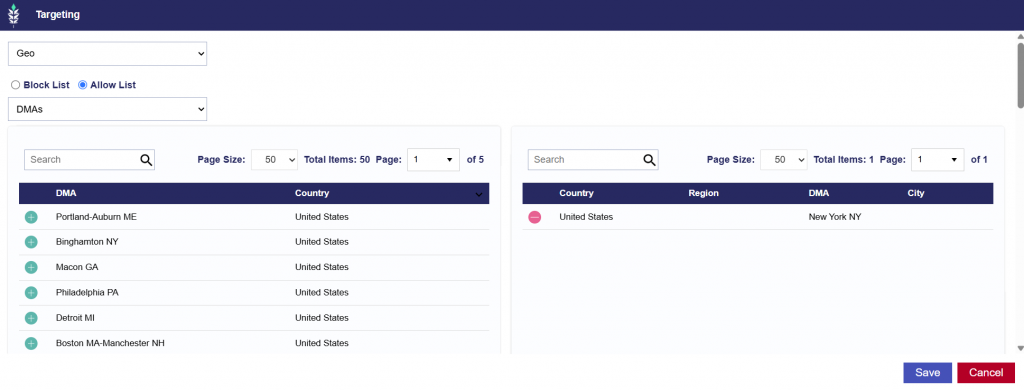
To target at the DMA level, change the top-left dropdown to filter for DMAs, then search for United States in the search bar to view the available US DMAs. Click the green plus button next to the desired DMA to add it to targeting, then save. This will target the US ZIP codes associated with the selected DMA. Users can also exclude specific DMAs using the Block List option. When doing so, ensure that the targeting layers are aligned.
ZIP Code Level
To target US ZIP codes, navigate to the Zip targeting tab. Select United States as the Country and input the desired ZIP code list.
US ZIP codes should be entered in the standard 5-digit format, for example 10001. Select Validate Zips to confirm proper formatting, then save to target the specified ZIP codes. Users can also exclude specific ZIP codes using the Block List option. When doing so, ensure that the targeting layers are aligned.
Canada Campaign Setup
The following is a walkthrough for setting up a successful Canada campaign on the Pontiac platform:
Canada Setup
Enter the Campaign setup fields usual normal
Pacing Time Zone: Determines the time zone used to define the start and end of each day for campaign pacing.
For example, if end date is 1/31 and pacing time zone is EST, the campaign will stop delivering at 11:59:59 pm EST on that date.
For national Canadian campaigns using a single Pacing Time Zone, Eastern Time is recommended as a practical default, as a large share of the Canadian population is concentrated in the Eastern Time Zone.
Canada spans multiple time zones, including Pacific, Mountain, Central, Eastern, Atlantic, and Newfoundland, so a single Pacing Time Zone will not perfectly align pacing with local hours across the entire country.
For national Canadian campaigns using Primetime pacing, consider using a Custom pacing curve that combines the Primetime curves for the targeted Canadian time zones. This provides broader alignment with local Primetime hours across the country.
Canada Targeting
For Canada campaigns, users can target on the country, region, and zip code level.
If using a Deal/Deals:
Deals can be identified in the ‘Inventory’ tab, then associated to the Campaign or Line under ‘Targeting’.
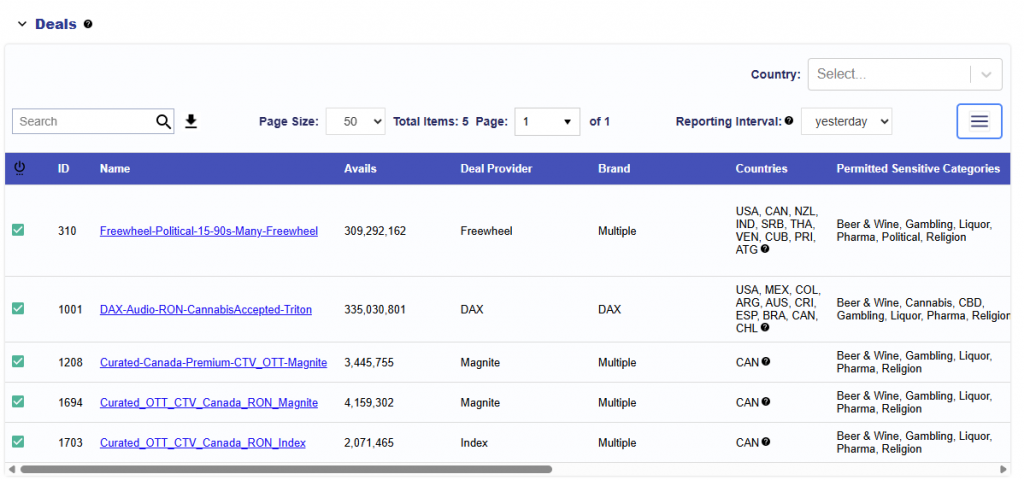
Filter the Country to Canada. See the Deals Filtered for Canada screenshot below for reference. Ensure that the Media Type aligns with your Inventory and Device types.
Note that the above data is from February 4th, 2026 and current Deal offerings may differ.
Country Level
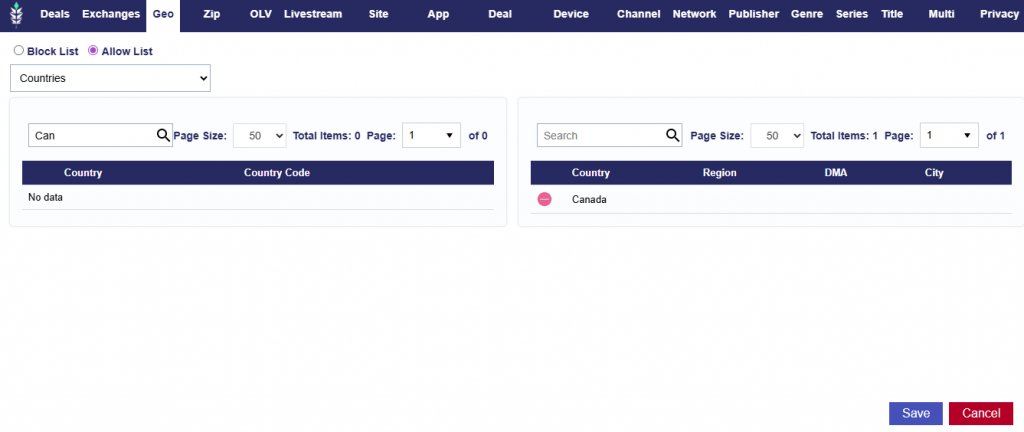
To target an open Canada campaign, in the defaulted Geo targeting tab, search for Canada as a country and click the green plus button and save.
Region Level
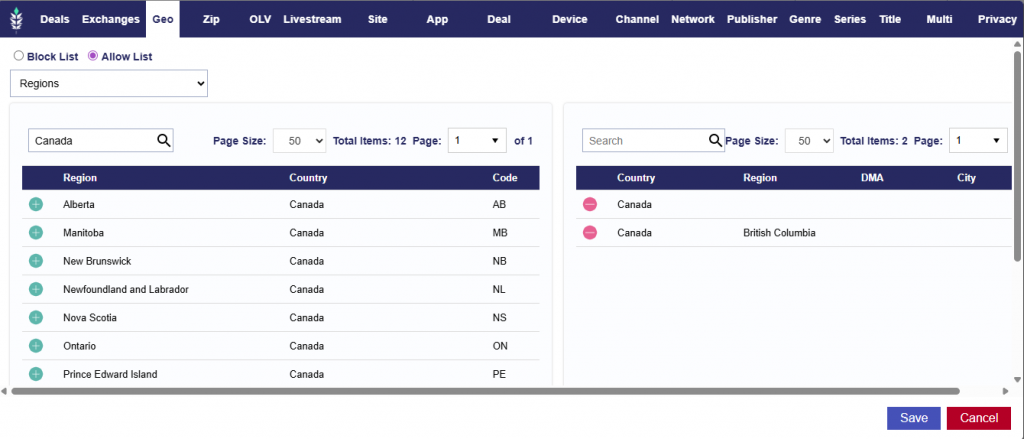
To target at the regional level, change the top left drop down to filter for Regions and then search for Canada in the search bar to view all available Canada regions. Click the green plus button by the desired region to add to targeting and then save. This will target all Canadian zip codes within the specified region.
Note that users are also able to exclude specific regions using the Block List option. When doing so ensure that the targeting layers are aligned.
Zip Code Level
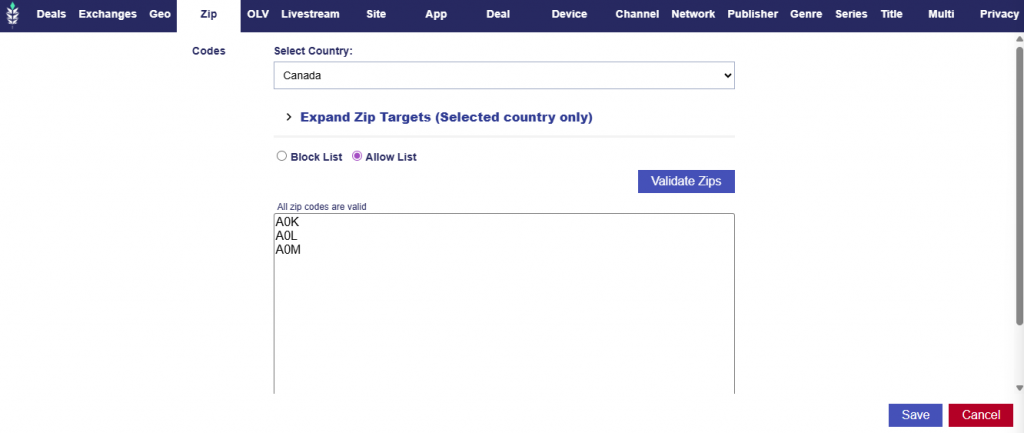
To target Canada zips, navigate to the Zip targeting tab. Select Canada as the Country and input your zip code list. The accepted Canadian format is a 3-character alphanumeric Canadian postal codes, typically formatted as “A0K” (capitalized letter – number – capitalized letter). Ensure to press the validate zips button to check proper formatting. Save and the specified zip codes with be targeted.
Note that users are also able to exclude specific zip codes using the Block List option. When doing so ensure that the targeting layers are aligned.
Programmatic Guaranteed (PG) Setup
Programmatic Guaranteed campaigns can only run Programmatic Guaranteed Deals, which is a direct deal that is created between a publisher and one advertiser with a fixed rate and guaranteed a specified volume of impressions. There is no auction and the advertiser is required to purchase all of the impressions coming through the deal id and all targeting must be applied on the supply-side (SSP).
Once a Programmatic Guaranteed deal has been created for a campaign, it must be imported into Pontiac before it can be targeted. See more information here for detailed instructions: Import Deal. Reach out to your Account Manager or through the Help Center if you have questions.
Note: Importing the deal before it shows up in our database is best practice, as it will ensure that the campaign launches as promptly as possible.
Campaign Setup
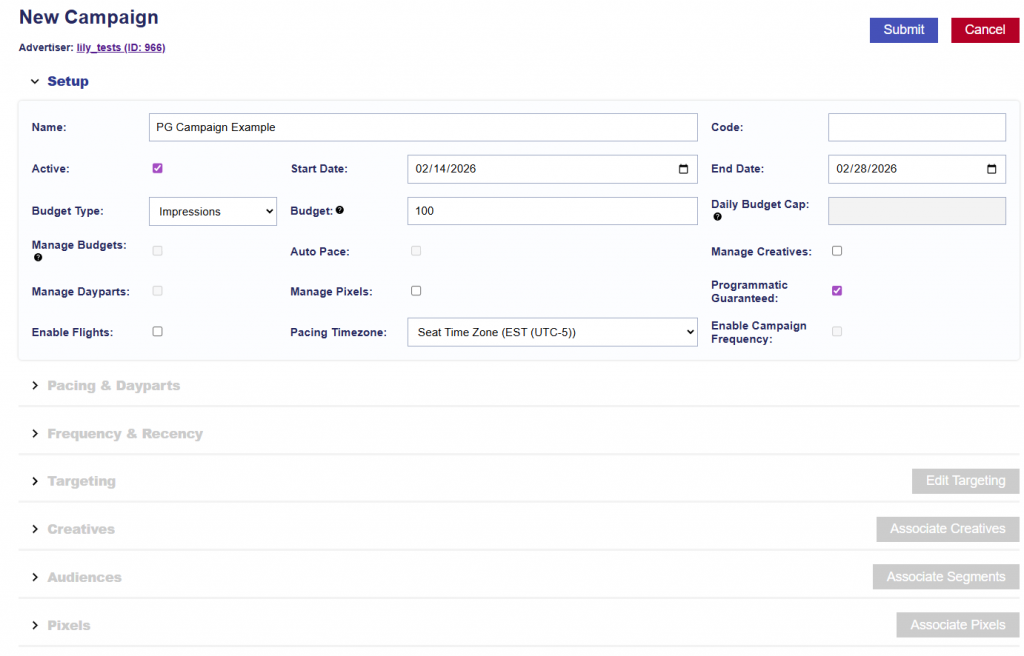
When setting up a PG campaign, the ‘Programmatic Guaranteed’ check box applied at the campaign level in the setup must be checked. This will restrict the targeting and capabilities at both the campaign and line level to respect the parameters of the deal configured with the publisher. The budget and flight dates can be set on the campaign in Pontiac, but these fields are only used for monitoring pacing and campaign progress – they will not be respected by the bidder. Flight dates and budget should be configured on the deal by the publisher.
Note that Budget Type, Budget, and Flight Date fields on the campaign and associated line items are only available for monitoring and pacing purposes, they will not be respected since this is contractually agreed upon through the deal by the publisher.
Manage Creatives and Manage Pixels rename available if you’d like to associate these at the Campaign level so that you use the same creatives across the Lines. Otherwise, associate to the Line if creatives differ.
Line Setup
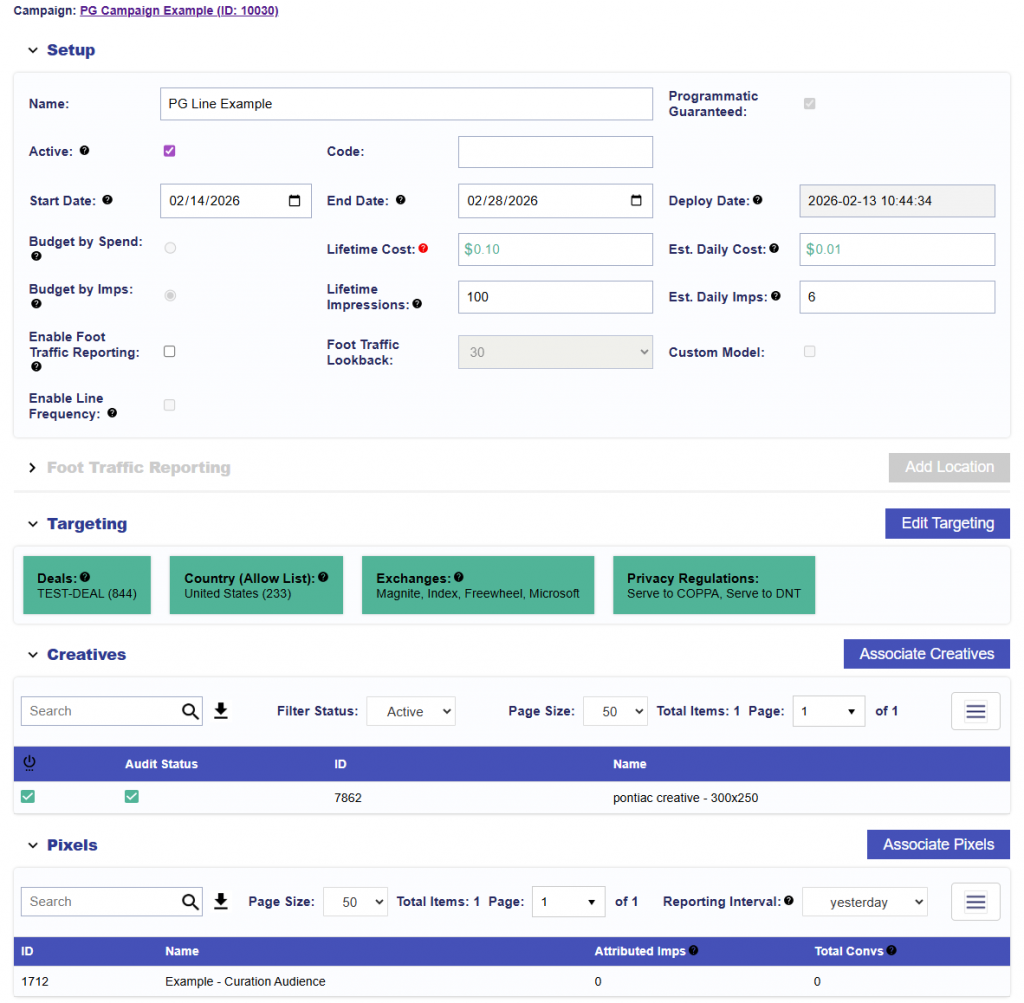
At the line level, the Budget Type, Budget, and Flight Date fields are only available for monitoring and pacing purposes and will not be respected since this is contractually agreed upon through the deal by the publisher.
One PG deal must be targeted on the Line level. When in the Targeting > Deals window, only PG deals will appear available.
If creatives and pixels were not associated on the Campaign level, associate them on the Line level and save.
Sensitive Categories Setup
Pontiac supports select sensitive advertising categories; however, creatives and campaigns containing sensitive content are subject to additional restrictions, approvals, and inventory limitations. Follow the setup recommendations below to ensure campaigns are configured correctly and eligible to serve.
Sensitive Creative Identification
Upload Creative(s)
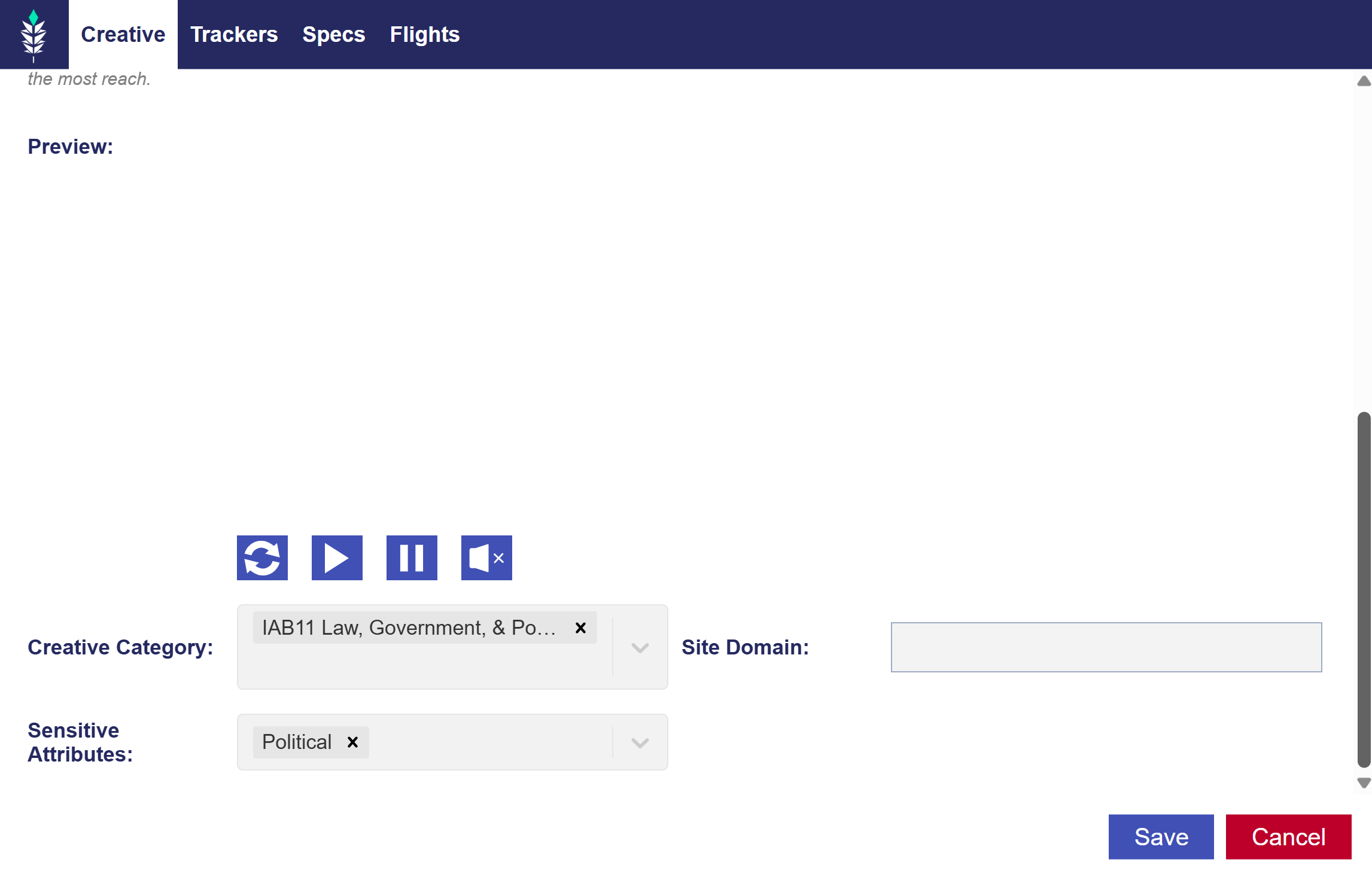
Creatives that are flagged as Sensitive will display a green triangle in the Audit Status column.
Hover over the symbol to review the sensitive category assigned to the creative.
You can also view the category and sensitive attributes by opening the creative window.
Sensitive attributes are displayed underneath the creative preview.
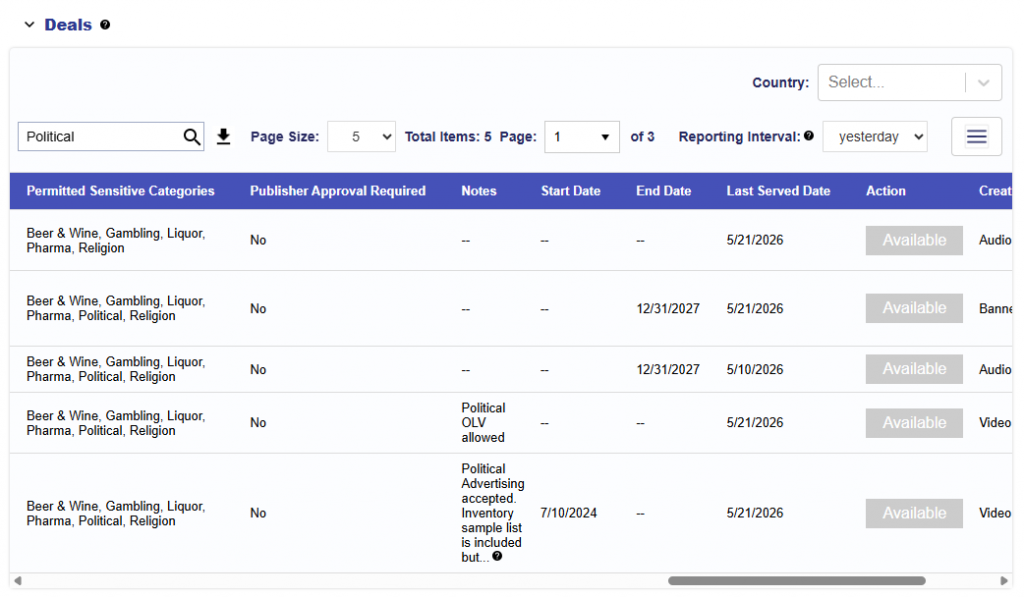
Sensitive creatives are only eligible to serve through deals that explicitly allow the associated sensitive category.
In the Deals section of the Inventory tab, there is a column called Permitted Sensitive Categories, which lists what sensitive categories are accepted for each deal.
3. Setup a Campaign and then your Line Item:
Under the Advertiser, create a Campaign and then Line Item following these recommendations:
Inventory Type: In App, Web, or Combined, note that this must align with the Permitted Sensitive Category Deal’s Inventory Type, which can be found the in the Inventory > Deals section.
Start Date
End Date
Budget Type: Select Spend or Impressions.
Bid Type:
Basic Bid: Enter the bid price. Default value is $5.11. Depending on your media type this may need to increase or decrease.
Advanced Bid Control: Select Advanced Bid Controls and input a Default Bid Price and Max Bid for each Deal associated to the Campaign and Lines. Note that only the intersection of Campaign and Line Deals will be shown. Associate Deals the Campaign and Line in the Targeting section at each level or either (one or the other) to set a custom bid for each selected Deal. When new Deals are added to the Line and a custom bid is not set, the bid price will default to the value set in the Default Bid Price field on the Line.
Bid at Floor: Bid at the deal’s floor automatically. This is very helpful when the bid floors are dynamic and change.
Bid at Floor Plus: When the Bid at Floor is selected, next to the Max Bid Price (the bid price ceiling) there is an option to add an additional fixed CPM or % to the floor price. This enables you to bid at the floor price plus some extra, so you are not directly competing with those bidding at the floor.
Bid Price: In general, we recommend using the price floors for guidance and adding an additional 40-50% to start the bidding. If you are not achieving the desired scale, continue to increase bids.
Budget Multiplier: This feature allows the user to specify a multiplier on the daily budget. For example, a 1.1 multiplier will allow the Campaign to adjust the daily budget up to 110% of it’s typical daily budget. The calculation is Budget Multiplier * Daily Budget = New Daily Spend.
Enable Foot Traffic Reporting: Optionally, enable Foot Traffic Reporting which allows you to enter specific commercial addresses and track whether users that were served your ads visited those locations. This is available for Banners at a $1.50 CPM, add this additional cost to your bid CPM.
Budget Allocation Weight: If Manage Budgets is enabled on the Campaign level, establish the budget allocation weight for each Line that sits underneath the Campaign. If three lines have a weight of 1, the budget will be evenly distributed across all lines to be a 1/3 = 33.33% budget allocation per Line.
Creatives
Associate your Sensitive Creatives to your Sensitive Categories Campaign or Line.
Index and Microsoft Curation Setup
Index and Microsoft Display Campaign Setup Using Curate Deal Feature (recommended):
Users can automatically create an Index or Microsoft Curated Deal by enabling the Curated Deal feature. This feature automatically builds a curated deal for you in an external platform that matches your line’s targeting criteria, which can help increase scale.
Upload Creative:
If you do not yet have an Advertiser created for this Campaign, first create the Advertiser. Then open the Advertiser and upload your creatives.
Each line must use creatives from only one media type: Display or Video. Lines with both Display and Video creatives will not be eligible to use the Curation feature.
The Creative will need to pass the Creative Audit which may take up to 24 hours.
Setup a Campaign and then your Line Item:
Under the Advertiser, create a Campaign and then Line Item following these recommendations:
Inventory Type: In App, Web, or Combined.
Display: It is highly recommended to select Web or Combined for the best scale. In App banner inventory can be extremely limited.
Video: For CTV campaigns, select In App. For OLV campaigns, select Web or Combined. Combined is recommended when broader video scale is the priority.
Start Date
End Date
Budget Type: Select Spend or Impressions.
Bid Type:
Basic Bid: Enter the bid price. Default value is $5.11.
Advanced Bid Control: Select Advanced Bid Controls and input a Default Bid Price and Max Bid for each Deal associated to the Campaign and Lines. Note that only the intersection of Campaign and Line Deals will be shown. Associate Deals the Campaign and Line in the Targeting section at each level or either (one or the other) to set a custom bid for each selected Deal. When new Deals are added to the Line and a custom bid is not set, the bid price will default to the value set in the Default Bid Price field on the Line.
Bid at Floor: Bid at the deal’s floor automatically. This is very helpful when the bid floors are dynamic and change.
Bid at Floor Plus: When the Bid at Floor is selected, next to the Max Bid Price (the bid price ceiling) there is an option to add an additional fixed CPM or % to the floor price. This enables you to bid at the floor price plus some extra, so you are not directly competing with those bidding at the floor.
Bid Price: In general, we recommend using the price floors for guidance and adding an additional 40-50% to start the bidding. If you are not achieving the desired scale, continue to increase bids.
Budget Multiplier: This feature allows the user to specify a multiplier on the daily budget. For example, a 1.1 multiplier will allow the Campaign to adjust the daily budget up to 110% of it’s typical daily budget. The calculation is Budget Multiplier * Daily Budget = New Daily Spend.
Enable Foot Traffic Reporting: Optionally, enable Foot Traffic Reporting which allows you to enter specific commercial addresses and track whether users that were served your ads visited those locations. This is available for Banners at a $1.50 CPM, add this additional cost to your bid CPM.
Budget Allocation Weight: If Manage Budgets is enabled on the Campaign level, establish the budget allocation weight for each Line that sits underneath the Campaign. If three lines have a weight of 1, the budget will be evenly distributed across all lines to be a 1/3 = 33.33% budget allocation per Line.
Targeting and Audiences
You must use the Curation tab to curate a display specific deal in order for the curation to work.
Index and/or Microsoft must be targeted exchanges.
See below for visual reference.
Creatives
Associate your Creatives.
Each line must use creatives from only one media type: Display or Video. Lines with both Display and Video creatives will not be eligible to use the Curation feature.
Note that Index and Microsoft must approve creatives in addition to Pontiac Bidder approval, which can take up to an additional 48 hours. Please reach out to the Ticketing Center to expedite the process for a specific Campaign if needed.
This feature enables automatic deal creation in Index and Microsoft Exchange based on a line’s targeting and can be used to run Display Campaigns only. When activated, Pontiac builds a curated marketplace deal in Index that mirrors the line’s targeting parameters and associates it directly with that line automatically.
How to Use the Curation feature:
In the Targeting dialog box of the Line, a new tab “Curation” is displayed on the left hand side of the window. Here, the section includes the following text and checkbox to enable the curation:
This will automatically build a curated deal for you in an external platform which meets your targeting criteria. This usually increases scale.
Requirements:
Exchange targeting includes Index and/or Microsoft
All creatives associated to the line must be of one media type: display or video
Geo targeting must be more granular than Regions or an audience must be attached that pushed to a curation platform.
Checkboxes:
Use Index Curated Deal: This generates a curated deal through Index.
Optional Feature: Use Target CTR
When checked, this will attempt to filter inventory to a specific CTR goal and could limit delivery. This will not work with CTV or audio campaigns.
Target CTR: Select from the following options:
Higher than 0%
.01% or Higher
.02% or Higher
.05% or Higher
.075% or Higher
.1% or Higher
.15% or Higher
.2% or Higher
.5% or Higher
1% or Higher
Note: Higher CTR goals will restrict delivery.
Use Microsoft Curated Deal: This generates a curated deal through Microsoft.
Note that if validation criteria are not met, the line will fail to save and the user will be redirected back to the line setup page.