Audience Groups
Audience Groups allow users to create, name, save, and reuse Audience targeting configurations across multiple Campaigns and Lines.
A saved Audience Group retains the selected Audience segments, grouping structure, and Any / All Boolean logic, allowing users to quickly reuse common Audience strategies without rebuilding the configuration each time.
Audience Groups can include Audiences from:
- Custom Audiences
- Third Party Audiences
- Geo Fencing
- Contextual Audiences
- ART Audiences
Saved Audience Groups function as templates. When an Audience Group is applied to a Campaign or Line, the configuration is copied into that Campaign or Line and can be edited independently.
View Audience Groups
Navigate to:
Audiences > Audiences > Audience Groups
The Audience Groups section displays saved Audience Groups in a table containing:
- Audience Group ID
- Name

Use the table controls to search and navigate through saved Audience Groups and create new audience groups using the New Audience Group button.
Create an Audience Group
- Navigate to Audiences > Audiences > Audience Groups.
- Select New Audience Group.
- Enter the Audience Group Name.
- Use the Active checkbox to set the Audience Group as Active or Inactive.
- Search for and select the Audiences you want to include.
- Add additional Audience groups within the configuration as needed.
- Use the existing Any / All options to configure Boolean logic between and within groups.
- Remove or rearrange selected Audiences as needed.
- Select Save.
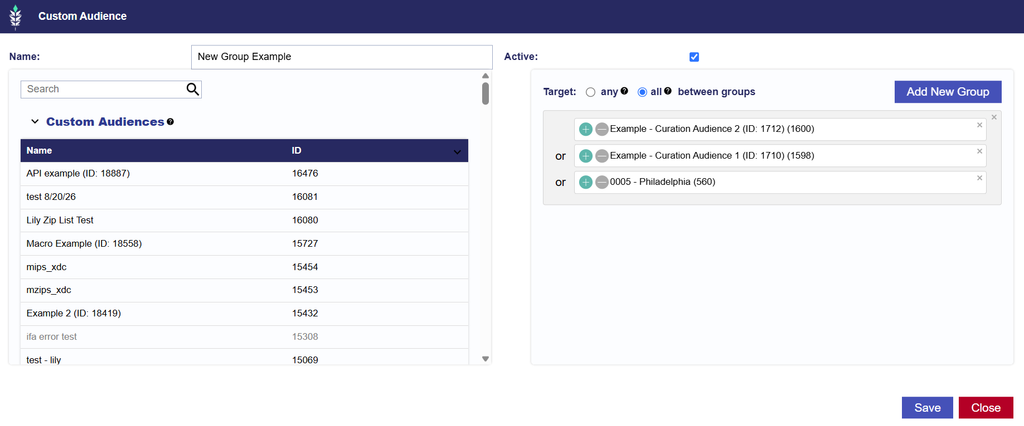
When saved, Pontiac assigns the Audience Group a unique Audience Group ID and stores the selected Audiences, group structure, Boolean logic, Name, and status.
The Audience Group is then available for reuse across Campaigns and Lines when associating segments.
Edit an Audience Group
To edit an existing Audience Group:
- Navigate to Audiences > Audiences > Audience Groups.
- Select the Audience Group Name.
- Update the Name, status, selected Audiences, groups, or Boolean logic as needed.
- Select Update to save the changes, or Cancel to exit without saving.
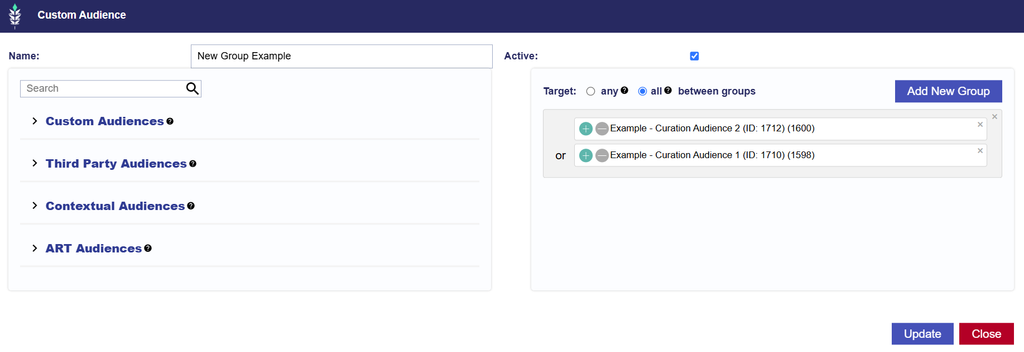
Updates to a saved Audience Group apply only when the template is used for new associations.
Campaigns and Lines that were previously populated from the Audience Group retain their existing Audience configuration and are not automatically updated.
Associate an Audience Group with a Campaign or Line
Saved Audience Groups can be applied through the existing Audience targeting workflow.
- Navigate to the applicable Campaign or Line.
- Open the Audiences section.
- Select Associate Segments.
- Expand Audience Groups in the selection window.
- Search for the saved Audience Group by Audience Group ID or Name.
- Select the green + next to the Audience Group.
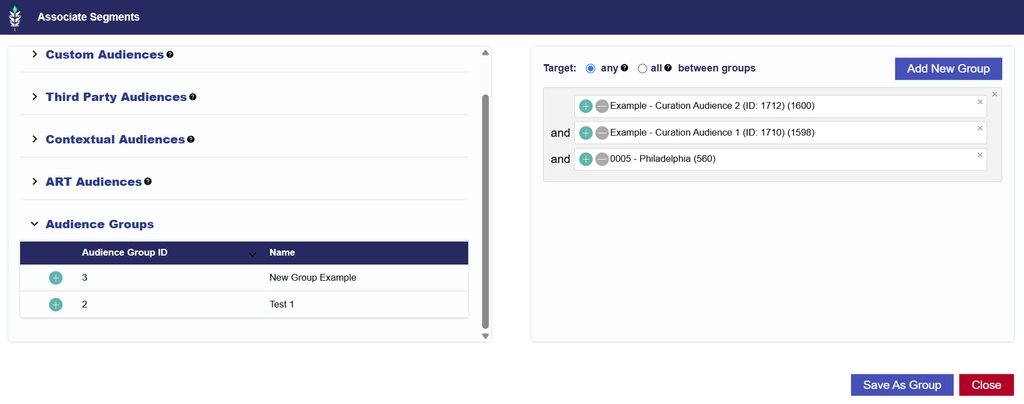
The saved Audience Group configuration will populate on the right side of the window as though the Audience targeting had been configured manually.
The populated configuration retains:
- Selected Audience segments
- Audience groupings
- Any / All Boolean logic
Once added, the configuration can be edited for that Campaign or Line.
Changes made at the Campaign or Line level do not update the saved Audience Group template.
Boolean Logic Warning
If the saved Audience Group uses different Boolean logic than the logic currently configured in the Associate Segments window, a warning will appear before the Audience Group is added.
Users can:
- Select Accept to add the Audience Group while retaining the current Boolean logic.
- Select Cancel to close the warning without adding the Audience Group.
After the Audience Group is added, the resulting configuration remains fully editable for that Campaign or Line.
Save Campaign or Line Targeting as an Audience Group
Users can also create a reusable Audience Group from an Audience configuration that has already been built on a Campaign or Line.
- Navigate to the applicable Campaign or Line.
- Open Audiences > Associate Segments.
- Configure the desired Audience targeting.
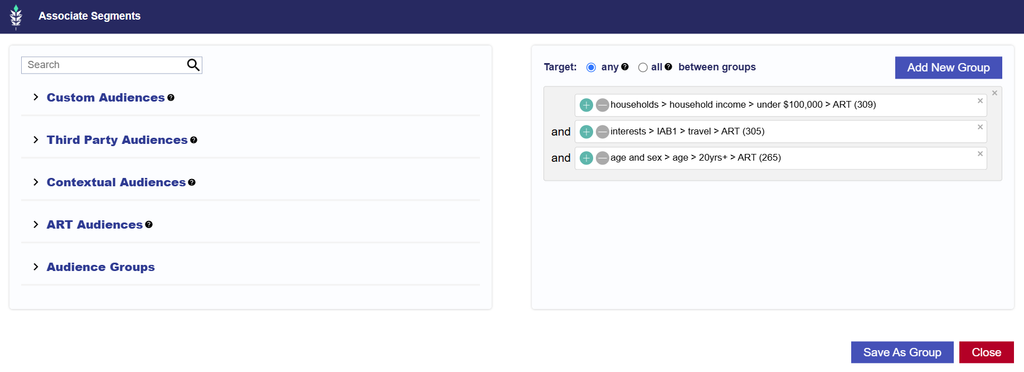
- Select Save As Group.
- Enter an Audience Group Name.
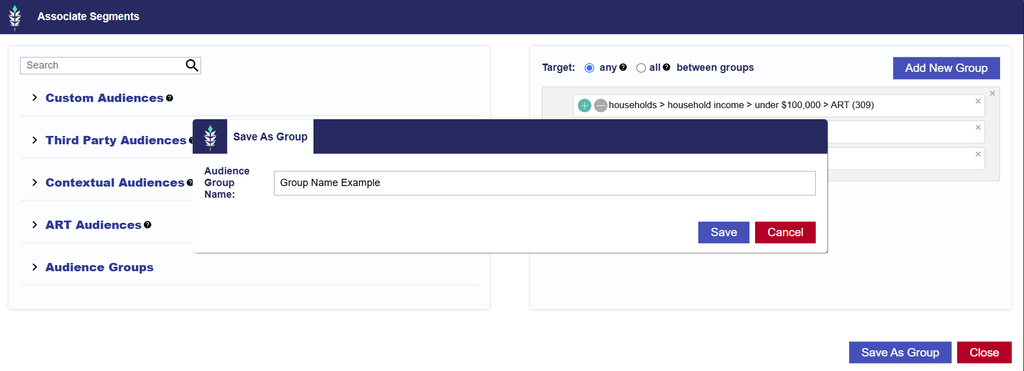
- Select Save.
The current configuration is saved as a new Audience Group, including:
- Selected Audience segments
- Audience groupings
- Any / All Boolean logic
The new Audience Group is assigned an Audience Group ID and becomes available under:
- Audiences > Audiences > Audience Groups
- Campaign and Line level > Audiences > Associate Segments > Audience Groups
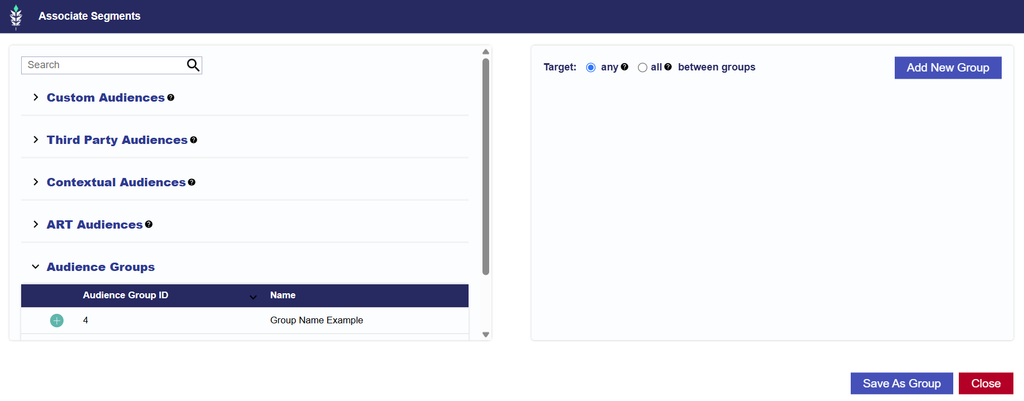
It can then be reused on other Campaigns and Lines.