Associate Segments
The Associate Segments window allows users to apply Audience Targeting to a Campaign or Line by selecting Audience segments and configuring Boolean logic. Multiple Audiences can be combined into groups to define which Impressions are eligible to serve.
UI Location: Campaign or Line > Audiences > Associate Segments
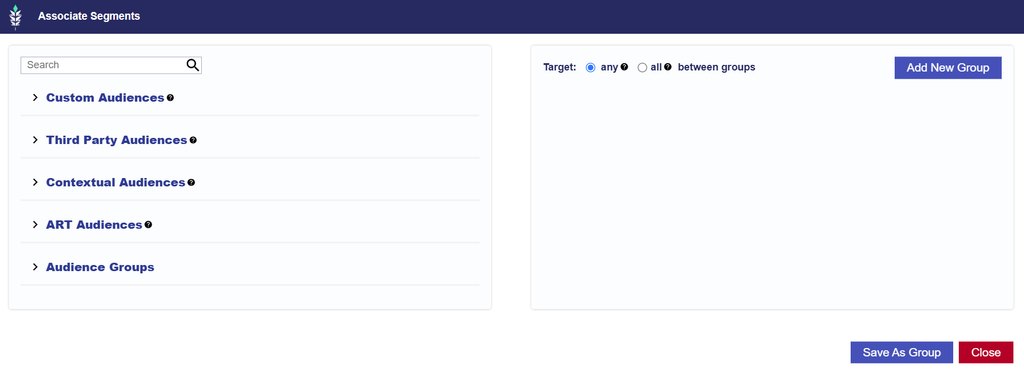
Available Audience Types
The Associate Segments window provides access to the following Audience types:
| Audience Type | Description |
|---|---|
| Custom Audiences | Audiences created or uploaded within Pontiac, including supported custom targeting lists. |
| Third Party Audiences | Audience segments provided by third party data providers and includes Geo Fencing Audiences. |
| Contextual Audiences | Site allow list-based Audiences created from supported contextual targeting criteria. |
| ART Audiences | ZIP Code Audiences generated through Audience Research or Audience Discovery reports, as well as prebuilt public ART Audiences available in Pontiac. |
Associating Audiences
To associate Audience segments with a Campaign or Line:
- Create a new Campaign or Line, or open an existing one in Edit mode.
- Navigate to the Audiences section and select Associate Segments.
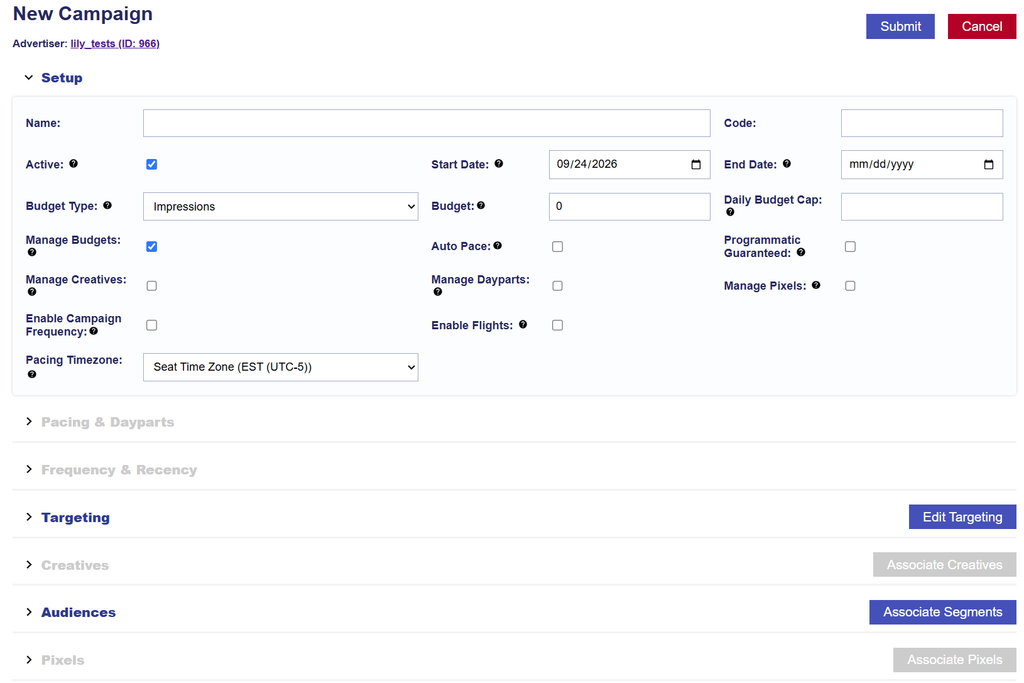
- Select an Audience type and use the search functionality to find the desired segments.
- Select Add New Group to create an Audience group.
- Drag the desired Audience segments into the group.
- Configure the Any / All Boolean logic to define how the selected Audiences should be evaluated.
- Add additional groups as needed and configure the logic between them.
- Review the full Audience configuration.
- Save the Audience configuration and submit the Campaign or Line changes.
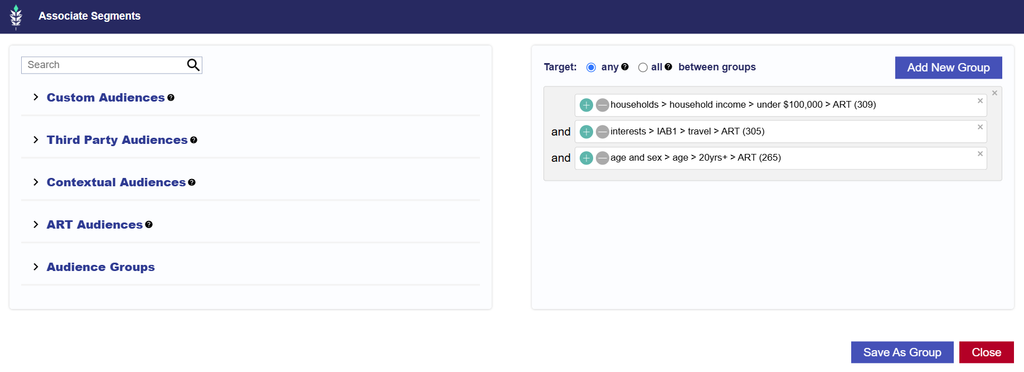
Audience Groups and Boolean Logic
Audience groups allow multiple segments to be combined using Boolean targeting rules. Each group can contain one or more Audience segments, and additional groups can be added to create more complex targeting configurations.
The Any / All options determine how the selected segments or groups are evaluated:
- Any (OR): An Impression is eligible if it satisfies at least one of the specified Audience conditions.
- All (AND): An Impression must satisfy every specified Audience condition to be eligible.
For example, selecting Any between Audience A and Audience B allows Impressions that match either Audience. Selecting All requires Impressions to match both Audiences.
You can combine multiple groups to build more specific targeting requirements. Review the Boolean logic between and within groups to ensure the final configuration matches your intended targeting strategy.
Important: Boolean logic can significantly affect scale. Using All across Audiences that do not meaningfully overlap can greatly reduce eligible inventory or prevent delivery entirely.
For additional examples and guidance, see Boolean Logic .
Audience Type Compatibility
Audience types may rely on different underlying targeting signals. When multiple Audience types are combined, make sure their targeting requirements are compatible.
For example:
- ART Audiences are ZIP Code-based. Combining an ART Audience with ZIP targeting requires the applicable ZIPs to overlap.
- Contextual Audiences are based on eligible sites and content. Combining a Contextual Audience with a restrictive Site Allow List requires the eligible sites to overlap.
- Other Audience types may depend on identifiers such as IP, IFA, geography, or inventory context. Layering incompatible requirements can reduce or eliminate eligible inventory.
Important: Adding more Audience types does not automatically broaden targeting. Depending on the configured Boolean logic, additional Audiences may further narrow eligibility.
Campaign and Line Audience Targeting
Audience Targeting can be configured at both the Campaign and Line levels.
- Campaign level Audiences: Apply shared Audience requirements across all Lines within the Campaign.
- Line level Audiences: Apply additional Audience requirements to an individual Line.
Campaign and Line Audience Targeting are evaluated together. An Impression must satisfy the applicable requirements from both levels to be eligible to serve.
If Audiences are associated at both the Campaign and Line levels, the Line does not replace the Campaign Audience configuration. Instead, the Audience requirements from both levels are combined.
For example, if a Campaign targets Audience A and a Line targets Audience B, an Impression must satisfy the applicable Audience requirements from both Audience A and Audience B to be eligible for that Line.
Example Scenario:
- Campaign Audience A: A ZIP Code Audience containing ZIP codes in New York City.
- Line Audience B: A Lat Long Audience containing Joe’s Pizza locations in New York City.
Because the geographic areas overlap, impressions may still be eligible to serve when they satisfy both Audience requirements.
However, if the Line Audience B instead used a Lat Long Audience containing Domino’s locations in Texas, the geographic requirements would not overlap with the Campaign’s New York City ZIP Code Audience. In that case, there would be no impressions that could satisfy both Audience requirements, preventing the Line from serving.
Important: Review the complete Campaign and Line Audience configuration together. Layering Audiences at both levels can significantly narrow eligible inventory, especially when the selected Audience types or underlying targeting signals do not overlap. A Line may appear to have broad Audience targeting on its own but still be restricted or prevented from serving by Audiences applied at the Campaign level.