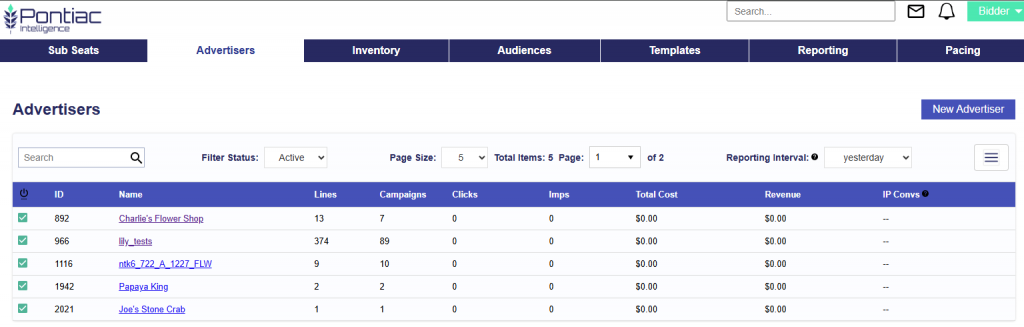
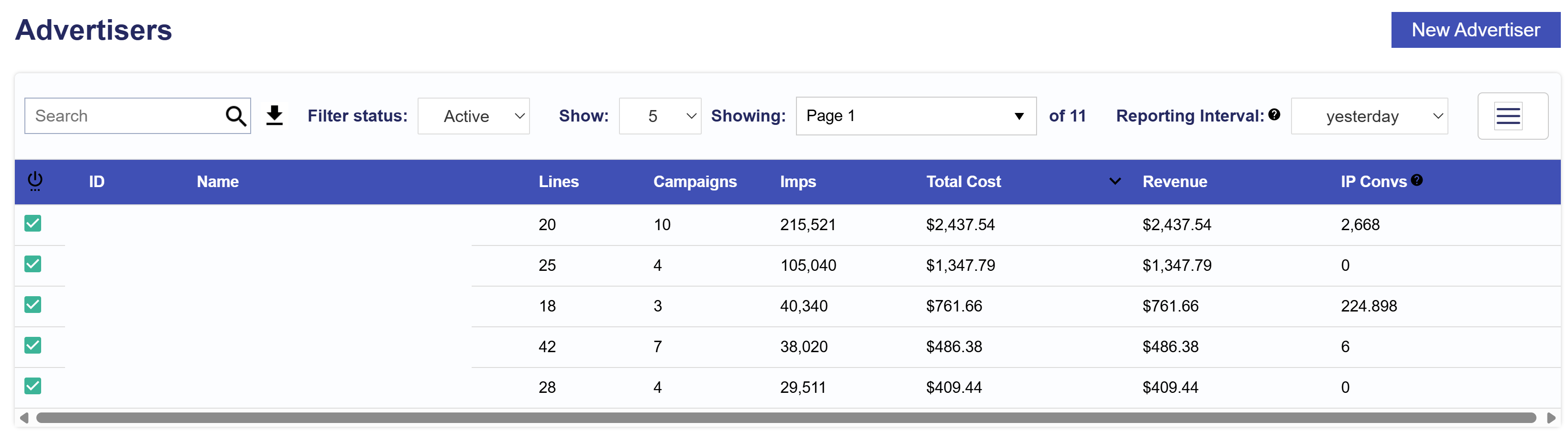
By default, the Advertiser tab displays a list of all Active Advertisers, ordered by Advertiser ID. Users can customize their view using the following filers:
Filter Status: Display All, Active, or Inactive Advertisers.
Page Size: Select how many advertisers to display per page, from 5 to 500.
Total Items: Shows the number of advertisers currently displayed on the page.
Page: Shows the current page number and the total number of available pages.
Reporting Interval: Set to Yesterday by default and affects the metrics shown in the table. Users can select different time ranges, including Today, Yesterday, 7 Days, 30 Days, or Lifetime.
All intervals with the exception of yesterday include metrics from today. Today’s metrics update hourly and have a 3 hour delay.
To change the sorting order of the Advertiser list, users can click on any column heading. Clicking once sorts in ascending order, while clicking twice sorts in descending order. This functionality applies to all column headers. For example, to sort Advertisers by number of Lines in descending order, users should click the Lines column heading twice.
Advertiser Level Metrics
Under the Advertiser tab you will see a list of all of the Active Advertisers in your seat with their associated quick metrics. Metrics are displayed in seat timezone. To see Inactive Advertisers filter status to All or Inactive. These metrics are updated hourly, with a 3 hour delay, except for the IP Convs, which are updated once a day for the previous day.
Choose your Reporting Interval and evaluate the following metrics at a glance:
Lines: The number of Lines associated to the Advertiser.
Campaigns: The number of Campaigns associated to the Advertiser.
Imps: The number of impressions served under this Advertiser during the selected Reporting Interval.
Total Cost: The total dollar amount this Advertiser has spent across all Campaigns and Lines during the selected Reporting Interval.
Revenue: The total dollar amount this Advertiser has generated across all Campaigns and Lines during the selected Reporting Interval.
IP Convs: The number of conversions registered by the IP Conversion Pixel across all Campaigns and Lines during the selected Reporting Interval. Note that IP Conversion data is not available for the ‘Today’ interval. This metric is updated once a day for the previous day.
Advertiser Setup Tab
Overview
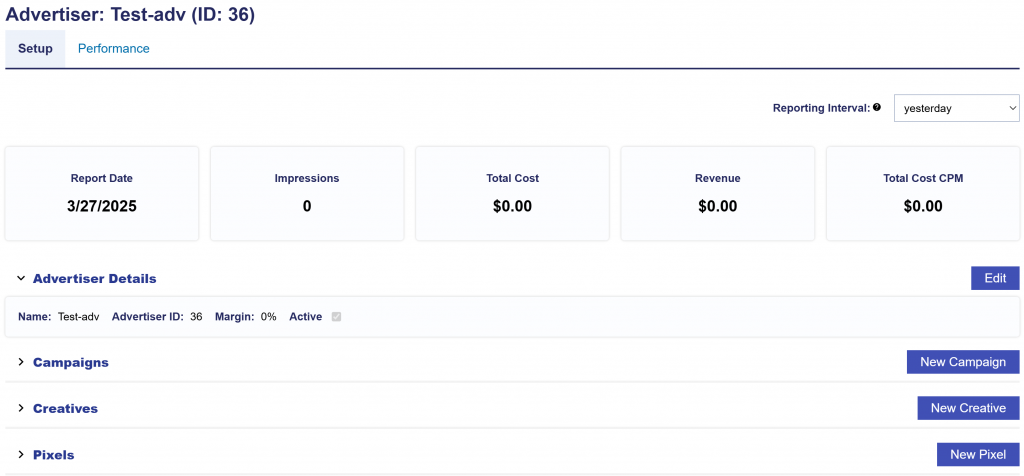
The Advertiser Setup tab provides a centralized view of everything associated with an Advertiser. From this page, users can review advertiser-level settings and performance, manage Campaigns and Creatives, create and monitor Pixels, and access reporting metrics across each section.
Users can also create new Campaigns, Creatives, and Pixels directly from the Advertiser, edit existing configurations, activate or deactivate Campaigns and Creatives, and use reporting intervals, filters, searches, and customizable table columns to review performance and manage setup from one place.
Advertiser Tiles
After selecting an Advertiser, users can adjust the Reporting Interval to update the summary metrics displayed at the top of the page. Select from today, yesterday, 7 days, 30 days, month to date, last month, lifetime, or input a custom range.
The following metrics are available:
Report Date
Impressions
Total Cost
Revenue
Total Cost CPM
Advertiser Details
Users can view the following Advertiser settings:
Name
Active Status
Advertiser Margin
Advertiser URL: The URL of the Advertiser’s website. The Google Privacy Sandbox will track visits to this URL if the pixel is implemented on the site. The URL must be secure (https://).
Political Content:
No, I am not running ads related to any elections, ballot initiatives, or political candidates in the United States.
Yes, I am running ads related to an election, ballot initiative, or political candidate in the United States.
Advertiser Edit Button
Users are brought into edit mode and can change the following Advertiser settings:
Name
Active Status
Advertiser Margin
Advertiser URL: The URL of the Advertiser’s website. The Google Privacy Sandbox will track visits to this URL if the pixel is implemented on the site. The URL must be secure (https://).
Political Content:
No, I am not running ads related to any elections, ballot initiatives, or political candidates in the United States.
Yes, I am running ads related to an election, ballot initiative, or political candidate in the United States.
Campaigns
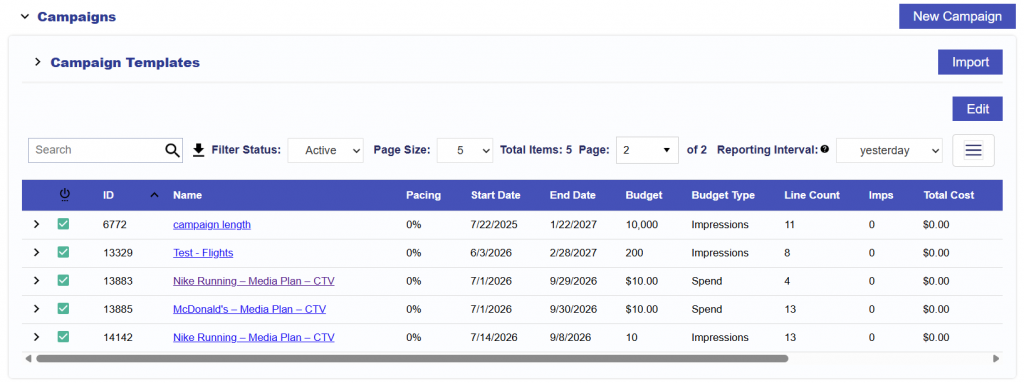
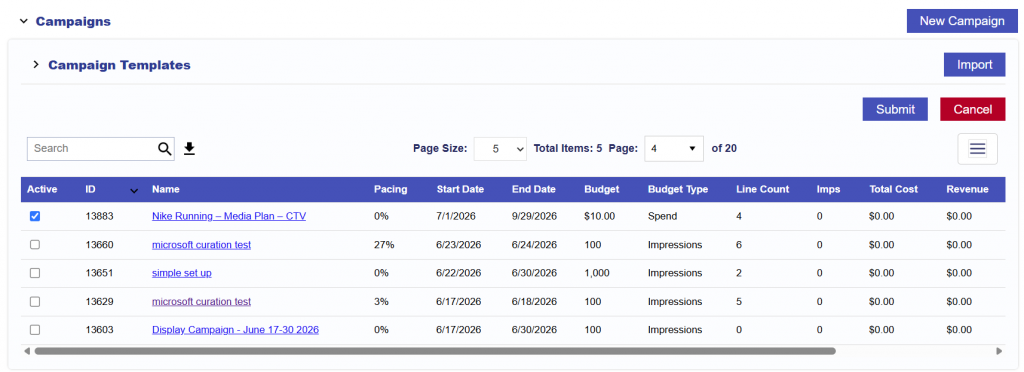
The Campaigns section allows users to create, import, view, and manage campaigns associated with the Advertiser.
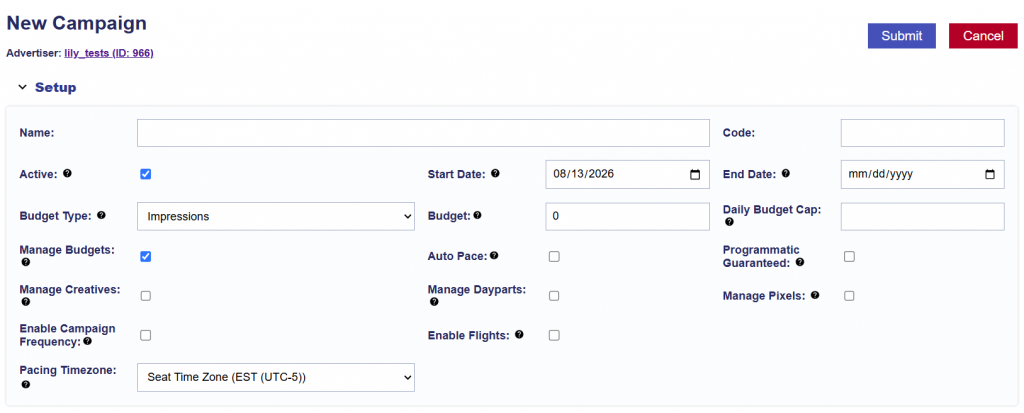
New Campaign
Select New Campaign to create a campaign from scratch.
Campaign Templates
Saved Campaign Templates are displayed here and can be used to create a new campaign using previously configured settings. Select the desired template to begin campaign creation.
The Campaigns table allows users to search, filter, download, and customize campaign information and performance metrics.
Use the Search bar to find campaigns by keyword or ID. Select the Download button to export the table as a CSV.
Filter Status: Toggle between Active, Inactive, and All Campaigns.
Page Size: Adjust the number of campaign rows displayed on each page.
Total Items: Displays the total number of campaigns included in the current view.
Page: Displays the current page and total number of available pages.
Reporting Interval: Updates the performance metrics displayed in the table. All reporting intervals except Yesterday include data from the current day. Today’s metrics update hourly and are subject to an approximately three-hour reporting delay.
Columns: Select the three-line menu to choose which columns are displayed in the table and customize the view based on your needs.
Campaign Table Columns
The Campaigns table can include the following campaign settings and performance metrics:
Status: The current active or inactive status of the Campaign.
ID: The unique Pontiac Campaign ID.
Name: The Campaign name.
Pacing: Indicates how the Campaign is pacing against its expected budget delivery based on the Campaign’s dates and pacing settings.
Start Date: The Campaign start date.
End Date: The Campaign end date.
Budget: The Campaign’s configured budget.
Budget Type: Indicates whether the Campaign budget is based on spend or impressions.
Line Count: The number of Lines associated with the Campaign.
Clicks: The number of recorded clicks during the selected Reporting Interval.
CPC: Cost per Click, calculated using Total Cost divided by Clicks.
Imps: The number of confirmed impressions served during the selected Reporting Interval.
Total Cost: The total cost incurred during the selected Reporting Interval and includes all fees.
Revenue: The total cost plus advertiser margin generated during the selected Reporting Interval.
Total Cost CPM: Total Cost per 1,000 impressions.
IP Convs: The number of attributed IP-based conversions during the selected Reporting Interval.
CTR: Click-Through Rate, calculated as Clicks divided by Impressions.
Campaign Edit Button
Enter Edit mode and quickly activate or deactivate campaigns quickly using the status checkbox and then submitting the changes.
Creatives
The Creatives section allows users to upload new creatives and view, edit, and manage existing creatives associated with the Advertiser.
New Creative Button
Users can upload new first-party creative assets or add third-party creative tags to the Advertiser. Once created, creatives can be associated with Campaigns or Lines for delivery.
For more information on supported creative types, specifications, and the upload process, see the Creative Upload Process.
View and Manage Creatives
The Creatives table allows users to search, filter, download, and customize creative information and performance metrics.
Use the Search bar to find creatives by keyword or ID. Select the Download button to export the table as a CSV.
Filter Status: Toggle between Active, Inactive, and All Creatives.
Page Size: Adjust the number of creative rows displayed on each page.
Total Items: Displays the total number of creatives included in the current view.
Page: Displays the current page and total number of available pages.
Reporting Interval: Updates the performance metrics displayed in the table. All reporting intervals except Yesterday include data from the current day. Today’s metrics update hourly and are subject to an approximately three-hour reporting delay.
Columns: Select the three-line menu to choose which columns are displayed in the table and customize the view based on your needs.
Users can select an existing creative to view or edit its configuration.
Creative Table Columns
The Creatives table can include the following creative settings and performance metrics:
Status: The current active or inactive status of the Creative.
Audit Status: The Creative’s current audit or approval status.
ID: The unique Creative ID.
Name: The Creative name.
Creative Type: The format and hosting type of the Creative, such as hosted or third-party video, display, audio, or native.
Sizes: The creative dimensions associated with the Creative.
Weight: The Creative’s configured delivery weight when multiple creatives are eligible to serve.
Imps: The number of confirmed impressions served during the selected Reporting Interval.
Clicks: The number of recorded clicks during the selected Reporting Interval.
CPC: Cost per Click, calculated using Total Cost divided by Clicks.
Total Cost: The total media cost associated with the Creative during the selected Reporting Interval.
Revenue: The total advertiser revenue associated with the Creative during the selected Reporting Interval.
Flights Enabled: Indicates whether the Creative uses scheduled flights or is always available to serve.
CTR: Click-Through Rate, calculated as Clicks divided by Impressions.
Tag: The third-party creative tag associated with the Creative, when applicable.
Only available when the table is downloaded.
Pixels
The Pixels section allows users to create new pixels and view and manage existing pixels associated with the Advertiser. Pixels are used to track site activity and conversions and can support campaign optimization, measurement, attribution, and audience creation.
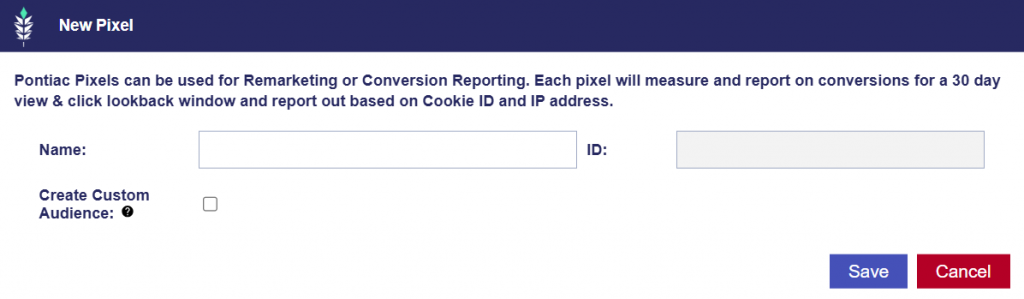
New Pixel
Select New Pixel to create a new pixel for the Advertiser. Pixels can be used to track actions on the Advertiser’s site, measure campaign performance, attribute conversions, build audiences, and provide conversion data that can be used to optimize campaign delivery toward desired outcomes.
The Pixels table allows users to search, download, and review pixel information and performance metrics.
Use the Search bar to find pixels by keyword or ID. Select the Download button to export the table as a CSV.
Page Size: Adjust the number of pixel rows displayed on each page.
Total Items: Displays the total number of pixels included in the current view.
Page: Displays the current page and total number of available pages.
Reporting Interval: Updates the performance metrics displayed in the table. All reporting intervals except Yesterday include data from the current day. Today’s metrics update hourly and are subject to an approximately three-hour reporting delay.
Columns: Select the three-line menu to choose which columns are displayed in the table and customize the view based on your needs.
Users can select an existing pixel to view or edit its configuration.
Pixel Table Columns
The Pixels table can include the following pixel information and performance metrics:
ID: The unique Pixel ID.
Name: The Pixel name.
Attributed Imps: The number of impressions attributed to conversions recorded by the Pixel during the selected Reporting Interval.
Total Convs: The total number of conversions recorded by the Pixel during the selected Reporting Interval.
Total Loads: The total number of times the Pixel loaded during the selected Reporting Interval.
Uniques: The number of unique users or devices recorded by the Pixel during the selected Reporting Interval.
Advertiser Performance Tab
Overview
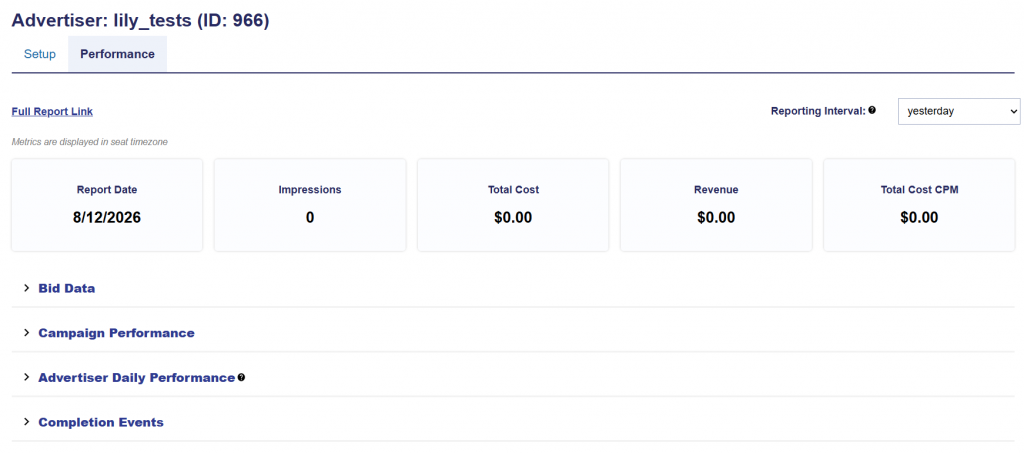
Switching to the Advertiser Performance tab, you can filter the Reporting Interval to adjust the top tiles section. Note that all intervals with the exception of yesterday, include metrics from today. Today’s metrics update hourly and have a 3 hour delay. The metrics include:
Report Date: Shows the selected report date or date range.
Impressions: The total number of impressions Advertiser served within the selected reporting interval.
Total Cost: The total Advertiser spend, including media costs and any applicable fees.
Revenue: The total Advertiser cost plus any additional advertiser margin.
Total Cost CPM: The total cost per thousand impressions for the Advertiser, calculated as (Total Cost / Impressions) x 1,000.
This tab provides dropdown insights into Bid Data, Campaign Performance, Advertiser Daily Performance, and Completion Events. See the sections below for more details on each.
Advertiser Tiles
After selecting an Advertiser, users can adjust the Reporting Interval to update the summary metrics displayed at the top of the page. Select from today, yesterday, 7 days, 30 days, month to date, last month, lifetime, or input a custom range.
The following metrics are available:
Report Date
Impressions
Total Cost
Revenue
Total Cost CPM
Full Report Link
The Full Report link opens the Reporting > Standard Reporting section and automatically populates the report with the Advertiser you are currently viewing. This allows users to quickly access more detailed reporting for that Advertiser without manually selecting it again.
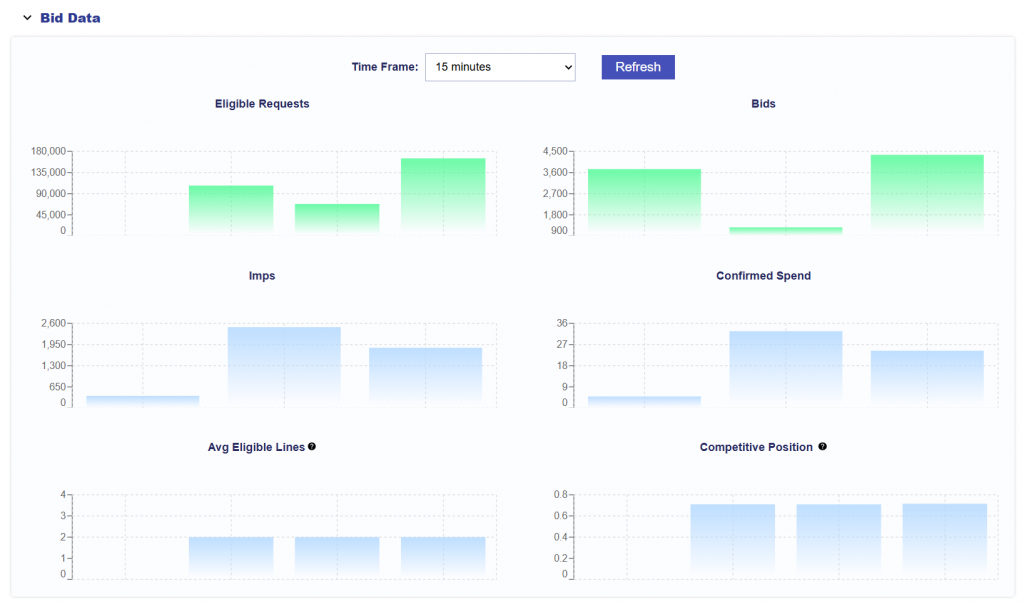
Bid metrics are displayed on the Advertiser, Campaign, and Line details pages to provide insight into the bid funnel, real-time delivery, and potential issues that may be affecting delivery.
Time Frame: Select a time frame such as 15 minutes, 1 hour, 12 hours, or 1 day. Data is displayed in 5-minute intervals.
Eligible Requests: Bid requests that meet the targeting criteria for the Line or Campaign, including settings such as deals, geo targeting, inventory targeting, audiences, and other targeting restrictions. If there are no eligible requests, the selected targeting criteria may be too restrictive or there may be no available inventory matching all criteria. See the Blockers graph and Troubleshooting delivery section below for more information.
Bids: Bids placed on eligible requests. If a Line or Campaign has eligible requests but is not bidding, additional requirements or settings may be preventing bids from being placed. See the Troubleshooting delivery section below for more information.
Imps: Confirmed impressions served by the Line or Campaign after winning an auction.
Confirmed Spend:Confirmed spend generated by impressions served during the selected time frame.
Avg Eligible Lines: Shows how many lines on average across the platform compete for impressions available to this line. Higher numbers indicate a lot of compeition of eligible inventory.
Competitive Position: Shows how competitive is this line in the platform. Higher numbers near 1 means that this line’s bid price is very competitive.
Bid/Imp Ratios
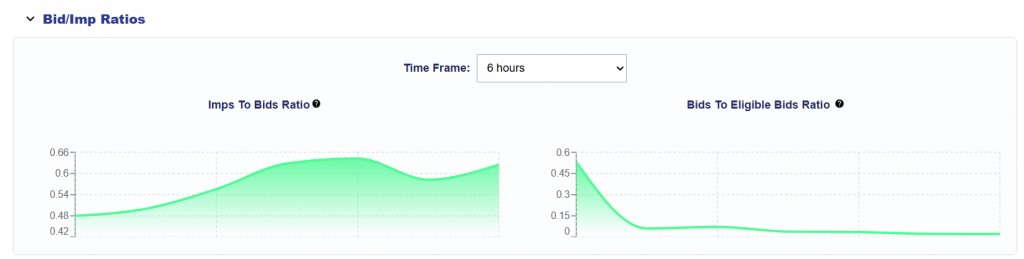
Below the Bid Data section there is the Bid/Imp Ratios data.
Time Frame: Select different time options such as 6 hours, 12 hours, 24 hours, and 48 hours.
Imps to Bids Ratio: The ratio of impressions delivered to the number of bids placed. This provides insight into how frequently submitted bids result in won impressions.
A higher ratio indicates that a larger share of bids are winning and converting into impressions.
A lower ratio indicates that many bids are being submitted without winning, which may point to factors such as an uncompetitive bid price, auction competition, or deal/inventory conditions.
Bids to Eligible Bids Ratio: The ratio of bid requests seen which match targeting to the number of bids placed. This provides insight into how frequently the platform bids after a request passes targeting eligibility.
A higher ratio indicates that the platform is bidding on a larger share of eligible requests.
A lower ratio indicates that requests are passing targeting eligibility but are frequently being filtered out before a bid is placed. This may point to additional serving requirements such as budget or pacing constraints, creative eligibility, frequency caps, bid requirements, or other bidder-level restrictions. If delivery is being limited by pacing or budget allocation, increasing the Budget Multiplier or enabling Catch Up ASAP may help increase bid volume.
Campaign Performance
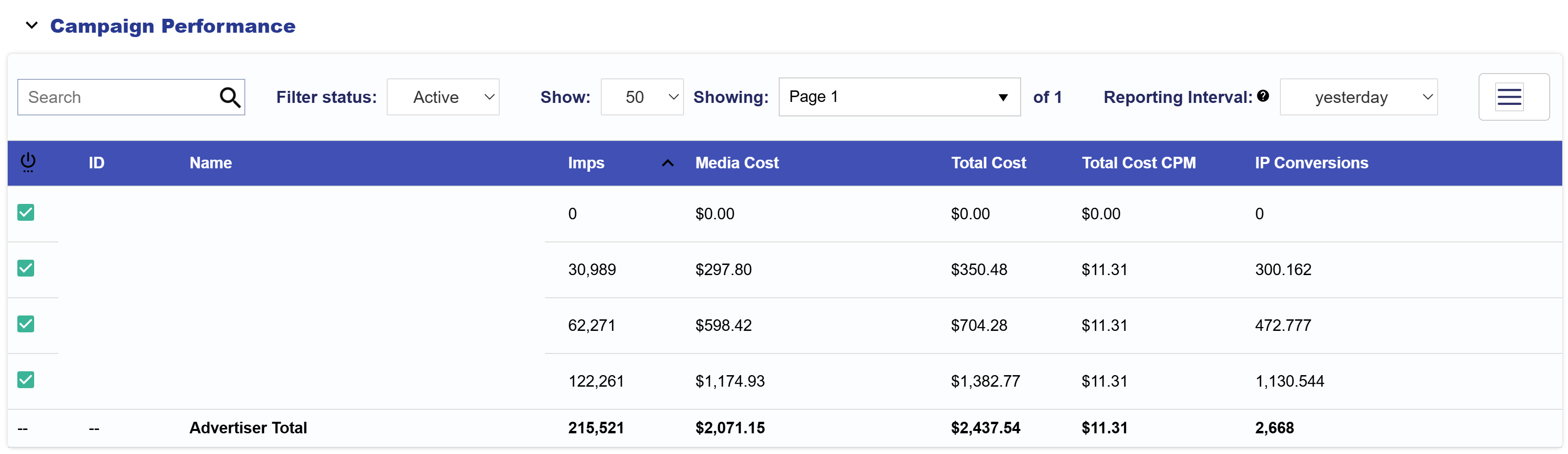
The Campaign Performance section provides a campaign-level view of delivery, performance, costs, conversions, and fees for the Advertiser. Use the Reporting Interval to adjust the time period reflected in the table.
Use the Search bar to find campaigns by keyword or ID. Select the Download button to export the table as a CSV.
Filter Status: Toggle between Active, Inactive, and All Campaigns.
Page Size: Adjust the number of campaign rows displayed on each page.
Total Items: Displays the total number of campaigns included in the current view.
Page: Displays the current page and total number of available pages.
Reporting Interval: Updates the performance metrics displayed in the table. All reporting intervals except Yesterday include data from the current day. Today’s metrics update hourly and are subject to an approximately three-hour reporting delay.
Columns: Select the three-line menu to choose which columns are displayed in the table and customize the view based on your needs.
Campaign Performance Table Columns
The Campaign Performance table can include the following campaign information and performance metrics:
Status: The current active or inactive status of the Campaign.
ID: The unique Pontiac Campaign ID.
Name: The Campaign name.
Imps: The number of confirmed impressions served during the selected Reporting Interval.
Media Cost: The cost of media purchased during the selected Reporting Interval, excluding additional fees.
Total Cost: The total cost incurred during the selected Reporting Interval, including applicable fees.
Total Cost CPM: Total Cost per 1,000 impressions.
IP Conversions: The number of conversions attributed using IP-based attribution during the selected Reporting Interval.
Chrome Convs: The number of Chrome-attributed conversions recorded during the selected Reporting Interval.
Clicks: The number of recorded clicks during the selected Reporting Interval.
CTR: Click-Through Rate, calculated as Clicks divided by Impressions.
CPC: Cost per Click, calculated using Total Cost divided by Clicks.
Transparency Score: The Campaign’s transparency score for the selected Reporting Interval.
Foot Traffic ‘Attributed Visitors’: The number of visitors attributed to campaign exposure through Foot Traffic measurement.
Revenue: The Total Cost plus Advertiser Margin generated during the selected Reporting Interval.
Media Cost CPM: Media Cost per 1,000 impressions.
Data Cost: Costs associated with data used for campaign targeting.
Foot Traffic Cost: Costs associated with Foot Traffic measurement.
Credit Card Fee: Credit card processing fees associated with campaign spend, when applicable.
Hosting Fee: Costs associated with creative hosting, when applicable.
ART Fee: Costs associated with ART audience usage, when applicable.
Contextual Fee: Costs associated with contextual targeting, when applicable.
Chalice Fee: Costs associated with Chalice optimization, when applicable.
VCR: Video Completion Rate, representing the percentage of video impressions that were viewed to completion.
Advertiser Daily Performance
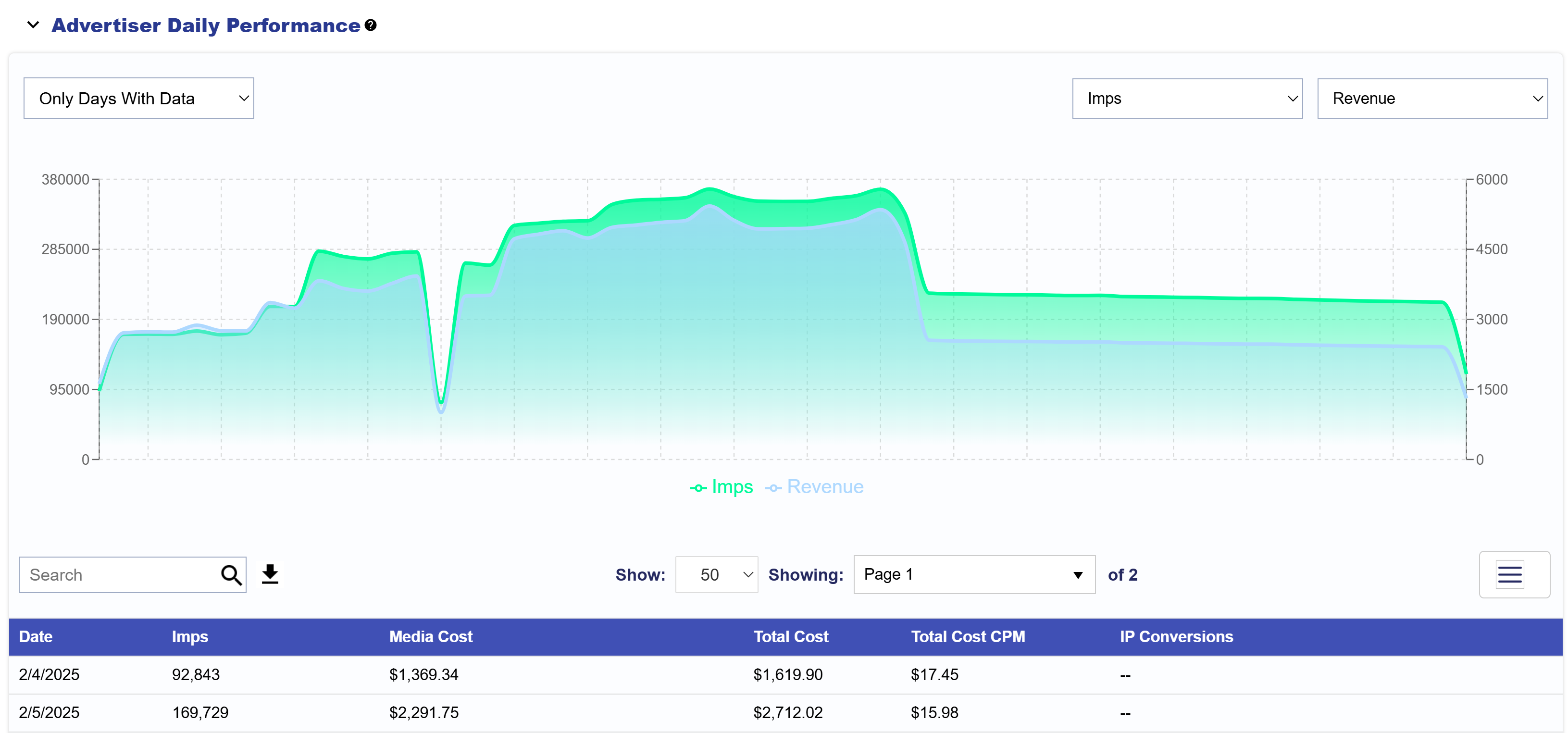
The Advertiser Daily Performance section provides a day-by-day view of the Advertiser’s delivery, performance, costs, conversions, and fees. Expand the section to view both the Daily Performance Chart and Daily Performance Table.
Daily Performance Chart
The chart allows users to compare two selected performance metrics over time to identify trends and changes in Advertiser performance.
Use the metric dropdowns in the upper-right corner of the chart to select the two metrics you want to compare.
The chart can also be filtered by:
Only Days with Data: Displays only dates where performance data was recorded.
All Days: Displays all dates within the selected Reporting Interval, including dates with no recorded activity.
Daily Performance Table
The Daily Performance table provides the same Advertiser performance data broken out by individual day.
Select the Download button to export the table as a CSV.
Page Size: Adjust the number of daily performance rows displayed on each page.
Total Items: Displays the total number of dates included in the current view.
Page: Displays the current page and total number of available pages.
Columns: Select the three-line menu to choose which columns are displayed in the table and customize the view based on your needs.
Daily Performance Table Columns
The Advertiser Daily Performance table can include the following daily performance metrics:
Date: The date associated with the performance metrics.
Imps: The number of confirmed impressions served on that date.
Media Cost: The cost of media purchased on that date, excluding additional fees.
Total Cost: The total cost incurred on that date, including applicable fees.
Total Cost CPM: Total Cost per 1,000 impressions.
IP Conversions: The number of conversions attributed using IP-based attribution.
Chrome Convs: The number of Chrome-attributed conversions recorded.
Clicks: The number of recorded clicks.
CTR: Click-Through Rate, calculated as Clicks divided by Impressions.
CPC: Cost per Click, calculated using Total Cost divided by Clicks.
Transparency Score: The Advertiser’s transparency score for that date.
Foot Traffic ‘Attributed Visitors’: The number of visitors attributed to advertising exposure through Foot Traffic measurement.
Revenue: The Total Cost plus Advertiser Margin generated on that date.
Media Cost CPM: Media Cost per 1,000 impressions.
Data Cost: Costs associated with data used for campaign targeting.
Foot Traffic Cost: Costs associated with Foot Traffic measurement.
Credit Card Fee: Credit card processing fees associated with spend, when applicable.
Hosting Fee: Costs associated with creative hosting, when applicable.
Art Fee: Costs associated with ART audience usage, when applicable.
Contextual Fee: Costs associated with contextual targeting, when applicable.
Chalice Fee: Costs associated with Chalice optimization, when applicable.
Completion Events
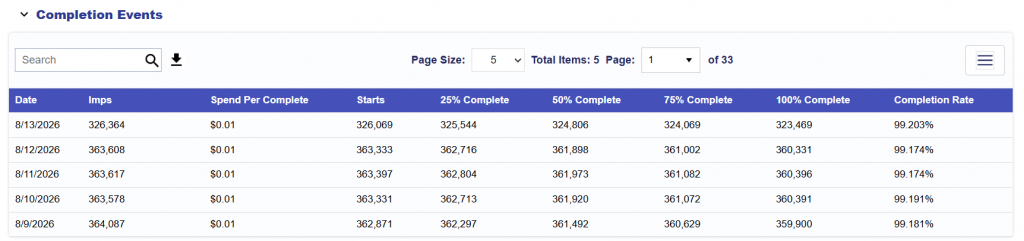
The Completion Events dropdown section provides detailed completion performance for video and audio campaigns with creatives that have a duration. The table shows how users progress through the creative, from the start through completion, and can be used to evaluate engagement and completion efficiency.
Select the Download button to export the table as a CSV.
Page Size: Adjust the number of rows displayed on each page.
Total Items: Displays the total number of rows included in the current view.
Page: Displays the current page and total number of available pages.
Columns: Select the three-line menu to choose which columns are displayed in the table and customize the view based on your needs.
Completion Events Table Columns
Date: The date associated with the completion event metrics.
Imps: The number of confirmed impressions served.
Spend Per Complete: The average spend for each completed creative.
Starts: The number of times the creative began playing.
25% Complete: The number of plays that reached 25% of the creative duration.
50% Complete: The number of plays that reached 50% of the creative duration.
75% Complete: The number of plays that reached 75% of the creative duration.
100% Complete: The number of plays that reached the end of the creative.
Completion Rate: The percentage of started plays that reached 100% completion.