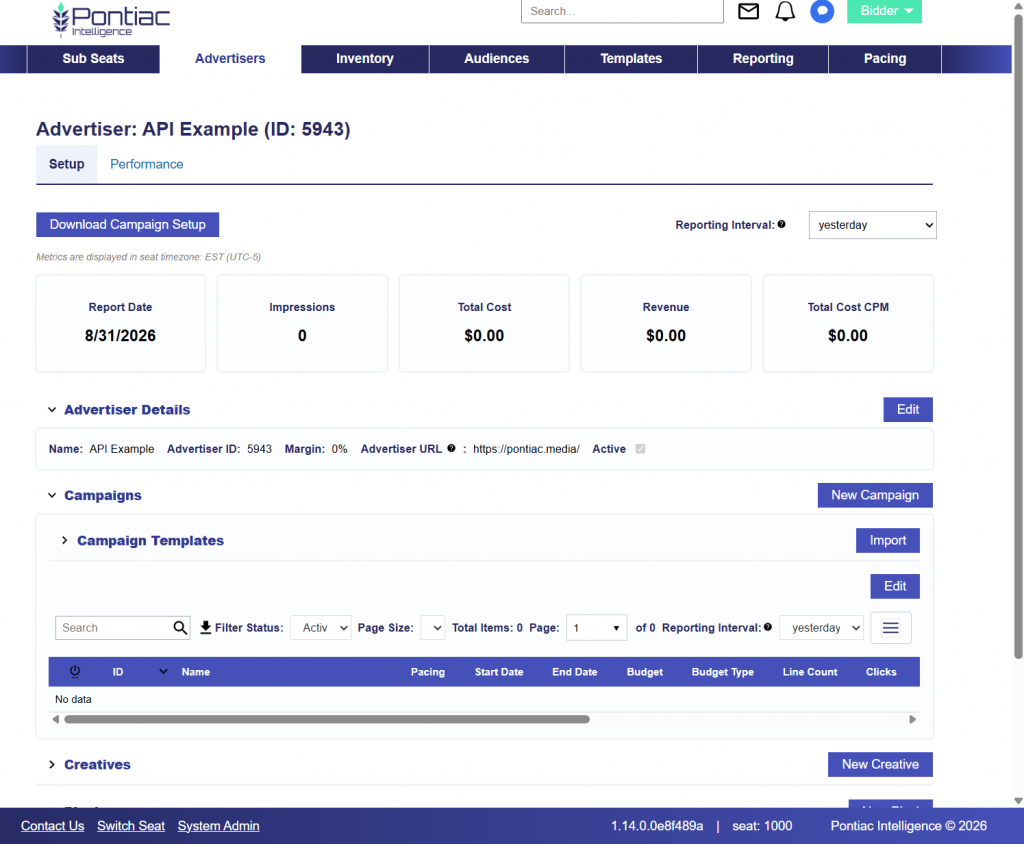
Creating a New Advertiser
Advertisers are the top level of the campaign hierarchy. Each advertiser represents a brand or company and can contain multiple campaigns.
Create an Advertiser under the current seat using: POST /rtb/advertisers
Required fields:
name: Advertiser/brand display name (must be unique within seat)
status: ‘active’ (1) or ‘inactive’ (0)
margin: Margin percentage (0.0 to 0.8, representing 0-80%)
politicalContentEnabled: Whether to allow political ads (true/false)
url: Brand website URL (must start with https://)
Request
curl -X POST "https://api.pontiac.media/rtb/advertisers" \
  -H "auth: YOUR_AUTH_TOKEN" \
  -H "Content-Type: application/json" \
  -d '{
    "name": "API Example",
    "status": 1,
    "margin": 0,
    "politicalContentEnabled": 0,
    "url": "https://pontiac.media/"
}'
Response
The response returns the newly created Advertiser, including its Bidder Advertiser ID.
For example:
{
  "timestamp": "2026-09-01 16:18:19",
  "response": {
    "id": 5943,
    "name": "API Example",
    "seatId": 1000,
    "status": 1,
    "margin": 0,
    "politicalContentEnabled": 0,
    "url": "https://pontiac.media/"
  },
  "accountStatus": 1,
  "seatId": 1000
}
Save the Advertiser ID. It will be required when creating the Creative, Pixel, and Campaign.
In this example:
Advertiser ID: 5943
Pontiac Bidder UI Validation